```
The API uses HTTPS and JSON. Eniris also provides client packages for [Python](https://pypi.org/project/eniris/) and npm that implement the authentication flow and simplify communication with the API.
## How the API is organised
- **Users and access:** users receive permissions through roles. Member, manages and monitors relations determine role membership, role hierarchy and access to devices.
- **Devices and companies:** discover the assets and organisations that the authenticated user may access, or create and update them when the token has the required permissions.
- **Telemetry:** query time-series measurements for one or more devices, fields and retention policies.
- **Licences:** claim, activate and inspect controller licences where applicable.
## Typical integration flow
1. Sign in to the Authentication API with your SmartgridX or Eniris app credentials and obtain an access token.
2. Retrieve the user's companies and roles, then query the devices available through those roles.
3. Select the required measurement fields and retention policy from the reference below.
4. Send a telemetry query and process the returned time-series data.
For the current request schemas, response models and interactive endpoint explorer, use the [official Eniris API reference](https://api.eniris.be/docs/). Prefer the newer `POST .../query` endpoints where the reference marks an older `GET` endpoint as replaced.
> API access is intended for integrations and data export and may be subject to commercial fees. [Request API access or pricing information](https://eniris.io/api_request/).
## Measurement field reference
The following table lists the available fields for which data can be retrieved via the Eniris Metadata & Telemetry Query API.
Data for a specific field is only available for the specified measurements and retention policies.
## Power related fields
| Field name | Description | Unit Of Measurement | Measurement | Retention Policy |
| ---------- | ----------- | ------------------- | ----------- | ---------------- |
| actualPowerTot_W | Total active power at the current time. | Watt (W) | - submeteringMetrics
- batteryMetrics
- hybridInverterMetrics
⚠️ For the previous measurements:
**Positive values** indicate charging, consumption or import.
**Negative values** indicate discharging or export.
- solarInverterMetrics
- solarInstallationMetrics
- solarOptimizerMetrics
- solarStringMetrics
⚠️ For these measurements the values indicate production.
- gridMetrics
- evChargerMetrics
- heatPumpMetrics
- boilerMetrics
- switchedLoadMetrics
- installationMetrics
⚠️ For these measurements values indicate consumption.
| |
| childrenStoragePower_W | Total real-time charging or discharging power of all connected batteries at a particular site. | Watt (W) | submeteringMetrics | |
| childrenProducedPower_W | Total real-time power production of all connected power producing devices at a particular site. | Watt (W) | submeteringMetrics | |
| childrenEVPower_W | Total real-time power consumption of all connected EV chargers at a particular site. | Watt (W) | submeteringMetrics | |
| childrenConsumedPower_W | Total real-time power demand of all connected energy consuming devices at a particular site. | Watt (W) | submeteringMetrics | rp_one_m |
| childrenOtherPower_W | Total real-time power consumption of devices that aren't EV chargers or heatpumps at a particular site. | Watt (W) | submeteringMetrics | |
## Energy related fields
| Field name | Description | Unit Of Measurement | Measurement | Retention Policy |
| ---------- | ----------- | ------------------- | ----------- | ---------------- |
| importedAbsEnergyTot_Wh | Total imported energy | Watt-hour (Wh) | - hybridInverterMetrics
- submeteringMetrics
| |
| exportedAbsEnergyTot_Wh | Total exported energy | Watt-hour (Wh) | - hybridInverterMetrics
- submeteringMetrics
| |
| producedAbsEnergyTot_Wh | Total produced energy | Watt-hour (Wh) | - solarInverterMetrics
- solarOptimizerMetrics
- hybridInverterMetrics
- installationMetrics
- solarStringMetrics
| |
| consumedAbsEnergyTot_Wh | Total consumed energy | Watt-hour (Wh) | - solarInverterMetrics
- evChargerMetrics
- heatPumpMetrics
- switchedLoadMetrics
- hybridInverterMetrics
| |
| chargedAbsEnergyTot_Wh | Total charged energy | Watt-hour (Wh) | - evChargerMetrics
- hybridInverterMetrics
- batteryMetrics
| |
| dischargedAbsEnergyTot_Wh | Total discharged energy | Watt-hour (Wh) | - evChargerMetrics
- hybridInverterMetrics
- batteryMetrics
| |
| importedEnergyDeltaTot_Wh | Imported energy delta between two points in time | Watt-hour (Wh) | - hybridInverterMetrics
- submeteringMetrics
| |
| exportedEnergyDeltaTot_Wh | Exported energy delta between two points in time | Watt-hour (Wh) | - hybridInverterMetrics
- submeteringMetrics
| |
| childrenStorageChargedEnergyDeltaTot_Wh | Total charged energy delta between two points in time of all connected batteries at a particular site. | Watt-hour (Wh) | submeteringMetrics | |
| childrenStorageDischargedEnergyDeltaTot_Wh | Total discharged energy delta between two points in time of all connected batteries at a particular site. | Watt-hour (Wh) | submeteringMetrics | |
| producedEnergyDeltaTot_Wh | Total produced energy delta between two points in time | Watt-hour (Wh) | - solarInverterMetrics
- solarInstallationMetrics
- solarOptimizerMetrics
- hybridInverterMetrics
- installationMetrics
- solarStringMetrics
- submeteringMetrics (only rp_one_m)
| |
| chargedEnergyDeltaTot_Wh | Charged energy delta between two points in time | Watt-hour (Wh) | - evChargerMetrics
- hybridInverterMetrics (only rp_one_m)
- batteryMetrics
| |
| dischargedEnergyDeltaTot_Wh | Discharged energy delta between two points in time | Watt-hour (Wh) | - evChargerMetrics
- hybridInverterMetrics (only rp_one_m)
- batteryMetrics
| |
## Planning related fields
| Field name | Description | Unit Of Measurement | Measurement | Retention Policy |
| ---------- | ----------- | ------------------- | ----------- | ---------------- |
| powerSetpoint_W | Command power setpoint | Watt (W) | planning | |
| policy | Command Policy | - | planning | |
| constraint_ph0_label | Constraint Label | - | planning | |
| reactivePowerSetpoint_VAr | Reactive Power Setpoint | Volt-Ampere reactive (VAr) | planning | |
## Other fields
| Field name | Description | Unit Of Measurement | Measurement | Retention Policy |
| ---------- | ----------- | ------------------- | ----------- | ---------------- |
| currentL1_A | Phase 1 (Line 1) current | Ampere (A) | - evChargerMetrics
- heatPumpMetrics
- boilerMetrics
- switchedLoadMetrics
- solarInverterMetrics
- solarOptimizerMetrics
- hybridInverterMetrics
- submeteringMetrics
- batteryMetrics
| |
| currentL2_A | Phase 2 (Line 2) current | Ampere (A) | - evChargerMetrics
- heatPumpMetrics
- boilerMetrics
- solarInverterMetrics
- solarOptimizerMetrics
- hybridInverterMetrics
- installationMetrics (only rp_one_m)
- submeteringMetrics
- batteryMetrics
| |
| currentL3_A | Phase 3 (Line 3) current | Ampere (A) | - evChargerMetrics
- heatPumpMetrics
- boilerMetrics
- solarInverterMetrics
- solarOptimizerMetrics
- hybridInverterMetrics
- installationMetrics (only rp_one_m)
- submeteringMetrics
- batteryMetrics
| |
| currentN_A | Neutral current | Ampere (A) | - evChargerMetrics
- hybridInverterMetrics
- submeteringMetrics
| rp_one_m |
| voltageL1N_V | Phase 1 to Neutral voltage (Phase Voltage) | Volt (V) | - evChargerMetrics
- heatPumpMetrics (only rp_one_m)
- boilerMetrics (only rp_one_m or rp_ten_m)
- switchedLoadMetrics (only rp_one_m or rp_ten_m)
- solarInverterMetrics
- solarOptimizerMetrics (only rp_one_m or rp_ten_m)
- hybridInverterMetrics (only rp_one_m or rp_ten_m)
- submeteringMetrics (only rp_one_m or rp_ten_m)
- batteryMetrics (only rp_one_m or rp_ten_m)
| |
| voltageL2N_V | Phase 2 to Neutral voltage (Phase Voltage) | Volt (V) | - evChargerMetrics
- boilerMetrics (only rp_one_m or rp_ten_m)
- solarInverterMetrics (only rp_one_m or rp_ten_m)
- solarOptimizerMetrics (only rp_one_m or rp_ten_m)
- hybridInverterMetrics (only rp_one_m or rp_ten_m)
- submeteringMetrics (only rp_one_m or rp_ten_m)
- batteryMetrics (only rp_one_m or rp_ten_m)
| |
| voltageL3N_V | Phase 3 to Neutral voltage (Phase Voltage) | Volt (V) | - evChargerMetrics
- boilerMetrics (only rp_one_m or rp_ten_m)
- solarInverterMetrics (only rp_one_m or rp_ten_m)
- solarOptimizerMetrics (only rp_one_m or rp_ten_m)
- hybridInverterMetrics (only rp_one_m or rp_ten_m)
- submeteringMetrics (only rp_one_m or rp_ten_m)
- batteryMetrics (only rp_one_m or rp_ten_m)
| |
| voltageL1L2_V | Line-to-Line voltage between Phase 1 and Phase 2 | Volt (V) | - evChargerMetrics
- solarInverterMetrics
- solarOptimizerMetrics (only rp_one_m)
- hybridInverterMetrics
- submeteringMetrics
- batteryMetrics
| |
| voltageL2L3_V | Line-to-Line voltage between Phase 2 and Phase 3 | Volt (V) | - evChargerMetrics
- solarInverterMetrics
- solarOptimizerMetrics (only rp_one_m)
- hybridInverterMetrics
- submeteringMetrics
- batteryMetrics
| |
| voltageL3L1_V | Line-to-Line voltage between Phase 3 and Phase 1 | Volt (V) | - evChargerMetrics
- solarInverterMetrics
- solarOptimizerMetrics (only rp_one_m)
- hybridInverterMetrics
- submeteringMetrics
- batteryMetrics
| |
| frequency_Hz | System frequency | Hertz (Hz) | - evChargerMetrics
- boilerMetrics
- switchedLoadMetrics
- solarInverterMetrics
- hybridInverterMetrics
- submeteringMetrics
| |
| powerFactorTot | Total power factor | - | - evChargerMetrics
- solarInverterMetrics
- hybridInverterMetrics
- submeteringMetrics
| |
| powerFactorL1 | Phase 1 power factor | - | - hybridInverterMetrics
- submeteringMetrics
| rp_one_m |
| powerFactorL2 | Phase 2 power factor | - | - hybridInverterMetrics
- submeteringMetrics
| rp_one_m |
| powerFactorL3 | Phase 3 power factor | - | - hybridInverterMetrics
- submeteringMetrics
| rp_one_m |
| voltageDC_V | DC voltage | Volt (V) | - evChargerMetrics
- solarInverterMetrics
- solarOptimizerMetrics
- hybridInverterMetrics
- solarStringMetrics
- batteryMetrics
| |
| currentDC_A | DC current | Ampere (A) | - evChargerMetrics
- solarInverterMetrics
- solarOptimizerMetrics
- hybridInverterMetrics
- solarStringMetrics
- batteryMetrics
| |
| status | Device status (e.g. On, Off, Error) | - | - evChargerMetrics
- heatPumpMetrics
- boilerMetrics
- solarInverterMetrics (only rp_one_m)
- hybridInverterMetrics
- installationMetrics (only rp_one_m)
| |
| operationMode | Device operation mode | - | - evChargerMetrics (only rp_one_m and rp_ten_m)
- heatPumpMetrics
- boilerMetrics
- switchedLoadMetrics
- solarInverterMetrics
- solarOptimizerMetrics
- hybridInverterMetrics
- batteryMetrics
| |
| stateOfCharge_frac | State of Charge (SoC) | fraction (number between 0 and 1) | - evChargerMetrics
- hybridInverterMetrics
- batteryMetrics
| |
| stateOfHealth_frac | State of Health (SoH) | fraction (number between 0 and 1) | batteryMetrics | rp_one_m |
| childrenStorageStateOfCharge_frac | Average State of Charge (SoC) of all connected batteries at a particular site. | fraction (number between 0 and 1) | submeteringMetrics | |
| batteryCurrent_A | Real-time current to/from the battery | Ampere (A) | batteryMetrics | |
| batteryVoltage_V | Real-time voltage of the battery | Volt (V) | batteryMetrics | |
| evRequiringCharge | Indicates whether an EV is connected and requires a charge | True or False | evChargerMetrics | |
| setpoint_W | External signal power setpoint | Watt (W) | externalSignalMetrics | |
| strategy | External signal strategy | - | externalSignalMetrics | |
| signalActive | Is an external signal active or not | 0 or 1 | externalSignalMetrics | |
| reacPowerSetpoint_VAr | Reactive power setpoint | Volt-Ampere reactive (VAr) | externalSignalMetrics | |
| importLimit_W | Import power limit command for a particular site. | Watt (W) | externalSignalMetrics | |
| exportLimit_W | Export power limit command for a particular site. | Watt (W) | externalSignalMetrics | |
# Data access and export
# Downloading data: CSV export and the Eniris API
Data from installations and devices linked to your Eniris account can be retrieved in two ways:
* manually as a CSV file from the portal;
* automatically through the Eniris API.
CSV export is free. The API can also be used free of charge within the limits of the Free API tier.
> [!IMPORTANT]
> If an installation already has an active SmartgridOne software license for control, asset monitoring for that installation is included. You do not need to purchase a separate Monitoring Residential or Monitoring Commercial license for the same installation.
## Which option should I use?
| Use case | Recommended option | Cost |
| ------------------------------------------ | ------------------ | ---: |
| One-time or occasional data export | CSV export | Free |
| Automated reporting or a small integration | API Free | Free |
| Regular or larger data queries | API Basic | Paid |
| High-volume integrations | API Premium | Paid |
## CSV export
Graph data in the SmartgridX portal can be downloaded as a CSV file. No API tier or separate export license is required.
1. Open the required installation or device in the portal.
2. Select the graph and time range you need.
3. Use the graph's CSV download option.
4. Open the downloaded file in Excel, Power BI, or another analysis tool.
You can only export data from installations and devices that your account is authorized to access. The relevant meter or device must also be correctly integrated and sending data to Eniris.
## Do I need a separate monitoring license?
### Installation with SmartgridOne control
An active SmartgridOne software license for control includes asset monitoring for the same installation. No separate monitoring license is required to:
* view the installation's devices and measurements in the portal;
* download graph data as CSV;
* query the available data through the Eniris API.
The API tier determines the available query capacity.
### Monitoring-only installation
A separate monitoring license is intended for an installation that is only monitored and does not have an active SmartgridOne control license. This can apply when Eniris is used solely for energy monitoring, reporting, or collecting meter data, without SmartgridOne controlling the installation.
> [!IMPORTANT] Start with authentication
> Obtain an access token through the [Eniris Authentication API](https://authentication.eniris.be/docs) before trying a data request. In the interactive API reference, click `Authorize` and enter that access token. Signing in to the documentation website does not authorize API requests.
## API access
The Eniris API is intended for automatically retrieving data for applications such as:
* custom dashboards;
* scheduled reports;
* energy management or billing software;
* automated analysis.
## API tiers
| Tier | Monthly price | Compute-time allowance per minute | Bucket capacity |
| ------- | ------------: | --------------------------------: | --------------: |
| Free | €0 | 100 compute-ms | 100 ms |
| Basic | €250 | 6,000 compute-ms | 6,000 ms |
| Premium | €1,500 | 60,000 compute-ms | 60,000 ms |
With optimized queries, the Free tier is suitable for approximately 2,000 data points per minute. Actual usage depends on the number of queries, selected time range, estimated number of data points, and query complexity.
See the [Eniris webshop](https://webshop.eniris.com/) for current prices and limits.
## Using the API efficiently
To stay within the available capacity:
* always specify a clear start and end time;
* request only the fields you need;
* set an appropriate result limit;
* bundle queries where possible—the API accepts up to 1,000 queries in one request;
* avoid repeatedly retrieving the same historical data;
* store data already retrieved in your own application when appropriate.
If your integration consistently exceeds the Free tier, select the Basic or Premium tier in the webshop.
## CSV or API?
Use CSV for occasional, manual analysis. Use the API when data must be transferred to another system automatically or at regular intervals.
You do not need an API tier to download CSV files. For limited automated use, the Free API tier may be sufficient.
## More information
* [Available API measurement fields](/API/api/)
* [Interactive Eniris API documentation](https://api.eniris.be/docs/)
* [SmartgridOne licenses](/Controller/license/)
* [Select an API tier in the Eniris webshop](https://webshop.eniris.com/)
* [External Monitoring API for live data forwarding](/Controller/External%20Signals/Monitoring/monitoring-api/)
# Advanced/dynamic contract
import { GithubAlert } from '@/components/GithubAlert';
import PdfLink from "@site/src/components/PdfLink";
# Advanced/dynamic contract
The advanced dynamic energy contract configurator is available for any location and currency. This configurator requires you to specify a **default rule** and a list of **extra rules**, where each extra rule has an associated timing. This allows for the configuration of energy contracts where prices are time-dependent (e.g., dual tariffs).
> 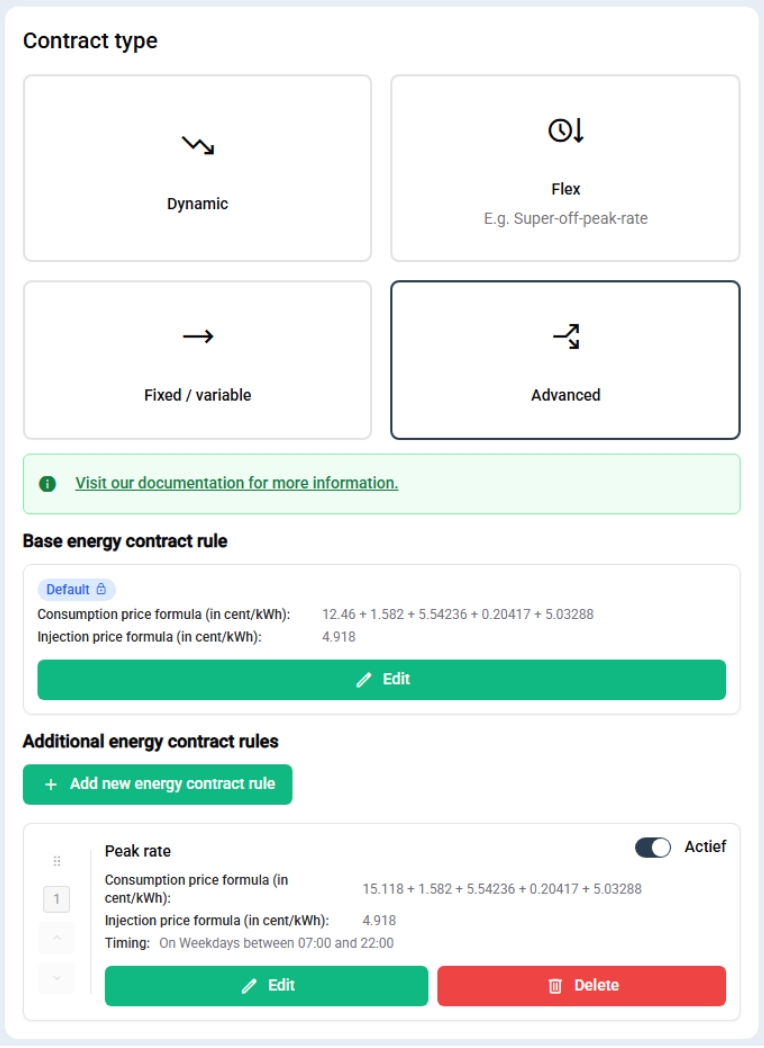
> **Figure:** Configuration of Engie Flow variable (BE) contract as of April 2026, for a dual-tariff digital meter located in the Fluvius Imewo network. Note that the off-peak tariff is the default rule and peak tariff the additional rule. The peak rate will be applied on weekdays between 7 am and 10 pm, meaning that the off-peak tariff will be active during weekends and night time hours.
## Rule configuration
Each rule specifies at least either a consumption or an injection price formula and (for non-default rules) a timing. In accordance with this, the rule configuration page has three sections:
1. **General:** Specify the name, scope (consumption/injection), and timing.
2. **Data sources:** Import data (like market prices) for use in formulas. E.g. adding a specific day-ahead market as a data source, enables a “day-ahead price” variable which may then be used in the formulas.
3. **Formula:** Compose injection/consumption formulas via a drag-and-drop interface.
### General
The general section asks to specify the following inputs for non-default rules:
- **Name:** A non-functional name used for organizational purposes. (The default rule has no name.)
- **Applies to:** Define whether the rule specifies a **consumption (off-take)** price, an **injection** price, or both. (The default rule requires to specify both a consumption and an injection price.)
- **Timing:** When the rule should be applied. Options include:
- **Always**
- **On specific weekdays, the entire day:** Specify active weekdays.
- **During a time range, repeated on specific weekdays:** Specify a start/end time and days. If the start time is later than the end time (e.g., 10 PM to 6 AM), the UI will automatically update to reflect the overnight span. Note that the times should always be expressed in local time in the timezone the controller is located.
> 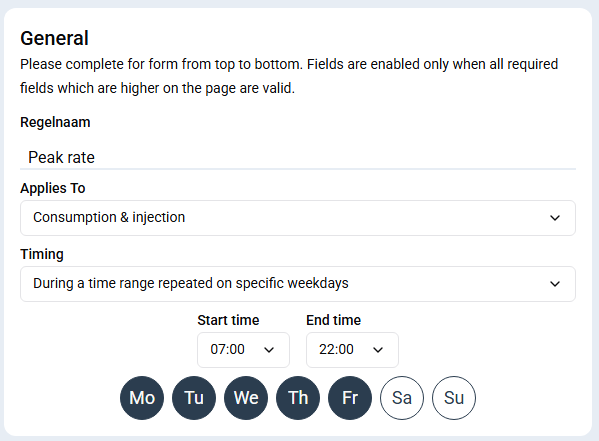
> **Figure:** Typical settings of a peak rate rule. Peak hours depend on the specific location but in Belgium 7 a.m. to 10 p.m. is the most common.
### Data sources
Adding data sources enables extra variables which can then be used in the consumption or injection formula. Click on the “+ Add” button to add a new data source and click on a pill to view the details of the corresponding data source. Pills in black are correctly configured, pills in red indicate a data source which requires extra input. Data sources can be removed by selecting them and using the delete button in their detail view.
> 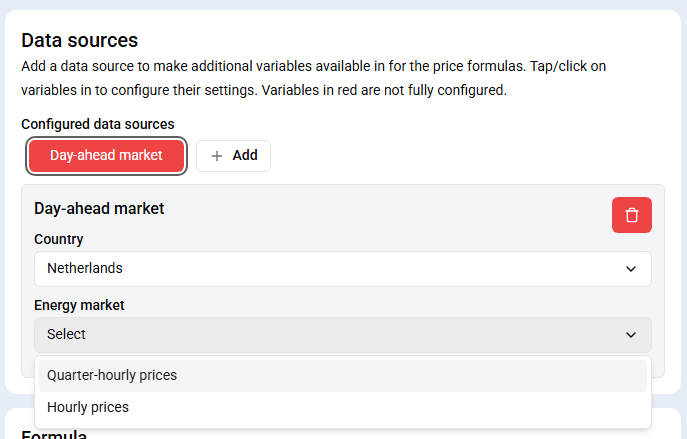
> **Figure:** Example configuration of a day-ahead market price. The price data source is highlighted and in red, meaning it can be edited, but its configuration is not yet completed. The Netherlands are selected, but a choice between quarter hourly and hourly prices remains to be made. As of Oct. 2025, quarter hourly prices are commonly used.
Even though a single data source is sufficient for specifying the formulas, it is possible to configure multiple sources for less common setups. In case multiple data sources are configured, they are numbered and each variable receives a number corresponding to its data source.
Supported Sources (more may be added in the future):
- **Day-ahead market:** depending on the selected currency, a list of countries is shown. After selecting a country, a specific market must be chosen. Many countries have both hourly and quarter hourly prices and some (e.g. the Nordics) have regional prices. A paid "long-term market prediction" feature may be available, depending on the EMS installers and market. When configured, this allows the controller to take prices up to several days in the future into account. Adding a day ahead market adds a “day-ahead price” variable in the formula builder.
- **Tibber API:** Tibber is an energy provider which offers their customers to collect their consumption/injection prices via an API. To add a Tibber datasource, an API key must be provided, which will be used by the controller to fetch this data. Adding a Tibber data source adds a “consumption price” and “injection price” variable in the formula builder.
For Switzerland, the day-ahead selector also contains direct Groupe E, CKW and EKZ tariff feeds, plus the Swiss wholesale market in EUR and converted to CHF. See **[Switzerland - dynamic prices](/App/energy-contract/ch-dynamic)** for the available identifiers and commissioning guidance.
### Formula
The formula section allows configuring the consumption (offtake) and/or injection energy price formulas via a drag-and-drop interface. New blocks are added to a formula by dragging them from the **Available blocks** area to a formula area and they are removed by dragging them from a formula area to the **Drop to delete** area. A red border will show around a formula when it is currently invalid. All formulas must be valid before a rule can be saved.
For each formula, the unit may be configured (e.g. currency/kWh, currency/MWh). Which units are available depends on the selected currency. Because this type of configurator is generic, it directly applies the entered prices, so it is important to explicitly include VAT, transport costs, duties or any extra cost in the entered numbers.
> 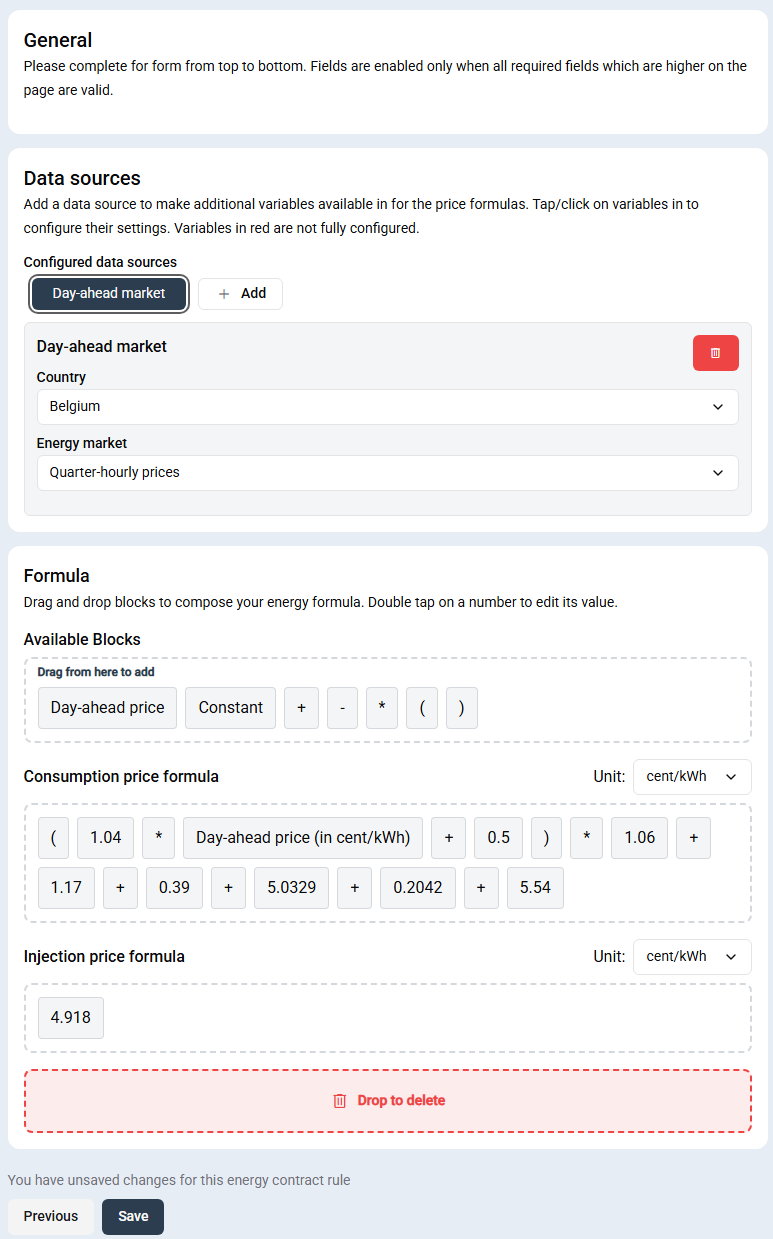
> **Figure:** Example configuration of an Energie.be dynamic contract ( ) for consumption and an Engie Empower ( ) contract for injection as of April 2026, for a dual-tariff digital meter located in the Fluvius Imewo network.
## Rule overview
The energy contract overview shows an overview of all configured rules and their corresponding timings and formulas. The controller will always calculate a price based on the first active extra rule which matches a specific moment in time. If no extra rules match, the prices are set by the default rule.
Note that because the first matching rule is applied, the ordering of the extra rules matters when there are overlapping timeranges. Rules can be reordered using the arrow icons on the left hand side of their cards, or by dragging and dropping them using their handle.
> 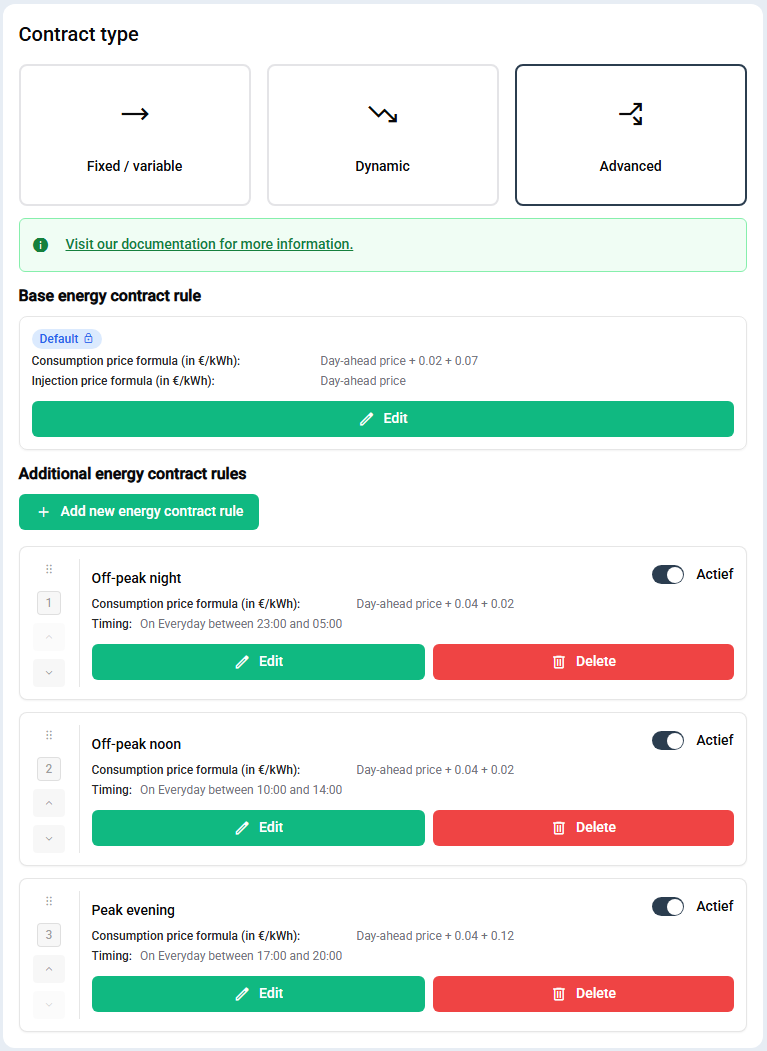
> 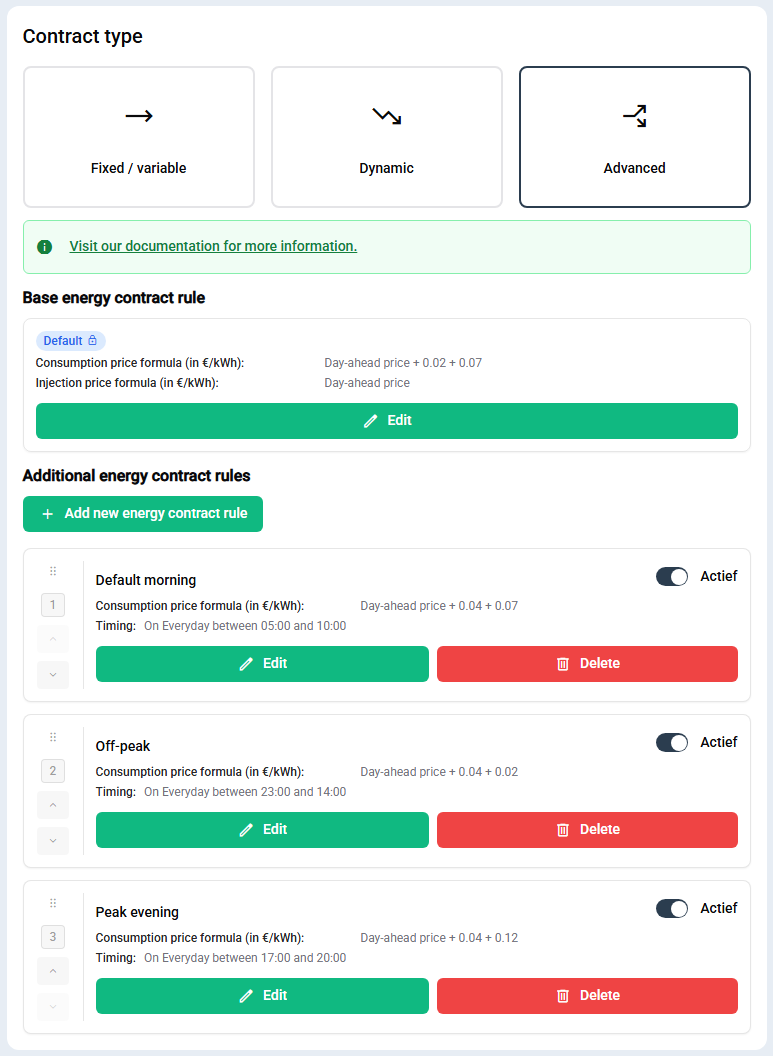
> **Figure:** In Germany, net tariffs are time dependent. Often, there is a default rate (Standardtarif), a more expensive peak rate (Hochtarif) and a cheaper rate (Niedertarif). The images shows how two ways configure prices for an energy provider offering a dynamic tariff where the energy price equals the epex spot plus 4 cents/kWh, with net tariffs as follows:
> - off-peak tariff of 2 cents/kWh from 23:00 to 05:00 and from 10:00 to 14:00
> - peak tariff of 12 cents/kWh from 17:00 to 20:00
> - a default tariff of 7 cents/kWh at any other time
> Whilst both approaches are correct and minimal in terms of the number of rules, the second configuration relies on a correct ordering of rules and therefore the first modelling approach is preferable.
The rule set is usually easier to configure when the rule with the timing which is the hardest to describe is the default rule.
# Dynamic contract (BE)
import { GithubAlert } from '@/components/GithubAlert';
import PdfLink from "@site/src/components/PdfLink";
# Dynamic contract (BE)
While the “Advanced” configurator could also be used to configure a Belgian dynamic energy contract, there is a simpler option for this specific contract type which is faster and less complicated, helping to avoid manual input errors.
This option is available for controllers in Belgium located in a Fluvius region (i.e. Flanders). If a controller is in Flanders but the option is not visible, it is recommended to check whether the postal code of the location is correctly configured.
> 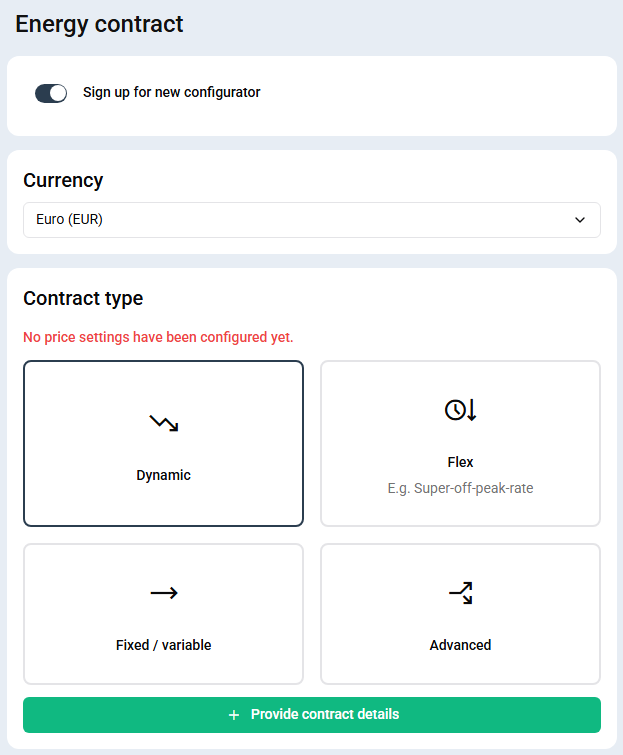
> **Figure:** Energy contract settings for a controller located in Belgium (Flanders) and a currency set to EUR, with “Dynamic” selected.
## Configuration
With the “Dynamic” card option selected, tap the “Provide contract details” button to start configuring.
First select the segment the energy contract relates to: private or business. Then pick the contract name and select the month in which the contract was concluded. Once the contract date is selected, the offtake and injection formulas and a price trading interval switch appear, prefilled with the values corresponding to that specific contract and date.
Carefully validate if the prefilled values and price trading interval match with the price sheet corresponding to the controller energy contract. The formula values should directly match the electricity price tariff of the energy provider, i.e. excluding net costs, VAT, contribution green power certificates,... These extra costs are automatically added.
The formula calculates the energy price in cent/kWh based on a market price in EUR/MWh, conforming to the formulas shared by the VNR (Vlaamse Nutsregulator). This convention involves a unit conversion: a market price multiplied by 0.1 corresponds to an energy provider offering the exact market price.
Many energy providers follow this convention, but some share a formula to calculate the energy price in EUR/MWh. In such cases the numbers provided by the energy supplier must be divided by 10. The contract configurator will show an error when unlikely numbers are entered to avoid unit conversion errors.
> 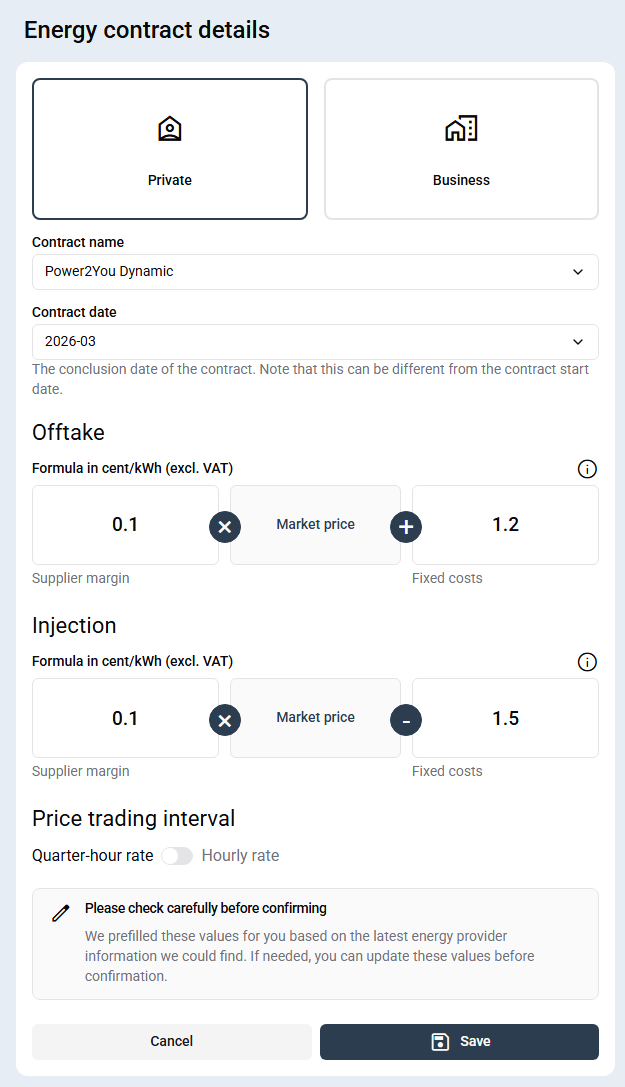
> **Figure:** Configuration of Power2You Dynamic EL contract as of March 2026. The proposed tariffs exactly match the formula of the tariff sheet
In case the prefilled values deviate from what the actual energy contract defines, the value(s) can be modified such that they align with the actual contract.
# Flex contract (BE)
# Flex contract (BE)
Flex contracts use a price system with three prices, which depend on the time of day and the average EPEX spot price at the end of the month.
This option is available for controllers in Belgium located in a Fluvius region (i.e. Flanders). If a controller is in Flanders but the option is not visible, it is recommended to check whether the postal code of the location is correctly configured.
> 
> **Figure:** Energy contract settings for a controller located in Belgium (Flanders) and a currency set to EUR, with “Flex” selected.
## Configuration
On the energy settings overview, if the “Dynamic” card option is currently selected, tap the “Flex” card option to start the configuration. If the “Flex” card option is already selected, tap the “Provide contract details” button to start.
Select the contract name and select the month in which the contract was concluded. The system automatically takes into account the flex price windows as well as net costs, VAT, contribution green power certificates,... Click “Save” to configure the contract.
> 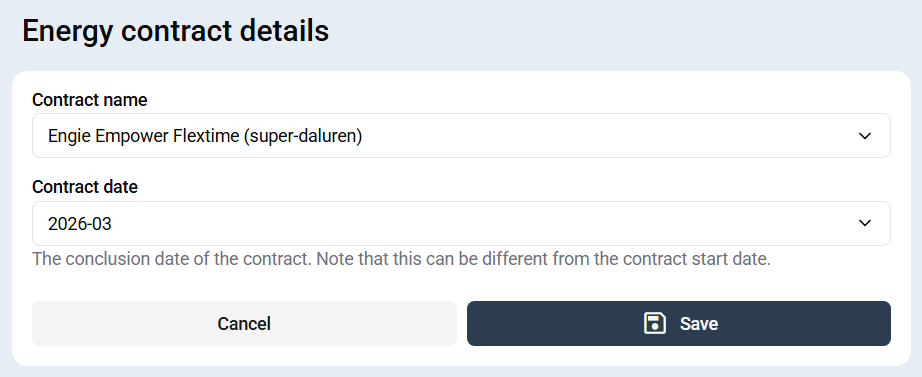
> **Figure:** Configuration of Engie Empower flex contract as of March 2026.
# Switzerland - dynamic prices
import { GithubAlert } from '@/components/GithubAlert';
# Switzerland - dynamic prices
SmartgridOne can plan around dynamic electricity prices in Switzerland. It supports both a general Swiss day-ahead reference and direct tariff feeds for selected Swiss electricity providers. This makes it possible to schedule flexible assets such as batteries, EV chargers and heat pumps for lower-cost intervals.
Swiss dynamic prices are configured with the **[Advanced dynamic contract](/App/energy-contract/advanced-generic)** option. There is no separate simplified Swiss contract card: the Advanced configurator provides the data source and formula controls needed for the different Swiss tariff models.
## Supported Swiss price feeds
Set the contract currency before adding a data source. The app filters the available feeds by that currency.
| Selection in the app | Currency | Resolution | What it represents |
| --- | --- | --- | --- |
| `CH_GroupeE-CHF-15m` | CHF | 15 minutes | Integrated tariff signal for Groupe E VARIO. |
| `CH_CKW-CHF-15m` | CHF | 15 minutes | Integrated dynamic tariff signal for CKW. |
| `CH_EKZ-CHF-15m` | CHF | 15 minutes | Integrated dynamic tariff signal for EKZ. |
| `CH-EUR_to_CHF-1h` | CHF | 1 hour | Swiss wholesale day-ahead reference converted from EUR to CHF. |
| `CH-EUR-1h` | EUR | 1 hour | Swiss wholesale day-ahead price in EUR/MWh. |
The provider feeds and the converted Swiss market series appear under **Day-ahead market** in the Advanced configurator. The names above are the current identifiers; the list is loaded live and may grow as new integrations are released.
Swiss dynamic products differ. A signal can represent the energy component, grid usage or a more complete tariff. Do not assume that every feed is an all-in customer price. Confirm the selected provider product and compare a few intervals with the provider's tariff publication before putting the controller into operation.
## Configure a Swiss dynamic contract
1. Verify that the controller location is set to **Switzerland** and that its timezone is correct.
2. Open **Energy contract** and set the currency used by the customer's contract: normally **CHF**, or **EUR** when the contract is explicitly denominated in EUR.
3. Select **Advanced dynamic** and open the default rule.
4. Under **Data sources**, add **Day-ahead market**.
5. Select **Switzerland**, then choose the provider feed or wholesale series that matches the contract.
6. Build both the consumption and injection formulas. Include every component that is not already part of the selected signal.
7. Save the rule and compare the resulting prices with the supplier's published values for several intervals, including a low-price and a high-price interval.
8. Verify the next-day plan before allowing the controller to steer flexible assets automatically.
### Choosing a source
Use a **provider feed** when the customer has the matching dynamic product. These integrations follow the provider's published tariff signal and are usually the clearest option for that product.
Use the **Swiss wholesale day-ahead** series when the customer's formula is explicitly indexed to the Swiss spot market. `CH-EUR-1h` is the original EUR/MWh series. For a CHF contract, use `CH-EUR_to_CHF-1h` so the price signal and formula use the same currency.
The optional **day-ahead prediction** is currently available for the EUR Swiss market when the feature is enabled. It extends the planning horizon, but it is a forecast rather than a settled tariff. The controller should still fall back to the published market price when it becomes available.
## What must be included in the formula?
A dynamic customer price can contain more than the selected signal:
- the dynamic energy or grid-price component;
- a supplier surcharge or discount;
- fixed energy components;
- local and national grid charges;
- municipal or cantonal charges;
- federal levies;
- VAT;
- a separate remuneration formula for exported energy.
For a wholesale-indexed contract, the structure is commonly similar to:
```text
consumption price = market price × contract factor + supplier surcharge + other variable charges
injection price = market price × contract factor - supplier fee
```
These are structural examples, not values to copy. Use the exact units and coefficients from the customer's tariff sheet. The Swiss feeds are stored as a price per MWh; the formula editor can display the result in `c/kWh` or `Fr/MWh` and applies the corresponding unit scale.
## Provider-specific notes
### Groupe E VARIO
Groupe E publishes prices for every 15-minute interval of the following day through a web API. The provider offers both grid-only and more complete tariff views, and the complete view can contain energy, national-grid charges, federal levies and VAT. Municipal or cantonal charges can still vary by location. In Eniris, select `CH_GroupeE-CHF-15m` and verify which tariff composition applies to the project.
[Read the official Groupe E VARIO information](https://www.groupe-e.ch/de/strom/vario)
### CKW dynamic tariff
CKW publishes a dynamic grid-usage profile through its public API. The API distinguishes grid usage, broader grid components, electricity and an integrated value. In Eniris, select `CH_CKW-CHF-15m`, then confirm the applicable CKW product and tariff component for the customer.
[Read the official CKW technical information](https://www.ckw.ch/energie/strom/dynamischer-tarif-fuer-privatkunden-und-unternehmen/dynamischer-tarif-technische-voraussetzungen)
### EKZ dynamic tariff
EKZ's optional dynamic tariff combines a dynamic energy component with dynamic grid usage. Prices change every 15 minutes and next-day tariff information is sent to the EMS. In Eniris, select `CH_EKZ-CHF-15m` and validate the resulting values against the customer's EKZ tariff.
[Read the official EKZ dynamic-tariff information](https://www.ekz.ch/de/angebote/strom/tarife/dynamischer-wahltarif.html)
## Commissioning checklist
- The site, currency and timezone are correct.
- The selected feed matches the customer's provider and tariff product.
- Consumption and injection are both configured, even if one is fixed.
- Formula units match the tariff sheet.
- Taxes, charges and VAT are neither omitted nor counted twice.
- At least several published intervals match the provider's values.
- The controller has a safe fallback when future prices are temporarily unavailable.
- The planned charging and discharging behaviour respects the asset limits and customer preferences.
Dynamic Swiss tariffs require the corresponding product, metering setup and provider eligibility. Having a feed available in the Eniris app does not by itself enrol the customer in that tariff. Arrange the tariff and any required smart-meter or EMS registration directly with the electricity provider.
# Fixed/variable contract
import { GithubAlert } from '@/components/GithubAlert';
import PdfLink from "@site/src/components/PdfLink";
# Fixed/variable contract
The fixed/variable energy contract configurator is available for any location and currency, allowing to model the simplest types of energy contract with minimal configuration. A contract of this category uses a fixed, non-time dependent energy price for both consumption and injection.
The form offers two inputs, to configure the consumption and feed-in (injection) prices, in a configurable unit (e.g. currency/kWh, currency/MWh). Which units are available depend on the selected currency. Because this type of configurator is generic, it directly applies the entered prices, so it is important to explicitly include VAT, transport costs, duties or any extra cost in the entered numbers. Carefully confirm that both the entered prices and the picked unit match the energy contract before submitting.
Note that the advanced wizard should be used for contracts where the fixed price depends on the hour of day or the day of the week (e.g. day-night tariff)
> 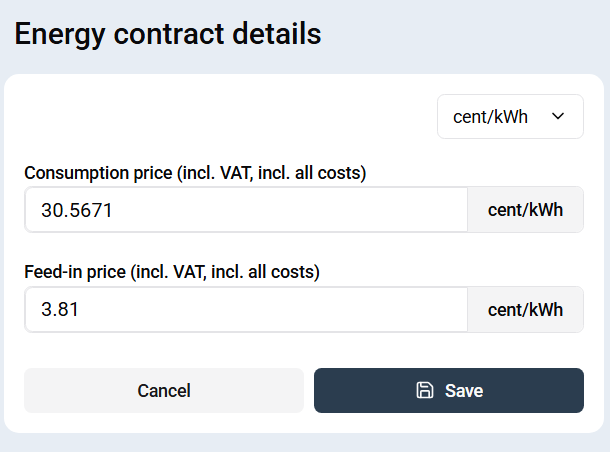
> **Figure:** Configuration of Luminus MaxxFix (BE) contract as of April 2026, for a single-tariff digital meter located in the Fluvius Imewo network.
# Energy Contract
import { FolderOverview } from "@/components/FolderOverview";
import { GithubAlert } from '@/components/GithubAlert';
import { InsightsName } from "@site/src/components/customFields";
# Energy Contract
For the controller to make a plan which maximizes profit, it must be able to calculate at any time the worth of energy. This includes both the cost of consuming energy from the grid and the revenue made by exporting it to the grid. These costs are set in the energy contract of a site, and can be configured in the app both by the company which claimed the controller and any “installer”-level user of the controller, provided the controller has a firmware version released after April 26th, 2026.
The controller supports any energy contract where prices are either fixed or a function of the day-ahead market cost, with a formula which depends on the time-of-day and day-of-the-week. Notably, this covers most variable, fixed, dynamic and flex energy contracts.
In order to configure these prices, the app offers various configuration forms. Which forms are available depends on two factors:
- The **location** (country, zip code, ...) of the controller, which can be configured on the controller interface or alternatively via
- The **currency** used by the energy provider (e.g. EUR, USD, CHF, SEK), which can be configured on the settings page itself
Note that changing the currency after a contract was configured will invalidate the contract. Depending on the specific configuration method, changing the location of a controller might also result in a configuration becoming invalid.
The app has the following contract configurators:
- **[Fixed/variable](/App/energy-contract/fixed-generic)** (available for any location/currency): Configure a contract by providing a fixed consumption and feed-in price.
- **[Advanced dynamic](/App/energy-contract/advanced-generic)** (available for any location/currency): Configure a contract by specifying a base rule and a set of extra time-dependent rules. The controller will always calculate a price based on the first active extra rule which matches a specific moment in time. If no extra rules match, the prices are set by the default rule. This option is the most flexible, but also the most complicated to set up.
- **[Belgium - dynamic](/App/energy-contract/be-dynamic)** (available for controllers in Belgium [Flanders] and prices in EUR): Pick a private or business energy contract by specifying a contract name and the contract conclusion date.
- **[Belgium - flex](/App/energy-contract/be-flex)** (available for controllers in Belgium (Flanders) and prices in EUR): Flex contracts use a price system with three prices, which depend on the time of day and the average EPEX spot price at the end of the month. There are currently two energy providers offering this system.
- **[The Netherlands - dynamic](/App/energy-contract/nl-dynamic)** (available for the Netherlands and prices in EUR): Dynamic contracts in the Netherlands charge a price equal to the market price with a fixed offset called "inkoopvergoeding" or "verkoopvergoeding". You can configure an energy contract by specifying an energy supplier.
- **[Switzerland - dynamic prices](/App/energy-contract/ch-dynamic)**: Use Swiss wholesale prices or one of the directly integrated Swiss tariff feeds from Groupe E, CKW or EKZ. Swiss contracts are configured through the Advanced dynamic configurator.
## Available price integrations
The exact choices shown in the app depend on the selected currency. Availability is loaded live, so the selector in the app is the definitive source if this table and the application ever differ.
| Integration | Market or provider | Currency | Resolution | Typical use |
| --- | --- | --- | --- | --- |
| Day-ahead market | Multiple European bidding zones | Depends on market | Hourly or 15 minutes | Build a contract formula from a wholesale market price. |
| Day-ahead prediction | Selected supported markets | Same as the linked market | Depends on market | Optional longer planning horizon; availability depends on the market and enabled features. |
| Tibber API | Tibber | Contract currency | Supplied by Tibber | Use the consumption and injection prices returned for a Tibber account. |
| Groupe E VARIO | Switzerland | CHF | 15 minutes | Use the integrated Groupe E tariff signal. |
| CKW dynamic tariff | Switzerland | CHF | 15 minutes | Use the integrated CKW tariff signal. |
| EKZ dynamic tariff | Switzerland | CHF | 15 minutes | Use the integrated EKZ tariff signal. |
| Swiss day-ahead | Switzerland | EUR | 1 hour | Use the Swiss wholesale day-ahead price directly. |
| Swiss day-ahead converted to CHF | Switzerland | CHF | 1 hour | Use the Swiss wholesale reference converted to CHF. |
A wholesale day-ahead price is not automatically the amount on the customer's invoice. Supplier margins, grid charges, duties, taxes and VAT may still need to be included in the formula. A provider-specific tariff feed can already contain several of these components. Always compare the configured result with the customer's current tariff sheet before enabling automated planning.
> 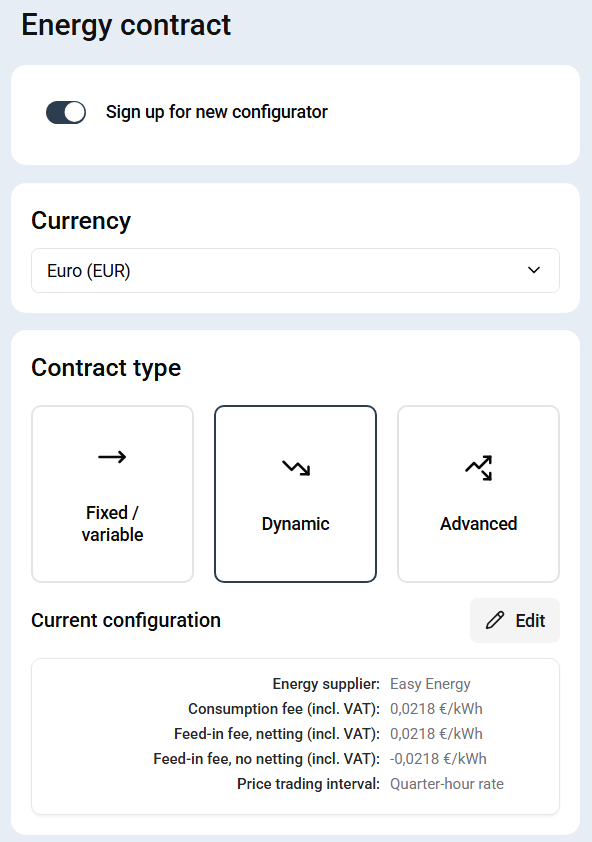
> **Figure:** Energy contract configuration for a controller located in the Netherlands with the currency set to EUR.
# Dynamic contract (NL)
# Dynamic contract (NL)
While the “Advanced” configurator could also be used to configure a Dutch dynamic energy contract, there is a simpler option for this specific contract type which is faster and less complicated, helping to avoid manual input errors.
This option is available for any controllers located in the Netherlands. If a controller is located in the Netherlands but the option is not visible, it is recommended to check whether its location is correctly configured.
> 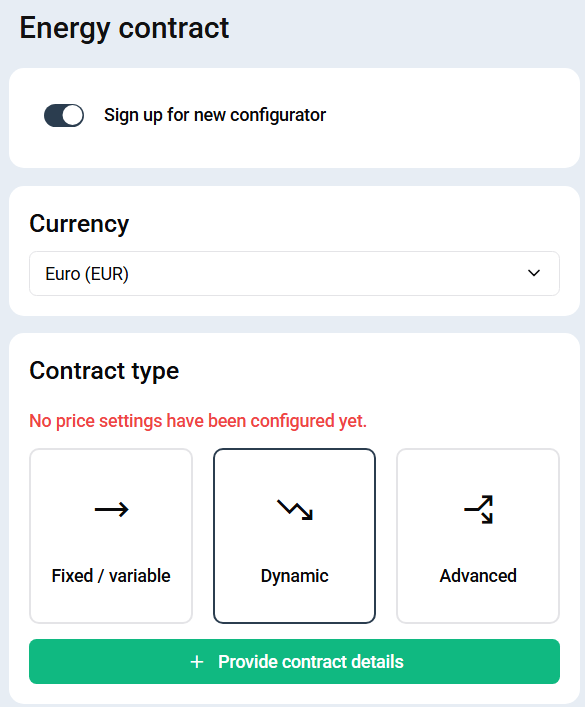
> **Figure:** Energy contract settings for a controller located in the Netherlands and a currency set to EUR, with “Dynamic” selected.
## Configuration
With the “Dynamic” card option selected, tap the “Provide contract details” button to start configuring.
Select the energy provider corresponding to the contract which needs to be configured. Once the energy provider is selected, feed-in fees (one for “binnen salderen” and another for “buiten salderen”), as well as the price trading interval appear, prefilled with the values currently corresponding to that specific energy supplier.
Carefully validate if the prefilled values and price trading interval match with the energy contract (the contract should mention these fees). The fees should directly match the numbers provided by the energy provider, i.e. **including VAT**, but excluding the fixed energy taxes. The tax is automatically added by the controller.
> 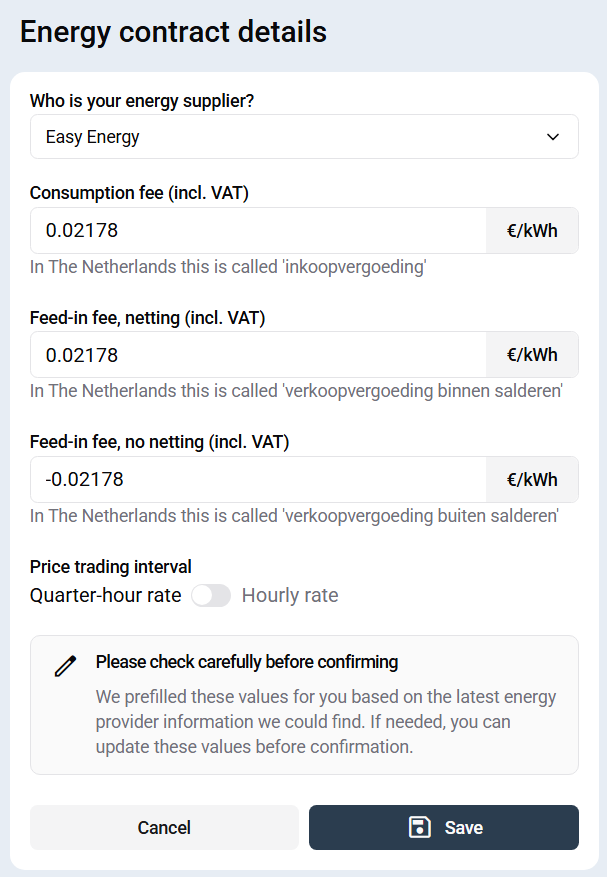
> **Figure:** Configuration of Easy Energy dynamic contract as of April 28th, 2026.
> 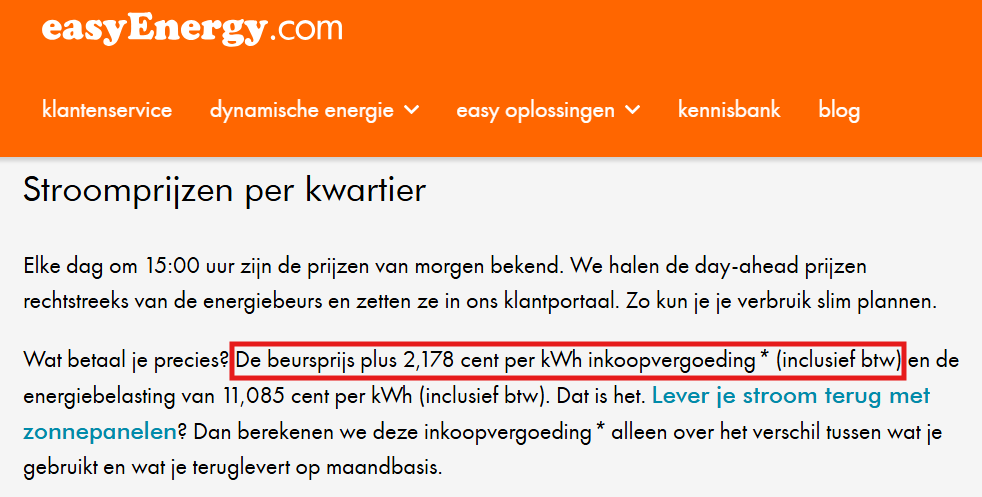
> **Figure:** Feed-in fee as communicated by Easy Energy on April 28th, 2026. Note that this matches with the automatically provided prices.
In case the prefilled values deviate from what the actual energy contract defines, the value(s) can be modified such that they align with the actual contract. To avoid unit misinterpretations, input validation will show an error if the magnitude of the entered values is significantly off.
# Start here
import { ChapterLanding } from '@/components/ChapterLanding';
import { FolderOverview } from '@/components/FolderOverview';
## Explore the Eniris App
# App overview
import { BrandName, ControllerName } from '@site/src/components/customFields';
import ClickableImage from '@site/src/components/ClickableImage';
# App overview
After signing in, the app opens an overview of the energy devices connected to the . Select a device icon to open the corresponding detail page
## Understand the installation value
The home or installation value is calculated from the grid connection, solar production, and battery power:
Production is shown as a negative value because it reduces the power drawn from the grid.
## Standard device categories
Depending on the installation, the overview can contain:
- **Grid connection:** power imported from or exported to the public grid
- **Solar inverters:** current and historical solar production
- **Battery system:** battery power, status, and stored energy
- **Home or installation:** the combined installation balance
- **Charging stations:** connected EV charging points
- **Heating and cooling:** heat pumps, air conditioners, and boilers
Icons shown in grey represent device categories that are not connected, monitored, or controlled for the selected installation.
## Navigate to device details
Select an icon on the overview or use the dropdown menu at the top of the app. The dropdown lists all available device categories and is useful when several devices of the same type are connected.
## Data update speed
The overview shows real-time data at the fastest rate provided by the . Device detail graphs use quarter-hour values.
The displayed **last update** can therefore be newer than the latest point in a quarter-hour graph. The real-time measurement is added to the historical graph after its aggregation interval has completed.
# Charging schedules
# Charging schedules
The app can schedule electric-vehicle charging per connector at each charging station. A rule defines how much energy or driving range a connected vehicle should receive before a deadline.
## Available rule types
Create a target for:
1. **A fixed time on selected days of the week**, for a recurring charging routine.
2. **A fixed date and time**, for a one-off deadline.
The app always uses the next applicable rule. When no future rule is configured, the vehicle is allowed to charge until it is full, subject to the charging station, vehicle, site limits, and active controller functions.
## Before relying on a schedule
- Confirm that the correct charging station and connector are selected.
- Choose whether the target is expressed in kilometres or kWh.
- Check that the vehicle remains connected long enough to reach the target.
- Allow for the maximum charging power of the vehicle and charging station.
- Verify whether another site or controller limit can reduce the available charging power.
> [!NOTE]
> A schedule defines a charging objective, not a guaranteed result. Available grid power, vehicle limits, communication, and other energy controls can affect the delivered energy.
# Controller setup and settings
import { BrandName, ControllerName } from '@site/src/components/customFields';
import ClickableImage from '@site/src/components/ClickableImage';
# Controller setup and settings
## Add a controller
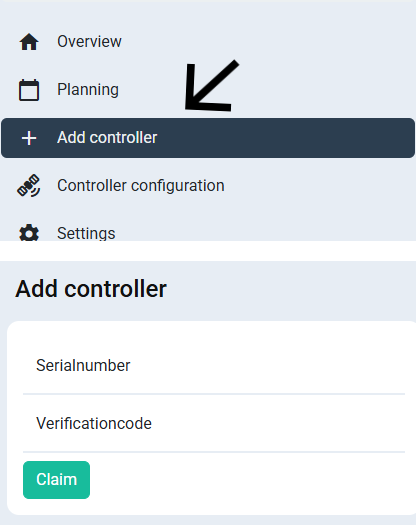
Use **Add controller** to register a new under the signed-in account. Enter the serial number and verification code printed on the controller label.
Keep the verification code private. It is used to prove that the account is allowed to claim the controller.
## Open Controller Configuration
Select **Controller Configuration** to open the commissioning interface in a web browser. Use this interface for installation-level configuration and technical commissioning.
> [!CAUTION]
> If the controller interface does not open, confirm that the is switched on, online, and reachable.
## Settings
The Settings page provides access to controller options such as energy prices and control modes.
The available options correspond to settings in the commissioning interface. End-user accounts generally see fewer settings than installer or administrator accounts.
For detailed controller configuration, continue to the [SmartgridOne documentation](/Controller/).
## Manual
Select **Manual** in the app to open the documentation for the controller and connected functionality.
# Using the app
import { FolderOverview } from '@/components/FolderOverview';
# Using the app
The Eniris app gives users a mobile view of their energy installation and provides access to the functions available for their account. Use these guides to understand the dashboard, configure planning and charging, add or configure a controller, and manage access.
## How the guides fit together
1. Start with **App overview** to understand the dashboard, device icons, navigation, and update speed.
2. Use **Charging schedules** when an EV must reach a target by a specific time.
3. Open **Controller setup and settings** to register a controller or access its commissioning settings.
4. Read **Planning and energy prices** to interpret forecasts, import, export, and price data.
5. Use **Users and account** to share access and manage app-level preferences.
> [!NOTE]
> The available menus and settings depend on the connected equipment, supplier configuration, and permissions of the signed-in account.
# Planning and energy prices
import { BrandName, ControllerName } from '@site/src/components/customFields';
import ClickableImage from '@site/src/components/ClickableImage';
# Planning and energy prices
The Planning page combines a forecast of grid consumption and export with the energy prices used by the .
## Consumption and grid-return planning
The planning view contains two grid-connection forecasts:
- **Without control:** the expected installation behaviour if the controller does not optimise the flexible devices.
- **With control:** the expected result after planned controller actions.
A positive value represents consumption from the grid. A negative value represents energy returned to the grid.
Forecasts are estimates based on the available device data, weather, schedules, prices, and configured controls. Actual site behaviour can differ.
## Energy prices
The app shows the prices used by the for planning and optimisation. The price source depends on the configured energy contract and can, for example, use Day-Ahead market prices or a supported supplier integration.
> [!NOTE]
> Purchase and feed-in prices are stored separately because an energy contract can use different prices for consumption and export.
To configure the price calculation, continue to [Energy Contract](/App/energy-contract).
# Users and account
import { BrandName, ControllerName } from '@site/src/components/customFields';
import ClickableImage from '@site/src/components/ClickableImage';
# Users and account
## User management
Use User Management to give another person access to the selected . Enter the user's email address and confirm the entry.
Only grant access to people who need it and review the user list when an installer, employee, tenant, or service provider no longer requires access.
## Global settings
Global Settings can control app-wide presentation options such as colour schemes and the visibility of selected menus.
> [!WARNING]
> Global Settings may be unavailable depending on the supplier configuration and the permissions of the signed-in account.
## Account settings
Use Account Settings to change the username or password for the signed-in account.
> [!IMPORTANT]
> Use an email address as the username whenever possible. Without a recoverable email-based username, restoring access after a forgotten password may not be possible.
# Apple app setup
import LicenseDisclaimer from '@site/src/components/LicenseDisclaimer';
# Apple developer Setup Guide
This guide walks you through setting up your white-labeled app on the Apple Developer
## Initial Setup
1. Visit the [Apple Developer](https://developer.apple.com/account)
2. The app files will have been uploaded by Eniris
## Required Checklist Items
### 1. Screenshots
Iphone 6'7, 6'5, 5'5 and both Ipad 12'9 versions are required to be added.
### 2. Description, Keywords, Keywords are also all mandatory fields.
### 3. App Review Information:
Here is sign-in required, the login details here are those you have received for the insights/app platform
### 4. App information
- Content Rights and Age Rating must be entered on this page. The app does not contain any sensitive content.
- Under Privacy Policy URL should be the link to your company privacy policy.
### 5. Pricing and Availability
1. Price Schedule:
Here should be the usual price for the app
2. App Availability:
Here you can select all countries where the app should be available.
### 6. Add for Review
When all these fields are completed click “Save”, then “Add for Review”.
Now Apple needs to review the app this can take 24h-48h.
## Creating Screenshots
### Browser Method
1. Visit [insights3.eniris.be](https://insights3.eniris.be) or your custom domain
2. Log in to your account
3. For mobile screenshots:
- Open browser developer tools (F12)
- Enable device simulation
- Select mobile device preset
- Use built-in screenshot tool
4. Save screenshots for Play Store listing
## Resources
Need media assets? Access our mediakit:
[https://eniris.io/mediakit/](https://eniris.io/mediakit/)
# Creating App Store / Play Console developer accounts
import LicenseDisclaimer from '@site/src/components/LicenseDisclaimer';
# Creating an iOS App Store / Google Play developer account
This page explains how to create the required developer accounts for publishing a white-labeled mobile app.
## Google Play Console Developer account
To create a Google Play developer account, follow Google’s official instructions:
- https://support.google.com/googleplay/android-developer/answer/6112435
More information about publishing an app can be found here:
- https://support.google.com/googleplay/android-developer/topic/7072031
## Apple Developer account
To create an Apple Developer account, follow Apple’s official instructions:
- https://developer.apple.com/support/app-account/
### App Store Connect access
After the developer account has been created:
1. Open App Store Connect:
- https://appstoreconnect.apple.com/
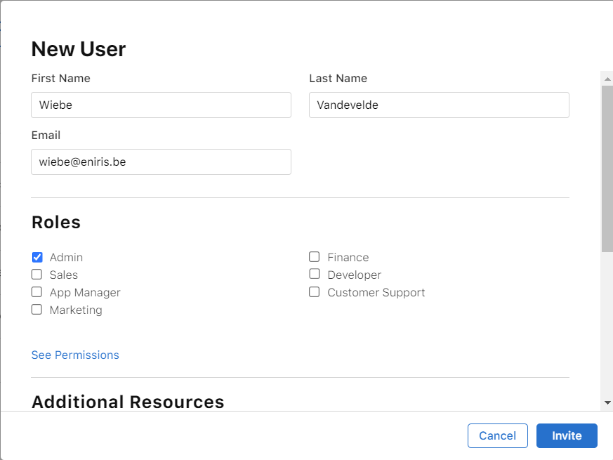
2. Go to **Users and Access**.
3. Click the **+** (add) icon.
4. Fill in the required fields and assign roles.
### D‑U‑N‑S number
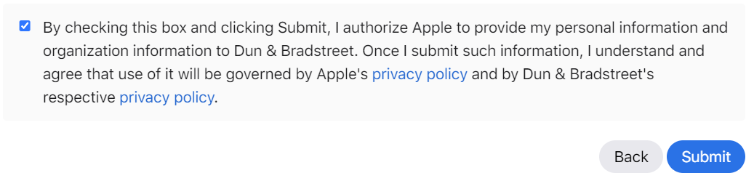
When creating an Apple Developer account for an organization, you may need a D‑U‑N‑S number.
1. Check whether your organization already has a D‑U‑N‑S number (and request one if needed):
- https://developer.apple.com/enroll/duns-lookup/#!/request
2. If the system does not find your company, you can request a new D‑U‑N‑S at the bottom of the page.
# Google app setup
import LicenseDisclaimer from '@site/src/components/LicenseDisclaimer';
import DownloadButton from '@site/src/components/DownloadButton';
# Google Play Console App Setup Guide
This guide walks you through setting up your white-labeled app on the Google Play Console
## Initial Setup
1. Visit the [Google Play Console](https://play.google.com/console)
2. Click **Create App**
3. Enter the following details:
- App name
- Default language
- Type: **App** (not game)
- Accept the declarations
## Required Checklist Items
### 1. Privacy Policy
- Add your company's privacy policy URL
### 2. App Access
1. Select **"All or some functionality in my app is restricted"**
2. Add test account credentials
3. Select **"No other information is required"**
### 3. Basic Settings
- **Ads**: Select "No ads"
- **Content Rating**: Complete the questionnaire
- **Target Audience**: Select appropriate age groups
- **News Apps**: Select "No"
- **COVID-19 Apps**: Select "Not a COVID-19 app"
### 4. Data Safety

Download the pre-filled CSV file with the required data safety declarations and upload it directly to the Google Play Console.
### 5. Category Settings
1. Select **Tools** as primary category
2. Add **Tools** as tag
3. Fill in store listing contact details
### 6. Store Listing
1. Prepare content:
- Short description
- Full description
- App icon (512x512 px)
- Feature graphic (1024x500 px)
- Phone screenshots (minimum 2)
- Tablet screenshots (minimum 1 per format)
### 7. App Release
1. Access the **Production** tab
2. Select distribution countries
3. Create new release:
- Upload .aab file
- Complete integrity declaration
- Handle Android 13 ad ID declaration if prompted
### 8. Submit for Review
1. Go to **Publishing overview**
2. Submit for review
- Review typically takes 24-48 hours
## Creating Screenshots
### Browser Method
1. Visit [insights3.eniris.be](https://insights3.eniris.be) or your custom domain
2. Log in to your account
3. For mobile screenshots:
- Open browser developer tools (F12)
- Enable device simulation
- Select mobile device preset
- Use built-in screenshot tool
4. Save screenshots for Play Store listing
## Resources
Need media assets? Access our mediakit:
[https://eniris.io/mediakit/](https://eniris.io/mediakit/)
# Whitelabeling app
import { FolderOverview } from '@/components/FolderOverview';
# Whitelabeling app
# Microsoft Graph API setup for mail sending
import LicenseDisclaimer from '@site/src/components/LicenseDisclaimer';
# Microsoft Graph API Setup for Mail Sending
This guide explains how to grant your organization's admin consent to our multi-tenant mail sending app and restrict its access so that it can only send emails from a designated mailbox (for example, `noreply@yourdomain.com`). Even if you have limited IT experience, the step-by-step instructions and prerequisites provided here will help you complete the setup using tools installed on your PC.
> **Note:**
> If you need assistance, please create a support ticket at [eniris.io/support](https://eniris.io/support).
## Table of Contents
- [Overview](#overview)
- [Prerequisites](#prerequisites)
- [Step 1: Granting Admin Consent](#step-1-granting-admin-consent)
- [Step 2: Capturing Your Tenant Details](#step-2-capturing-your-tenant-details)
- [Step 3: Configuring Access Restrictions](#step-3-configuring-access-restrictions)
- [Additional Information & Resources](#additional-information--resources)
- [Troubleshooting](#common-issues)
## Overview
Our mail sending app uses the Microsoft Graph API with application permissions to send emails from a designated mailbox. To enable this functionality, your admin must:
1. Grant tenant-wide consent to the app.
2. Provide us with your domain name, tenant ID, and the email address you want to use (e.g., `noreply@yourdomain.com`).
These details can be found in your tenant overview at [Microsoft Entra](https://entra.microsoft.com/#view/Microsoft_AAD_IAM/TenantOverview.ReactView).
## Prerequisites
Before you begin, please ensure you have the following:
- **Admin Credentials:** You must have Global Administrator rights for your Microsoft 365 tenant.
- **Access to Microsoft Entra:** You will need to view your tenant details at [Microsoft Entra](https://entra.microsoft.com/#view/Microsoft_AAD_IAM/TenantOverview.ReactView).
- **PowerShell on Your PC:**
- Windows PowerShell or [PowerShell Core](https://github.com/PowerShell/PowerShell).
- Install the [ExchangeOnlineManagement module](https://learn.microsoft.com/en-us/powershell/exchange/exchange-online-powershell-v2?view=exchange-ps) by running:
```powershell
Install-Module -Name ExchangeOnlineManagement -Scope CurrentUser
```
- **Basic Knowledge:** Familiarity with copying and pasting commands in PowerShell. Don’t worry if you are a beginner—the steps below are detailed and straightforward.
## Step 1: Granting Admin Consent
1. **Construct the Admin Consent URL:**
Use the following URL format. Replace `` with your actual domain name (for example, if your domain is "contoso.com", use that):
```
https://login.microsoftonline.com//adminconsent?client_id=03126c25-5828-4b2e-aa6d-d97380cb1cb5&redirect_uri=https://eniris.io
```
2. **Visit the URL:**
Have your Microsoft 365 global admin log into their browser and navigate to the URL. They will see a consent dialog listing the permissions our app is requesting (for example, **Mail.Send**).
3. **Grant Consent:**
The admin should click **"Accept"** to grant consent. This action will create a service principal for our app in your tenant and allow it to send emails.
4. **Notify Us:**
After granting consent, please create a ticket [eniris.io/support](https://eniris.io/support) with the following details:
- Your domain name.
- Your tenant ID (found at [Microsoft Entra Tenant Overview](https://entra.microsoft.com/#view/Microsoft_AAD_IAM/TenantOverview.ReactView)).
- The email address you wish to use for sending mails (e.g., `noreply@yourdomain.com`).
## Step 2: Capturing Your Tenant Details
Our onboarding process will capture your tenant ID automatically when the admin grants consent. However, if you need to manually verify this, you can:
- Sign in to [Microsoft Entra](https://entra.microsoft.com/#view/Microsoft_AAD_IAM/TenantOverview.ReactView).
- Copy your **Tenant ID** from the Tenant Overview page.
## Step 3: Configuring Access Restrictions
For security best practices, we'll create a dedicated security group and use it to restrict the app's access to only your designated mailbox. This implements the principle of least privilege, ensuring the app can only access what's absolutely necessary.
### Creating the Required Mail Security Group
1. **Log into the Microsoft 365 Admin Center:**
Go to [admin.microsoft.com](https://admin.microsoft.com) and sign in with your admin account.
2. **Create a Security Group:**
- Navigate to **"Groups"** > **"Active groups"**
- Click **"Add a group"**
- Select **"Security"** as the group type and click **"Next"**
- Enter a name (e.g., "Noreply Access Only") and description
- Add the `noreply@yourdomain.com` account as a member
- Click **"Next"** and then **"Create group"**
### Applying Access Restrictions
1. **Open PowerShell:**
Run PowerShell as an administrator on your PC.
2. **Connect to Exchange Online:**
Install the ExchangeOnlineManagement module (if not already installed) and then connect:
```powershell
Install-Module -Name ExchangeOnlineManagement -Scope CurrentUser
Connect-ExchangeOnline -UserPrincipalName "" # For example: admin@yourdomain.com
```
3. **Create the Application Access Policy:**
Run the following command. Replace `` with the actual email address or Object ID of your security group:
```powershell
New-ApplicationAccessPolicy -AccessRight RestrictAccess -AppId "03126c25-5828-4b2e-aa6d-d97380cb1cb5" -PolicyScopeGroupId "" -Description "Restrict app access to the noreply mailbox only"
```
4. **Verify the Policy:**
Test that the policy works by running (replace with your actual noreply email address):
```powershell
Test-ApplicationAccessPolicy -Identity "" -AppId "03126c25-5828-4b2e-aa6d-d97380cb1cb5"
```
### Security Considerations
- **Data Isolation:** The service principal created in your tenant ensures the app only has access as allowed by the policy.
- **Least Privilege:** The app requests only the Mail.Send permission and is further restricted to a single mailbox.
- **Auditing:** We recommend periodic reviews of your service principal and Application Access Policy.
## Additional Information & Resources
### Common Issues:
#### Consent Errors:
- Verify admin account permissions at [Microsoft Entra roles](https://entra.microsoft.com/#view/Microsoft_AAD_IAM/RolesManagementMenuBlade/~/AllRoles)
- Check the [consent troubleshooting guide](https://learn.microsoft.com/en-us/azure/active-directory/manage-apps/application-sign-in-unexpected-user-consent-error)
- Ensure the URL is constructed correctly
#### PowerShell Errors:
- Check that the ExchangeOnlineManagement module is installed and up to date
- Verify your admin credentials have sufficient permissions
#### Policy Verification:
- Use `Test-ApplicationAccessPolicy` to verify access restrictions
- Review the [Application Access Policy documentation](https://learn.microsoft.com/en-us/exchange/clients-and-mobile-in-exchange-online/client-access-rules/client-access-rules)
# Commissioning
# Commissioning
Cloud commissioning starts in the manufacturer's platform. Complete the preparation below before requesting activation or enabling an automatic strategy.
## Information and access required
1. Confirm the exact device model, firmware and country or region in [Compatibility](./compatibility).
2. Make sure the device is online and visible in the manufacturer's portal.
3. Prepare the required portal account, site identifier, serial number and API authorization.
4. Confirm that the account includes **control permission**, not only data access, when remote control is required.
5. Record the responsible technical contact for the vendor account and site network.
6. Define the safe fallback if the internet connection, vendor API or control signal becomes unavailable.
The detailed device page lists integration-specific prerequisites, such as the required account role, API application, site identifier or commissioning route.
## Safe activation sequence
1. Connect or authorize one test site.
2. Verify that timestamps, measurements, units and power-sign conventions are correct.
3. Send a limited test setpoint or mode request when control is supported.
4. Confirm the resulting device behaviour and feedback in both the vendor platform and SmartgridOne.
5. Test timeout or communication-loss behaviour where possible.
6. Only then enable the intended automatic control strategy or onboard the remaining portfolio.
> [!CAUTION]
> Do not start with the full asset rating. Use a limited test request that is safe for the device, the grid connection and the active site load.
## Acceptance checks
- Measurements update at the expected interval and do not become stale.
- Import, export, charge and discharge use the agreed sign convention.
- The device accepts only commands permitted for the selected account.
- Feedback confirms whether the requested action was applied.
- The installation returns to the agreed fallback when cloud communication is interrupted.
- Site and device names are clear enough for portfolio operation and support.
If a device is visible but cannot be controlled, check the integration's control scope in [Compatibility](./compatibility), the account permissions and any firmware or regional restrictions.
# Compatibility
# Compatibility
Use this overview during engineering to determine whether an asset supports cloud control, monitoring only, or requires a local connection. Compatibility can depend on the exact model, firmware, account permissions and region; always review the linked setup page before commissioning.
## Cloud control
The devices below can receive control actions through a cloud connection. A listing means that an integration exists; it does not replace the prerequisites on the linked device page.
| Asset type | Manufacturer and supported devices | Cloud connection | Control scope | Detailed setup |
| --- | --- | --- | --- | --- |
| Battery / PV | **AlphaESS SMILE** | AlphaESS Cloud API | Monitoring and storage strategy control | [AlphaESS Cloud API](/Controller/Devices/Cloud/AlphaESS) |
| Battery / PV | **Neovolt systems linked to a Neovolt account** | Neovolt Cloud API | Monitoring and storage strategy control | [Neovolt Cloud API](/Controller/Devices/Cloud/Neovolt) |
| Battery | **Greener / Alfen battery containers, 250 kWh–2 MWh** | Greener API | Monitoring and constant-power setpoint | [Greener / Alfen](/Controller/Devices/PV-hybrid-and-battery-inverters/Greener) |
| PV | **Huawei inverters and SmartLoggers managed by NetEco** | Huawei NetEco | Site import and inverter or SmartLogger control | [Huawei NetEco](/Controller/Devices/Cloud/Huawei/NetEco) |
| PV | **SMA inverters connected to an SMA Data Manager** | SMA cloud API | Active-power and curtailment control | [SMA cloud control](/Controller/Devices/PV-hybrid-and-battery-inverters/SMA/API) |
| PV | **SolarEdge inverters on one SolarEdge monitoring site** | SolarEdge Grid Services API | Site-level monitoring and percentage power limitation | [SolarEdge cloud control](/Controller/Devices/Cloud/SolarEdge) |
| PV / hybrid | **Solis PV inverters and supported hybrid inverters** | SolisCloud API V3 | Monitoring and device control; hybrid support is marked experimental | [SolisCloud API V3](/Controller/Devices/Cloud/Solis) |
| PV | **Sungrow inverters registered in iSolarCloud** | iSolarCloud Open API | Monitoring and active-power limitation; firmware support can vary | [Sungrow iSolarCloud](/Controller/Devices/Cloud/ISolarCloud) |
| PV | **Sparky-connected systems** | Sparky Cloud API | Cloud site import and controller strategy integration | [Sparky Cloud API](/Controller/Devices/Cloud/Sparky) |
| EV charging | **Easee One, Up, Max, Pro, Charge and Core** | Easee Cloud API | Charging-station communication and control | [Easee](/Controller/Devices/EV-charging-station/Easee) |
| EV charging | **Zaptec Go, Go 2 and Pro** | Zaptec API | Charging-station communication and control | [Zaptec](/Controller/Devices/EV-charging-station/Zaptec) |
| EV charging | **Wallbox Pulsar Plus/Max/Pro, eM4, Quasar 2, Commander and Copper SB** | Wallbox API | Charging-station communication and control | [Wallbox](/Controller/Devices/EV-charging-station/Wallbox) |
| EV charging | **OCPP chargers connected through Volt Time Cloud** | Volt Time Cloud / OCPP | Cloud charging control | [Volt Time](/Controller/Devices/EV-charging-station/Volt-Time) |
| Flexible load | **MyEnergi Eddi** | MyEnergi API | Boost or Block control; no watt-level setpoint | [MyEnergi Eddi](/Controller/Devices/Heat-pump/MyEnergi) |
> [!IMPORTANT]
> SolarEdge currently does not accept onboarding of new sites through the API. Existing integrations remain documented, but verify availability before planning a new deployment.
## Monitoring without remote control
Some API integrations contribute measurements to the energy-management system but do not accept a power or charging setpoint.
| Device or data source | What is available | Control limitation | Detailed setup |
| --- | --- | --- | --- |
| **MyEnergi Zappi** | Charger status and measurements through the MyEnergi API | Monitoring only | [MyEnergi Zappi](/Controller/Devices/EV-charging-station/MyEnergi) |
| **Cloud Meter Data** | Cloud-delivered grid-meter measurements | Measurement input only | [Cloud Meter Data](/Controller/Devices/Energy-meter/CloudMeterData) |
| **P1 API meter** | Grid import and export measurements | Measurement input only | [P1 API](/Controller/Devices/Energy-meter/P1Api) |
| **Zeversolar inverter** | Inverter data through the existing API integration | Curtailment is not supported | [Zeversolar](/Controller/Devices/PV-hybrid-and-battery-inverters/Zeversolar) |
> [!NOTE]
> An `API` label on a device page does not always mean cloud control. For example, the Zendure SolarFlow integration uses a **local API**, and its P1 meter is a local measurement source. Those devices are therefore not part of this cloud-control list.
## Before selecting an integration
Confirm the exact device model and firmware, the country or region, the available API license, and whether the account grants control permission rather than data access only. Continue with [Commissioning](./commissioning) once the combination is confirmed.
# How cloud control works
# How cloud control works
SmartgridOne Cloud exchanges measurements and control requests with a manufacturer cloud, OCPP platform or partner EMS. The asset keeps its existing internet connection; a separate local Modbus or RS485 connection is not required for that integration.
No local device bus
The device communicates through its existing vendor cloud or partner platform.
Portfolio-ready
Multiple remote sites can be imported and managed from one environment.
Internet-dependent
Availability, latency and fallback behaviour depend on internet access and the vendor API.
## From measurement to control
1. The device publishes measurements and status to its manufacturer cloud or connected platform.
2. SmartgridOne Cloud retrieves the available measurements and evaluates the configured energy strategy.
3. When control is supported, SmartgridOne sends a permitted setpoint or operating-mode request through the platform API.
4. New measurements and status provide feedback for the next control decision.
The update frequency, command latency and available feedback differ per integration. Review the exact device page instead of assuming that every cloud connection behaves identically.
## Cloud or local connection?
Choose a cloud connection for remote portfolios and devices that do not expose a suitable local protocol. Prefer a local Modbus, RS485 or local-API connection when deterministic response time, site autonomy during an internet outage, or a customer-specific fail-safe is essential.
| Consideration | Cloud connection | Local connection |
| --- | --- | --- |
| Installation | Uses the device's existing platform connection | Requires a supported local interface and network path |
| Portfolio onboarding | Well suited to geographically distributed sites | Usually commissioned site by site |
| Internet outage | Cloud communication becomes unavailable | Local control can continue, depending on the installation |
| Response | Depends on internet and platform latency | Usually more deterministic |
| Capabilities | Limited to functions exposed by the platform API | Limited to the local protocol and device driver |
## Loss of communication
Define a safe fallback at the device or gateway for internet loss, API timeouts or stale commands. A cloud integration must not be the only protection for equipment that needs a safety-critical response.
> [!TIP]
> Confirm the expected control interval and fallback behaviour during engineering, then test both normal operation and loss of communication during commissioning.
# Start here
SmartgridOne Cloud runs energy-management logic in the cloud and communicates with supported equipment through a manufacturer's API, an OCPP platform or a partner EMS connection. It is useful when a direct Modbus or RS485 connection is unavailable, when sites are geographically distributed, or when a complete portfolio must be commissioned remotely.
## Explore SmartgridOne Cloud
# Partner EMS and portfolio connections
# Partner EMS and portfolio connections
SmartgridOne Cloud can represent virtual sites whose measurements arrive from a partner platform and whose setpoints are returned to that platform. This is useful when the physical devices are already aggregated behind another EMS or portfolio interface.
## Available connections
| Integration | Connection | Supported asset groups |
| --- | --- | --- |
| **Enalpin, Neargrid, Scholt, Taylor and WithTheGrid** | Bidirectional MQTT | Solar, storage, heat pumps and grid/consumption meters; EV chargers are not currently included |
| **Helin** | Helin Cloud API | Solar inverters; storage devices are not currently included |
See the [EMS Control integrations](/Controller/Devices/Cloud/EMS%20Control) for topic structure, measurements, commands and partner-specific prerequisites.
## Define the exchange before onboarding
Agree on the site and device identifiers, measurement units, timestamps, power-sign convention, command frequency, response time, timeout and fallback behaviour. Also define which asset groups may be controlled and which health or availability signals the partner must provide.
## Commissioning approach
1. Validate one representative site and its complete measurement set.
2. Compare grid, production, consumption and storage signs with the partner platform.
3. Test a limited setpoint in both directions and confirm the feedback.
4. Simulate a stale measurement or lost connection and verify the agreed fallback.
5. Reuse the validated mapping when onboarding the rest of the portfolio.
> [!NOTE]
> Partner integrations can differ in supported assets and commands. Treat the connection agreement and linked integration page as the source of truth for a specific rollout.
# A1-Port
# Overview
The A1 is a plug-and-play device designed for easy installation and use.
## Installation
The device features simple connectivity:
- Plug-and-play functionality - no configuration needed
- Can be connected using either:
- P1 cable
- A1 cable
> [!TIP]
> Simply plug in the A1 and it will work automatically without any additional setup!
# dS1242 Ethernet-Relay module
import ClickableImage from '@site/src/components/ClickableImage';
## Distributor & DHCP network
If you purchased the dS1242 Ethernet relay module through your distributor, it will be preconfigured.
In networks where DHCP is used, you do not need to do anything. Just connect the module to Ethernet and connect the power adaptor.
Connect the relays as needed for the device you will use them to control.
## Purchased the module elsewhere or you are using it on a network with fixed IP addresses
### Connecting the dS1242 Ethernet Ethernet-Relay module
To connect a dS1242 you'll need to first check if there is a firmware version running on it.
Connect an ethernet cable connected to your network and the 12V power supply to the module.
Check if the blue LED flashes 3 times.
If it does not, you should install firmware on the module first. Therefore continue to the firmware update.
If it does flash 3 times, you need to check if the communication is set correctly. Go to set the control to modbus.
### Updating the firmware
You'll need a PC and a mini-USB to USB cable to install and use the program to do the update of the firmware.
Please go to the following link:
> [!NOTE]
> https://www.robot-electronics.co.uk/dscript.html
Select the applicable version of dScript (see 1 on the figure). Download it and install it. If you already have a version make sure you have the latest version.
After this, download the Documentation and dScript Examples zip file (see 2 on the figure). Extract all data and remember the folder location.
Before continuing please make sure that:
1. dScript Editor closed down.
2. dS1242 not connected or powered.
Continue by preparing the module as followed:
1. Power-up the dS1242.
2. Hold down the blue reset button for a couple of seconds until the red LED comes on (this indicates the module is in boot-loader mode).
3. Connect the USB-mini lead to the PC.
#### Update the firmware with dScript
1. Run the dScript editor.
2. Now look in the Module panel, you should see: ds1242 vX.XX indicates it's the boot-loader that is running.
3. Load the project: File -> Open project 'yourFolder'\dScriptPublish\Examples\app-dS1242-vx-xx\app-dS1242-vx-xx.dsj
Substitute the path 'yourFolder' for where you placed the dScriptPublish folder.
4. Click the build button (white triangle on green button). This will update the system firmware and load the application.
5. When done, the new version will be displayed.
### Set the control to modbus
In order to set the control to modbus, you have to:
1. Connect the power supply and the ethernet cable (linked to your network)
2. Connect the dS1242 mini-USB to 5V DC power supply (for example a pc USB port)
3. Search for the IP-address in the network (mac-address starts with 60:8A:10:xx:xx:xx, D8:80:39:xx:xx:xx) or
4. Go to the following URL: "IP-address/_config.htm"
5. In the tab TCP/IP, modify as shown in the top image
> [!NOTE]
> This can be prepared on beforehand
# Eniris Generic protocol
import { BrandName, ControllerName } from '@site/src/components/customFields';
import RS485ConnectionTable from '@site/src/components/RS485ConnectionTable';
import RS485AddressNote from '@site/src/components/RS485AddressNote';
import ClickableImage from '@site/src/components/ClickableImage';
import PdfLink from '@site/src/components/PdfLink';
import DownloadButton from '@site/src/components/DownloadButton';
## Protocol implementation
The supports adding any energy meter, PV, battery or hybrid inverter that supports the protocol.
You are free to implement this protocol on your device.
# Accessories
import { FolderOverview } from '@/components/FolderOverview';
# Accessories
# MBus-Ethernet Converter
import { BrandName, ControllerName, CustomerName, InsightsName, InsightsUrl } from '@site/src/components/customFields';
import Details from '@theme/Details';
> [!CAUTION] Compatible converters
> only warrants compatibility with the converter ordered from . Other converters may not work out of the box.
> [!IMPORTANT]
> We do **not** provide support for cabling or wiring questions (e.g., identifying wire colors such as red, white, green). Please refer to your product manuals or a qualified technician for any cabling-related assistance.
>
# P1 Cable
import { BrandName, ControllerName, CustomerName, InsightsName, InsightsUrl } from '@site/src/components/customFields';
import Details from '@theme/Details';
> [!CAUTION] Compatible converters
> only warrants compatibility with the P1 cable ordered from . Other cables may not work out of the box.
> [!IMPORTANT]
> We do **not** provide support for cabling or wiring questions (e.g., identifying wire colors such as red, white, green). Please refer to your product manuals or a qualified technician for any cabling-related assistance.
>
# P1-Ethernet Converter
import { BrandName, ControllerName, CustomerName, InsightsName, InsightsUrl } from '@site/src/components/customFields';
import Details from '@theme/Details';
## Compatible converters
- YouLess
- Home Wizard
- Sparky P1 meter
> [!IMPORTANT]
> We do **not** provide support for cabling or wiring questions (e.g., identifying wire colors such as red, white, green). Please refer to your product manuals or a qualified technician for any cabling-related assistance.
>
# Relay-Ethernet Converter
import { BrandName, ControllerName, CustomerName, InsightsName, InsightsUrl } from '@site/src/components/customFields';
import Details from '@theme/Details';
> [!CAUTION] Compatible converters
> only warrants compatibility with the converter ordered from . Other converters that do a protocol conversion are generally not supported.
> [!IMPORTANT]
> We do **not** provide support for cabling or wiring questions (e.g., identifying wire colors such as red, white, green). Please refer to your product manuals or a qualified technician for any cabling-related assistance.
>
# RS232-Ethernet Converter
import { BrandName, ControllerName, CustomerName, InsightsName, InsightsUrl } from '@site/src/components/customFields';
import Details from '@theme/Details';
> [!CAUTION] Compatible converters
> only warrants compatibility with the converter ordered from . Other converters that do a protocol conversion are generally not supported.
> [!IMPORTANT]
> We do **not** provide support for cabling or wiring questions (e.g., identifying wire colors such as red, white, green). Please refer to your product manuals or a qualified technician for any cabling-related assistance.
# RS422-Ethernet Converter
import { BrandName, ControllerName, CustomerName, InsightsName, InsightsUrl } from '@site/src/components/customFields';
import Details from '@theme/Details';
> [!CAUTION] Compatible converters
> only warrants compatibility with the converter ordered from . Other converters that do a protocol conversion are generally not supported.
> [!IMPORTANT]
> We do **not** provide support for cabling or wiring questions (e.g., identifying wire colors such as red, white, green). Please refer to your product manuals or a qualified technician for any cabling-related assistance.
# RS485-Ethernet Converter
import Details from '@theme/Details';
import ClickableImage from '@site/src/components/ClickableImage';
import { BrandName, ControllerName } from '@site/src/components/customFields';
 ## Connecting to the RS485 Converter
1. Connect the converter to a LAN network and plug in the adapter.
2. Download and install **EZ Manager** [here](https://www.eztcp.com/en/download/ezmanager).
3. Connect your computer to the same LAN network as the converter.
4. Open **EZ Manager** and select **"Search All"**.
5. You can identify your converter in the column **"Search Results"** by its **MAC address**.
## Network settings
In the network tab, you can specify the network settings for the RS485 converter.
On the left, you can find the settings for obtaining an automatic IP address (**recommended in most cases**).
## As a serial extension
You can use the RS485 converter as a serial extension to the .
Fill in the settings in the tab **'Serial port'** as shown in the figure.
## Additional settings
Fill in the settings of the **'Options'** tab exactly as shown in the image.
## Save
Select **"Write"** to save.
## Troubleshooting
No device found → error in:
- Modbus address
- Baud rate
- Parity bit (none, even, uneven)
- Stop bit
- Modbus A and B connection (loose or reversed)
- Chosen device (wrong make or type)
- Chosen protocol (wrong protocol)
> [!IMPORTANT]
> We do **not** provide support for cabling or wiring questions (e.g., identifying wire colors such as red, white, green). Please refer to your product manuals or a qualified technician for any cabling-related assistance.
>
# RS485-USB Converter
import { BrandName, ControllerName, CustomerName, InsightsName, InsightsUrl } from '@site/src/components/customFields';
import Details from '@theme/Details';
import ClickableImage from '@site/src/components/ClickableImage';
## Connecting to the RS485 Converter
1. Connect the converter to a LAN network and plug in the adapter.
2. Download and install **EZ Manager** [here](https://www.eztcp.com/en/download/ezmanager).
3. Connect your computer to the same LAN network as the converter.
4. Open **EZ Manager** and select **"Search All"**.
5. You can identify your converter in the column **"Search Results"** by its **MAC address**.
## Network settings
In the network tab, you can specify the network settings for the RS485 converter.
On the left, you can find the settings for obtaining an automatic IP address (**recommended in most cases**).
## As a serial extension
You can use the RS485 converter as a serial extension to the .
Fill in the settings in the tab **'Serial port'** as shown in the figure.
## Additional settings
Fill in the settings of the **'Options'** tab exactly as shown in the image.
## Save
Select **"Write"** to save.
## Troubleshooting
No device found → error in:
- Modbus address
- Baud rate
- Parity bit (none, even, uneven)
- Stop bit
- Modbus A and B connection (loose or reversed)
- Chosen device (wrong make or type)
- Chosen protocol (wrong protocol)
> [!IMPORTANT]
> We do **not** provide support for cabling or wiring questions (e.g., identifying wire colors such as red, white, green). Please refer to your product manuals or a qualified technician for any cabling-related assistance.
>
# RS485-USB Converter
import { BrandName, ControllerName, CustomerName, InsightsName, InsightsUrl } from '@site/src/components/customFields';
import Details from '@theme/Details';
import ClickableImage from '@site/src/components/ClickableImage';
 > [!CAUTION] Compatible converters
> only warrants compatibility with the converter ordered from . Other converters that do a protocol conversion are generally not supported.
> [!IMPORTANT]
> We do **not** provide support for cabling or wiring questions (e.g., identifying wire colors such as red, white, green). Please refer to your product manuals or a qualified technician for any cabling-related assistance.
>
# Certificates
import { BrandName, ControllerName, CustomerName, InsightsName, InsightsUrl } from '@site/src/components/customFields';
import Details from '@theme/Details';
import PdfLink from '@site/src/components/PdfLink';
import DownloadButton from '@site/src/components/DownloadButton';
# Certificates
## model OM1
EU Declaration of conformity:
# 1. Link to your account
import { BrandName, ControllerName, CustomerName, InsightsName, InsightsUrl } from '@site/src/components/customFields';
import InsightsLink from '@site/src/components/InsightsLink';
import Details from '@theme/Details';
import ClickableImage from '@site/src/components/ClickableImage';
# Link the to your account
1. Log in to the app (smartphone) or (computer).
2. Set the view to ''.
3. Click on 'Add controller'.
4. Fill in the serial number and verification code. You can find these on the label of the . Click 'Claim'.
5. The is now linked to your account! You can now [access the commissioning interface from the portal](/Controller/Configuration%20from%20A%20to%20Z/2-accessing-commissioning-interface#option-1-access-through-the-app-or-portal), or [give access to the end user](/Controller/Configuration%20from%20A%20to%20Z/11-Extra-Information/user-management/).
# 10. External control signals
import {
BrandName,
ControllerName,
CustomerName,
InsightsName,
InsightsUrl,
} from "@site/src/components/customFields";
import Details from "@theme/Details";
# 10. External control signals
> [!TIP]
> For the full list of support external control signals, see "[Supported External Control Integrations](/Controller/external%20signals/)"
> [!WARNING] external signals
> If external control signals (Yuso, Edmij, Frank Energie, ...) are active, the external control signal has priority and the default control modes will be used as fallback.
# Adding a device
import { BrandName, ControllerName, CustomerName, InsightsName, InsightsUrl } from '@site/src/components/customFields';
import Details from '@theme/Details';
import ClickableImage from '@site/src/components/ClickableImage';
# Adding a device
1. Log in to [the commissioning interface](/Controller/Configuration%20from%20A%20to%20Z/2-accessing-commissioning-interface/).
2. Go to the "Devices" tab and click "Start device wizard".
3. Choose which type of device you want to add.
4. Select the brand of the device.
5. Select how the device is connected. Depending on the device type and brand, the following options are available:
Depending on the device type and brand, the following options are available:
- Ethernet TCP
- RS485 port (more info [here](/Controller/wiring-best-practices/#rs485))
- RS232 port
- P1 port USB cable
- Digital output or relay
- Pulse input
- Ethernet TCP to RS485 converter (more info [here](/Controller/Accessories/rs485-ethernet))
- Ethernet TCP to RS232 converter
- Ethernet TCP to P1 port gateway
- Ethernet TCP to relay converter
- Ethernet TCP to MBus converter
> [!NOTE]
> If the mode is not displayed then this connection mode is not supported, or - in the case of a P1 cable - your cable is not properly connected to the . Please contact your installer or supplier.
6. Select the used communication protocol of your device. If the model of your device is not mentioned, you can try using different communication protocols.
7. Enter the additional inputs as requested.
8. (Only shown for Ethernet TCP connections, skip this step if you are using RS485 connection). Select the device you want to add. You can do this by:
a. Add by MAC address (recommended).
b. Add by IP address (not recommended unless you are sure the converter has a fixed IP address).
9. (This steps and onwards are for both TCP and RS485) In the next step, if required, you can manually adjust the parameters used to search for the device. In most circumstances, we recommend staying with the default set values.
10. The next step searches for the device. Click "End scan & go to results" when the device is found. You do not have to wait for the scan to end completely to continue.
> [!TIP] Tip for RS485 connections
> If your device has a high number as an address, it can take some time before it is found. It is recommended to choose low numbers as addresses in your device if you can (1, 2, 3, etc.).
11. Save the device. In this step, the specifications of the device are read out. After this, you can save the device. Click on "Save and go to device settings".
12. Further complete the device settings.
> [!NOTE] Troubleshooting
> If you experienceany issue :
> - With RS485 connection follow this [link](/Controller/Troubleshooting/device-communication/#rs485)
> - With TCP connection follow this [link](/Controller/Troubleshooting/device-communication/#ethernet)
# Admin password and two-factor authentication
import { BrandName, ControllerName, CustomerName, InsightsName, InsightsUrl } from '@site/src/components/customFields';
import Details from '@theme/Details';
import ClickableImage from '@site/src/components/ClickableImage';
# Admin password and two-factor authentication
The commissioning interface has a local user 'admin'. This user can log in to the on the local network, also when there is no internet connection. Access through the app, the portal or remote.eniris.be uses your account instead, so the admin password does not apply there, see [User management](/Controller/Configuration%20from%20A%20to%20Z/11-Extra-Information/user-management/).
## Changing the admin password
> [!NOTE]
> The first time you log in locally with the default password, the asks you to choose a new password before you can continue. This is a security measure: the default password must not stay in use.
1. Go to the 'Settings' tab of the commissioning interface and scroll to "Change password".
2. Enter the old password, the new password and the new password once more.
3. Click "Change password".
> [!WARNING]
> Keep the new password in a safe place. If the password is lost, the local login can only be restored with a [factory reset](/Controller/Configuration%20from%20A%20to%20Z/11-Extra-Information/reset/), or through the portal by your distributor.
## Two-factor authentication (2FA)
With two-factor authentication enabled, logging in to the commissioning interface requires the password and a six-digit code from an authenticator app (for example Google Authenticator or another app that supports time-based one-time passwords).
Two-factor authentication is enabled per user account, for the account with which you are logged in when you enable it:
- Enabled while logged in as 'admin', it protects the admin login on the local network. It does not apply to remote.eniris.be: the admin user cannot log in there, because remote access always uses your account.
- Enabled while logged in with your account (locally, or through the app, the portal or remote.eniris.be), it applies to every login of that account on this , including the logins through remote.eniris.be.
### Your account has 2FA: login fails after a restart or update
The 2FA that you enable on your account in the portal is separate from the controller-specific 2FA described on this page.
After a restart or software update, you may be taken back to the login page. This page cannot complete the 2FA step for your portal account: it has no field for that account's verification code. Signing in there with your portal email address and password therefore fails when portal 2FA is enabled.
To reconnect, return to the portal, sign in with 2FA if prompted, and open the commissioning interface again using the "Remote" button for your controller. The portal passes your already verified identity to the controller, so you do not need to enter your portal credentials on the controller login page. You can keep 2FA enabled on your account.
If you have also enabled controller-specific 2FA for this account in the commissioning interface, the controller can still ask for its own verification code. That is a separate check and is not replaced by portal 2FA.
### Enabling 2FA
1. Go to the 'Settings' tab of the commissioning interface and scroll to "Two-Factor Authentication (2FA)". The section shows whether 2FA is currently enabled or disabled for the account you are logged in with.
2. Click "Enable 2FA".
3. A page with a QR code appears. Scan the QR code with your authenticator app. The entry in the app is named after the serial number of the .
4. Click "Proceed". From now on, every login of this account asks for the verification code of the app after the password.
> [!WARNING]
> If you lose the authenticator app, you can no longer log in with this account. Add the to a second authenticator app or make a backup of the app before you close the QR code page.
### Disabling 2FA
1. In the section "Two-Factor Authentication (2FA)", click "Disable 2FA".
2. Enter the current verification code of your authenticator app to confirm.
# Advanced settings
import { BrandName, ControllerName, CustomerName, InsightsName, InsightsUrl } from '@site/src/components/customFields';
import Details from '@theme/Details';
import ClickableImage from '@site/src/components/ClickableImage';
# Advanced settings
The advanced settings are reached from the 'Settings' tab of the commissioning interface: scroll down to the section "Advanced settings" and click "Go to advanced settings".
> [!WARNING]
> These settings are intended for expert users. Wrong configurations can have an impact on the performance of the . Unless a chapter of this manual or your distributor tells you to change one of them, leave them at their default value.
## How the page works
- The settings are grouped in collapsible sections. Click the title of a section to open it.
- Every section is a table with the name of the setting, a help icon with the explanation of the setting, its current value and a field for the new value. Each section has its own "Save" button at the bottom: the changes of a section are only applied after you click that button.
- A warning is shown next to a setting that deviates from its standard value where that is risky. Such a warning is a hint to put the setting back to its default, unless you know why it was changed.
- Some settings are one-way: once they are switched off, they disappear from the page. See [Retired settings](#retired-settings).
## Data & scheduler
| Setting | Default | Explanation |
|:--|:--|:--|
| Data reading period (seconds) | 1 (cloud : 300) | How often the devices are read out. Leave this at zero or one, so that the devices are read out as often as possible. If the value is lower than the time a full readout takes, the devices are simply read out continuously. |
| Maximum communication backoff time (seconds) | 3840 | When communication with a device repeatedly fails, the waits longer and longer between retries, up to this maximum. Retrying a failing device costs communication time (for example on a serial bus) and slows down the readout of the devices that do work. Lowering this value is only a last resort: rather fix the communication problem of the device. |
| Scheduler run period (seconds) | 1 (cloud : 10) | The minimum time between two consecutive executions of the control loop. See also [Control response time](/Controller/control-response-time/#scheduler-interval). |
| Settling check mode | Always check for settling (cloud : Never check for settling) | Whether the control loop waits until all controlled devices have settled to their setpoint before calculating the next setpoint. "Always check for settling" gives the most stable control. "Only check for settling if oscillating setpoints are detected" is a balance between stability and speed. "Use a state estimator instead of a settling check" is the fast and stable option, which will become the default in the future: the control loop does not wait for the devices, but estimates the actual power of every device from its measurements, its setpoints and the changes it observes in the grid power, and calculates the next setpoints from those estimates. "Never check for settling" runs the control loop as fast as possible without any of this, but may cause instability: only use it where open loop control is acceptable, for example when the is used exclusively through an external API and exceeding the grid limits is not an issue. See also [The settling check](/Controller/control-response-time/#the-settling-check). |
| Maximum settling time (seconds) | 30 | How long the control loop waits at most for settling before it proceeds anyway. Lower values make the control react faster, but may cause instability. |
| Disable dynamic power derating | False | The dynamic derater detects devices that persistently deliver less power than their setpoint asks (for example because of a temperature or battery management limitation), and temporarily lowers the power planned for them so that other devices can compensate and the grid limits are still met. It periodically probes whether the device has recovered. Disable it only as a last resort, for example while diagnosing a device. |
## Grid limits
| Setting | Default | Explanation |
|:--|:--|:--|
| Grid limit safety factor | 0.9 | Multiplier applied to the grid limits. With the default of 0.9, everything (including solar production) is controlled to stay within 90% of the configured grid limits, which leaves room to react to sudden power fluctuations. Set it to 1 only if you are sure there is no risk of tripping breakers. See also [Troubleshooting: control issues](/Controller/Troubleshooting/control-malfunctioning/#grid-limits--circuit-breaker). |
| Grid export safety margin fraction | 0.015 | A minimum for the export safety margin, as a fraction of the larger of the two grid limits (after applying the safety factor). It is used when the absolute "Allowed grid export power safety margin" of the [grid settings](/Controller/Configuration%20from%20A%20to%20Z/3-grid-limits/#allowed-grid-export-power-safety-margin-kw) is lower. It is not applied on a cloud . Do not change this unless you absolutely know what you are doing. |
| Grid power limits mode | Instantaneous | How the grid limits are interpreted: as **instantaneous** limits or as **fifteen-minute averages**. With "Fifteen-minute average", the limits the average grid power of the current quarter hour to the configured limits, which means that the instantaneous power can be much higher, especially if it was low during the first part of the quarter. See [Grid limits: grid power limits mode](/Controller/Configuration%20from%20A%20to%20Z/3-grid-limits/#grid-power-limits-mode). |
| Always treat the grid import power limit as instantaneous | False | Keeps the import limit instantaneous, regardless of the selected grid power limits mode. |
| Always treat the grid export power limit as instantaneous | False | Keeps the export limit instantaneous, regardless of the selected grid power limits mode. |
Below this section you find the **Grid power limit schedule**, see [below](#grid-power-limit-schedule).
## Battery control
| Setting | Default | Explanation |
|:--|:--|:--|
| Allow putting batteries in standby at low power setpoints | False | Lets the put a battery in standby when its setpoint is very small. Using an inverter at very low power is inefficient, so this generally saves costs. Do not enable it if it is important that the grid power is always controlled to exactly zero, even when the grid power is very low. |
| Storage cost optimization variability buffer size (%) | 10 | How big the self-consumption variability buffer is in cost optimization. This buffer counteracts the effect of weather and consumption variability within a single hour, to prevent fluctuations between import and export. See also [Battery cost optimization](/Controller/Configuration%20from%20A%20to%20Z/8-local-control-modes/extra-battery-cost-optimization/). |
| Enable phase overcurrent compensation with single phase batteries on three phase grids | False | Also uses single phase batteries to compensate an overcurrent on a three phase grid. Caution: the looks at the heaviest loaded phase for protection, so the battery could be triggered to discharge for an overcurrent that is not on its own phase. This is not harmful, but may be undesirable. |
| Enable weekly battery maintenance charge | False | Fully charges all batteries once per week, on the given day and hour, to balance the battery cells. See [Battery maintenance charge](/Controller/Configuration%20from%20A%20to%20Z/11-Extra-Information/battery-maintenance-charge/). |
| Weekday of battery maintenance charge | Monday | The day of the maintenance charge. |
| Final hour of battery maintenance charge | 04:00 | The hour at which the maintenance charge ends. The battery is charged some hours before this and then holds its charge. |
Below this section you find the **Storage state of charge planning** and, on Swiss sites, the **Capacity tariff schedule**, see [below](#storage-state-of-charge-planning).
## EV control
| Setting | Default | Explanation |
|:--|:--|:--|
| Enable grid support from local storage for EV Charging | False | Actively uses the local batteries to support the grid connection, so that more EV charging is allowed than the grid on its own could provide. This forces the batteries to peak shaving, regardless of their working mode. **This setting is not compatible with external signals: if there are external signals, it is ignored.** |
| Maximum battery discharge margin for EV ramp up (kW) | Unlimited | With grid support enabled, the battery is pre-emptively discharged to keep room between the actual grid power and the grid limits, so that charging EVs can keep ramping up their current. This setting caps how much battery discharge power may be reserved as ramp-up room. Set a value if the battery discharges more than desired while EVs are ramping up. |
| EV suspension signal debounce time (seconds) | 180 | How long the must persistently want to suspend an EV before the EV is actually suspended. Lowering this makes the EV stop faster when the conditions (for example self-consumption) no longer favour charging, but setting it too low can make the EV switch on and off frequently, which may harm the charger and the EV battery management system. |
| EV resume signal debounce time (seconds) | 120 | How long the must persistently want to resume an EV before charging is actually resumed. The same warning applies. |
## PV control
| Setting | Default | Explanation |
|:--|:--|:--|
| Uncurtailment fraction | 0.015 | To find out how much additional PV production can be allowed, a little import or export from the grid must be allowed, so that a curtailed inverter can safely ramp up and the can check whether more production is possible. This fraction of the total PV inverter power (or the total battery inverter power, whichever is the largest) is used for that small offset. 1.5% is the recommended value; lower values may cause the inverter not to switch on. |
| Curtail detector: on/off | True | Automatically detects and reports solar curtailment (the "curtailment" shown in the app and portal). |
| Curtail detector: detection tolerance (%) | 10 | If the current PV power is within this tolerance of the setpoint, the production is considered curtailed. |
| Curtail detector: measurement aggregation in seconds | 300 | The interval over which the power measurements are aggregated for the curtailment detector. |
| Curtail detector: ramp-up time (seconds) | 30 | How long an inverter is considered to be ramping up after a curtailment event. |
## Control signal when a device is not controlled
When the working mode of a device type is set to "Don't control" (or a device is excluded from control by the [Monitoring only](/Controller/Configuration%20from%20A%20to%20Z/8-local-control-modes/special-local-control-modes/monitoring-only/) mode), the by default still sends a few commands to the device, so that it works again as it would without the . Per device category you can choose between "Reset the device to its default behaviour" (the default) and "Never send a reset command":
| Device category | Default reset behaviour | When "Never send a reset command" is selected |
|:--|:--|:--|
| Batteries of which the control mode is "don't control" | Nothing is imposed on the battery anymore; it runs on its own settings. | The battery keeps doing whatever the last commanded, until it is controlled again. |
| EV chargers and controllable boilers of which the control mode is "don't control" | Charging at full power is allowed again. | The device keeps the last charge current that the sent to it. |
| PV of which the control mode is "don't control" | Producing at full power is allowed again. | The inverter keeps the last production limit that the sent to it. |
| Other loads of which the control mode is "don't control" | The heat pump, boiler or on/off load is put back in its own control mode. | The load stays in the last mode that the sent to it. |
> [!CAUTION]
> Only select "Never send a reset command" for installations where the devices may never be written to as long as they are not controlled. With that option, a device that was curtailed or limited at the moment its control was switched off stays curtailed or limited.
## Reactive power control
| Setting | Default | Explanation |
|:--|:--|:--|
| Enable reactive power control | False | Enables reactive power control on the site level. The settings below only appear when it is enabled. |
| Allowed grid import reactive power (kVAr) | 100 | The maximum reactive power that may be imported from the grid. |
| Allowed grid export reactive power (kVAr) | 100 | The maximum reactive power that may be exported to the grid. |
| Start generating reactive power above (kVAr) | 0 | Devices that can control their reactive power limit the reactive import power of the site to this value. |
| Stop generating reactive power below (kVAr) | 0 | Devices stop generating reactive power when the reactive power of the site drops below this value. |
| Stop consuming reactive power above (kVAr) | 0 | Devices stop consuming reactive power when the reactive power of the site rises above this value. |
| Start consuming reactive power below (kVAr) | 0 | Devices limit the reactive export power of the site to this value. |
See [Reactive power control](/Controller/Configuration%20from%20A%20to%20Z/8-local-control-modes/extra-reactive-power-control/) for the full explanation.
## Grid power limit schedule
Here you can specify rules for when the grid import and export power limits should be different from the defaults of the main settings page. Every rule has a day of week (a single day, Monday - Friday, Saturday - Sunday or Monday - Sunday), a month (all year round, a single month or a quarter), a start time, an end time, an export limit and an import limit in kW. Rules may not overlap. See also [Grid limits](/Controller/Configuration%20from%20A%20to%20Z/3-grid-limits/#grid-power-limit-schedule).
## Storage state of charge planning
Here you can specify rules for when the storage devices should have a certain minimum state of charge. Every rule has a day of week, an hour, a minute and the minimum state of charge (%) at that time. The rules apply to all storage devices and all working modes. See [Battery charging schedule](/Controller/Configuration%20from%20A%20to%20Z/8-local-control-modes/extra-battery-charging-schedule/) for the things to keep in mind.
> [!NOTE]
> The state of charge planning is disabled while the capacity tariff schedule is enabled. The two are incompatible.
## Capacity tariff schedule (Switzerland)
> [!NOTE]
> This section is only shown on sites whose address is in **Switzerland**.
With the capacity tariff schedule, the batteries switch to peak shaving during the periods in which a capacity tariff applies, so that the grid peaks are shaved during those periods. Outside those periods the batteries follow their normal working mode.
The section shows a checkbox "Enable capacity tariff schedule" and a summary of the current configuration: the critical reserve, whether the critical reserve is charged before each capacity tariff period, and the number of configured rules. When the schedule is disabled, the rules are kept but not applied. Enabling the schedule replaces the storage state of charge planning.
The configuration itself is done in the **capacity tariff schedule wizard** (button "Open capacity tariff wizard"):
1. **When is the capacity tariff active?** Add one or more weekly windows, each with its days of week, start time and end time. Windows may not overlap.
2. **Peak shaving battery reserve**: the critical reserve, the percentage of the total battery capacity that is reserved exclusively for peak shaving. This works like the critical reserve of the [peak shaving plus](/Controller/Configuration%20from%20A%20to%20Z/8-local-control-modes/extra-peak-shaving-plus/) mode.
3. **Minimum state of charge rule**: whether the storage must be charged to the top of the critical reserve before each capacity tariff period starts, so that the reserve is full from the start of the period.
4. **Peak shaving thresholds**: the four peak shaving thresholds (start discharging above, stop discharging below, stop charging above, start charging below) in kW, either the same all year round, one set per quarter or one set per month.
Finishing the wizard with "Save and enable capacity tariff schedule" enables the schedule and replaces any existing capacity tariff rules.
## Advanced self-consumption settings
By default, the self-consumption strategy uses the main grid meter to determine the power that is imported from or exported to the grid. Here you can select another energy meter as the reference for self-consumption instead. The system will then be controlled to show zero on this meter. This is only possible when more than one energy meter is configured. See [Self consumption on another meter than the grid meter](/Controller/Configuration%20from%20A%20to%20Z/8-local-control-modes/extra-self-consumption-on-another-meter/).
## Retired settings
The following settings are being phased out. They are only shown on sites that still have them switched on, so that those sites can switch them off. Once switched off, they disappear from the page and cannot be switched on again.
| Setting | Explanation |
|:--|:--|
| Disable scheduler | Nothing is controlled on the site anymore: the still reads out its devices and sends their data to the server, but no longer sends setpoints, and the grid limits and peak shaving are no longer enforced. Rather set the working mode of the device types to "Don't control", or use the [Monitoring only](/Controller/Configuration%20from%20A%20to%20Z/8-local-control-modes/special-local-control-modes/monitoring-only/) mode for specific devices: the site protections then keep working for the devices that are still controlled. |
| Enable true three phase scheduler working mode (experimental) | Switches the control loop to a per-phase working mode, which requires that the phases of every device are mapped correctly to the phases of the main energy meter. The control system handles phase imbalance natively better than this experimental setting; it is kept working on the sites that already use it but gets no further development. See [Phase imbalance correction](/Controller/Configuration%20from%20A%20to%20Z/11-Extra-Information/phase-imbalance/). |
| Also transmit rarely used live data to server | Sends all one-second readings to the server database instead of only the power data. This increases the database load and may become subject to additional licensing. |
## Bulk settings
On a cloud that manages several sites, the advanced site settings can be applied to a selection of sites at once from the bulk settings page. Only the settings that allow bulk editing are shown there.
# Backup
import { BrandName, ControllerName, CustomerName, InsightsName, InsightsUrl } from '@site/src/components/customFields';
import Details from '@theme/Details';
import ClickableImage from '@site/src/components/ClickableImage';
# Backup
## Making a backup
You can make a backup of the settings of the through the commissioning interface, from the settings tab.
Scroll down to "Backup settings", and click "Backup".
## Restoring a backup
You can restore a backup of the settings of the through the commissioning interface, from the settings tab.
Scroll down to "Restore backup", upload your backup file, and click "Restore".
# Energy storage and EVs
You can configure per charging station socket whether EV charging on that socket may take energy from batteries or not.
To configure this, go to the "Devices" tab, and edit the settings of the charging station.
> [!NOTE]
> The default setting is that energy from batteries can be used to charge EVs.
# Battery maintenance charge
You can enable a weekly battery maintenance charge in the Advanced Settings.
Go to 'Settings' --> 'Advanced Settings' and enable 'Weekly battery maintenance charge'. You can change the day and hour on which the maintenance charge happens.
> [!TIP]
> The maintenance charge makes sure that the battery cells are internally balanced.
> [!WARNING]
> - The maintenance charge requires that a local control mode is set for storage. If set to "Don't control", the maintenance charge will not be executed.
> - The maintenance charge only works with local control modes, so it may not be executed if there is an external signal active.
# Data Saver
import { BrandName, ControllerName } from '@site/src/components/customFields';
# Data Saver
Data Saver reduces the amount of data that a sends to the cloud. It is intended for installations with a metered mobile connection, a limited data bundle or a low-bandwidth internet connection.
> [!IMPORTANT]
> Data Saver does **not** stop local measurements or local energy management. The controller continues to communicate with devices, store measurements locally and run its control strategy. Only the timing and detail of cloud communication change.
## What changes when Data Saver is on
| Function | Data Saver off | Data Saver on |
|:--|:--|:--|
| Measurements sent to the cloud | New readings are forwarded without intentional buffering. | Readings are combined into one-minute summaries. |
| Cloud upload | Sent when new data is available. | Grouped and uploaded approximately every 15 minutes. |
| Live values in the app | Available with the normal connection delay. | Not live; values and charts update in batches. |
| Remote settings | A physical controller normally checks for changes about once a minute. | The controller normally checks for changes once per hour. |
| Detailed future control plan | Sent to the cloud periodically. | Not uploaded; the local plan still runs on the controller. |
| Local device control and safety limits | Unchanged. | Unchanged. |
| Local measurement storage | Unchanged. | Unchanged. |
Cloud controllers normally check for remote setting changes every five minutes while Data Saver is off. Exact timing can vary slightly with processing and connection quality.
## From device reading to cloud chart
1. The controller reads the connected devices.
2. It stores the original measurements locally and uses them for local control.
3. With Data Saver on, it builds a summary for each completed one-minute interval.
4. Completed summaries wait in an upload buffer.
5. Approximately every 15 minutes, the buffer is sent to the cloud and the app charts catch up.
An incomplete minute is held until that interval is complete. This prevents a partial interval from appearing as a complete one in the cloud.
### How one-minute summaries are calculated
- Continuous numeric readings, such as power, are represented by a time-weighted average.
- Incremental values, such as an energy change during the interval, are added together.
- States and text values keep the value that represented most of the interval.
This keeps totals and trends useful while sending considerably fewer individual readings.
## What continues locally
The following functions do not depend on immediate cloud upload and continue while Data Saver is enabled:
- communication between the controller and locally connected devices;
- local measurements and local history on the controller;
- local control modes, schedules, grid limits and device priorities;
- local calculation and execution of the control plan.
The app can therefore look behind while the controller is still operating normally. Loss of live values in the app does not by itself mean that local control has stopped.
## When to use Data Saver
Enable it when:
- the controller uses a capped or metered mobile data plan;
- the internet connection is stable but has limited bandwidth;
- live cloud values and immediate remote configuration are not required.
Keep it off during:
- initial commissioning and live signal checks;
- troubleshooting with remote support;
- periods in which settings must be changed and verified quickly;
- applications that require near-real-time cloud visibility.
> [!CAUTION]
> Data Saver only reduces traffic between the controller and the platform. Devices connected through a manufacturer portal, third-party API or another cloud service can generate separate network traffic that is not reduced by this setting.
## Enable or disable Data Saver
1. Open the commissioning interface.
2. Go to **Settings**.
3. Find **Network usage** and set **Data Saver** to **On** or **Off**.
4. Select **Save**.
The option is also shown in the initial setup wizard. After saving, the data-logging and planning services reload the selected communication settings automatically.
## Verify the result
With Data Saver on, allow at least 15 minutes for a new batch to appear in the app. A remote setting can take up to approximately one hour to reach the controller. If measurements or settings remain outdated beyond those intervals, check the internet connection and controller status.
Older installations can retain previously customised communication intervals. If the observed timing differs consistently from this page, ask your distributor or Eniris Support to review the controller configuration.
## Related pages
- [Data usage](./data-usage)
- [Network settings](./network-settings)
- [Advanced network settings](/Controller/network-configuration/)
# Data usage
import { BrandName, ControllerName, CustomerName, InsightsName, InsightsUrl } from '@site/src/components/customFields';
import Details from '@theme/Details';
# Data usage
## Minimum data bundle
If your is connected to the Internet via a mobile network, you must provide at least 5GB of data usage per month, and if you connect more than 5 devices to the , you must additionally provide 1GB/device.
> [!WARNING]
> If you use external control signals (e.g. for curtailment, imbalance market connections, ... etc.), it is highly recommended to use a fixed Internet connection or an unlimited mobile data plan.
>
> DISCLAIMER: The manufacturer of the cannot be held responsible for mobile data usage outside your bundle.
## Data Saver
Data Saver reduces controller-to-cloud traffic by summarising readings and uploading them in batches. Local measurement storage and local control continue, but app data is no longer live and remote settings are synchronised less frequently.
See [Data Saver](/Controller/Configuration%20from%20A%20to%20Z/11-Extra-Information/data-saver/) for the exact timings, the effect on cloud planning and guidance on when to enable it.
# DC-Linking Inverters and Batteries
import { BrandName, ControllerName, CustomerName, InsightsName, InsightsUrl } from '@site/src/components/customFields';
import Details from '@theme/Details';
import ClickableImage from '@site/src/components/ClickableImage';
# DC-Linking Inverters and Batteries, and Battery Management Systems (BMS)
## Known cases
In a limited number of cases the has to communicate separately with the battery (or BMS) and the inverter that controls the battery.
Known cases where this happens:
- Some inverters of Sinexcel and EnjoyPower in combination with a Poweroad BMS: The inverters don't have the state of charge of the battery.
- Multiple Kaco inverters that are connected to a single DC battery: The individual inverters don't have a the correct battery power.
## How to proceed
1. Add the inverter(s), BMS and/or battery separately to the as standalone devices.
2. Go to the groups page.
3. At the bottom of the groups page, if there are dc-linkable inverters, batteries and/or bms systems, they will appear here. You can link the battery or BMS to (all) the inverters it belongs to.
# Device settings
import { BrandName, ControllerName, CustomerName, InsightsName, InsightsUrl } from '@site/src/components/customFields';
import Details from '@theme/Details';
import ClickableImage from '@site/src/components/ClickableImage';
# Device settings
Every device has its own settings, which are changed from the "Devices" tab of the commissioning interface. This page is a reference of all the settings per device type.
## Where to find the device settings
On the "Devices" tab, every known device has a row with its name, manufacturer, connection, measurements and control status. The "Actions" column of a device has a button per action:
- **Change device name**: rename the device.
- **Change settings**: the settings described on this page (nominal power, priority, battery capacity, ...). The shows a warning icon on a device whose settings are not complete yet: check the settings of such a device.
- **Change driver inputs**: the inputs that were asked when the device was added (for example an IP address, a serial number or an API key), for the devices whose driver allows changing them afterwards. The change is applied to the live device, no restart is needed.
- **Test / manual override**: send a specific setpoint to the device for a limited time, see [Testing and manual override](/Controller/Configuration%20from%20A%20to%20Z/11-Extra-Information/testing-and-manual-override/). While a test runs, **Stop test / manual override** ends it.
- **Other actions**: device-specific actions that the driver offers, for example resetting an alarm or synchronising the clock of the device. Only shown for devices whose driver supports such actions. Choose the action and click "Execute action"; while the action is executed the interface may seem to hang until the communication channel to the device is free.
- **Remove device**: deletes the device. Deleted devices are also removed from the external signals they were part of.
> [!NOTE]
> The save button of the settings page is at the bottom of the page. When a device is part of a group of devices (for example a hybrid inverter with its battery and PV inputs), the settings of all the devices of the group are shown on one page.
## Settings that many devices have
| Setting | Explanation |
|:--|:--|
| Name | The name of the device, as shown in the commissioning interface, the app and the portal. |
| Nominal power (kW) | The nominal power of the device. For an inverter this is the AC power it can deliver, for a load the power it draws when it is on. The uses it to plan the device, so a wrong nominal power leads to wrong control. Batteries, EV chargers, heat pumps, boilers, on/off loads and PV inputs all have it. |
| Priority | Lowest, Low, Normal (default), High or Highest. Indicates whether the device has a higher or lower priority when it is scheduled. Available on batteries, EV chargers, heat pumps, boilers and on/off loads. See [Device priorities](/Controller/Configuration%20from%20A%20to%20Z/8-local-control-modes/extra-device-priorities/). |
| Is the device single or three phase? (How is the device wired?) | How the device is physically wired. This is a wiring specification that the needs for accurate power and current calculations: setting "single phase" for a device that is wired for three phases does not force it to use one phase, but disrupts control and monitoring. |
| Operating voltage | "Same as the main circuit breaker" (default) or "Other". Choose "Other" for a device that operates or measures at another voltage level than the grid connection point, for example a device behind a transformer. With "Other", you also enter the **Nominal voltage type** (phase-neutral or phase-phase) and the **Nominal voltage (V)**. |
| Is the device connected to the neutral wire? and Device phase L1/L2/L3: which is the corresponding phase of the main energy meter? | Only shown when the retired true three phase working mode is enabled (see [Advanced settings](/Controller/Configuration%20from%20A%20to%20Z/11-Extra-Information/advanced-settings/#retired-settings)). Maps the terminals of the device to the phases of the main energy meter. You must verify this with a multimeter or similar. |
## Energy meters
| Setting | Explanation |
|:--|:--|
| What does the energy meter mainly measure? | Grid connection point, Energy production, EV charging poles, Storage, Consumption loads, Heat pump or Other. This lets the categorize the measurements: a meter that measures energy production shows up as PV production in the dashboard and the app. |
| Meter is connected forward / in reverse | Whether consumption is counted as positive power by the meter (forward) or production is counted as positive (in reverse). See [Reverse energy meter readings](/Controller/Configuration%20from%20A%20to%20Z/11-Extra-Information/reversing-energy-meter/). |
| Enable custom scale factors | Yes or No. With Yes, the power, current, voltage, energy and frequency scale factors appear. The measurements are multiplied by these factors. See [Rescale energy meter readings](/Controller/Configuration%20from%20A%20to%20Z/11-Extra-Information/rescale-energy-meter-values/). |
## Batteries
| Setting | Default | Explanation |
|:--|:--|:--|
| Nominal power (kW) | read from the device where possible | The power at which the battery can charge and discharge. |
| Battery capacity (kWh) | read from the device where possible | The usable capacity of the battery. |
| Minimum battery state of charge (%) | 20 | The state of charge to which the battery may be discharged. 20% is recommended for lithium-ion batteries, 50% for lead-acid batteries. The stops discharging 1% above this value and charges the battery a little when it drops below it, see [Troubleshooting: control issues](/Controller/Troubleshooting/control-malfunctioning/#batteries). |
| Maximum battery state of charge (%) | 100 | The state of charge to which the battery may be charged. |
| Maximum battery charge power (kW) | Unlimited | Caps the charge power. Left empty, the charge power is at most the nominal power. |
| Maximum battery discharge power (kW) | Unlimited | Caps the discharge power. Left empty, the discharge power is at most the nominal power. |
| Roundtrip efficiency (%) | 80 | The roundtrip efficiency of the battery. Together with the wear cost, this determines the cost of using the battery in cost optimization. See [Accounting for the battery wear and efficiency](/Controller/Configuration%20from%20A%20to%20Z/8-local-control-modes/extra-wear-battery/). |
| Priority | Normal | See above. |
## Hybrid inverters and PV
- A **hybrid inverter** has a nominal power (kW). Its battery and its PV inputs are separate devices with their own settings.
- A **solar inverter**, **PV input** or **solar optimizer** has a nominal power (kW) and the question "Are there PV panels connected to this input?". Answer "No" for the inputs of an inverter that are not used, so that they are not counted as production.
- A **solar plant** or **solar installation** (a group of inverters) has a nominal power (kW).
## EV chargers and connectors
An EV charger has one or more connectors (sockets). The charger itself has a nominal power and the setting "Allow suspending charging"; every connector has its own settings.
| Setting | Default | Explanation |
|:--|:--|:--|
| Nominal power (kW) | read from the device where possible | The maximum charge power of the charger or the connector. |
| Allow suspending charging | Yes | With Yes, charging may be fully paused to wait for the most cost-effective or green energy windows. Some EVs do not support a full suspension and need a constant minimum current: if your car shows an error or fails to start charging, set this to No. |
| Allow using battery storage to charge EVs | Yes | Whether battery storage may be used to charge EVs on this connector. Only applied when the storage is in self-consumption or cost optimization; when the storage is in peak shaving or follows a setpoint, it is always used if needed. See [Energy storage and EVs](/Controller/Configuration%20from%20A%20to%20Z/11-Extra-Information/battery-and-ev/). |
| Maximum capacity of connected EV (kWh) | 100 | The battery capacity of the largest EV that charges on this connector, used for the planning. |
| Discover the EV capabilities automatically upon plug-in | Yes | When an EV is plugged in, the gives it the maximum allowed current for a few moments to discover how much current it draws and how many phases it uses. This is required for a good planning. Leave it on if different EVs charge on this connector. |
| Maximum current the EV can draw (A) | 32 | The maximum current per phase of the EV. Only shown and used when the automatic discovery is disabled. |
| Number of phases the EV can use | Three phases | Three phases, two phases or single phase. Only shown and used when the automatic discovery is disabled. |
| Enable Smart Phase Switching (Experimental) | No | Lets the charger switch between one and three phases to charge on lower solar output without importing from the grid. Only shown for chargers that support phase switching. Not all cars support this: disable it if your car goes into fault. |
| Priority | Normal | See above. |
## Heat pumps
| Setting | Default | Explanation |
|:--|:--|:--|
| Nominal power (kW) | | The electrical power of the heat pump. |
| Default heatpump mode | Normal operation mode | In **Normal operation mode** the heat pump works on its own and is only boosted or blocked when that is beneficial. In **Blocking mode** it is blocked by default and only released when beneficial; in **Boosting mode** it is boosted by default and only released when beneficial. A mode that the heat pump does not support falls back to normal operation. Caution: the is not a thermostat, so the blocking and boosting modes can influence the comfort significantly. |
| Minimum and maximum time in normal operation mode (minutes) | 180 | How long the heat pump stays at least and at most in normal operation when it is not optimal to block or boost it. |
| Minimum and maximum block time (minutes) | 180 | How long the heat pump is at least and at most blocked when it is optimal to block it. |
| Minimum wait time after blocking (minutes) | 120 | How long the heat pump stays in normal operation after it was blocked, so that the temperature of the building does not drop too much. |
| Minimum and maximum boost time (minutes) | 180 | How long the heat pump is at least and at most boosted when it is optimal to boost it. |
| Minimum wait time after boosting (minutes) | 120 | How long the heat pump stays in normal operation after it was boosted. |
| Priority | Normal | See above. |
The block times are only shown for heat pumps that can be blocked, and the boost times only for heat pumps that can be boosted.
See [Heat pumps, boilers and on/off devices](/Controller/Configuration%20from%20A%20to%20Z/8-local-control-modes/complete-explanation/#heat-pumps-boilers-and-onoff-devices) for what blocking and boosting mean.
## Boilers
A boiler and a controllable boiler (a boiler whose power can be modulated) have a nominal power (kW) and a priority.
## Relays, switches and other on/off loads
| Setting | Default | Explanation |
|:--|:--|:--|
| What is the use case? | | **Switching a device or circuit**: the relay switches a load that the plans like any other on/off load. **Direct passthrough of an external control signal**: the relay follows an external signal directly, without the local control modes, limits or timing constraints. See [Direct relay or switch control](/Controller/Configuration%20from%20A%20to%20Z/11-Extra-Information/direct-relay-control/). |
| Nominal power (kW) | 100 | The power of the load behind the relay. |
| Default device state | | **Switched on**: the device is on by default and is only switched off when it is optimal to block its consumption or when an external signal says so (for example a fridge that may be off for an hour, or a boiler that may be off for 8 hours). **Switched off**: the device is off by default and is only switched on when it is optimal to boost consumption or when an external signal says so (for example pool heating). Caution: do not use "Switched off" for devices whose comfort you care about, because they can stay off for extended periods. In passthrough mode this is the fallback state when no external signal is present. |
| Minimum and maximum switch off time (minutes) | 3 and 120 | How long the device is at least and at most switched off when it is optimal to reduce consumption. |
| Minimum wait time after switching back on (minutes) | 120 | How long the device stays on after it was switched back on, for example to make sure a boiler heats some water. |
| Minimum and maximum switch on time (minutes) | 3 and 120 | How long the device is at least and at most switched on when it is optimal to increase consumption. |
| Minimum wait time after switching back off (minutes) | 120 | How long the device stays off after it was switched back off. |
| Priority | Normal | See above. |
Only the timings that apply to the selected default device state are shown: the switch on times for a relay that is switched off by default, and the switch off times for a relay that is switched on by default.
> [!NOTE]
> The timing settings are ignored when the relay is directly controlled by an external signal or by the [peak shaving relay cascade](/Controller/Configuration%20from%20A%20to%20Z/8-local-control-modes/special-local-control-modes/peakshaving-relay-cascade/). They are also ignored when the grid limits are exceeded.
## Groups (switchboards)
A group created on the [Groups tab](/Controller/Configuration%20from%20A%20to%20Z/7-grouping-devices/) has two settings:
| Setting | Default | Explanation |
|:--|:--|:--|
| Circuit breaker current (A) | Unlimited | The current limit of the circuit breaker of the switchboard. The keeps the current of the devices in the group below it. |
| Protected phases | L1, L2, L3 and N | The phases that the circuit breaker protects, for example "L1 and N" for a single phase sub-board. |
# Direct relay or switch control
import { BrandName, ControllerName, CustomerName, InsightsName, InsightsUrl } from '@site/src/components/customFields';
import Details from '@theme/Details';
import ClickableImage from '@site/src/components/ClickableImage';
# Direct control of relays or switches
It is possible to directly control relays or switches [through MQTT](/Controller/External%20Signals/MQTT/eniris-mqtt/). You can use this to implement custom logic regarding the relays.
## Modes: Device switching mode and external signal passthrough mode
Each relay or switch can be configured to operate in device switching mode or external signal passthrough mode from the device settings of the relay or switch.
### Device switching mode
When the relay or switch is in 'device switching mode', the will plan the relay as a load with a certain power that can be switch on and off. The will take power limits into account, but timing constraints are ignored when the relay is directly controlled through an external signal (they are taken into account only in local control without an external signal).
### External signal passthrough mode
When the relay is in 'external signal passthrough mode', the will directly pass through the external control signals. **No validation checks for limits or timing constraints are applied.** This mode is solely intended for allowing to connect the relay or switch to an external third party device for further processing there, e.g. signaling a certain state. In absense of an external control signal, the default device state is applied.
# Email alarms
import { BrandName, ControllerName, CustomerName, InsightsName, InsightsUrl } from '@site/src/components/customFields';
import Details from '@theme/Details';
import ClickableImage from '@site/src/components/ClickableImage';
# Email alarms
The can send an email when it repeatedly detects a problem on the site. An alarm is only sent when the issue persists over time, not for one-off events, so that a short communication hiccup does not trigger a mail.
## Configuring the email alarms
Go to the 'Settings' tab of the commissioning interface and scroll to the section "Email alarms".
### Which alarms to send
| Alarm | When it is sent |
|:--|:--|
| Device communication malfunction (missing measurements) | A device repeatedly does not answer, so its measurements are missing. See also [Troubleshooting: device communication](/Controller/Troubleshooting/device-communication/). |
| Device not following the power setpoint or limit | A controlled device persistently delivers another power than the setpoint or the limit the sends it. See also [Troubleshooting: control issues](/Controller/Troubleshooting/control-malfunctioning/). |
| PV is not producing energy | A PV installation does not produce during the day, while production is expected. |
| Issues with external signals (if available for the external signal) | An external signal reports a problem, for example a lost connection to the provider. Only for the signals that report their status. |
### Maximum alarm frequency
The maximum frequency applies per alarm type and per site: at most once per hour, once per day or once per week. Once an alarm of a type has been sent, the same type is not sent again until this time has passed, even if the problem persists.
### Recipients
Up to four email addresses can receive the alarms. The plus button adds a row, the minus button removes one.
### Devices to exclude from alarms
Devices that are known to be unreliable, or that are intentionally switched off for a while, can be excluded from the alarms. Select the device from the dropdown (up to 20 devices); excluded devices do not trigger the device communication, setpoint and production alarms.
Click "Save" to store the configuration.
# Energy Costs
# Energy Costs
## Dynamic Energy Tariff
A dynamic energy tariff follows market prices (EPEX Spot), where prices evolve hourly and vary daily.
At certain times of the day, prices are lower than at others. By setting the control mode to *Minimize Costs*, connected devices can be managed to optimize consumption based on cost efficiency.
Energy prices serve as the foundation for all cost optimization efforts (control mode: *Minimize Costs*). To ensure proper functionality, it is essential to enter the price parameters accurately.
In most cases, the formula used to determine the electricity price for consumption is as follows:
```
eSpot (€/kWh) × EPEX Spot Consumption Scaling Factor + Energy Consumption Price (€/kWh) + Network Consumption Costs (€/kWh)
```
Where:
- eSpot: The hourly rate on the Day-Ahead EPEX SPOT Belgium market, expressed in €/kWh.
- Scaling Factor and Energy Price (surcharge): These depend on the specific energy contract.
- Network Consumption Costs: These are determined by the distribution network operator (DNO) and vary by region.
These price parameters can be configured in the app under *Settings* > *Energy Cost Settings*.
- Select *Dynamic Tariff (BE, NL, D)*.
- Enter the *Scaling Factor for EPEX SPOT Consumption*, representing the adjustment relative to the EPEX Spot prices.
- Specify the *Energy Price Surcharge* for Consumption in €/kWh.
- Input the applicable *Network Costs* for Consumption per kWh, in €/kWh.
### Examples
- **Engie Dynamic**
| | Before December 2024 |
|--|--|
| Price Formula for Consumption₁ | 1 × EPEX DA + 11.02 €/MWh |
| Price Formula for Injection₂ | 1 × EPEX DA − 13.05 €/MWh |
- *Scaling Factor EPEX SPOT Consumption*: 1.06 (including 6% VAT).
- *Energy Prices Consumption*: 0,01102 + 0,0006612 (6% VAT) = 0,0117 €/kWh (incl. 6% VAT)
- *Network Costs Consumption*: €0.1209/kWh (incl. 6% VAT).
- *Energy Contribution*: €0.0020417/kWh (0.20417 €cent/kWh).
- *Federal Excise Duty*: €0.0503288/kWh (5.03288 €cent/kWh).
- *Green Energy and CHP Costs*: €0.01582/kWh (1.582 €cent/kWh).
- *Network Costs (distribution and transport)*: €0.0527163/kWh (5.27163 €cent/kWh).
- *Scaling Factor EPEX SPOT Injection*: 1.00
- *Energy Prices Injection*: -€0.01305/kWh
- *Network Costs Injection*: €0.00/kWh
- **Ecopower Dynamische Burgerstroom**
| | Before December 2024 |
|--|--|
| Price Formula for Consumption₁ | 1.02 × EPEX DA + 4 €/MWh |
| Price Formula for Injection₂ | 0.98 × EPEX DA − 15 €/MWh |
- *Scaling Factor EPEX SPOT Consumption*: 1.0812 (including 6% VAT).
- *Energy Prices Consumption*: 0.00424 €/kWh (incl. 6% VAT)
- *Network Costs Consumption*: €0.1209/kWh (incl. 6% VAT).
- *Scaling Factor EPEX SPOT Injection*: 0.98
- *Energy Prices Injection*: -€0.015/kWh
- *Network Costs Injection*: €0.00/kWh
>[!IMPORTANT]
> ₁ Excluding 21% VAT for businesses and 6% VAT for private individuals\
> ₂ Excluding 21% VAT for businesses, VAT is not applicable for private individuals
# 11 Extra Information
import { FolderOverview } from '@/components/FolderOverview';
# 11 Extra Information
# Master/slave inverters
import { BrandName, ControllerName, CustomerName, InsightsName, InsightsUrl } from '@site/src/components/customFields';
import Details from '@theme/Details';
import ClickableImage from '@site/src/components/ClickableImage';
# Master/slave inverters
Some inverters can operate in parallel as a group, in which one inverter is the **master** and the others are its **slaves**. The master receives the setpoint of the whole group and distributes it over its slaves itself. The then sends its commands only to the master, while it keeps reading out every inverter of the group individually.
Use this when the inverters are wired in parallel and the manufacturer requires or recommends that the group is steered through one of them. Only devices whose driver supports master/slave operation are offered on the groups page. Contact if your inverters are not offered.
## How the group is controlled
- The plans the group as one device with the nominal power of all its members together, and sends the resulting setpoint to the master. The slaves receive no setpoint of their own: they are released, so that they follow their master.
- Every inverter is still read out on its own, so the app and the data pages keep showing the power, the energy and the state of charge of every inverter.
- A test on the [device test page](/Controller/Configuration%20from%20A%20to%20Z/11-Extra-Information/device-settings/) of a member of the group goes through the master: the other members are put on a neutral value during the test, and the value shown is the total of the group.
- The master and its slaves must be of the same device type (for example all hybrid inverters), and use the same driver or compatible variants of one driver (for example the Modbus RTU and the Modbus TCP variant of a driver).
- A device can be the slave of one master only, and a slave cannot be the master of another group. To move a slave to another master, remove it from its current configuration first.
## Mode
Some drivers support more than one way to operate the group. In that case, a "Mode" dropdown appears after the master is selected; when the driver supports a single mode, nothing has to be chosen.
| Mode | Behaviour |
|:--|:--|
| Total setpoint to the master | Every device is monitored on its own. The master receives the setpoint of the whole group and distributes it over its slaves. |
| Lumped through the master | The master monitors and controls its slaves on its own, and reports the total of the whole group. |
| Lumped monitoring, individual setpoints | The group is monitored through the master, but every device receives its own setpoint. |
## Adding a configuration
1. Go to the "Groups" tab of the commissioning interface and scroll to the section "Master/slave inverters" at the bottom of the page. It lists the current master/slave configurations.
2. Under "Add master/slave configuration", select the master device. The list of possible slaves is narrowed down to the devices that can be a slave of that master.
3. If a "Mode" dropdown is shown, choose the mode.
4. Tick the slave devices.
5. Click "Set configuration". The restarts its control services, so it takes a moment before the group is controlled as such.
Devices that cannot be added (for example because they are already the slave of another master) are skipped, and a message names them.
## Changing or removing a configuration
- To add a slave to an existing group, select the same master again, tick the extra slave(s) and click "Set configuration". The slaves that were already in the group stay in it.
- A slave is removed from its configuration with "Remove slave" in the table of current configurations. Removing the last slave removes the whole configuration, and the inverters are controlled individually again.
- A configuration whose master was removed from the is shown with "missing device": remove its slaves to clean it up.
## Related
- [Grouping devices](/Controller/Configuration%20from%20A%20to%20Z/7-grouping-devices/): the groups page itself.
- [DC-Linking Inverters and Batteries](/Controller/Configuration%20from%20A%20to%20Z/11-Extra-Information/dc-linking/): linking a battery or battery management system to the inverter(s) it belongs to, also on the groups page.
# Network settings
import { BrandName, ControllerName, CustomerName, InsightsName, InsightsUrl } from '@site/src/components/customFields';
import Details from '@theme/Details';
import ClickableImage from '@site/src/components/ClickableImage';
# Network settings
The network related settings are on the 'Settings' tab of the commissioning interface. For the network requirements of the (firewall, ports, VLAN), see [Advanced network settings](/Controller/network-configuration/).
## Network configuration
The section "Network configuration" configures the ethernet port(s) and, on models with a modem, the mobile network. What is shown depends on the model of the .
### Ethernet port 1
| Setting | Explanation |
|:--|:--|
| Port mode | **Internet port (WAN)**: the port connects the to the network with the internet router; this is the default. **Separated network (LAN)**: only on models with a mobile network: the port serves a separate local network for the devices, while the internet comes in over the mobile network. The then acts as DHCP server on that network. |
| Network mode | **DHCP client** (default): the router assigns the IP address. **Fixed IP**: you enter the IP address, netmask, gateway and DNS servers yourself. |
| IP Address, Netmask, Gateway, DNS Server 1 and 2 | Only with a fixed IP. Enter the address of the , the netmask of the network, the address of the router and the DNS servers (for example 1.1.1.1 and 8.8.8.8). |
| DHCP server start and end IP address | Only in LAN mode: the range of addresses that the hands out to the devices on the separated network. |
### Ethernet port 2
On models with two ethernet ports, the second port can be **Bridged with ethernet port 1** (both ports are on the same network, so the devices can be connected to port 2 and share the network of port 1) or a **Separated network (LAN)** with its own IP configuration and DHCP server. The separated network is the usual choice for devices that must not be reachable from the rest of the network.
### Mobile network
On models with a modem, enter the **APN** of the SIM card as provided by the mobile operator.
### Current IP config
Below the form, the section "Current IP config" shows the IP address and netmask that each port actually has, or "Not connected". Click "Apply network configuration" to save the changes.
> [!WARNING]
> Write down the configuration you apply. If the becomes unreachable after a change, see [Troubleshooting: access to the commissioning interface](/Controller/Troubleshooting/device-communication/#access-to-the-commissioning-interface). A [factory reset](/Controller/Configuration%20from%20A%20to%20Z/11-Extra-Information/reset/) puts the network configuration back to DHCP.
> [!TIP]
> Only configure a fixed IP address if you have no other choice. It is recommended to keep DHCP and to let your router always assign the same IP address to the . See [Fixed IP addresses](/Controller/network-configuration/#fixed-ip-addresses).
## Network usage and data saver
The section "Network usage" shows how many MiB were downloaded and uploaded in the last 30 days. This is useful for a on a mobile data plan: the minimum recommended amount of data is 5 GB per month for less than five devices, plus 1 GB per additional device, and external control signals need considerably more.
The **Data Saver** reduces controller-to-cloud traffic by creating one-minute summaries and uploading them in batches. Local storage and local control continue, but the app no longer shows live readings and remotely changed settings are applied less frequently. Choose **On** or **Off** and select **Save**. See [Data Saver](/Controller/Configuration%20from%20A%20to%20Z/11-Extra-Information/data-saver/) for the full behaviour and timing, or [Data usage](/Controller/Configuration%20from%20A%20to%20Z/11-Extra-Information/data-usage/) for mobile data guidance.
The section also contains an **internet test** ("Do speed test"), which measures the download speed and the lowest, average and highest latency of the internet connection of the . Use it when the is slow to react from the app or regularly shows as offline: see [Troubleshooting: network](/Controller/Troubleshooting/netwerkTroubelShooting/).
## Remote service connection
The remote service connection allows diagnostic services, updates and remote support by your distributor. It is strongly recommended to keep it enabled.
| Setting | Explanation |
|:--|:--|
| Enable remote service connection | Enables or disables the connection. |
| Service port | The port over which the makes the outgoing connection: the default port (1194), the secondary port (1192) or a custom port in the range 35000-40000. Change it only when the firewall of the site blocks the default port. |
Click "Apply change" to save. You may have to allow an outgoing TCP connection from the over the selected port in the firewall of the internet router, see [Network ports for outbound connections](/Controller/network-configuration/#network-ports-for-outbound-connections).
# Phase imbalance correction
import { BrandName, ControllerName, CustomerName, InsightsName, InsightsUrl } from '@site/src/components/customFields';
import Details from '@theme/Details';
import ClickableImage from '@site/src/components/ClickableImage';
The looks at all the phases of the electric installation, and will adjust the setpoints of the controlled devices to avoid exceeding the current limits on any phase.
> [!TIP]
> ### Solving imbalances
> If you experience a severe imbalance, it is strongly advised to physically distribute the loads on your installation over the phases as equally as possible. This is almost always the most energy-efficient and reliable method for solving imbalances.
> [!NOTE]
> ### Symmetrical phase control
> Most devices do not allow controlling the current per phase they are connected to, but only symmetrically on all phases together (they draw the same current on all phases).
> The does control all the phases of a device together for this reason. It does not control individual phases.
> [!WARNING]
> ### Severe imbalances
> In rare cases, if the imbalance is too severe, it may be impossible to compensate it. One of the known cases is when correcting too much active current on one phase would lead to too much active current in the opposite direction on another phase (if there is import power on one phase and export power on another phase).
# Predictions
import { BrandName, ControllerName, CustomerName, InsightsName, InsightsUrl } from '@site/src/components/customFields';
import Details from '@theme/Details';
import ClickableImage from '@site/src/components/ClickableImage';
### What does the predict?
The uses machine learning to predict the grid power of the near future (12h to 36h ahead of time, based on the available weather and price data). The prediction is based on historical data, for a given time, weekday and solar irradiation from weather data.
> [!TIP] Why predict the grid power, and not the PV power and consumption power?
> Firstly, most control objectives care about what the final power at the grid is - because you get billed based on the energy you get from the grid - so this is also one of the most important parameters in the control algorithm.
> Secondly, the almost always has real, measured values from the grid energy meter. This is not always true for PV (not all inverters might be read out) and very often not for the base load consumption (this is usually a calculated value from the grid power, after subtracting all the values measured from the devices the communicates with). Predictions based on directly measured values are often more accurate.
### Frequently asked questions
> [!CAUTION] Compatible converters
> only warrants compatibility with the converter ordered from . Other converters that do a protocol conversion are generally not supported.
> [!IMPORTANT]
> We do **not** provide support for cabling or wiring questions (e.g., identifying wire colors such as red, white, green). Please refer to your product manuals or a qualified technician for any cabling-related assistance.
>
# Certificates
import { BrandName, ControllerName, CustomerName, InsightsName, InsightsUrl } from '@site/src/components/customFields';
import Details from '@theme/Details';
import PdfLink from '@site/src/components/PdfLink';
import DownloadButton from '@site/src/components/DownloadButton';
# Certificates
## model OM1
EU Declaration of conformity:
# 1. Link to your account
import { BrandName, ControllerName, CustomerName, InsightsName, InsightsUrl } from '@site/src/components/customFields';
import InsightsLink from '@site/src/components/InsightsLink';
import Details from '@theme/Details';
import ClickableImage from '@site/src/components/ClickableImage';
# Link the to your account
1. Log in to the app (smartphone) or (computer).
2. Set the view to ''.
3. Click on 'Add controller'.
4. Fill in the serial number and verification code. You can find these on the label of the . Click 'Claim'.
5. The is now linked to your account! You can now [access the commissioning interface from the portal](/Controller/Configuration%20from%20A%20to%20Z/2-accessing-commissioning-interface#option-1-access-through-the-app-or-portal), or [give access to the end user](/Controller/Configuration%20from%20A%20to%20Z/11-Extra-Information/user-management/).
# 10. External control signals
import {
BrandName,
ControllerName,
CustomerName,
InsightsName,
InsightsUrl,
} from "@site/src/components/customFields";
import Details from "@theme/Details";
# 10. External control signals
> [!TIP]
> For the full list of support external control signals, see "[Supported External Control Integrations](/Controller/external%20signals/)"
> [!WARNING] external signals
> If external control signals (Yuso, Edmij, Frank Energie, ...) are active, the external control signal has priority and the default control modes will be used as fallback.
# Adding a device
import { BrandName, ControllerName, CustomerName, InsightsName, InsightsUrl } from '@site/src/components/customFields';
import Details from '@theme/Details';
import ClickableImage from '@site/src/components/ClickableImage';
# Adding a device
1. Log in to [the commissioning interface](/Controller/Configuration%20from%20A%20to%20Z/2-accessing-commissioning-interface/).
2. Go to the "Devices" tab and click "Start device wizard".
3. Choose which type of device you want to add.
4. Select the brand of the device.
5. Select how the device is connected. Depending on the device type and brand, the following options are available:
Depending on the device type and brand, the following options are available:
- Ethernet TCP
- RS485 port (more info [here](/Controller/wiring-best-practices/#rs485))
- RS232 port
- P1 port USB cable
- Digital output or relay
- Pulse input
- Ethernet TCP to RS485 converter (more info [here](/Controller/Accessories/rs485-ethernet))
- Ethernet TCP to RS232 converter
- Ethernet TCP to P1 port gateway
- Ethernet TCP to relay converter
- Ethernet TCP to MBus converter
> [!NOTE]
> If the mode is not displayed then this connection mode is not supported, or - in the case of a P1 cable - your cable is not properly connected to the . Please contact your installer or supplier.
6. Select the used communication protocol of your device. If the model of your device is not mentioned, you can try using different communication protocols.
7. Enter the additional inputs as requested.
8. (Only shown for Ethernet TCP connections, skip this step if you are using RS485 connection). Select the device you want to add. You can do this by:
a. Add by MAC address (recommended).
b. Add by IP address (not recommended unless you are sure the converter has a fixed IP address).
9. (This steps and onwards are for both TCP and RS485) In the next step, if required, you can manually adjust the parameters used to search for the device. In most circumstances, we recommend staying with the default set values.
10. The next step searches for the device. Click "End scan & go to results" when the device is found. You do not have to wait for the scan to end completely to continue.
> [!TIP] Tip for RS485 connections
> If your device has a high number as an address, it can take some time before it is found. It is recommended to choose low numbers as addresses in your device if you can (1, 2, 3, etc.).
11. Save the device. In this step, the specifications of the device are read out. After this, you can save the device. Click on "Save and go to device settings".
12. Further complete the device settings.
> [!NOTE] Troubleshooting
> If you experienceany issue :
> - With RS485 connection follow this [link](/Controller/Troubleshooting/device-communication/#rs485)
> - With TCP connection follow this [link](/Controller/Troubleshooting/device-communication/#ethernet)
# Admin password and two-factor authentication
import { BrandName, ControllerName, CustomerName, InsightsName, InsightsUrl } from '@site/src/components/customFields';
import Details from '@theme/Details';
import ClickableImage from '@site/src/components/ClickableImage';
# Admin password and two-factor authentication
The commissioning interface has a local user 'admin'. This user can log in to the on the local network, also when there is no internet connection. Access through the app, the portal or remote.eniris.be uses your account instead, so the admin password does not apply there, see [User management](/Controller/Configuration%20from%20A%20to%20Z/11-Extra-Information/user-management/).
## Changing the admin password
> [!NOTE]
> The first time you log in locally with the default password, the asks you to choose a new password before you can continue. This is a security measure: the default password must not stay in use.
1. Go to the 'Settings' tab of the commissioning interface and scroll to "Change password".
2. Enter the old password, the new password and the new password once more.
3. Click "Change password".
> [!WARNING]
> Keep the new password in a safe place. If the password is lost, the local login can only be restored with a [factory reset](/Controller/Configuration%20from%20A%20to%20Z/11-Extra-Information/reset/), or through the portal by your distributor.
## Two-factor authentication (2FA)
With two-factor authentication enabled, logging in to the commissioning interface requires the password and a six-digit code from an authenticator app (for example Google Authenticator or another app that supports time-based one-time passwords).
Two-factor authentication is enabled per user account, for the account with which you are logged in when you enable it:
- Enabled while logged in as 'admin', it protects the admin login on the local network. It does not apply to remote.eniris.be: the admin user cannot log in there, because remote access always uses your account.
- Enabled while logged in with your account (locally, or through the app, the portal or remote.eniris.be), it applies to every login of that account on this , including the logins through remote.eniris.be.
### Your account has 2FA: login fails after a restart or update
The 2FA that you enable on your account in the portal is separate from the controller-specific 2FA described on this page.
After a restart or software update, you may be taken back to the login page. This page cannot complete the 2FA step for your portal account: it has no field for that account's verification code. Signing in there with your portal email address and password therefore fails when portal 2FA is enabled.
To reconnect, return to the portal, sign in with 2FA if prompted, and open the commissioning interface again using the "Remote" button for your controller. The portal passes your already verified identity to the controller, so you do not need to enter your portal credentials on the controller login page. You can keep 2FA enabled on your account.
If you have also enabled controller-specific 2FA for this account in the commissioning interface, the controller can still ask for its own verification code. That is a separate check and is not replaced by portal 2FA.
### Enabling 2FA
1. Go to the 'Settings' tab of the commissioning interface and scroll to "Two-Factor Authentication (2FA)". The section shows whether 2FA is currently enabled or disabled for the account you are logged in with.
2. Click "Enable 2FA".
3. A page with a QR code appears. Scan the QR code with your authenticator app. The entry in the app is named after the serial number of the .
4. Click "Proceed". From now on, every login of this account asks for the verification code of the app after the password.
> [!WARNING]
> If you lose the authenticator app, you can no longer log in with this account. Add the to a second authenticator app or make a backup of the app before you close the QR code page.
### Disabling 2FA
1. In the section "Two-Factor Authentication (2FA)", click "Disable 2FA".
2. Enter the current verification code of your authenticator app to confirm.
# Advanced settings
import { BrandName, ControllerName, CustomerName, InsightsName, InsightsUrl } from '@site/src/components/customFields';
import Details from '@theme/Details';
import ClickableImage from '@site/src/components/ClickableImage';
# Advanced settings
The advanced settings are reached from the 'Settings' tab of the commissioning interface: scroll down to the section "Advanced settings" and click "Go to advanced settings".
> [!WARNING]
> These settings are intended for expert users. Wrong configurations can have an impact on the performance of the . Unless a chapter of this manual or your distributor tells you to change one of them, leave them at their default value.
## How the page works
- The settings are grouped in collapsible sections. Click the title of a section to open it.
- Every section is a table with the name of the setting, a help icon with the explanation of the setting, its current value and a field for the new value. Each section has its own "Save" button at the bottom: the changes of a section are only applied after you click that button.
- A warning is shown next to a setting that deviates from its standard value where that is risky. Such a warning is a hint to put the setting back to its default, unless you know why it was changed.
- Some settings are one-way: once they are switched off, they disappear from the page. See [Retired settings](#retired-settings).
## Data & scheduler
| Setting | Default | Explanation |
|:--|:--|:--|
| Data reading period (seconds) | 1 (cloud : 300) | How often the devices are read out. Leave this at zero or one, so that the devices are read out as often as possible. If the value is lower than the time a full readout takes, the devices are simply read out continuously. |
| Maximum communication backoff time (seconds) | 3840 | When communication with a device repeatedly fails, the waits longer and longer between retries, up to this maximum. Retrying a failing device costs communication time (for example on a serial bus) and slows down the readout of the devices that do work. Lowering this value is only a last resort: rather fix the communication problem of the device. |
| Scheduler run period (seconds) | 1 (cloud : 10) | The minimum time between two consecutive executions of the control loop. See also [Control response time](/Controller/control-response-time/#scheduler-interval). |
| Settling check mode | Always check for settling (cloud : Never check for settling) | Whether the control loop waits until all controlled devices have settled to their setpoint before calculating the next setpoint. "Always check for settling" gives the most stable control. "Only check for settling if oscillating setpoints are detected" is a balance between stability and speed. "Use a state estimator instead of a settling check" is the fast and stable option, which will become the default in the future: the control loop does not wait for the devices, but estimates the actual power of every device from its measurements, its setpoints and the changes it observes in the grid power, and calculates the next setpoints from those estimates. "Never check for settling" runs the control loop as fast as possible without any of this, but may cause instability: only use it where open loop control is acceptable, for example when the is used exclusively through an external API and exceeding the grid limits is not an issue. See also [The settling check](/Controller/control-response-time/#the-settling-check). |
| Maximum settling time (seconds) | 30 | How long the control loop waits at most for settling before it proceeds anyway. Lower values make the control react faster, but may cause instability. |
| Disable dynamic power derating | False | The dynamic derater detects devices that persistently deliver less power than their setpoint asks (for example because of a temperature or battery management limitation), and temporarily lowers the power planned for them so that other devices can compensate and the grid limits are still met. It periodically probes whether the device has recovered. Disable it only as a last resort, for example while diagnosing a device. |
## Grid limits
| Setting | Default | Explanation |
|:--|:--|:--|
| Grid limit safety factor | 0.9 | Multiplier applied to the grid limits. With the default of 0.9, everything (including solar production) is controlled to stay within 90% of the configured grid limits, which leaves room to react to sudden power fluctuations. Set it to 1 only if you are sure there is no risk of tripping breakers. See also [Troubleshooting: control issues](/Controller/Troubleshooting/control-malfunctioning/#grid-limits--circuit-breaker). |
| Grid export safety margin fraction | 0.015 | A minimum for the export safety margin, as a fraction of the larger of the two grid limits (after applying the safety factor). It is used when the absolute "Allowed grid export power safety margin" of the [grid settings](/Controller/Configuration%20from%20A%20to%20Z/3-grid-limits/#allowed-grid-export-power-safety-margin-kw) is lower. It is not applied on a cloud . Do not change this unless you absolutely know what you are doing. |
| Grid power limits mode | Instantaneous | How the grid limits are interpreted: as **instantaneous** limits or as **fifteen-minute averages**. With "Fifteen-minute average", the limits the average grid power of the current quarter hour to the configured limits, which means that the instantaneous power can be much higher, especially if it was low during the first part of the quarter. See [Grid limits: grid power limits mode](/Controller/Configuration%20from%20A%20to%20Z/3-grid-limits/#grid-power-limits-mode). |
| Always treat the grid import power limit as instantaneous | False | Keeps the import limit instantaneous, regardless of the selected grid power limits mode. |
| Always treat the grid export power limit as instantaneous | False | Keeps the export limit instantaneous, regardless of the selected grid power limits mode. |
Below this section you find the **Grid power limit schedule**, see [below](#grid-power-limit-schedule).
## Battery control
| Setting | Default | Explanation |
|:--|:--|:--|
| Allow putting batteries in standby at low power setpoints | False | Lets the put a battery in standby when its setpoint is very small. Using an inverter at very low power is inefficient, so this generally saves costs. Do not enable it if it is important that the grid power is always controlled to exactly zero, even when the grid power is very low. |
| Storage cost optimization variability buffer size (%) | 10 | How big the self-consumption variability buffer is in cost optimization. This buffer counteracts the effect of weather and consumption variability within a single hour, to prevent fluctuations between import and export. See also [Battery cost optimization](/Controller/Configuration%20from%20A%20to%20Z/8-local-control-modes/extra-battery-cost-optimization/). |
| Enable phase overcurrent compensation with single phase batteries on three phase grids | False | Also uses single phase batteries to compensate an overcurrent on a three phase grid. Caution: the looks at the heaviest loaded phase for protection, so the battery could be triggered to discharge for an overcurrent that is not on its own phase. This is not harmful, but may be undesirable. |
| Enable weekly battery maintenance charge | False | Fully charges all batteries once per week, on the given day and hour, to balance the battery cells. See [Battery maintenance charge](/Controller/Configuration%20from%20A%20to%20Z/11-Extra-Information/battery-maintenance-charge/). |
| Weekday of battery maintenance charge | Monday | The day of the maintenance charge. |
| Final hour of battery maintenance charge | 04:00 | The hour at which the maintenance charge ends. The battery is charged some hours before this and then holds its charge. |
Below this section you find the **Storage state of charge planning** and, on Swiss sites, the **Capacity tariff schedule**, see [below](#storage-state-of-charge-planning).
## EV control
| Setting | Default | Explanation |
|:--|:--|:--|
| Enable grid support from local storage for EV Charging | False | Actively uses the local batteries to support the grid connection, so that more EV charging is allowed than the grid on its own could provide. This forces the batteries to peak shaving, regardless of their working mode. **This setting is not compatible with external signals: if there are external signals, it is ignored.** |
| Maximum battery discharge margin for EV ramp up (kW) | Unlimited | With grid support enabled, the battery is pre-emptively discharged to keep room between the actual grid power and the grid limits, so that charging EVs can keep ramping up their current. This setting caps how much battery discharge power may be reserved as ramp-up room. Set a value if the battery discharges more than desired while EVs are ramping up. |
| EV suspension signal debounce time (seconds) | 180 | How long the must persistently want to suspend an EV before the EV is actually suspended. Lowering this makes the EV stop faster when the conditions (for example self-consumption) no longer favour charging, but setting it too low can make the EV switch on and off frequently, which may harm the charger and the EV battery management system. |
| EV resume signal debounce time (seconds) | 120 | How long the must persistently want to resume an EV before charging is actually resumed. The same warning applies. |
## PV control
| Setting | Default | Explanation |
|:--|:--|:--|
| Uncurtailment fraction | 0.015 | To find out how much additional PV production can be allowed, a little import or export from the grid must be allowed, so that a curtailed inverter can safely ramp up and the can check whether more production is possible. This fraction of the total PV inverter power (or the total battery inverter power, whichever is the largest) is used for that small offset. 1.5% is the recommended value; lower values may cause the inverter not to switch on. |
| Curtail detector: on/off | True | Automatically detects and reports solar curtailment (the "curtailment" shown in the app and portal). |
| Curtail detector: detection tolerance (%) | 10 | If the current PV power is within this tolerance of the setpoint, the production is considered curtailed. |
| Curtail detector: measurement aggregation in seconds | 300 | The interval over which the power measurements are aggregated for the curtailment detector. |
| Curtail detector: ramp-up time (seconds) | 30 | How long an inverter is considered to be ramping up after a curtailment event. |
## Control signal when a device is not controlled
When the working mode of a device type is set to "Don't control" (or a device is excluded from control by the [Monitoring only](/Controller/Configuration%20from%20A%20to%20Z/8-local-control-modes/special-local-control-modes/monitoring-only/) mode), the by default still sends a few commands to the device, so that it works again as it would without the . Per device category you can choose between "Reset the device to its default behaviour" (the default) and "Never send a reset command":
| Device category | Default reset behaviour | When "Never send a reset command" is selected |
|:--|:--|:--|
| Batteries of which the control mode is "don't control" | Nothing is imposed on the battery anymore; it runs on its own settings. | The battery keeps doing whatever the last commanded, until it is controlled again. |
| EV chargers and controllable boilers of which the control mode is "don't control" | Charging at full power is allowed again. | The device keeps the last charge current that the sent to it. |
| PV of which the control mode is "don't control" | Producing at full power is allowed again. | The inverter keeps the last production limit that the sent to it. |
| Other loads of which the control mode is "don't control" | The heat pump, boiler or on/off load is put back in its own control mode. | The load stays in the last mode that the sent to it. |
> [!CAUTION]
> Only select "Never send a reset command" for installations where the devices may never be written to as long as they are not controlled. With that option, a device that was curtailed or limited at the moment its control was switched off stays curtailed or limited.
## Reactive power control
| Setting | Default | Explanation |
|:--|:--|:--|
| Enable reactive power control | False | Enables reactive power control on the site level. The settings below only appear when it is enabled. |
| Allowed grid import reactive power (kVAr) | 100 | The maximum reactive power that may be imported from the grid. |
| Allowed grid export reactive power (kVAr) | 100 | The maximum reactive power that may be exported to the grid. |
| Start generating reactive power above (kVAr) | 0 | Devices that can control their reactive power limit the reactive import power of the site to this value. |
| Stop generating reactive power below (kVAr) | 0 | Devices stop generating reactive power when the reactive power of the site drops below this value. |
| Stop consuming reactive power above (kVAr) | 0 | Devices stop consuming reactive power when the reactive power of the site rises above this value. |
| Start consuming reactive power below (kVAr) | 0 | Devices limit the reactive export power of the site to this value. |
See [Reactive power control](/Controller/Configuration%20from%20A%20to%20Z/8-local-control-modes/extra-reactive-power-control/) for the full explanation.
## Grid power limit schedule
Here you can specify rules for when the grid import and export power limits should be different from the defaults of the main settings page. Every rule has a day of week (a single day, Monday - Friday, Saturday - Sunday or Monday - Sunday), a month (all year round, a single month or a quarter), a start time, an end time, an export limit and an import limit in kW. Rules may not overlap. See also [Grid limits](/Controller/Configuration%20from%20A%20to%20Z/3-grid-limits/#grid-power-limit-schedule).
## Storage state of charge planning
Here you can specify rules for when the storage devices should have a certain minimum state of charge. Every rule has a day of week, an hour, a minute and the minimum state of charge (%) at that time. The rules apply to all storage devices and all working modes. See [Battery charging schedule](/Controller/Configuration%20from%20A%20to%20Z/8-local-control-modes/extra-battery-charging-schedule/) for the things to keep in mind.
> [!NOTE]
> The state of charge planning is disabled while the capacity tariff schedule is enabled. The two are incompatible.
## Capacity tariff schedule (Switzerland)
> [!NOTE]
> This section is only shown on sites whose address is in **Switzerland**.
With the capacity tariff schedule, the batteries switch to peak shaving during the periods in which a capacity tariff applies, so that the grid peaks are shaved during those periods. Outside those periods the batteries follow their normal working mode.
The section shows a checkbox "Enable capacity tariff schedule" and a summary of the current configuration: the critical reserve, whether the critical reserve is charged before each capacity tariff period, and the number of configured rules. When the schedule is disabled, the rules are kept but not applied. Enabling the schedule replaces the storage state of charge planning.
The configuration itself is done in the **capacity tariff schedule wizard** (button "Open capacity tariff wizard"):
1. **When is the capacity tariff active?** Add one or more weekly windows, each with its days of week, start time and end time. Windows may not overlap.
2. **Peak shaving battery reserve**: the critical reserve, the percentage of the total battery capacity that is reserved exclusively for peak shaving. This works like the critical reserve of the [peak shaving plus](/Controller/Configuration%20from%20A%20to%20Z/8-local-control-modes/extra-peak-shaving-plus/) mode.
3. **Minimum state of charge rule**: whether the storage must be charged to the top of the critical reserve before each capacity tariff period starts, so that the reserve is full from the start of the period.
4. **Peak shaving thresholds**: the four peak shaving thresholds (start discharging above, stop discharging below, stop charging above, start charging below) in kW, either the same all year round, one set per quarter or one set per month.
Finishing the wizard with "Save and enable capacity tariff schedule" enables the schedule and replaces any existing capacity tariff rules.
## Advanced self-consumption settings
By default, the self-consumption strategy uses the main grid meter to determine the power that is imported from or exported to the grid. Here you can select another energy meter as the reference for self-consumption instead. The system will then be controlled to show zero on this meter. This is only possible when more than one energy meter is configured. See [Self consumption on another meter than the grid meter](/Controller/Configuration%20from%20A%20to%20Z/8-local-control-modes/extra-self-consumption-on-another-meter/).
## Retired settings
The following settings are being phased out. They are only shown on sites that still have them switched on, so that those sites can switch them off. Once switched off, they disappear from the page and cannot be switched on again.
| Setting | Explanation |
|:--|:--|
| Disable scheduler | Nothing is controlled on the site anymore: the still reads out its devices and sends their data to the server, but no longer sends setpoints, and the grid limits and peak shaving are no longer enforced. Rather set the working mode of the device types to "Don't control", or use the [Monitoring only](/Controller/Configuration%20from%20A%20to%20Z/8-local-control-modes/special-local-control-modes/monitoring-only/) mode for specific devices: the site protections then keep working for the devices that are still controlled. |
| Enable true three phase scheduler working mode (experimental) | Switches the control loop to a per-phase working mode, which requires that the phases of every device are mapped correctly to the phases of the main energy meter. The control system handles phase imbalance natively better than this experimental setting; it is kept working on the sites that already use it but gets no further development. See [Phase imbalance correction](/Controller/Configuration%20from%20A%20to%20Z/11-Extra-Information/phase-imbalance/). |
| Also transmit rarely used live data to server | Sends all one-second readings to the server database instead of only the power data. This increases the database load and may become subject to additional licensing. |
## Bulk settings
On a cloud that manages several sites, the advanced site settings can be applied to a selection of sites at once from the bulk settings page. Only the settings that allow bulk editing are shown there.
# Backup
import { BrandName, ControllerName, CustomerName, InsightsName, InsightsUrl } from '@site/src/components/customFields';
import Details from '@theme/Details';
import ClickableImage from '@site/src/components/ClickableImage';
# Backup
## Making a backup
You can make a backup of the settings of the through the commissioning interface, from the settings tab.
Scroll down to "Backup settings", and click "Backup".
## Restoring a backup
You can restore a backup of the settings of the through the commissioning interface, from the settings tab.
Scroll down to "Restore backup", upload your backup file, and click "Restore".
# Energy storage and EVs
You can configure per charging station socket whether EV charging on that socket may take energy from batteries or not.
To configure this, go to the "Devices" tab, and edit the settings of the charging station.
> [!NOTE]
> The default setting is that energy from batteries can be used to charge EVs.
# Battery maintenance charge
You can enable a weekly battery maintenance charge in the Advanced Settings.
Go to 'Settings' --> 'Advanced Settings' and enable 'Weekly battery maintenance charge'. You can change the day and hour on which the maintenance charge happens.
> [!TIP]
> The maintenance charge makes sure that the battery cells are internally balanced.
> [!WARNING]
> - The maintenance charge requires that a local control mode is set for storage. If set to "Don't control", the maintenance charge will not be executed.
> - The maintenance charge only works with local control modes, so it may not be executed if there is an external signal active.
# Data Saver
import { BrandName, ControllerName } from '@site/src/components/customFields';
# Data Saver
Data Saver reduces the amount of data that a sends to the cloud. It is intended for installations with a metered mobile connection, a limited data bundle or a low-bandwidth internet connection.
> [!IMPORTANT]
> Data Saver does **not** stop local measurements or local energy management. The controller continues to communicate with devices, store measurements locally and run its control strategy. Only the timing and detail of cloud communication change.
## What changes when Data Saver is on
| Function | Data Saver off | Data Saver on |
|:--|:--|:--|
| Measurements sent to the cloud | New readings are forwarded without intentional buffering. | Readings are combined into one-minute summaries. |
| Cloud upload | Sent when new data is available. | Grouped and uploaded approximately every 15 minutes. |
| Live values in the app | Available with the normal connection delay. | Not live; values and charts update in batches. |
| Remote settings | A physical controller normally checks for changes about once a minute. | The controller normally checks for changes once per hour. |
| Detailed future control plan | Sent to the cloud periodically. | Not uploaded; the local plan still runs on the controller. |
| Local device control and safety limits | Unchanged. | Unchanged. |
| Local measurement storage | Unchanged. | Unchanged. |
Cloud controllers normally check for remote setting changes every five minutes while Data Saver is off. Exact timing can vary slightly with processing and connection quality.
## From device reading to cloud chart
1. The controller reads the connected devices.
2. It stores the original measurements locally and uses them for local control.
3. With Data Saver on, it builds a summary for each completed one-minute interval.
4. Completed summaries wait in an upload buffer.
5. Approximately every 15 minutes, the buffer is sent to the cloud and the app charts catch up.
An incomplete minute is held until that interval is complete. This prevents a partial interval from appearing as a complete one in the cloud.
### How one-minute summaries are calculated
- Continuous numeric readings, such as power, are represented by a time-weighted average.
- Incremental values, such as an energy change during the interval, are added together.
- States and text values keep the value that represented most of the interval.
This keeps totals and trends useful while sending considerably fewer individual readings.
## What continues locally
The following functions do not depend on immediate cloud upload and continue while Data Saver is enabled:
- communication between the controller and locally connected devices;
- local measurements and local history on the controller;
- local control modes, schedules, grid limits and device priorities;
- local calculation and execution of the control plan.
The app can therefore look behind while the controller is still operating normally. Loss of live values in the app does not by itself mean that local control has stopped.
## When to use Data Saver
Enable it when:
- the controller uses a capped or metered mobile data plan;
- the internet connection is stable but has limited bandwidth;
- live cloud values and immediate remote configuration are not required.
Keep it off during:
- initial commissioning and live signal checks;
- troubleshooting with remote support;
- periods in which settings must be changed and verified quickly;
- applications that require near-real-time cloud visibility.
> [!CAUTION]
> Data Saver only reduces traffic between the controller and the platform. Devices connected through a manufacturer portal, third-party API or another cloud service can generate separate network traffic that is not reduced by this setting.
## Enable or disable Data Saver
1. Open the commissioning interface.
2. Go to **Settings**.
3. Find **Network usage** and set **Data Saver** to **On** or **Off**.
4. Select **Save**.
The option is also shown in the initial setup wizard. After saving, the data-logging and planning services reload the selected communication settings automatically.
## Verify the result
With Data Saver on, allow at least 15 minutes for a new batch to appear in the app. A remote setting can take up to approximately one hour to reach the controller. If measurements or settings remain outdated beyond those intervals, check the internet connection and controller status.
Older installations can retain previously customised communication intervals. If the observed timing differs consistently from this page, ask your distributor or Eniris Support to review the controller configuration.
## Related pages
- [Data usage](./data-usage)
- [Network settings](./network-settings)
- [Advanced network settings](/Controller/network-configuration/)
# Data usage
import { BrandName, ControllerName, CustomerName, InsightsName, InsightsUrl } from '@site/src/components/customFields';
import Details from '@theme/Details';
# Data usage
## Minimum data bundle
If your is connected to the Internet via a mobile network, you must provide at least 5GB of data usage per month, and if you connect more than 5 devices to the , you must additionally provide 1GB/device.
> [!WARNING]
> If you use external control signals (e.g. for curtailment, imbalance market connections, ... etc.), it is highly recommended to use a fixed Internet connection or an unlimited mobile data plan.
>
> DISCLAIMER: The manufacturer of the cannot be held responsible for mobile data usage outside your bundle.
## Data Saver
Data Saver reduces controller-to-cloud traffic by summarising readings and uploading them in batches. Local measurement storage and local control continue, but app data is no longer live and remote settings are synchronised less frequently.
See [Data Saver](/Controller/Configuration%20from%20A%20to%20Z/11-Extra-Information/data-saver/) for the exact timings, the effect on cloud planning and guidance on when to enable it.
# DC-Linking Inverters and Batteries
import { BrandName, ControllerName, CustomerName, InsightsName, InsightsUrl } from '@site/src/components/customFields';
import Details from '@theme/Details';
import ClickableImage from '@site/src/components/ClickableImage';
# DC-Linking Inverters and Batteries, and Battery Management Systems (BMS)
## Known cases
In a limited number of cases the has to communicate separately with the battery (or BMS) and the inverter that controls the battery.
Known cases where this happens:
- Some inverters of Sinexcel and EnjoyPower in combination with a Poweroad BMS: The inverters don't have the state of charge of the battery.
- Multiple Kaco inverters that are connected to a single DC battery: The individual inverters don't have a the correct battery power.
## How to proceed
1. Add the inverter(s), BMS and/or battery separately to the as standalone devices.
2. Go to the groups page.
3. At the bottom of the groups page, if there are dc-linkable inverters, batteries and/or bms systems, they will appear here. You can link the battery or BMS to (all) the inverters it belongs to.
# Device settings
import { BrandName, ControllerName, CustomerName, InsightsName, InsightsUrl } from '@site/src/components/customFields';
import Details from '@theme/Details';
import ClickableImage from '@site/src/components/ClickableImage';
# Device settings
Every device has its own settings, which are changed from the "Devices" tab of the commissioning interface. This page is a reference of all the settings per device type.
## Where to find the device settings
On the "Devices" tab, every known device has a row with its name, manufacturer, connection, measurements and control status. The "Actions" column of a device has a button per action:
- **Change device name**: rename the device.
- **Change settings**: the settings described on this page (nominal power, priority, battery capacity, ...). The shows a warning icon on a device whose settings are not complete yet: check the settings of such a device.
- **Change driver inputs**: the inputs that were asked when the device was added (for example an IP address, a serial number or an API key), for the devices whose driver allows changing them afterwards. The change is applied to the live device, no restart is needed.
- **Test / manual override**: send a specific setpoint to the device for a limited time, see [Testing and manual override](/Controller/Configuration%20from%20A%20to%20Z/11-Extra-Information/testing-and-manual-override/). While a test runs, **Stop test / manual override** ends it.
- **Other actions**: device-specific actions that the driver offers, for example resetting an alarm or synchronising the clock of the device. Only shown for devices whose driver supports such actions. Choose the action and click "Execute action"; while the action is executed the interface may seem to hang until the communication channel to the device is free.
- **Remove device**: deletes the device. Deleted devices are also removed from the external signals they were part of.
> [!NOTE]
> The save button of the settings page is at the bottom of the page. When a device is part of a group of devices (for example a hybrid inverter with its battery and PV inputs), the settings of all the devices of the group are shown on one page.
## Settings that many devices have
| Setting | Explanation |
|:--|:--|
| Name | The name of the device, as shown in the commissioning interface, the app and the portal. |
| Nominal power (kW) | The nominal power of the device. For an inverter this is the AC power it can deliver, for a load the power it draws when it is on. The uses it to plan the device, so a wrong nominal power leads to wrong control. Batteries, EV chargers, heat pumps, boilers, on/off loads and PV inputs all have it. |
| Priority | Lowest, Low, Normal (default), High or Highest. Indicates whether the device has a higher or lower priority when it is scheduled. Available on batteries, EV chargers, heat pumps, boilers and on/off loads. See [Device priorities](/Controller/Configuration%20from%20A%20to%20Z/8-local-control-modes/extra-device-priorities/). |
| Is the device single or three phase? (How is the device wired?) | How the device is physically wired. This is a wiring specification that the needs for accurate power and current calculations: setting "single phase" for a device that is wired for three phases does not force it to use one phase, but disrupts control and monitoring. |
| Operating voltage | "Same as the main circuit breaker" (default) or "Other". Choose "Other" for a device that operates or measures at another voltage level than the grid connection point, for example a device behind a transformer. With "Other", you also enter the **Nominal voltage type** (phase-neutral or phase-phase) and the **Nominal voltage (V)**. |
| Is the device connected to the neutral wire? and Device phase L1/L2/L3: which is the corresponding phase of the main energy meter? | Only shown when the retired true three phase working mode is enabled (see [Advanced settings](/Controller/Configuration%20from%20A%20to%20Z/11-Extra-Information/advanced-settings/#retired-settings)). Maps the terminals of the device to the phases of the main energy meter. You must verify this with a multimeter or similar. |
## Energy meters
| Setting | Explanation |
|:--|:--|
| What does the energy meter mainly measure? | Grid connection point, Energy production, EV charging poles, Storage, Consumption loads, Heat pump or Other. This lets the categorize the measurements: a meter that measures energy production shows up as PV production in the dashboard and the app. |
| Meter is connected forward / in reverse | Whether consumption is counted as positive power by the meter (forward) or production is counted as positive (in reverse). See [Reverse energy meter readings](/Controller/Configuration%20from%20A%20to%20Z/11-Extra-Information/reversing-energy-meter/). |
| Enable custom scale factors | Yes or No. With Yes, the power, current, voltage, energy and frequency scale factors appear. The measurements are multiplied by these factors. See [Rescale energy meter readings](/Controller/Configuration%20from%20A%20to%20Z/11-Extra-Information/rescale-energy-meter-values/). |
## Batteries
| Setting | Default | Explanation |
|:--|:--|:--|
| Nominal power (kW) | read from the device where possible | The power at which the battery can charge and discharge. |
| Battery capacity (kWh) | read from the device where possible | The usable capacity of the battery. |
| Minimum battery state of charge (%) | 20 | The state of charge to which the battery may be discharged. 20% is recommended for lithium-ion batteries, 50% for lead-acid batteries. The stops discharging 1% above this value and charges the battery a little when it drops below it, see [Troubleshooting: control issues](/Controller/Troubleshooting/control-malfunctioning/#batteries). |
| Maximum battery state of charge (%) | 100 | The state of charge to which the battery may be charged. |
| Maximum battery charge power (kW) | Unlimited | Caps the charge power. Left empty, the charge power is at most the nominal power. |
| Maximum battery discharge power (kW) | Unlimited | Caps the discharge power. Left empty, the discharge power is at most the nominal power. |
| Roundtrip efficiency (%) | 80 | The roundtrip efficiency of the battery. Together with the wear cost, this determines the cost of using the battery in cost optimization. See [Accounting for the battery wear and efficiency](/Controller/Configuration%20from%20A%20to%20Z/8-local-control-modes/extra-wear-battery/). |
| Priority | Normal | See above. |
## Hybrid inverters and PV
- A **hybrid inverter** has a nominal power (kW). Its battery and its PV inputs are separate devices with their own settings.
- A **solar inverter**, **PV input** or **solar optimizer** has a nominal power (kW) and the question "Are there PV panels connected to this input?". Answer "No" for the inputs of an inverter that are not used, so that they are not counted as production.
- A **solar plant** or **solar installation** (a group of inverters) has a nominal power (kW).
## EV chargers and connectors
An EV charger has one or more connectors (sockets). The charger itself has a nominal power and the setting "Allow suspending charging"; every connector has its own settings.
| Setting | Default | Explanation |
|:--|:--|:--|
| Nominal power (kW) | read from the device where possible | The maximum charge power of the charger or the connector. |
| Allow suspending charging | Yes | With Yes, charging may be fully paused to wait for the most cost-effective or green energy windows. Some EVs do not support a full suspension and need a constant minimum current: if your car shows an error or fails to start charging, set this to No. |
| Allow using battery storage to charge EVs | Yes | Whether battery storage may be used to charge EVs on this connector. Only applied when the storage is in self-consumption or cost optimization; when the storage is in peak shaving or follows a setpoint, it is always used if needed. See [Energy storage and EVs](/Controller/Configuration%20from%20A%20to%20Z/11-Extra-Information/battery-and-ev/). |
| Maximum capacity of connected EV (kWh) | 100 | The battery capacity of the largest EV that charges on this connector, used for the planning. |
| Discover the EV capabilities automatically upon plug-in | Yes | When an EV is plugged in, the gives it the maximum allowed current for a few moments to discover how much current it draws and how many phases it uses. This is required for a good planning. Leave it on if different EVs charge on this connector. |
| Maximum current the EV can draw (A) | 32 | The maximum current per phase of the EV. Only shown and used when the automatic discovery is disabled. |
| Number of phases the EV can use | Three phases | Three phases, two phases or single phase. Only shown and used when the automatic discovery is disabled. |
| Enable Smart Phase Switching (Experimental) | No | Lets the charger switch between one and three phases to charge on lower solar output without importing from the grid. Only shown for chargers that support phase switching. Not all cars support this: disable it if your car goes into fault. |
| Priority | Normal | See above. |
## Heat pumps
| Setting | Default | Explanation |
|:--|:--|:--|
| Nominal power (kW) | | The electrical power of the heat pump. |
| Default heatpump mode | Normal operation mode | In **Normal operation mode** the heat pump works on its own and is only boosted or blocked when that is beneficial. In **Blocking mode** it is blocked by default and only released when beneficial; in **Boosting mode** it is boosted by default and only released when beneficial. A mode that the heat pump does not support falls back to normal operation. Caution: the is not a thermostat, so the blocking and boosting modes can influence the comfort significantly. |
| Minimum and maximum time in normal operation mode (minutes) | 180 | How long the heat pump stays at least and at most in normal operation when it is not optimal to block or boost it. |
| Minimum and maximum block time (minutes) | 180 | How long the heat pump is at least and at most blocked when it is optimal to block it. |
| Minimum wait time after blocking (minutes) | 120 | How long the heat pump stays in normal operation after it was blocked, so that the temperature of the building does not drop too much. |
| Minimum and maximum boost time (minutes) | 180 | How long the heat pump is at least and at most boosted when it is optimal to boost it. |
| Minimum wait time after boosting (minutes) | 120 | How long the heat pump stays in normal operation after it was boosted. |
| Priority | Normal | See above. |
The block times are only shown for heat pumps that can be blocked, and the boost times only for heat pumps that can be boosted.
See [Heat pumps, boilers and on/off devices](/Controller/Configuration%20from%20A%20to%20Z/8-local-control-modes/complete-explanation/#heat-pumps-boilers-and-onoff-devices) for what blocking and boosting mean.
## Boilers
A boiler and a controllable boiler (a boiler whose power can be modulated) have a nominal power (kW) and a priority.
## Relays, switches and other on/off loads
| Setting | Default | Explanation |
|:--|:--|:--|
| What is the use case? | | **Switching a device or circuit**: the relay switches a load that the plans like any other on/off load. **Direct passthrough of an external control signal**: the relay follows an external signal directly, without the local control modes, limits or timing constraints. See [Direct relay or switch control](/Controller/Configuration%20from%20A%20to%20Z/11-Extra-Information/direct-relay-control/). |
| Nominal power (kW) | 100 | The power of the load behind the relay. |
| Default device state | | **Switched on**: the device is on by default and is only switched off when it is optimal to block its consumption or when an external signal says so (for example a fridge that may be off for an hour, or a boiler that may be off for 8 hours). **Switched off**: the device is off by default and is only switched on when it is optimal to boost consumption or when an external signal says so (for example pool heating). Caution: do not use "Switched off" for devices whose comfort you care about, because they can stay off for extended periods. In passthrough mode this is the fallback state when no external signal is present. |
| Minimum and maximum switch off time (minutes) | 3 and 120 | How long the device is at least and at most switched off when it is optimal to reduce consumption. |
| Minimum wait time after switching back on (minutes) | 120 | How long the device stays on after it was switched back on, for example to make sure a boiler heats some water. |
| Minimum and maximum switch on time (minutes) | 3 and 120 | How long the device is at least and at most switched on when it is optimal to increase consumption. |
| Minimum wait time after switching back off (minutes) | 120 | How long the device stays off after it was switched back off. |
| Priority | Normal | See above. |
Only the timings that apply to the selected default device state are shown: the switch on times for a relay that is switched off by default, and the switch off times for a relay that is switched on by default.
> [!NOTE]
> The timing settings are ignored when the relay is directly controlled by an external signal or by the [peak shaving relay cascade](/Controller/Configuration%20from%20A%20to%20Z/8-local-control-modes/special-local-control-modes/peakshaving-relay-cascade/). They are also ignored when the grid limits are exceeded.
## Groups (switchboards)
A group created on the [Groups tab](/Controller/Configuration%20from%20A%20to%20Z/7-grouping-devices/) has two settings:
| Setting | Default | Explanation |
|:--|:--|:--|
| Circuit breaker current (A) | Unlimited | The current limit of the circuit breaker of the switchboard. The keeps the current of the devices in the group below it. |
| Protected phases | L1, L2, L3 and N | The phases that the circuit breaker protects, for example "L1 and N" for a single phase sub-board. |
# Direct relay or switch control
import { BrandName, ControllerName, CustomerName, InsightsName, InsightsUrl } from '@site/src/components/customFields';
import Details from '@theme/Details';
import ClickableImage from '@site/src/components/ClickableImage';
# Direct control of relays or switches
It is possible to directly control relays or switches [through MQTT](/Controller/External%20Signals/MQTT/eniris-mqtt/). You can use this to implement custom logic regarding the relays.
## Modes: Device switching mode and external signal passthrough mode
Each relay or switch can be configured to operate in device switching mode or external signal passthrough mode from the device settings of the relay or switch.
### Device switching mode
When the relay or switch is in 'device switching mode', the will plan the relay as a load with a certain power that can be switch on and off. The will take power limits into account, but timing constraints are ignored when the relay is directly controlled through an external signal (they are taken into account only in local control without an external signal).
### External signal passthrough mode
When the relay is in 'external signal passthrough mode', the will directly pass through the external control signals. **No validation checks for limits or timing constraints are applied.** This mode is solely intended for allowing to connect the relay or switch to an external third party device for further processing there, e.g. signaling a certain state. In absense of an external control signal, the default device state is applied.
# Email alarms
import { BrandName, ControllerName, CustomerName, InsightsName, InsightsUrl } from '@site/src/components/customFields';
import Details from '@theme/Details';
import ClickableImage from '@site/src/components/ClickableImage';
# Email alarms
The can send an email when it repeatedly detects a problem on the site. An alarm is only sent when the issue persists over time, not for one-off events, so that a short communication hiccup does not trigger a mail.
## Configuring the email alarms
Go to the 'Settings' tab of the commissioning interface and scroll to the section "Email alarms".
### Which alarms to send
| Alarm | When it is sent |
|:--|:--|
| Device communication malfunction (missing measurements) | A device repeatedly does not answer, so its measurements are missing. See also [Troubleshooting: device communication](/Controller/Troubleshooting/device-communication/). |
| Device not following the power setpoint or limit | A controlled device persistently delivers another power than the setpoint or the limit the sends it. See also [Troubleshooting: control issues](/Controller/Troubleshooting/control-malfunctioning/). |
| PV is not producing energy | A PV installation does not produce during the day, while production is expected. |
| Issues with external signals (if available for the external signal) | An external signal reports a problem, for example a lost connection to the provider. Only for the signals that report their status. |
### Maximum alarm frequency
The maximum frequency applies per alarm type and per site: at most once per hour, once per day or once per week. Once an alarm of a type has been sent, the same type is not sent again until this time has passed, even if the problem persists.
### Recipients
Up to four email addresses can receive the alarms. The plus button adds a row, the minus button removes one.
### Devices to exclude from alarms
Devices that are known to be unreliable, or that are intentionally switched off for a while, can be excluded from the alarms. Select the device from the dropdown (up to 20 devices); excluded devices do not trigger the device communication, setpoint and production alarms.
Click "Save" to store the configuration.
# Energy Costs
# Energy Costs
## Dynamic Energy Tariff
A dynamic energy tariff follows market prices (EPEX Spot), where prices evolve hourly and vary daily.
At certain times of the day, prices are lower than at others. By setting the control mode to *Minimize Costs*, connected devices can be managed to optimize consumption based on cost efficiency.
Energy prices serve as the foundation for all cost optimization efforts (control mode: *Minimize Costs*). To ensure proper functionality, it is essential to enter the price parameters accurately.
In most cases, the formula used to determine the electricity price for consumption is as follows:
```
eSpot (€/kWh) × EPEX Spot Consumption Scaling Factor + Energy Consumption Price (€/kWh) + Network Consumption Costs (€/kWh)
```
Where:
- eSpot: The hourly rate on the Day-Ahead EPEX SPOT Belgium market, expressed in €/kWh.
- Scaling Factor and Energy Price (surcharge): These depend on the specific energy contract.
- Network Consumption Costs: These are determined by the distribution network operator (DNO) and vary by region.
These price parameters can be configured in the app under *Settings* > *Energy Cost Settings*.
- Select *Dynamic Tariff (BE, NL, D)*.
- Enter the *Scaling Factor for EPEX SPOT Consumption*, representing the adjustment relative to the EPEX Spot prices.
- Specify the *Energy Price Surcharge* for Consumption in €/kWh.
- Input the applicable *Network Costs* for Consumption per kWh, in €/kWh.
### Examples
- **Engie Dynamic**
| | Before December 2024 |
|--|--|
| Price Formula for Consumption₁ | 1 × EPEX DA + 11.02 €/MWh |
| Price Formula for Injection₂ | 1 × EPEX DA − 13.05 €/MWh |
- *Scaling Factor EPEX SPOT Consumption*: 1.06 (including 6% VAT).
- *Energy Prices Consumption*: 0,01102 + 0,0006612 (6% VAT) = 0,0117 €/kWh (incl. 6% VAT)
- *Network Costs Consumption*: €0.1209/kWh (incl. 6% VAT).
- *Energy Contribution*: €0.0020417/kWh (0.20417 €cent/kWh).
- *Federal Excise Duty*: €0.0503288/kWh (5.03288 €cent/kWh).
- *Green Energy and CHP Costs*: €0.01582/kWh (1.582 €cent/kWh).
- *Network Costs (distribution and transport)*: €0.0527163/kWh (5.27163 €cent/kWh).
- *Scaling Factor EPEX SPOT Injection*: 1.00
- *Energy Prices Injection*: -€0.01305/kWh
- *Network Costs Injection*: €0.00/kWh
- **Ecopower Dynamische Burgerstroom**
| | Before December 2024 |
|--|--|
| Price Formula for Consumption₁ | 1.02 × EPEX DA + 4 €/MWh |
| Price Formula for Injection₂ | 0.98 × EPEX DA − 15 €/MWh |
- *Scaling Factor EPEX SPOT Consumption*: 1.0812 (including 6% VAT).
- *Energy Prices Consumption*: 0.00424 €/kWh (incl. 6% VAT)
- *Network Costs Consumption*: €0.1209/kWh (incl. 6% VAT).
- *Scaling Factor EPEX SPOT Injection*: 0.98
- *Energy Prices Injection*: -€0.015/kWh
- *Network Costs Injection*: €0.00/kWh
>[!IMPORTANT]
> ₁ Excluding 21% VAT for businesses and 6% VAT for private individuals\
> ₂ Excluding 21% VAT for businesses, VAT is not applicable for private individuals
# 11 Extra Information
import { FolderOverview } from '@/components/FolderOverview';
# 11 Extra Information
# Master/slave inverters
import { BrandName, ControllerName, CustomerName, InsightsName, InsightsUrl } from '@site/src/components/customFields';
import Details from '@theme/Details';
import ClickableImage from '@site/src/components/ClickableImage';
# Master/slave inverters
Some inverters can operate in parallel as a group, in which one inverter is the **master** and the others are its **slaves**. The master receives the setpoint of the whole group and distributes it over its slaves itself. The then sends its commands only to the master, while it keeps reading out every inverter of the group individually.
Use this when the inverters are wired in parallel and the manufacturer requires or recommends that the group is steered through one of them. Only devices whose driver supports master/slave operation are offered on the groups page. Contact if your inverters are not offered.
## How the group is controlled
- The plans the group as one device with the nominal power of all its members together, and sends the resulting setpoint to the master. The slaves receive no setpoint of their own: they are released, so that they follow their master.
- Every inverter is still read out on its own, so the app and the data pages keep showing the power, the energy and the state of charge of every inverter.
- A test on the [device test page](/Controller/Configuration%20from%20A%20to%20Z/11-Extra-Information/device-settings/) of a member of the group goes through the master: the other members are put on a neutral value during the test, and the value shown is the total of the group.
- The master and its slaves must be of the same device type (for example all hybrid inverters), and use the same driver or compatible variants of one driver (for example the Modbus RTU and the Modbus TCP variant of a driver).
- A device can be the slave of one master only, and a slave cannot be the master of another group. To move a slave to another master, remove it from its current configuration first.
## Mode
Some drivers support more than one way to operate the group. In that case, a "Mode" dropdown appears after the master is selected; when the driver supports a single mode, nothing has to be chosen.
| Mode | Behaviour |
|:--|:--|
| Total setpoint to the master | Every device is monitored on its own. The master receives the setpoint of the whole group and distributes it over its slaves. |
| Lumped through the master | The master monitors and controls its slaves on its own, and reports the total of the whole group. |
| Lumped monitoring, individual setpoints | The group is monitored through the master, but every device receives its own setpoint. |
## Adding a configuration
1. Go to the "Groups" tab of the commissioning interface and scroll to the section "Master/slave inverters" at the bottom of the page. It lists the current master/slave configurations.
2. Under "Add master/slave configuration", select the master device. The list of possible slaves is narrowed down to the devices that can be a slave of that master.
3. If a "Mode" dropdown is shown, choose the mode.
4. Tick the slave devices.
5. Click "Set configuration". The restarts its control services, so it takes a moment before the group is controlled as such.
Devices that cannot be added (for example because they are already the slave of another master) are skipped, and a message names them.
## Changing or removing a configuration
- To add a slave to an existing group, select the same master again, tick the extra slave(s) and click "Set configuration". The slaves that were already in the group stay in it.
- A slave is removed from its configuration with "Remove slave" in the table of current configurations. Removing the last slave removes the whole configuration, and the inverters are controlled individually again.
- A configuration whose master was removed from the is shown with "missing device": remove its slaves to clean it up.
## Related
- [Grouping devices](/Controller/Configuration%20from%20A%20to%20Z/7-grouping-devices/): the groups page itself.
- [DC-Linking Inverters and Batteries](/Controller/Configuration%20from%20A%20to%20Z/11-Extra-Information/dc-linking/): linking a battery or battery management system to the inverter(s) it belongs to, also on the groups page.
# Network settings
import { BrandName, ControllerName, CustomerName, InsightsName, InsightsUrl } from '@site/src/components/customFields';
import Details from '@theme/Details';
import ClickableImage from '@site/src/components/ClickableImage';
# Network settings
The network related settings are on the 'Settings' tab of the commissioning interface. For the network requirements of the (firewall, ports, VLAN), see [Advanced network settings](/Controller/network-configuration/).
## Network configuration
The section "Network configuration" configures the ethernet port(s) and, on models with a modem, the mobile network. What is shown depends on the model of the .
### Ethernet port 1
| Setting | Explanation |
|:--|:--|
| Port mode | **Internet port (WAN)**: the port connects the to the network with the internet router; this is the default. **Separated network (LAN)**: only on models with a mobile network: the port serves a separate local network for the devices, while the internet comes in over the mobile network. The then acts as DHCP server on that network. |
| Network mode | **DHCP client** (default): the router assigns the IP address. **Fixed IP**: you enter the IP address, netmask, gateway and DNS servers yourself. |
| IP Address, Netmask, Gateway, DNS Server 1 and 2 | Only with a fixed IP. Enter the address of the , the netmask of the network, the address of the router and the DNS servers (for example 1.1.1.1 and 8.8.8.8). |
| DHCP server start and end IP address | Only in LAN mode: the range of addresses that the hands out to the devices on the separated network. |
### Ethernet port 2
On models with two ethernet ports, the second port can be **Bridged with ethernet port 1** (both ports are on the same network, so the devices can be connected to port 2 and share the network of port 1) or a **Separated network (LAN)** with its own IP configuration and DHCP server. The separated network is the usual choice for devices that must not be reachable from the rest of the network.
### Mobile network
On models with a modem, enter the **APN** of the SIM card as provided by the mobile operator.
### Current IP config
Below the form, the section "Current IP config" shows the IP address and netmask that each port actually has, or "Not connected". Click "Apply network configuration" to save the changes.
> [!WARNING]
> Write down the configuration you apply. If the becomes unreachable after a change, see [Troubleshooting: access to the commissioning interface](/Controller/Troubleshooting/device-communication/#access-to-the-commissioning-interface). A [factory reset](/Controller/Configuration%20from%20A%20to%20Z/11-Extra-Information/reset/) puts the network configuration back to DHCP.
> [!TIP]
> Only configure a fixed IP address if you have no other choice. It is recommended to keep DHCP and to let your router always assign the same IP address to the . See [Fixed IP addresses](/Controller/network-configuration/#fixed-ip-addresses).
## Network usage and data saver
The section "Network usage" shows how many MiB were downloaded and uploaded in the last 30 days. This is useful for a on a mobile data plan: the minimum recommended amount of data is 5 GB per month for less than five devices, plus 1 GB per additional device, and external control signals need considerably more.
The **Data Saver** reduces controller-to-cloud traffic by creating one-minute summaries and uploading them in batches. Local storage and local control continue, but the app no longer shows live readings and remotely changed settings are applied less frequently. Choose **On** or **Off** and select **Save**. See [Data Saver](/Controller/Configuration%20from%20A%20to%20Z/11-Extra-Information/data-saver/) for the full behaviour and timing, or [Data usage](/Controller/Configuration%20from%20A%20to%20Z/11-Extra-Information/data-usage/) for mobile data guidance.
The section also contains an **internet test** ("Do speed test"), which measures the download speed and the lowest, average and highest latency of the internet connection of the . Use it when the is slow to react from the app or regularly shows as offline: see [Troubleshooting: network](/Controller/Troubleshooting/netwerkTroubelShooting/).
## Remote service connection
The remote service connection allows diagnostic services, updates and remote support by your distributor. It is strongly recommended to keep it enabled.
| Setting | Explanation |
|:--|:--|
| Enable remote service connection | Enables or disables the connection. |
| Service port | The port over which the makes the outgoing connection: the default port (1194), the secondary port (1192) or a custom port in the range 35000-40000. Change it only when the firewall of the site blocks the default port. |
Click "Apply change" to save. You may have to allow an outgoing TCP connection from the over the selected port in the firewall of the internet router, see [Network ports for outbound connections](/Controller/network-configuration/#network-ports-for-outbound-connections).
# Phase imbalance correction
import { BrandName, ControllerName, CustomerName, InsightsName, InsightsUrl } from '@site/src/components/customFields';
import Details from '@theme/Details';
import ClickableImage from '@site/src/components/ClickableImage';
The looks at all the phases of the electric installation, and will adjust the setpoints of the controlled devices to avoid exceeding the current limits on any phase.
> [!TIP]
> ### Solving imbalances
> If you experience a severe imbalance, it is strongly advised to physically distribute the loads on your installation over the phases as equally as possible. This is almost always the most energy-efficient and reliable method for solving imbalances.
> [!NOTE]
> ### Symmetrical phase control
> Most devices do not allow controlling the current per phase they are connected to, but only symmetrically on all phases together (they draw the same current on all phases).
> The does control all the phases of a device together for this reason. It does not control individual phases.
> [!WARNING]
> ### Severe imbalances
> In rare cases, if the imbalance is too severe, it may be impossible to compensate it. One of the known cases is when correcting too much active current on one phase would lead to too much active current in the opposite direction on another phase (if there is import power on one phase and export power on another phase).
# Predictions
import { BrandName, ControllerName, CustomerName, InsightsName, InsightsUrl } from '@site/src/components/customFields';
import Details from '@theme/Details';
import ClickableImage from '@site/src/components/ClickableImage';
### What does the predict?
The uses machine learning to predict the grid power of the near future (12h to 36h ahead of time, based on the available weather and price data). The prediction is based on historical data, for a given time, weekday and solar irradiation from weather data.
> [!TIP] Why predict the grid power, and not the PV power and consumption power?
> Firstly, most control objectives care about what the final power at the grid is - because you get billed based on the energy you get from the grid - so this is also one of the most important parameters in the control algorithm.
> Secondly, the almost always has real, measured values from the grid energy meter. This is not always true for PV (not all inverters might be read out) and very often not for the base load consumption (this is usually a calculated value from the grid power, after subtracting all the values measured from the devices the communicates with). Predictions based on directly measured values are often more accurate.
### Frequently asked questions
Typically, within one to two days, the EMS can already detect patterns in your grid power. After one to two weeks, the predictions should be reasonably accurate.
Yes, seasonal variations are accounted for.
Yes. Because the predicted grid power is affected by how much energy your PV installation actually produces (which is a function of both the solar irradiation and the orientation of the panels), the effect of the orientation of the panels is inherently included in the data the prediction is based on. As such, the orientation is accounted for.
### Resetting the prediction data
The **Prediction data reset** action in the advanced settings erases the historical energy data used by the forecasting model. Use it only when the stored history is no longer representative, for example after a substantial change to the installation or its measurement topology.
After a reset, the controller must collect new measurements before its forecasts become reliable again. Initial patterns normally become visible after one or two days; allow one to two weeks for a more representative history.
# Priorities
You can use priorities to control the order in which devices are planned.
{/* TODO: Expand this section.*/}
See also [Full explanation of the local control modes](/Controller/Configuration%20from%20A%20to%20Z/8-local-control-modes/complete-explanation/)
# Reboot and automatic reboot
import { BrandName, ControllerName, CustomerName, InsightsName, InsightsUrl } from '@site/src/components/customFields';
import Details from '@theme/Details';
import ClickableImage from '@site/src/components/ClickableImage';
# Reboot and automatic reboot
## Rebooting the
Go to the 'Settings' tab of the commissioning interface, scroll to "Reboot" and click "Reboot". The restarts; this takes a few minutes. The page shows the progress and returns to the login page when the is back.
> [!NOTE]
> During the reboot, the devices are not read out and nothing is controlled. The devices fall back to their own behaviour. A reboot never changes the settings; use the [backup](/Controller/Configuration%20from%20A%20to%20Z/11-Extra-Information/backup/) and the [factory reset](/Controller/Configuration%20from%20A%20to%20Z/11-Extra-Information/reset/) for that.
## Automatic reboot period
The can reboot itself periodically. This is not needed in a normal installation, but it can be a workaround for a device or a converter that stops answering after a number of days, or for a mobile network connection that hangs.
1. In the section "Automatic reboot period", tick "Reboot automatically".
2. Enter the number of days between two reboots.
3. Click "Save".
> [!TIP]
> Rather solve the cause of the hanging device or connection: every reboot interrupts the control of the site for a few minutes.
# Rescale energy meter readings
import { BrandName, ControllerName, CustomerName, InsightsName, InsightsUrl } from '@site/src/components/customFields';
import Details from '@theme/Details';
import ClickableImage from '@site/src/components/ClickableImage';
For the energy meters are pre-configured with the most common scaling factors.
However, if you have a different scaling factor, you can rescale the energy meter readings.
> [!WARNING]
> For stable functioning of the control system, it is important that the knows the correct scaling factor of each energy meter.
## What are scaling factors?
Scaling factors are used to convert the raw data from the energy meter into meaningful values. For example, if an energy meter reports a value of 1000, and the scaling factor is set to 10, the actual value would be 100 watts (1000 / 10 = 100).
Manufacturers often provide energy meters with a default scaling factor, but this may not always match the actual setup or requirements of your system.
In other cases, the scaling factor is configured by the installer or user during the commissioning of the system and need to be adjusted in the .
## How to recognize wrong scaling?
We showcase a typical example of a scaling issue:
The installation below, is an installation in which we know \* by speaking with the customer \* that there is very little consumption.
This is not reflected on what we see in the app:
What we see instead, is that the consumption is 118 kW, which is not possible.
The first step is to check the raw data in the . This can be done by going to the commissioning interface, and then to the **Data** tab. We immediately notice the following on our grid meter:
- _Marked in green_: The current value (across all phases) is 149 + 146 + 147 = ~442 A
- _Marked in green_: The average voltage value (across all phases) is around ~246 V
- _Marked in orange_: The power value (across all phases) is ~2800 W, which is not possible with such a high current and voltage.
Instead, it should have been 2800 000 W, which is 2800 kW! That's a scaling factor of 1000.
## How to rescale the energy meter readings?
To rescale the energy meter readings, follow these steps:
1. [Open the commissioning interface](/Controller/Configuration%20from%20A%20to%20Z/2-accessing-commissioning-interface/).
2. Go to the **Devices** tab.
3. Click on the **Settings** button of the energy meter you want to rescale.
4. In the settings, find the appropriate **Scaling factor** field.
5. Adjust the scaling factor to the correct value. In our example, we would set the power scaling factor to 1000.
# Factory reset
import { BrandName, ControllerName, CustomerName, InsightsName, InsightsUrl, ModelPro, ModelHome, ModelLite, ModelConnect } from '@site/src/components/customFields';
import Details from '@theme/Details';
import ClickableImage from '@site/src/components/ClickableImage';
import Tabs from '@theme/Tabs';
import TabItem from '@theme/TabItem';
# Factory Reset
> [!WARNING]
> If you reset the , the network configuration will be reset to DHCP. Take care if you perform a factory reset remotely, because the might lose network access if it needs a specific network configuration!
> [!WARNING]
> Before you perform a factory reset, it is recommended that you [make a backup of the settings](/Controller/Configuration%20from%20A%20to%20Z/11-Extra-Information/backup/).
## Through the commissioning interface
> [!TIP] Lost access to commissioning interface
> You can retrieve the IP address through mDNS. See also Option 3.2 of [Accessing the commissioning interface](/Controller/Configuration%20from%20A%20to%20Z/2-accessing-commissioning-interface#option-32-find-the-ip-address-with-mdns-also-works-if-the--does-not-have-a-good-network-configuration).
You can reset the through the commissioning interface, from the settings tab.
Scroll down to "Factory reset", and click "Factory reset".
## Without the commissioning interface
## (Model OM1)
Switch on the and wait until it has booted (the status LED turns green). This can take several minutes without internet. Then reset it with the physical reset button in the pin hole next to the RS485 interface:
1. Press the reset button and keep it pressed. The status LED blinks red and yellow.
2. After 5 seconds the status LED turns solid red and the factory reset starts. You can release the reset button.
3. The reboots: the status LED is green and blue while it starts and turns green when it is ready.
If you release the button before the status LED turns red, nothing is reset.
> [!TIP]
> Make sure you feel the reset button clicking when pressing it.
## (Model EDS)
This model does not have physical reset button. You must reset the through the commissioning interface.
## (Model M1S)
This model does not have physical reset button. You must reset the through the commissioning interface.
## (Model M2S)
Switch on the and wait until it has booted (the status LED turns green). This can take several minutes without internet. Then reset it with the reset button in the pin hole next to the DC IN connector:
1. Press the reset button with a paperclip or a pin and keep it pressed. The status LED blinks red and yellow.
2. After 5 seconds the status LED turns solid red. Release the reset button now.
3. The factory reset starts when you release the button. The reboots: the status LED is blue while it starts and turns green when it is ready.
If you release the button before the status LED turns red, nothing is reset.
# Reverse energy meter readings
import { BrandName, ControllerName, CustomerName, InsightsName, InsightsUrl } from '@site/src/components/customFields';
import Details from '@theme/Details';
import ClickableImage from '@site/src/components/ClickableImage';
> [!TIP]
> For the energy meters are installed 'in reverse' when they count export / production / discharging as a positive number, and import / consumption / charging as a negative number.
> [!WARNING]
> For stable functioning of the control system, it is important that the knows when an energy meter is installed in reverse.
You can indicate in the settings of the energy meter in the 'Devices tab' that an energy meter is installed in reverse.
# Savings Estimates
import { BrandName, ControllerName } from '@site/src/components/customFields';
import ClickableImage from '@site/src/components/ClickableImage';
import { Accordion, Accordions } from 'fumadocs-ui/components/accordion';
# Savings Estimates
Estimates for the savings realized can be viewed in the app.
> [!NOTE] The savings as are estimates and calculated compared to
> baseline cases. We try to stick to the principles outlined in international standards such as ISO 50006 and ISO 50015
> for the used methodologies, adapted to the specific use cases and country where the
> is installed.
>
> Because the calculation is based on baseline cases, the savings are indicative. They should not be used for
> billing purposes, and the used methodologies may be updated with a recalculation happening later.
## Base methodology for estimating the savings
Every estimate follows the same simple idea: **compare what actually happened to what would have happened without smart control.**
Each morning, the looks back at the previous full day. Using the measured power of your
installation and the energy prices that applied, it works out two numbers for every type of device it controls:
1. **The actual cost** — what your energy actually cost that day, given how the
steered your devices.
2. **The baseline cost** — what the *same* day would have cost in a **baseline case**:
the same installation with the same energy needs, but without the smart control of
that device.
The estimated saving is simply the difference between the two:
> **Saving = baseline cost − actual cost**
When the smart control saved you money, the baseline cost is higher than the actual cost, so the saving is positive.
### How cost is calculated
To turn power into cost, the goes through the day moment by moment
and prices every bit of energy that crossed your grid connection:
- Energy **taken from the grid** (import) is valued at your **buy price**.
- Energy **sent back to the grid** (export) is valued at your **sell price**.
Both prices can change throughout the day — for example with a dynamic energy contract —
so each moment is priced with the tariff that applied at that time. Adding this up over
the whole day gives the total cost. Doing this once for the actual situation and once
for the baseline gives the saving.
Because every saving is the difference between two full-day cost calculations on the
*same* real measurements, everything outside the control's influence — your consumption,
the weather, the overall price level — appears in **both** numbers and cancels out. What
remains is the value the added.
### The baseline for each device type
Each type of controllable device is compared against its own, fair baseline — the most
reasonable "what would have happened otherwise" for that device:
| Device | Baseline case (what it is compared against) |
| --- | --- |
| **Battery** | The same day **without any battery**, with every charge and discharge removed from the grid power. The saving reflects the value of storing energy and shifting it to better moments. |
| **Solar (PV)** | The same day **without any solar production**. This captures the full value of the produced solar energy — split into the part that offset your own consumption (valued at the buy price) and the part exported to the grid (valued at the sell price). When the deliberately reduces solar production (for example at negative prices or to respect an export limit), the cost that would have been incurred *without* that adjustment is added on top. |
| **EV charging** | The **same charging sessions, but charging at full power** from the moment the car was plugged in — the way an ordinary charger would — instead of the smartly spread-out charging. The saving reflects the value of shifting that charging to cheaper moments. |
| **Flexible loads** (heating, cooling, switched loads) | The **same total energy spread evenly** across the whole day, instead of concentrated at the moments the chose. |
| **Peak power** | The highest grid import and export **peaks** that would have occurred in the baseline (no battery, no curtailment, EV charging at full power) versus the peaks that actually occurred. |
The savings of all controlled devices are added together into the total saving for the
day, and the daily figures are summed into the totals shown in the app.
### When a day is left out
A saving is only reported when it can be estimated reliably. If, for a given day, the
required measurement data is missing or incomplete, a price or power reading is clearly
implausible, or a device did not actually follow the commands of the
, then that device's saving for that day is left out rather than
reported as a potentially misleading figure. This keeps the totals honest, but it also
means the estimates are conservative: a real saving is sometimes skipped rather than
risk overstating it.
Days are left out **per asset category** — leaving out a battery day, for example, does
not affect the solar or EV savings of that same day. A day is excluded from an asset
category's savings when:
- **There was no controllable device of this type.** If the does not
actively steer any device in this category, there is nothing it could have saved, so
no savings are reported.
- **The control strategy is not price-driven.** Some strategies do not aim to save on
the energy bill and so cannot be measured against a price-based baseline. For example,
in peak-shaving the battery charges and discharges based on fixed power thresholds at
the grid connection — the decision is driven by power, not by the energy price of that
moment — so a price-based saving cannot be reliably estimated.
- **An external control signal was active.** When an outside party temporarily steers a
device, its behaviour follows that party's own algorithm and possibly different prices
than the day-ahead market. The was not in control, so the saving
for that day cannot be attributed to it.
- **No power measurements were available for a device.** Savings are computed from
measured power. Without it for a device, there is nothing to calculate from.
- **The power measurements contain outliers.** Occasionally a meter reports values far
outside a device's normal operating range — a sign that something went wrong in the
read-out. Such values would badly distort the estimate, so the day is skipped rather
than trusted.
- **The device did not follow the controller's instructions.** If the measured behaviour
does not match the setpoints the sent (for instance because the
device was overridden, faulty, or ignored the commands), then the device did not do
what it was told, and the day is not representative of the control.
- **Following the instructions could not be verified.** When there is too little setpoint
or measurement data to confirm that the device actually followed the ,
the saving cannot be claimed with confidence, so the day is left out.
- **A battery was essentially idle.** A battery of meaningful size that barely charged or
discharged over the whole day was not really being used, so there is no real control
effect to credit for that day.
- **The energy prices contain outliers.** Buy or sell prices far outside a realistic
range usually point to a misconfigured tariff. Since every cost is derived from these
prices, an unrealistic price would make the whole estimate meaningless, so the day is
excluded.
- **No grid meter is configured.** Savings are based on the cost of the power flowing
through the grid connection point. Without a main grid meter measuring it, that cost —
and therefore the saving — cannot be determined reliably.
- **The grid meter is wired incorrectly.** If the main grid meter's wiring is wrong, its
readings do not represent the real grid connection, so any saving derived from them
would be unreliable.
## Why savings are shown over a period, not day by day
Savings are always presented over a longer period — a week, a month, or more — never as a
figure for a single day. A day on its own can be misleading, and the battery is the
clearest example of why.
To save money, the often **charges the battery when energy
is cheap** so that stored energy can be used later, when energy would otherwise be
expensive. On the day it charges, that energy has to be bought, which shows up as a
cost — so that day can look like a **loss**. But nothing was actually lost: the energy is
sitting in the battery, waiting to be used. The benefit only appears on a *later* day,
when the battery discharges and avoids buying expensive energy.
Looked at in isolation:
- the **charging day** shows only the cost, not the stored value it created, so it looks
worse than it is;
- the **discharge day** shows an unusually large gain that was really "paid for" earlier.
Neither day tells the full story on its own. Only when enough days are added together does
the stored energy get used up and the true saving become visible. For this reason the
daily numbers naturally swing between negative and positive even when the control is
working exactly as intended, so the app reports savings over a period that is long enough
for these charge-and-use cycles to complete.
## Your average energy price
A clear way to see what the does for you is to look at
your **average energy price**: how much, on average, one kilowatt-hour of the energy you
actually *use* costs you. By working out that price for a few different situations — all
based on the *same* energy you consumed — you can see how much value the
and your solar panels add.
> [!NOTE] **Mostly a production site?**
> Some installations are built mainly to produce energy and consume very little of it
> locally (or don't measure that consumption). When the solar production is much larger
> than the consumption — more than about ten times as much — the price per kilowatt-hour
> *consumed* says very little. In that case the shows the
> average price of the energy you **produce** instead: calculated in the same way, but per
> kilowatt-hour generated rather than consumed.
> [!WARNING] **Consumed energy is not the same as imported energy**
> This average price is per kilowatt-hour of energy you **consume**, not per kilowatt-hour
> you **buy from the grid**. Your grid meter only registers what you import and export,
> while your solar panels can cover part of your consumption directly, without that energy
> ever passing through the meter. That is why this average price is usually **lower** than
> the price on your energy bill, which is based only on imported and exported energy.
### With the
This is what your energy actually cost: the real prices of each moment applied to the real
power that flowed to and from the grid. It already includes everything the
and your solar did for you.
### Without the , but with solar
This is what the same energy would have cost if you still had your solar panels, but the
was not there to steer anything smartly (no smart battery use, no smart
charging or load shifting, no curtailment). The amount the saved you is,
by definition, exactly the extra you would have paid without it.
### Without the and without solar
This is what the same energy would have cost with neither the nor any
solar panels — as if everything were bought straight from the grid.
# Settings page overview
import { BrandName, ControllerName, CustomerName, InsightsName, InsightsUrl } from '@site/src/components/customFields';
import Details from '@theme/Details';
import ClickableImage from '@site/src/components/ClickableImage';
# Settings page overview
The 'Settings' tab of the [commissioning interface](/Controller/Configuration%20from%20A%20to%20Z/2-accessing-commissioning-interface/) groups every site-wide setting of the . This page lists all the sections of the settings page, in the order in which they appear, and links to the chapter that explains each of them.
> [!NOTE]
> The settings of individual devices (nominal power, battery capacity, priority, ...) are not on the settings page. They are changed from the "Devices" tab, see [Device settings](/Controller/Configuration%20from%20A%20to%20Z/11-Extra-Information/device-settings/).
| Section | What it does | Read more |
|:--|:--|:--|
| Grid settings | The main circuit breaker current, the grid system (single or three phase) and the allowed grid import and export power. | [Grid limits](/Controller/Configuration%20from%20A%20to%20Z/3-grid-limits/) |
| vZEV (Energy Community) | Only shown on sites in Switzerland: set up or manage the virtual energy community this is part of. | [vZEV](/Controller/External%20Signals/vzev/) |
| Default working mode of the | The local control mode per device type (storage, production, EVs, heat pumps, hot water boilers and on/off loads), with their thresholds and sub-settings. | [Setting control modes](/Controller/Configuration%20from%20A%20to%20Z/8-local-control-modes/setting-control-modes/) |
| Special local control modes | Control modes for specific, less common situations, such as green certificates, genset control with relays or excluding devices from control. | [Special local control modes](/Controller/Configuration%20from%20A%20to%20Z/8-local-control-modes/special-local-control-modes/) |
| Change password | The password of the local 'admin' user. | [Admin password and two-factor authentication](/Controller/Configuration%20from%20A%20to%20Z/11-Extra-Information/admin-password-and-2fa/) |
| Two-Factor Authentication (2FA) | Enable or disable a second factor for logging in to the commissioning interface. | [Admin password and two-factor authentication](/Controller/Configuration%20from%20A%20to%20Z/11-Extra-Information/admin-password-and-2fa/) |
| Location | The address of the installation, used for the weather forecast. | [Location / address](/Controller/Configuration%20from%20A%20to%20Z/4-location/) |
| PV installation details | The peak power, tilt and orientation of the solar panels, used for the production forecast. | [PV panel configuration](/Controller/Configuration%20from%20A%20to%20Z/9-pv-panel-config/) |
| Network usage | The data used in the last 30 days, the data saver and an internet connectivity test. | [Network settings](/Controller/Configuration%20from%20A%20to%20Z/11-Extra-Information/network-settings/), [Data Saver](/Controller/Configuration%20from%20A%20to%20Z/11-Extra-Information/data-saver/) and [Data usage](/Controller/Configuration%20from%20A%20to%20Z/11-Extra-Information/data-usage/) |
| Network configuration | The mode and IP configuration of the ethernet ports and the APN of the mobile network. | [Network settings](/Controller/Configuration%20from%20A%20to%20Z/11-Extra-Information/network-settings/) |
| Remote service connection | The connection that allows remote diagnostics, updates and support, and the port it uses. | [Network settings](/Controller/Configuration%20from%20A%20to%20Z/11-Extra-Information/network-settings/) |
| Backup settings and Restore backup | Download a backup file of all the settings, or restore one. | [Backup](/Controller/Configuration%20from%20A%20to%20Z/11-Extra-Information/backup/) |
| Check for updates | Check for a new software version, install it, and enable or disable automatic updates. | [Software updates](/Controller/Configuration%20from%20A%20to%20Z/11-Extra-Information/software-updates/) |
| Automatic reboot period | Reboot the automatically every so many days. | [Reboot](/Controller/Configuration%20from%20A%20to%20Z/11-Extra-Information/reboot/) |
| Reboot | Reboot the now. | [Reboot](/Controller/Configuration%20from%20A%20to%20Z/11-Extra-Information/reboot/) |
| Factory reset | Erase all settings and devices. | [Factory reset](/Controller/Configuration%20from%20A%20to%20Z/11-Extra-Information/reset/) |
| Prediction data reset | Erase the historic energy data of the forecasting model. | [Predictions](/Controller/Configuration%20from%20A%20to%20Z/11-Extra-Information/predictions/#resetting-the-prediction-data) |
| Email alarms | Get an email when the repeatedly detects a problem. | [Email alarms](/Controller/Configuration%20from%20A%20to%20Z/11-Extra-Information/email-alarms/) |
| Advanced settings | Expert settings of the data logger, the control loop, the grid limits, batteries, EVs, PV and reactive power, plus the grid power limit schedule and the state of charge planning. | [Advanced settings](/Controller/Configuration%20from%20A%20to%20Z/11-Extra-Information/advanced-settings/) |
| About | The software version, the licenses and the changelog. | [Software version](/Controller/Troubleshooting/software-version/) |
> [!TIP]
> The grid settings, the default working mode, the data saver and the location are also asked during the initial setup wizard that appears the first time you open the commissioning interface. Everything you enter there can be changed later on the settings page.
> [!NOTE]
> ### Cloud controllers
> On a cloud some sections are not applicable and are not shown, for example the network configuration, the remote service connection, the reboot and the factory reset. In multi-site mode, the site-specific sections (grid settings, working modes, location, PV details) are managed per site instead.
# Software updates
import { BrandName, ControllerName, CustomerName, InsightsName, InsightsUrl } from '@site/src/components/customFields';
import Details from '@theme/Details';
import ClickableImage from '@site/src/components/ClickableImage';
# Software updates
The software of the is updated over the internet. Updates bring new device integrations, new external signals, improvements of the control algorithms and security fixes.
## Automatic updates
By default, automatic updates are enabled: the installs a new software version as soon as it is released for it. This is the recommended setting.
To change it, go to the 'Settings' tab of the commissioning interface, scroll to "Check for updates", tick or untick "Enable automatic updates" and click "Save".
> [!WARNING]
> If you disable the automatic updates, you may miss out on critical bug fixes and security updates. Damages that incur due to not updating the software may not be covered. Please check the contract with your distributor.
## Checking for updates manually
1. In the section "Check for updates", click "Check for updates now". The contacts the update server; if there is no connection to the server, the buttons are greyed out.
2. The software update page shows whether the is up to date, or which version is available.
3. Click "Update now" to install the available version. The shows a page "updating" while it installs the update, and it may reboot. Do not unplug the during the update; the page refreshes automatically when the update has finished.
> [!NOTE]
> The devices are not read out and nothing is controlled while the update installs. The devices fall back to their own behaviour during those minutes, as they do at any restart of the .
## Which version is installed?
The section "About" at the bottom of the settings page shows the installed version, the licenses and the changelog with the contents of every release. See also [Software version](/Controller/Troubleshooting/software-version/).
## Updates through the toolbox
Distributors can install specific versions on specific s through the toolbox. See [Controllers toolbox](/Controller/Toolbox/Controllers/).
# Testing and manual override
import { BrandName, ControllerName } from '@site/src/components/customFields';
import RS485ConnectionTable from '@site/src/components/RS485ConnectionTable';
import ClickableImage from '@site/src/components/ClickableImage';
# Testing and manual override
You can test if a device reacts properly to a control signal / manually override the control with the "Test/manual override" button from the "Devices" tab. This will give a specific setpoint to the device.
> [!TIP]
> By default the override will last for 5 minutes, but you can extend this to any time you like. This function can thus be used for a manual override for any given amount of time.
# User management
import {
BrandName,
ControllerName,
CustomerName,
InsightsName,
InsightsUrl,
} from "@site/src/components/customFields";
import Details from "@theme/Details";
# User management
Check the [mobile app manual](/App/using-the-app/users-and-account#user-management) for user management and how to give the end user access to the app.
# Virtual energy meters and meter aggregation
# Virtual energy meters and meter aggregation
The term **virtual meter** is used for several different configurations. Choose the option based on the electrical question you need to answer.
| Situation | Correct option | Result |
| --- | --- | --- |
| Two or more physical meters together represent one shared electrical boundary | **Aggregate the meters in an advanced group** | The switchboard total is the sum of its meter members. |
| A real meter covers a switchboard, but one part has no submeter | **Add a virtual energy submeter** | The controller calculates the unmetered remainder. |
| You want to add or subtract arbitrary historical signals | **Create a SmartgridX virtual meter** | A calculated chart and CSV series, not a controller input. |
| Each grid connection has its own contractual or physical limit | **Keep separate control boundaries** | Each connection can be protected independently. |
> [!WARNING]
> Do not aggregate independent grid connections merely to obtain one convenient number. A safe total can hide an overload on one transformer, feeder, or connection. Aggregate only when the sum is the actual agreed control boundary, and preserve every individual equipment limit.
## Aggregate several physical energy meters
Use this topology when several measured feeders together form one common control boundary. Typical examples are two transformer feeders behind one shared site limit, or several departures whose powers must be summed for curtailment.
```text
Meter A ──┐
├── Shared switchboard total = Meter A + Meter B
Meter B ──┘
```
### Configure the aggregate
1. Add every physical energy meter and verify that each one reports plausible power and energy values.
2. Open **Groups** and enable **Advanced groups**.
3. Create a **Switchboard** that represents the shared electrical boundary.
4. Add the physical meters as members of that switchboard.
5. Organise the controlled devices and any lower-level switchboards according to the single-line diagram.
6. Confirm that the calculated switchboard power equals the sum after applying the configured direction of each physical meter.
7. Test import, export, and the intended control action before commissioning the site.
An energy meter that is **assigned to** a device or group has a different meaning: it measures that entire child branch. Do not also add the same electrical flow elsewhere in the group tree, because it will be counted twice.
> [!NOTE]
> Meters may arrive through different supported communication routes, but every source must be timely and stable enough for the chosen control mode. A delayed or missing meter makes the aggregate an incomplete view of the boundary.
### Transformer and connection limits
Keep the hierarchy faithful to the electrical installation:
- use a common parent switchboard only for a limit that applies to the sum;
- keep a switchboard per transformer or feeder when it has its own current or power limit;
- configure both the shared site limit and the lower-level equipment limits when both apply;
- use separate EMS configurations when grid connections must operate independently.
For complex multi-transformer sites, validate the proposed single-line diagram and failure behaviour during commissioning before enabling automatic curtailment.
## Calculate an unmetered remainder
A **virtual energy submeter** estimates the part below one real meter that is not covered by its other measured children.
```text
Virtual remainder = Real parent meter - all other known child branches
```
For example, a main meter measures a complete switchboard and a branch meter measures the EV chargers. The virtual submeter can represent everything else on that switchboard.
### Create the virtual submeter
1. Open **Groups** and use **Advanced groups**.
2. Choose **Assign an energy meter to a device or a group**.
3. Select the real energy meter and the branch it measures.
4. Select the checkbox **Add a virtual energy submeter**.
5. Assign the meter.
6. Verify the calculated power and imported/exported energy with a known site state.
The controller creates a meter named after the measured branch with `remaining energy (virtual meter)` appended.
### Boundaries of a controller virtual submeter
- It is a fixed residual calculation, not an arbitrary formula editor.
- Only one virtual submeter is supported below a real meter.
- A virtual submeter cannot be selected as the grid energy meter.
- It is intended for remaining-energy measurements below its real parent meter.
- Removing the parent-meter assignment also removes its automatically created virtual submeter.
- Import and export are netted correctly when the subtraction crosses from one direction to the other.
## Create an analysis-only virtual meter
For arbitrary sums, differences, and scale factors in charts, use [Virtual meters in SmartgridX Monitoring](/Monitoring/Web%20portal/features/virtual-meters/).
That function is well suited to questions such as:
- `Transformer total = Meter A + Meter B`;
- `Unmetered load = Main meter - Submeter A - Submeter B`;
- comparing a calculated total with an existing physical reference.
It does not change the controller configuration and cannot be used as a setpoint or grid-control meter.
## Commissioning checklist
| Check | Verify before enabling control |
| --- | --- |
| **Communication** | Every physical meter is supported and reports reliably. |
| **Direction** | Import and export are confirmed with a known site event. |
| **Scaling** | Units, phase configuration, CT ratios, and scaling are correct. |
| **Topology** | The group tree matches the current single-line diagram. |
| **No double counting** | Every electrical flow occurs only once in the aggregate. |
| **Limits** | Shared and individual transformer, feeder, and grid limits are configured separately. |
| **Fallback** | Loss of one meter has an agreed safe operating response. |
| **Validation** | The calculated total is compared with a trusted reference. |
See [Grouping devices](/Controller/Configuration%20from%20A%20to%20Z/7-grouping-devices/) for the advanced group editor and [Supported energy meters](/Controller/Devices#energy-meters) for device-specific wiring and setup.
# Configuring a fixed IP address in Windows
import { BrandName, ControllerName, CustomerName, InsightsName, InsightsUrl, ModelPro, ModelHome, ModelLite, ModelConnect } from '@site/src/components/customFields';
import ClickableImage from '@site/src/components/ClickableImage';
## Windows 11
1. Open the Settings app of Windows, go to "Network & Internet" and click on "Ethernet".
2. Open the dropdown menu of your ethernet interface, and click on "Edit" next to "IP assignment"
3. Set the "IP Settings" to Manual, and give your computer a fixed IP address in the same range as the . For example, if your has IP address 192.168.10.2, you should give your computer another IP address in the 192.168.10.x range. Make sure that the IP address you choose is not used by another device on the same network!
4. Click save. You can now surf to the IP address of the in a web browser to access the commisioning interface.
5. When you're done, don't forget to put your ethernet interface back on "DHCP".
# 2. Accessing commissioning interface
import { BrandName, ControllerName, CustomerName, InsightsName, InsightsUrl } from '@site/src/components/customFields';
import InsightsLink from '@site/src/components/InsightsLink';
import Details from '@theme/Details';
import ClickableImage from '@site/src/components/ClickableImage';
# Accessing the commissioning interface
> [!NOTE]
> Make sure the is switched on and connected to the network.
> [!TIP]
> ### Troubleshooting
> If you have have trouble accessing the commissioning interface, see also "[Troubleshooting: Access to the commissioning interface](/Controller/Troubleshooting/device-communication/#access-to-the-commissioning-interface)".
## Option 1: Access through the app or portal
> [!TIP]
> Make sure you have [linked the to your account](/Controller/Configuration%20from%20A%20to%20Z/1-link-to-your-account/) before proceeding.
1. Log in to the app (smartphone) or (computer).
2. Set the view to ''
3. In the settings menu, switch to the that you want to access.
4. Access the commissioning interface by clicking "Controller configuration".
> [!TIP] If it says that the is offline, check out the [wiring & connectivity guidelines](/Controller/wiring-best-practices/) and the [network firewall guidelines](/Controller/network-configuration/#firewall)
## Option 2: Access locally through mDNS
> [!WARNING]
> ### Software version
> This option is valid from software version 1.18.x.y onwards.
> [!NOTE]
> ### Operating system
> The broadcasts its IP address through mDNS. This protocol is supported on Windows 11 and newer builds of Windows 10.
> Older Windows versions do not support mDNS.
1. Connect your computer through ethernet to the same network as the .
2. Make sure you have DHCP configured for the ethernet interface of your computer. (NOT a fixed IP address! See also [give your computer a fixed IP address](/Controller/Configuration%20from%20A%20to%20Z/11-Extra-Information/windows-fixed-ip-address/))
3. Switch off WiFi on your computer (and 4G if you have that), and restart your computer so all network connections are cleared. After restarting, make sure all VPN connections are disabled.
4. Open a browser, surf to http://[SERIAL_NUMBER].local, where [SERIAL_NUMBER] is to be replaced by the serial number of your controller. For example, http://OM1241105ZEXO12B10A.local
5. It can take a minute for your computer to find the .
6. If no connection can be made, you need to find the local IP address of the . See option 3.
> [!TIP]
> ### Initial configuration for a network without DHCP
> If you need to initially configure the controller in a network without DHCP, you can directly connect the controller to your computer (without a router) - and access it through mDNS.
## Option 3: Access locally through the 's IP address.
### Option 3.1: Find the IP address with an IP scanner (works if the has a good network configuration)
1. Download an IP scanner such as "Fing" ([Google Play Store](https://play.google.com/store/apps/details?id=com.overlook.android.fing&hl=en&gl=US) or [iOS App Store](https://apps.apple.com/nl/app/fing-netwerk-scanner/id430921107)) or "[Advanced IP Scanner](https://www.advanced-ip-scanner.com/)" (Windows).
2. Connect your smartphone or computer to the same network as the .
3. Scan for devices on the network and find the IP address of the device with the MAC address listed on the 's label.
4. In a webbrowser, surf to the IP address.
### Option 3.2: Find the IP address with mDNS (also works if the does NOT have a good network configuration)
> [!WARNING]
> ### Software version
> The procedure below is valid from software version 1.18.x.y onwards.
> [!NOTE]
> ### Operating system
> The broadcasts its IP address through mDNS. This protocol is supported on Windows 11 and newer builds of Windows 10.
> Older Windows versions do not support mDNS.
1. Connect your computer through ethernet to the same network as the . Switch off WiFi on your computer (and 4G if you have that), and restart your computer so all network connections are cleared. After restarting, make sure all VPN connections are disabled.
2. Open the Windows start menu, type "powershell" and open "Windows PowerShell".
3. In PowerShell, type: "Resolve-DnsName -Name [SERIAL_NUMBER].local", where [SERIAL_NUMBER] is to be replaced by the serial number of your controller. For example, "Resolve-DnsName -Name OM1241105ZEXO12B10A.local"
4. After a minute, the IP addresses of the controller should appear.
5. Only the address of the type "A" (an IPv4 address) can be used to access to the commissioning interface, due to general restrictions in web browsers.
6. If your computer is in the same subnet as the , then you should be able to access the commissioning interface by surfing to the IP address in a web browser.
7. Else, first [give your computer a fixed IP address](/Controller/Configuration%20from%20A%20to%20Z/11-Extra-Information/windows-fixed-ip-address/) in the same subnet as the before accessing the commissioning interface.
# 3. Grid limits
import { BrandName, ControllerName, CustomerName, InsightsName, InsightsUrl } from '@site/src/components/customFields';
import Details from '@theme/Details';
import ClickableImage from '@site/src/components/ClickableImage';
# Grid limits
> [!NOTE]
> The grid system, current and power limits are requested during the initial setup. You can later change them from the menu "Settings" in the commissioning interface.
1. Enter the **nominal current of the main circuit breaker** of the electrical installation.
2. Choose the appropriate **grid system** under "Grid system." You have the choice of:
- Single-phase 230V
- Three-phase wye 230V line-neutral / 400V line-line
- Three-phase delta 230V line-line
3. Under "Allowed grid import power", enter the maximum power that may be taken from the grid.\
This corresponds to an import limit.
4. Under "Allowed grid export power" enter the maximum power that may be fed back to the grid.\
This corresponds to an export limit.
5. You can optionally enter a safety margin, under "Allowed grid export power safety margin" if desired.
> [!NOTE]
> "Three-phase delta 230V line-line" occurs only in certain geographical areas.
## Allowed Grid Export Power Safety Margin (kW)
By default, this is set to **0.0** if you’re working in the cloud—meaning no extra buffer is added.
If you’re running outside of the cloud, a minimum safety margin of **1.5%** is required.
### How is the Grid Export Margin Determined?
The Grid Export Safety Margin is an optional extra buffer added to the maximum power your system can send back to the grid. It helps make sure you follow utility rules and accounts for small measurement errors.
By default, this safety margin is read from the system’s settings (called **metadata**).
This value is given in kilowatts (kW) and converted internally to watts (W).
If the system is not running in the cloud, a minimum safety margin is enforced to protect the grid.
### Grid Export Safety Margin Explanation
To keep the electrical grid safe and stable, a minimum safety margin of **1.5%** is always applied.
This margin is based on whichever power limit—import or export—is farthest from zero.
The export limit is then lowered by this margin to create a safety buffer.
This buffer prevents the system from running too close to the export limit, helping keep the grid reliable and safe.
---
### Example:
| Parameter | Value |
|-------------------------|------------|
| Import power limit | 10.0 kW |
| Export power limit | 10.0 kW |
| Standard safety margin | 0.0 kW |
| Minimum required margin | 1.5% of 10.0 kW = 0.15 kW |
| **Adjusted export limit**| **9.85 kW** |
---
## Grid power limits mode
The advanced **Grid power limits mode** setting determines how the configured import and export limits are interpreted:
- **Instantaneous** applies the configured limits to every measurement.
- **Fifteen-minute average** limits the average grid power during the current quarter hour. Instantaneous power may temporarily exceed the configured value when the average earlier in that quarter hour was lower.
The separate **Always treat the grid import power limit as instantaneous** and **Always treat the grid export power limit as instantaneous** settings can keep either side instantaneous while the other side uses the fifteen-minute average.
> [!WARNING]
> Change these advanced settings only when the grid-connection requirements explicitly use quarter-hour averages. Instantaneous protection remains the safer default when there is any uncertainty.
## Grid power limit schedule
Sometimes we need to deviate from the import or export powers on certain days or certain time of the days.
This is can be enabled as followed:
1. On the settings page, scroll down to navigate to the 'advanced settings'.
2. Scroll down to the section 'Grid power limit schedule'. Here you can specify rules for when the grid import and export power limits should be different from the defaults one of the main settings page.
3. Save the settings.
# 4. Location / address
import { BrandName, ControllerName, CustomerName, InsightsName, InsightsUrl } from '@site/src/components/customFields';
import Details from '@theme/Details';
import ClickableImage from '@site/src/components/ClickableImage';
# Location / address
> [!NOTE]
> The uses its location to retrieve local weather forecasts. This is necessary for accurate control of connected devices.
>
> If you wish to not share the exact address for privacy reasons, use the name of a nearby town or city instead.
> [!NOTE]
> The location is requested during the initial setup. You can change it later under the "Settings" menu in the commissioning interface, in the "Location" submenu.
> [!TIP]
> ### Troubleshooting
> If you have have trouble setting the address, see also "[Troubleshooting: Address / Location](/Controller/Troubleshooting/configuration/#address--location)".
1. Enter the installation's address.
2. Click "Validate address".
3. Check on the map if the location of the address is correct, and click "Save address".
# 5. Add grid energy meter
import { BrandName, ControllerName, CustomerName, InsightsName, InsightsUrl } from '@site/src/components/customFields';
import Details from '@theme/Details';
# Add grid energy meter
> [!NOTE]
> You should add the grid energy meter as the first device. This makes the rest of the configuration a bit easier.
For the specific wiring and configuration of your device, see "[Supported energy meters](/Controller/Devices#energy-meters)"
For the general flow on how to add a device, see "[Adding a device](/Controller/Configuration%20from%20A%20to%20Z/11-Extra-Information/adding-device/)".
If several physical meters together represent one shared grid or transformer boundary, or if you need an unmetered remainder, see [Virtual energy meters and meter aggregation](/Controller/Configuration%20from%20A%20to%20Z/11-Extra-Information/virtual-energy-meters/).
# 6. Add other devices
import { BrandName, ControllerName, CustomerName, InsightsName, InsightsUrl } from '@site/src/components/customFields';
import Details from '@theme/Details';
# Add other devices
For the specific wiring and configuration of your device, see "[Supported devices](/Controller/Devices/)"
For the general flow on how to add a device, see "[Adding a device](/Controller/Configuration%20from%20A%20to%20Z/11-Extra-Information/adding-device/)".
# 7. Grouping devices
import { BrandName, ControllerName, CustomerName, InsightsName, InsightsUrl } from '@site/src/components/customFields';
import Details from '@theme/Details';
import ClickableImage from '@site/src/components/ClickableImage';
import ClickableVideo from '@site/src/components/ClickableVideo';
# Grouping devices
Go to the "Groups" tab in the commissioning interface.
The grouping function allows you to schematically organize the devices as they are connected to the electrical groups in your building as shown in the first figure.
You can compare this with the single-wire diagram of your building.
You need to do this so that the knows how everything is connected. It can for example take the maximum current of a group into account.
There are two configuration options:
1. Simple groups (default)
2. Advanced groups
## Simple groups
Simple groups is the default option. With this option, the will automatically use the first energy meter you connect as the grid energy meter, and place all devices in one group. You can compare this to an installation with one energy meter and one distribution board.
> [!TIP] For most installations, this is the recommended option.
>
> You do not need to do anything when this option is enabled.
## Advanced groups
Advanced groups can be used for more complex installations. Here you have complete freedom to configure how the electrical installation is structured.
> [!TIP] When do I need advanced groups?
> **You do not need advanced groups if...**\
> ... you have a single energy meter and all devices connected straight to your main distribution board.
>
> **You may want to use advanced groups if...**\
> ... you have multiple energy meters and sub-metering\
> ... you have a commercial or industrial installation with a need for separate load guarding of electrical groups.
Advanced groups can also aggregate several physical energy meters that together represent one shared control boundary, or calculate the unmetered remainder below a real meter. See [Virtual energy meters and meter aggregation](/Controller/Configuration%20from%20A%20to%20Z/11-Extra-Information/virtual-energy-meters/) before configuring these topologies.
> [!NOTE]
> When a new device is added, it will appear at the top level.
> [!NOTE]
> Only one item may appear at the top level (i.e., just below “distribution grid” of the installation), and it must be the energy meter of the grid, a group or a solar installation.
### Creating a new group
1. Choose "Create a new device group" from the dropdown menu.
2. Choose a group name and type. The following types are available:
- Switchboard (distribution board): This corresponds to an electrical distribution board.
- Solar installation (PV installation): This corresponds to a group of PV inverters, and is specifically intended for monitoring PV installations.
### Assigning an energy meter to a group or device
1. Choose "Assign an energy meter to a device or a group" from the dropdown menu.
2. Choose the energy meter you want to assign.
3. Choose the group to which you want to assign it.
4. Click on "Assign energy meter".
Enable **Add a virtual energy submeter** only when you want the controller to calculate the part measured by the real parent meter that is not covered by its other known child branches.
> [!WARNING] Do not add the energy meter you want to assign as the energy meter of a group as a member to the group!
### Adding devices to a group
1. Choose "Manage existing groups" from the dropdown menu.
2. Choose the group to which you want to add devices.
3. Select the device you want to add.
4. Click on "Add member".
### Adding a subgroup
1. Create a new group as described in "Creating a new group"
2. Choose "Manage existing groups" from the dropdown menu.
3. Select the group to which you want to add the subgroup.
4. Choose the subgroup you want to add.
5. Click on "Add member".
# Capacity tariff schedule
import { BrandName, ControllerName } from '@site/src/components/customFields';
import ClickableImage from '@site/src/components/ClickableImage';
# Capacity tariff schedule
The capacity tariff schedule tells the when peak-shaving protection is needed, how much battery energy should remain available, and which grid-power thresholds control charging and discharging.
> [!IMPORTANT]
> The schedule reserves battery capacity and applies peak shaving only during the periods when grid peaks are commercially important. The applicable peak calculation, averaging interval, tariff windows, and billing method are defined by the grid operator or energy contract. Confirm those rules before choosing thresholds.
## What problem does this solve?
Many electricity network tariffs include a capacity component. Instead of charging only for total energy consumption, the grid operator may also consider the highest power peak reached during a billing period or measurement window. A short, high import peak can therefore have a disproportionate effect on network costs.
A battery can reduce those peaks by temporarily supplying part of the site's demand. Scheduling this protection avoids reserving the entire battery all day and keeps more capacity available for self-consumption or cost optimisation outside the relevant tariff windows.
### Energy and power are different
- **Energy (kWh)** is the amount consumed over time.
- **Power (kW)** is the rate of consumption at a specific moment or over an averaging interval.
Two sites can consume the same amount of energy in a day but create very different grid peaks. A site that runs several large loads simultaneously requires more grid capacity at that moment.
### What the schedule provides
- **Time control:** protect selected tariff windows instead of reserving the battery all day.
- **Energy security:** keep a defined battery partition available for peak shaving.
- **Seasonal flexibility:** use one threshold set for the full year, per quarter, or per month.
- **Stable control:** separate start and stop thresholds prevent rapid switching around a single limit.
## How the controller responds
1. **Before the window:** optionally charge the reserved battery partition so it is ready.
2. **During the window:** monitor grid power and discharge or pause charging according to the four configured thresholds.
3. **Outside the window:** release the non-reserved part of the battery to the configured secondary objective, such as self-consumption or cost optimisation.
For example, suppose a site should remain below a target import level during weekday mornings. When demand rises above the discharge-start threshold, the battery supplies part of the load. Once import falls below the discharge-stop threshold, discharging stops. Charging is allowed again only when sufficient grid headroom or local surplus is available.
## Open the capacity tariff schedule
In the commissioning interface, go to:
**Settings → Advanced settings → Capacity tariff schedule**
The summary shows whether the feature is enabled, the current critical reserve, whether pre-charging is active, and the number of configured rules. Select **Open capacity tariff wizard** to review or build the schedule.
> [!WARNING]
> Opening the wizard does not activate the feature. Activation happens only when **Save and enable capacity tariff schedule** is selected at the end.
## Configure tariff windows and battery reserve
### Step 1 - Choose when the tariff is active
Add one or more weekly windows. Each window combines a day selection with a start and end time. Presets are available for the full week, weekdays, weekends, and individual days. Times are selected in 15-minute steps.
- Use separate windows when weekdays and weekends have different tariff rules.
- Do not overlap windows; define each protected period clearly.
- Match the schedule to the official tariff window, not simply to the site's normal operating hours.
### Step 2 - Set the critical reserve
The critical reserve is the percentage of total battery capacity held specifically for peak shaving. This partition protects the site when the normal operating partition has been used and grid power exceeds the configured thresholds.
A larger reserve provides more peak-shaving endurance but leaves less battery capacity for the secondary objective. A smaller reserve leaves more room for normal optimisation but may be exhausted during a long or severe peak period.
Before choosing a reserve, consider:
- How long the expected peak can last.
- How much usable battery energy remains between the minimum and maximum state of charge.
- Whether the battery's charge and discharge power and response time can cover the expected load step.
### Step 3 - Decide whether to pre-charge
When **Charge the critical reserve before each capacity tariff period** is enabled, the controller charges the battery to the minimum state of charge plus the reserved partition before the window starts. This makes the full reserve available from the beginning of the protected period.
## Configure the peak-shaving thresholds
The four thresholds create a control band around the desired grid-power level. Separate start and stop values provide hysteresis, preventing the battery from continuously switching between charging, idle, and discharging when measured power fluctuates around one boundary.
| Threshold | What it controls |
| --- | --- |
| **Start discharging above** | Begin discharging when grid import rises above this level. |
| **Stop discharging below** | Stop discharging after grid import falls to the lower release level. |
| **Stop charging above** | Pause charging before it consumes too much grid headroom. |
| **Start charging below** | Allow charging again when grid import is low enough or sufficient local surplus is available. |
The thresholds must use this order:
`Start charging below <= Stop charging above <= Stop discharging below <= Start discharging above`
### Choose the time resolution and starting values
Choose **All year round** for one consistent target, **Per quarter** for seasonal groups, or **Per month** when network limits or operating conditions change throughout the year.
- Start from the official capacity limit or target agreed with the grid operator.
- Leave a practical margin below the contractual or billing limit for measurement delay and sudden load changes.
- Set discharge start slightly below the maximum level that must not be exceeded.
- Set discharge stop lower than discharge start so small fluctuations do not cause rapid cycling.
- Keep both charging thresholds below the discharge thresholds to preserve grid headroom.
- Validate the first protected periods using live grid-power and battery state-of-charge data.
## Review, enable, and monitor
Before enabling the schedule, review every active window and threshold set. Selecting **Save and enable capacity tariff schedule** enables the feature and replaces the existing capacity tariff rules.
### Pre-activation checklist
- [ ] The tariff windows match the grid operator's published rules.
- [ ] The reserve is large enough for the expected peak duration and battery power limit.
- [ ] Pre-charging will not create an unwanted peak before the tariff window.
- [ ] All four thresholds are complete and use the required order.
- [ ] The selected yearly, quarterly, or monthly detail matches the contract.
- [ ] The installation's grid limits, meter direction, and battery controls have been validated.
### Interaction with other control functions
- **External signals** and special local control modes take priority while they are active.
- **The capacity tariff schedule** controls battery peak shaving during its windows. Outside those windows, one configured secondary objective can operate.
- **Storage state-of-charge planning** is replaced when the capacity tariff schedule is enabled. Do not use both planning functions simultaneously.
- **Grid power limit schedule** is a separate function and continues to apply independently.
### Practical commissioning approach
1. Start with the official tariff windows and a conservative grid-power target.
2. Choose a reserve based on usable battery energy, expected peak duration, and battery charge and discharge power.
3. Monitor the first protected periods and compare grid power, battery state of charge, and whether the reserve was exhausted.
4. Adjust thresholds or reserve gradually; avoid changing several parameters at once.
5. Review the schedule whenever the tariff, site loads, battery capacity, or operating strategy changes.
> [!NOTE]
> During protected periods, the controller uses the reserved battery capacity to reduce grid peaks while preserving a predictable operating band. This can reduce exposure to capacity charges, but it cannot guarantee a specific invoice because billing rules and site conditions remain external factors.
## When to contact your installer or support partner
Ask for assistance if the tariff calculation is unclear, the battery reserve empties too early, charging creates a new peak, the meter sign convention is uncertain, or another control signal appears to override the schedule. Validate changes against both the electrical installation limits and the applicable network tariff.
For the underlying battery control behaviour, see [Battery peak shaving](/Controller/Configuration%20from%20A%20to%20Z/8-local-control-modes/extra-peak-shaving-battery/).
# Full explanation
import { BrandName, ControllerName, CustomerName, InsightsName, InsightsUrl } from '@site/src/components/customFields';
import Details from '@theme/Details';
import ClickableImage from '@site/src/components/ClickableImage';
import PdfLink from '@site/src/components/PdfLink';
# Full explanation of the local control modes
## Introduction
The has different control modes for the following types of devices:
- Storage, e.g. batteries
- Energy production devices, e.g. solar panels
- EV charging infrastructure
- Heat pumps, boilers & devices switched on/off by relay
## Order of planning and priorities
The scheduler follows an order of planning in devices, in a two stage system.
In the first stage, the scheduler plans everything except for solar production with no active curtailment setpoint via API and unoccupied EV chargers. This stage has three layers:
1. Device priorities are the top layer. First, all the highest-priority devices are scheduled, then all high-priority devices, and so on. You can assign a priority to each device in its settings.
2. The type of device is the second layer. For all devices with the same priority, the devices are scheduled in the following order according to their type:
1. Heat pumps, boilers & devices switched on/off by relay. These devices are the least flexible to control.
2. EV charging infrastructure. It is more efficient to consume your own energy immediately than to store it.
3. Storage.
4. Solar production with an active setpoint through control via API. (Note, if there is an external signal configured for solar production, but it is not presently active and local control is used, then solar production will be planned in during the second stage)
3. The control mode is the third layer. For all devices with the same priority, of the same type, they are scheduled in the following order according to their control mode:
1. Control not active, device always off and device always on.
2. Control via API (if an external signal is active)
3. Peakshaving / load balancing only
4. Maximize self-consumption
5. Cost optimisation
In the second stage, solar production with no active setpoint via API and unoccupied EV chargers are planned in. Here the order is a little bit different:
1. All solar production in the 'cost optimisation' control mode, in order of device priorities.
2. All solar production in the 'feed in restriction' control mode, in order of device priorities.
3. All unoccupied EV chargers, in order of device priorities.
To assign a priority to a device, see also [Priorities](/Controller/Configuration%20from%20A%20to%20Z/8-local-control-modes/extra-device-priorities).
By playing with the priorities, you can obtain a different order of scheduling if desired.
> [!NOTE]
> #### Application Example: Priority EV Charging Station
> You have a parking lot with several EV charging stations. You want some charging stations to be given priority when charging for people who are often on the road. To do this, you can use the priorities and give priority to the EV charging stations.
> [!NOTE]
> #### Heat pumps, boilers and on/off loads
> For heat pumps, boilers and on/off loads, the consumption is not known if they do not provide measurements or are not explicitly measured with a separate energy meter. As a result, the cannot distinguish this from the basic consumption of the building, and therefore cannot be taken into account in the priorities.
## Pricing parameters
Energy prices are used as the basis for all cost optimisations. The following formulas are used to convert market prices into your energy price:
- Actual **purchase price you pay** for **purchased energy** = [Day ahead price in EUR/kWh] x [Buy energy cost scale factor] + [Buy energy cost scale offset in EUR/kWh] + [Buy grid cost]
- Actual **selling price you get** for **feed-in energy** = [Day ahead price in EUR/kWh] x [Sell energy cost scale factor] + [Sell energy cost scale offset in EUR/kWh] – [Sell grid cost in EUR/kWh]
(Note the minus sign next to the grid costs of the energy fed in)
You can set these price parameters via the "Settings" tab of the app.
### Grid costs
**For grid costs, you enter the grid costs per kWh you pay.** This is typically around 0.08 EUR/kWh for purchased energy. You can find this on your final energy bill or contract. For feed-in energy, this may vary:
- If you have a reversing meter (Belgium) or if you are allowed to net (the Netherlands), the grid cost is the same for feed-in as for offtake.
- Otherwise, you probably won't have to pay grid costs on feed-in energy. You then enter 0 in the grid costs for the energy that is fed in.
### Scale factor on day ahead and fixed energy costs
**The scale factor on the day-ahead price** and the **fixed cost for purchased and feed-in energy** depend on your type of contract.
#### For a fixed and variable contract
The day ahead price does not play a role here. So, you need to set the vendor scaling factor to 0.
For "fixed cost of purchased energy in EUR/kWh" and "fixed cost of feed-in energy in EUR/kWh", enter respectively the price you pay to the supplier per kWh purchased and the price you receive from the supplier per kWh fed in.
If you have a reversing meter (Belgium) or if you are allowed to net (the Netherlands), the fixed costs for purchased and returned energy are the same.
#### For a dynamic contract
You can find the scale factor and fixed cost on your supplier's website or on your contract. Most suppliers work with a scale factor of 1, a fixed cost for purchase around 0.02 EUR/kWh and a fixed cost for feed-in around -0.02 EUR/kWh.
## Current and Power limits
### On the grid connection
In the , you can set the current and power limits of the electrical installation. The will take this into account when scheduling the controllable devices.
The **current limit** is used to **monitor against overflowing**. Please note, this is not a substitute for an electrical protection, but will ensure that your security will not trip unnecessarily. This limit is not intended to limit offtake and feed-in to the grid. To do this, use the power limits.
The **power limits** serve to indicate that only a limited amount of power from the grid may be taken from or fed back into the grid. You need to set these limits large enough, otherwise you run the risk that your devices will never be able to draw the power they need.
You can specify a **safety margin** to ensure that the maximum feed-in limit is never exceeded.
**Please note**, if you have an electric car, keep in mind that it needs at least 1500W if it is charging single-phase, or 4500W if it is charging three-phase. (Most electric cars require a minimum current of 6A or even 12A, and can temporarily malfunction until you plug it in again if the charging station is not allowed to provide it).
### By groups
You can also use the groups page to indicate whether specific power limits apply to a group. These will also be included in the planning. To do this, enable advanced groups, and go to the settings of the group you want to apply the power limit to.
### Three-phase connections
In the , under "Settings" and → "Advanced settings", you can enable three-phase planning and monitoring.
**Unless you absolutely need three-phase planning and monitoring due to, for example, a large imbalance in the phase currents, it is recommended to leave this option OFF.** This is because this option requires you to also set which phases each device is connected to, and whether any phase mapping is required. **This is prone to errors.** This mapping is necessary to ensure that the current of a phase as measured by the energy meter actually corresponds to the current of a phase as reported by a device (it happens that the terminals L1, L2 and L3 of a device are not connected to the phases L1, L2 and L3 of the grid on a one-to-one basis, but for example extension L1 on network L2, extension L2 on network L1 and extension L3 on network L3).
If you leave the three-phase option off, the will look internally at the most heavily loaded phase for current monitoring. In almost all cases, this is sufficient.
The three-phase option does not affect the power limits. Here, the always look at the total power.
## Storage
> [!NOTE] General Note: Charging Schedules
> You can specify charging schedules to ensure that the storage has a certain charge percentage at fixed times on fixed days of the week. Please note that the will try to follow the control mode in order to respect this charging schedule.
>
> For more information, see [Charging schedule batteries](/Controller/Configuration%20from%20A%20to%20Z/8-local-control-modes/extra-battery-charging-schedule)
### Maximize self-consumption
In this mode, storage is used to cover as much self-consumption as possible with self-produced energy. The battery charges when energy would be fed back and discharges when energy would be drawn.
#### Self-consumption with (dis)charging at specific grid power thresholds
If you only want the battery to charge or discharge above or below a certain threshold, you can use the "Peakshaving only" strategy for this. Underlying this, the "Maximize self-consumption" and "Peakshaving only" strategies use the same algorithm, with all grid power thresholds set to zero for "Maximize self-consumption".
### Peakshaving only
In this mode, storage is used to smooth out peaks. To do this, you enter the following thresholds for the grid power:
- Start discharge above (kW) (Discharge start): Above this grid power, the storage will discharge and the grid power will level off to this threshold.
- Stop discharging below (kW) (Discharge stop): When the storage is discharging, it will stop discharging as soon as the grid power drops below this threshold.
- Stop charging above (kW) (Charge stop): When the storage is charging, it will stop charging as soon as the grid power rises above this threshold.
- Start charging below (kW): Below this grid power, the storage will load and the grid power will level off to this threshold.
#### APPLICATION EXAMPLE 1
You have a grid connection that is limited to 100kW consumption. To avoid exceeding this power, you can, for example, use 80kW as a threshold value for starting and stopping discharging and 70kW for starting and stopping charging. As soon as the grid power rises above 80kW, the storage will discharge to limit the grid power to 80kW. At a later date when the grid power drops below 70kW, the storage is charged (resulting in a final grid power of 70kW).
#### APPLICATION EXAMPLE 2
Your installation falls under the system of the "terugdraaiende teller" (BE) / "salderen" (NL), but you have more solar generation than your grid connection can handle. You only want to charge your battery when there is more than 10kW of feed-in, and only have it discharged when you have more than 5 kW of consumption. To achieve this, you can set the thresholds "Start discharging above" and "Stop discharging below" to 5kW, and "Stop charging above" and "Start charging below" to **-10kW**. (*minus* 10kW).
### Cost optimisation
In this mode, the storage charges at the cheapest possible times and discharges the storage to cover consumption at the most expensive times. The takes into account:
- The energy prices, including differences between purchase and sale prices (charging your own solar energy is usually more interesting than charging from the grid).
- The predicted grid power.
- The efficiency of the battery.
- A minimum price difference between the cheap and expensive moments. You can use this to take into account, for example, the wear and tear when using the battery. See also [Accounting for wear and tear costs, and battery efficiency](/Controller/Configuration%20from%20A%20to%20Z/8-local-control-modes/extra-wear-battery).
#### Power Limit Monitoring
If necessary, the will deploy the storage to prevent exceeding the power limits of the installation – regardless of the energy price at that time.
#### Energy trading
It is also possible to indicate that the storage may be used for **energy trading**. With this option, you can use the storage to buy energy at cheap times and sell it back at expensive times.
#### Risk profile
Since the control is based on predictions, there is always a risk that the predictions do not come true. With the predictive AI algorithm, you choose how much risk the may take with **Strategy & Aggressiveness**, right below the cost optimization mode on the "Settings" page. The default is **Balanced**. All cost optimization settings are explained in [Battery cost optimization settings](/Controller/Configuration%20from%20A%20to%20Z/8-local-control-modes/extra-battery-cost-optimization/).
| | Conservative | Balanced (default) | Aggressive |
|:--|:--|:--|:--|
| Charging to a minimum level before high prices start | Always, at the level set for "Make sure that the battery is charged to a minimum level before high prices start" (70% unless changed), even when that option is not ticked. | Only when that option is ticked. | Only when that option is ticked. |
| Charging now versus waiting for a better price | Leans towards charging and keeping energy in the battery. It also plans as if the battery had no conversion losses, so it already charges for smaller price differences. | Leans towards charging and keeping energy in the battery. | Follows the forecast prices without leaning towards charging: the highest return when the forecasts come true, but the battery may be charged less than ideal when they do not. |
For all three strategies, a small part of the battery follows self-consumption as long as buying energy costs noticeably more than selling it. This keeps a buffer of cheap solar energy to cover fluctuations in consumption and production within the hour, which could otherwise lead to more expensive energy from the grid. This is especially useful on changeable days. A possible side effect is that the battery always charges a little on solar energy in the morning. The size of this buffer is the advanced setting "Storage cost optimization variability buffer size (%)", see [Advanced settings](/Controller/Configuration%20from%20A%20to%20Z/11-Extra-Information/advanced-settings/#battery-control).
> [!NOTE] Predictions versus ex-post analyses
> The "cost optimisation" mode looks at the expected production surplus and the expected consumption in the future, in combination with energy prices. These forecasts are updated at any time according to what happens during the day.
>
> It is important to take into account that the cost optimisation is done by means of **predictions**. In other words, the information with which the makes its decisions at any given moment is based on what is **likely to happen** in the **future**. This also means that when you look back at what the has done, you look at the actual consumption and production of the **whole day up to the moment you look** at it – information that the did not have at the time of steering itself – and on the basis of which other decisions might have been made.
>
> For example: In the morning it is expected that there will be a lot of surplus solar production in the afternoon, which can only be sold at a low price. For the , this is the cheapest energy with which it expects to be able to charge the battery that day. He therefore decides to postpone charging to the afternoon, and to have the solar production of the morning fed back into the grid. However, in the afternoon the weather changes, and the solar production is lower than expected. The will charge the battery less than it could have done, if it had been known in the morning that the weather would change.
## Energy poduction devices (solar panels)
### Limit feed-in to permissible feed-in limit
In this control mode, the power of production devices such as solar panel inverters is reduced when necessary to limit the feed-in of energy to the grid to the set limit.
### Cost optimisation
In this control mode, the power of production devices such as solar panel inverters is curtailed to limit the feed-in to the grid when:
- Energy sales prices are negative; In this case, production is curtailed in order to have no net feed-in.
- The purchase prices of energy are negative; In this case, production is completely shut down. After all, you are being paid to consume at this moment!
- At other times, the set feed-in limit would be exceeded.
## EV charging infrastructure
> [!NOTE] General remark: minimum charging current
> Many combinations of electric cars and EV charging stations do not allow charging to be switched off completely. As a result, a minimum charging current is always allowed. In most cases of AC chargers, this is 6A. You can (experimentally) try to force per charging station that charging can be completely interrupted (but unfortunately this cannot be guaranteed). To do this, use the "Allow pause charging (experimental)" setting, available in the settings of a charging station.
> [!NOTE] General Note: Charging Schedules
> You can set charging schedules from the app. In the app, you can specify rules per connector at each charging station where a connected car must have charged a certain number of kilometers or kWh since the last time it was plugged in against:
> 1. A fixed time on fixed days of the week
> 2. A certain time and date
>
> The always takes into account the next rule that has been set. (An extension to this to take all the rules into account at the same time is planned).
>
> When there are no more rules set, the car will load until it is full.
### Peakshaving / load balancing only
In this mode, charging is set so that the permissible consumption limit from the grid is not exceeded. The power is distributed as evenly as possible between the different cars if there are several EV charging stations.
> [!NOTE]
> Use charging station priorities if there are EV charging stations that need to charge faster than others.
### Maximize self-consumption
In this mode, the electric vehicles are charged as much as possible on self-produced energy. There are three sub-modes:
1. Pure charging on solar power: No energy is taken from the grid for charging.
2. Charging at times of energy surplus: Charging takes place when there is a surplus of energy production, but at fullspeed. If there is no surplus, loading is done at a minimum speed.
3. Mainly charging on solar power, with matching deficit from the grid.
### Cost optimisation
In this mode, an attempt is made to charge electric vehicles at times of cheapest possible energy price.
> [!NOTE]
> Your vehicle will most likely always charge a little regardless of the price. See also the general remark regarding the minimum charging current.
## Heat pumps, boilers and on/off devices
### General Note: Boosting and Blocking
For most devices in this category, there are one or more of three possible operational states:
1. Blocking: The device is blocked in order to limit energy consumption.
2. Boosting: The device is 'boosted' with the objective to increase consumption or to switch on the device at times when it is advantageous, so that energy consumption is lower at times when it is less advantageous.
3. Own operation / no intervention: The does not interfere with the operation of the device. This is usually desired at times when there is no clear benefit to blocking or boosting.
Depending on the available operational statuses, you can choose per device whether the device works in its own operation, blocking or boosting mode by default. In addition, you can specify how long the minimum or maximum can be blocked or boosted, and how long the device must be on its own in order to block or boost. The minimum duration is intended to prevent too much switching on/off (this is detrimental to efficiency for some devices). The maximum duration is intended to avoid a detrimental impact on comfort.
Examples of how you can use this to your advantage:
- You'll want to block your heat pump at the most expensive times of the day, for up to three hours, as you'll notice a difference in comfort from then on.
- You want to boost your heat pump at the cheapest times of the day.
- You only want to have your pool heating switched on when you have a surplus of solar energy.
- You want to force your biggest consumption off at the most expensive time of the day with a contractor.
> [!NOTE]
> If the grid limits are exceeded, the minimum and maximum times for blocking and/or boosting will be ignored. If this happens too much, consider giving the device a higher priority.
#### Relay contacts
For the relay contacts and external relay modules, you can specify in the settings of the device whether it can be turned on and off by default, or off and switched on by default.
### Maximize self-consumption
In this mode, the devices are boosted when there is a surplus of self-produced energy, and blocked at times of greatest consumption. There are three sub-modes:
1. Schedule only at times of production surplus, but allow offtake from the grid at those times if the surplus is not sufficient to cover the expected consumption of the device.
2. Schedule only if there is sufficient production surplus to cover the entire expected consumption of the device.
3. Preferably schedule when there is a production surplus, but also allow the device to switch on at times of low consumption from the grid.
Modes 1 and 2 are intended for when there may not be sufficient surplus of solar energy, for example in smaller PV installations or during the winter.
All sub-modes work with both blocking and boosting.
### Peakshaving only
In this mode, the devices are boosted when grid consumption falls below an adjustable threshold, and blocked when grid consumption rises above an adjustable threshold.
This mode can be used to avoid exceeding the maximum grid limits.
### Cost optimisation
In this mode, the devices are boosted when the energy is cheapest, and blocked when it is most expensive.
## Control via API
If you have a license to control via API, you have the option to override the standard schedule of the with your own schedules or those of a third party. In this way, it is possible, for example, to use the in imbalance markets. Please contact your distributor for more information.
> [!NOTE]
> If control via an external signal is active, it will override the set default control mode. When the external signal is not active, the default control mode is used as a fallback.
## Control without grid energy meter
In certain cases, it is possible to use the without a grid energy meter. You can only do this when the
- only has to take into account the devices connected to it, and nothing else in your electrical installation. After all, the other consumption is not known by the if there is no grid energy meter;
- and when there is no need for precise control with feedback control.
Nevertheless, it is always strongly recommended to provide a grid energy meter.
#### APPLICATION EXAMPLE: PV PARK Control
You have a solar panel park without consumers where the is used for monitoring and control. There are no consumers in the solar park, and you only want to switch off the inverters when energy prices are negative. In this case, all you need to do is connect the inverters to the .
# Extra - Battery charging schedule
import { BrandName, ControllerName, CustomerName, InsightsName, InsightsUrl } from '@site/src/components/customFields';
import Details from '@theme/Details';
import ClickableImage from '@site/src/components/ClickableImage';
# Battery charging schedule
You can set a charging schedule for the global minimum battery charge.
Log in to the and go to ‘Settings’→ ‘Advanced Settings’. Under the ‘Storage state of charge scheduling’ section, you can specify rules for times when the battery charge should have a certain minimum percentage.
Keep the following things in mind:
> [!WARNING]
> - The charging schedules requires that a local control mode is set for storage. If set to "Don't control", the charging schedule will not be executed.
> - The charging schedule only works with local control modes, so it may not be executed if there is an external signal active.
> [!NOTE]
> The percentage set is a minimum, but not a maximum. The control algorithm can charge the batteries to a higher percentage if this is deemed more optimal.
> [!NOTE]
> The rules are followed chronologically, and at any time only the rule with the next highest time is active as of that moment.
> [!NOTE]
> When self-consumption is controlled, you may need to define rules not only with high battery percentages, but also with lower battery percentages. Otherwise, the batteries might not discharge on days with little surplus PV production (to meet the next rule set!).
> [!NOTE]
> If you have multiple batteries, the set percentage refers to the battery capacity-weighted average of the percentages of the individual batteries. For example, if you have two 10kWh batteries, one charged to 80% and one to 60%, then the overall battery percentage is 70%.
> However, efforts are made to charge the batteries as evenly as possible, but due to external factors this is not always possible.
> [!NOTE]
> The physical limitations of the system are respected if the rules contradict them. For example, it is impossible to load from 0 to 100 % in a minute.
# Extra - Battery cost optimization settings
import { BrandName, ControllerName, CustomerName, InsightsName, InsightsUrl } from '@site/src/components/customFields';
import Details from '@theme/Details';
import ClickableImage from '@site/src/components/ClickableImage';
# Battery cost optimization settings
When the default working mode of the storage devices is set to **Cost optimization** on the settings page, the box **Choose your cost optimization mode** appears below the dropdown. It decides how the uses the battery to lower the energy bill:
| Mode | When to choose it |
|:--|:--|
| [Predictive AI algorithm](#predictive-ai-algorithm) (default) | Recommended for most sites. The plans the battery with forecasts of the weather, the consumption and the energy prices. |
| [Control manually via fixed rules](#control-manually-via-fixed-rules) | You want predictable behaviour that you set yourself: charge and discharge at fixed price levels and charge levels, without forecasts. |
| [Recharge at low cost and discharge only at the peak shaving discharge thresholds](#recharge-at-low-cost-and-discharge-only-at-the-peak-shaving-discharge-thresholds) | Only offered for the cost optimization partition of the [peak shaving plus](/Controller/Configuration%20from%20A%20to%20Z/8-local-control-modes/extra-peak-shaving-plus/) mode. |
> [!TIP]
> Cost optimization is only as good as the prices it works with. Check that the energy contract and grid costs are configured correctly in the app, see [Pricing parameters](/Controller/Configuration%20from%20A%20to%20Z/8-local-control-modes/complete-explanation/#pricing-parameters).
After changing any of the settings below, scroll down and click **Save**.
## Predictive AI algorithm
The predictive AI algorithm analyzes the weather and consumption forecasts and combines them with the energy prices to maximize the return of the battery. It continuously calculates the most profitable plan based on the data it has at that moment. Forecasts change during the day, and what actually happens can differ from what was predicted, so a decision that looks wrong afterwards can have been the best one at the time it was made. See [Predictions versus ex-post analyses](/Controller/Configuration%20from%20A%20to%20Z/8-local-control-modes/complete-explanation/#cost-optimisation).
### Strategy and aggressiveness
| Strategy | Behaviour |
|:--|:--|
| Conservative | Opts for the safest predictions, so that there is always enough energy in the battery, possibly at a slightly lower return. This strategy always charges the battery to a minimum level before high prices start, even when that option is not ticked: it then uses the level entered next to that option (70% unless changed). |
| Balanced (default) | The middle ground between safety and return. |
| Aggressive | Hunts for the highest possible return, with a higher risk that the battery is charged less than ideal when the forecasts turn out wrong. |
### Tuning parameters
| Parameter | Default | Explanation |
|:--|:--|:--|
| Allow energy trading (stop trading below X% charged) | Off, 70% | Allows selling energy from the battery to the grid to maximize profit. When it is off, the battery is only discharged to cover the consumption of the site. Below the chosen state of charge no energy is sold, except in two cases: when negative purchase prices are expected in the next 12 hours, or when the current selling price is higher than the highest purchase price expected in the next 6 hours (the energy can then be bought back for less). |
| Factor battery wear into decisions (X cent/kWh per charging cycle) | On, 4 cent/kWh | The algorithm accounts for this wear cost for every kWh that passes through the battery, on top of the efficiency losses. The battery is only used when the price difference is worth it, so on days with relatively flat prices the battery may not be very active. The settings page warns when the value is above 6 cent/kWh, because the battery would then rarely be used. See [Accounting for the battery wear and efficiency](/Controller/Configuration%20from%20A%20to%20Z/8-local-control-modes/extra-wear-battery/). |
| All PV of the installation is connected to the | Off | Tick this only if all the PV in the electrical installation is connected to the . The algorithm then knows that it can curtail PV that would otherwise exceed the grid export limit or inject at negative selling prices. When it is not ticked, the algorithm must assume that there can be PV it does not know of, and therefore that injection beyond the grid export limit or at negative selling prices remains possible. Leave it unticked if you are not sure. |
| Preferentially store excess production immediately in the battery | Off | Charges excess production into the battery immediately, even when the algorithm would rather charge later. This setting is ignored when trading is allowed and the purchase prices are high (otherwise selling would not always be possible), and when negative purchase prices are expected in the next 12 hours (charging at those prices is always better). |
| Make sure that the battery is charged to a minimum level before high prices start (X%) | Off, 70% | Charges the battery to at least this level right before the prices go from low to high, so that the charge is available during the high prices. A transition only counts when there is a noticeable difference between the night and morning prices, or between the afternoon and evening prices. No energy is sold to the grid below this level; it is meant for self-consumption only. |
> [!NOTE]
> - The state of charge of "Allow energy trading" may not be below the one of "Make sure that the battery is charged to a minimum level before high prices start". The page adjusts the values automatically if you enter them the other way around.
> - While the minimum level before high prices applies (the option is ticked, or the Conservative strategy is chosen), selling stops at that level instead of at the level of "Allow energy trading", as long as buying energy costs noticeably more than selling it. The energy above the level kept for the high prices can then be sold.
> - The minimum level before high prices is not applied when negative purchase prices are expected in the next 12 hours, or when a [storage state of charge planning](/Controller/Configuration%20from%20A%20to%20Z/11-Extra-Information/advanced-settings/#storage-state-of-charge-planning) is active. The rules of a state of charge planning are always respected on top of the predictive AI algorithm.
> [!WARNING]
> "Make sure that the battery is charged to a minimum level before high prices start" can keep the battery from discharging during the night before a day with very low prices around noon. The same applies to the Conservative strategy.
## Control manually via fixed rules
The fixed rules take predictable actions: you set exactly what the battery does at which prices and charge levels. The rules do not use forecasts; for more adaptive control, use the predictive AI algorithm.
The price thresholds are set as a number of hours **within each half of the day**: from 00:00 till 12:00 and from 12:00 till 24:00. "The 4 hours of lowest prices" means the 4 cheapest hours of the current half day. This way the rules anticipate both the typical morning peak and the evening peak, also on days when the evening prices are much higher than the morning prices. As soon as the conditions of a rule are met, the battery charges or discharges, either for self-consumption or at the highest possible power, depending on the rule.
### Charge battery from the grid
| Option | Behaviour |
|:--|:--|
| Never charge from the grid | The battery is only charged with excess PV production. |
| Only charge from the grid at negative purchase prices (default) | The battery charges from the grid at the highest possible power, up to 100%, only when the purchase price is negative, so you get paid for consuming. |
| Smart charging at low purchase prices | The battery charges from the grid at the highest possible power when the purchase price is among the X hours of lowest prices (default 4) and the battery is less than Y% charged (default 50%). At negative purchase prices it charges up to 100%. |
### Charge from excess PV production
| Option | Behaviour |
|:--|:--|
| Always store all excess PV production immediately in the battery (default) | Every bit of excess PV production goes into the battery. |
| Only store PV production that would otherwise be sold at a low price | Excess PV production is only stored when the selling price is among the X hours of lowest prices (default 6), or negative. Otherwise it is sold to the grid. |
### Discharge battery for self-consumption
| Option | Behaviour |
|:--|:--|
| Always discharge for self-consumption (default) | The battery covers the consumption of the site, so that no energy is bought from the grid, except when the purchase price is zero or negative. |
| Only use at a high purchase price | The battery covers the consumption only when the purchase price is among the X hours of highest prices (default 4). It never discharges at a zero or negative purchase price. |
### Discharge battery to sell power to the grid
| Option | Behaviour |
|:--|:--|
| Never sell from the battery (default) | The energy in the battery is only used for self-consumption. |
| Sell at a high selling price | The battery discharges at the highest possible power when the selling price is positive and at least X cent/kWh (default 20) above the lowest selling price of the current half day. It stops below Y% charged (default 70%). |
### How the rules work together
- Grid charging comes first: while the battery charges from the grid, the other rules wait.
- While "Sell at a high selling price" applies, excess PV production is sold to the grid instead of stored, even when the battery has dropped to its minimum level for selling.
> [!NOTE]
> - "Smart charging at low purchase prices" cannot be combined with "Always discharge for self-consumption", as this could lead to ambiguous decisions. The page prevents choosing both.
> - The combined hours of "Smart charging at low purchase prices" and "Only use at a high purchase price" may not exceed 12 hours; the page adjusts the values automatically.
> - If cost optimization is also enabled for PV, the PV is switched off at negative purchase prices, and any excess that cannot be charged in the battery is curtailed so as not to export at negative selling prices.
> - A [storage state of charge planning](/Controller/Configuration%20from%20A%20to%20Z/11-Extra-Information/advanced-settings/#storage-state-of-charge-planning) is not yet fully supported by the fixed rules and can influence their decisions. The settings page shows a warning when both are active.
## Recharge at low cost and discharge only at the peak shaving discharge thresholds
This mode only appears for the cost optimization partition of the [peak shaving plus](/Controller/Configuration%20from%20A%20to%20Z/8-local-control-modes/extra-peak-shaving-plus/) mode. The partition is used for peak shaving only: it is recharged at the cheapest moments, but never discharged for cost reasons, even when prices are high. To keep the risk low, it always recharges within the next 6 hours. This mode has no further settings.
## Related advanced settings
Two advanced settings influence the cost optimization of storage, see [Advanced settings](/Controller/Configuration%20from%20A%20to%20Z/11-Extra-Information/advanced-settings/#battery-control): the size of the self-consumption variability buffer, and whether batteries may be put in standby at low power setpoints.
# Device priorities
import { ControllerName } from '@site/src/components/customFields';
import ClickableImage from '@site/src/components/ClickableImage';
import { PlanningStages, PriorityDecisionFlow, PriorityParkingExample } from '@site/src/components/DevicePriorityGuide';
# Device priorities
When several controllable devices ask for the same limited power, the scheduler needs a consistent order. A device's **priority** is the first decision layer. If two devices have the same priority, SmartgridOne compares their device type and then their control mode.
## Set a priority on a device
1. Open the commissioning interface and select **Devices**.
2. Open **Change settings** for the controllable device.
3. Select **Highest**, **High**, **Normal**, **Low** or **Lowest** in the **Priority** field and save the settings.
*The default level is Normal. Change it only when the installation needs an intentional preference between controllable devices.*
> [!TIP]
> Start with small differences. Set the most important device to **High** and leave the others at **Normal**. Use **Highest** and **Lowest** only when the operational preference must be unmistakable.
## How the planning order works
SmartgridOne builds the plan in two stages. The first stage handles devices that are available for active planning. The second stage adds solar without an active external curtailment setpoint and EV chargers without a connected vehicle.
### Stage 1: active devices
Within the first stage, SmartgridOne applies the following hierarchy:
1. **Device priority:** Highest is considered before High, Normal, Low and Lowest.
2. **Device type:** thermal and relay-switched loads come first, followed by occupied EV charging, storage and solar with an active external setpoint.
3. **Control mode:** fixed states are considered first, followed by an active external signal, peak shaving or load balancing, self-consumption and cost optimisation.
If a solar device has an external signal configured but that signal is not active, local control applies and the device moves to the second stage.
### Stage 2: solar and unoccupied chargers
The second stage is ordered differently:
1. Solar in **cost optimisation**, ordered by device priority.
2. Solar in **feed-in restriction**, ordered by device priority.
3. EV chargers without a connected vehicle, ordered by device priority.
## Example: prioritise a frequently used charger
Imagine a workplace with three charging points and limited power at the grid connection. The vehicle used by field staff should be ready first. Give its charger a higher priority and leave the other chargers at their normal or lower setting.
## Measurement matters for fixed loads
Heat pumps, boilers and on/off loads do not always report their own consumption. If the load is not measured by the device or by a dedicated energy meter, the sees that consumption as part of the building's base load and cannot reliably use it in device-priority planning.
> [!IMPORTANT]
> Add a dedicated measurement when the scheduler must distinguish a fixed load from the rest of the building. Without that measurement, changing its device priority cannot create information that the controller does not have.
# Extra - Battery peak shaving
import { BrandName, ControllerName, CustomerName, InsightsName, InsightsUrl } from '@site/src/components/customFields';
import Details from '@theme/Details';
import ClickableImage from '@site/src/components/ClickableImage';
# Battery peak shaving
> [!NOTE]
> When peakshaving is used with batteries, the grid power is regulated to zero by default. This means that all excess self-generation goes to the battery, and any shortfall in generation when consumed is supplied from the battery.
Alternative threshold values can be set from which grid power the battery should charge or discharge.
Log in to the and go to Settings. If you switch the default working mode to "Peak shaving only" for batteries, then the following options will become available:
|Option|Impact|
|:--|:--|
|Start discharging above (kW)|Grid power above which the battery will start discharging. The grid power is also tuned down to this power when discharging.|
|Stop discharging below (kW)|Grid power below which a battery that is discharging will stop discharging.|
|Stop charging above (kW)|Grid power above which a battery that is charging will stop charging.|
|Start charging below (kW)|Grid power under which the battery will start charging. The grid power is also adjusted to this power when charging.|
In the example on the image will:
- A battery starts discharging as soon as the grid power rises above 10kW.
- A battery that is discharging stop discharging as soon as the grid power drops below 8kW.
- A battery starts charging as soon as the grid power drops below -1kW (i.e., at 1kW feed-in)
- A battery that is charging stop charging as soon as the grid power rises above 0kW.
# Extra - Peak shaving plus (secondary control mode)
import { BrandName, ControllerName, CustomerName, InsightsName, InsightsUrl } from '@site/src/components/customFields';
import Details from '@theme/Details';
import ClickableImage from '@site/src/components/ClickableImage';
# Peak shaving plus: a secondary control mode for the battery
> [!WARNING]
> This function is currently available for public testing only (public beta). Future access may be subject to an additional license.
When the default working mode of the storage devices is "Peak shaving", the battery normally does nothing else than shaving the grid peaks between the [peak shaving thresholds](/Controller/Configuration%20from%20A%20to%20Z/8-local-control-modes/extra-peak-shaving-battery/). With a **secondary control mode**, the battery does something useful in the meantime: a part of the battery, the **critical reserve**, is reserved exclusively for peak shaving, and the rest of the battery is controlled according to the secondary control mode, cost optimization or self-consumption optimization.
**Peak shaving is always guaranteed.** When the grid power exceeds the peak shaving thresholds, the shaves the peak with the whole battery, not only with the critical reserve: the partition of the secondary control mode is used for peak shaving first, and only when that partition is empty, the critical reserve is used. The critical reserve is therefore the energy that is still available for peak shaving in the worst case, after the secondary control mode has emptied its own partition. The secondary control mode itself never touches the critical reserve.
## Settings
On the settings page, with "Peak shaving" selected for the storage devices, the option "Secondary control mode (public beta)" appears below the dropdown:
| Option | Behaviour |
|:--|:--|
| Peak shaving only / no secondary control mode (default) | The whole battery is used for peak shaving. |
| Cost optimization | A reserved partition is used for peak shaving, the rest follows the [cost optimization settings](/Controller/Configuration%20from%20A%20to%20Z/8-local-control-modes/extra-battery-cost-optimization/) that appear under "Cost optimization partition settings". |
| Self-consumption optimization | A reserved partition is used for peak shaving, the rest maximizes self-consumption. |
### Critical reserve
The **critical reserve** is the battery partition reserved exclusively for peak shaving, as a percentage of the total battery capacity (at least 10%, 40% by default). The secondary control mode never discharges the battery below the top of this partition. Peak shaving does use the reserve, but only after the partition of the secondary control mode is empty and as long as the grid power exceeds the peak shaving thresholds. The reserve is recharged as soon as the grid power drops below the "Start charging below" threshold, so that it is full again for the next peak.
> [!NOTE]
> The percentage goes on top of the minimum battery state of charge. If the minimum state of charge of the battery is 20% and the reserved part is 40%, the reserved part lies between 20% and 60% of the real battery.
### Recharging the partition at low prices only
For the cost optimization partition, the mode "Recharge at low cost and discharge only at the peak shaving discharge thresholds" is available among the cost optimization modes. The whole battery is then used for peak shaving only: the critical reserve is kept full whenever possible, and the cost optimization partition is recharged when the prices are low, but it is never discharged for cost reasons, even when the prices are high and the local demand is low.
## Related
- On Swiss sites, the [capacity tariff schedule](/Controller/Configuration%20from%20A%20to%20Z/11-Extra-Information/advanced-settings/#capacity-tariff-schedule-switzerland) switches the batteries to peak shaving plus during the capacity tariff periods only, with the same critical reserve.
- The peak shaving thresholds themselves are explained in [Battery peak shaving](/Controller/Configuration%20from%20A%20to%20Z/8-local-control-modes/extra-peak-shaving-battery/).
# Extra - Reactive power control
import { BrandName, ControllerName, CustomerName, InsightsName, InsightsUrl } from '@site/src/components/customFields';
import Details from '@theme/Details';
import ClickableImage from '@site/src/components/ClickableImage';
# Reactive power control
> [!WARNING]
> Reactive power control is only possible with certain device brands. Contact your reseller for more information.
### Enabling reactive power control
In the commissioning interface, go to the "Settings" tab, scroll down to "Advanced Settings" and open the Advanced Settings.
Here you can Enable reactive power control. When reactive power control is enabled, a few options will appear.
### Grid limits
- Allowed grid import reactive power (kVAr): Maximum kVAr that may be imported from the grid.
- Allowed grid export reactive power (kVAr): Maximum kVAr that may be exported to the grid.
### Reactive power peakshaving settings
- Start generating reactive power above (kVAr): When the imported grid reactive power rises above this value, the inverters will start producing reactive power to limit the grid reactive power to this value.
- Stop generating reactive power below (kVAr): When the imported grid reactive power drops below this value, the inverters will stop producing reactive power.
- Stop consuming reactive power above (kVAr): When the imported grid reactive power rises below this value, the inverters will stop consuming reactive power.
- Start consuming reactive power below (kVAr): When the exported grid reactive power goes below this value, the inverters will start consuming reactive power to limit the grid reactive power to this value.
The reactive power peak shaving settings are similar to the settings for peak shaving of active power.
> [!TIP] Reactive power compensation
> To aim towards complete reactive power compensation, set all the reactive power peak shaving settings to zero.
# Extra - Self consumption on another meter than the grid meter
import { BrandName, ControllerName, CustomerName, InsightsName, InsightsUrl } from '@site/src/components/customFields';
import Details from '@theme/Details';
import ClickableImage from '@site/src/components/ClickableImage';
# Self-consumption on a separate meter
Use a separate power meter as the reference for self-consumption optimization instead of the main grid meter. This lets you exclude a specific part of the installation from self-consumption control while keeping the import and export limits at the grid connection in place.
## How it works
The two meters have different roles:
- **Grid meter:** measures the entire installation and guards the import and export limits at the grid connection.
- **Self-consumption meter:** defines the part of the installation used for self-consumption optimization.
*The solar sub-site branches off before the self-consumption meter. The battery, main solar installation and consumption are within the self-consumption scope.*
For example, a solar sub-site may have a separate contract with a fixed export tariff. You can exclude that solar production from self-consumption optimization while the grid meter continues to guard the limits for the entire installation.
## Before you start
- Install both a **grid meter** and an additional **power meter** in the installation.
- The additional meter must measure the part of the installation you want to use for self-consumption control.
- This feature is **disabled by default**.
## Configuration
1. **Open Advanced settings.** On the settings page, scroll down to **Advanced settings**.
2. **Enable the feature.** Check the option to use another meter for self-consumption. This is only available when at least one additional meter is installed alongside the grid meter.
3. **Select the self-consumption meter.** Choose the additional power meter that defines the intended scope. The grid meter cannot be selected.
4. **Save your changes.** Click **Save**.
> [!NOTE]
> If the self-consumption meter is removed and re-added, this feature is automatically disabled.
# Extra - Battery account for wear and efficiency
import { BrandName, ControllerName, CustomerName, InsightsName, InsightsUrl } from '@site/src/components/customFields';
import Details from '@theme/Details';
import ClickableImage from '@site/src/components/ClickableImage';
# Accounting for the battery wear and efficiency
The 's control algorithm, when set to cost optimization, takes into account battery efficiency, as well as a minimum price difference (between less expensive and more expensive moments) that must be present before the will use the battery. You can use that minimum price difference to factor in battery wear.
You can set the efficiency under the "Devices"→"Change settings" tab under the corresponding battery→"Roundtrip efficiency (%)."
The minimum price difference for using the battery can be set under the "Settings"→"Minimum price difference between peak and off-peak for use of storage (EUR/kWh)". This option is visible if cost optimization is active for storage.
> [!NOTE]
> **Please note**: The control algorithm will only utilize the battery when controlling for cost optimization if the price of the energy with which it is charged is sufficiently lower than the price of the energy at the scheduled time of discharge.
>
> This takes **both into account** the **stated minimum price difference** and the **efficiency of the battery**. After all, the losses when charging/discharging the battery also have a cost.
>
> The price of the charged energy depends on:
> - Whether the charged energy comes from its own production (then the selling price of the energy to the grid is used)
> - Whether the charged energy comes from the grid (then the purchase price of energy from the grid is used)
> - Battery wear cost
> - Battery efficiency
>
> **Example:**
>
> If the purchase price of energy from the grid is 0.20 EUR/kWh at time B, and the battery has an efficiency of 80%, and a minimum price differential of 0.04 EUR/kWh is set, then the battery will only charge at an earlier time A to cover the consumption at that purchase price at time B as soon as the purchase price at the time A of charging is lower than:\
> 0.20 EUR/kWh - 0.20 EUR/kWh*(1-0.80) - 0.04 EUR/kWh = 0.11 EUR/kWh.
>
> **Consequences:**
>
> This may mean that during periods of long-term stable prices, the battery is hardly ever used. After all, the difference between the minimum and maximum energy price is then potentially rarely greater than the utility cost of the battery.
# 8 Local Control Modes
import { FolderOverview } from '@/components/FolderOverview';
# 8 Local Control Modes
# Setting control modes
import { BrandName, ControllerName, CustomerName, InsightsName, InsightsUrl } from '@site/src/components/customFields';
import Details from '@theme/Details';
import ClickableImage from '@site/src/components/ClickableImage';
import PdfLink from '@site/src/components/PdfLink';
# Setting the local control modes
## Setting the control modes
> [!NOTE]
> The default control modes are requested during the initial setup. You can change them later under the "Settings" menu.
> [!WARNING] external signals
> If external control signals (Yuso, Edmij, Frank Energie, ...) are active, the external control signal has priority and the default control modes will be used as fallback.
> [!TIP] Full explanation
> Below is a brief description of the available control modes.
> For more information, see the document "Control modes of the ".
Under "Default working mode" choose for each type of device which type of control mode you want to use.
### STORAGE DEVICES (BATTERY SYSTEMS)
- **Don't control**: No active control. (Note that this can be overwritten by an external signal).
- **Self-consumption optimalization**: Charging when there is excess solar power, and discharging when energy is taken from the grid.
- **Cost optimalization**: Charge with the least expensive possible energy, and cover consumption at the most expensive times. You can optionally allow energy trading.
- **Peak shaving only**: Discharge at times of peak consumption from the grid, and charge at off-peak times. You can set your own threshold values for this.
- **Exclusive control through external API**: Only charge and discharge according to external control signals.
### PRODUCTION DEVICES
- **Don't control**: No active control. (Note that this can be overwritten by an external signal).
- **Cost optimalization**: PV production is turned off at negative purchase prices (you are then paid to consume), and limited to your energy consumption at negative sales prices (you pay to inject your surplus). At other times, PV production is limited to allowable feed-in power.
- **Feed in restriction till allowed grid export power**: Limit PV production to the allowed grid export power.
- **Exclusive control via external API**: Only limit PV production according to external control signals.
### EVs (ELECTRIC VEHICLES)
> [!NOTE] Minimum charging current
> Most electric vehicles always require a minimum charging current of 6A. So possibly charging is not reduced to zero when ideally it should be.
- **Don't control**: No active control. (Note that this can be overwritten by an external signal).
- **Self-consumption optimalization**: Charging when there is excess solar power.
- **Cost optimalization**: Charge with the least expensive possible energy.
- **Peak shaving only**: Limit charging to the maximum allowed grid import power.
### HEAT PUMPS, BOILERS AND ON/OFF LOADS
- **Don't control**: No active control. (Note that this can be overwritten by an external signal).
- **Self-consumption optimalization**: Prefer consumption when there is surplus solar energy. There are three submodes:
- Only schedule when there is surplus production, but still allow that switching the heat pump / boiler or on/off load on causes import from the grid.
- Only schedule when there is sufficient surplus production to not cause import from the grid.
- Prefer scheduling at moments of surplus production, but also schedule at moments of low import.
- **Cost optimalization**: Prefer consumption with the least expensive possible energy.
- **Peak shaving only**: Limit consumption when grid power exceeds a threshold.
- **Always powered on**: Always on unless overridden by an external control signal.
- **Always powered off**: Always off, unless overridden by an external control signal.
# Boiler schedule
# Boiler schedule
Use a boiler schedule to define recurring periods in which SmartgridOne must force a connected boiler on or off. Outside those periods, the boiler returns to the site's default control strategy.
> [!NOTE]
> This mode is intended for devices configured as a **boiler** in SmartgridOne. If a thermal load is configured as a relay, contactor or smart socket instead, use the [Switched load schedule](./switched-load-schedule).
## Available modes
| Scheduled mode | Behaviour during the window | Typical purpose |
| --- | --- | --- |
| **Force on** | Requests the selected boiler to run. | Heating water before a peak-price or grid-congestion period. |
| **Force off** | Requests the selected boiler to stop. | Avoiding consumption during a defined period. |
| **Follow default control** | Uses the site's normal SmartgridOne control strategy. | Returning explicitly to the standard energy-management behaviour. |
The boiler's own thermostat, temperature limits and safety functions remain responsible for safe operation.
## Configure the schedule
1. Open the commissioning interface and go to **Settings** > **Special local control modes**.
2. Start the configuration wizard and select **Boiler schedule**.
3. Add one or more rules with the required weekdays, active months or date period, start time, end time and mode.
4. Select the boilers that the schedule may control.
5. Position the schedule in the **External signals** priority list and save the configuration.
## How time windows work
- Rules run in the site's configured local time zone and follow daylight-saving-time changes.
- The start time is included and the end time is excluded.
- A rule cannot cross midnight. Create two rules for an overnight period.
- Rules in the same schedule may not overlap.
- If no rule matches, the boiler follows the site's default control strategy.
### Example: prepare domestic hot water off-peak
| Days | Time | Mode | Purpose |
| --- | --- | --- | --- |
| Every day | 13:00–15:00 | Force on | Use the expected solar-production period. |
| Monday–Friday | 17:00–20:00 | Force off | Avoid the evening peak. |
| All other times | — | Default control | Resume normal site optimisation. |
## Interaction with other controls
The boiler schedule is part of the external-signal priority system. A higher-priority signal overrides a lower-priority request.
Forced on and off commands are manual overrides. Normal minimum and maximum on, off or waiting times do not delay a forced schedule transition. SmartgridOne accounts for the requested boiler load before planning flexible assets such as EV chargers, batteries and PV control.
> [!CAUTION]
> Make sure the schedule still provides enough heating time for the installation. Avoid rapid cycles and follow the boiler manufacturer's operating requirements.
## Troubleshooting
### No boiler appears in the device selection
Confirm that the device is configured with the boiler node type. Relay-controlled loads appear under the switched load schedule instead.
### The schedule is active but the boiler does not run
Check the boiler's thermostat, temperature limit and local safety conditions. Then review the device connection and the schedule status.
### Another signal controls the boiler
Review the **External signals** priority order. The highest-priority active request determines the resulting mode.
# Green certificates (Groenestroomcertificaten)
import { BrandName, ControllerName } from '@site/src/components/customFields';
# Introduction
## What are green certificates?
Green certificates are a **Belgian** support scheme for renewable electricity production. They are granted per amount of electricity that an installation actually **produces**, and can then be sold, so they form a production-based income for the owner of the installation. Because of this, every megawatt-hour of curtailed solar production is lost certificate income, and owners of installations that receive green certificates usually want those inverters to keep producing at full power at all times.
The scheme is organised per region, each with its own rules and its own name. It is being **phased out**: newer installations no longer receive green certificates, but older installations keep receiving them for the duration of their support period (which can run for many years). The cut-off dates differ per region:
- **Flanders**: *groenestroomcertificaten*, see the [Flemish government's information page](https://www.vlaanderen.be/groenestroomcertificaten-voor-zonnepanelen) and the [Fluvius page on green certificates](https://www.fluvius.be/nl/groene-energie/zonnepanelen-geinstalleerd/groenestroomcertificaten). Small solar installations (up to 10 kW) commissioned after 14 June 2015 receive no certificates, and no new solar installations commissioned after 16 July 2021 do.
- **Wallonia**: *certificats verts*, managed by the public service SPW Energie, see [energie.wallonie.be](https://energie.wallonie.be/). Small solar installations (up to 10 kW) commissioned after 28 February 2014 (the end of the Solwatt scheme) receive no certificates; larger installations can still qualify.
- **Brussels**: *certificats verts / groenestroomcertificaten*, managed by the regional regulator, see [Brugel](https://www.brugel.brussels/themes/energies-renouvelables-11/certificats-verts-35). Here the scheme is still active for new installations; it is expected to be replaced by another support mechanism in 2028 at the earliest.
> [!NOTE]
> If your site is not in Belgium, this control mode is most likely not relevant for you.
## What this control mode does
The *Green Certificates - Inverters Driver* is a special local control mode that forces the selected solar inverters to always produce at their full nominal power. The selected inverters are never curtailed by the ; other devices on the site remain controlled as usual.
# Configuring the special control mode
## Solar inverters
Make sure that the solar inverters that receive green certificates are added to the .
## Enabling the special control mode
1. Go to the 'Settings' tab on the 's interface and click 'Manage special local control modes'.
2. Click 'Start wizard' under 'Enable a new special local control mode'.
3. Choose 'Green Certificates - Inverters Driver' and click 'Next'.
4. Select the solar inverter(s) that receive green certificates and must never be curtailed, and click 'Apply mode to selected devices'.
See [Special local control modes](/Controller/Configuration%20from%20A%20to%20Z/8-local-control-modes/special-local-control-modes/) for the priority towards other signals, and for pausing or removing the mode.
# Heat pump schedule
# Heat pump schedule
Use a heat pump schedule when the heat pump should follow a predictable weekly routine. During a scheduled window, SmartgridOne can force a selected operating mode. Outside those windows, the heat pump returns to the site's default control strategy.
> [!NOTE]
> A schedule is a control instruction, not a replacement for the heat pump's own safety limits, thermostat or frost protection. The result also depends on the control functions supported by the connected model.
## Available modes
| Scheduled mode | Behaviour during the window | When to use it |
| --- | --- | --- |
| **Force boost** | Requests the heat pump's boost or maximum-heating mode. | Preheating a building or thermal buffer before a known peak period. |
| **Force block** | Requests the heat pump's blocking mode. | Avoiding consumption during an expensive or constrained period. |
| **Force self control** | Hands operation to the heat pump's own controller or thermostat. | Keeping comfort control local during a specific period. |
| **Follow default control** | Uses the site's normal SmartgridOne control strategy. | Creating an explicit return to the standard energy-management behaviour. |
If the selected heat pump cannot execute **Force boost** or **Force block**, SmartgridOne falls back to self control. The status message identifies the affected device so that you can verify its supported functions.
## Configure the schedule
1. Open the commissioning interface and go to **Settings** > **Special local control modes**.
2. Start the configuration wizard and select **Heat pump schedule**.
3. Add one or more rules. For every rule, select the weekdays, the active months or date period, the start time, the end time and the required mode.
4. Select the heat pumps that the schedule may control.
5. Position the schedule in the **External signals** priority list and save the configuration.
> [!TIP]
> Start with a short test window and verify the reported device state before applying the schedule to every weekday.
## How time windows work
- The schedule uses the site's configured local time zone and follows daylight-saving-time changes.
- The start time is included; the end time is excluded. A rule from 09:00 to 10:00 is active at 09:00, but no longer at 10:00.
- A time window cannot cross midnight. Split a 22:00–06:00 period into a 22:00–24:00 rule and a 00:00–06:00 rule.
- Rules for the same schedule may not overlap.
- When no rule matches, the heat pump follows the site's default control strategy.
### Example: preheat before the evening peak
| Days | Time | Mode | Purpose |
| --- | --- | --- | --- |
| Monday–Friday | 15:00–17:00 | Force boost | Build thermal reserve before the evening peak. |
| Monday–Friday | 17:00–19:00 | Force block | Reduce heat-pump demand during the peak period. |
| All other times | — | Default control | Resume the site's normal optimisation. |
## Interaction with other controls
The heat pump schedule participates in the site's external-signal priority system. If two signals request different actions, the signal with the higher configured priority wins.
Forced schedule modes are treated as manual overrides. Normal minimum and maximum boost, block, on, off or waiting times do not restrict a forced transition. The controller plans the resulting fixed load before flexible assets such as EV chargers, batteries and PV control, allowing those assets to compensate where possible while respecting the grid limits.
> [!CAUTION]
> Frequent switching can reduce comfort or conflict with manufacturer recommendations. Choose practical windows and confirm that the heat pump and installation are suitable for the intended control pattern.
## Troubleshooting
### The rule does not become active
Check the site's time zone, selected weekdays, active month or date period, and start and end time. Also confirm that a higher-priority external signal is not overriding the schedule.
### Boost or block is not applied
Confirm that the exact heat-pump model and integration support the requested function. Unsupported boost or block commands fall back to self control.
### The heat pump keeps following another control source
Review the **External signals** priority order and the schedule's status message. A higher-priority signal can legitimately take control.
# Special Local Control Modes
import { BrandName, ControllerName } from '@site/src/components/customFields';
import ClickableImage from '@site/src/components/ClickableImage';
import { FolderOverview } from '@/components/FolderOverview';
import YouTubeEmbed from '@site/src/components/YouTubeEmbed';
# Special local control modes
Special local control modes are control modes for specific, less common situations: for example keeping inverters that receive green certificates at full power, switching a generator on with a relay when the batteries run empty, or excluding a few devices from control. They run locally on the and do not talk to an external party, but they behave like external signals: they override the default working mode of the devices they are applied to, and they take a place in the priority list of the external signals.
For a rule built from measurements, conditions and actions, see [Custom control logic](#custom-control-logic) below, including the full video walkthrough.
## Available modes
Two more special local control modes are documented under the external signals, because they serve test purposes or belong with the price based signals:
- [Diagnostic tests](/Controller/External%20Signals/diagnostic-tests/): charge and discharge test curves for batteries.
- [EPEX SPOT solar curtailment](/Controller/External%20Signals/epex-spot-solar/): curtails PV inverters when the day-ahead price drops below a threshold.
## Managing the special local control modes
1. Go to the 'Settings' tab of the commissioning interface and scroll to the section "Special local control modes". It lists the modes that are active on this site, and whether they are paused.
2. Click "Manage special local control modes". The page that opens shows the active modes with their devices and status, and lets you pause, resume, edit or delete each of them.
3. To add a mode, click "Start wizard" under "Enable a new special local control mode", choose the mode from the list and click "Next".
4. Fill in the inputs of the mode, if it has any (for example the state of charge thresholds of a relay mode).
5. Select the devices to which the mode applies. By default "Select all" and "Always apply this special local control mode to all devices that are compatible with it, including devices that are newly added later" are ticked, so the mode covers every compatible device, now and in the future. To apply the mode to specific devices only, untick both options and tick the devices one by one. Click "Apply mode to selected devices".
> [!TIP]
> The same modes can also be reached from the 'External signals' tab: click "Start wizard", choose the category "Special local control modes", choose the provider (usually "Generic" or "Eniris") and then the mode. Both routes lead to the same configuration.
> [!CAUTION]
> Every special local control mode can only be enabled once per site. Enabling it again overwrites the previous configuration. Use "Edit special local control mode" on the management page to change the devices of an active mode.
## Priority towards external signals
A device can be part of several external signals and special local control modes at the same time. The signal that is highest in the priority list of the 'External signals' tab wins for that device. Special local control modes share this list with the external signals, and their priority is changed there: the management page of the special local control modes only shows them, in the order of their priority, without the arrows.
## Pausing a mode
"Pause" on the management page temporarily suspends a mode without deleting its configuration: the devices fall back to the next signal in the priority list, or to the default working mode. "Resume" activates it again. A paused mode is marked "(Paused)" on the settings page.
## Custom control logic
Custom control logic lets you build your own rules on the . Combine measurements, device states, energy prices and time conditions with visual blocks, then use the result to select a control mode, request a device action, set a power limit or send a message.
The logic runs locally on the controller, once per control cycle. A useful starting point is: **read a value → decide when a rule applies → request an action**.
> **Public beta:** in the version shown here, this feature is a pre-release for testing. It may still contain bugs and should not yet be used for critical production installations.
### Video walkthrough
This Dutch-language course shows the commissioning interface, a practical control-mode example, the available blocks and how to check, preview and save your design.
Video chapters: [Access and editor — 00:00](https://www.youtube.com/watch?v=dTNQ3z2aek4&t=0s) · [Control modes and example — 01:51](https://www.youtube.com/watch?v=dTNQ3z2aek4&t=111s) · [Outputs and messages — 07:04](https://www.youtube.com/watch?v=dTNQ3z2aek4&t=424s) · [Measurements — 10:33](https://www.youtube.com/watch?v=dTNQ3z2aek4&t=633s) · [Time and signals — 20:14](https://www.youtube.com/watch?v=dTNQ3z2aek4&t=1214s) · [Comparison and math — 26:18](https://www.youtube.com/watch?v=dTNQ3z2aek4&t=1578s) · [Logic — 31:19](https://www.youtube.com/watch?v=dTNQ3z2aek4&t=1879s) · [Checking and managing — 34:06](https://www.youtube.com/watch?v=dTNQ3z2aek4&t=2046s).
### Open the editor
1. In the **SmartgridX platform**, open **Settings**, select the controller under **Current Site** and open **Controller Configuration**. See [Accessing the commissioning interface](/Controller/Configuration%20from%20A%20to%20Z/2-accessing-commissioning-interface/) for the available access routes.
2. In the controller's commissioning interface, select **Settings**. Scroll to **Custom control logic** and select **Open logic editor**.
3. If the feature is not enabled yet, select **Enable the custom control logic** and complete the activation. The editor then opens.
The block library is on the left, the canvas in the centre and **Problems** on the right. The toolbar contains editing, validation, live-value and file controls. The bottom status bar shows whether changes have been saved and which live values are being displayed.
Drag a block onto the canvas. Double-click it, or select **Parameters**, to choose devices and enter settings. **Apply** updates the block in your design; **Save** activates the saved design on the controller. Connect an output on the right of one block to a compatible input on the left of another. Each input accepts one wire; connecting a new wire replaces its previous connection.
### Start with a control mode
**Control modes** select how the chosen devices should be regulated while the block is active. The device selector only offers devices that support that mode.
- **Power setpoint:** request a power level. Positive power means consumption or battery charging; negative power means production or battery discharging. A setpoint for several devices is shared according to their nominal power.
- **Self-consumption:** use local production as effectively as possible.
- **Cost optimization:** let the devices follow the lowest-energy-cost plan.
- **Peak shaving:** let devices act to keep grid power within the relevant thresholds and limits. Thresholds supplied by this block apply across the site to devices in peak shaving.
- **Feed-in restriction:** limit solar, wind or water production to keep grid export within the permitted power.
- **Don't control:** let the selected devices operate without control while this block is active.
An unconnected **Active** input means the output block is always active. Connect a true/false condition when the request should apply only at certain times. If the block is inactive or a required value is missing, it makes no request. The applicable default control or other control requests can then take over.
#### Example: request battery charging from 12:00 to 14:00
1. Add **Time schedule**. Select the required weekdays and enter **12:00–14:00**. The schedule uses the site's timezone.
2. Add **Constant** and enter **2 kW**.
3. Add **Power setpoint** and select a compatible battery in its parameters.
4. Connect the schedule output to **Active**, and the constant output to **Setpoint**.
5. Use **Check**, inspect the result with **Live values**, then use **Save** when the design is ready to become active.
During the selected period, the block requests 2 kW of charging, subject to the device's capabilities, applicable limits and control priorities. Outside that period, this block stops requesting the setpoint. It does not force the battery to stop or request 0 kW.
### Choose the building blocks
Use the search field to find a block. Each parameter dialog explains what the block does. Besides **Control modes**, the library contains these groups:
- **Control outputs:** request heat-pump modes, switch relays, select EV charging phases, or set grid and device power limits. Use these for a specific action or limit.
- **Messages:** show a status message or send an e-mail, HTTP request or MQTT message when a condition applies. Configure repeat behaviour and the minimum interval where available. A message block's **Test** action sends a real test message.
- **Measurements:** read grid, device or category power, state of charge, nominal power and temperatures. **Device has data** checks freshness; **History** reads an earlier measurement; **Grid power forecast** supplies a forecast.
- **Device states:** read relay and digital-input states, heat-pump mode, EV connection and the number of charging phases.
- **Prices:** use the current price, a price at another time, its percentile rank, or the lowest/highest price within a window.
- **Time:** use a weekly **Time schedule** or **Daytime** condition.
- **Constants:** provide a fixed number with the appropriate unit, or a fixed true/false value.
- **Comments:** explain the purpose of a rule directly on the canvas.
- **Timing:** reject short fluctuations, delay a signal, enforce minimum/maximum on and off times, count run time or energy, or remember the preceding cycle's value.
- **Signal shaping:** smooth measurements, limit how fast a value changes, protect switching behaviour or enforce a minimum operating value.
- **Routing:** allocate a value between outputs, choose which input passes through, gate or switch a signal, or replace a missing value.
- **Compare:** compare two values or use **Hysteresis** with separate upper and lower thresholds to avoid repeated switching around one boundary.
- **Math:** add, subtract, multiply, divide, limit and scale values, or use integration, differentiation and proportional calculations.
- **Logic:** combine true/false conditions with **AND**, **OR**, **XOR** and **NOT**; count true inputs, detect an edge or hold a state with **Latch**.
Choose compatible signal types and units. **False**, **zero** and **no value** have different meanings. Use **Replace missing value** only when you have deliberately chosen a suitable fallback. A dashed feedback wire uses the preceding execution's value; **Memory** makes that delay explicit.
### Check, preview and activate
The editor checks the design after changes. Select **Check** to validate it again, then inspect **Problems**. Clicking an issue brings you to the relevant block or connection. Resolve errors before activation; a design with errors can be stored, but it will not run.
**Live values** shows the values calculated by the controller. Green means true, red means false and grey means no value. Unsaved changes are evaluated as a preview with dashed markings and **Would command** output descriptions. The preview itself does not command devices or send messages. Check the status bar and timestamp to distinguish preview values from those of the saved logic.
**Save** stores the design and restarts the controller's control loop to run it. Review the resulting live values afterwards. Where several output blocks request the same device setting, their block priorities determine which request takes precedence; configured grid limits still apply.
### Edit and reuse a design
Use **Undo**, **Redo**, **Duplicate** and **Delete** while editing, and **Zoom in**, **Zoom out** or **Fit to screen** to navigate. **Help** explains the editor, signal types and shortcuts.
**Export** downloads the current design as a JSON file, including unsaved edits but excluding passwords. **Import** loads a file into the editor; it does not activate it. Check device selections, parameters, required credentials and **Problems**, then use **Save** when ready. Keep an export of a working design before making substantial changes.
# Monitoring only (don't control the selected devices)
import { BrandName, ControllerName } from '@site/src/components/customFields';
# Introduction
## What this control mode does
The *Monitoring only* special local control mode excludes the selected devices from control. The devices stay on the like any other device: they are read out, their measurements are stored and shown, and they count in the site totals and in the grid limits. But the never steers them. Every selected device is treated exactly like a device whose control mode is set to *don't control*, while all the other devices on the site remain controlled as usual.
What that means per device type:
- **EV chargers**: the charger may charge at its full current; the never lowers it. This also holds when the other chargers of the site are being load-balanced or limited by an external signal.
- **Solar inverters**: the inverter may produce at full power and is never curtailed.
- **Batteries**: nothing is imposed on the battery; it runs on its own settings.
- **Boilers, heat pumps and other loads**: the load is put back in its own mode.
The typical use case is a site with many EV chargers of which a few must never be limited, for example the chargers of the site owner, while the other chargers are load-balanced as usual.
## Other signals on the same devices
This mode takes its place in the priority list on the external signals page, like every external signal and every other special local control mode. For a device that is both excluded by this mode and steered by another signal, the signal that is higher in the list wins:
- With this mode **above** the other signal, the device is only monitored; the other signal keeps steering its other devices.
- With this mode **below** the other signal, the other signal still steers the device. This also holds for a signal that is configured to apply to all compatible devices.
So put this mode on top of the list to make the exclusion absolute, or keep for example a grid operator (DSO) signal above it when that signal must still be able to limit the excluded devices.
> [!NOTE]
> The *Diagnostic tests* special local control mode cannot share a device with this mode: it requires exclusive control over its devices. Select different devices for the two modes.
# Configuring the special control mode
## Devices
Make sure that the devices that must only be monitored are added to the as controllable devices, in the same way as the devices that are controlled. Devices that are not controllable are never steered anyway and do not need this mode.
## Enabling the special control mode
1. Go to the 'Settings' tab on the 's interface and click 'Manage special local control modes'.
2. Click 'Start wizard' under 'Enable a new special local control mode'.
3. Choose 'Monitoring only (don't control the selected devices)' and click 'Next'.
4. Untick 'Always apply this special local control mode to all devices that are compatible with it, including devices that are newly added later' and 'Select all': both are ticked by default, which would exclude every device on the site from control, including the devices that are added later. Then tick only the devices that must be monitored and never controlled, and click 'Apply mode to selected devices'.
5. If the site also has external signals, check the position of the mode in the priority list on the external signals page (see above).
The devices that are not selected keep being controlled as before.
## Disabling the special control mode
Remove the mode on the 'Manage special local control modes' page, or edit it to change the selection of devices. The devices that are no longer selected are controlled again according to the control mode of the site. See [Special local control modes](/Controller/Configuration%20from%20A%20to%20Z/8-local-control-modes/special-local-control-modes/) for pausing, editing and the priority towards other signals.
# Negative price wind control
import { BrandName, ControllerName } from '@site/src/components/customFields';
import ClickableImage from '@site/src/components/ClickableImage';
# Introduction
## What this control mode does
The *Negative Price Wind Control* special local control mode switches the selected wind inverters off as long as the purchase price of energy on the site is negative, and lets them produce at their nominal power the rest of the time. At negative purchase prices you are paid to consume energy, so every kWh that is produced costs money; a wind turbine, unlike a solar installation, cannot simply be limited to the self-consumption of the site, so it is stopped completely.
- When the site purchase price is negative, a setpoint of 0 W is sent to all selected inverters.
- Otherwise, a setpoint equal to the nominal power of each inverter is sent, so the inverters produce at full power.
> [!NOTE]
> The purchase price used is the price of the site, as configured in the app under the energy cost settings (the day-ahead price with the scale factor, the surcharge and the grid costs applied). See [Pricing parameters](/Controller/Configuration%20from%20A%20to%20Z/8-local-control-modes/complete-explanation/#pricing-parameters). The mode needs energy prices to be available; check the [energy prices troubleshooting page](/Controller/Troubleshooting/energy-prices/) if the inverters are never switched off.
> [!NOTE]
> This mode is also offered for solar inverters, as it works with any production device. For solar installations the "Cost optimization" working mode is usually the better choice: it limits the production to the self-consumption of the site at negative selling prices, instead of switching everything off.
# Configuring the special control mode
## Wind inverters
Make sure that the wind inverters are added to the as production devices, and that their nominal power is set correctly in their [device settings](/Controller/Configuration%20from%20A%20to%20Z/11-Extra-Information/device-settings/).
## Enabling the special control mode
1. Go to the 'Settings' tab of the 's interface and click "Manage special local control modes".
2. Click "Start wizard" under "Enable a new special local control mode".
3. Choose "Negative Price Wind Control" and click "Next". The mode has no further inputs.
4. Select the wind inverters that must be switched off at negative prices, and click "Apply mode to selected devices".
See [Special local control modes](/Controller/Configuration%20from%20A%20to%20Z/8-local-control-modes/special-local-control-modes/) for the priority towards other signals, and for pausing or removing the mode.
# Peak Shaving Relay Cascade
import { BrandName, ControllerName } from '@site/src/components/customFields';
import RS485ConnectionTable from '@site/src/components/RS485ConnectionTable';
import ClickableImage from '@site/src/components/ClickableImage';
 # Introduction
## Peak shaving
The peak shaving relay cascade is a special local control mode that is implemented to switch relays in specific order on or off for peak shaving. This works similar to a **last-in-first-out (LIFO) queue**.
- When the grid power drops below the switch-on threshold: The next relay that is currently off will be switched on
- When the grid power rises above the switch-off threshold: The last relay that is currently on will be switched off
This can be used to control the grid power to remain between the on and off thresholds, with on/off loads.
## Order of the relays
The order of the relays is determined by:
1. The device priority (configureable on the device settings page)
2. For device of the same priority, devices are switched on in alphabetical order
# Configuring the special control mode
## Relay device settings
For each of the relays that are controlled, it is recommended to set the 'Use case' to 'Switching a device or circuit' in the [device settings](/Controller/Configuration%20from%20A%20to%20Z/11-Extra-Information/device-settings/#relays-switches-and-other-onoff-loads) page.
You should also set the 'Default device state' to whatever is desirable in case there is a problem with the control mode.
> [!NOTE] **Minimum & maximum switch on and wait times:** Timing related device settings are ignored in the peak shaving relay cascade control mode. You can however configure a debounce time between switching on and off when enabling the control mode.
## Enabling the special control mode
1. Go to the 'Settings' tab on the 's interface and click 'Manage special local control modes'.
2. Click 'Start wizard' under 'Enable a new special local control mode'.
3. Choose 'Peak shaving relay cascade' and click 'Next'.
4. Set the grid power above which the last active relay is switched off, the grid power below which the next relay is switched on, and the minimum debounce time between switching relays. Leave sufficient room between the two thresholds to avoid relay chatter.
5. Select the relays and click 'Apply mode to selected devices'.
See [Special local control modes](/Controller/Configuration%20from%20A%20to%20Z/8-local-control-modes/special-local-control-modes/) for the priority towards other signals, and for pausing or removing the mode.
# Relay control based on the total battery state of charge
import { BrandName, ControllerName } from '@site/src/components/customFields';
import ClickableImage from '@site/src/components/ClickableImage';
# Introduction
## Relay control based on the total battery state of charge
This special local control mode switches one or more relays on when the total state of charge of all the batteries on the site drops below a configurable value, and off again when it rises above another value. It is the general-purpose version of [Switching on a generator at low battery state of charge](/Controller/Configuration%20from%20A%20to%20Z/8-local-control-modes/special-local-control-modes/switching-generator-on-at-low-battery-soc/): use it for any load or signal that must follow the state of charge of the batteries, for example a warning lamp, a load that may only run while there is enough energy in the batteries, or a contact towards a building management system.
- Below the lower threshold, the selected relays are switched **on**.
- Above the upper threshold, the selected relays are switched **off**.
- Between the two thresholds, the relays keep their position (hysteresis), and a relay stays at least the configured minimum time in the same position.
> [!NOTE]
> The total state of charge is the capacity-weighted average of the state of charge of all the batteries of the site.
> [!NOTE]
> The timing settings of the relays (minimum and maximum switch on and off times) are ignored in this mode. Only the minimum hold time configured in the mode itself applies.
> [!WARNING]
> If the total battery capacity is zero (no batteries, or batteries without a configured capacity), the mode cannot decide and puts the relays in their default device state. The mode reports this as an error on the external signals page.
# Configuring the special control mode
## Batteries
Make sure that your batteries are added to the .
## Relay device settings
1. Add the relay through the device wizard, see [Adding a device](/Controller/Configuration%20from%20A%20to%20Z/11-Extra-Information/adding-device/): choose 'On/off load', 'Generic', and then 'Relay' or 'Ethernet to relay converter', as suited to how the relay is connected.
2. In the [device settings](/Controller/Configuration%20from%20A%20to%20Z/11-Extra-Information/device-settings/#relays-switches-and-other-onoff-loads) of the relay, set the 'Default device state' to the position the relay must take when the mode cannot decide. The mode itself puts the 'Use case' of the relay to 'Direct passthrough of an external control signal' as soon as it is active.
## Enabling the special control mode
1. Go to the 'Settings' tab of the 's interface and click "Manage special local control modes".
2. Click "Start wizard" under "Enable a new special local control mode".
3. Choose "Relay control based on the total battery state of charge" and click "Next".
4. Configure the mode:
- The total battery state of charge (as a percentage) below which the relays should be switched on.
- The total battery state of charge (as a percentage) above which the relays should be switched off.
- The minimum time (in seconds) the relays should remain in the same position.
5. Select the relay(s) and click "Apply mode to selected devices".
See [Special local control modes](/Controller/Configuration%20from%20A%20to%20Z/8-local-control-modes/special-local-control-modes/) for the priority towards other signals, and for pausing or removing the mode.
# Switched load schedule
# Switched load schedule
Use a switched load schedule for fixed loads that SmartgridOne controls through a relay, contactor or smart socket. It provides recurring on and off windows while keeping the site's default control strategy active at all other times.
Typical applications include pumps, immersion heaters, ventilation equipment and other non-modulating loads. Only connect loads that are technically and operationally suitable for remote switching.
## Available modes
| Scheduled mode | Behaviour during the window | Typical purpose |
| --- | --- | --- |
| **Force on** | Closes or enables the selected switched output. | Running a load during solar production or a low-price period. |
| **Force off** | Opens or disables the selected switched output. | Preventing consumption during a peak or restricted period. |
| **Follow default control** | Uses the site's normal SmartgridOne control strategy. | Returning explicitly to the standard energy-management behaviour. |
## Configure the schedule
1. Open the commissioning interface and go to **Settings** > **Special local control modes**.
2. Start the configuration wizard and select **Switched load schedule**.
3. Add one or more rules with the required weekdays, active months or date period, start time, end time and mode.
4. Select the relays, contactors or smart sockets that the schedule may control.
5. Position the schedule in the **External signals** priority list and save the configuration.
> [!TIP]
> Give devices clear names before configuring the schedule. This makes it easier to distinguish similar relay outputs during commissioning and troubleshooting.
## How time windows work
- Rules use the site's configured local time zone and follow daylight-saving-time changes.
- The start time is included and the end time is excluded.
- A rule cannot cross midnight. Split an overnight period into two rules.
- Rules in the same schedule may not overlap.
- Outside matching rules, each load follows the site's default control strategy.
### Example: run an immersion heater on midday solar
| Days | Time | Mode | Purpose |
| --- | --- | --- | --- |
| Every day | 11:00–15:00 | Force on | Use the expected solar-production window. |
| Every day | 17:00–21:00 | Force off | Avoid the evening demand peak. |
| All other times | — | Default control | Resume normal site optimisation. |
## Interaction with other controls
The schedule participates in the external-signal priority system. If several signals request different modes, the active signal with the highest configured priority wins.
Forced on and off modes act as manual overrides, so normal minimum and maximum on, off or waiting times do not delay a forced transition. SmartgridOne plans the resulting fixed load before flexible EV, battery and PV actions and can use those assets to compensate where possible within the grid limits.
> [!IMPORTANT]
> A switched load configured to pass through an external signal ignores schedule control. The schedule status identifies affected devices. Disable passthrough only when the schedule is meant to control that output.
> [!CAUTION]
> Do not use this function to interrupt safety-critical equipment. Loads with compressors, pumps or mandatory run-on periods may require additional protection against frequent switching.
## Troubleshooting
### The selected output ignores the schedule
Check whether the switched load is configured for external-signal passthrough. Also verify that a higher-priority external signal is not active.
### The output is not available for selection
Confirm that the device is configured as a supported relay, contactor or smart socket and is assigned to the correct site.
### The rule activates at the wrong time
Verify the site's configured time zone, including daylight-saving-time behaviour, and review the selected weekdays and active date period.
# Switching on a generator at low battery state of charge
import { BrandName, ControllerName } from '@site/src/components/customFields';
import RS485ConnectionTable from '@site/src/components/RS485ConnectionTable';
import ClickableImage from '@site/src/components/ClickableImage';
# Introduction
## Switching on a generator at low battery state of charge
This is a special local control mode that is implemented to switch a relay on when the total state of charge of the batteries drops below a configurable value. This will allow a generator to take over and power the loads, and recharge the battery.
> [!NOTE]
> The does not control how much power that generator produces. It only gives a signal to switch the generator on/off.
# Configuring the special control mode
## Batteries
Make sure that your batteries are added to the .
## Relay device settings
1. Add the relay through the device wizard:
1. Go to the 'Devices' page.
2. Click 'Start wizard'
3. Choose 'On/off load'
4. Choose 'Generic'
5. Choose 'Relay', or 'Ethernet to relay converter', as suited to how the relay is connected.
6. Scan for and add the relay.
2. For the relay that is controlled, set the 'Default device state' in the [device settings](/Controller/Configuration%20from%20A%20to%20Z/11-Extra-Information/device-settings/#relays-switches-and-other-onoff-loads) page to the position the relay must take when the mode cannot decide (for example when no battery capacity is known). The mode itself puts the 'Use case' of the relay to 'Direct passthrough of an external control signal' as soon as it is active.
## Enabling the special control mode
1. Go to the 'Settings' tab on the 's interface and click 'Manage special local control modes'.
2. Click 'Start wizard' under 'Enable a new special local control mode'.
3. Choose 'Backup genset switch on/off based on the total battery state of charge' and click 'Next'.
4. Configure the total battery state of charge below which the relay switches on, the state of charge above which it switches off again, and how long (in seconds) it should at least stay on or off after switching. Between the two thresholds the relay keeps its position.
5. Select the relay and click 'Apply mode to selected devices'.
See [Special local control modes](/Controller/Configuration%20from%20A%20to%20Z/8-local-control-modes/special-local-control-modes/) for the priority towards other signals, and for pausing or removing the mode.
> [!TIP]
> The same mechanism is available for any relay, not only a generator, as [Relay control based on the total battery state of charge](/Controller/Configuration%20from%20A%20to%20Z/8-local-control-modes/special-local-control-modes/relay-control-on-battery-soc/).
# 9. PV panel configuration
import { BrandName, ControllerName, CustomerName, InsightsName, InsightsUrl } from '@site/src/components/customFields';
import Details from '@theme/Details';
import ClickableImage from '@site/src/components/ClickableImage';
# PV panel configuration
> [!NOTE]
> The PV panel configuration is requested during the initial setup. You can change it later under the "Settings" menu in the commissioning interface, in the "PV installation details" submenu.
> [!NOTE]
> The panel configuration is used to improve the accuracy of predicted PV production.
You have a choice between the simple and advanced configurator.
In the simple configurator, you only enter the total output of the PV system.
In the advanced configurator, you can account for configuration down to the panel level.
# Configuration From A To Z
import { FolderOverview } from '@/components/FolderOverview';
# Configuration From A To Z
# Control response time
import { BrandName, ControllerName, CustomerName, InsightsName, InsightsUrl } from '@site/src/components/customFields';
import Details from '@theme/Details';
import DownloadButton from '@site/src/components/DownloadButton';
import ClickableImage from '@site/src/components/ClickableImage';
# Control response time
When controlling assets (EV's, batteries), the sends a command to the device, which then needs time to process this command and adjust its state accordingly. This is known as the control response time.
The time needed for this, and the time it takes for the to send a new command, depends on the following factors:
- The type of device (e.g., battery, EV charger, heat pump)
- The settling check
- Limitation on the RS485 bus
- The scheduler interval
When your is active in ancilllary services, a fast response time is crucial.
On this page, we will explain how these factors influence the control response time and how you can optimize it for your specific use case.
> [!TIP]
> __Key takeaways:__
> - Don't use Modbus-RTU (RS485) when having multiple devices connected to the RS485 bus. Use Modbus-TCP instead.
> - Disable ramp-up and ramp-down settings on devices that support it, such as batteries and inverters, to allow for faster response times.
> - Disable settling check, if you understand the implications.
> - Set the scheduler interval to 1 second for faster command processing.
>
> __For the full explanation of these factors, continue reading below.__
## The type of device
Different types of devices have inherently different response times due to their technical characteristics and communication protocols:
### Battery and/or solar inverters (including hybrid inverters)
- Typically fast response times (1-5 seconds)
- Response time mainly depends on the inverter's internal controls
- May have built-in ramp rates for power transitions
### EV Chargers
- Medium response time (5-15 seconds)
- Response depends on:
- Communication protocol (OCPP, Modbus, proprietary)
- Vehicle's charging capabilities
- Current charging state
- Must respect minimum charging current requirements
### Heat Pumps
- Slower response times (30-180 seconds)
- Gradual power adjustments to protect the compressor
- Response time affected by:
- Operating mode (heating/cooling)
- Current temperature conditions
- Internal protection mechanisms
### Relays and Switches
- Fast response times (1-5 seconds)
- Typically used for simple on/off control
> [!TIP]
> For optimal control, consider the slowest responding device when setting up your control parameters. This ensures stable operation across all connected devices.
## The 'Settling Check'
When working with multiple device brands, protocols, and models, patience becomes essential. Although devices like batteries, inverters, and EV chargers typically respond quickly to commands, they need time to update their measurements and send them back to the .
Two key factors affect response times:
1. Energy meters may send data at slower rates, which means they don't immediately reflect the latest device actions
2. Devices often need time to ramp up and stabilize to reach their target states
This is where settling checks become important. A settling check is a waiting period that ensures devices have fully reached their commanded states before new decisions are made. Think of it as letting the dust settle after a change. Without this mechanism, our control system could react to temporary states during the transition period. This would lead to unnecessary corrections - similar to trying to balance on a wobbling platform while constantly overcorrecting, making the situation worse.
Our implementation monitors three crucial aspects: First, it verifies that measurements are recent and reliable, ensuring we're not reacting to outdated information. Second, it tracks how power flows change over time, confirming that devices are responding as expected. Finally, it respects the inherent delays in device responses, giving equipment the time it needs to reach stable operation.
Consider a site with two devices: a modern battery system and an older heat pump. When we send a command to reduce power consumption by 5kW:
| Time | Battery | Heat Pump | System Response |
|------|---------|-----------|-----------------|
| 0:00 | 0kW | 5kW | Command sent: reduce by 5kW |
| 0:01 | -2kW | 5kW | Battery responds quickly |
| 0:03 | -2kW | 3kW | Heat pump starts responding |
| 0:05 | -2kW | 3kW | Waiting for stability |
| 0:07 | -2kW | 3kW | System confirms settled state |
The battery responds almost immediately, but the heat pump's older control system takes longer to adjust and report its new state. Without settling checks, we might misinterpret this delay as a failure to respond and send additional commands, potentially destabilizing the system. Instead, our controller patiently waits for all devices to report stable states before making any new decisions.
The timeline for this exact flow then looks like this:
This measured approach might seem overly cautious, but in the world of power systems, stability and equipment longevity far outweigh the appeal of rapid-fire adjustments.
__Disabling the settling check__
> [!WARNING]
> - Disabling is not recommended and should only be done in exceptional cases. Otherwise, you risk destabilizing the system and causing oscillations.
> - Proceed with causion and only if you fully understand the implications and prefer speed over stability.
The settling check can be disabled in the app under the advanced settings. This will allow the controller to send commands without waiting for the devices to settle, potentially speeding up response time.
# Introduction
## Peak shaving
The peak shaving relay cascade is a special local control mode that is implemented to switch relays in specific order on or off for peak shaving. This works similar to a **last-in-first-out (LIFO) queue**.
- When the grid power drops below the switch-on threshold: The next relay that is currently off will be switched on
- When the grid power rises above the switch-off threshold: The last relay that is currently on will be switched off
This can be used to control the grid power to remain between the on and off thresholds, with on/off loads.
## Order of the relays
The order of the relays is determined by:
1. The device priority (configureable on the device settings page)
2. For device of the same priority, devices are switched on in alphabetical order
# Configuring the special control mode
## Relay device settings
For each of the relays that are controlled, it is recommended to set the 'Use case' to 'Switching a device or circuit' in the [device settings](/Controller/Configuration%20from%20A%20to%20Z/11-Extra-Information/device-settings/#relays-switches-and-other-onoff-loads) page.
You should also set the 'Default device state' to whatever is desirable in case there is a problem with the control mode.
> [!NOTE] **Minimum & maximum switch on and wait times:** Timing related device settings are ignored in the peak shaving relay cascade control mode. You can however configure a debounce time between switching on and off when enabling the control mode.
## Enabling the special control mode
1. Go to the 'Settings' tab on the 's interface and click 'Manage special local control modes'.
2. Click 'Start wizard' under 'Enable a new special local control mode'.
3. Choose 'Peak shaving relay cascade' and click 'Next'.
4. Set the grid power above which the last active relay is switched off, the grid power below which the next relay is switched on, and the minimum debounce time between switching relays. Leave sufficient room between the two thresholds to avoid relay chatter.
5. Select the relays and click 'Apply mode to selected devices'.
See [Special local control modes](/Controller/Configuration%20from%20A%20to%20Z/8-local-control-modes/special-local-control-modes/) for the priority towards other signals, and for pausing or removing the mode.
# Relay control based on the total battery state of charge
import { BrandName, ControllerName } from '@site/src/components/customFields';
import ClickableImage from '@site/src/components/ClickableImage';
# Introduction
## Relay control based on the total battery state of charge
This special local control mode switches one or more relays on when the total state of charge of all the batteries on the site drops below a configurable value, and off again when it rises above another value. It is the general-purpose version of [Switching on a generator at low battery state of charge](/Controller/Configuration%20from%20A%20to%20Z/8-local-control-modes/special-local-control-modes/switching-generator-on-at-low-battery-soc/): use it for any load or signal that must follow the state of charge of the batteries, for example a warning lamp, a load that may only run while there is enough energy in the batteries, or a contact towards a building management system.
- Below the lower threshold, the selected relays are switched **on**.
- Above the upper threshold, the selected relays are switched **off**.
- Between the two thresholds, the relays keep their position (hysteresis), and a relay stays at least the configured minimum time in the same position.
> [!NOTE]
> The total state of charge is the capacity-weighted average of the state of charge of all the batteries of the site.
> [!NOTE]
> The timing settings of the relays (minimum and maximum switch on and off times) are ignored in this mode. Only the minimum hold time configured in the mode itself applies.
> [!WARNING]
> If the total battery capacity is zero (no batteries, or batteries without a configured capacity), the mode cannot decide and puts the relays in their default device state. The mode reports this as an error on the external signals page.
# Configuring the special control mode
## Batteries
Make sure that your batteries are added to the .
## Relay device settings
1. Add the relay through the device wizard, see [Adding a device](/Controller/Configuration%20from%20A%20to%20Z/11-Extra-Information/adding-device/): choose 'On/off load', 'Generic', and then 'Relay' or 'Ethernet to relay converter', as suited to how the relay is connected.
2. In the [device settings](/Controller/Configuration%20from%20A%20to%20Z/11-Extra-Information/device-settings/#relays-switches-and-other-onoff-loads) of the relay, set the 'Default device state' to the position the relay must take when the mode cannot decide. The mode itself puts the 'Use case' of the relay to 'Direct passthrough of an external control signal' as soon as it is active.
## Enabling the special control mode
1. Go to the 'Settings' tab of the 's interface and click "Manage special local control modes".
2. Click "Start wizard" under "Enable a new special local control mode".
3. Choose "Relay control based on the total battery state of charge" and click "Next".
4. Configure the mode:
- The total battery state of charge (as a percentage) below which the relays should be switched on.
- The total battery state of charge (as a percentage) above which the relays should be switched off.
- The minimum time (in seconds) the relays should remain in the same position.
5. Select the relay(s) and click "Apply mode to selected devices".
See [Special local control modes](/Controller/Configuration%20from%20A%20to%20Z/8-local-control-modes/special-local-control-modes/) for the priority towards other signals, and for pausing or removing the mode.
# Switched load schedule
# Switched load schedule
Use a switched load schedule for fixed loads that SmartgridOne controls through a relay, contactor or smart socket. It provides recurring on and off windows while keeping the site's default control strategy active at all other times.
Typical applications include pumps, immersion heaters, ventilation equipment and other non-modulating loads. Only connect loads that are technically and operationally suitable for remote switching.
## Available modes
| Scheduled mode | Behaviour during the window | Typical purpose |
| --- | --- | --- |
| **Force on** | Closes or enables the selected switched output. | Running a load during solar production or a low-price period. |
| **Force off** | Opens or disables the selected switched output. | Preventing consumption during a peak or restricted period. |
| **Follow default control** | Uses the site's normal SmartgridOne control strategy. | Returning explicitly to the standard energy-management behaviour. |
## Configure the schedule
1. Open the commissioning interface and go to **Settings** > **Special local control modes**.
2. Start the configuration wizard and select **Switched load schedule**.
3. Add one or more rules with the required weekdays, active months or date period, start time, end time and mode.
4. Select the relays, contactors or smart sockets that the schedule may control.
5. Position the schedule in the **External signals** priority list and save the configuration.
> [!TIP]
> Give devices clear names before configuring the schedule. This makes it easier to distinguish similar relay outputs during commissioning and troubleshooting.
## How time windows work
- Rules use the site's configured local time zone and follow daylight-saving-time changes.
- The start time is included and the end time is excluded.
- A rule cannot cross midnight. Split an overnight period into two rules.
- Rules in the same schedule may not overlap.
- Outside matching rules, each load follows the site's default control strategy.
### Example: run an immersion heater on midday solar
| Days | Time | Mode | Purpose |
| --- | --- | --- | --- |
| Every day | 11:00–15:00 | Force on | Use the expected solar-production window. |
| Every day | 17:00–21:00 | Force off | Avoid the evening demand peak. |
| All other times | — | Default control | Resume normal site optimisation. |
## Interaction with other controls
The schedule participates in the external-signal priority system. If several signals request different modes, the active signal with the highest configured priority wins.
Forced on and off modes act as manual overrides, so normal minimum and maximum on, off or waiting times do not delay a forced transition. SmartgridOne plans the resulting fixed load before flexible EV, battery and PV actions and can use those assets to compensate where possible within the grid limits.
> [!IMPORTANT]
> A switched load configured to pass through an external signal ignores schedule control. The schedule status identifies affected devices. Disable passthrough only when the schedule is meant to control that output.
> [!CAUTION]
> Do not use this function to interrupt safety-critical equipment. Loads with compressors, pumps or mandatory run-on periods may require additional protection against frequent switching.
## Troubleshooting
### The selected output ignores the schedule
Check whether the switched load is configured for external-signal passthrough. Also verify that a higher-priority external signal is not active.
### The output is not available for selection
Confirm that the device is configured as a supported relay, contactor or smart socket and is assigned to the correct site.
### The rule activates at the wrong time
Verify the site's configured time zone, including daylight-saving-time behaviour, and review the selected weekdays and active date period.
# Switching on a generator at low battery state of charge
import { BrandName, ControllerName } from '@site/src/components/customFields';
import RS485ConnectionTable from '@site/src/components/RS485ConnectionTable';
import ClickableImage from '@site/src/components/ClickableImage';
# Introduction
## Switching on a generator at low battery state of charge
This is a special local control mode that is implemented to switch a relay on when the total state of charge of the batteries drops below a configurable value. This will allow a generator to take over and power the loads, and recharge the battery.
> [!NOTE]
> The does not control how much power that generator produces. It only gives a signal to switch the generator on/off.
# Configuring the special control mode
## Batteries
Make sure that your batteries are added to the .
## Relay device settings
1. Add the relay through the device wizard:
1. Go to the 'Devices' page.
2. Click 'Start wizard'
3. Choose 'On/off load'
4. Choose 'Generic'
5. Choose 'Relay', or 'Ethernet to relay converter', as suited to how the relay is connected.
6. Scan for and add the relay.
2. For the relay that is controlled, set the 'Default device state' in the [device settings](/Controller/Configuration%20from%20A%20to%20Z/11-Extra-Information/device-settings/#relays-switches-and-other-onoff-loads) page to the position the relay must take when the mode cannot decide (for example when no battery capacity is known). The mode itself puts the 'Use case' of the relay to 'Direct passthrough of an external control signal' as soon as it is active.
## Enabling the special control mode
1. Go to the 'Settings' tab on the 's interface and click 'Manage special local control modes'.
2. Click 'Start wizard' under 'Enable a new special local control mode'.
3. Choose 'Backup genset switch on/off based on the total battery state of charge' and click 'Next'.
4. Configure the total battery state of charge below which the relay switches on, the state of charge above which it switches off again, and how long (in seconds) it should at least stay on or off after switching. Between the two thresholds the relay keeps its position.
5. Select the relay and click 'Apply mode to selected devices'.
See [Special local control modes](/Controller/Configuration%20from%20A%20to%20Z/8-local-control-modes/special-local-control-modes/) for the priority towards other signals, and for pausing or removing the mode.
> [!TIP]
> The same mechanism is available for any relay, not only a generator, as [Relay control based on the total battery state of charge](/Controller/Configuration%20from%20A%20to%20Z/8-local-control-modes/special-local-control-modes/relay-control-on-battery-soc/).
# 9. PV panel configuration
import { BrandName, ControllerName, CustomerName, InsightsName, InsightsUrl } from '@site/src/components/customFields';
import Details from '@theme/Details';
import ClickableImage from '@site/src/components/ClickableImage';
# PV panel configuration
> [!NOTE]
> The PV panel configuration is requested during the initial setup. You can change it later under the "Settings" menu in the commissioning interface, in the "PV installation details" submenu.
> [!NOTE]
> The panel configuration is used to improve the accuracy of predicted PV production.
You have a choice between the simple and advanced configurator.
In the simple configurator, you only enter the total output of the PV system.
In the advanced configurator, you can account for configuration down to the panel level.
# Configuration From A To Z
import { FolderOverview } from '@/components/FolderOverview';
# Configuration From A To Z
# Control response time
import { BrandName, ControllerName, CustomerName, InsightsName, InsightsUrl } from '@site/src/components/customFields';
import Details from '@theme/Details';
import DownloadButton from '@site/src/components/DownloadButton';
import ClickableImage from '@site/src/components/ClickableImage';
# Control response time
When controlling assets (EV's, batteries), the sends a command to the device, which then needs time to process this command and adjust its state accordingly. This is known as the control response time.
The time needed for this, and the time it takes for the to send a new command, depends on the following factors:
- The type of device (e.g., battery, EV charger, heat pump)
- The settling check
- Limitation on the RS485 bus
- The scheduler interval
When your is active in ancilllary services, a fast response time is crucial.
On this page, we will explain how these factors influence the control response time and how you can optimize it for your specific use case.
> [!TIP]
> __Key takeaways:__
> - Don't use Modbus-RTU (RS485) when having multiple devices connected to the RS485 bus. Use Modbus-TCP instead.
> - Disable ramp-up and ramp-down settings on devices that support it, such as batteries and inverters, to allow for faster response times.
> - Disable settling check, if you understand the implications.
> - Set the scheduler interval to 1 second for faster command processing.
>
> __For the full explanation of these factors, continue reading below.__
## The type of device
Different types of devices have inherently different response times due to their technical characteristics and communication protocols:
### Battery and/or solar inverters (including hybrid inverters)
- Typically fast response times (1-5 seconds)
- Response time mainly depends on the inverter's internal controls
- May have built-in ramp rates for power transitions
### EV Chargers
- Medium response time (5-15 seconds)
- Response depends on:
- Communication protocol (OCPP, Modbus, proprietary)
- Vehicle's charging capabilities
- Current charging state
- Must respect minimum charging current requirements
### Heat Pumps
- Slower response times (30-180 seconds)
- Gradual power adjustments to protect the compressor
- Response time affected by:
- Operating mode (heating/cooling)
- Current temperature conditions
- Internal protection mechanisms
### Relays and Switches
- Fast response times (1-5 seconds)
- Typically used for simple on/off control
> [!TIP]
> For optimal control, consider the slowest responding device when setting up your control parameters. This ensures stable operation across all connected devices.
## The 'Settling Check'
When working with multiple device brands, protocols, and models, patience becomes essential. Although devices like batteries, inverters, and EV chargers typically respond quickly to commands, they need time to update their measurements and send them back to the .
Two key factors affect response times:
1. Energy meters may send data at slower rates, which means they don't immediately reflect the latest device actions
2. Devices often need time to ramp up and stabilize to reach their target states
This is where settling checks become important. A settling check is a waiting period that ensures devices have fully reached their commanded states before new decisions are made. Think of it as letting the dust settle after a change. Without this mechanism, our control system could react to temporary states during the transition period. This would lead to unnecessary corrections - similar to trying to balance on a wobbling platform while constantly overcorrecting, making the situation worse.
Our implementation monitors three crucial aspects: First, it verifies that measurements are recent and reliable, ensuring we're not reacting to outdated information. Second, it tracks how power flows change over time, confirming that devices are responding as expected. Finally, it respects the inherent delays in device responses, giving equipment the time it needs to reach stable operation.
Consider a site with two devices: a modern battery system and an older heat pump. When we send a command to reduce power consumption by 5kW:
| Time | Battery | Heat Pump | System Response |
|------|---------|-----------|-----------------|
| 0:00 | 0kW | 5kW | Command sent: reduce by 5kW |
| 0:01 | -2kW | 5kW | Battery responds quickly |
| 0:03 | -2kW | 3kW | Heat pump starts responding |
| 0:05 | -2kW | 3kW | Waiting for stability |
| 0:07 | -2kW | 3kW | System confirms settled state |
The battery responds almost immediately, but the heat pump's older control system takes longer to adjust and report its new state. Without settling checks, we might misinterpret this delay as a failure to respond and send additional commands, potentially destabilizing the system. Instead, our controller patiently waits for all devices to report stable states before making any new decisions.
The timeline for this exact flow then looks like this:
This measured approach might seem overly cautious, but in the world of power systems, stability and equipment longevity far outweigh the appeal of rapid-fire adjustments.
__Disabling the settling check__
> [!WARNING]
> - Disabling is not recommended and should only be done in exceptional cases. Otherwise, you risk destabilizing the system and causing oscillations.
> - Proceed with causion and only if you fully understand the implications and prefer speed over stability.
The settling check can be disabled in the app under the advanced settings. This will allow the controller to send commands without waiting for the devices to settle, potentially speeding up response time.
1. Open the settings page:
2. Change the "Enable device settling check" to `False`:
3. Click on 'Save' to the right of the row.
## Limitation on the RS485 bus
When multiple devices are connected to the RS485 bus, the control response time can be affected due to the inherent limitation of RS485 communication - only one device can communicate at a time.
As devices take turns communicating over the bus, each additional device increases the overall communication cycle time. This can lead to slower response times for all connected devices.
For optimal performance:
- Limit the number of devices to 5 or fewer per RS485 bus
- Use RS485 expansion accessories when connecting more devices
> [!TIP]
> For detailed information about RS485 wiring and best practices, refer to the [Wiring Best Practices](/Controller/wiring-best-practices/) guide.
## Scheduler interval
The scheduler interval determines how often the checks for new commands and sends them to the devices. A shorter interval allows for faster response times, while a longer interval can lead to delays in command execution.
Check if the scheduler interval is set to a reasonable value for your use case. The default interval is 1 second, but you can adjust it in the advanced settings:
1. Open the settings page:
2. Change the "Enable device settling check" to `False`:
3. Click on 'Save' to the right of the row.
# Eneco
import { ControllerName } from '@site/src/components/customFields';
 Eneco Belgium is a sustainable energy provider focused on delivering 100% green electricity and offering innovative energy solutions for homes and businesses, aiming to accelerate the transition to a carbon-neutral future.
## Installation of the Eneco
### 1. Preparation
#### Before you start, make sure you have the following:
- Eneco
- Power Supply
- Ethernet Cable (Not delivered with the )
- P1 to USB Cable (Delivered with the )
- Laptop for configuration
- Basic tools for installation
- HomeWizard P1 Dongle (Not delivered, will be used if the Smart Meter is too far from the )
#### Depending on the installation it could also be useful to have the following:
- DIN Rail Mounting Kit
- Extension Chord
- Ethernet Switch
#### The following should be available on site:
- Ethernet Connection
- Power Connection
- Smart Meter
> [!WARNING]
>
> The P1 Port on the Fluvius Smart Meter needs to be activated, make sure this is done before the installation.\
> This can take up to 3 days!
>
### 2. Installation
Eneco Belgium is a sustainable energy provider focused on delivering 100% green electricity and offering innovative energy solutions for homes and businesses, aiming to accelerate the transition to a carbon-neutral future.
## Installation of the Eneco
### 1. Preparation
#### Before you start, make sure you have the following:
- Eneco
- Power Supply
- Ethernet Cable (Not delivered with the )
- P1 to USB Cable (Delivered with the )
- Laptop for configuration
- Basic tools for installation
- HomeWizard P1 Dongle (Not delivered, will be used if the Smart Meter is too far from the )
#### Depending on the installation it could also be useful to have the following:
- DIN Rail Mounting Kit
- Extension Chord
- Ethernet Switch
#### The following should be available on site:
- Ethernet Connection
- Power Connection
- Smart Meter
> [!WARNING]
>
> The P1 Port on the Fluvius Smart Meter needs to be activated, make sure this is done before the installation.\
> This can take up to 3 days!
>
### 2. Installation
Before installing the make sure to claim it in the Eneco Portal
To claim the , follow these steps:
- Go to the Eneco Portal
- Log in with your installer credentials
- In the menu select "Add Controller"
- Enter the serial number of the controller
- Enter the verification code of the controller
- Click "Claim"
Install the
- Connect the to the power supply
- Connect the to the internet using the Ethernet cable
- In the menu select "Add Controller"
- Connect the to the smart meter using the P1 to USB cable or the [HomeWizard Dongle](/Controller/Devices/Energy-meter/HomeWizard/)
- Wait for the to boot up
- The is now ready for configuration
> [!NOTE]
>
> You can check the status of the Eneco Controller by the color of the status LED:
> - Booting
> - Ready
> - Error
>
### 3. Configuration
You can easily connect to the configuration page following the following steps:
- Go to the Eneco Portal
- Log in with your installer credentials
- In the menu select "Settings"
- Under "Current site" select the serial number of the installed controller
- In the menu click "Controller Configuration"
#### Once you are in the configuration interface follow the following steps:
1. Log in using your installer credentials
2. Click start on the setup wizard
3. Fill in the Current (A) of the main circuit breaker
4. Select the correct grid type (single phase, three phase wye or delta)
5. Fill in the correct power and current limits.
The import limit can be set to past year's average power consumption. If it is a Belgian site, then you can fill in the power as used in your capacity tariff calculations of the past year.
6. Click next on the page with the default working modes.
7. Leave the data saver off
8. Fill in the address of the customer's house and click validate
9. Click finish setup wizard
> [!TIP]
> The import limit can be set to past year's average power consumption. If it is a Belgian site, then you can fill in the power as used in your capacity tariff calculations of the past year.
>
> For more information on the limits click [here](/Controller/Configuration%20from%20A%20to%20Z/3-grid-limits/)
>
> [!WARNING]
>
> You should always connect the energy meter directly to the **controller**, not to the inverter.
> Connecting the energy meter to the inverter can cause control problems, especially if your site has many different kinds of devices to control.
>
Now that the basic configuration has been done you can add the Smart Meter:
- Select "Devices" in the menu
- Start the device wizard
- Choose "Energy Meters"
- Select "Fluvius"
- Select "P1 port USB cable"
- When asked for a device type/protocol select "P1 port DSMR 4.2/DSMR 5"
- Click "Search"
- Click "End scan and go to results"
- Select "Save and go to device settings"
- Fill in the correct settings and click save
#### After adding the Smart Meter we can now add the hybrid inverter:
1. Select "Devices" in the menu
2. Start the device wizard
3. Choose "Solar inverter" or "Battery systems"
4. Select "Sigenergy/Energreen" from the list of brands
5. Select "Ethernet TCP" and click "Next"
6. Select "SigenStor" and click "Next"
7. Open "Option 1. Add by MAX address"
8. If no devices are listed click "Refresh table"
9. Click "Select" next to the MAC address of the inverter
> [!NOTE]
>
> These inverters are usually listed as "Espressif Inc."
>
10. Click "Search"
11. Click "End scan and go to results"
12. Click "Save and go to device settings"
13. Fill in the correct settings and click save
> [!WARNING]
>
> Make sure to enable "Modbus TCP" in the Sigenergy/Energreen app.\
> For correct battery control the control mode should be set to "External Control"
> Make sure the Energreen battery is installed WITHOUT meter and no grid export/import limits have been set.
>
### 4. Final steps
#### We want to control the battery inverter based on the prices provided by Eneco
1. Select "External data sources" in the menu
2. Click "Start wizard"
3. Select "External Signal"
4. Select "Eneco"
5. Fill in the necessary information and click "Save"
### 5. Done
#### Your Eneco Controller is now fully configured and ready to control the energy flows in your home!
# Customer Specific
import { FolderOverview } from '@/components/FolderOverview';
# Customer Specific
# Boiler
import { FolderOverview } from '@/components/FolderOverview';
# Boiler
# My-PV
import { BrandName, ControllerName, CustomerName } from '@site/src/components/customFields';
import RS485ConnectionTable from '@site/src/components/RS485ConnectionTable';
import RS485AddressNote from '@site/src/components/RS485AddressNote';
import ClickableImage from '@site/src/components/ClickableImage';
import DeviceSupportTable from '@site/src/components/DeviceSupportTable';
# AC•THOR / AC ELWA 2
---
| Model | Instruction video |
| --- | --- |
| my-PV AC ELWA 2 | |
| my-PV AC•THOR | |
| my-PV AC•THOR9s | |
## 1. Basic settings on the my-PV device
First read the installation and user manual supplied with the device, as well as the online manual.
- The user manual for **AC•THOR** can be found [here](https://download.my-pv.com/acthor/acthor_doc_en_a0020708.pdf)
- The user manual for **AC ELWA 2** can be found [here](https://www.my-pv.com/en/manuals/ac-elwa-2/)
- Make sure the device is correctly installed and connected before proceeding.
---
## 2. Settings on the my-PV device
Configure the following parameters in the web interface or via my-PV Cloud:
| Setting | Value / Comment |
|----------|-----------------|
| **Control source** | Modbus TCP |
| **Power time-out** | 60 seconds |
 These settings can be applied directly on the device, via the web interface, or through my-PV Cloud.
---
## 3. Network & communication
1. The **AC•THOR** or **AC ELWA 2** devices are connected to ** ** through your local network (router).
2. Within this network, the my-PV device receives commands indicating how much power it should deliver.
> [!IMPORTANT] Notes & Limitations
> - A maximum of **10 my-PV devices** can be controlled within a single network.
> - The operating mode **M3** is **not supported** in this configuration.
> - Do **not** connect the my-PV device directly to the inverter or battery system — control must occur via the network.
---
## 4. Settings on
Perform the following steps in the web interface of :
### Step 1: Select the device type
You will be asked: **"What kind of device do you want to add?"**
### Step 2: Select the manufacturer
Choose **MYPV** from the list of manufacturers.
### Step 3: Select the model
You will be asked: **"Which device model are you adding?"**
Select the correct model, for example:
- **AC Elwa 2**
- **Acthor**
- **Acthor 9s**
### Step 4 & 5: Network & communication
will perform a network scan. In the **"Device network parameters"** screen, you can add the device:
- **Option 1:** Add by MAC address (recommended for networks with DHCP)
- **Option 2:** Add by fixed IP address, domain, or hostname
### Step 6: Configure the device settings
In the **"Device/group settings"** screen, configure the specific settings for the my-PV device.
| Setting | Example value | Comment |
|----------|----------------|----------|
| **Is the device single or three phase?** | Single phase | Select the correct phase configuration |
| **Normal power (W)** | [device-specific] | Nominal power of the my-PV device |
| **Operating voltage** | Same as the main device | Operating voltage |
| **Normal voltage type** | Phase-neutral | Select voltage type (Phase-neutral or Phase-phase) |
| **Normal voltage (V)** | 2300 | Nominal voltage in Volts (e.g. 230V × 10) |
Don’t forget to click the **Save button** at the bottom of the page.
---
# AlphaESS
import { BrandName, ControllerName } from '@site/src/components/customFields';
import RS485ConnectionTable from '@site/src/components/RS485ConnectionTable';
import RS485AddressNote from '@site/src/components/RS485AddressNote';
import ClickableImage from '@site/src/components/ClickableImage';
import DeviceSupportTable from '@site/src/components/DeviceSupportTable';
These settings can be applied directly on the device, via the web interface, or through my-PV Cloud.
---
## 3. Network & communication
1. The **AC•THOR** or **AC ELWA 2** devices are connected to ** ** through your local network (router).
2. Within this network, the my-PV device receives commands indicating how much power it should deliver.
> [!IMPORTANT] Notes & Limitations
> - A maximum of **10 my-PV devices** can be controlled within a single network.
> - The operating mode **M3** is **not supported** in this configuration.
> - Do **not** connect the my-PV device directly to the inverter or battery system — control must occur via the network.
---
## 4. Settings on
Perform the following steps in the web interface of :
### Step 1: Select the device type
You will be asked: **"What kind of device do you want to add?"**
### Step 2: Select the manufacturer
Choose **MYPV** from the list of manufacturers.
### Step 3: Select the model
You will be asked: **"Which device model are you adding?"**
Select the correct model, for example:
- **AC Elwa 2**
- **Acthor**
- **Acthor 9s**
### Step 4 & 5: Network & communication
will perform a network scan. In the **"Device network parameters"** screen, you can add the device:
- **Option 1:** Add by MAC address (recommended for networks with DHCP)
- **Option 2:** Add by fixed IP address, domain, or hostname
### Step 6: Configure the device settings
In the **"Device/group settings"** screen, configure the specific settings for the my-PV device.
| Setting | Example value | Comment |
|----------|----------------|----------|
| **Is the device single or three phase?** | Single phase | Select the correct phase configuration |
| **Normal power (W)** | [device-specific] | Nominal power of the my-PV device |
| **Operating voltage** | Same as the main device | Operating voltage |
| **Normal voltage type** | Phase-neutral | Select voltage type (Phase-neutral or Phase-phase) |
| **Normal voltage (V)** | 2300 | Nominal voltage in Volts (e.g. 230V × 10) |
Don’t forget to click the **Save button** at the bottom of the page.
---
# AlphaESS
import { BrandName, ControllerName } from '@site/src/components/customFields';
import RS485ConnectionTable from '@site/src/components/RS485ConnectionTable';
import RS485AddressNote from '@site/src/components/RS485AddressNote';
import ClickableImage from '@site/src/components/ClickableImage';
import DeviceSupportTable from '@site/src/components/DeviceSupportTable';
 # AlphaESS Cloud API
## Supported Devices
## Adding a Device
### Find your API keys
In order to connect to the AlphaESS Cloud API, you will need to obtain your public and private API keys from the AlphaESS Cloud portal.
You can find these keys under *API Application* -> *API Key Management* section of the portal.
### Generate a site
1. Select 'Start import wizard' under the 'Add sites' header.
2. Select AlphaESS.
3. Fill in your AlphaESS API public and private keys.
4. Fill in the serial number of the inverter. You can leave this empty to scan all systems linked to your AlphaESS Cloud account.
The site(s) should now be generated.
> [!WARNING]
>
> Each selected site will regenerate the site if it is already present!
> This will reset all settings of the site and the devices in it to the default settings.
>
### Changing site and device settings
1. Enter the generated site.
2. Under site settings, set your desired strategy for storage devices (e.g. Cost optimisation).
3. Under the device settings of the inverter, configure the settings as preferred.
# Enalpin
import { BrandName, ControllerName, CustomerName } from '@site/src/components/customFields';
import RS485ConnectionTable from '@site/src/components/RS485ConnectionTable';
import ClickableImage from '@site/src/components/ClickableImage';
import DownloadButton from '@site/src/components/DownloadButton';
import DeviceSupportTable from '@site/src/components/DeviceSupportTable';
# AlphaESS Cloud API
## Supported Devices
## Adding a Device
### Find your API keys
In order to connect to the AlphaESS Cloud API, you will need to obtain your public and private API keys from the AlphaESS Cloud portal.
You can find these keys under *API Application* -> *API Key Management* section of the portal.
### Generate a site
1. Select 'Start import wizard' under the 'Add sites' header.
2. Select AlphaESS.
3. Fill in your AlphaESS API public and private keys.
4. Fill in the serial number of the inverter. You can leave this empty to scan all systems linked to your AlphaESS Cloud account.
The site(s) should now be generated.
> [!WARNING]
>
> Each selected site will regenerate the site if it is already present!
> This will reset all settings of the site and the devices in it to the default settings.
>
### Changing site and device settings
1. Enter the generated site.
2. Under site settings, set your desired strategy for storage devices (e.g. Cost optimisation).
3. Under the device settings of the inverter, configure the settings as preferred.
# Enalpin
import { BrandName, ControllerName, CustomerName } from '@site/src/components/customFields';
import RS485ConnectionTable from '@site/src/components/RS485ConnectionTable';
import ClickableImage from '@site/src/components/ClickableImage';
import DownloadButton from '@site/src/components/DownloadButton';
import DeviceSupportTable from '@site/src/components/DeviceSupportTable';
 # Enalpin MQTT Driver
The following integration can be used to send site measurements via MQTT, and receive commands for the different device types installed.
## Python demo script
Contact to request a demo script.
## Prerequisites
### Cloud Controller
The sites will be controlled via a Cloud Controller. Please contact to set up a new Cloud Controller
### Site Setup
Once a Cloud Controller has been created, it will contain a unique serial number (``).
New sites can be generated on the Cloud Controller using unique site filters ``
These two variables must be used in the MQTT Topics and Body.
> [!WARNING]
> Using identical site filters will result in errors.
#### Device Selection
> [!NOTE]
> The devices in a site cannot be edited after creation.
#### MQTT Credentials
Unlike other brands, Enalpin does not use a single MQTT user shared across all sites. Request the credentials through the [Eniris webshop](https://webshop.eniris.com/) and specify that a separate MQTT username is required for each site. Enter the issued site-specific username when generating the site.
> [!NOTE]
> The MQTT username is required per site and cannot be left blank.
## Sending measurements
To send measurements to the , the following MQTT topic can be used for publishing: ```standard1/outbound/enalpin_meas///```
Optional fields are mentioned in *italics*.
The following fields can be sent per device type:
- **Storage**
- mean_soc_perc
- active_power_W
- *today_charged_Wh*
- *today_discharged_Wh*
- *energy_stored_Wh*
- **Solar**
- active_power_W
- *today_energy_Wh*
- **Heat Pumps**
- operation_modes
- Possible operation modes are *off, on*
- *active_power_W*
- *Equals nominal power while heat pump is *on**
- **Meters**
- active_power_W
- *today_imported_energy_Wh*
- *today_exported_energy_Wh*
The message must be structured as follows:
```json
{
"time": "",
"data": {
"state": {
"grid": {
"active_power_W": ,
"today_imported_energy_Wh": ,
"today_exported_energy_Wh": ,
},
"meter": {
"active_power_W": ,
"today_imported_energy_Wh": ,
"today_exported_energy_Wh": ,
},
"storage": {
"energy_stored_Wh": ,
"mean_soc_perc": ,
"active_power_W": ,
"today_charged_Wh": ,
"today_discharged_Wh": ,
},
"solar": {
"active_power_W": ,
"today_energy_Wh": .
},
"heat_pump": {
"active_power_W": ,
"operation_modes":
}
},
"response_code":
},
"fields": {},
"requestTime": "",
"time": "",
"siteNodeId": "/```
This acknowledgement can be used to:
1. Verify that the measurement message was received successfully.
2. Verify that the measurement message contained all necessary data.
# Receiving commands
To receive commands from the , subscribe to the following MQTT topic: ```standard1/outbound/enalpin_cmd///```
The response is structured as follows:
```json
{
"extraTags": {
"nodeId": "_site_0"
},
"time": "",
"fields": {
"solar_policy": "",
"solar_power_setpoint_w": 5000,
"storage_policy": "",
"storage_power_setpoint_w": -5000
}
}
```
The list of policies than can be received is found here: [List of Potential Policies](/Controller/External%20Signals/MQTT/eniris-mqtt/#components-and-policies)
# Helin
import { BrandName, ControllerName } from '@site/src/components/customFields';
import RS485ConnectionTable from '@site/src/components/RS485ConnectionTable';
import RS485AddressNote from '@site/src/components/RS485AddressNote';
import ClickableImage from '@site/src/components/ClickableImage';
import DeviceSupportTable from '@site/src/components/DeviceSupportTable';
# Enalpin MQTT Driver
The following integration can be used to send site measurements via MQTT, and receive commands for the different device types installed.
## Python demo script
Contact to request a demo script.
## Prerequisites
### Cloud Controller
The sites will be controlled via a Cloud Controller. Please contact to set up a new Cloud Controller
### Site Setup
Once a Cloud Controller has been created, it will contain a unique serial number (``).
New sites can be generated on the Cloud Controller using unique site filters ``
These two variables must be used in the MQTT Topics and Body.
> [!WARNING]
> Using identical site filters will result in errors.
#### Device Selection
> [!NOTE]
> The devices in a site cannot be edited after creation.
#### MQTT Credentials
Unlike other brands, Enalpin does not use a single MQTT user shared across all sites. Request the credentials through the [Eniris webshop](https://webshop.eniris.com/) and specify that a separate MQTT username is required for each site. Enter the issued site-specific username when generating the site.
> [!NOTE]
> The MQTT username is required per site and cannot be left blank.
## Sending measurements
To send measurements to the , the following MQTT topic can be used for publishing: ```standard1/outbound/enalpin_meas///```
Optional fields are mentioned in *italics*.
The following fields can be sent per device type:
- **Storage**
- mean_soc_perc
- active_power_W
- *today_charged_Wh*
- *today_discharged_Wh*
- *energy_stored_Wh*
- **Solar**
- active_power_W
- *today_energy_Wh*
- **Heat Pumps**
- operation_modes
- Possible operation modes are *off, on*
- *active_power_W*
- *Equals nominal power while heat pump is *on**
- **Meters**
- active_power_W
- *today_imported_energy_Wh*
- *today_exported_energy_Wh*
The message must be structured as follows:
```json
{
"time": "",
"data": {
"state": {
"grid": {
"active_power_W": ,
"today_imported_energy_Wh": ,
"today_exported_energy_Wh": ,
},
"meter": {
"active_power_W": ,
"today_imported_energy_Wh": ,
"today_exported_energy_Wh": ,
},
"storage": {
"energy_stored_Wh": ,
"mean_soc_perc": ,
"active_power_W": ,
"today_charged_Wh": ,
"today_discharged_Wh": ,
},
"solar": {
"active_power_W": ,
"today_energy_Wh": .
},
"heat_pump": {
"active_power_W": ,
"operation_modes":
}
},
"response_code":
},
"fields": {},
"requestTime": "",
"time": "",
"siteNodeId": "/```
This acknowledgement can be used to:
1. Verify that the measurement message was received successfully.
2. Verify that the measurement message contained all necessary data.
# Receiving commands
To receive commands from the , subscribe to the following MQTT topic: ```standard1/outbound/enalpin_cmd///```
The response is structured as follows:
```json
{
"extraTags": {
"nodeId": "_site_0"
},
"time": "",
"fields": {
"solar_policy": "",
"solar_power_setpoint_w": 5000,
"storage_policy": "",
"storage_power_setpoint_w": -5000
}
}
```
The list of policies than can be received is found here: [List of Potential Policies](/Controller/External%20Signals/MQTT/eniris-mqtt/#components-and-policies)
# Helin
import { BrandName, ControllerName } from '@site/src/components/customFields';
import RS485ConnectionTable from '@site/src/components/RS485ConnectionTable';
import RS485AddressNote from '@site/src/components/RS485AddressNote';
import ClickableImage from '@site/src/components/ClickableImage';
import DeviceSupportTable from '@site/src/components/DeviceSupportTable';
 # Helin Cloud API
## Supported Devices
## Adding a Device
### Generate a site
1. Select 'Start import wizard' under the 'Add sites' header.
2. Select Helin.
3. Fill in your Helin API Client ID, Client Secret Key and (not required), location filters.
**Warning! Each selected site will regenerate the site if it is already present! Use with caution.**
The sites will now be generated.
### Correctly setting the settings
1. Enter the generated site.
2. Under the device settings of the inverter, configure the settings as preferred.
3. Under general settings, set your desired strategy for production devices (e.g. Feed-In Restriction).
# Ems Control
import { FolderOverview } from '@/components/FolderOverview';
# Ems Control
# Neargrid
import { BrandName, ControllerName, CustomerName } from '@site/src/components/customFields';
import RS485ConnectionTable from '@site/src/components/RS485ConnectionTable';
import ClickableImage from '@site/src/components/ClickableImage';
import DownloadButton from '@site/src/components/DownloadButton';
import DeviceSupportTable from '@site/src/components/DeviceSupportTable';
# Helin Cloud API
## Supported Devices
## Adding a Device
### Generate a site
1. Select 'Start import wizard' under the 'Add sites' header.
2. Select Helin.
3. Fill in your Helin API Client ID, Client Secret Key and (not required), location filters.
**Warning! Each selected site will regenerate the site if it is already present! Use with caution.**
The sites will now be generated.
### Correctly setting the settings
1. Enter the generated site.
2. Under the device settings of the inverter, configure the settings as preferred.
3. Under general settings, set your desired strategy for production devices (e.g. Feed-In Restriction).
# Ems Control
import { FolderOverview } from '@/components/FolderOverview';
# Ems Control
# Neargrid
import { BrandName, ControllerName, CustomerName } from '@site/src/components/customFields';
import RS485ConnectionTable from '@site/src/components/RS485ConnectionTable';
import ClickableImage from '@site/src/components/ClickableImage';
import DownloadButton from '@site/src/components/DownloadButton';
import DeviceSupportTable from '@site/src/components/DeviceSupportTable';
 # Neargrid MQTT Driver
The following integration can be used to send site measurements via MQTT, and receive commands for the different device types installed.
## Python demo script
Contact to request a demo script.
## Prerequisites
### Cloud Controller
The sites will be controlled via a Cloud Controller. Please contact to set up a new Cloud Controller
### Site Setup
Once a Cloud Controller has been created, it will contain a unique serial number (``).
New sites can be generated on the Cloud Controller using unique site filters ``
These two variables must be used in the MQTT Topics and Body.
> [!WARNING]
> Using identical site filters will result in errors.
#### Device Selection
> [!NOTE]
> The devices in a site cannot be edited after creation.
#### MQTT Credentials
Request the Eniris MQTT credentials through the [Eniris webshop](https://webshop.eniris.com/). The issued MQTT username must be entered when generating a new site.
> [!NOTE]
> The credentials must only be supplied once. One set of MQTT credentials can be used to control all sites.
## Sending measurements
To send measurements to the , the following MQTT topic can be used for publishing: ```standard1/outbound/neargrid_meas///```
Optional fields are mentioned in *italics*.
The following fields can be sent per device type:
- **Storage**
- mean_soc_perc
- active_power_W
- *today_charged_Wh*
- *today_discharged_Wh*
- *energy_stored_Wh*
- **Solar**
- active_power_W
- *today_energy_Wh*
- **Heat Pumps**
- operation_modes
- Possible operation modes are *off, on*
- *active_power_W*
- *Equals nominal power while heat pump is *on**
- **Meters**
- active_power_W
- *today_imported_energy_Wh*
- *today_exported_energy_Wh*
The message must be structured as follows:
```json
{
"time": "",
"data": {
"state": {
"grid": {
"active_power_W": ,
"today_imported_energy_Wh": ,
"today_exported_energy_Wh": ,
},
"meter": {
"active_power_W": ,
"today_imported_energy_Wh": ,
"today_exported_energy_Wh": ,
},
"storage": {
"energy_stored_Wh": ,
"mean_soc_perc": ,
"active_power_W": ,
"today_charged_Wh": ,
"today_discharged_Wh": ,
},
"solar": {
"active_power_W": ,
"today_energy_Wh": .
},
"heat_pump": {
"active_power_W": ,
"operation_modes":
}
},
"response_code":
},
"fields": {},
"requestTime": "",
"time": "",
"siteNodeId": "/```
This acknowledgement can be used to:
1. Verify that the measurement message was received successfully.
2. Verify that the measurement message contained all necessary data.
# Receiving commands
To receive commands from the , subscribe to the following MQTT topic: ```standard1/outbound/neargrid_cmd///```
The response is structured as follows:
```json
{
"extraTags": {
"nodeId": "_site_0"
},
"time": "",
"fields": {
"solar_policy": "",
"solar_power_setpoint_w": 5000,
"storage_policy": "",
"storage_power_setpoint_w": -5000
}
}
```
The list of policies than can be received is found here: [List of Potential Policies](/Controller/External%20Signals/MQTT/eniris-mqtt/#components-and-policies)
# Scholt
import { BrandName, ControllerName, CustomerName } from '@site/src/components/customFields';
import RS485ConnectionTable from '@site/src/components/RS485ConnectionTable';
import ClickableImage from '@site/src/components/ClickableImage';
import DownloadButton from '@site/src/components/DownloadButton';
import DeviceSupportTable from '@site/src/components/DeviceSupportTable';
# Neargrid MQTT Driver
The following integration can be used to send site measurements via MQTT, and receive commands for the different device types installed.
## Python demo script
Contact to request a demo script.
## Prerequisites
### Cloud Controller
The sites will be controlled via a Cloud Controller. Please contact to set up a new Cloud Controller
### Site Setup
Once a Cloud Controller has been created, it will contain a unique serial number (``).
New sites can be generated on the Cloud Controller using unique site filters ``
These two variables must be used in the MQTT Topics and Body.
> [!WARNING]
> Using identical site filters will result in errors.
#### Device Selection
> [!NOTE]
> The devices in a site cannot be edited after creation.
#### MQTT Credentials
Request the Eniris MQTT credentials through the [Eniris webshop](https://webshop.eniris.com/). The issued MQTT username must be entered when generating a new site.
> [!NOTE]
> The credentials must only be supplied once. One set of MQTT credentials can be used to control all sites.
## Sending measurements
To send measurements to the , the following MQTT topic can be used for publishing: ```standard1/outbound/neargrid_meas///```
Optional fields are mentioned in *italics*.
The following fields can be sent per device type:
- **Storage**
- mean_soc_perc
- active_power_W
- *today_charged_Wh*
- *today_discharged_Wh*
- *energy_stored_Wh*
- **Solar**
- active_power_W
- *today_energy_Wh*
- **Heat Pumps**
- operation_modes
- Possible operation modes are *off, on*
- *active_power_W*
- *Equals nominal power while heat pump is *on**
- **Meters**
- active_power_W
- *today_imported_energy_Wh*
- *today_exported_energy_Wh*
The message must be structured as follows:
```json
{
"time": "",
"data": {
"state": {
"grid": {
"active_power_W": ,
"today_imported_energy_Wh": ,
"today_exported_energy_Wh": ,
},
"meter": {
"active_power_W": ,
"today_imported_energy_Wh": ,
"today_exported_energy_Wh": ,
},
"storage": {
"energy_stored_Wh": ,
"mean_soc_perc": ,
"active_power_W": ,
"today_charged_Wh": ,
"today_discharged_Wh": ,
},
"solar": {
"active_power_W": ,
"today_energy_Wh": .
},
"heat_pump": {
"active_power_W": ,
"operation_modes":
}
},
"response_code":
},
"fields": {},
"requestTime": "",
"time": "",
"siteNodeId": "/```
This acknowledgement can be used to:
1. Verify that the measurement message was received successfully.
2. Verify that the measurement message contained all necessary data.
# Receiving commands
To receive commands from the , subscribe to the following MQTT topic: ```standard1/outbound/neargrid_cmd///```
The response is structured as follows:
```json
{
"extraTags": {
"nodeId": "_site_0"
},
"time": "",
"fields": {
"solar_policy": "",
"solar_power_setpoint_w": 5000,
"storage_policy": "",
"storage_power_setpoint_w": -5000
}
}
```
The list of policies than can be received is found here: [List of Potential Policies](/Controller/External%20Signals/MQTT/eniris-mqtt/#components-and-policies)
# Scholt
import { BrandName, ControllerName, CustomerName } from '@site/src/components/customFields';
import RS485ConnectionTable from '@site/src/components/RS485ConnectionTable';
import ClickableImage from '@site/src/components/ClickableImage';
import DownloadButton from '@site/src/components/DownloadButton';
import DeviceSupportTable from '@site/src/components/DeviceSupportTable';
 # Scholt MQTT Driver
The following integration can be used to send site measurements via MQTT, and receive commands for the different device types installed.
## Python demo script
This test code does a simple job of continuously sending dummy measurements to an installation, and receiving commands:
Please download the file below in your preferred Python IDE. Fill in your serial number, site filter and the MQTT credentials requested through the [Eniris webshop](https://webshop.eniris.com/), then execute the script:
## Prerequisites
### Cloud Controller
The sites will be controlled via a Cloud Controller. Please contact to set up a new Cloud Controller
### Site Setup
Once a Cloud Controller has been created, it will contain a unique serial number (``).
New sites can be generated on the Cloud Controller using unique site filters ``
These two variables must be used in the MQTT Topics and Body.
> [!WARNING]
> Using identical site filters will result in errors.
#### Device Selection
> [!NOTE]
> The devices in a site cannot be edited after creation.
#### MQTT Credentials
Request the Eniris MQTT credentials through the [Eniris webshop](https://webshop.eniris.com/). The issued MQTT username must be entered when generating a new site.
> [!NOTE]
> The credentials must only be supplied once. One set of MQTT credentials can be used to control all sites.
## Sending measurements
To send measurements to the , the following MQTT topic can be used for publishing: ```standard1/outbound/scholt_meas///```
Optional fields are mentioned in *italics*.
The following fields can be sent per device type:
- **Storage**
- mean_soc_perc
- active_power_W
- *today_charged_Wh*
- *today_discharged_Wh*
- *energy_stored_Wh*
- **Solar**
- active_power_W
- *today_energy_Wh*
- **Heat Pumps**
- operation_modes
- Possible operation modes are *off, on*
- *active_power_W*
- *Equals nominal power while heat pump is *on**
- **Meters**
- active_power_W
- *today_imported_energy_Wh*
- *today_exported_energy_Wh*
The message must be structured as follows:
```json
{
"time": "",
"data": {
"state": {
"grid": {
"active_power_W": ,
"today_imported_energy_Wh": ,
"today_exported_energy_Wh": ,
},
"meter": {
"active_power_W": ,
"today_imported_energy_Wh": ,
"today_exported_energy_Wh": ,
},
"storage": {
"energy_stored_Wh": ,
"mean_soc_perc": ,
"active_power_W": ,
"today_charged_Wh": ,
"today_discharged_Wh": ,
},
"solar": {
"active_power_W": ,
"today_energy_Wh": .
},
"heat_pump": {
"active_power_W": ,
"operation_modes":
}
},
"response_code":
},
"fields": {},
"requestTime": "",
"time": "",
"siteNodeId": "/```
This acknowledgement can be used to:
1. Verify that the measurement message was received successfully.
2. Verify that the measurement message contained all necessary data.
# Receiving commands
To receive commands from the , subscribe to the following MQTT topic: ```standard1/outbound/scholt_cmd///```
The response is structured as follows:
```json
{
"extraTags": {
"nodeId": "_site_0"
},
"time": "",
"fields": {
"solar_policy": "",
"solar_power_setpoint_w": 5000,
"storage_policy": "",
"storage_power_setpoint_w": -5000
}
}
```
The list of policies than can be received is found here: [List of Potential Policies](/Controller/External%20Signals/MQTT/eniris-mqtt/#components-and-policies)
# Taylor
import { BrandName, ControllerName, CustomerName } from '@site/src/components/customFields';
import RS485ConnectionTable from '@site/src/components/RS485ConnectionTable';
import ClickableImage from '@site/src/components/ClickableImage';
import DownloadButton from '@site/src/components/DownloadButton';
import DeviceSupportTable from '@site/src/components/DeviceSupportTable';
# Scholt MQTT Driver
The following integration can be used to send site measurements via MQTT, and receive commands for the different device types installed.
## Python demo script
This test code does a simple job of continuously sending dummy measurements to an installation, and receiving commands:
Please download the file below in your preferred Python IDE. Fill in your serial number, site filter and the MQTT credentials requested through the [Eniris webshop](https://webshop.eniris.com/), then execute the script:
## Prerequisites
### Cloud Controller
The sites will be controlled via a Cloud Controller. Please contact to set up a new Cloud Controller
### Site Setup
Once a Cloud Controller has been created, it will contain a unique serial number (``).
New sites can be generated on the Cloud Controller using unique site filters ``
These two variables must be used in the MQTT Topics and Body.
> [!WARNING]
> Using identical site filters will result in errors.
#### Device Selection
> [!NOTE]
> The devices in a site cannot be edited after creation.
#### MQTT Credentials
Request the Eniris MQTT credentials through the [Eniris webshop](https://webshop.eniris.com/). The issued MQTT username must be entered when generating a new site.
> [!NOTE]
> The credentials must only be supplied once. One set of MQTT credentials can be used to control all sites.
## Sending measurements
To send measurements to the , the following MQTT topic can be used for publishing: ```standard1/outbound/scholt_meas///```
Optional fields are mentioned in *italics*.
The following fields can be sent per device type:
- **Storage**
- mean_soc_perc
- active_power_W
- *today_charged_Wh*
- *today_discharged_Wh*
- *energy_stored_Wh*
- **Solar**
- active_power_W
- *today_energy_Wh*
- **Heat Pumps**
- operation_modes
- Possible operation modes are *off, on*
- *active_power_W*
- *Equals nominal power while heat pump is *on**
- **Meters**
- active_power_W
- *today_imported_energy_Wh*
- *today_exported_energy_Wh*
The message must be structured as follows:
```json
{
"time": "",
"data": {
"state": {
"grid": {
"active_power_W": ,
"today_imported_energy_Wh": ,
"today_exported_energy_Wh": ,
},
"meter": {
"active_power_W": ,
"today_imported_energy_Wh": ,
"today_exported_energy_Wh": ,
},
"storage": {
"energy_stored_Wh": ,
"mean_soc_perc": ,
"active_power_W": ,
"today_charged_Wh": ,
"today_discharged_Wh": ,
},
"solar": {
"active_power_W": ,
"today_energy_Wh": .
},
"heat_pump": {
"active_power_W": ,
"operation_modes":
}
},
"response_code":
},
"fields": {},
"requestTime": "",
"time": "",
"siteNodeId": "/```
This acknowledgement can be used to:
1. Verify that the measurement message was received successfully.
2. Verify that the measurement message contained all necessary data.
# Receiving commands
To receive commands from the , subscribe to the following MQTT topic: ```standard1/outbound/scholt_cmd///```
The response is structured as follows:
```json
{
"extraTags": {
"nodeId": "_site_0"
},
"time": "",
"fields": {
"solar_policy": "",
"solar_power_setpoint_w": 5000,
"storage_policy": "",
"storage_power_setpoint_w": -5000
}
}
```
The list of policies than can be received is found here: [List of Potential Policies](/Controller/External%20Signals/MQTT/eniris-mqtt/#components-and-policies)
# Taylor
import { BrandName, ControllerName, CustomerName } from '@site/src/components/customFields';
import RS485ConnectionTable from '@site/src/components/RS485ConnectionTable';
import ClickableImage from '@site/src/components/ClickableImage';
import DownloadButton from '@site/src/components/DownloadButton';
import DeviceSupportTable from '@site/src/components/DeviceSupportTable';
 # Taylor MQTT Driver
The following integration can be used to send site measurements via MQTT, and receive commands for the different device types installed.
## Python demo script
Contact to request a demo script.
## Prerequisites
### Cloud Controller
The sites will be controlled via a Cloud Controller. Please contact to set up a new Cloud Controller
### Site Setup
Once a Cloud Controller has been created, it will contain a unique serial number (``).
New sites can be generated on the Cloud Controller using unique site filters ``
These two variables must be used in the MQTT Topics and Body.
> [!WARNING]
> Using identical site filters will result in errors.
#### Device Selection
> [!NOTE]
> The devices in a site cannot be edited after creation.
#### MQTT Credentials
Request the Eniris MQTT credentials through the [Eniris webshop](https://webshop.eniris.com/). The issued MQTT username must be entered when generating a new site.
> [!NOTE]
> The credentials must only be supplied once. One set of MQTT credentials can be used to control all sites.
## Sending measurements
To send measurements to the , the following MQTT topic can be used for publishing: ```standard1/outbound/taylor_meas///```
Optional fields are mentioned in *italics*.
The following fields can be sent per device type:
- **Storage**
- mean_soc_perc
- active_power_W
- *today_charged_Wh*
- *today_discharged_Wh*
- *energy_stored_Wh*
- **Solar**
- active_power_W
- *today_energy_Wh*
- **Heat Pumps**
- operation_modes
- Possible operation modes are *off, on*
- *active_power_W*
- *Equals nominal power while heat pump is *on**
- **Meters**
- active_power_W
- *today_imported_energy_Wh*
- *today_exported_energy_Wh*
The message must be structured as follows:
```json
{
"time": "",
"data": {
"state": {
"grid": {
"active_power_W": ,
"today_imported_energy_Wh": ,
"today_exported_energy_Wh": ,
},
"meter": {
"active_power_W": ,
"today_imported_energy_Wh": ,
"today_exported_energy_Wh": ,
},
"storage": {
"energy_stored_Wh": ,
"mean_soc_perc": ,
"active_power_W": ,
"today_charged_Wh": ,
"today_discharged_Wh": ,
},
"solar": {
"active_power_W": ,
"today_energy_Wh": .
},
"heat_pump": {
"active_power_W": ,
"operation_modes":
}
},
"response_code":
},
"fields": {},
"requestTime": "",
"time": "",
"siteNodeId": "/```
This acknowledgement can be used to:
1. Verify that the measurement message was received successfully.
2. Verify that the measurement message contained all necessary data.
# Receiving commands
To receive commands from the , subscribe to the following MQTT topic: ```standard1/outbound/taylor_cmd///```
The response is structured as follows:
```json
{
"extraTags": {
"nodeId": "_site_0"
},
"time": "",
"fields": {
"solar_policy": "",
"solar_power_setpoint_w": 5000,
"storage_policy": "",
"storage_power_setpoint_w": -5000
}
}
```
The list of policies than can be received is found here: [List of Potential Policies](/Controller/External%20Signals/MQTT/eniris-mqtt/#components-and-policies)
# WithTheGrid
import { BrandName, ControllerName } from '@site/src/components/customFields';
import RS485ConnectionTable from '@site/src/components/RS485ConnectionTable';
import RS485AddressNote from '@site/src/components/RS485AddressNote';
import ClickableImage from '@site/src/components/ClickableImage';
import DeviceSupportTable from '@site/src/components/DeviceSupportTable';
# Taylor MQTT Driver
The following integration can be used to send site measurements via MQTT, and receive commands for the different device types installed.
## Python demo script
Contact to request a demo script.
## Prerequisites
### Cloud Controller
The sites will be controlled via a Cloud Controller. Please contact to set up a new Cloud Controller
### Site Setup
Once a Cloud Controller has been created, it will contain a unique serial number (``).
New sites can be generated on the Cloud Controller using unique site filters ``
These two variables must be used in the MQTT Topics and Body.
> [!WARNING]
> Using identical site filters will result in errors.
#### Device Selection
> [!NOTE]
> The devices in a site cannot be edited after creation.
#### MQTT Credentials
Request the Eniris MQTT credentials through the [Eniris webshop](https://webshop.eniris.com/). The issued MQTT username must be entered when generating a new site.
> [!NOTE]
> The credentials must only be supplied once. One set of MQTT credentials can be used to control all sites.
## Sending measurements
To send measurements to the , the following MQTT topic can be used for publishing: ```standard1/outbound/taylor_meas///```
Optional fields are mentioned in *italics*.
The following fields can be sent per device type:
- **Storage**
- mean_soc_perc
- active_power_W
- *today_charged_Wh*
- *today_discharged_Wh*
- *energy_stored_Wh*
- **Solar**
- active_power_W
- *today_energy_Wh*
- **Heat Pumps**
- operation_modes
- Possible operation modes are *off, on*
- *active_power_W*
- *Equals nominal power while heat pump is *on**
- **Meters**
- active_power_W
- *today_imported_energy_Wh*
- *today_exported_energy_Wh*
The message must be structured as follows:
```json
{
"time": "",
"data": {
"state": {
"grid": {
"active_power_W": ,
"today_imported_energy_Wh": ,
"today_exported_energy_Wh": ,
},
"meter": {
"active_power_W": ,
"today_imported_energy_Wh": ,
"today_exported_energy_Wh": ,
},
"storage": {
"energy_stored_Wh": ,
"mean_soc_perc": ,
"active_power_W": ,
"today_charged_Wh": ,
"today_discharged_Wh": ,
},
"solar": {
"active_power_W": ,
"today_energy_Wh": .
},
"heat_pump": {
"active_power_W": ,
"operation_modes":
}
},
"response_code":
},
"fields": {},
"requestTime": "",
"time": "",
"siteNodeId": "/```
This acknowledgement can be used to:
1. Verify that the measurement message was received successfully.
2. Verify that the measurement message contained all necessary data.
# Receiving commands
To receive commands from the , subscribe to the following MQTT topic: ```standard1/outbound/taylor_cmd///```
The response is structured as follows:
```json
{
"extraTags": {
"nodeId": "_site_0"
},
"time": "",
"fields": {
"solar_policy": "",
"solar_power_setpoint_w": 5000,
"storage_policy": "",
"storage_power_setpoint_w": -5000
}
}
```
The list of policies than can be received is found here: [List of Potential Policies](/Controller/External%20Signals/MQTT/eniris-mqtt/#components-and-policies)
# WithTheGrid
import { BrandName, ControllerName } from '@site/src/components/customFields';
import RS485ConnectionTable from '@site/src/components/RS485ConnectionTable';
import RS485AddressNote from '@site/src/components/RS485AddressNote';
import ClickableImage from '@site/src/components/ClickableImage';
import DeviceSupportTable from '@site/src/components/DeviceSupportTable';
 # Teleport/WithTheGrid Cloud API
## Supported Devices
## Adding a Device
### Generate a site
1. Contact Eniris to add new sites
2. Send the serial numbers of the new installations to Eniris
The sites will now be generated.
### Correctly setting the settings
1. Enter the generated site.
2. Under the device settings of the inverter, configure the settings as preferred.
3. Under general settings, set your desired strategy for production devices (e.g. Feed-In Restriction).
# Huawei
import { FolderOverview } from '@/components/FolderOverview';
# Huawei
# Huawei NetEco
# Huawei NetEco Cloud API
## Adding a Device
### Generate a site
1. Select 'Start import wizard' under the 'Add sites' header.
2. Select Huawei.
3. Select Neteco.
4. Fill in your NetEco Username and Password.
5. Enter your own NetEco hostname (for example, `https://neteco.example.com`). Refer to the [official Huawei NetEco 1000S documentation](https://support.huawei.com/enterprise/en/digital-power/imanager-neteco-1000s-pid-8319720?category=release-documents) if you need help locating it.
6. Filter by stations, and select whether the inverters or smartloggers are controlled.
**Warning! Each selected site will regenerate the site if it is already present! Use with caution.**
The site should now be generated.
# Cloud
import { FolderOverview } from '@/components/FolderOverview';
# Cloud
# Sungrow iSolarCloud
import { BrandName } from '@site/src/components/customFields';
import DeviceSupportTable from '@site/src/components/DeviceSupportTable';
# Teleport/WithTheGrid Cloud API
## Supported Devices
## Adding a Device
### Generate a site
1. Contact Eniris to add new sites
2. Send the serial numbers of the new installations to Eniris
The sites will now be generated.
### Correctly setting the settings
1. Enter the generated site.
2. Under the device settings of the inverter, configure the settings as preferred.
3. Under general settings, set your desired strategy for production devices (e.g. Feed-In Restriction).
# Huawei
import { FolderOverview } from '@/components/FolderOverview';
# Huawei
# Huawei NetEco
# Huawei NetEco Cloud API
## Adding a Device
### Generate a site
1. Select 'Start import wizard' under the 'Add sites' header.
2. Select Huawei.
3. Select Neteco.
4. Fill in your NetEco Username and Password.
5. Enter your own NetEco hostname (for example, `https://neteco.example.com`). Refer to the [official Huawei NetEco 1000S documentation](https://support.huawei.com/enterprise/en/digital-power/imanager-neteco-1000s-pid-8319720?category=release-documents) if you need help locating it.
6. Filter by stations, and select whether the inverters or smartloggers are controlled.
**Warning! Each selected site will regenerate the site if it is already present! Use with caution.**
The site should now be generated.
# Cloud
import { FolderOverview } from '@/components/FolderOverview';
# Cloud
# Sungrow iSolarCloud
import { BrandName } from '@site/src/components/customFields';
import DeviceSupportTable from '@site/src/components/DeviceSupportTable';
 ## Supported devices
---
## Configuration steps
> **Prerequisite:** each inverter is already added to your *iSolarCloud*
> account and visible in the web portal or mobile app.
1. **Gather the API credentials**
*iSolarCloud → Settings → Open API* gives you:
**API Key**, **Access Key**, and **RSA Key**.
2. **Create a read-only user (recommended)**
In *Users & Roles* add a dedicated “API” user and limit its rights to
*Read*.
3. **Add the driver in **
- *Integrations → Add device*
- Choose **iSolarCloud API**
- Fill in the fields:
| Field | Example |
| ----- | ------- |
| **Username / Password** | `api_user / S3cureP@ss` |
| **API Key / Access Key / RSA Key** | values from step 1 |
| **Location filter** | `100;101` *(optional – semicolon list)* |
| **Command type** | default *(active-power limit)* |
Save – every inverter belonging to the selected locations will appear
automatically.
---
## Metrics exposed
| Key | Description | Unit |
| --------------------------- | ----------------------------------------------- | ---- |
| `actualPowerTot_W` | Instantaneous AC power of the PV plant | W |
| `producedEnergyDeltaTot_Wh` | PV energy since previous read-out ¹ | Wh |
| `importedEnergyDeltaTot_Wh` | Grid import energy (if provided by Sungrow) | Wh |
| `exportedEnergyDeltaTot_Wh` | Grid export energy (feed-in) | Wh |
¹ The driver integrates power over time when absolute kWh counters are
not available.
---
## Troubleshooting
* **HTTP 401 / 403** – double-check the *API* credentials and that the
user has *API access* enabled in iSolarCloud.
* **No inverters discovered** – verify the *location ID* list; leave the
field empty to fetch *all* plants associated with the account.
* **Curtailment ignored** – some older Sungrow firmwares don’t honour
active-power limits; switch the driver to *Alternative* command mode
(ON/OFF) in the settings.
---
### Useful resources
* Open API documentation – *visible after login* at
[portal / Open API](https://isolarcloud.com/#/openapi)
* Sungrow technical support – service@sungrowpower.com
# Neovolt
import { BrandName, ControllerName } from '@site/src/components/customFields';
import RS485ConnectionTable from '@site/src/components/RS485ConnectionTable';
import RS485AddressNote from '@site/src/components/RS485AddressNote';
import ClickableImage from '@site/src/components/ClickableImage';
import DeviceSupportTable from '@site/src/components/DeviceSupportTable';
## Supported devices
---
## Configuration steps
> **Prerequisite:** each inverter is already added to your *iSolarCloud*
> account and visible in the web portal or mobile app.
1. **Gather the API credentials**
*iSolarCloud → Settings → Open API* gives you:
**API Key**, **Access Key**, and **RSA Key**.
2. **Create a read-only user (recommended)**
In *Users & Roles* add a dedicated “API” user and limit its rights to
*Read*.
3. **Add the driver in **
- *Integrations → Add device*
- Choose **iSolarCloud API**
- Fill in the fields:
| Field | Example |
| ----- | ------- |
| **Username / Password** | `api_user / S3cureP@ss` |
| **API Key / Access Key / RSA Key** | values from step 1 |
| **Location filter** | `100;101` *(optional – semicolon list)* |
| **Command type** | default *(active-power limit)* |
Save – every inverter belonging to the selected locations will appear
automatically.
---
## Metrics exposed
| Key | Description | Unit |
| --------------------------- | ----------------------------------------------- | ---- |
| `actualPowerTot_W` | Instantaneous AC power of the PV plant | W |
| `producedEnergyDeltaTot_Wh` | PV energy since previous read-out ¹ | Wh |
| `importedEnergyDeltaTot_Wh` | Grid import energy (if provided by Sungrow) | Wh |
| `exportedEnergyDeltaTot_Wh` | Grid export energy (feed-in) | Wh |
¹ The driver integrates power over time when absolute kWh counters are
not available.
---
## Troubleshooting
* **HTTP 401 / 403** – double-check the *API* credentials and that the
user has *API access* enabled in iSolarCloud.
* **No inverters discovered** – verify the *location ID* list; leave the
field empty to fetch *all* plants associated with the account.
* **Curtailment ignored** – some older Sungrow firmwares don’t honour
active-power limits; switch the driver to *Alternative* command mode
(ON/OFF) in the settings.
---
### Useful resources
* Open API documentation – *visible after login* at
[portal / Open API](https://isolarcloud.com/#/openapi)
* Sungrow technical support – service@sungrowpower.com
# Neovolt
import { BrandName, ControllerName } from '@site/src/components/customFields';
import RS485ConnectionTable from '@site/src/components/RS485ConnectionTable';
import RS485AddressNote from '@site/src/components/RS485AddressNote';
import ClickableImage from '@site/src/components/ClickableImage';
import DeviceSupportTable from '@site/src/components/DeviceSupportTable';
 # Neovolt Cloud API
## Supported Devices
## Adding a Device
### Generate a site
1. Select 'Start import wizard' under the 'Add sites' header.
2. Select Neovolt.
3. Fill in your Neovolt API public and private keys.
4. Fill in the serial number of the inverter. You can leave this empty to generate a site for all systems linked to your Neovolt APICloud account.
The site(s) should now be generated.
> [!WARNING]
>
> Each selected site will regenerate the site if it is already present!
> This will reset all settings of the site and the devices in it to the default settings.
>
### Changing site and device settings
1. Enter the generated site.
2. Under site settings, set your desired strategy for storage devices (e.g. Cost optimisation).
3. Under the device settings of the inverter, configure the settings as preferred.
# Simulation
import { BrandName, ControllerName } from '@site/src/components/customFields';
import RS485ConnectionTable from '@site/src/components/RS485ConnectionTable';
import RS485AddressNote from '@site/src/components/RS485AddressNote';
import ClickableImage from '@site/src/components/ClickableImage';
import DeviceSupportTable from '@site/src/components/DeviceSupportTable';
# Neovolt Cloud API
## Supported Devices
## Adding a Device
### Generate a site
1. Select 'Start import wizard' under the 'Add sites' header.
2. Select Neovolt.
3. Fill in your Neovolt API public and private keys.
4. Fill in the serial number of the inverter. You can leave this empty to generate a site for all systems linked to your Neovolt APICloud account.
The site(s) should now be generated.
> [!WARNING]
>
> Each selected site will regenerate the site if it is already present!
> This will reset all settings of the site and the devices in it to the default settings.
>
### Changing site and device settings
1. Enter the generated site.
2. Under site settings, set your desired strategy for storage devices (e.g. Cost optimisation).
3. Under the device settings of the inverter, configure the settings as preferred.
# Simulation
import { BrandName, ControllerName } from '@site/src/components/customFields';
import RS485ConnectionTable from '@site/src/components/RS485ConnectionTable';
import RS485AddressNote from '@site/src/components/RS485AddressNote';
import ClickableImage from '@site/src/components/ClickableImage';
import DeviceSupportTable from '@site/src/components/DeviceSupportTable';
 # Simulation Sites
## Supported Devices
### Generate a site
1. Select 'Start import wizard' under the 'Add sites' header.
2. Select Simulation.
3. Fill in your site details- battery capacity, device nominal powers, and simulated consumption loads.
### Setting up customised control signals
Under the 'External Signals' tab, add any required external control signals.
The Energy Prices are automatically generated when filling in the site address.
# SMA
# SMA Cloud API
## Authorization
1. Eniris must be given authorization to access the SMA installation
## Adding a Device
After Eniris has been given access to the installation, please contact Eniris to add the installation to the controller.
# SolarEdge
import { BrandName, ControllerName } from '@site/src/components/customFields';
import DeviceSupportTable from '@site/src/components/DeviceSupportTable';
import ClickableImage from '@site/src/components/ClickableImage';

> [!CAUTION]
> Onboarding new sites via the SolarEdge API is currently not possible. We are working on enabling this again in the future.
> [!WARNING]
> The API is only available for Cloud controllers.
## Supported Devices
> The **SolarEdge Grid API driver** works at site level:
> once the gateway is connected, **all inverters registered on the same
> SolarEdge monitoring site become visible**.
> Below are the models we frequently encounter – any other SolarEdge
> inverter should behave identically.
***
## Configuration steps
> **Prerequisite:** your SolarEdge site must already send data to the **SolarEdge monitoring** portal (`monitoring.solaredge.com`).
1. **Sharing the Site**
* Share the SolarEdge installation with [solaredge@eniris.io](mailto:solaredge@eniris.io) to allow external control.
2. **Add in**
* Contact regarding the addition of a new site.
***
### Inverter Control
The inverters can be controlled by setting the maximum power to a percentage of the inverter's nominal power.
> [!TIP]
> If a SolarEdge Grid Meter is connected to the inverter, the inverter can be set to self-consumption. This ensures that no energy is injected back into the grid, but enough is produced to compensate for consumption.
# SolisCloud API V3
import { BrandName, ControllerName } from '@site/src/components/customFields';
import ClickableImage from '@site/src/components/ClickableImage';
import DeviceSupportTable from '@site/src/components/DeviceSupportTable';
# Simulation Sites
## Supported Devices
### Generate a site
1. Select 'Start import wizard' under the 'Add sites' header.
2. Select Simulation.
3. Fill in your site details- battery capacity, device nominal powers, and simulated consumption loads.
### Setting up customised control signals
Under the 'External Signals' tab, add any required external control signals.
The Energy Prices are automatically generated when filling in the site address.
# SMA
# SMA Cloud API
## Authorization
1. Eniris must be given authorization to access the SMA installation
## Adding a Device
After Eniris has been given access to the installation, please contact Eniris to add the installation to the controller.
# SolarEdge
import { BrandName, ControllerName } from '@site/src/components/customFields';
import DeviceSupportTable from '@site/src/components/DeviceSupportTable';
import ClickableImage from '@site/src/components/ClickableImage';

> [!CAUTION]
> Onboarding new sites via the SolarEdge API is currently not possible. We are working on enabling this again in the future.
> [!WARNING]
> The API is only available for Cloud controllers.
## Supported Devices
> The **SolarEdge Grid API driver** works at site level:
> once the gateway is connected, **all inverters registered on the same
> SolarEdge monitoring site become visible**.
> Below are the models we frequently encounter – any other SolarEdge
> inverter should behave identically.
***
## Configuration steps
> **Prerequisite:** your SolarEdge site must already send data to the **SolarEdge monitoring** portal (`monitoring.solaredge.com`).
1. **Sharing the Site**
* Share the SolarEdge installation with [solaredge@eniris.io](mailto:solaredge@eniris.io) to allow external control.
2. **Add in**
* Contact regarding the addition of a new site.
***
### Inverter Control
The inverters can be controlled by setting the maximum power to a percentage of the inverter's nominal power.
> [!TIP]
> If a SolarEdge Grid Meter is connected to the inverter, the inverter can be set to self-consumption. This ensures that no energy is injected back into the grid, but enough is produced to compensate for consumption.
# SolisCloud API V3
import { BrandName, ControllerName } from '@site/src/components/customFields';
import ClickableImage from '@site/src/components/ClickableImage';
import DeviceSupportTable from '@site/src/components/DeviceSupportTable';
 # Solis Cloud API
## Supported Devices
Every PV inverter that is visible in your SolisCloud account can be added with this protocol.
> [!NOTE]
>
> This protocol reads the **PV inverter** only. For a hybrid inverter with a battery, select the
> **SolisCloud APIV3 hybrid inverters (experimental)** protocol instead: it also reads the battery
> of the inverter.
## Prerequisites
- A SolisCloud account in which the inverters are already installed and visible.
- The datalogger of the inverter is online in SolisCloud. An inverter that is offline in SolisCloud
is also offline for the ****.
- Permission to grant Eniris both **data access** and **device control** on that account. Both
permissions are required: without device control the integration cannot be added at all.
## Adding a Device
You can add a Solis inverter to the cloud controller by generating a new site, or adding an inverter to an existing site.
When generating new sites, it is possible to add all inverters linked to your SolisCloud account at once, or to select specific inverters by their serial number.
When adding an inverter to an existing site, you can only add one inverter at a time by its serial number.
Add a Solis inverter to the cloud controller by following these steps:
1. Select 'Start import wizard' under the 'Add sites' header to generate a new site, or select 'Start device wizard' under the 'Devices' tab in an existing site to add an inverter.
2. Select Solis -> SolisCloud APIV3 inverters (experimental).
3. Follow the instructions to grant Eniris permissions to monitor and control your Solis systems.
- Go to [https://api-oauth2.soliscloud.com/oauth/authorize?client_id=solis273720868a840d13](https://api-oauth2.soliscloud.com/oauth/authorize?client_id=solis273720868a840d13).
The wizard also offers this link directly ("CLICKING HERE").
- Log in with your SolisCloud credentials.
- Grant **data access** and **device control** permissions to Eniris.
- After granting access, you will be redirected to a page that displays your access code.
Copy the access code from that page and paste it in the field in the import wizard.
> [!NOTE]
>
> **Older controller versions (legacy):** on older versions the redirect does not land on a page
> that shows the code. Instead you end up on a URL that looks like
> `https://solis.eniris.be/callback-app?code=XXXXXX`. In that case, copy the code from the
> **URL itself** (the part after `code=`) and paste it in the field in the import wizard.
> [!WARNING]
>
> Each selected site will regenerate the site if it is already present!
> This will reset all settings of the site and the devices in it to the default settings.
### Inverters from more than one SolisCloud account
An access code is valid for the SolisCloud account you logged in with, and returns only the
inverters of that account. To combine inverters from several accounts, add them one group at a time:
run the wizard again for every account and paste the access code of that account.
# Sparky
import { BrandName, ControllerName } from '@site/src/components/customFields';
import RS485ConnectionTable from '@site/src/components/RS485ConnectionTable';
import RS485AddressNote from '@site/src/components/RS485AddressNote';
import ClickableImage from '@site/src/components/ClickableImage';
import DeviceSupportTable from '@site/src/components/DeviceSupportTable';
# sparky Cloud API
## Supported Devices
## Adding a Device
### Generate a site
1. Select 'Start device wizard'.
2. Select Sparky.
3. Fill in your sparky credentials.
4. Fill in the serial number of the inverter. You can leave this empty to generate a site for all systems linked to your sparky APICloud account.
The site should now be generated.
> [!WARNING]
>
> Each selected site will regenerate the site if it is already present!
> This will reset all settings of the site and the devices in it to the default settings.
>
# Custom Modbus drivers
import YouTubeEmbed from '@site/src/components/YouTubeEmbed';
import ClickableImage from '@site/src/components/ClickableImage';
# Custom Modbus drivers
A device that SmartgridOne does not support yet no longer has to wait for a software release. With **Custom Modbus drivers**, you build the integration yourself, directly in the commissioning interface of the controller: identification, measurements, alarms and control. Hand the manufacturer's register map to **Niri**, the built-in AI assistant, and Niri writes the driver, tests it on a simulated device and explains every step. You approve each change before it is made.
A finished driver is used like any built-in driver: add the device in the device wizard and SmartgridOne monitors and controls it in its energy management.
> [!NOTE]
> Custom Modbus drivers are available from software version 1.32, as a public beta. Check the behaviour of a driver well before you rely on it. They are not available on cloud controllers.
The video walks through the complete editor. Jump to a chapter:
| Chapter | Topic |
| --- | --- |
| [0:00](https://www.youtube.com/watch?v=NGyOGrAfPZw&t=0s) | Getting started and overview |
| [2:05](https://www.youtube.com/watch?v=NGyOGrAfPZw&t=125s) | Your first working driver |
| [4:38](https://www.youtube.com/watch?v=NGyOGrAfPZw&t=278s) | Driver settings and connection |
| [7:04](https://www.youtube.com/watch?v=NGyOGrAfPZw&t=424s) | Device structure and measurements |
| [9:53](https://www.youtube.com/watch?v=NGyOGrAfPZw&t=593s) | Control and watchdog |
| [12:41](https://www.youtube.com/watch?v=NGyOGrAfPZw&t=761s) | Command logic in practice |
| [17:23](https://www.youtube.com/watch?v=NGyOGrAfPZw&t=1043s) | Testing and troubleshooting |
| [19:59](https://www.youtube.com/watch?v=NGyOGrAfPZw&t=1199s) | Advanced registers and calculations |
| [22:39](https://www.youtube.com/watch?v=NGyOGrAfPZw&t=1359s) | Helper functions and logic |
| [25:22](https://www.youtube.com/watch?v=NGyOGrAfPZw&t=1522s) | Saving, reusing and installing |
## What you can build
- **Device types:** hybrid, battery and PV inverters, EV chargers, energy meters, heat pumps, boilers, switched loads, wind and water turbines, water and gas meters, calorimeters, pyranometers and digital inputs. PFC capacitor banks are supported from software version 2.0.
- **Connections:** Modbus TCP and Modbus RTU over the controller's RS485 ports, including devices that share one connection.
- **Measurements:** registers with data type, scale, unit, sign convention and word order, plus computed measurements.
- **Status and alarms:** status codes and alarm bits with your own texts and severities.
- **Control:** battery setpoints, PV limits, AC setpoints, EV charging currents, reactive power and on/off control, with a watchdog. The command logic is drawn as blocks, not programmed.
- **Installer questions:** one driver supports several installation variants through questions answered in the device wizard.
- **Lifecycle:** test before installing, version history with compare and restore, export and import between controllers.
## Before you start
- Log in to the commissioning interface with your personal account (an e-mail address). Niri cannot be used with the shared local logins. See [Accessing the commissioning interface](/Controller/Configuration%20from%20A%20to%20Z/2-accessing-commissioning-interface/).
- Have the manufacturer's Modbus register map for the exact model and firmware: addresses, data types, scaling, and the sequence to take and release remote control.
- Open **Devices → Custom Modbus drivers**. Check first whether a built-in driver already supports the device.
## Write a driver with Niri
Niri reads the register map, builds the device structure and the command logic, validates the result and tests it on the Playground: a simulated installation inside the controller with a hybrid inverter, PV, a battery, a grid meter and an EV charger. Nothing is written to real equipment without your approval.
### 1. Start a new driver with AI
Click **Help me write a new driver with AI** and select the brand of the device. The editor opens on an empty driver with **Ask Niri** open.
### 2. Add the register map and describe the device
Attach the manual with the paper clip. Niri reads PDF, Word (.docx), Excel (.xlsx), CSV, YAML, TOML and plain text: up to five documents of 5 MB each per chat. Then say what the driver must do. Name the components and the control you need, for example:
> Write the driver for this hybrid inverter from the attached register map: identification, the AC port, PV, battery, grid meter and backup output, the alarms, and control with a battery setpoint and a PV limit, including the watchdog.
### 3. Review and approve each change
Before Niri saves the driver, starts a test or writes to a device, it asks your approval and shows exactly what changes. Reading the driver and the test results never needs approval.
| Choice | Effect |
| --- | --- |
| **Approve this action** | Niri carries out this one action. |
| **Approve all actions** | After you confirm the risks, Niri continues without asking until you choose **Ask me again** or start a new chat. Every action still appears in the chat. |
| **Deny** | Niri does not carry out the action. Add a reason to steer its next attempt. |
### 4. Let Niri test the driver
Niri connects the driver to the matching Playground device, checks recognition and measurements, sends a control command and the release, and compares the register writes with the manual.
### 5. Check the result
Niri ends with a summary: what the driver reads, how it controls the device, the test results and the points it could not settle from the manual. The problem counter in the header shows **No problems** when the driver can be used to add a device.
> [!IMPORTANT]
> Niri is an AI and can be wrong. Before installing, verify addresses, scaling, signs and the control sequence against the manufacturer's documentation and your own test results, and test on the real device as described in [Test the driver](#test-the-driver).
### Ask Niri in any driver
**Ask Niri for help** is available in every driver, also one you wrote by hand. Niri starts with three suggestions: *Explain what this driver reads and controls*, *Find the problems of this driver and fix them* and *Test this driver on the playground*. Other typical requests:
- "Add the alarm registers 400 to 405 from chapter 6 of the manual."
- "The battery power has the wrong sign. Fix it and test again."
- "Test the driver on 192.168.1.50, unit ID 3, and compare the readings with the inverter display."
- "Why does the PV limit command fail with illegal data address?"
A chat belongs to you and to one driver. It ends with **Start over**, after 30 minutes without activity, or when the controller restarts; its documents are removed with it. Only one user at a time can work with Niri on a driver.
### Connect your own AI agent
Power users can connect their own AI agent, such as Claude Code or Claude Desktop, to the driver over MCP. Click the computer icon in the header of Ask Niri, confirm the statement and copy the configuration it shows into the agent. The agent then reads, changes and tests this one driver **without asking approval**, for up to 12 hours or until you click **Disconnect**. Use it only where test commands have no consequences.
For an AI chatbot without a connection to the controller, the help topic **Another AI chatbot** gives a prompt, the format reference and the JSON schema. Import the resulting file with **Import a driver**.
## Build and refine in the editor
Every driver, written by Niri or by hand, is edited in the same editor. Without Niri, start from **New driver** with an empty device type or one of the examples, such as the Playground hybrid inverter, the Playground EV charger or the Eastron SDM630 energy meter. **Tutorial** builds the Playground hybrid inverter driver step by step.
| Tab | Purpose |
| --- | --- |
| **Driver** | Name, supported models, protocol document, connection defaults, search range and installer questions. |
| **Device structure** | Components, identification, recognition, measurements, status, alarms, control option and watchdog. |
| **Command logic** | Control, release and manual commands as connected blocks, with reusable functions. |
| **Test** | Run the driver as shown in the editor, including unsaved changes, on the Playground or a real device. |
| **Live** | Devices that use the driver: their readings and latest commands. Shown once a device uses the driver. |
| **History** | Saved versions: compare, pin as a snapshot, restore, download. |
### Device structure and measurements
Build the tree of components that the device exposes, for example a hybrid inverter with a PV total, MPPT inputs, a battery total and batteries, a backup output and a grid meter. Drag components from the palette onto the tree. Per component, map:
- **Identification**, read once: manufacturer, model, serial number, nominal power, firmware.
- **Recognition**: conditions on registers that confirm the device during a scan, for example a plausible frequency and a model string.
- **Measurements**: address, register type, data type, scale factor, unit and, for power and current, which direction is positive. SmartgridOne counts battery power positive when charging; select the device's own convention in **Sign** and the driver converts it.
- **Status and alarms**: status codes and alarm bits with clear texts and a severity.
Addresses are the zero-based addresses on the bus. **Add computed measurement** derives values from other readings, such as the sum of phase powers.
### Control and watchdog
Choose the control option that matches the device's registers: for example **Battery setpoint and PV limit**, an inverter AC setpoint, an EV charging current or monitoring only. The option decides which setpoints and limits SmartgridOne passes to the command logic. A setpoint requests a value; a limit caps it.
Set up the **watchdog** as the protocol requires: a countdown, a heartbeat counter or a toggling bit. If commands stop arriving, the device falls back to its own operation. The command is repeated at the interval you set, well within the watchdog timeout.
### Command logic
**Control logic** runs with every command while SmartgridOne controls the device; **Release logic** returns the device to its own operation. Solid grey wires set the order of the actions; dotted wires carry the values. Blocks cover register reads and writes, bits, math, conditions, limits, timing, variables and status messages. **Functions** hold logic you reuse, **Manual commands** become actions for the installer on the devices page, and **Physical settings** expose device settings such as an export limit.
After a test command, the canvas outlines the blocks that ran and shows the values on the wires. In the example below, a PV limit of 4 kW becomes 50 % of the 8 kW PV capacity.
Handle failures explicitly: connect **On exception** where a failed write must stop or redirect the command, and end normal paths with **Return from command**. Variables keep values between commands, for example to ramp a battery setpoint, and start over after a controller restart.
## Test the driver
The **Test** tab runs the driver exactly as shown in the editor, unsaved changes included.
1. Under **Connection to test on**, select **Playground (a simulated device)** or the IP address and port, or RS485 port, of the real device. Answer the driver user inputs and click **Connect**.
2. Check **Recognition** and the identification values.
3. Under **What the driver reads**, compare raw registers with decoded values: units, scaling and power direction.
4. Under **Send a command**, enter setpoints and limits and click **Send command**. The result lists every register write in order; **Repeat it every** sends it repeatedly, for example to observe a ramp or the watchdog.
5. Clear **Control active** and send again to test the release.
> [!WARNING]
> On a real device, test commands, manual commands and register writes take effect immediately. Test only on equipment that may be controlled at that moment.
For diagnosis, use **Registers by hand** and **Raw communication**. Exception 1 (illegal function), 2 (illegal data address) and 3 (illegal data value) point to the function code, the address or the written value respectively.
## Save, install and maintain
- **Save** stores a new version. A driver with problems can be saved as a draft but cannot be used to add a device; devices that already use the driver keep running its last version without problems.
- **Add a device** opens the device wizard with this driver selected, using the saved version. After adding, check recognition, measurements and control on the devices page.
- A driver used by devices opens read-only. **Unlock editing** to change it; saving then updates every device that uses it. On the **Live** tab you can try changed command logic on one device without saving it.
- **History** lists every version with its author, including the versions Niri saved. Compare any two versions, pin a snapshot or restore a version as unsaved changes.
- **Export** downloads the saved driver as a JSON file; **Import a driver** loads it on another controller. A driver made with a newer engine version needs controller software that supports that engine.
Every field and block has a **(?)** help button, and **Help** in the editor header opens the full reference.
# ABB
import { BrandName, ControllerName } from '@site/src/components/customFields';
import ClickableImage from '@site/src/components/ClickableImage';
import RS485AddressNote from '@site/src/components/RS485AddressNote';
import RS485ConnectionTable from '@site/src/components/RS485ConnectionTable';
import DeviceSupportTable from '@site/src/components/DeviceSupportTable';
# Solis Cloud API
## Supported Devices
Every PV inverter that is visible in your SolisCloud account can be added with this protocol.
> [!NOTE]
>
> This protocol reads the **PV inverter** only. For a hybrid inverter with a battery, select the
> **SolisCloud APIV3 hybrid inverters (experimental)** protocol instead: it also reads the battery
> of the inverter.
## Prerequisites
- A SolisCloud account in which the inverters are already installed and visible.
- The datalogger of the inverter is online in SolisCloud. An inverter that is offline in SolisCloud
is also offline for the ****.
- Permission to grant Eniris both **data access** and **device control** on that account. Both
permissions are required: without device control the integration cannot be added at all.
## Adding a Device
You can add a Solis inverter to the cloud controller by generating a new site, or adding an inverter to an existing site.
When generating new sites, it is possible to add all inverters linked to your SolisCloud account at once, or to select specific inverters by their serial number.
When adding an inverter to an existing site, you can only add one inverter at a time by its serial number.
Add a Solis inverter to the cloud controller by following these steps:
1. Select 'Start import wizard' under the 'Add sites' header to generate a new site, or select 'Start device wizard' under the 'Devices' tab in an existing site to add an inverter.
2. Select Solis -> SolisCloud APIV3 inverters (experimental).
3. Follow the instructions to grant Eniris permissions to monitor and control your Solis systems.
- Go to [https://api-oauth2.soliscloud.com/oauth/authorize?client_id=solis273720868a840d13](https://api-oauth2.soliscloud.com/oauth/authorize?client_id=solis273720868a840d13).
The wizard also offers this link directly ("CLICKING HERE").
- Log in with your SolisCloud credentials.
- Grant **data access** and **device control** permissions to Eniris.
- After granting access, you will be redirected to a page that displays your access code.
Copy the access code from that page and paste it in the field in the import wizard.
> [!NOTE]
>
> **Older controller versions (legacy):** on older versions the redirect does not land on a page
> that shows the code. Instead you end up on a URL that looks like
> `https://solis.eniris.be/callback-app?code=XXXXXX`. In that case, copy the code from the
> **URL itself** (the part after `code=`) and paste it in the field in the import wizard.
> [!WARNING]
>
> Each selected site will regenerate the site if it is already present!
> This will reset all settings of the site and the devices in it to the default settings.
### Inverters from more than one SolisCloud account
An access code is valid for the SolisCloud account you logged in with, and returns only the
inverters of that account. To combine inverters from several accounts, add them one group at a time:
run the wizard again for every account and paste the access code of that account.
# Sparky
import { BrandName, ControllerName } from '@site/src/components/customFields';
import RS485ConnectionTable from '@site/src/components/RS485ConnectionTable';
import RS485AddressNote from '@site/src/components/RS485AddressNote';
import ClickableImage from '@site/src/components/ClickableImage';
import DeviceSupportTable from '@site/src/components/DeviceSupportTable';
# sparky Cloud API
## Supported Devices
## Adding a Device
### Generate a site
1. Select 'Start device wizard'.
2. Select Sparky.
3. Fill in your sparky credentials.
4. Fill in the serial number of the inverter. You can leave this empty to generate a site for all systems linked to your sparky APICloud account.
The site should now be generated.
> [!WARNING]
>
> Each selected site will regenerate the site if it is already present!
> This will reset all settings of the site and the devices in it to the default settings.
>
# Custom Modbus drivers
import YouTubeEmbed from '@site/src/components/YouTubeEmbed';
import ClickableImage from '@site/src/components/ClickableImage';
# Custom Modbus drivers
A device that SmartgridOne does not support yet no longer has to wait for a software release. With **Custom Modbus drivers**, you build the integration yourself, directly in the commissioning interface of the controller: identification, measurements, alarms and control. Hand the manufacturer's register map to **Niri**, the built-in AI assistant, and Niri writes the driver, tests it on a simulated device and explains every step. You approve each change before it is made.
A finished driver is used like any built-in driver: add the device in the device wizard and SmartgridOne monitors and controls it in its energy management.
> [!NOTE]
> Custom Modbus drivers are available from software version 1.32, as a public beta. Check the behaviour of a driver well before you rely on it. They are not available on cloud controllers.
The video walks through the complete editor. Jump to a chapter:
| Chapter | Topic |
| --- | --- |
| [0:00](https://www.youtube.com/watch?v=NGyOGrAfPZw&t=0s) | Getting started and overview |
| [2:05](https://www.youtube.com/watch?v=NGyOGrAfPZw&t=125s) | Your first working driver |
| [4:38](https://www.youtube.com/watch?v=NGyOGrAfPZw&t=278s) | Driver settings and connection |
| [7:04](https://www.youtube.com/watch?v=NGyOGrAfPZw&t=424s) | Device structure and measurements |
| [9:53](https://www.youtube.com/watch?v=NGyOGrAfPZw&t=593s) | Control and watchdog |
| [12:41](https://www.youtube.com/watch?v=NGyOGrAfPZw&t=761s) | Command logic in practice |
| [17:23](https://www.youtube.com/watch?v=NGyOGrAfPZw&t=1043s) | Testing and troubleshooting |
| [19:59](https://www.youtube.com/watch?v=NGyOGrAfPZw&t=1199s) | Advanced registers and calculations |
| [22:39](https://www.youtube.com/watch?v=NGyOGrAfPZw&t=1359s) | Helper functions and logic |
| [25:22](https://www.youtube.com/watch?v=NGyOGrAfPZw&t=1522s) | Saving, reusing and installing |
## What you can build
- **Device types:** hybrid, battery and PV inverters, EV chargers, energy meters, heat pumps, boilers, switched loads, wind and water turbines, water and gas meters, calorimeters, pyranometers and digital inputs. PFC capacitor banks are supported from software version 2.0.
- **Connections:** Modbus TCP and Modbus RTU over the controller's RS485 ports, including devices that share one connection.
- **Measurements:** registers with data type, scale, unit, sign convention and word order, plus computed measurements.
- **Status and alarms:** status codes and alarm bits with your own texts and severities.
- **Control:** battery setpoints, PV limits, AC setpoints, EV charging currents, reactive power and on/off control, with a watchdog. The command logic is drawn as blocks, not programmed.
- **Installer questions:** one driver supports several installation variants through questions answered in the device wizard.
- **Lifecycle:** test before installing, version history with compare and restore, export and import between controllers.
## Before you start
- Log in to the commissioning interface with your personal account (an e-mail address). Niri cannot be used with the shared local logins. See [Accessing the commissioning interface](/Controller/Configuration%20from%20A%20to%20Z/2-accessing-commissioning-interface/).
- Have the manufacturer's Modbus register map for the exact model and firmware: addresses, data types, scaling, and the sequence to take and release remote control.
- Open **Devices → Custom Modbus drivers**. Check first whether a built-in driver already supports the device.
## Write a driver with Niri
Niri reads the register map, builds the device structure and the command logic, validates the result and tests it on the Playground: a simulated installation inside the controller with a hybrid inverter, PV, a battery, a grid meter and an EV charger. Nothing is written to real equipment without your approval.
### 1. Start a new driver with AI
Click **Help me write a new driver with AI** and select the brand of the device. The editor opens on an empty driver with **Ask Niri** open.
### 2. Add the register map and describe the device
Attach the manual with the paper clip. Niri reads PDF, Word (.docx), Excel (.xlsx), CSV, YAML, TOML and plain text: up to five documents of 5 MB each per chat. Then say what the driver must do. Name the components and the control you need, for example:
> Write the driver for this hybrid inverter from the attached register map: identification, the AC port, PV, battery, grid meter and backup output, the alarms, and control with a battery setpoint and a PV limit, including the watchdog.
### 3. Review and approve each change
Before Niri saves the driver, starts a test or writes to a device, it asks your approval and shows exactly what changes. Reading the driver and the test results never needs approval.
| Choice | Effect |
| --- | --- |
| **Approve this action** | Niri carries out this one action. |
| **Approve all actions** | After you confirm the risks, Niri continues without asking until you choose **Ask me again** or start a new chat. Every action still appears in the chat. |
| **Deny** | Niri does not carry out the action. Add a reason to steer its next attempt. |
### 4. Let Niri test the driver
Niri connects the driver to the matching Playground device, checks recognition and measurements, sends a control command and the release, and compares the register writes with the manual.
### 5. Check the result
Niri ends with a summary: what the driver reads, how it controls the device, the test results and the points it could not settle from the manual. The problem counter in the header shows **No problems** when the driver can be used to add a device.
> [!IMPORTANT]
> Niri is an AI and can be wrong. Before installing, verify addresses, scaling, signs and the control sequence against the manufacturer's documentation and your own test results, and test on the real device as described in [Test the driver](#test-the-driver).
### Ask Niri in any driver
**Ask Niri for help** is available in every driver, also one you wrote by hand. Niri starts with three suggestions: *Explain what this driver reads and controls*, *Find the problems of this driver and fix them* and *Test this driver on the playground*. Other typical requests:
- "Add the alarm registers 400 to 405 from chapter 6 of the manual."
- "The battery power has the wrong sign. Fix it and test again."
- "Test the driver on 192.168.1.50, unit ID 3, and compare the readings with the inverter display."
- "Why does the PV limit command fail with illegal data address?"
A chat belongs to you and to one driver. It ends with **Start over**, after 30 minutes without activity, or when the controller restarts; its documents are removed with it. Only one user at a time can work with Niri on a driver.
### Connect your own AI agent
Power users can connect their own AI agent, such as Claude Code or Claude Desktop, to the driver over MCP. Click the computer icon in the header of Ask Niri, confirm the statement and copy the configuration it shows into the agent. The agent then reads, changes and tests this one driver **without asking approval**, for up to 12 hours or until you click **Disconnect**. Use it only where test commands have no consequences.
For an AI chatbot without a connection to the controller, the help topic **Another AI chatbot** gives a prompt, the format reference and the JSON schema. Import the resulting file with **Import a driver**.
## Build and refine in the editor
Every driver, written by Niri or by hand, is edited in the same editor. Without Niri, start from **New driver** with an empty device type or one of the examples, such as the Playground hybrid inverter, the Playground EV charger or the Eastron SDM630 energy meter. **Tutorial** builds the Playground hybrid inverter driver step by step.
| Tab | Purpose |
| --- | --- |
| **Driver** | Name, supported models, protocol document, connection defaults, search range and installer questions. |
| **Device structure** | Components, identification, recognition, measurements, status, alarms, control option and watchdog. |
| **Command logic** | Control, release and manual commands as connected blocks, with reusable functions. |
| **Test** | Run the driver as shown in the editor, including unsaved changes, on the Playground or a real device. |
| **Live** | Devices that use the driver: their readings and latest commands. Shown once a device uses the driver. |
| **History** | Saved versions: compare, pin as a snapshot, restore, download. |
### Device structure and measurements
Build the tree of components that the device exposes, for example a hybrid inverter with a PV total, MPPT inputs, a battery total and batteries, a backup output and a grid meter. Drag components from the palette onto the tree. Per component, map:
- **Identification**, read once: manufacturer, model, serial number, nominal power, firmware.
- **Recognition**: conditions on registers that confirm the device during a scan, for example a plausible frequency and a model string.
- **Measurements**: address, register type, data type, scale factor, unit and, for power and current, which direction is positive. SmartgridOne counts battery power positive when charging; select the device's own convention in **Sign** and the driver converts it.
- **Status and alarms**: status codes and alarm bits with clear texts and a severity.
Addresses are the zero-based addresses on the bus. **Add computed measurement** derives values from other readings, such as the sum of phase powers.
### Control and watchdog
Choose the control option that matches the device's registers: for example **Battery setpoint and PV limit**, an inverter AC setpoint, an EV charging current or monitoring only. The option decides which setpoints and limits SmartgridOne passes to the command logic. A setpoint requests a value; a limit caps it.
Set up the **watchdog** as the protocol requires: a countdown, a heartbeat counter or a toggling bit. If commands stop arriving, the device falls back to its own operation. The command is repeated at the interval you set, well within the watchdog timeout.
### Command logic
**Control logic** runs with every command while SmartgridOne controls the device; **Release logic** returns the device to its own operation. Solid grey wires set the order of the actions; dotted wires carry the values. Blocks cover register reads and writes, bits, math, conditions, limits, timing, variables and status messages. **Functions** hold logic you reuse, **Manual commands** become actions for the installer on the devices page, and **Physical settings** expose device settings such as an export limit.
After a test command, the canvas outlines the blocks that ran and shows the values on the wires. In the example below, a PV limit of 4 kW becomes 50 % of the 8 kW PV capacity.
Handle failures explicitly: connect **On exception** where a failed write must stop or redirect the command, and end normal paths with **Return from command**. Variables keep values between commands, for example to ramp a battery setpoint, and start over after a controller restart.
## Test the driver
The **Test** tab runs the driver exactly as shown in the editor, unsaved changes included.
1. Under **Connection to test on**, select **Playground (a simulated device)** or the IP address and port, or RS485 port, of the real device. Answer the driver user inputs and click **Connect**.
2. Check **Recognition** and the identification values.
3. Under **What the driver reads**, compare raw registers with decoded values: units, scaling and power direction.
4. Under **Send a command**, enter setpoints and limits and click **Send command**. The result lists every register write in order; **Repeat it every** sends it repeatedly, for example to observe a ramp or the watchdog.
5. Clear **Control active** and send again to test the release.
> [!WARNING]
> On a real device, test commands, manual commands and register writes take effect immediately. Test only on equipment that may be controlled at that moment.
For diagnosis, use **Registers by hand** and **Raw communication**. Exception 1 (illegal function), 2 (illegal data address) and 3 (illegal data value) point to the function code, the address or the written value respectively.
## Save, install and maintain
- **Save** stores a new version. A driver with problems can be saved as a draft but cannot be used to add a device; devices that already use the driver keep running its last version without problems.
- **Add a device** opens the device wizard with this driver selected, using the saved version. After adding, check recognition, measurements and control on the devices page.
- A driver used by devices opens read-only. **Unlock editing** to change it; saving then updates every device that uses it. On the **Live** tab you can try changed command logic on one device without saving it.
- **History** lists every version with its author, including the versions Niri saved. Compare any two versions, pin a snapshot or restore a version as unsaved changes.
- **Export** downloads the saved driver as a JSON file; **Import a driver** loads it on another controller. A driver made with a newer engine version needs controller software that supports that engine.
Every field and block has a **(?)** help button, and **Help** in the editor header opens the full reference.
# ABB
import { BrandName, ControllerName } from '@site/src/components/customFields';
import ClickableImage from '@site/src/components/ClickableImage';
import RS485AddressNote from '@site/src/components/RS485AddressNote';
import RS485ConnectionTable from '@site/src/components/RS485ConnectionTable';
import DeviceSupportTable from '@site/src/components/DeviceSupportTable';
 ## Supported Devices
## Wiring
### RS485
The ABB B-series meters (B21, B23, B24) use a 3-pole RS485 connection. Connect these to the as follows, based on the meter's terminal markings.
#### 1. Device (ABB Meter) Pinout
This table shows the terminals on the meter itself.
| Signal | Terminal Number |
| :--- | :--- |
| A | 37 |
| B | 36 |
| C (GND) | 35 |
## Supported Devices
## Wiring
### RS485
The ABB B-series meters (B21, B23, B24) use a 3-pole RS485 connection. Connect these to the as follows, based on the meter's terminal markings.
#### 1. Device (ABB Meter) Pinout
This table shows the terminals on the meter itself.
| Signal | Terminal Number |
| :--- | :--- |
| A | 37 |
| B | 36 |
| C (GND) | 35 |
> **IMPORTANT: Troubleshooting**
>
> The 'A' and 'B' labels are not universally standardized. If the **cannot find the device** during a scan, it is often due to a wiring mismatch.
>
> **Swap the A and B wires** (between the controller and the meter) and try scanning again.
#### 2. Controller & Converter Pinout
This table shows the corresponding RS485 pins on controllers and converters. Match the 'A' and 'B' from the meter (see table above) to the 'A' and 'B' on your controller.
## Configuration
Use the following Modbus settings in the 's device wizard. These are the default settings for the meter:
* **Baudrate:** 19200
* **Modbus Address:** 1 (or the address set on the meter)
* **Parity:** Even
* **Stop bits:** 2
# Accuenergy
import { BrandName, ControllerName } from '@site/src/components/customFields';
import RS485ConnectionTable from '@site/src/components/RS485ConnectionTable';
import RS485AddressNote from '@site/src/components/RS485AddressNote';
import ClickableImage from '@site/src/components/ClickableImage';
import DeviceSupportTable from '@site/src/components/DeviceSupportTable';
 ## Supported Devices
## Connection
### Ethernet
For correct ethernet wiring: Follow the [the guidelines for ethernet wiring](/Controller/wiring-best-practices/#ethernet).
If you have an accuenergy energy meter you should have an interface to manage it, in this interface go to the Settings page, then select the Communications menu.
Then scroll until you find these fields :
> [!WARNING]
> Be sure that the port is set to 502 and the Fast Read Mode is enabled and set to 100ms Fast Read.
### RS485
# Acrel
import { BrandName, ControllerName } from '@site/src/components/customFields';
import RS485ConnectionTable from '@site/src/components/RS485ConnectionTable';
import ClickableImage from '@site/src/components/ClickableImage';
import DeviceSupportTable from '@site/src/components/DeviceSupportTable';
## Supported Devices
## Connection
### Ethernet
For correct ethernet wiring: Follow the [the guidelines for ethernet wiring](/Controller/wiring-best-practices/#ethernet).
If you have an accuenergy energy meter you should have an interface to manage it, in this interface go to the Settings page, then select the Communications menu.
Then scroll until you find these fields :
> [!WARNING]
> Be sure that the port is set to 502 and the Fast Read Mode is enabled and set to 100ms Fast Read.
### RS485
# Acrel
import { BrandName, ControllerName } from '@site/src/components/customFields';
import RS485ConnectionTable from '@site/src/components/RS485ConnectionTable';
import ClickableImage from '@site/src/components/ClickableImage';
import DeviceSupportTable from '@site/src/components/DeviceSupportTable';
 ## Supported Devices
# Algodue
import { BrandName, ControllerName } from '@site/src/components/customFields';
import RS485ConnectionTable from '@site/src/components/RS485ConnectionTable';
import ClickableImage from '@site/src/components/ClickableImage';
import DeviceSupportTable from '@site/src/components/DeviceSupportTable';
## Supported Devices
# Algodue
import { BrandName, ControllerName } from '@site/src/components/customFields';
import RS485ConnectionTable from '@site/src/components/RS485ConnectionTable';
import ClickableImage from '@site/src/components/ClickableImage';
import DeviceSupportTable from '@site/src/components/DeviceSupportTable';
 ## Supported Devices
## Wiring
### Ethernet
For correct ethernet wiring: Follow the [the guidelines for ethernet wiring](/Controller/wiring-best-practices/#ethernet).
### RS485
## Configuration
### RS485
Set the modbus address on the meter. (Baud rate and parity can also be set, but we recommend leaving this to the default.)
### Ethernet
If connected through ethernet, you may have to adjust the IP address settings of the energy meter .
# Anexo
import { BrandName, ControllerName } from '@site/src/components/customFields';
import RS485ConnectionTable from '@site/src/components/RS485ConnectionTable';
import RS485AddressNote from '@site/src/components/RS485AddressNote';
import DeviceSupportTable from '@site/src/components/DeviceSupportTable';
## Supported Devices
## Wiring
### Ethernet
For correct ethernet wiring: Follow the [the guidelines for ethernet wiring](/Controller/wiring-best-practices/#ethernet).
### RS485
## Configuration
### RS485
Set the modbus address on the meter. (Baud rate and parity can also be set, but we recommend leaving this to the default.)
### Ethernet
If connected through ethernet, you may have to adjust the IP address settings of the energy meter .
# Anexo
import { BrandName, ControllerName } from '@site/src/components/customFields';
import RS485ConnectionTable from '@site/src/components/RS485ConnectionTable';
import RS485AddressNote from '@site/src/components/RS485AddressNote';
import DeviceSupportTable from '@site/src/components/DeviceSupportTable';
 ## Supported Devices
## Connection
### RS485 Connection
For RS485 wiring, follow the [guidelines for RS485 wiring](/Controller/wiring-best-practices/#rs485).
# BMR
import { BrandName, ControllerName } from '@site/src/components/customFields';
import RS485ConnectionTable from '@site/src/components/RS485ConnectionTable';
import RS485AddressNote from '@site/src/components/RS485AddressNote';
import DeviceSupportTable from '@site/src/components/DeviceSupportTable';
import ClickableImage from '@site/src/components/ClickableImage';
## Supported Devices
## Connection
### RS485 Connection
For RS485 wiring, follow the [guidelines for RS485 wiring](/Controller/wiring-best-practices/#rs485).
# BMR
import { BrandName, ControllerName } from '@site/src/components/customFields';
import RS485ConnectionTable from '@site/src/components/RS485ConnectionTable';
import RS485AddressNote from '@site/src/components/RS485AddressNote';
import DeviceSupportTable from '@site/src/components/DeviceSupportTable';
import ClickableImage from '@site/src/components/ClickableImage';
 ## Supported Devices
**Figure 1**: Front panel of the PLA33 showing buttons like SET, cursor keys, and ESC.
**Figure 2**: Front panel of the PLA33RX showing buttons like ESC, cursor keys, and status LEDs for recording and relay outputs.
## Wiring
### RS485
For RS485 wiring, follow the [guidelines for RS485 wiring](/Controller/wiring-best-practices/#rs485).
### Ethernet
For Ethernet wiring, follow the [guidelines for Ethernet wiring](/Controller/wiring-best-practices/#ethernet).
---
## Configuration
### RS485 Configuration
To configure RS485 communication on BMR energy meters, follow these steps:
1. **Set the Modbus Address**:
- Access the settings menu by pressing the **SET** button for 5 seconds.
- Navigate to the communication menu (`P_2`) using the cursor keys.
- Set the **Id** (unique Modbus address) between 1 and 247.
2. **Set the Baud Rate**:
- In the communication menu (`P_2`), configure the **bd** (baud rate) to match your system. Supported baud rates include `9.6 / 19.2 / 38.4 / 57.6 / 115 kBd`.
3. **Parity and Stop Bits**:
- Configure **PAr** (parity) as `None`, `Odd`, or `Even`.
- Set the **St** (stop bits) to `1` or `2` as needed.
4. **RS485 Termination**:
- If the meter is the last device on the RS485 bus, add a 120 Ω termination resistor.
---
### Ethernet Configuration (PLA33RX Only)
For devices with Ethernet capability:
1. Ensure the Ethernet cable is properly connected.
2. Use the Power Monitoring Software (PMS) to configure the IP address, subnet mask, and gateway.
3. Verify that the Modbus TCP port is set to **502**.
# EM111
import { BrandName, ControllerName } from '@site/src/components/customFields';
import RS485ConnectionTable from '@site/src/components/RS485ConnectionTable';
import ClickableImage from '@site/src/components/ClickableImage';
import RS485AddressNote from '@site/src/components/RS485AddressNote';
import DeviceSupportTable from '@site/src/components/DeviceSupportTable';
 ## Supported Devices
## Wiring
### RS485
## Configuration
Check that the Carlo Gavazzi meter is set to read both import and export power. An unsuitable mode may lead to:
- Missing readings of feed-in, or
- Feed-in being counted as offtake (on top of the ‘actual offtake’)
You can set this in the ‘MEASurE’ configuration menu on the energy meter. This should be set to ‘b’.
> [!WARNING]
> This setting may not be present on MID certified models (model numbers ending in PFA and PFB).
Set the Modbus address through the power meter's “Address” configuration menu.
# EM210
import { BrandName, ControllerName } from '@site/src/components/customFields';
import RS485ConnectionTable from '@site/src/components/RS485ConnectionTable';
import ClickableImage from '@site/src/components/ClickableImage';
import RS485AddressNote from '@site/src/components/RS485AddressNote';
import DeviceSupportTable from '@site/src/components/DeviceSupportTable';
## Supported Devices
## Wiring
The and the device communicate via RS485.
### RS485
## Configuration
# EM24
import { BrandName, ControllerName } from '@site/src/components/customFields';
import RS485ConnectionTable from '@site/src/components/RS485ConnectionTable';
import ClickableImage from '@site/src/components/ClickableImage';
import RS485AddressNote from '@site/src/components/RS485AddressNote';
import DeviceSupportTable from '@site/src/components/DeviceSupportTable';
## Supported Devices
> [!NOTE]
> The availability of ethernet and rs485 depends on the exact subtype of EM24 you use.
## Wiring
The and the device communicate via RS485 or Ethernet.
### Ethernet
For correct ethernet wiring: Follow the [the guidelines for ethernet wiring](/Controller/wiring-best-practices/#ethernet).
### RS485
## Configuration
Check that the Carlo Gavazzi meter is set to read both import and export power. An unsuitable mode may lead to:
- Missing readings of feed-in, or
- Feed-in being counted as offtake (on top of the ‘actual offtake’)
You can set this in the ‘MEASurE’ configuration menu on the energy meter. This should be set to ‘b’.
> [!WARNING]
> This setting may not be present on MID certified models (model numbers ending in PFA and PFB).
Set the Modbus address through the power meter's “Address” configuration menu.
# EM300 Series
import { BrandName, ControllerName } from '@site/src/components/customFields';
import RS485ConnectionTable from '@site/src/components/RS485ConnectionTable';
import ClickableImage from '@site/src/components/ClickableImage';
import RS485AddressNote from '@site/src/components/RS485AddressNote';
import DeviceSupportTable from '@site/src/components/DeviceSupportTable';
## Supported Devices
## Wiring
### RS485
## Configuration
Set the Modbus address through the power meter's “Address” configuration menu.
# EM511
import { BrandName, ControllerName } from '@site/src/components/customFields';
import RS485ConnectionTable from '@site/src/components/RS485ConnectionTable';
import ClickableImage from '@site/src/components/ClickableImage';
import RS485AddressNote from '@site/src/components/RS485AddressNote';
import DeviceSupportTable from '@site/src/components/DeviceSupportTable';
## Supported Devices
## Wiring
### RS485
## Configuration
# EM500 Series
import { BrandName, ControllerName } from '@site/src/components/customFields';
import RS485ConnectionTable from '@site/src/components/RS485ConnectionTable';
import ClickableImage from '@site/src/components/ClickableImage';
import RS485AddressNote from '@site/src/components/RS485AddressNote';
import DeviceSupportTable from '@site/src/components/DeviceSupportTable';
## Supported Devices
## Wiring
### RS485
## Configuration
# Carlo Gavazzi
import { FolderOverview } from '@/components/FolderOverview';
# Carlo Gavazzi
# VMU-S Series
import { BrandName, ControllerName } from '@site/src/components/customFields';
import RS485ConnectionTable from '@site/src/components/RS485ConnectionTable';
import ClickableImage from '@site/src/components/ClickableImage';
import RS485AddressNote from '@site/src/components/RS485AddressNote';
import DeviceSupportTable from '@site/src/components/DeviceSupportTable';
## Supported Devices
> [!NOTE] System Architecture
> The **VMU-S** is a modular system. It requires a **VMU-M (Master)** unit to handle the RS485 communication. The VMU-S modules plug directly into the side of this master unit.
| VMU-S (String Unit) | VMU-M (Master Unit) |
| :---: | :---: |
| | |
## Wiring
### Bus Connection (Mechanical)
The VMU-S connects to the VMU-M master unit via the local bus connector on the side.
> [!CAUTION] Do not Hot-Swap!
> **Risk of equipment damage:** Only join or separate the VMU-S modules from the Master unit when the power supply is **OFF**. Connecting modules while the system is powered can damage the internal electronics.
### RS485 (Data Connection)
Although you are measuring with the VMU-S, the **RS485 cable** connects to the **VMU-M Master unit**. The VMU-S sends its data internally to this master unit.
### DC Power Wiring (VMU-S)
The VMU-S modules are wired in series with the PV strings:
* **Top Terminals (1 & 3):** Input from PV String (+ and -).
* **Bottom Terminals:** Output to Inverter (+ and -).
> [!WARNING] Polarity
> Ensure the correct polarity (Top to Bottom). If the polarity is reversed, the Status LED on the VMU-S will blink **Violet** (Blue -> Violet cycle).
## Configuration
### 1. Hardware Configuration (VMU-M)
Since the VMU-S has no display, you configure the Modbus settings on the **Master unit** (VMU-M).
1. On the VMU-M unit, hold the joystick to enter the menu (Password: **0000**).
2. Go to **SETTINGS** > **COM**.
3. Set **ADDRESS** (e.g., 1). This is the address you will use in the .
4. Set **BAUDRATE** to **9600** (default).
5. Set **PARITY** to **No** (default).
### 2. Module Scan
After installing the VMU-S modules, the Master unit must recognize them:
1. On the VMU-M, go to **SETTINGS** > **SYSTEM**.
2. Select **Modules Scan**.
3. Verify on the display that the number of found modules matches the amount of installed VMU-S units.
### 3. Configuration
When adding this device to the , you will be asked for the **Amount of Strings**.
* Enter the total number of VMU-S modules connected to this specific VMU-M Master unit.
* The driver will automatically scan and add each string as a sub-device.
# Chargee
import { BrandName, ControllerName } from '@site/src/components/customFields';
import ClickableImage from '@site/src/components/ClickableImage';
import DeviceSupportTable from '@site/src/components/DeviceSupportTable';
Chargee produces energy readout devices that connect to the p1-interface of smart meters.
The supports the Sparky P1 meter from Chargee. More information can be found on the [Chargee website](https://chargee.energy/).
## Supported Devices
You can use two different methods to connect the Sparky P1 meter to the : via the Local API (recommended) or via the Cloud API.
- The local API means that we directly connect to the Sparky P1 meter using the local network. The connects to the Sparky P1 meter using its IP address.
- The cloud API means that we connect to the Sparky P1 meter via Chargee's cloud servers. In this case, the connects to Chargee's cloud using your Chargee account credentials.
__We recommend using the Local API__, as it offers better reliability and faster readout speeds. Use the Cloud API only if the Local API is not an option for you.
## Local API: Setup Instructions
1. First, configure the Sparky P1 meter and app according to the [Chargee Sparky P1 meter manual](https://support.chargee.energy/en/articles/8774240-how-do-i-install-sparky).
2. Connect your to the same network as your Sparky P1 meter.
3. Scan your Sparky P1 meter in Devices Wizard of the . Identify it using its IP address or MAC address.
4. Finish the Devices Wizard. By default, we configure the Sparky P1 meter as a grid meter, but you can change this in the device settings after adding the device.
## Cloud API: Setup Instructions
1. First, configure the Sparky P1 meter and app according to the [Chargee Sparky P1 meter manual](https://support.chargee.energy/en/articles/8774240-how-do-i-install-sparky).
3. Scan your Sparky P1 meter in Devices Wizard of the and enter your Chargee username and password when prompted.
4. Finish the Devices Wizard. By default, we configure the Sparky P1 meter as a grid meter, but you can change this in the device settings after adding the device.
# Chint
import { BrandName, ControllerName } from '@site/src/components/customFields';
import RS485ConnectionTable from '@site/src/components/RS485ConnectionTable';
import RS485AddressNote from '@site/src/components/RS485AddressNote';
import DeviceSupportTable from '@site/src/components/DeviceSupportTable';
## Supported Devices
## Wiring
### RS485
## Configuration
Check that the Carlo Gavazzi meter is set to read both import and export power. An unsuitable mode may lead to:
- Missing readings of feed-in, or
- Feed-in being counted as offtake (on top of the ‘actual offtake’)
You can set this in the ‘MEASurE’ configuration menu on the energy meter. This should be set to ‘b’.
> [!WARNING]
> This setting may not be present on MID certified models (model numbers ending in PFA and PFB).
Set the Modbus address through the power meter's “Address” configuration menu.
# EM210
import { BrandName, ControllerName } from '@site/src/components/customFields';
import RS485ConnectionTable from '@site/src/components/RS485ConnectionTable';
import ClickableImage from '@site/src/components/ClickableImage';
import RS485AddressNote from '@site/src/components/RS485AddressNote';
import DeviceSupportTable from '@site/src/components/DeviceSupportTable';
## Supported Devices
## Wiring
The and the device communicate via RS485.
### RS485
## Configuration
# EM24
import { BrandName, ControllerName } from '@site/src/components/customFields';
import RS485ConnectionTable from '@site/src/components/RS485ConnectionTable';
import ClickableImage from '@site/src/components/ClickableImage';
import RS485AddressNote from '@site/src/components/RS485AddressNote';
import DeviceSupportTable from '@site/src/components/DeviceSupportTable';
## Supported Devices
> [!NOTE]
> The availability of ethernet and rs485 depends on the exact subtype of EM24 you use.
## Wiring
The and the device communicate via RS485 or Ethernet.
### Ethernet
For correct ethernet wiring: Follow the [the guidelines for ethernet wiring](/Controller/wiring-best-practices/#ethernet).
### RS485
## Configuration
Check that the Carlo Gavazzi meter is set to read both import and export power. An unsuitable mode may lead to:
- Missing readings of feed-in, or
- Feed-in being counted as offtake (on top of the ‘actual offtake’)
You can set this in the ‘MEASurE’ configuration menu on the energy meter. This should be set to ‘b’.
> [!WARNING]
> This setting may not be present on MID certified models (model numbers ending in PFA and PFB).
Set the Modbus address through the power meter's “Address” configuration menu.
# EM300 Series
import { BrandName, ControllerName } from '@site/src/components/customFields';
import RS485ConnectionTable from '@site/src/components/RS485ConnectionTable';
import ClickableImage from '@site/src/components/ClickableImage';
import RS485AddressNote from '@site/src/components/RS485AddressNote';
import DeviceSupportTable from '@site/src/components/DeviceSupportTable';
## Supported Devices
## Wiring
### RS485
## Configuration
Set the Modbus address through the power meter's “Address” configuration menu.
# EM511
import { BrandName, ControllerName } from '@site/src/components/customFields';
import RS485ConnectionTable from '@site/src/components/RS485ConnectionTable';
import ClickableImage from '@site/src/components/ClickableImage';
import RS485AddressNote from '@site/src/components/RS485AddressNote';
import DeviceSupportTable from '@site/src/components/DeviceSupportTable';
## Supported Devices
## Wiring
### RS485
## Configuration
# EM500 Series
import { BrandName, ControllerName } from '@site/src/components/customFields';
import RS485ConnectionTable from '@site/src/components/RS485ConnectionTable';
import ClickableImage from '@site/src/components/ClickableImage';
import RS485AddressNote from '@site/src/components/RS485AddressNote';
import DeviceSupportTable from '@site/src/components/DeviceSupportTable';
## Supported Devices
## Wiring
### RS485
## Configuration
# Carlo Gavazzi
import { FolderOverview } from '@/components/FolderOverview';
# Carlo Gavazzi
# VMU-S Series
import { BrandName, ControllerName } from '@site/src/components/customFields';
import RS485ConnectionTable from '@site/src/components/RS485ConnectionTable';
import ClickableImage from '@site/src/components/ClickableImage';
import RS485AddressNote from '@site/src/components/RS485AddressNote';
import DeviceSupportTable from '@site/src/components/DeviceSupportTable';
## Supported Devices
> [!NOTE] System Architecture
> The **VMU-S** is a modular system. It requires a **VMU-M (Master)** unit to handle the RS485 communication. The VMU-S modules plug directly into the side of this master unit.
| VMU-S (String Unit) | VMU-M (Master Unit) |
| :---: | :---: |
| | |
## Wiring
### Bus Connection (Mechanical)
The VMU-S connects to the VMU-M master unit via the local bus connector on the side.
> [!CAUTION] Do not Hot-Swap!
> **Risk of equipment damage:** Only join or separate the VMU-S modules from the Master unit when the power supply is **OFF**. Connecting modules while the system is powered can damage the internal electronics.
### RS485 (Data Connection)
Although you are measuring with the VMU-S, the **RS485 cable** connects to the **VMU-M Master unit**. The VMU-S sends its data internally to this master unit.
### DC Power Wiring (VMU-S)
The VMU-S modules are wired in series with the PV strings:
* **Top Terminals (1 & 3):** Input from PV String (+ and -).
* **Bottom Terminals:** Output to Inverter (+ and -).
> [!WARNING] Polarity
> Ensure the correct polarity (Top to Bottom). If the polarity is reversed, the Status LED on the VMU-S will blink **Violet** (Blue -> Violet cycle).
## Configuration
### 1. Hardware Configuration (VMU-M)
Since the VMU-S has no display, you configure the Modbus settings on the **Master unit** (VMU-M).
1. On the VMU-M unit, hold the joystick to enter the menu (Password: **0000**).
2. Go to **SETTINGS** > **COM**.
3. Set **ADDRESS** (e.g., 1). This is the address you will use in the .
4. Set **BAUDRATE** to **9600** (default).
5. Set **PARITY** to **No** (default).
### 2. Module Scan
After installing the VMU-S modules, the Master unit must recognize them:
1. On the VMU-M, go to **SETTINGS** > **SYSTEM**.
2. Select **Modules Scan**.
3. Verify on the display that the number of found modules matches the amount of installed VMU-S units.
### 3. Configuration
When adding this device to the , you will be asked for the **Amount of Strings**.
* Enter the total number of VMU-S modules connected to this specific VMU-M Master unit.
* The driver will automatically scan and add each string as a sub-device.
# Chargee
import { BrandName, ControllerName } from '@site/src/components/customFields';
import ClickableImage from '@site/src/components/ClickableImage';
import DeviceSupportTable from '@site/src/components/DeviceSupportTable';
Chargee produces energy readout devices that connect to the p1-interface of smart meters.
The supports the Sparky P1 meter from Chargee. More information can be found on the [Chargee website](https://chargee.energy/).
## Supported Devices
You can use two different methods to connect the Sparky P1 meter to the : via the Local API (recommended) or via the Cloud API.
- The local API means that we directly connect to the Sparky P1 meter using the local network. The connects to the Sparky P1 meter using its IP address.
- The cloud API means that we connect to the Sparky P1 meter via Chargee's cloud servers. In this case, the connects to Chargee's cloud using your Chargee account credentials.
__We recommend using the Local API__, as it offers better reliability and faster readout speeds. Use the Cloud API only if the Local API is not an option for you.
## Local API: Setup Instructions
1. First, configure the Sparky P1 meter and app according to the [Chargee Sparky P1 meter manual](https://support.chargee.energy/en/articles/8774240-how-do-i-install-sparky).
2. Connect your to the same network as your Sparky P1 meter.
3. Scan your Sparky P1 meter in Devices Wizard of the . Identify it using its IP address or MAC address.
4. Finish the Devices Wizard. By default, we configure the Sparky P1 meter as a grid meter, but you can change this in the device settings after adding the device.
## Cloud API: Setup Instructions
1. First, configure the Sparky P1 meter and app according to the [Chargee Sparky P1 meter manual](https://support.chargee.energy/en/articles/8774240-how-do-i-install-sparky).
3. Scan your Sparky P1 meter in Devices Wizard of the and enter your Chargee username and password when prompted.
4. Finish the Devices Wizard. By default, we configure the Sparky P1 meter as a grid meter, but you can change this in the device settings after adding the device.
# Chint
import { BrandName, ControllerName } from '@site/src/components/customFields';
import RS485ConnectionTable from '@site/src/components/RS485ConnectionTable';
import RS485AddressNote from '@site/src/components/RS485AddressNote';
import DeviceSupportTable from '@site/src/components/DeviceSupportTable';
 ## Supported Devices
### Which variant do I have?
The current specification is printed on the front of the meter:
- **1.5(6)A** is the DTSU666 for standard current transformers with a 5 A secondary (x/5A).
- **100A/40mA** and **250A/50mA** are meters that come with their own current transformers (DTSU666-CT).
- **5(80)A** is a direct-connected meter, without current transformers.
## Connection
The communication between the and the energy meter operates via an RS-485 serial bus or Modbus TCP.
It is recommended to use shielded cables with twisted pairs for optimal performance. For short distances, a twisted pair from a network cable (minimum CAT5e) can be used.
The following guidelines apply:
- **Maximum Distance**: The total cable length, including the main cable and branches, is limited to 100 meters.
- **Connecting Multiple Energy Meters**: The cable should be daisy-chained from meter to meter or branched off the main cable (branches must not exceed 1 meter).
- **Long Distances**: It is recommended to install a 120Ω termination resistor at the end of the main cable and activate the termination resistor on the .
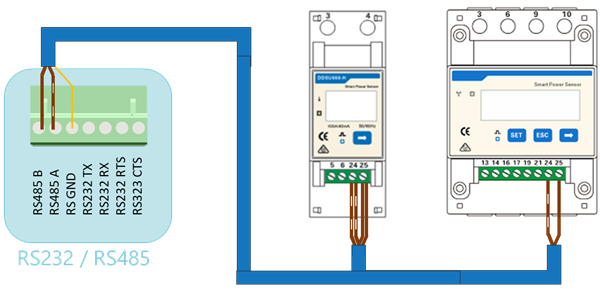
# Cloud Meter Data
import { BrandName, ControllerName } from '@site/src/components/customFields';
import ClickableImage from '@site/src/components/ClickableImage';
import DeviceSupportTable from '@site/src/components/DeviceSupportTable';
## Supported Devices
### Which variant do I have?
The current specification is printed on the front of the meter:
- **1.5(6)A** is the DTSU666 for standard current transformers with a 5 A secondary (x/5A).
- **100A/40mA** and **250A/50mA** are meters that come with their own current transformers (DTSU666-CT).
- **5(80)A** is a direct-connected meter, without current transformers.
## Connection
The communication between the and the energy meter operates via an RS-485 serial bus or Modbus TCP.
It is recommended to use shielded cables with twisted pairs for optimal performance. For short distances, a twisted pair from a network cable (minimum CAT5e) can be used.
The following guidelines apply:
- **Maximum Distance**: The total cable length, including the main cable and branches, is limited to 100 meters.
- **Connecting Multiple Energy Meters**: The cable should be daisy-chained from meter to meter or branched off the main cable (branches must not exceed 1 meter).
- **Long Distances**: It is recommended to install a 120Ω termination resistor at the end of the main cable and activate the termination resistor on the .

# Cloud Meter Data
import { BrandName, ControllerName } from '@site/src/components/customFields';
import ClickableImage from '@site/src/components/ClickableImage';
import DeviceSupportTable from '@site/src/components/DeviceSupportTable';
 ## Supported Devices
# Dornscheidt
import { BrandName, ControllerName } from '@site/src/components/customFields';
import RS485ConnectionTable from '@site/src/components/RS485ConnectionTable';
import ClickableImage from '@site/src/components/ClickableImage';
import RS485AddressNote from '@site/src/components/RS485AddressNote';
import DeviceSupportTable from '@site/src/components/DeviceSupportTable';
## Supported Devices
# Dornscheidt
import { BrandName, ControllerName } from '@site/src/components/customFields';
import RS485ConnectionTable from '@site/src/components/RS485ConnectionTable';
import ClickableImage from '@site/src/components/ClickableImage';
import RS485AddressNote from '@site/src/components/RS485AddressNote';
import DeviceSupportTable from '@site/src/components/DeviceSupportTable';
 ## Supported Devices
## Wiring
### RS485
> [!IMPORTANT] Check the Pro380 terminal labels
> Follow the manufacturer wiring diagram for the exact Pro380 revision. Connect **RS485 A/+** to controller **A**, **RS485 B/-** to controller **B**, and the communication reference to **GND** when available. Verify the labels on the installed meter before energising the bus.
## Configuration
# Eastron
import { FolderOverview } from '@/components/FolderOverview';
# Eastron
# SDM120M
import { BrandName, ControllerName } from '@site/src/components/customFields';
import RS485ConnectionTable from '@site/src/components/RS485ConnectionTable';
import ClickableImage from '@site/src/components/ClickableImage';
import RS485AddressNote from '@site/src/components/RS485AddressNote';
import DeviceSupportTable from '@site/src/components/DeviceSupportTable';
## Supported Devices
## Wiring
### RS485
> [!IMPORTANT] Check the Pro380 terminal labels
> Follow the manufacturer wiring diagram for the exact Pro380 revision. Connect **RS485 A/+** to controller **A**, **RS485 B/-** to controller **B**, and the communication reference to **GND** when available. Verify the labels on the installed meter before energising the bus.
## Configuration
# Eastron
import { FolderOverview } from '@/components/FolderOverview';
# Eastron
# SDM120M
import { BrandName, ControllerName } from '@site/src/components/customFields';
import RS485ConnectionTable from '@site/src/components/RS485ConnectionTable';
import ClickableImage from '@site/src/components/ClickableImage';
import RS485AddressNote from '@site/src/components/RS485AddressNote';
import DeviceSupportTable from '@site/src/components/DeviceSupportTable';
 ## Supported Devices
## Wiring
### RS485
## Configuration
# SDM630
import { BrandName, ControllerName } from '@site/src/components/customFields';
import RS485ConnectionTable from '@site/src/components/RS485ConnectionTable';
import ClickableImage from '@site/src/components/ClickableImage';
import RS485AddressNote from '@site/src/components/RS485AddressNote';
import DeviceSupportTable from '@site/src/components/DeviceSupportTable';
## Supported Devices
## Wiring
### RS485
## Configuration
# Smartrail X835
import { BrandName, ControllerName } from '@site/src/components/customFields';
import RS485ConnectionTable from '@site/src/components/RS485ConnectionTable';
import ClickableImage from '@site/src/components/ClickableImage';
import RS485AddressNote from '@site/src/components/RS485AddressNote';
import DeviceSupportTable from '@site/src/components/DeviceSupportTable';
## Supported Devices
## Wiring
### RS485
## Configuration
# Eneco
import { ControllerName } from '@site/src/components/customFields';
import DeviceSupportTable from '@site/src/components/DeviceSupportTable';
The Eneco Dongle is a P1 reader that plugs into the P1 port of your digital utility meter and shares its readings over the local network.
## Supported Devices
## Configuration
### Installation Requirements
- The dongle must be plugged into the P1 port of your digital utility meter.
- The dongle and the must be on the same local network.
- The dongle must be connected to the internet using the **Eneco app** or the **SmartBridge Connect app** from NET2GRID.
### Adding the Device
1. Select **Devices** in the menu and start the device wizard.
2. Choose **Energy Meters** and select **Eneco**.
3. Select **Ethernet TCP** and search for the device with the MAC address of your dongle (this is printed on the dongle)
4. Click **Search**, then **End scan and go to results**.
5. Click **Save and go to device settings**, fill in the settings and click **Save**.
# Eniris
import { FolderOverview } from '@/components/FolderOverview';
# Eniris
# Pulse energy meters
import { BrandName, ControllerName } from '@site/src/components/customFields';
import RS485ConnectionTable from '@site/src/components/RS485ConnectionTable';
import ClickableImage from '@site/src/components/ClickableImage';
import DeviceSupportTable from '@site/src/components/DeviceSupportTable';
## Supported Devices
# EnjoyPowers
import { BrandName, ControllerName } from '@site/src/components/customFields';
import RS485ConnectionTable from '@site/src/components/RS485ConnectionTable';
import RS485AddressNote from '@site/src/components/RS485AddressNote';
import DeviceSupportTable from '@site/src/components/DeviceSupportTable';
## Supported Devices
## Wiring
### RS485
## Configuration
# SDM630
import { BrandName, ControllerName } from '@site/src/components/customFields';
import RS485ConnectionTable from '@site/src/components/RS485ConnectionTable';
import ClickableImage from '@site/src/components/ClickableImage';
import RS485AddressNote from '@site/src/components/RS485AddressNote';
import DeviceSupportTable from '@site/src/components/DeviceSupportTable';
## Supported Devices
## Wiring
### RS485
## Configuration
# Smartrail X835
import { BrandName, ControllerName } from '@site/src/components/customFields';
import RS485ConnectionTable from '@site/src/components/RS485ConnectionTable';
import ClickableImage from '@site/src/components/ClickableImage';
import RS485AddressNote from '@site/src/components/RS485AddressNote';
import DeviceSupportTable from '@site/src/components/DeviceSupportTable';
## Supported Devices
## Wiring
### RS485
## Configuration
# Eneco
import { ControllerName } from '@site/src/components/customFields';
import DeviceSupportTable from '@site/src/components/DeviceSupportTable';
The Eneco Dongle is a P1 reader that plugs into the P1 port of your digital utility meter and shares its readings over the local network.
## Supported Devices
## Configuration
### Installation Requirements
- The dongle must be plugged into the P1 port of your digital utility meter.
- The dongle and the must be on the same local network.
- The dongle must be connected to the internet using the **Eneco app** or the **SmartBridge Connect app** from NET2GRID.
### Adding the Device
1. Select **Devices** in the menu and start the device wizard.
2. Choose **Energy Meters** and select **Eneco**.
3. Select **Ethernet TCP** and search for the device with the MAC address of your dongle (this is printed on the dongle)
4. Click **Search**, then **End scan and go to results**.
5. Click **Save and go to device settings**, fill in the settings and click **Save**.
# Eniris
import { FolderOverview } from '@/components/FolderOverview';
# Eniris
# Pulse energy meters
import { BrandName, ControllerName } from '@site/src/components/customFields';
import RS485ConnectionTable from '@site/src/components/RS485ConnectionTable';
import ClickableImage from '@site/src/components/ClickableImage';
import DeviceSupportTable from '@site/src/components/DeviceSupportTable';
## Supported Devices
# EnjoyPowers
import { BrandName, ControllerName } from '@site/src/components/customFields';
import RS485ConnectionTable from '@site/src/components/RS485ConnectionTable';
import RS485AddressNote from '@site/src/components/RS485AddressNote';
import DeviceSupportTable from '@site/src/components/DeviceSupportTable';
 # EnjoyPowers
## Supported Devices
The SinE-STS is the static transfer switch of an EnjoyPowers PCS+STS system. It switches the
installation between the grid and a diesel generator, and it measures the connection point it
switches. The reads it as an energy meter: line and phase
voltages, phase currents, active, reactive and apparent power per phase and in total, power
factor, grid frequency, the switch temperature, and the cumulative and daily charge and discharge
energy. Faults reported by the switch (grid, hardware, system, switch and other fault words) are
shown as status messages on the device.
> [!NOTE] The STS is measured, not controlled
> The never sends power setpoints to the STS and never switches it
> between grid and generator mode by itself. Control the battery through the EnjoyPowers PCS
> instead: see [EnjoyPowers PV, hybrid and battery inverters](/Controller/Devices/PV-hybrid-and-battery-inverters/EnjoyPowers/).
## Wiring
### RS485
The STS is connected over RS485 only. It communicates at 9600 baud, 8 data bits, no parity, 1 stop
bit — the factory default settings.
## Configuration
### Settings on the STS
Two settings of the STS can be changed from the . Open the
**Devices** page, find the STS and click **Change physical settings**:
| Setting | Values | Description |
| --- | --- | --- |
| STS enable | Disabled / Enabled (dedicated for PCS+STS systems) | Enables the static transfer switch. Only enable this in a PCS+STS system. |
| Diesel generator mode | Grid mode / Diesel generator mode | Selects whether the installation runs on the grid or on the diesel generator. |
> [!WARNING] Switching modes is a manual action
> Neither setting is changed automatically. The only writes them
> when you change them here, and it does not switch to diesel generator mode on a grid outage.
> All other STS parameters (grid voltage and frequency limits, PCS host address, STS parallel
> master/slave, transformer soft-start) must be set on the STS itself.
# Fluvius
import { BrandName, ControllerName } from '@site/src/components/customFields';
import DeviceSupportTable from '@site/src/components/DeviceSupportTable';
import ClickableImage from '@site/src/components/ClickableImage';
# EnjoyPowers
## Supported Devices
The SinE-STS is the static transfer switch of an EnjoyPowers PCS+STS system. It switches the
installation between the grid and a diesel generator, and it measures the connection point it
switches. The reads it as an energy meter: line and phase
voltages, phase currents, active, reactive and apparent power per phase and in total, power
factor, grid frequency, the switch temperature, and the cumulative and daily charge and discharge
energy. Faults reported by the switch (grid, hardware, system, switch and other fault words) are
shown as status messages on the device.
> [!NOTE] The STS is measured, not controlled
> The never sends power setpoints to the STS and never switches it
> between grid and generator mode by itself. Control the battery through the EnjoyPowers PCS
> instead: see [EnjoyPowers PV, hybrid and battery inverters](/Controller/Devices/PV-hybrid-and-battery-inverters/EnjoyPowers/).
## Wiring
### RS485
The STS is connected over RS485 only. It communicates at 9600 baud, 8 data bits, no parity, 1 stop
bit — the factory default settings.
## Configuration
### Settings on the STS
Two settings of the STS can be changed from the . Open the
**Devices** page, find the STS and click **Change physical settings**:
| Setting | Values | Description |
| --- | --- | --- |
| STS enable | Disabled / Enabled (dedicated for PCS+STS systems) | Enables the static transfer switch. Only enable this in a PCS+STS system. |
| Diesel generator mode | Grid mode / Diesel generator mode | Selects whether the installation runs on the grid or on the diesel generator. |
> [!WARNING] Switching modes is a manual action
> Neither setting is changed automatically. The only writes them
> when you change them here, and it does not switch to diesel generator mode on a grid outage.
> All other STS parameters (grid voltage and frequency limits, PCS host address, STS parallel
> master/slave, transformer soft-start) must be set on the STS itself.
# Fluvius
import { BrandName, ControllerName } from '@site/src/components/customFields';
import DeviceSupportTable from '@site/src/components/DeviceSupportTable';
import ClickableImage from '@site/src/components/ClickableImage';
 ## Supported Devices
> [!CAUTION] Crucial: Activate the P1 Port first!
> By default, the User Port (P1) on the digital meter is **closed**. The cannot detect the meter if the port is not active.
>
> 1. Log in to [mijn.fluvius.be](https://mijn.fluvius.be).
> 2. Go to **Producten & Diensten** > **Verbruik** > **Beheer poorten**.
> 3. **Enable** the P1 port.
> 4. **Check the display on the meter:** A small triangle arrow (▼) must be visible above the text **"P1"**. If this arrow is missing, the port is dead.
## Connection
### 1. Wiring
Connect the Digital Meter to the using a **P1 Cable** (USB to RJ12).
1. Locate the yellow rubber cover labeled **P1** on the right side of the meter.
2. Plug the **RJ12 connector** into the P1 port.
3. Plug the **USB connector** into the .
> [!WARNING] P1 vs S1
> Do **not** use the **S1** port (often an RJ45 port on top). This is for the grid operator only. You must use the **P1** user port on the side.
## Configuration
### Standard Meter (Most Common)
For standard residential and small business connections (direct measurement):
1. Navigate to the **Settings** page on the .
2. Click on **Scan for devices**.
3. The system will automatically detect the meter protocol (DSMR 5 or older DSMR 2.2).
4. Add the device labeled **"Digital Smart Meter"**.
### Industrial Meter (A1 Port)
Only for installations using the **A1 port** (typically high voltage/current with transformers):
When adding an A1 device, the system will ask for **Scale Factors**. You must match these to the installation's transformers (CT/PT ratios) to get correct readings.
* **Voltage Scale Factor:** The ratio of the voltage transformer. (Default: 1.0)
* **Current Scale Factor:** The ratio of the current transformer. (Default: 1.0)
> *Example: If you have a 100A/5A Current Transformer, your Current Scale Factor is 20.*
## Troubleshooting
| Problem | Possible Cause & Solution |
| :--- | :--- |
| **Meter not found** | **P1 Port inactive:** Check the Fluvius portal. Is the arrow (▼) visible above "P1" on the LCD display? |
| **Meter not found** | **Wrong Port:** Ensure the cable is in the P1 port (RJ12), not the S1 port. |
| **Meter not found** | **Cable issue:** Use a verified P1 cable. Standard telephone cables often do not work because the signal lines are inverted. |
| **No Voltage displayed** | Some older meters (DSMR 2.2) or specific brands (Landis+Gyr) do not send voltage data. This is a limitation of the meter itself, not the controller. |
| **Wrong Power Values (A1)** | If values are too low/high on an A1 meter, check the **Scale Factors** in the device settings. You may have entered `1` instead of the transformer ratio. |
# Fronius
import { BrandName, ControllerName } from '@site/src/components/customFields';
import RS485ConnectionTable from '@site/src/components/RS485ConnectionTable';
import ClickableImage from '@site/src/components/ClickableImage';
import RS485AddressNote from '@site/src/components/RS485AddressNote';
import DeviceSupportTable from '@site/src/components/DeviceSupportTable';
## Supported Devices
> [!CAUTION] Crucial: Activate the P1 Port first!
> By default, the User Port (P1) on the digital meter is **closed**. The cannot detect the meter if the port is not active.
>
> 1. Log in to [mijn.fluvius.be](https://mijn.fluvius.be).
> 2. Go to **Producten & Diensten** > **Verbruik** > **Beheer poorten**.
> 3. **Enable** the P1 port.
> 4. **Check the display on the meter:** A small triangle arrow (▼) must be visible above the text **"P1"**. If this arrow is missing, the port is dead.
## Connection
### 1. Wiring
Connect the Digital Meter to the using a **P1 Cable** (USB to RJ12).
1. Locate the yellow rubber cover labeled **P1** on the right side of the meter.
2. Plug the **RJ12 connector** into the P1 port.
3. Plug the **USB connector** into the .
> [!WARNING] P1 vs S1
> Do **not** use the **S1** port (often an RJ45 port on top). This is for the grid operator only. You must use the **P1** user port on the side.
## Configuration
### Standard Meter (Most Common)
For standard residential and small business connections (direct measurement):
1. Navigate to the **Settings** page on the .
2. Click on **Scan for devices**.
3. The system will automatically detect the meter protocol (DSMR 5 or older DSMR 2.2).
4. Add the device labeled **"Digital Smart Meter"**.
### Industrial Meter (A1 Port)
Only for installations using the **A1 port** (typically high voltage/current with transformers):
When adding an A1 device, the system will ask for **Scale Factors**. You must match these to the installation's transformers (CT/PT ratios) to get correct readings.
* **Voltage Scale Factor:** The ratio of the voltage transformer. (Default: 1.0)
* **Current Scale Factor:** The ratio of the current transformer. (Default: 1.0)
> *Example: If you have a 100A/5A Current Transformer, your Current Scale Factor is 20.*
## Troubleshooting
| Problem | Possible Cause & Solution |
| :--- | :--- |
| **Meter not found** | **P1 Port inactive:** Check the Fluvius portal. Is the arrow (▼) visible above "P1" on the LCD display? |
| **Meter not found** | **Wrong Port:** Ensure the cable is in the P1 port (RJ12), not the S1 port. |
| **Meter not found** | **Cable issue:** Use a verified P1 cable. Standard telephone cables often do not work because the signal lines are inverted. |
| **No Voltage displayed** | Some older meters (DSMR 2.2) or specific brands (Landis+Gyr) do not send voltage data. This is a limitation of the meter itself, not the controller. |
| **Wrong Power Values (A1)** | If values are too low/high on an A1 meter, check the **Scale Factors** in the device settings. You may have entered `1` instead of the transformer ratio. |
# Fronius
import { BrandName, ControllerName } from '@site/src/components/customFields';
import RS485ConnectionTable from '@site/src/components/RS485ConnectionTable';
import ClickableImage from '@site/src/components/ClickableImage';
import RS485AddressNote from '@site/src/components/RS485AddressNote';
import DeviceSupportTable from '@site/src/components/DeviceSupportTable';
 ## Supported Devices
## Wiring
### RS485
> [!IMPORTANT] Check the terminal labels for the exact meter model
> Terminal positions differ between the Fronius 63A1 and 63A3. Follow the manufacturer wiring diagram and connect **RS485 A/+** to controller **A**, **RS485 B/-** to controller **B**, and the communication reference to **GND** when available. Do not copy terminal numbers from a different Fronius meter.
## Configuration
# Hager
import { BrandName, ControllerName } from '@site/src/components/customFields';
import RS485ConnectionTable from '@site/src/components/RS485ConnectionTable';
import ClickableImage from '@site/src/components/ClickableImage';
import RS485AddressNote from '@site/src/components/RS485AddressNote';
import DeviceSupportTable from '@site/src/components/DeviceSupportTable';
## Supported Devices
## Wiring
### RS485
> [!IMPORTANT] Check the terminal labels for the exact meter model
> Terminal positions differ between the Fronius 63A1 and 63A3. Follow the manufacturer wiring diagram and connect **RS485 A/+** to controller **A**, **RS485 B/-** to controller **B**, and the communication reference to **GND** when available. Do not copy terminal numbers from a different Fronius meter.
## Configuration
# Hager
import { BrandName, ControllerName } from '@site/src/components/customFields';
import RS485ConnectionTable from '@site/src/components/RS485ConnectionTable';
import ClickableImage from '@site/src/components/ClickableImage';
import RS485AddressNote from '@site/src/components/RS485AddressNote';
import DeviceSupportTable from '@site/src/components/DeviceSupportTable';
 ## Supported Devices
## Wiring
### RS485
> [!IMPORTANT] Check the terminal labels for the exact meter model
> Hager terminal numbers differ between the EC series and TXF121. Follow the manufacturer wiring diagram and connect the meter's **RS485 A/+** to controller **A**, **RS485 B/-** to controller **B**, and the communication reference to **GND** when the meter provides one. Do not infer terminal numbers from another Hager model.
## Configuration
# HomeWizard
import { BrandName, ControllerName } from '@site/src/components/customFields';
import RS485ConnectionTable from '@site/src/components/RS485ConnectionTable';
import ClickableImage from '@site/src/components/ClickableImage';
import RS485AddressNote from '@site/src/components/RS485AddressNote';
import DeviceSupportTable from '@site/src/components/DeviceSupportTable';
## Supported Devices
## Wiring
### RS485
> [!IMPORTANT] Check the terminal labels for the exact meter model
> Hager terminal numbers differ between the EC series and TXF121. Follow the manufacturer wiring diagram and connect the meter's **RS485 A/+** to controller **A**, **RS485 B/-** to controller **B**, and the communication reference to **GND** when the meter provides one. Do not infer terminal numbers from another Hager model.
## Configuration
# HomeWizard
import { BrandName, ControllerName } from '@site/src/components/customFields';
import RS485ConnectionTable from '@site/src/components/RS485ConnectionTable';
import ClickableImage from '@site/src/components/ClickableImage';
import RS485AddressNote from '@site/src/components/RS485AddressNote';
import DeviceSupportTable from '@site/src/components/DeviceSupportTable';
 ## Supported Devices
The Energy Socket can be added as an energy meter to monitor the consumption of a single appliance
without ever switching it. See the [Energy Socket page](/Devices/Switched-loads/Homewizard/) for
details on the switched-load and energy-meter use cases.
## Configuration
To communicate with your HomeWizard device the local API must be enabled.
1. Open the HomeWizard Energy app.
2. Go to "Settings"
3. Go to "Meters"
4. Select the meter you want to connect to.
5. Enable the "Local API" option.
# Huawei
import { BrandName, ControllerName } from '@site/src/components/customFields';
import RS485ConnectionTable from '@site/src/components/RS485ConnectionTable';
import ClickableImage from '@site/src/components/ClickableImage';
import RS485AddressNote from '@site/src/components/RS485AddressNote';
import DeviceSupportTable from '@site/src/components/DeviceSupportTable';
## Supported Devices
The Energy Socket can be added as an energy meter to monitor the consumption of a single appliance
without ever switching it. See the [Energy Socket page](/Devices/Switched-loads/Homewizard/) for
details on the switched-load and energy-meter use cases.
## Configuration
To communicate with your HomeWizard device the local API must be enabled.
1. Open the HomeWizard Energy app.
2. Go to "Settings"
3. Go to "Meters"
4. Select the meter you want to connect to.
5. Enable the "Local API" option.
# Huawei
import { BrandName, ControllerName } from '@site/src/components/customFields';
import RS485ConnectionTable from '@site/src/components/RS485ConnectionTable';
import ClickableImage from '@site/src/components/ClickableImage';
import RS485AddressNote from '@site/src/components/RS485AddressNote';
import DeviceSupportTable from '@site/src/components/DeviceSupportTable';
 ## Supported Devices
The Huawei SmartLogger can be used to read and control energy meters/solar inverters/batteries.
An energy meter that is connected to the SmartLogger, such as the Chint DTSU666-H or DTSU666-HW, is read through the SmartLogger over Modbus TCP. Do not connect it to the RS485 bus of the as well: the SmartLogger already reads that bus, and an RS485 bus can only have one reading device. When adding the SmartLogger, answer **Yes** to "Is an energy meter connected to the Huawei inverter or Huawei SmartLogger?".
## Wiring - Ethernet
For correct ethernet wiring: Follow the [the guidelines for ethernet wiring](/Controller/wiring-best-practices/#ethernet).
## Configuration
### 1. Activating Modbus in the SmartLogger
1. Surf to the IP address of the SmartLogger.
2. Login to the SmartLogger (default password: "Changeme").
3. Change “Link setting” to “Enable (Unlimited)”.
4. Set “Address mode” to “Communication address”.
5. Choose the Modbus address of the logger. We recommend that this is different from the addresses of the inverters (see also the next step in the manual).
6. Click submit.
### 2. Device Modbus Addresses
The smartlogger can connect both inverters and energy meters via 3 COM ports. Adding and giving Modbus addresses can be done automatically or not.
However... all Modbus addresses must be different!
To adjust this, it is best to first adjust the possible addresses per COM port so that there is no overlap.
Then you remove the devices with the same address and add them back with an address different from all other devices.
# IMT
# IMT irradiance sensor
Measure the sunlight reaching your PV installation with the IMT Si-RS485TC-T-MB. This sensor reports solar irradiance in W/m², providing context alongside solar-production measurements.
## Supported model
| Sensor manufacturer | Compatible sensor model | Data connection | Measured quantity |
| --- | --- | --- | --- |
| IMT Technology (Mencke & Tegtmeyer) | Si-RS485TC-T-MB | RS485 / Modbus RTU | Solar irradiance in W/m² |
Find the sensor in the commissioning wizard using this selection:
```text
Energy meter → IMT → SiRS485TCTMB-Pyranometer
```
Although it appears in the Energy meter category, it measures sunlight, not electrical power or energy. It does not replace the grid meter used for import/export measurement. The supported measurement for this connection is irradiance; cell temperature and optional temperature or wind sensors are not read by this integration.
## Before you connect
- Mount the sensor with the same tilt and orientation as the PV modules, away from shading.
- Provide the sensor's power supply: 24 V DC nominal, within its 10–28 V DC operating range.
- Connect the sensor to a supported RS485 connection on the controller. Follow the [RS485 cable routing, polarity and termination](/Controller/wiring-best-practices) and the [IMT installation instructions](https://imt-technology.com/fileadmin/docs/en/products/Si-Sensor-RS485_IM_EN.pdf) for polarity, shielding and mounting.
The sensor's factory communication settings are:
| Setting | Factory value |
| --- | --- |
| Communication protocol | `Modbus RTU` |
| Default Modbus address | `1` |
| Default serial speed | `9600 baud` |
| Serial framing | 8 data bits, no parity, 1 stop bit (8N1) |
If the sensor has already been configured, use its actual settings. Each sensor on the same RS485 bus needs a unique Modbus address; supported addresses are 1–247. This model uses RS485, not a direct Ethernet/Modbus TCP connection.
## Add the sensor
1. Open the commissioning wizard and go to [Add other devices](/Controller/Configuration%20from%20A%20to%20Z/6-other-devices).
2. Choose the category, manufacturer and sensor model shown above.
3. Select the RS485 connection and use the sensor's communication settings.
4. Run the scan in daylight with the sensor uncovered, then select and save the detected sensor.
5. Check that the irradiance reading in W/m² updates when sunlight changes.
A reading of 0 W/m² can prevent this sensor from being detected. If it is not found at night or while covered, repeat the scan with light on the sensor before changing the wiring or settings.
## Using the measurement
Irradiance helps distinguish reduced solar production caused by less sunlight from changes that need further investigation. It is a measurement per unit of area, not the installation's total power in kW or generated energy in kWh.
For the wider monitoring overview, see [Meters, sensors, gateways & building systems](/Monitoring/Integrations/Energy%20meters). Sensor communication details are available in the [IMT Modbus specification](https://imt-technology.com/fileadmin/docs/en/products/Si-RS485_Modbus_SPEC_EN.pdf).
# Energy Meter
import { FolderOverview } from '@/components/FolderOverview';
# Energy Meter
## Irradiance sensors
The Energy meter category in the commissioning wizard also includes this solar-irradiance sensor:
| Manufacturer | Supported model | Connection | Measurement |
| --- | --- | --- | --- |
| [IMT](/Controller/Devices/Energy-meter/IMT) | Si-RS485TC-T-MB | RS485 / Modbus RTU | Solar irradiance in W/m² |
See the [IMT connection guide](/Controller/Devices/Energy-meter/IMT) for wiring, communication settings and commissioning.
## Browse manufacturers
# Inepro
import { BrandName, ControllerName } from '@site/src/components/customFields';
import RS485ConnectionTable from '@site/src/components/RS485ConnectionTable';
import ClickableImage from '@site/src/components/ClickableImage';
import RS485AddressNote from '@site/src/components/RS485AddressNote';
import DeviceSupportTable from '@site/src/components/DeviceSupportTable';
## Supported Devices
The Huawei SmartLogger can be used to read and control energy meters/solar inverters/batteries.
An energy meter that is connected to the SmartLogger, such as the Chint DTSU666-H or DTSU666-HW, is read through the SmartLogger over Modbus TCP. Do not connect it to the RS485 bus of the as well: the SmartLogger already reads that bus, and an RS485 bus can only have one reading device. When adding the SmartLogger, answer **Yes** to "Is an energy meter connected to the Huawei inverter or Huawei SmartLogger?".
## Wiring - Ethernet
For correct ethernet wiring: Follow the [the guidelines for ethernet wiring](/Controller/wiring-best-practices/#ethernet).
## Configuration
### 1. Activating Modbus in the SmartLogger
1. Surf to the IP address of the SmartLogger.
2. Login to the SmartLogger (default password: "Changeme").
3. Change “Link setting” to “Enable (Unlimited)”.
4. Set “Address mode” to “Communication address”.
5. Choose the Modbus address of the logger. We recommend that this is different from the addresses of the inverters (see also the next step in the manual).
6. Click submit.
### 2. Device Modbus Addresses
The smartlogger can connect both inverters and energy meters via 3 COM ports. Adding and giving Modbus addresses can be done automatically or not.
However... all Modbus addresses must be different!
To adjust this, it is best to first adjust the possible addresses per COM port so that there is no overlap.
Then you remove the devices with the same address and add them back with an address different from all other devices.
# IMT
# IMT irradiance sensor
Measure the sunlight reaching your PV installation with the IMT Si-RS485TC-T-MB. This sensor reports solar irradiance in W/m², providing context alongside solar-production measurements.
## Supported model
| Sensor manufacturer | Compatible sensor model | Data connection | Measured quantity |
| --- | --- | --- | --- |
| IMT Technology (Mencke & Tegtmeyer) | Si-RS485TC-T-MB | RS485 / Modbus RTU | Solar irradiance in W/m² |
Find the sensor in the commissioning wizard using this selection:
```text
Energy meter → IMT → SiRS485TCTMB-Pyranometer
```
Although it appears in the Energy meter category, it measures sunlight, not electrical power or energy. It does not replace the grid meter used for import/export measurement. The supported measurement for this connection is irradiance; cell temperature and optional temperature or wind sensors are not read by this integration.
## Before you connect
- Mount the sensor with the same tilt and orientation as the PV modules, away from shading.
- Provide the sensor's power supply: 24 V DC nominal, within its 10–28 V DC operating range.
- Connect the sensor to a supported RS485 connection on the controller. Follow the [RS485 cable routing, polarity and termination](/Controller/wiring-best-practices) and the [IMT installation instructions](https://imt-technology.com/fileadmin/docs/en/products/Si-Sensor-RS485_IM_EN.pdf) for polarity, shielding and mounting.
The sensor's factory communication settings are:
| Setting | Factory value |
| --- | --- |
| Communication protocol | `Modbus RTU` |
| Default Modbus address | `1` |
| Default serial speed | `9600 baud` |
| Serial framing | 8 data bits, no parity, 1 stop bit (8N1) |
If the sensor has already been configured, use its actual settings. Each sensor on the same RS485 bus needs a unique Modbus address; supported addresses are 1–247. This model uses RS485, not a direct Ethernet/Modbus TCP connection.
## Add the sensor
1. Open the commissioning wizard and go to [Add other devices](/Controller/Configuration%20from%20A%20to%20Z/6-other-devices).
2. Choose the category, manufacturer and sensor model shown above.
3. Select the RS485 connection and use the sensor's communication settings.
4. Run the scan in daylight with the sensor uncovered, then select and save the detected sensor.
5. Check that the irradiance reading in W/m² updates when sunlight changes.
A reading of 0 W/m² can prevent this sensor from being detected. If it is not found at night or while covered, repeat the scan with light on the sensor before changing the wiring or settings.
## Using the measurement
Irradiance helps distinguish reduced solar production caused by less sunlight from changes that need further investigation. It is a measurement per unit of area, not the installation's total power in kW or generated energy in kWh.
For the wider monitoring overview, see [Meters, sensors, gateways & building systems](/Monitoring/Integrations/Energy%20meters). Sensor communication details are available in the [IMT Modbus specification](https://imt-technology.com/fileadmin/docs/en/products/Si-RS485_Modbus_SPEC_EN.pdf).
# Energy Meter
import { FolderOverview } from '@/components/FolderOverview';
# Energy Meter
## Irradiance sensors
The Energy meter category in the commissioning wizard also includes this solar-irradiance sensor:
| Manufacturer | Supported model | Connection | Measurement |
| --- | --- | --- | --- |
| [IMT](/Controller/Devices/Energy-meter/IMT) | Si-RS485TC-T-MB | RS485 / Modbus RTU | Solar irradiance in W/m² |
See the [IMT connection guide](/Controller/Devices/Energy-meter/IMT) for wiring, communication settings and commissioning.
## Browse manufacturers
# Inepro
import { BrandName, ControllerName } from '@site/src/components/customFields';
import RS485ConnectionTable from '@site/src/components/RS485ConnectionTable';
import ClickableImage from '@site/src/components/ClickableImage';
import RS485AddressNote from '@site/src/components/RS485AddressNote';
import DeviceSupportTable from '@site/src/components/DeviceSupportTable';
 ## Supported Devices
## Wiring
### RS485
## Configuration
Refer to the meter manual for more detailed information on changing the Modbus address.
By default, the meter is set to address 1. This can be changed via the meter display.
1. Use the buttons to go to Program Mode 2.
2. Press and hold the right button for 3 seconds to open the menu.
3. Scroll to the LCD page Modbus/M-bus ID (addr xxx).
4. Press and hold the right button for 5 seconds to enter programming mode.
5. The value begins to flash: select 3 digits (Modbus: 001-247). Confirm each digit by holding down both buttons for 3 seconds.
6. The LCD shows OK when the setting is confirmed.
# Iskra
import { BrandName, ControllerName } from '@site/src/components/customFields';
import RS485ConnectionTable from '@site/src/components/RS485ConnectionTable';
import ClickableImage from '@site/src/components/ClickableImage';
import DeviceSupportTable from '@site/src/components/DeviceSupportTable';
## Supported Devices
## Wiring
### RS485
## Configuration
Refer to the meter manual for more detailed information on changing the Modbus address.
By default, the meter is set to address 1. This can be changed via the meter display.
1. Use the buttons to go to Program Mode 2.
2. Press and hold the right button for 3 seconds to open the menu.
3. Scroll to the LCD page Modbus/M-bus ID (addr xxx).
4. Press and hold the right button for 5 seconds to enter programming mode.
5. The value begins to flash: select 3 digits (Modbus: 001-247). Confirm each digit by holding down both buttons for 3 seconds.
6. The LCD shows OK when the setting is confirmed.
# Iskra
import { BrandName, ControllerName } from '@site/src/components/customFields';
import RS485ConnectionTable from '@site/src/components/RS485ConnectionTable';
import ClickableImage from '@site/src/components/ClickableImage';
import DeviceSupportTable from '@site/src/components/DeviceSupportTable';
 ## Supported Devices
# Janitza
import { FolderOverview } from '@/components/FolderOverview';
# Janitza
# RMU 301 CBM
import { BrandName, ControllerName } from '@site/src/components/customFields';
import RS485ConnectionTable from '@site/src/components/RS485ConnectionTable';
import ClickableImage from '@site/src/components/ClickableImage';
import RS485AddressNote from '@site/src/components/RS485AddressNote';
import DeviceSupportTable from '@site/src/components/DeviceSupportTable';
## Supported Devices
# Janitza
import { FolderOverview } from '@/components/FolderOverview';
# Janitza
# RMU 301 CBM
import { BrandName, ControllerName } from '@site/src/components/customFields';
import RS485ConnectionTable from '@site/src/components/RS485ConnectionTable';
import ClickableImage from '@site/src/components/ClickableImage';
import RS485AddressNote from '@site/src/components/RS485AddressNote';
import DeviceSupportTable from '@site/src/components/DeviceSupportTable';
 ## Supported Devices
## Wiring
### RS485
## Configuration
# UMG 103-CBM
import { BrandName, ControllerName } from '@site/src/components/customFields';
import RS485ConnectionTable from '@site/src/components/RS485ConnectionTable';
import ClickableImage from '@site/src/components/ClickableImage';
import RS485AddressNote from '@site/src/components/RS485AddressNote';
import DeviceSupportTable from '@site/src/components/DeviceSupportTable';
## Supported Devices
## Wiring
### RS485
## Configuration
# UMG 604 PRO
import { BrandName, ControllerName } from '@site/src/components/customFields';
import RS485ConnectionTable from '@site/src/components/RS485ConnectionTable';
import ClickableImage from '@site/src/components/ClickableImage';
import RS485AddressNote from '@site/src/components/RS485AddressNote';
import DeviceSupportTable from '@site/src/components/DeviceSupportTable';
## Supported Devices
## Wiring
### Ethernet
For correct ethernet wiring: Follow the [the guidelines for ethernet wiring](/Controller/wiring-best-practices/#ethernet).
### RS485
## Configuration
### Ethernet
View the images for more information on configuration.
### RS485
Make sure the energy meter is set as a 'Modbus RTU/slave'!
# UMG 96-PA
import { BrandName, ControllerName } from '@site/src/components/customFields';
import RS485ConnectionTable from '@site/src/components/RS485ConnectionTable';
import ClickableImage from '@site/src/components/ClickableImage';
import RS485AddressNote from '@site/src/components/RS485AddressNote';
import DeviceSupportTable from '@site/src/components/DeviceSupportTable';
## Supported Devices
## Wiring
## Configuration
# UMG 96 PQ L
import { BrandName, ControllerName } from '@site/src/components/customFields';
import RS485ConnectionTable from '@site/src/components/RS485ConnectionTable';
import ClickableImage from '@site/src/components/ClickableImage';
import RS485AddressNote from '@site/src/components/RS485AddressNote';
import DeviceSupportTable from '@site/src/components/DeviceSupportTable';
## Supported Devices
## Wiring
### RS485
## Configuration
# UMG 96 RM
import { BrandName, ControllerName } from '@site/src/components/customFields';
import RS485ConnectionTable from '@site/src/components/RS485ConnectionTable';
import ClickableImage from '@site/src/components/ClickableImage';
import RS485AddressNote from '@site/src/components/RS485AddressNote';
import DeviceSupportTable from '@site/src/components/DeviceSupportTable';
## Supported Devices
## Wiring
### Ethernet
For correct ethernet wiring: Follow the [the guidelines for ethernet wiring](/Controller/wiring-best-practices/#ethernet).
### RS485
## Configuration
### Ethernet
See the device manual.
### RS485
# UMG 96 S2
import { BrandName, ControllerName } from '@site/src/components/customFields';
import RS485ConnectionTable from '@site/src/components/RS485ConnectionTable';
import ClickableImage from '@site/src/components/ClickableImage';
import RS485AddressNote from '@site/src/components/RS485AddressNote';
import DeviceSupportTable from '@site/src/components/DeviceSupportTable';
## Supported Devices
## Wiring
### RS485
## Configuration
# Joulz
import { BrandName, ControllerName } from '@site/src/components/customFields';
import RS485ConnectionTable from '@site/src/components/RS485ConnectionTable';
import ClickableImage from '@site/src/components/ClickableImage';
import RS485AddressNote from '@site/src/components/RS485AddressNote';
import DeviceSupportTable from '@site/src/components/DeviceSupportTable';
## Supported Devices
## Wiring
### RS485
## Configuration
# UMG 103-CBM
import { BrandName, ControllerName } from '@site/src/components/customFields';
import RS485ConnectionTable from '@site/src/components/RS485ConnectionTable';
import ClickableImage from '@site/src/components/ClickableImage';
import RS485AddressNote from '@site/src/components/RS485AddressNote';
import DeviceSupportTable from '@site/src/components/DeviceSupportTable';
## Supported Devices
## Wiring
### RS485
## Configuration
# UMG 604 PRO
import { BrandName, ControllerName } from '@site/src/components/customFields';
import RS485ConnectionTable from '@site/src/components/RS485ConnectionTable';
import ClickableImage from '@site/src/components/ClickableImage';
import RS485AddressNote from '@site/src/components/RS485AddressNote';
import DeviceSupportTable from '@site/src/components/DeviceSupportTable';
## Supported Devices
## Wiring
### Ethernet
For correct ethernet wiring: Follow the [the guidelines for ethernet wiring](/Controller/wiring-best-practices/#ethernet).
### RS485
## Configuration
### Ethernet
View the images for more information on configuration.
### RS485
Make sure the energy meter is set as a 'Modbus RTU/slave'!
# UMG 96-PA
import { BrandName, ControllerName } from '@site/src/components/customFields';
import RS485ConnectionTable from '@site/src/components/RS485ConnectionTable';
import ClickableImage from '@site/src/components/ClickableImage';
import RS485AddressNote from '@site/src/components/RS485AddressNote';
import DeviceSupportTable from '@site/src/components/DeviceSupportTable';
## Supported Devices
## Wiring
## Configuration
# UMG 96 PQ L
import { BrandName, ControllerName } from '@site/src/components/customFields';
import RS485ConnectionTable from '@site/src/components/RS485ConnectionTable';
import ClickableImage from '@site/src/components/ClickableImage';
import RS485AddressNote from '@site/src/components/RS485AddressNote';
import DeviceSupportTable from '@site/src/components/DeviceSupportTable';
## Supported Devices
## Wiring
### RS485
## Configuration
# UMG 96 RM
import { BrandName, ControllerName } from '@site/src/components/customFields';
import RS485ConnectionTable from '@site/src/components/RS485ConnectionTable';
import ClickableImage from '@site/src/components/ClickableImage';
import RS485AddressNote from '@site/src/components/RS485AddressNote';
import DeviceSupportTable from '@site/src/components/DeviceSupportTable';
## Supported Devices
## Wiring
### Ethernet
For correct ethernet wiring: Follow the [the guidelines for ethernet wiring](/Controller/wiring-best-practices/#ethernet).
### RS485
## Configuration
### Ethernet
See the device manual.
### RS485
# UMG 96 S2
import { BrandName, ControllerName } from '@site/src/components/customFields';
import RS485ConnectionTable from '@site/src/components/RS485ConnectionTable';
import ClickableImage from '@site/src/components/ClickableImage';
import RS485AddressNote from '@site/src/components/RS485AddressNote';
import DeviceSupportTable from '@site/src/components/DeviceSupportTable';
## Supported Devices
## Wiring
### RS485
## Configuration
# Joulz
import { BrandName, ControllerName } from '@site/src/components/customFields';
import RS485ConnectionTable from '@site/src/components/RS485ConnectionTable';
import ClickableImage from '@site/src/components/ClickableImage';
import RS485AddressNote from '@site/src/components/RS485AddressNote';
import DeviceSupportTable from '@site/src/components/DeviceSupportTable';
 ## Supported Devices
# Kaifa
import { BrandName, ControllerName } from '@site/src/components/customFields';
import RS485ConnectionTable from '@site/src/components/RS485ConnectionTable';
import ClickableImage from '@site/src/components/ClickableImage';
import DeviceSupportTable from '@site/src/components/DeviceSupportTable';
## Supported Devices
# Kaifa
import { BrandName, ControllerName } from '@site/src/components/customFields';
import RS485ConnectionTable from '@site/src/components/RS485ConnectionTable';
import ClickableImage from '@site/src/components/ClickableImage';
import DeviceSupportTable from '@site/src/components/DeviceSupportTable';
 ## Supported Devices
# Kamstrup
import { BrandName, ControllerName } from '@site/src/components/customFields';
import RS485ConnectionTable from '@site/src/components/RS485ConnectionTable';
import ClickableImage from '@site/src/components/ClickableImage';
import DeviceSupportTable from '@site/src/components/DeviceSupportTable';
## Supported Devices
# Kamstrup
import { BrandName, ControllerName } from '@site/src/components/customFields';
import RS485ConnectionTable from '@site/src/components/RS485ConnectionTable';
import ClickableImage from '@site/src/components/ClickableImage';
import DeviceSupportTable from '@site/src/components/DeviceSupportTable';
 ## Supported Devices
# Landis+Gyr
import { BrandName, ControllerName } from '@site/src/components/customFields';
import RS485ConnectionTable from '@site/src/components/RS485ConnectionTable';
import ClickableImage from '@site/src/components/ClickableImage';
import DeviceSupportTable from '@site/src/components/DeviceSupportTable';
## Supported Devices
# Landis+Gyr
import { BrandName, ControllerName } from '@site/src/components/customFields';
import RS485ConnectionTable from '@site/src/components/RS485ConnectionTable';
import ClickableImage from '@site/src/components/ClickableImage';
import DeviceSupportTable from '@site/src/components/DeviceSupportTable';
 ## Supported Devices
# Legrand
import { BrandName, ControllerName } from "@site/src/components/customFields";
import RS485ConnectionTable from "@site/src/components/RS485ConnectionTable";
import ClickableImage from "@site/src/components/ClickableImage";
import RS485AddressNote from "@site/src/components/RS485AddressNote";
import DeviceSupportTable from "@site/src/components/DeviceSupportTable";
## Supported Devices
# Legrand
import { BrandName, ControllerName } from "@site/src/components/customFields";
import RS485ConnectionTable from "@site/src/components/RS485ConnectionTable";
import ClickableImage from "@site/src/components/ClickableImage";
import RS485AddressNote from "@site/src/components/RS485AddressNote";
import DeviceSupportTable from "@site/src/components/DeviceSupportTable";
 ## Supported Devices
> [!IMPORTANT]
> For the LeGrand EMDX3 make sure that the protcol is set to BASIC!
## Wiring
### RS485
## Configuration
# Litiot
import { BrandName, ControllerName } from '@site/src/components/customFields';
import RS485AddressNote from '@site/src/components/RS485AddressNote';
import DeviceSupportTable from '@site/src/components/DeviceSupportTable';
## Supported Devices
> [!IMPORTANT]
> For the LeGrand EMDX3 make sure that the protcol is set to BASIC!
## Wiring
### RS485
## Configuration
# Litiot
import { BrandName, ControllerName } from '@site/src/components/customFields';
import RS485AddressNote from '@site/src/components/RS485AddressNote';
import DeviceSupportTable from '@site/src/components/DeviceSupportTable';
 ## Supported Devices
The **Litiot LHE34D** is a whitelabel version of the **Chint DTSU666 for Afore**. In the configuration, this device uses the same communication protocol and driver settings as the Afore-compatible Chint meters.
> [!NOTE]
> Because the **Litiot LHE34D** is hardware-identical to the **Chint DTSU666 for Afore**, all installation instructions, wiring diagrams, and terminal connections are the same.
## Connection & Wiring
For detailed instructions on how to connect the RS-485 communication bus, terminal pinouts, and wiring diagrams, please refer to the main Chint documentation page:
**[View Chint DTSU666 Wiring & Connection Instructions](/Controller/Devices/Energy-meter/Chint/)**
### Quick Reference
* **Protocol**: Modbus RTU (RS-485)
* **Terminal 24**: RS485-A
* **Terminal 25**: RS485-B
# M-Bus
import { BrandName, ControllerName } from '@site/src/components/customFields';
import RS485AddressNote from '@site/src/components/RS485AddressNote';
import ClickableImage from '@site/src/components/ClickableImage';
## Supported Devices
The **Litiot LHE34D** is a whitelabel version of the **Chint DTSU666 for Afore**. In the configuration, this device uses the same communication protocol and driver settings as the Afore-compatible Chint meters.
> [!NOTE]
> Because the **Litiot LHE34D** is hardware-identical to the **Chint DTSU666 for Afore**, all installation instructions, wiring diagrams, and terminal connections are the same.
## Connection & Wiring
For detailed instructions on how to connect the RS-485 communication bus, terminal pinouts, and wiring diagrams, please refer to the main Chint documentation page:
**[View Chint DTSU666 Wiring & Connection Instructions](/Controller/Devices/Energy-meter/Chint/)**
### Quick Reference
* **Protocol**: Modbus RTU (RS-485)
* **Terminal 24**: RS485-A
* **Terminal 25**: RS485-B
# M-Bus
import { BrandName, ControllerName } from '@site/src/components/customFields';
import RS485AddressNote from '@site/src/components/RS485AddressNote';
import ClickableImage from '@site/src/components/ClickableImage';
 ## M-Bus (Meter-Bus)
This driver supports energy meters and other devices that comply with the **M-Bus (Meter-Bus)** standard (EN 13757-2 / EN 13757-3). The connects to these devices via an **M-Bus Master / Gateway** (also known as a level converter).
> [!NOTE] IMPORTANT
> This driver uses the **M-Bus** protocol. This is a **different** physical and electrical standard from Modbus (RS485) and requires an M-Bus Master / Gateway.
---
## Wiring
### M-Bus Wiring
M-Bus is a 2-wire bus system. Unlike RS485, it is typically **not sensitive to polarity** (the two wires can be swapped).
1. **Connect the Meters:**
* Connect all M-Bus devices in parallel using a 2-wire cable (daisy-chain topology).
* Consult your meter's manual for the specific M-Bus connection terminals.
2. **Connect the M-Bus Master:**
* The M-Bus line must be connected to an **M-Bus Master** (also called a level converter or gateway). This device powers the bus and converts the M-Bus signal into a protocol the can read (usually Ethernet/IP).
* Connect the M-Bus Master to the same network as your .
---
## Configuration
To ensure the can find your M-Bus devices, each device must have a **unique Primary Address**.
* **Primary Address:**
* Set a unique address for each meter on the same bus, **between 1 and 250**.
* This is typically done via the meter's display menu.
* Make a note of each device's address.
* **Baudrate:**
* All devices on the same M-Bus bus *must* be set to the same baudrate (e.g., 2400, 9600).
* The M-Bus Master / Gateway must also be set to this same baudrate. The default is often **2400**.
# Metcom
import { BrandName, ControllerName } from '@site/src/components/customFields';
import RS485ConnectionTable from '@site/src/components/RS485ConnectionTable';
import ClickableImage from '@site/src/components/ClickableImage';
import RS485AddressNote from '@site/src/components/RS485AddressNote';
import DeviceSupportTable from '@site/src/components/DeviceSupportTable';
## M-Bus (Meter-Bus)
This driver supports energy meters and other devices that comply with the **M-Bus (Meter-Bus)** standard (EN 13757-2 / EN 13757-3). The connects to these devices via an **M-Bus Master / Gateway** (also known as a level converter).
> [!NOTE] IMPORTANT
> This driver uses the **M-Bus** protocol. This is a **different** physical and electrical standard from Modbus (RS485) and requires an M-Bus Master / Gateway.
---
## Wiring
### M-Bus Wiring
M-Bus is a 2-wire bus system. Unlike RS485, it is typically **not sensitive to polarity** (the two wires can be swapped).
1. **Connect the Meters:**
* Connect all M-Bus devices in parallel using a 2-wire cable (daisy-chain topology).
* Consult your meter's manual for the specific M-Bus connection terminals.
2. **Connect the M-Bus Master:**
* The M-Bus line must be connected to an **M-Bus Master** (also called a level converter or gateway). This device powers the bus and converts the M-Bus signal into a protocol the can read (usually Ethernet/IP).
* Connect the M-Bus Master to the same network as your .
---
## Configuration
To ensure the can find your M-Bus devices, each device must have a **unique Primary Address**.
* **Primary Address:**
* Set a unique address for each meter on the same bus, **between 1 and 250**.
* This is typically done via the meter's display menu.
* Make a note of each device's address.
* **Baudrate:**
* All devices on the same M-Bus bus *must* be set to the same baudrate (e.g., 2400, 9600).
* The M-Bus Master / Gateway must also be set to this same baudrate. The default is often **2400**.
# Metcom
import { BrandName, ControllerName } from '@site/src/components/customFields';
import RS485ConnectionTable from '@site/src/components/RS485ConnectionTable';
import ClickableImage from '@site/src/components/ClickableImage';
import RS485AddressNote from '@site/src/components/RS485AddressNote';
import DeviceSupportTable from '@site/src/components/DeviceSupportTable';
 ## Supported Devices
## Wiring
### Ethernet
For correct ethernet wiring: Follow the [the guidelines for ethernet wiring](/Controller/wiring-best-practices/#ethernet).
### RS485
## Configuration
### Ethernet
View the manual for more information on configuration.
### RS485
View the manual for more information. The energy meter uses the DLMS/COSEM broadcast protocol, so it should not be necessary to set an address.
# P1Api
import { BrandName, ControllerName } from '@site/src/components/customFields';
import ClickableImage from '@site/src/components/ClickableImage';
import DeviceSupportTable from '@site/src/components/DeviceSupportTable';
## Supported Devices
## Wiring
### Ethernet
For correct ethernet wiring: Follow the [the guidelines for ethernet wiring](/Controller/wiring-best-practices/#ethernet).
### RS485
## Configuration
### Ethernet
View the manual for more information on configuration.
### RS485
View the manual for more information. The energy meter uses the DLMS/COSEM broadcast protocol, so it should not be necessary to set an address.
# P1Api
import { BrandName, ControllerName } from '@site/src/components/customFields';
import ClickableImage from '@site/src/components/ClickableImage';
import DeviceSupportTable from '@site/src/components/DeviceSupportTable';
 ## Supported Devices
# Phoenix-Contact
import { BrandName, ControllerName } from '@site/src/components/customFields';
import RS485ConnectionTable from '@site/src/components/RS485ConnectionTable';
import ClickableImage from '@site/src/components/ClickableImage';
import RS485AddressNote from '@site/src/components/RS485AddressNote';
import DeviceSupportTable from '@site/src/components/DeviceSupportTable';
## Supported Devices
# Phoenix-Contact
import { BrandName, ControllerName } from '@site/src/components/customFields';
import RS485ConnectionTable from '@site/src/components/RS485ConnectionTable';
import ClickableImage from '@site/src/components/ClickableImage';
import RS485AddressNote from '@site/src/components/RS485AddressNote';
import DeviceSupportTable from '@site/src/components/DeviceSupportTable';
 ## Supported Devices
## Wiring
For correct ethernet wiring: Follow the [the guidelines for ethernet wiring](/Controller/wiring-best-practices/#ethernet).
## Configuration
### EEM-MA370 / EEM-MA371
In the interface of the meter, set the Modbus settings as indicated in the screenshot.
- Modbus TCP should be enabled
- Compatibility mode should be disabled
View the device manual for more information on configuration.
### EEM-EM375 / EEM-EM377
The EEM-EM375 and EEM-EM377 are three-phase MID-certified energy meters with an Ethernet interface.
The EEM-EM375 measures through current transformers (1 A / 5 A secondary), the EEM-EM377 measures
directly (up to 80 A). The communicates with them over Modbus TCP on port 502.
- Configure the network settings (IP address / DHCP), and on the EEM-EM375 the current transformer
ratio, through the meter's integrated web server.
- Make sure the meter is reachable from the over the local network.
The other meters of the EEM-EM/DM3xx family are not supported: the EEM-EM355, EEM-EM357,
EEM-DM357 and EEM-DM357-70 only have an RS-485 (Modbus RTU) interface, and the EEM-EM325 and
EEM-EM327 only have an M-Bus interface.
View the device manual for more information on configuration.
# Pilot
import { BrandName, ControllerName } from '@site/src/components/customFields';
import RS485ConnectionTable from '@site/src/components/RS485ConnectionTable';
import RS485AddressNote from '@site/src/components/RS485AddressNote';
import DeviceSupportTable from '@site/src/components/DeviceSupportTable';
## Supported Devices
## Wiring
For correct ethernet wiring: Follow the [the guidelines for ethernet wiring](/Controller/wiring-best-practices/#ethernet).
## Configuration
### EEM-MA370 / EEM-MA371
In the interface of the meter, set the Modbus settings as indicated in the screenshot.
- Modbus TCP should be enabled
- Compatibility mode should be disabled
View the device manual for more information on configuration.
### EEM-EM375 / EEM-EM377
The EEM-EM375 and EEM-EM377 are three-phase MID-certified energy meters with an Ethernet interface.
The EEM-EM375 measures through current transformers (1 A / 5 A secondary), the EEM-EM377 measures
directly (up to 80 A). The communicates with them over Modbus TCP on port 502.
- Configure the network settings (IP address / DHCP), and on the EEM-EM375 the current transformer
ratio, through the meter's integrated web server.
- Make sure the meter is reachable from the over the local network.
The other meters of the EEM-EM/DM3xx family are not supported: the EEM-EM355, EEM-EM357,
EEM-DM357 and EEM-DM357-70 only have an RS-485 (Modbus RTU) interface, and the EEM-EM325 and
EEM-EM327 only have an M-Bus interface.
View the device manual for more information on configuration.
# Pilot
import { BrandName, ControllerName } from '@site/src/components/customFields';
import RS485ConnectionTable from '@site/src/components/RS485ConnectionTable';
import RS485AddressNote from '@site/src/components/RS485AddressNote';
import DeviceSupportTable from '@site/src/components/DeviceSupportTable';
 ## Supported Devices
## Wiring
### RS485
The RS485 terminals are located on the back of the device.
> [!NOTE] Power Supply
> Ensure the device is powered using terminals **1 (L/+)** and **3 (N/-)**. The auxiliary power supply range is AC 85-265V or DC 100-300V.
## Configuration
Use the following Modbus settings in the 's device wizard. These are the default settings for the meter:
* **Baudrate:** 9600
* **Modbus Address:** 1 (or the address set on the meter)
* **Parity:** None
* **Stop bits:** 1
* **Data bits:** 8
# Sagemcom
import { BrandName, ControllerName } from '@site/src/components/customFields';
import RS485ConnectionTable from '@site/src/components/RS485ConnectionTable';
import ClickableImage from '@site/src/components/ClickableImage';
import RS485AddressNote from '@site/src/components/RS485AddressNote';
import DeviceSupportTable from '@site/src/components/DeviceSupportTable';
## Supported Devices
## Wiring
### RS485
The RS485 terminals are located on the back of the device.
> [!NOTE] Power Supply
> Ensure the device is powered using terminals **1 (L/+)** and **3 (N/-)**. The auxiliary power supply range is AC 85-265V or DC 100-300V.
## Configuration
Use the following Modbus settings in the 's device wizard. These are the default settings for the meter:
* **Baudrate:** 9600
* **Modbus Address:** 1 (or the address set on the meter)
* **Parity:** None
* **Stop bits:** 1
* **Data bits:** 8
# Sagemcom
import { BrandName, ControllerName } from '@site/src/components/customFields';
import RS485ConnectionTable from '@site/src/components/RS485ConnectionTable';
import ClickableImage from '@site/src/components/ClickableImage';
import RS485AddressNote from '@site/src/components/RS485AddressNote';
import DeviceSupportTable from '@site/src/components/DeviceSupportTable';
 ## Supported Devices
# ComPact NSX
import { BrandName, ControllerName } from '@site/src/components/customFields';
import RS485ConnectionTable from '@site/src/components/RS485ConnectionTable';
import ClickableImage from '@site/src/components/ClickableImage';
import DeviceSupportTable from '@site/src/components/DeviceSupportTable';
# ComPact NSX
## Supported Devices
# ComPact NSX
import { BrandName, ControllerName } from '@site/src/components/customFields';
import RS485ConnectionTable from '@site/src/components/RS485ConnectionTable';
import ClickableImage from '@site/src/components/ClickableImage';
import DeviceSupportTable from '@site/src/components/DeviceSupportTable';
# ComPact NSX
 The Schneider ComPact NSX is a circuit breaker that can also measure energy. To communicate with the , it must be equipped with a **MicroLogic 5, 6, or 7** trip unit.
## Supported Devices
We support the ComPact NSX range with Electronic Trip Units. Choose the driver that matches your device's Modbus profile.
> [!CAUTION] Important: Check your Trip Unit
> This driver **only works** if your breaker has a **MicroLogic 5.x, 6.x, or 7.x** trip unit.
> * **Look for the LCD screen:** These units always have a digital display.
> * **Incompatible:** Basic thermal-magnetic units (TM-D/TM-G) or MicroLogic 2.x/4.x (dials only) **cannot** measure energy.
## Wiring
> [!CAUTION] You cannot wire directly to the breaker
> The ComPact NSX does not have built-in RS485 or Ethernet terminals. You **must** install an external Interface Module (Gateway) on the DIN rail next to the breaker.
### Step 1: The "NSX Cord"
Regardless of your communication method, you need the **NSX Cord**.
1. Open the front cover of the breaker.
2. Connect the **NSX Cord** to the test port on the MicroLogic Trip Unit.
3. Route the cable out of the breaker to your DIN rail.
### Step 2: Choose your Interface Module
#### Option A: Modbus RTU (RS485)
**Required Part:** EcoStruxure **IFM** Module (Ref: LV434000)
1. Snap the IFM module onto the DIN rail.
2. Plug the **NSX Cord** into the bottom of the IFM module.
3. Wire the **Top Connector** (green) to the RS485 bus:
#### Option B: Ethernet (Modbus TCP)
**Required Part:** EcoStruxure **IFE** Module (Ref: LV434001)
1. Snap the IFE module onto the DIN rail.
2. Plug the **NSX Cord** into the bottom of the IFE module.
3. Connect a standard Ethernet cable (LAN) from the top RJ45 port to your network switch/router.
## Configuration
### 1. Check the Trip Unit
Ensure the trip unit is powered (the **Ready LED** should be blinking green).
### 2. Configure Modbus RTU (IFM Module)
If you are using the **IFM (RS485)** module, use the rotary dials on the front to set the address.
1. **Set the Address:** Turn the two blue dials to match your desired ID.
* **x10** = The first digit (tens).
* **x1** = The second digit (ones).
* *Example:* For Address **15**, set **x10** to **1** and **x1** to **5**.
2. **Lock It:** Slide the small switch down to the **Padlock** icon. This saves the address.
3. **Communication Speed:** You do not need to set the Baud Rate. The module detects it automatically. Just ensure your controller is set to **19200 / Even / 1 Stop Bit**.
### 3. Configure Modbus TCP (IFE Module)
If using the **IFE (Ethernet)** module, you must configure it via a web browser:
1. Connect your PC to the same network as the IFE.
2. Find the IP address of the IFE (often DHCP by default, check your router's client list).
3. Log in to the web interface.
4. Navigate to **Settings** > **Modbus TCP/IP**.
5. Set a **Static IP** (Recommended).
6. Ensure the Port is **502**.
| Parameter | Value |
| :--- | :--- |
| **IP Address** | Select a free IP (e.g. 192.168.1.50) |
| **Subnet Mask** | 255.255.255.0 |
| **Gateway** | Your Router's IP (e.g. 192.168.1.1) |
| **Port** | 502 |
# IEM 2100 Series
import { BrandName, ControllerName } from '@site/src/components/customFields';
import RS485ConnectionTable from '@site/src/components/RS485ConnectionTable';
import ClickableImage from '@site/src/components/ClickableImage';
import RS485AddressNote from '@site/src/components/RS485AddressNote';
import DeviceSupportTable from '@site/src/components/DeviceSupportTable';
## Supported Devices
The **IEM 2100 Series** are single-phase energy meters.
## Wiring
The IEM 2100 series communicates via **Modbus RTU** over RS485.
Please refer to the device manual for the exact pin locations, as they may vary slightly between specific sub-models (e.g., iEM2150 vs iEM2155).
## Configuration
### Communication Settings
Ensure the device settings match the driver capabilities defined below:
* **Baud Rate:** 9600, 19200, or 38400 (Default is often 19200)
* **Parity:** Even, Odd, or None
* **Stop Bits:** 1
* **Data Bits:** 8
Check the device manual on how to enter the energy meter's configuration menu to set the Modbus Address and Baud Rate.
# IEM 2100 Series
import { BrandName, ControllerName } from '@site/src/components/customFields';
import RS485ConnectionTable from '@site/src/components/RS485ConnectionTable';
import ClickableImage from '@site/src/components/ClickableImage';
import RS485AddressNote from '@site/src/components/RS485AddressNote';
import DeviceSupportTable from '@site/src/components/DeviceSupportTable';
## Supported Devices
The **IEM 2100 Series** are single-phase energy meters.
## Wiring
The IEM 2100 series communicates via **Modbus RTU** over RS485.
Please refer to the device manual for the exact pin locations, as they may vary slightly between specific sub-models (e.g., iEM2150 vs iEM2155).
## Configuration
### Communication Settings
Ensure the device settings match the driver capabilities defined below:
* **Baud Rate:** 9600, 19200, or 38400 (Default is often 19200)
* **Parity:** Even, Odd, or None
* **Stop Bits:** 1
* **Data Bits:** 8
Check the device manual on how to enter the energy meter's configuration menu to set the Modbus Address and Baud Rate.
# IEM 3000 Series
import { BrandName, ControllerName } from '@site/src/components/customFields';
import RS485ConnectionTable from '@site/src/components/RS485ConnectionTable';
import ClickableImage from '@site/src/components/ClickableImage';
import RS485AddressNote from '@site/src/components/RS485AddressNote';
import DeviceSupportTable from '@site/src/components/DeviceSupportTable';
## Supported Devices
> [!WARNING]
> Not all Schneider-Electric IEM 3000 series energy meters register exported energy! Check with the energy meter manufacturer if in doubt.
> At least IEM 3150, IEM 3250 and IEM 3350 do not allow reading out exported energy.
## Wiring
## Configuration
Check the device manual on how to enter the energy meter's configuration menu.
# Schneider
import { FolderOverview } from '@/components/FolderOverview';
# Schneider
# MasterPact MTZ
import { BrandName, ControllerName } from '@site/src/components/customFields';
import RS485ConnectionTable from '@site/src/components/RS485ConnectionTable';
import ClickableImage from '@site/src/components/ClickableImage';
import DeviceSupportTable from '@site/src/components/DeviceSupportTable';
import RS485AddressNote from '@site/src/components/RS485AddressNote';
# MasterPact MTZ
The MasterPact MTZ is a high-power air circuit breaker equipped with the **MicroLogic X** control unit. It provides advanced energy monitoring and protection.
## Supported Devices
The driver supports the MasterPact MTZ range (MTZ1, MTZ2, MTZ3) when communicating via Modbus RTU.
> [!CAUTION] Important: MicroLogic X Required
> This driver interacts with the **MicroLogic X** control unit. Ensure your breaker is powered and the control unit is active (The "Ready" LED should be blinking green).
## Wiring
> [!CAUTION] Interface Module Required
> The MasterPact MTZ communicates using the internal ULP protocol. It does **not** have direct RS485 screw terminals on the breaker itself.
>
> To connect it to the via RS485, you **must** use the **EcoStruxure IFM Interface** (Ref: LV434000).
### Step 1: Connect the ULP Cord
1. Locate the **ULP Port** on the MasterPact MTZ (usually located on the front or connection area of the chassis).
2. Connect a ULP cord (RJ45) from the breaker to the bottom of the **IFM Module**.
### Step 2: Connect RS485 to the IFM Module
1. Snap the **IFM Module** (LV434000) onto the DIN rail.
2. Wire the **Top Connector** (green 5-pin connector) to the RS485 bus.
*ifm module*
## Configuration
The configuration is handled physically on the **IFM Module**, not on the breaker's screen.
### 1. Set Modbus Address
Use the two rotary dials on the front of the IFM module to set the Modbus address (1 to 99).
* **Tens Dial (x10):** Sets the first digit.
* **Ones Dial (x1):** Sets the second digit.
* **Lock:** Slide the switch to the **Padlock** position to save the address.
### 2. Communication Settings
The IFM module automatically detects the baud rate and parity. However, ensure your and the IFM are aligned.
Recommended settings for the **IFM**:
* **Baud Rate:** 19200
* **Parity:** Even
* **Stop Bits:** 1
### 3. Validating the Connection
The driver performs a validation check upon connection. It verifies:
1. **Frequency:** Must be within 50Hz or 60Hz ranges.
2. **Voltage:** Must be within standard grid voltage ranges (e.g., 230V, 400V, 690V).
> [!TIP] Troubleshooting
> If the driver fails to load, check the voltage readings on the MicroLogic X display. If the breaker sees 0V (is not connected to a live busbar) and is not powered by an external 24V supply, the communication might fail or be rejected by the driver's validation logic.
# PM 3250
import { BrandName, ControllerName } from '@site/src/components/customFields';
import RS485ConnectionTable from '@site/src/components/RS485ConnectionTable';
import ClickableImage from '@site/src/components/ClickableImage';
import RS485AddressNote from '@site/src/components/RS485AddressNote';
import DeviceSupportTable from '@site/src/components/DeviceSupportTable';
## Supported Devices
## Wiring
## Configuration
Check the device manual on how to enter the energy meter's configuration menu.
# PM 5000 Series
import { BrandName, ControllerName } from '@site/src/components/customFields';
import RS485ConnectionTable from '@site/src/components/RS485ConnectionTable';
import ClickableImage from '@site/src/components/ClickableImage';
import RS485AddressNote from '@site/src/components/RS485AddressNote';
import DeviceSupportTable from '@site/src/components/DeviceSupportTable';
## Supported Devices
The PM 5000 series covers a wide range of meters. Capabilities vary by specific model number (e.g., PM51xx are generally RS485 only, while PM5320/PM5340 include Ethernet).
*pm5300*
## Wiring
### Ethernet
**Applicable only to PM5320, PM5340, and PM5341.**
For correct ethernet wiring: Follow the [guidelines for ethernet wiring](/Controller/wiring-best-practices/#ethernet).
### RS485
The RS485 terminals are located on the bottom of the device (connector 6 in the diagram below).
> [!NOTE]
> **Shielding:** The shield wire should be connected to **Terminal 24 (SHLD)**. Note that the ground terminal is not available on the meter itself; the shield should be connected to ground at the other end of the bus[cite: 246, 1627].
## Configuration
### Ethernet
**Applicable only to PM5320, PM5340, and PM5341.**
To configure the IP address:
1. Navigate to **Maint > Setup > Comm > Enet**.
2. Configure the IP Address, Subnet Mask, and Gateway.
3. Ensure the Modbus TCP protocol is enabled (usually Port 502).
### RS485
To configure the Serial settings (Baud rate, Parity, ID):
1. Navigate to **Maint > Setup > Comm > Ser**.
2. Edit the **Address** (Unit ID), **Baud** rate, and **Parity** to match your gateway settings.
# PM 800 Series
import { BrandName, ControllerName } from '@site/src/components/customFields';
import RS485ConnectionTable from '@site/src/components/RS485ConnectionTable';
import ClickableImage from '@site/src/components/ClickableImage';
import RS485AddressNote from '@site/src/components/RS485AddressNote';
import DeviceSupportTable from '@site/src/components/DeviceSupportTable';
## Supported Devices
## Wiring
## Configuration
Check the device manual on how to enter the energy meter's configuration menu.
# PM 8000
import { BrandName, ControllerName } from '@site/src/components/customFields';
import RS485ConnectionTable from '@site/src/components/RS485ConnectionTable';
import ClickableImage from '@site/src/components/ClickableImage';
import RS485AddressNote from '@site/src/components/RS485AddressNote';
import DeviceSupportTable from '@site/src/components/DeviceSupportTable';
## Supported Devices
## Wiring
### Ethernet
For correct ethernet wiring: Follow the [the guidelines for ethernet wiring](/Controller/wiring-best-practices/#ethernet).
### RS485
## Configuration
### Ethernet
See the device manual.
### RS485
Check the device manual on how to change the Modbus address.
# PowerTag Energy
import { BrandName, ControllerName } from '@site/src/components/customFields';
import RS485ConnectionTable from '@site/src/components/RS485ConnectionTable';
import ClickableImage from '@site/src/components/ClickableImage';
import RS485AddressNote from '@site/src/components/RS485AddressNote';
import DeviceSupportTable from '@site/src/components/DeviceSupportTable';
## Supported Devices
The PowerTag Energy sensors are wireless energy sensors designed to be mounted directly on circuit breakers. They communicate wirelessly to a concentrator/gateway, which in turn communicates via Modbus TCP.
> [!NOTE]
> **Gateway Required:** The PowerTag sensors are wireless devices. To communicate with the , they must be paired with a compatible Modbus TCP gateway (e.g., Acti9 Smartlink SI D, Wiser Gateway, or PowerTag Link).
## Wiring
### Voltage Connection
The PowerTag is mounted directly onto the circuit breaker. The voltage measurement cables must be connected to the terminals of the breaker or the load.
1. **Mounting:** Clip the PowerTag to the top or bottom of the circuit breaker (depending on the model and space available).
2. **Voltage Taps:** Connect the voltage measurement wires (Phase and Neutral) to the appropriate terminals on the breaker.
### Communication Wiring (Ethernet)
For correct ethernet wiring of the Gateway: Follow the [guidelines for ethernet wiring](/Controller/wiring-best-practices/#ethernet).
## Configuration
### Gateway Configuration
1. **Pairing:** The PowerTag must be paired with the Gateway using the specific commissioning software or App provided by Schneider Electric (e.g., EcoStruxure Power Commission or Wiser App).
2. **Network:** Assign a static IP address to the Gateway to ensure stable communication with the .
* **IP Address:** Enter the IP address of the Gateway.
* **Slave Address (Unit ID):** This corresponds to the specific address assigned to the PowerTag within the Gateway. Check your Gateway's configuration to determine the Modbus Slave ID (Address) for the specific PowerTag you wish to read.
> [!NOTE]
> The driver scans for devices based on the Modbus Address. Ensure the "maxBusAddress" parameter covers the range of addresses assigned to your PowerTags in the gateway.
# Self configured energy meter
import RS485ConnectionTable from '@site/src/components/RS485ConnectionTable';
import { BrandName, ControllerName } from '@site/src/components/customFields';
import Details from '@theme/Details';
## Self-configured energy meter (*\*special support terms apply*)
When your energy meter has configurable modbus addresses (or when your energy meter is not in the list of supported devices)
, we supply a feature to configure an energy meter yourself.
It's a process that allows you to set up the energy meter as a modbus slave, enabling it to communicate with the .
> [!CAUTION] WARNING: Special support terms apply:
> *Please note that this feature is provided “as-is” and should be used at your own risk.
> If you run into any issues or need dedicated assistance, we’re happy to help under a support contract.
> Contact sales@smartgridone.com for pricing and availability.
### Step 1
Connect the meter to the using RS485 or Modbus TCP.
- **For Modbus-TCP ethernet**: Please follow [the guidelines for ethernet wiring](/Controller/wiring-best-practices/#ethernet).
For correct ethernet wiring:
- **For RS485**: Please follow [the guidelines for RS485 wiring](/Controller/wiring-best-practices/#rs485)
Also, check your meter's manual for the correct wiring and connection details and **check if any settings need to be
changed to enable the modbus communication**.
### Step 2
Collect the following information from your energy meter:
- **Modbus address**: The address of the energy meter on the RS485 bus.
- **Baud rate**: The communication speed of the energy meter (e.g., 9600, 19200, etc.).
- **Parity**: The parity setting of the energy meter (e.g., None, Even, Odd).
- **Register information**: For each measurement you want to read, you'll need:
- Register address (in decimal)
- Data type (e.g., int16, uint32, float32)
- Word order (if applicable for multi-register values)
- Any scaling factor or offset needed
- The type of measurement (e.g., voltage, current, power)
### Step 3
Open the web interface and navigate to the energy meter configuration section.
Then, find the "Generic" driver:
The Schneider ComPact NSX is a circuit breaker that can also measure energy. To communicate with the , it must be equipped with a **MicroLogic 5, 6, or 7** trip unit.
## Supported Devices
We support the ComPact NSX range with Electronic Trip Units. Choose the driver that matches your device's Modbus profile.
> [!CAUTION] Important: Check your Trip Unit
> This driver **only works** if your breaker has a **MicroLogic 5.x, 6.x, or 7.x** trip unit.
> * **Look for the LCD screen:** These units always have a digital display.
> * **Incompatible:** Basic thermal-magnetic units (TM-D/TM-G) or MicroLogic 2.x/4.x (dials only) **cannot** measure energy.
## Wiring
> [!CAUTION] You cannot wire directly to the breaker
> The ComPact NSX does not have built-in RS485 or Ethernet terminals. You **must** install an external Interface Module (Gateway) on the DIN rail next to the breaker.
### Step 1: The "NSX Cord"
Regardless of your communication method, you need the **NSX Cord**.
1. Open the front cover of the breaker.
2. Connect the **NSX Cord** to the test port on the MicroLogic Trip Unit.
3. Route the cable out of the breaker to your DIN rail.
### Step 2: Choose your Interface Module
#### Option A: Modbus RTU (RS485)
**Required Part:** EcoStruxure **IFM** Module (Ref: LV434000)
1. Snap the IFM module onto the DIN rail.
2. Plug the **NSX Cord** into the bottom of the IFM module.
3. Wire the **Top Connector** (green) to the RS485 bus:
#### Option B: Ethernet (Modbus TCP)
**Required Part:** EcoStruxure **IFE** Module (Ref: LV434001)
1. Snap the IFE module onto the DIN rail.
2. Plug the **NSX Cord** into the bottom of the IFE module.
3. Connect a standard Ethernet cable (LAN) from the top RJ45 port to your network switch/router.
## Configuration
### 1. Check the Trip Unit
Ensure the trip unit is powered (the **Ready LED** should be blinking green).
### 2. Configure Modbus RTU (IFM Module)
If you are using the **IFM (RS485)** module, use the rotary dials on the front to set the address.
1. **Set the Address:** Turn the two blue dials to match your desired ID.
* **x10** = The first digit (tens).
* **x1** = The second digit (ones).
* *Example:* For Address **15**, set **x10** to **1** and **x1** to **5**.
2. **Lock It:** Slide the small switch down to the **Padlock** icon. This saves the address.
3. **Communication Speed:** You do not need to set the Baud Rate. The module detects it automatically. Just ensure your controller is set to **19200 / Even / 1 Stop Bit**.
### 3. Configure Modbus TCP (IFE Module)
If using the **IFE (Ethernet)** module, you must configure it via a web browser:
1. Connect your PC to the same network as the IFE.
2. Find the IP address of the IFE (often DHCP by default, check your router's client list).
3. Log in to the web interface.
4. Navigate to **Settings** > **Modbus TCP/IP**.
5. Set a **Static IP** (Recommended).
6. Ensure the Port is **502**.
| Parameter | Value |
| :--- | :--- |
| **IP Address** | Select a free IP (e.g. 192.168.1.50) |
| **Subnet Mask** | 255.255.255.0 |
| **Gateway** | Your Router's IP (e.g. 192.168.1.1) |
| **Port** | 502 |
# IEM 2100 Series
import { BrandName, ControllerName } from '@site/src/components/customFields';
import RS485ConnectionTable from '@site/src/components/RS485ConnectionTable';
import ClickableImage from '@site/src/components/ClickableImage';
import RS485AddressNote from '@site/src/components/RS485AddressNote';
import DeviceSupportTable from '@site/src/components/DeviceSupportTable';
## Supported Devices
The **IEM 2100 Series** are single-phase energy meters.
## Wiring
The IEM 2100 series communicates via **Modbus RTU** over RS485.
Please refer to the device manual for the exact pin locations, as they may vary slightly between specific sub-models (e.g., iEM2150 vs iEM2155).
## Configuration
### Communication Settings
Ensure the device settings match the driver capabilities defined below:
* **Baud Rate:** 9600, 19200, or 38400 (Default is often 19200)
* **Parity:** Even, Odd, or None
* **Stop Bits:** 1
* **Data Bits:** 8
Check the device manual on how to enter the energy meter's configuration menu to set the Modbus Address and Baud Rate.
# IEM 2100 Series
import { BrandName, ControllerName } from '@site/src/components/customFields';
import RS485ConnectionTable from '@site/src/components/RS485ConnectionTable';
import ClickableImage from '@site/src/components/ClickableImage';
import RS485AddressNote from '@site/src/components/RS485AddressNote';
import DeviceSupportTable from '@site/src/components/DeviceSupportTable';
## Supported Devices
The **IEM 2100 Series** are single-phase energy meters.
## Wiring
The IEM 2100 series communicates via **Modbus RTU** over RS485.
Please refer to the device manual for the exact pin locations, as they may vary slightly between specific sub-models (e.g., iEM2150 vs iEM2155).
## Configuration
### Communication Settings
Ensure the device settings match the driver capabilities defined below:
* **Baud Rate:** 9600, 19200, or 38400 (Default is often 19200)
* **Parity:** Even, Odd, or None
* **Stop Bits:** 1
* **Data Bits:** 8
Check the device manual on how to enter the energy meter's configuration menu to set the Modbus Address and Baud Rate.
# IEM 3000 Series
import { BrandName, ControllerName } from '@site/src/components/customFields';
import RS485ConnectionTable from '@site/src/components/RS485ConnectionTable';
import ClickableImage from '@site/src/components/ClickableImage';
import RS485AddressNote from '@site/src/components/RS485AddressNote';
import DeviceSupportTable from '@site/src/components/DeviceSupportTable';
## Supported Devices
> [!WARNING]
> Not all Schneider-Electric IEM 3000 series energy meters register exported energy! Check with the energy meter manufacturer if in doubt.
> At least IEM 3150, IEM 3250 and IEM 3350 do not allow reading out exported energy.
## Wiring
## Configuration
Check the device manual on how to enter the energy meter's configuration menu.
# Schneider
import { FolderOverview } from '@/components/FolderOverview';
# Schneider
# MasterPact MTZ
import { BrandName, ControllerName } from '@site/src/components/customFields';
import RS485ConnectionTable from '@site/src/components/RS485ConnectionTable';
import ClickableImage from '@site/src/components/ClickableImage';
import DeviceSupportTable from '@site/src/components/DeviceSupportTable';
import RS485AddressNote from '@site/src/components/RS485AddressNote';
# MasterPact MTZ
The MasterPact MTZ is a high-power air circuit breaker equipped with the **MicroLogic X** control unit. It provides advanced energy monitoring and protection.
## Supported Devices
The driver supports the MasterPact MTZ range (MTZ1, MTZ2, MTZ3) when communicating via Modbus RTU.
> [!CAUTION] Important: MicroLogic X Required
> This driver interacts with the **MicroLogic X** control unit. Ensure your breaker is powered and the control unit is active (The "Ready" LED should be blinking green).
## Wiring
> [!CAUTION] Interface Module Required
> The MasterPact MTZ communicates using the internal ULP protocol. It does **not** have direct RS485 screw terminals on the breaker itself.
>
> To connect it to the via RS485, you **must** use the **EcoStruxure IFM Interface** (Ref: LV434000).
### Step 1: Connect the ULP Cord
1. Locate the **ULP Port** on the MasterPact MTZ (usually located on the front or connection area of the chassis).
2. Connect a ULP cord (RJ45) from the breaker to the bottom of the **IFM Module**.
### Step 2: Connect RS485 to the IFM Module
1. Snap the **IFM Module** (LV434000) onto the DIN rail.
2. Wire the **Top Connector** (green 5-pin connector) to the RS485 bus.
*ifm module*
## Configuration
The configuration is handled physically on the **IFM Module**, not on the breaker's screen.
### 1. Set Modbus Address
Use the two rotary dials on the front of the IFM module to set the Modbus address (1 to 99).
* **Tens Dial (x10):** Sets the first digit.
* **Ones Dial (x1):** Sets the second digit.
* **Lock:** Slide the switch to the **Padlock** position to save the address.
### 2. Communication Settings
The IFM module automatically detects the baud rate and parity. However, ensure your and the IFM are aligned.
Recommended settings for the **IFM**:
* **Baud Rate:** 19200
* **Parity:** Even
* **Stop Bits:** 1
### 3. Validating the Connection
The driver performs a validation check upon connection. It verifies:
1. **Frequency:** Must be within 50Hz or 60Hz ranges.
2. **Voltage:** Must be within standard grid voltage ranges (e.g., 230V, 400V, 690V).
> [!TIP] Troubleshooting
> If the driver fails to load, check the voltage readings on the MicroLogic X display. If the breaker sees 0V (is not connected to a live busbar) and is not powered by an external 24V supply, the communication might fail or be rejected by the driver's validation logic.
# PM 3250
import { BrandName, ControllerName } from '@site/src/components/customFields';
import RS485ConnectionTable from '@site/src/components/RS485ConnectionTable';
import ClickableImage from '@site/src/components/ClickableImage';
import RS485AddressNote from '@site/src/components/RS485AddressNote';
import DeviceSupportTable from '@site/src/components/DeviceSupportTable';
## Supported Devices
## Wiring
## Configuration
Check the device manual on how to enter the energy meter's configuration menu.
# PM 5000 Series
import { BrandName, ControllerName } from '@site/src/components/customFields';
import RS485ConnectionTable from '@site/src/components/RS485ConnectionTable';
import ClickableImage from '@site/src/components/ClickableImage';
import RS485AddressNote from '@site/src/components/RS485AddressNote';
import DeviceSupportTable from '@site/src/components/DeviceSupportTable';
## Supported Devices
The PM 5000 series covers a wide range of meters. Capabilities vary by specific model number (e.g., PM51xx are generally RS485 only, while PM5320/PM5340 include Ethernet).
*pm5300*
## Wiring
### Ethernet
**Applicable only to PM5320, PM5340, and PM5341.**
For correct ethernet wiring: Follow the [guidelines for ethernet wiring](/Controller/wiring-best-practices/#ethernet).
### RS485
The RS485 terminals are located on the bottom of the device (connector 6 in the diagram below).
> [!NOTE]
> **Shielding:** The shield wire should be connected to **Terminal 24 (SHLD)**. Note that the ground terminal is not available on the meter itself; the shield should be connected to ground at the other end of the bus[cite: 246, 1627].
## Configuration
### Ethernet
**Applicable only to PM5320, PM5340, and PM5341.**
To configure the IP address:
1. Navigate to **Maint > Setup > Comm > Enet**.
2. Configure the IP Address, Subnet Mask, and Gateway.
3. Ensure the Modbus TCP protocol is enabled (usually Port 502).
### RS485
To configure the Serial settings (Baud rate, Parity, ID):
1. Navigate to **Maint > Setup > Comm > Ser**.
2. Edit the **Address** (Unit ID), **Baud** rate, and **Parity** to match your gateway settings.
# PM 800 Series
import { BrandName, ControllerName } from '@site/src/components/customFields';
import RS485ConnectionTable from '@site/src/components/RS485ConnectionTable';
import ClickableImage from '@site/src/components/ClickableImage';
import RS485AddressNote from '@site/src/components/RS485AddressNote';
import DeviceSupportTable from '@site/src/components/DeviceSupportTable';
## Supported Devices
## Wiring
## Configuration
Check the device manual on how to enter the energy meter's configuration menu.
# PM 8000
import { BrandName, ControllerName } from '@site/src/components/customFields';
import RS485ConnectionTable from '@site/src/components/RS485ConnectionTable';
import ClickableImage from '@site/src/components/ClickableImage';
import RS485AddressNote from '@site/src/components/RS485AddressNote';
import DeviceSupportTable from '@site/src/components/DeviceSupportTable';
## Supported Devices
## Wiring
### Ethernet
For correct ethernet wiring: Follow the [the guidelines for ethernet wiring](/Controller/wiring-best-practices/#ethernet).
### RS485
## Configuration
### Ethernet
See the device manual.
### RS485
Check the device manual on how to change the Modbus address.
# PowerTag Energy
import { BrandName, ControllerName } from '@site/src/components/customFields';
import RS485ConnectionTable from '@site/src/components/RS485ConnectionTable';
import ClickableImage from '@site/src/components/ClickableImage';
import RS485AddressNote from '@site/src/components/RS485AddressNote';
import DeviceSupportTable from '@site/src/components/DeviceSupportTable';
## Supported Devices
The PowerTag Energy sensors are wireless energy sensors designed to be mounted directly on circuit breakers. They communicate wirelessly to a concentrator/gateway, which in turn communicates via Modbus TCP.
> [!NOTE]
> **Gateway Required:** The PowerTag sensors are wireless devices. To communicate with the , they must be paired with a compatible Modbus TCP gateway (e.g., Acti9 Smartlink SI D, Wiser Gateway, or PowerTag Link).
## Wiring
### Voltage Connection
The PowerTag is mounted directly onto the circuit breaker. The voltage measurement cables must be connected to the terminals of the breaker or the load.
1. **Mounting:** Clip the PowerTag to the top or bottom of the circuit breaker (depending on the model and space available).
2. **Voltage Taps:** Connect the voltage measurement wires (Phase and Neutral) to the appropriate terminals on the breaker.
### Communication Wiring (Ethernet)
For correct ethernet wiring of the Gateway: Follow the [guidelines for ethernet wiring](/Controller/wiring-best-practices/#ethernet).
## Configuration
### Gateway Configuration
1. **Pairing:** The PowerTag must be paired with the Gateway using the specific commissioning software or App provided by Schneider Electric (e.g., EcoStruxure Power Commission or Wiser App).
2. **Network:** Assign a static IP address to the Gateway to ensure stable communication with the .
* **IP Address:** Enter the IP address of the Gateway.
* **Slave Address (Unit ID):** This corresponds to the specific address assigned to the PowerTag within the Gateway. Check your Gateway's configuration to determine the Modbus Slave ID (Address) for the specific PowerTag you wish to read.
> [!NOTE]
> The driver scans for devices based on the Modbus Address. Ensure the "maxBusAddress" parameter covers the range of addresses assigned to your PowerTags in the gateway.
# Self configured energy meter
import RS485ConnectionTable from '@site/src/components/RS485ConnectionTable';
import { BrandName, ControllerName } from '@site/src/components/customFields';
import Details from '@theme/Details';
## Self-configured energy meter (*\*special support terms apply*)
When your energy meter has configurable modbus addresses (or when your energy meter is not in the list of supported devices)
, we supply a feature to configure an energy meter yourself.
It's a process that allows you to set up the energy meter as a modbus slave, enabling it to communicate with the .
> [!CAUTION] WARNING: Special support terms apply:
> *Please note that this feature is provided “as-is” and should be used at your own risk.
> If you run into any issues or need dedicated assistance, we’re happy to help under a support contract.
> Contact sales@smartgridone.com for pricing and availability.
### Step 1
Connect the meter to the using RS485 or Modbus TCP.
- **For Modbus-TCP ethernet**: Please follow [the guidelines for ethernet wiring](/Controller/wiring-best-practices/#ethernet).
For correct ethernet wiring:
- **For RS485**: Please follow [the guidelines for RS485 wiring](/Controller/wiring-best-practices/#rs485)
Also, check your meter's manual for the correct wiring and connection details and **check if any settings need to be
changed to enable the modbus communication**.
### Step 2
Collect the following information from your energy meter:
- **Modbus address**: The address of the energy meter on the RS485 bus.
- **Baud rate**: The communication speed of the energy meter (e.g., 9600, 19200, etc.).
- **Parity**: The parity setting of the energy meter (e.g., None, Even, Odd).
- **Register information**: For each measurement you want to read, you'll need:
- Register address (in decimal)
- Data type (e.g., int16, uint32, float32)
- Word order (if applicable for multi-register values)
- Any scaling factor or offset needed
- The type of measurement (e.g., voltage, current, power)
### Step 3
Open the web interface and navigate to the energy meter configuration section.
Then, find the "Generic" driver:
 Select the interface you'd like to use (RS485 or Modbus TCP).
### Step 4:
You'll need to provide a JSON configuration that defines which registers to read and how to interpret them. The configuration follows this structure:
```json
[
{
"dataType": "float32",
"address": 3000,
"wordOrder": "bigEndian",
"scaleFactor": 1,
"measurement": "actualPowerTot_W"
},
{
"dataType": "uint32",
"address": 3002,
"wordOrder": "bigEndian",
"scaleFactor": 0.1,
"measurement": "importedAbsEnergyTot_Wh"
}
]
```
Each register configuration requires:
- `dataType`: The type of data stored in the register (e.g., "int16", "uint32", "float32")
- `address`: The Modbus register address in decimal
- `measurement`: The standardized measurement name (e.g., "actualPowerTot_W", "importedAbsEnergyTot_Wh")
Optional fields include:
- `wordOrder`: How multi-register values are ordered ("bigEndian", "littleEndian", "middleEndian", "reverseWord")
- `scaleFactor`: Value to multiply the raw register value by (default: 1)
- `offset`: Value to add after scaling (default: 0)
- `bytePosition`: Position within a byte array (if applicable)
- `enumMapping`: For enum types, maps values to strings
- `length`: For arrays or byte fields, number of items
- `signed`: For numeric types, whether the value is signed
We strongly recommend including at least:
- Total Power (`actualPowerTot_W`)
- Total Imported Energy (`importedAbsEnergyTot_Wh`)
- Total Exported Energy (`exportedAbsEnergyTot_Wh`) if bi-directional
Enter the code in this place:
Select the interface you'd like to use (RS485 or Modbus TCP).
### Step 4:
You'll need to provide a JSON configuration that defines which registers to read and how to interpret them. The configuration follows this structure:
```json
[
{
"dataType": "float32",
"address": 3000,
"wordOrder": "bigEndian",
"scaleFactor": 1,
"measurement": "actualPowerTot_W"
},
{
"dataType": "uint32",
"address": 3002,
"wordOrder": "bigEndian",
"scaleFactor": 0.1,
"measurement": "importedAbsEnergyTot_Wh"
}
]
```
Each register configuration requires:
- `dataType`: The type of data stored in the register (e.g., "int16", "uint32", "float32")
- `address`: The Modbus register address in decimal
- `measurement`: The standardized measurement name (e.g., "actualPowerTot_W", "importedAbsEnergyTot_Wh")
Optional fields include:
- `wordOrder`: How multi-register values are ordered ("bigEndian", "littleEndian", "middleEndian", "reverseWord")
- `scaleFactor`: Value to multiply the raw register value by (default: 1)
- `offset`: Value to add after scaling (default: 0)
- `bytePosition`: Position within a byte array (if applicable)
- `enumMapping`: For enum types, maps values to strings
- `length`: For arrays or byte fields, number of items
- `signed`: For numeric types, whether the value is signed
We strongly recommend including at least:
- Total Power (`actualPowerTot_W`)
- Total Imported Energy (`importedAbsEnergyTot_Wh`)
- Total Exported Energy (`exportedAbsEnergyTot_Wh`) if bi-directional
Enter the code in this place:
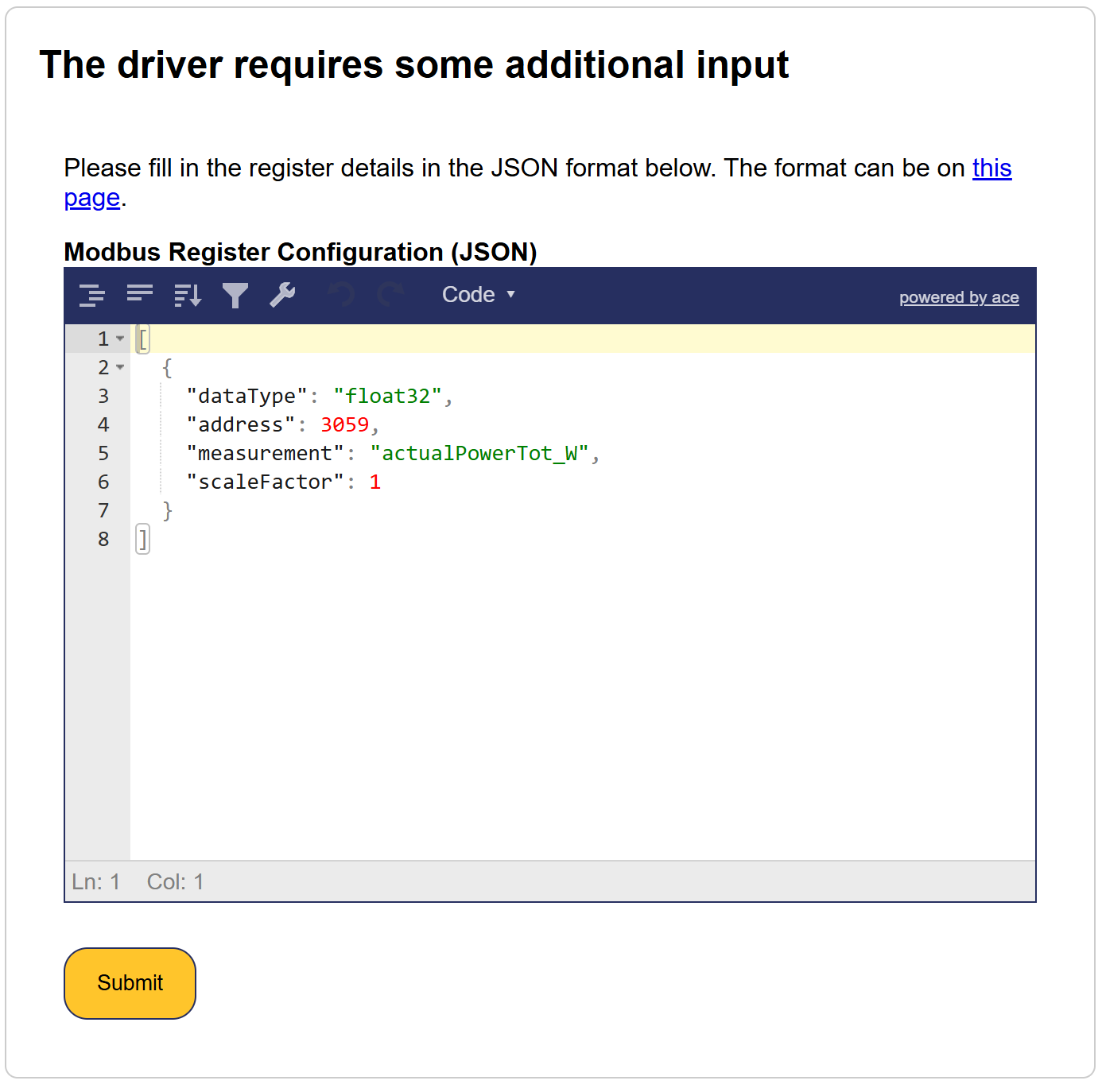
The input is strictly validated, and will not accept any mistakes:
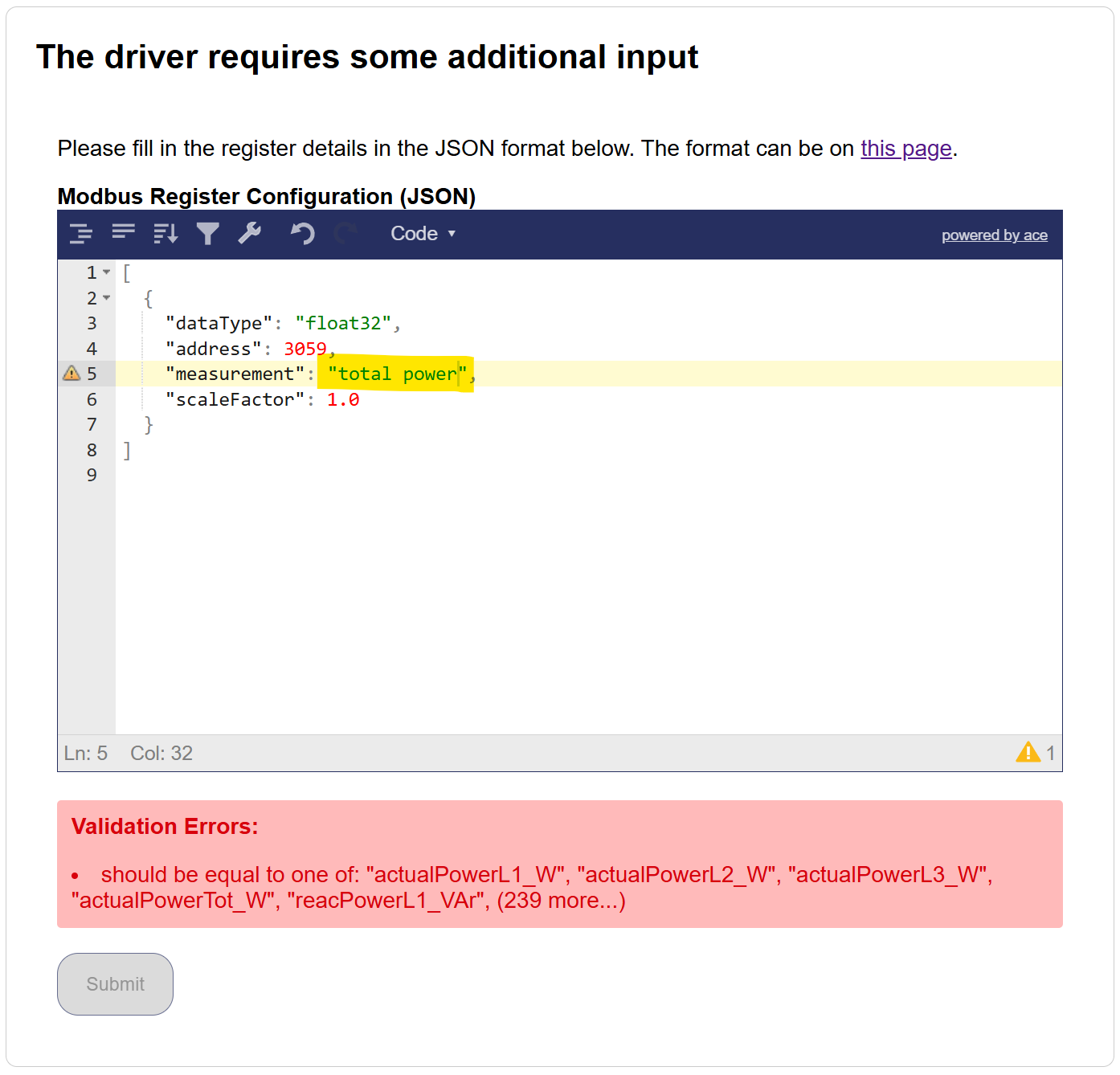 The example above is not accepted because the user choose `total power` instead of `actualPowerTot_W`.
The following measurements are accepted:
```
actualPowerL1_W
actualPowerL2_W
actualPowerL3_W
actualPowerTot_W
reacPowerL1_VAr
reacPowerL2_VAr
reacPowerL3_VAr
reacPowerTot_VAr
importedAbsEnergyL1_Wh
importedAbsEnergyL2_Wh
importedAbsEnergyL3_Wh
importedAbsEnergyTot_Wh
importedEnergyTodayTot_Wh
importedAbsReacEnergyL1_VArh
importedAbsReacEnergyL2_VArh
importedAbsReacEnergyL3_VArh
importedAbsReacEnergyTot_VArh
importedEnergyDeltaTot_Wh
grossImportedEnergyDeltaTot_Wh
importedReacEnergyDeltaL1_VArh
importedReacEnergyDeltaL2_VArh
importedReacEnergyDeltaL3_VArh
importedReacEnergyDeltaTot_VArh
exportedAbsEnergyL1_Wh
exportedAbsEnergyL2_Wh
exportedAbsEnergyL3_Wh
exportedAbsEnergyTot_Wh
exportedEnergyTodayTot_Wh
exportedAbsReacEnergyL1_VArh
exportedAbsReacEnergyL2_VArh
exportedAbsReacEnergyL3_VArh
exportedAbsReacEnergyTot_VArh
exportedEnergyDeltaL1_Wh
exportedEnergyDeltaL2_Wh
exportedEnergyDeltaL3_Wh
exportedEnergyDeltaTot_Wh
grossExportedEnergyDeltaTot_Wh
exportedReacEnergyDeltaL1_VArh
exportedReacEnergyDeltaL2_VArh
exportedReacEnergyDeltaL3_VArh
exportedReacEnergyDeltaTot_VArh
producedAbsEnergyL1_Wh
producedAbsEnergyL2_Wh
producedAbsEnergyL3_Wh
producedAbsEnergyTot_Wh
producedAbsReacEnergyTot_VArh
consumedAbsEnergyL1_Wh
consumedAbsEnergyL2_Wh
consumedAbsEnergyL3_Wh
consumedAbsEnergyTot_Wh
consumedEnergyTodayTot_Wh
consumedAbsReacEnergyTot_VArh
producedEnergyDeltaTot_Wh
consumedEnergyDeltaTot_Wh
producedEnergyTodayTot_Wh
chargedAbsEnergyTot_Wh
chargedEnergyTodayTot_Wh
chargedEnergyDeltaTot_Wh
dischargedAbsEnergyTot_Wh
dischargedEnergyTodayTot_Wh
dischargedEnergyDeltaTot_Wh
childrenProducedEnergyDeltaTot_Wh
childrenConsumedEnergyDeltaTot_Wh
childrenLoadsPower_W
childrenLoadsImpEnergyDeltaTot_Wh
childrenLoadsExpEnergyDeltaTot_Wh
childrenOtherPower_W
childrenOtherImpEnergyDeltaTot_Wh
childrenOtherExpEnergyDeltaTot_Wh
childrenUnmeasPower_W
childrenUnmeasImpEnergyDeltaTot_Wh
childrenUnmeasExpEnergyDeltaTot_Wh
childrenProducedPower_W
childrenConsumedPower_W
childrenStoragePower_W
childrenEVPower_W
childrenHVACPower_W
autoconsumedEnergyDeltaTot_Wh
producedExpEnergyDeltaTot_Wh
childrenStorageChargedEnergyDeltaTot_Wh
childrenStorageDischargedEnergyDeltaTot_Wh
childrenStorageSolarChargeEnergyDeltaTot_Wh
childrenStorageGridChargeEnergyDeltaTot_Wh
childrenStorageSolarDischargeEnergyDeltaTot_Wh
childrenStorageGridDischargeEnergyDeltaTot_Wh
childrenEVChargeEnergyDeltaTot_Wh
childrenHVACEnergyDeltaTot_Wh
currentL1_A
currentL2_A
currentL3_A
currentN_A
currentLAvg_A
voltageL1N_V
voltageL2N_V
voltageL3N_V
voltageLNAvg_V
voltageL1L2_V
voltageL2L3_V
voltageL3L1_V
voltageLLAvg_V
frequency_Hz
powerFactorTot
powerFactorL1
powerFactorL2
powerFactorL3
voltageDCBus_V
voltageInput1_V
currentInput1_A
powerInput1_W
voltageInput2_V
currentInput2_A
powerInput2_W
voltageInput3_V
currentInput3_A
powerInput3_W
voltageInput4_V
currentInput4_A
powerInput4_W
voltageInput5_V
currentInput5_A
powerInput5_W
voltageInput6_V
currentInput6_A
powerInput6_W
voltageInput7_V
currentInput7_A
powerInput7_W
voltageInput8_V
currentInput8_A
powerInput8_W
voltageInput9_V
currentInput9_A
powerInput9_W
voltageInput10_V
currentInput10_A
powerInput10_W
voltageDC_V
currentDC_A
voltageInputA_V
currentInputA_A
powerInputA_W
voltageInputA1_V
currentInputA1_A
powerInputA1_W
voltageInputA2_V
currentInputA2_A
powerInputA2_W
voltageInputA3_V
currentInputA3_A
powerInputA3_W
voltageInputA4_V
currentInputA4_A
powerInputA4_W
voltageInputA5_V
currentInputA5_A
powerInputA5_W
voltageInputA6_V
currentInputA6_A
powerInputA6_W
voltageInputB_V
currentInputB_A
powerInputB_W
voltageInputB1_V
currentInputB1_A
powerInputB1_W
voltageInputB2_V
currentInputB2_A
powerInputB2_W
voltageInputB3_V
currentInputB3_A
powerInputB3_W
voltageInputB4_V
currentInputB4_A
powerInputB4_W
voltageInputB5_V
currentInputB5_A
powerInputB5_W
voltageInputB6_V
currentInputB6_A
powerInputB6_W
currentInputTot_A
voltageInputAvg_V
powerInputTot_W
cabinetTemp_degC
ambientTemp_degC
heatSinkTemp_degC
isolationResistance_kOhm
runTimeTot_s
status
statusMsg
workingMode
operationMode
heatingAbsEnergy_Wh
heatingAbsVolume_m3
flowRate_m3ph
thermalPower_W
departureLineTemp_degC
returnLineTemp_degC
chargedAbsSessionEnergyTot_Wh
sessionDuration_s
chargingSessionId
evNumOfPhases
evUsedPhases
evTargetACChargeCurrent_A
evRequiringCharge
remainingEnergy_Wh
batteryVoltage_V
batteryCurrent_A
batteryPower_W
batteryTemp_degC
batteryOperationMode
PVOperationMode
gridOperationMode
current_A
consumedEnergy_Ah
stateOfCharge_frac
powerSetpoint_W
minStateOfCharge_frac
stateOfHealth_frac
storedEnergy_Wh
absVolume_m3
volumeDelta_m3
flow_m3ps
absPulseCount
pulseCountDelta
pulseRate_ph
flow1_m3ps
flow2_m3ps
flow3_m3ps
flow4_m3ps
flow5_m3ps
flow6_m3ps
flow7_m3ps
flow8_m3ps
flow9_m3ps
flow1_Lps
flow2_Lps
flow3_Lps
flow4_Lps
flow5_Lps
flow6_Lps
flow7_Lps
flow8_Lps
flow9_Lps
```
The example above is not accepted because the user choose `total power` instead of `actualPowerTot_W`.
The following measurements are accepted:
```
actualPowerL1_W
actualPowerL2_W
actualPowerL3_W
actualPowerTot_W
reacPowerL1_VAr
reacPowerL2_VAr
reacPowerL3_VAr
reacPowerTot_VAr
importedAbsEnergyL1_Wh
importedAbsEnergyL2_Wh
importedAbsEnergyL3_Wh
importedAbsEnergyTot_Wh
importedEnergyTodayTot_Wh
importedAbsReacEnergyL1_VArh
importedAbsReacEnergyL2_VArh
importedAbsReacEnergyL3_VArh
importedAbsReacEnergyTot_VArh
importedEnergyDeltaTot_Wh
grossImportedEnergyDeltaTot_Wh
importedReacEnergyDeltaL1_VArh
importedReacEnergyDeltaL2_VArh
importedReacEnergyDeltaL3_VArh
importedReacEnergyDeltaTot_VArh
exportedAbsEnergyL1_Wh
exportedAbsEnergyL2_Wh
exportedAbsEnergyL3_Wh
exportedAbsEnergyTot_Wh
exportedEnergyTodayTot_Wh
exportedAbsReacEnergyL1_VArh
exportedAbsReacEnergyL2_VArh
exportedAbsReacEnergyL3_VArh
exportedAbsReacEnergyTot_VArh
exportedEnergyDeltaL1_Wh
exportedEnergyDeltaL2_Wh
exportedEnergyDeltaL3_Wh
exportedEnergyDeltaTot_Wh
grossExportedEnergyDeltaTot_Wh
exportedReacEnergyDeltaL1_VArh
exportedReacEnergyDeltaL2_VArh
exportedReacEnergyDeltaL3_VArh
exportedReacEnergyDeltaTot_VArh
producedAbsEnergyL1_Wh
producedAbsEnergyL2_Wh
producedAbsEnergyL3_Wh
producedAbsEnergyTot_Wh
producedAbsReacEnergyTot_VArh
consumedAbsEnergyL1_Wh
consumedAbsEnergyL2_Wh
consumedAbsEnergyL3_Wh
consumedAbsEnergyTot_Wh
consumedEnergyTodayTot_Wh
consumedAbsReacEnergyTot_VArh
producedEnergyDeltaTot_Wh
consumedEnergyDeltaTot_Wh
producedEnergyTodayTot_Wh
chargedAbsEnergyTot_Wh
chargedEnergyTodayTot_Wh
chargedEnergyDeltaTot_Wh
dischargedAbsEnergyTot_Wh
dischargedEnergyTodayTot_Wh
dischargedEnergyDeltaTot_Wh
childrenProducedEnergyDeltaTot_Wh
childrenConsumedEnergyDeltaTot_Wh
childrenLoadsPower_W
childrenLoadsImpEnergyDeltaTot_Wh
childrenLoadsExpEnergyDeltaTot_Wh
childrenOtherPower_W
childrenOtherImpEnergyDeltaTot_Wh
childrenOtherExpEnergyDeltaTot_Wh
childrenUnmeasPower_W
childrenUnmeasImpEnergyDeltaTot_Wh
childrenUnmeasExpEnergyDeltaTot_Wh
childrenProducedPower_W
childrenConsumedPower_W
childrenStoragePower_W
childrenEVPower_W
childrenHVACPower_W
autoconsumedEnergyDeltaTot_Wh
producedExpEnergyDeltaTot_Wh
childrenStorageChargedEnergyDeltaTot_Wh
childrenStorageDischargedEnergyDeltaTot_Wh
childrenStorageSolarChargeEnergyDeltaTot_Wh
childrenStorageGridChargeEnergyDeltaTot_Wh
childrenStorageSolarDischargeEnergyDeltaTot_Wh
childrenStorageGridDischargeEnergyDeltaTot_Wh
childrenEVChargeEnergyDeltaTot_Wh
childrenHVACEnergyDeltaTot_Wh
currentL1_A
currentL2_A
currentL3_A
currentN_A
currentLAvg_A
voltageL1N_V
voltageL2N_V
voltageL3N_V
voltageLNAvg_V
voltageL1L2_V
voltageL2L3_V
voltageL3L1_V
voltageLLAvg_V
frequency_Hz
powerFactorTot
powerFactorL1
powerFactorL2
powerFactorL3
voltageDCBus_V
voltageInput1_V
currentInput1_A
powerInput1_W
voltageInput2_V
currentInput2_A
powerInput2_W
voltageInput3_V
currentInput3_A
powerInput3_W
voltageInput4_V
currentInput4_A
powerInput4_W
voltageInput5_V
currentInput5_A
powerInput5_W
voltageInput6_V
currentInput6_A
powerInput6_W
voltageInput7_V
currentInput7_A
powerInput7_W
voltageInput8_V
currentInput8_A
powerInput8_W
voltageInput9_V
currentInput9_A
powerInput9_W
voltageInput10_V
currentInput10_A
powerInput10_W
voltageDC_V
currentDC_A
voltageInputA_V
currentInputA_A
powerInputA_W
voltageInputA1_V
currentInputA1_A
powerInputA1_W
voltageInputA2_V
currentInputA2_A
powerInputA2_W
voltageInputA3_V
currentInputA3_A
powerInputA3_W
voltageInputA4_V
currentInputA4_A
powerInputA4_W
voltageInputA5_V
currentInputA5_A
powerInputA5_W
voltageInputA6_V
currentInputA6_A
powerInputA6_W
voltageInputB_V
currentInputB_A
powerInputB_W
voltageInputB1_V
currentInputB1_A
powerInputB1_W
voltageInputB2_V
currentInputB2_A
powerInputB2_W
voltageInputB3_V
currentInputB3_A
powerInputB3_W
voltageInputB4_V
currentInputB4_A
powerInputB4_W
voltageInputB5_V
currentInputB5_A
powerInputB5_W
voltageInputB6_V
currentInputB6_A
powerInputB6_W
currentInputTot_A
voltageInputAvg_V
powerInputTot_W
cabinetTemp_degC
ambientTemp_degC
heatSinkTemp_degC
isolationResistance_kOhm
runTimeTot_s
status
statusMsg
workingMode
operationMode
heatingAbsEnergy_Wh
heatingAbsVolume_m3
flowRate_m3ph
thermalPower_W
departureLineTemp_degC
returnLineTemp_degC
chargedAbsSessionEnergyTot_Wh
sessionDuration_s
chargingSessionId
evNumOfPhases
evUsedPhases
evTargetACChargeCurrent_A
evRequiringCharge
remainingEnergy_Wh
batteryVoltage_V
batteryCurrent_A
batteryPower_W
batteryTemp_degC
batteryOperationMode
PVOperationMode
gridOperationMode
current_A
consumedEnergy_Ah
stateOfCharge_frac
powerSetpoint_W
minStateOfCharge_frac
stateOfHealth_frac
storedEnergy_Wh
absVolume_m3
volumeDelta_m3
flow_m3ps
absPulseCount
pulseCountDelta
pulseRate_ph
flow1_m3ps
flow2_m3ps
flow3_m3ps
flow4_m3ps
flow5_m3ps
flow6_m3ps
flow7_m3ps
flow8_m3ps
flow9_m3ps
flow1_Lps
flow2_Lps
flow3_Lps
flow4_Lps
flow5_Lps
flow6_Lps
flow7_Lps
flow8_Lps
flow9_Lps
```
### Step 5
After filling in the required information, save the configuration.
The will now attempt to communicate with the energy meter using the provided settings.
> [!TIP]
> For better organization, you can create your JSON configuration in a text editor first, then paste it into the configuration field. This makes it easier to edit and validate the structure before applying it.
# Seneca S604
import { BrandName, ControllerName } from '@site/src/components/customFields';
import RS485ConnectionTable from '@site/src/components/RS485ConnectionTable';
import ClickableImage from '@site/src/components/ClickableImage';
import RS485AddressNote from '@site/src/components/RS485AddressNote';
import DeviceSupportTable from '@site/src/components/DeviceSupportTable';
 ## Supported Devices
{/* TODO: Check if our protocols also support the RS485 models */}
## Wiring
### Ethernet
For correct ethernet wiring: Follow the [the guidelines for ethernet wiring](/Controller/wiring-best-practices/#ethernet).
## Configuration
### Ethernet
Check the device manual for connecting the energy meter to ethernet.
# Sessy
import { BrandName, ControllerName } from '@site/src/components/customFields';
import RS485ConnectionTable from '@site/src/components/RS485ConnectionTable';
import ClickableImage from '@site/src/components/ClickableImage';
import RS485AddressNote from '@site/src/components/RS485AddressNote';
import DeviceSupportTable from '@site/src/components/DeviceSupportTable';
## Supported Devices
{/* TODO: Check if our protocols also support the RS485 models */}
## Wiring
### Ethernet
For correct ethernet wiring: Follow the [the guidelines for ethernet wiring](/Controller/wiring-best-practices/#ethernet).
## Configuration
### Ethernet
Check the device manual for connecting the energy meter to ethernet.
# Sessy
import { BrandName, ControllerName } from '@site/src/components/customFields';
import RS485ConnectionTable from '@site/src/components/RS485ConnectionTable';
import ClickableImage from '@site/src/components/ClickableImage';
import RS485AddressNote from '@site/src/components/RS485AddressNote';
import DeviceSupportTable from '@site/src/components/DeviceSupportTable';
 ## Supported Devices
You'll need to input your Sessy P1 dongle username and password when connecting your energy meter.
# Shelly Energy meters
import { BrandName, ControllerName } from '@site/src/components/customFields';
import ClickableImage from '@site/src/components/ClickableImage';
import DeviceSupportTable from '@site/src/components/DeviceSupportTable';
## Supported Devices
You'll need to input your Sessy P1 dongle username and password when connecting your energy meter.
# Shelly Energy meters
import { BrandName, ControllerName } from '@site/src/components/customFields';
import ClickableImage from '@site/src/components/ClickableImage';
import DeviceSupportTable from '@site/src/components/DeviceSupportTable';
 ## Supported Devices
Shelly offers two kinds of metering hardware, each with its own protocol in the .
### Dedicated energy meters
Meters with CT clamps that measure a whole circuit. Select the **Shelly Energy Meter API protocol**.
### Relays with power metering (PM)
Switches with a built-in power meter, which measure the load wired to their relay output. Select the
**Shelly Energy Meter via Switch (relay) component** protocol: it only reads the metering values and
never switches the relay. Use the [Shelly relay](/Devices/Switched-loads/ShellyRelay/) integration
instead when the must be able to switch the load on and off.
> [!NOTE]
> Every switch with power metering is added as a separate meter, so a Shelly Pro 4PM results in four meters.
> [!NOTE]
> This integration has not been tested with all the devices listed above, however, since they all use the same communication protocol, they should work without issues.
## Wiring
The communication between the and the Shelly relay is established via **Local API** (over TCP/IP).
For proper Ethernet wiring, please follow the [Ethernet wiring guidelines](/Controller/wiring-best-practices/#ethernet).
## Wiring Instructions
1. **Power Supply Connections**
* **L (Live)**: Connect the live wire to the **L** terminal of the device.
* **N (Neutral)**: Connect the neutral wire to the **N** terminal of the device.
2. **Device Diagram**
Refer to the diagram printed on the device for detailed wiring instructions. Ensure all connections match the diagram.
***
## Configuration Instructions
1. **Wire the Device**
Ensure the device is wired according to the provided wiring diagram and connect the Ethernet cable securely.
2. **Access the Shelly Interface**
* Using a phone or other device, connect to the Shelly relay's Wi-Fi network (e.g. **SSID: ShellyPro2-XXXXXX**).
* Open a browser and navigate to [**http://192.168.33.1**](http://192.168.33.1) to access the Shelly interface.
3. **Locate the Ethernet Settings**
* In the Shelly interface, navigate to the **Ethernet Settings** section.
* Here, you will find the assigned **Ethernet IP address**, which is required for connecting the device to the controller.
> [!NOTE]
> **Note**: Do not modify any settings while locating the Ethernet IP address.
By following these steps, you will retrieve the required IP address for integrating the Shelly relay with the .
For further details and comprehensive documentation, please refer to the official [Shelly Installation Guides](https://kb.shelly.cloud/knowledge-base/installation-guides).
# Siemens
import { BrandName, ControllerName } from '@site/src/components/customFields';
import RS485ConnectionTable from '@site/src/components/RS485ConnectionTable';
import ClickableImage from '@site/src/components/ClickableImage';
import RS485AddressNote from '@site/src/components/RS485AddressNote';
import DeviceSupportTable from '@site/src/components/DeviceSupportTable';
## Supported Devices
Shelly offers two kinds of metering hardware, each with its own protocol in the .
### Dedicated energy meters
Meters with CT clamps that measure a whole circuit. Select the **Shelly Energy Meter API protocol**.
### Relays with power metering (PM)
Switches with a built-in power meter, which measure the load wired to their relay output. Select the
**Shelly Energy Meter via Switch (relay) component** protocol: it only reads the metering values and
never switches the relay. Use the [Shelly relay](/Devices/Switched-loads/ShellyRelay/) integration
instead when the must be able to switch the load on and off.
> [!NOTE]
> Every switch with power metering is added as a separate meter, so a Shelly Pro 4PM results in four meters.
> [!NOTE]
> This integration has not been tested with all the devices listed above, however, since they all use the same communication protocol, they should work without issues.
## Wiring
The communication between the and the Shelly relay is established via **Local API** (over TCP/IP).
For proper Ethernet wiring, please follow the [Ethernet wiring guidelines](/Controller/wiring-best-practices/#ethernet).
## Wiring Instructions
1. **Power Supply Connections**
* **L (Live)**: Connect the live wire to the **L** terminal of the device.
* **N (Neutral)**: Connect the neutral wire to the **N** terminal of the device.
2. **Device Diagram**
Refer to the diagram printed on the device for detailed wiring instructions. Ensure all connections match the diagram.
***
## Configuration Instructions
1. **Wire the Device**
Ensure the device is wired according to the provided wiring diagram and connect the Ethernet cable securely.
2. **Access the Shelly Interface**
* Using a phone or other device, connect to the Shelly relay's Wi-Fi network (e.g. **SSID: ShellyPro2-XXXXXX**).
* Open a browser and navigate to [**http://192.168.33.1**](http://192.168.33.1) to access the Shelly interface.
3. **Locate the Ethernet Settings**
* In the Shelly interface, navigate to the **Ethernet Settings** section.
* Here, you will find the assigned **Ethernet IP address**, which is required for connecting the device to the controller.
> [!NOTE]
> **Note**: Do not modify any settings while locating the Ethernet IP address.
By following these steps, you will retrieve the required IP address for integrating the Shelly relay with the .
For further details and comprehensive documentation, please refer to the official [Shelly Installation Guides](https://kb.shelly.cloud/knowledge-base/installation-guides).
# Siemens
import { BrandName, ControllerName } from '@site/src/components/customFields';
import RS485ConnectionTable from '@site/src/components/RS485ConnectionTable';
import ClickableImage from '@site/src/components/ClickableImage';
import RS485AddressNote from '@site/src/components/RS485AddressNote';
import DeviceSupportTable from '@site/src/components/DeviceSupportTable';
 ## Supported Devices
Wiring
------
### RS485
> [!IMPORTANT] Check the terminal labels for the exact PAC or 3WA model
> Siemens terminal positions depend on the meter and communication module. Follow the device-specific Siemens wiring diagram and connect **RS485 A/+** to controller **A**, **RS485 B/-** to controller **B**, and the reference conductor to **GND** when provided. For Ethernet-capable models, follow the [Ethernet wiring guidelines](/Controller/wiring-best-practices/#ethernet).
## Configuration
# Smappee
import {
BrandName,
ControllerName,
CustomerName,
} from "@site/src/components/customFields";
import RS485ConnectionTable from "@site/src/components/RS485ConnectionTable";
import ClickableImage from "@site/src/components/ClickableImage";
import RS485AddressNote from "@site/src/components/RS485AddressNote";
import PdfLink from "@site/src/components/PdfLink";
import DeviceSupportTable from "@site/src/components/DeviceSupportTable";
 ## Supported Devices
> [!NOTE]
> The integration is at the moment available only for the older Genius models (Serial number starting with 501xx).
## Configuration
Smappee should communicate through MQTT to the database. This database is then used as a source for the Smappee data.
Documentation about Smappee MQTT can be found in the attached document from Smappee: .
### 1. Creating MQTT credentials
Request the Eniris MQTT username and password through the [Eniris webshop](https://webshop.eniris.com/). New credentials must no longer be created through the legacy **Credentials & Licenses** page in Insights.
Keep the issued credentials available for the broker configuration in step 4. Do not invent a username or reuse credentials from another protocol.
### 2. Get the Smappee UUID
The Smappee UUID is an important link to the correct Smappee location.
Obtain it through:
- Dashboard:
1. go to https://dashboard.smappee.net
2. add a Location configuration card
- REST API call:
1. Go to https://smappee.atlassian.net/wiki/spaces/DEVAPI/pages/526483487/Get+Servicelocations
- MQTT wildcard:
1. Match the Configuration Topic results to the serial number you need, see https://www.hivemq.com/blog/mqtt-essentials-part-5-mqtt-topics-best-practices
### 3. Get the Smappee IP address
1. Open the Smappee APP
2. Go to Settings
3. Click Your Smappee monitors
4. Click Smappee Infinity
5. Click Infinity Components
6. Click Smappee Genius
7. Find the IP-address in the details
### 4. Configuring the MQTT broker in the Smappee Energy Meter
1. Navigate to the in the previous step determined IP of your Smappee monitor followed by /smappee.html . Example: 192.168.0.128/smappee.html
2. Click Logon/logoff and log in
3. Click advanced
4. Fill in the MQTT local broker url: mqtt://mqtt.eniris.be:1883
5. Fill in the MQTT username and password issued after your webshop request
6. Click apply changes and restart monitor
### 5. Configuration in the
Add the device in the . When asked for, enter the:
- UUID
- serial number of the meter
- number of phases that are measured
# Smartgrid-ready
# ✅ Smart Grid Ready Heat Pumps
This list contains heat pump models that support SG Ready
---
## 2G Energy AG
- afilia air series
e.g., `afilia air C-sl 0452 HE/XL/RV P2U- R454B` and variants
## Airwell
- Wellea Monobloc A, DF, WT, Monobloc R32, Split R32
- Wellea Split A
- R290 Series: `4DC`, `6DC`, `9DC`, `12DC`, `16DC`, `19DC`
- DCT-R290 Series: `9DCT`, `12DCT`, `16DCT`, `19DCT`, `22DCT`
## Alpha Innotec
- Luxtronik controlled heat pumps
## Atag
- Energion M Compact / Hybrid / Plus
- Energion M All Electric series
## Atlantic
- Alfea Extensa M
- Calypso VM
- Explorer V4
## Bosch
- Compress 3400i AWS
- Compress 7000 LW, 7800i LW
- Compress Hybrid 3000i, 5800i, 7000i AW
- CS 3000 AWP
## Bulex
- MagnaAqua (PV-ready)
## Clivet
- Aqua Plus
- Sphera Evo
## CTC
- GSI
- EcoZenith
- EcoLogic L M
## Daikin
- Altherma 3 H HT F, 3 H MT F, 3 M, 3 RF, 3 RW
- Altherma H Hybrid
- EKHHE, EKHHP, EHS, RoCon HP
## Dynamis (Kospel)
- HPM2
## Heliotherm
- Models with Remote Control Gateway
## Hitachi
- Yutaki Series
- Yutaki S Combi
## IDM
- Smart Grid Ready models (unspecified)
## Itho Daalderop
- Amber
## Kronoterm
- VERSI-I, VERSI-X
- ETERA S, M, L
- VERSI-O
## LG
- HN1616.NK5
- HN1616M.NK5
- HN0916M.NK4
- HN091MR.NK5
- HN1600MB.NK0
## Midea
- ESG INV M (Swimming Pool Heat Pumps)
## Mitsubishi Electric
- Ecodan Series
- Ecodan EHPT20X-MHEDW
- PAC-IF071B-E
- PAC-TH012HT-E
- Hydrobox
## Nefit (Bosch Group)
- EnviLine AW Monoblock / IDU Monoblock E / TTS
- EnviLine AW Split
## Nibe
- F1155, F1245
- S1155, S1255
- Other Smart Grid Ready variants
## Nulite
- R290 Series
- Flamingo Series
- Geothermal Series *(SG Ready to be confirmed model-by-model)*
## Ochsner
- AIR FALCON 212
- AIR HAWK 208
- AIR M2+M4
## Panasonic
- Aquarea Series
- WH-MDC Monobloc
- WH-SDC
- WH-UD/UX/UQ Series
- EasyPLUG (PAW) for SG 230V
## R-Aqua
- HPB 100–300
- HPB-S Solar
## Remeha
- Elga Ace (hybrid air-water)
## Rinnai
- Enviroflo Hot Water Heat Pumps *(SG capability in development — verify)*
## Stiebel Eltron
- SG Ready models available *(verify per model)*
## Thermia
- Atlas
- Calibra
- Mega
## Tongyi Heat Pump
- SG Ready certification (model-specific confirmation needed)
## Vaillant
- aroTHERM (plus)
- aroSTOR
- flexoTHERM
- flexoCOMPACT
- climaVAIR
## Viessmann
- Vitocal Series
- e.g., Vitocal 250-A
## Vivax
- HPP Swimming Pool
## Weishaupt
- Geoblock WGB
- Splitblock WSB
## Wolf
- BWL
- FHA
- CHA
# Socomec
import { BrandName, ControllerName } from '@site/src/components/customFields';
import RS485ConnectionTable from '@site/src/components/RS485ConnectionTable';
import ClickableImage from '@site/src/components/ClickableImage';
import RS485AddressNote from '@site/src/components/RS485AddressNote';
import DeviceSupportTable from '@site/src/components/DeviceSupportTable';
## Supported Devices
> [!NOTE]
> The integration is at the moment available only for the older Genius models (Serial number starting with 501xx).
## Configuration
Smappee should communicate through MQTT to the database. This database is then used as a source for the Smappee data.
Documentation about Smappee MQTT can be found in the attached document from Smappee: .
### 1. Creating MQTT credentials
Request the Eniris MQTT username and password through the [Eniris webshop](https://webshop.eniris.com/). New credentials must no longer be created through the legacy **Credentials & Licenses** page in Insights.
Keep the issued credentials available for the broker configuration in step 4. Do not invent a username or reuse credentials from another protocol.
### 2. Get the Smappee UUID
The Smappee UUID is an important link to the correct Smappee location.
Obtain it through:
- Dashboard:
1. go to https://dashboard.smappee.net
2. add a Location configuration card
- REST API call:
1. Go to https://smappee.atlassian.net/wiki/spaces/DEVAPI/pages/526483487/Get+Servicelocations
- MQTT wildcard:
1. Match the Configuration Topic results to the serial number you need, see https://www.hivemq.com/blog/mqtt-essentials-part-5-mqtt-topics-best-practices
### 3. Get the Smappee IP address
1. Open the Smappee APP
2. Go to Settings
3. Click Your Smappee monitors
4. Click Smappee Infinity
5. Click Infinity Components
6. Click Smappee Genius
7. Find the IP-address in the details
### 4. Configuring the MQTT broker in the Smappee Energy Meter
1. Navigate to the in the previous step determined IP of your Smappee monitor followed by /smappee.html . Example: 192.168.0.128/smappee.html
2. Click Logon/logoff and log in
3. Click advanced
4. Fill in the MQTT local broker url: mqtt://mqtt.eniris.be:1883
5. Fill in the MQTT username and password issued after your webshop request
6. Click apply changes and restart monitor
### 5. Configuration in the
Add the device in the . When asked for, enter the:
- UUID
- serial number of the meter
- number of phases that are measured
# Smartgrid-ready
# ✅ Smart Grid Ready Heat Pumps
This list contains heat pump models that support SG Ready
---
## 2G Energy AG
- afilia air series
e.g., `afilia air C-sl 0452 HE/XL/RV P2U- R454B` and variants
## Airwell
- Wellea Monobloc A, DF, WT, Monobloc R32, Split R32
- Wellea Split A
- R290 Series: `4DC`, `6DC`, `9DC`, `12DC`, `16DC`, `19DC`
- DCT-R290 Series: `9DCT`, `12DCT`, `16DCT`, `19DCT`, `22DCT`
## Alpha Innotec
- Luxtronik controlled heat pumps
## Atag
- Energion M Compact / Hybrid / Plus
- Energion M All Electric series
## Atlantic
- Alfea Extensa M
- Calypso VM
- Explorer V4
## Bosch
- Compress 3400i AWS
- Compress 7000 LW, 7800i LW
- Compress Hybrid 3000i, 5800i, 7000i AW
- CS 3000 AWP
## Bulex
- MagnaAqua (PV-ready)
## Clivet
- Aqua Plus
- Sphera Evo
## CTC
- GSI
- EcoZenith
- EcoLogic L M
## Daikin
- Altherma 3 H HT F, 3 H MT F, 3 M, 3 RF, 3 RW
- Altherma H Hybrid
- EKHHE, EKHHP, EHS, RoCon HP
## Dynamis (Kospel)
- HPM2
## Heliotherm
- Models with Remote Control Gateway
## Hitachi
- Yutaki Series
- Yutaki S Combi
## IDM
- Smart Grid Ready models (unspecified)
## Itho Daalderop
- Amber
## Kronoterm
- VERSI-I, VERSI-X
- ETERA S, M, L
- VERSI-O
## LG
- HN1616.NK5
- HN1616M.NK5
- HN0916M.NK4
- HN091MR.NK5
- HN1600MB.NK0
## Midea
- ESG INV M (Swimming Pool Heat Pumps)
## Mitsubishi Electric
- Ecodan Series
- Ecodan EHPT20X-MHEDW
- PAC-IF071B-E
- PAC-TH012HT-E
- Hydrobox
## Nefit (Bosch Group)
- EnviLine AW Monoblock / IDU Monoblock E / TTS
- EnviLine AW Split
## Nibe
- F1155, F1245
- S1155, S1255
- Other Smart Grid Ready variants
## Nulite
- R290 Series
- Flamingo Series
- Geothermal Series *(SG Ready to be confirmed model-by-model)*
## Ochsner
- AIR FALCON 212
- AIR HAWK 208
- AIR M2+M4
## Panasonic
- Aquarea Series
- WH-MDC Monobloc
- WH-SDC
- WH-UD/UX/UQ Series
- EasyPLUG (PAW) for SG 230V
## R-Aqua
- HPB 100–300
- HPB-S Solar
## Remeha
- Elga Ace (hybrid air-water)
## Rinnai
- Enviroflo Hot Water Heat Pumps *(SG capability in development — verify)*
## Stiebel Eltron
- SG Ready models available *(verify per model)*
## Thermia
- Atlas
- Calibra
- Mega
## Tongyi Heat Pump
- SG Ready certification (model-specific confirmation needed)
## Vaillant
- aroTHERM (plus)
- aroSTOR
- flexoTHERM
- flexoCOMPACT
- climaVAIR
## Viessmann
- Vitocal Series
- e.g., Vitocal 250-A
## Vivax
- HPP Swimming Pool
## Weishaupt
- Geoblock WGB
- Splitblock WSB
## Wolf
- BWL
- FHA
- CHA
# Socomec
import { BrandName, ControllerName } from '@site/src/components/customFields';
import RS485ConnectionTable from '@site/src/components/RS485ConnectionTable';
import ClickableImage from '@site/src/components/ClickableImage';
import RS485AddressNote from '@site/src/components/RS485AddressNote';
import DeviceSupportTable from '@site/src/components/DeviceSupportTable';
 ## Supported Devices
## Wiring
### Ethernet
For correct ethernet wiring: Follow the [the guidelines for ethernet wiring](/Controller/wiring-best-practices/#ethernet).
# Solax
import { BrandName, ControllerName } from '@site/src/components/customFields';
import RS485ConnectionTable from '@site/src/components/RS485ConnectionTable';
import ClickableImage from '@site/src/components/ClickableImage';
import RS485AddressNote from '@site/src/components/RS485AddressNote';
import DeviceSupportTable from '@site/src/components/DeviceSupportTable';
## Supported Devices
## Wiring
### Ethernet
For correct ethernet wiring: Follow the [the guidelines for ethernet wiring](/Controller/wiring-best-practices/#ethernet).
# Solax
import { BrandName, ControllerName } from '@site/src/components/customFields';
import RS485ConnectionTable from '@site/src/components/RS485ConnectionTable';
import ClickableImage from '@site/src/components/ClickableImage';
import RS485AddressNote from '@site/src/components/RS485AddressNote';
import DeviceSupportTable from '@site/src/components/DeviceSupportTable';
 ## Supported Devices
# Solis Energy Meter
import { BrandName, ControllerName } from '@site/src/components/customFields';
import RS485ConnectionTable from '@site/src/components/RS485ConnectionTable';
import RS485AddressNote from '@site/src/components/RS485AddressNote';
import ClickableImage from '@site/src/components/ClickableImage';
import DeviceSupportTable from '@site/src/components/DeviceSupportTable';
## Supported Devices
# Solis Energy Meter
import { BrandName, ControllerName } from '@site/src/components/customFields';
import RS485ConnectionTable from '@site/src/components/RS485ConnectionTable';
import RS485AddressNote from '@site/src/components/RS485AddressNote';
import ClickableImage from '@site/src/components/ClickableImage';
import DeviceSupportTable from '@site/src/components/DeviceSupportTable';
 ## Supported Devices
## Connection
### Ethernet
For correct ethernet wiring: Follow the [the guidelines for ethernet wiring](/Controller/wiring-best-practices/#ethernet).
### RS485
## Configuration
Ensure the meter is configured with the following Modbus settings to match the driver specifications:
* **Baudrate:** 9600
* **Data bits:** 8
* **Stop bits:** 1
* **Parity:** None
* **Modbus Address:** 1 (default) - Range: 1 to 254
# Solis Grid-Tied Energy Meter
import { BrandName, ControllerName } from '@site/src/components/customFields';
import RS485ConnectionTable from '@site/src/components/RS485ConnectionTable';
import RS485AddressNote from '@site/src/components/RS485AddressNote';
import ClickableImage from '@site/src/components/ClickableImage';
import DeviceSupportTable from '@site/src/components/DeviceSupportTable';
## Supported Devices
## Connection
### Ethernet
For correct ethernet wiring: Follow the [the guidelines for ethernet wiring](/Controller/wiring-best-practices/#ethernet).
### RS485
Connect the RS485 wires to the communication port of the Solis device (Inverter or Export Power Manager).
## Configuration
Ensure the device is configured with the following Modbus settings to match the driver specifications:
* **Baudrate:** 9600
* **Data bits:** 8
* **Stop bits:** 1
* **Parity:** None
* **Modbus Address:** 1 (default) - Range: 1 to 254
# Solis
import { FolderOverview } from '@/components/FolderOverview';
# Solis
# Sunwoda
import { BrandName, ControllerName } from '@site/src/components/customFields';
import RS485ConnectionTable from '@site/src/components/RS485ConnectionTable';
import ClickableImage from '@site/src/components/ClickableImage';
import RS485AddressNote from '@site/src/components/RS485AddressNote';
import DeviceSupportTable from '@site/src/components/DeviceSupportTable';
## Supported Devices
## Connection
### Ethernet
For correct ethernet wiring: Follow the [the guidelines for ethernet wiring](/Controller/wiring-best-practices/#ethernet).
### RS485
## Configuration
Ensure the meter is configured with the following Modbus settings to match the driver specifications:
* **Baudrate:** 9600
* **Data bits:** 8
* **Stop bits:** 1
* **Parity:** None
* **Modbus Address:** 1 (default) - Range: 1 to 254
# Solis Grid-Tied Energy Meter
import { BrandName, ControllerName } from '@site/src/components/customFields';
import RS485ConnectionTable from '@site/src/components/RS485ConnectionTable';
import RS485AddressNote from '@site/src/components/RS485AddressNote';
import ClickableImage from '@site/src/components/ClickableImage';
import DeviceSupportTable from '@site/src/components/DeviceSupportTable';
## Supported Devices
## Connection
### Ethernet
For correct ethernet wiring: Follow the [the guidelines for ethernet wiring](/Controller/wiring-best-practices/#ethernet).
### RS485
Connect the RS485 wires to the communication port of the Solis device (Inverter or Export Power Manager).
## Configuration
Ensure the device is configured with the following Modbus settings to match the driver specifications:
* **Baudrate:** 9600
* **Data bits:** 8
* **Stop bits:** 1
* **Parity:** None
* **Modbus Address:** 1 (default) - Range: 1 to 254
# Solis
import { FolderOverview } from '@/components/FolderOverview';
# Solis
# Sunwoda
import { BrandName, ControllerName } from '@site/src/components/customFields';
import RS485ConnectionTable from '@site/src/components/RS485ConnectionTable';
import ClickableImage from '@site/src/components/ClickableImage';
import RS485AddressNote from '@site/src/components/RS485AddressNote';
import DeviceSupportTable from '@site/src/components/DeviceSupportTable';
 # Sunwoda
## Supported Devices
## Wiring
### RS485
## Configuration
# Tillquist
import { BrandName, ControllerName } from '@site/src/components/customFields';
import RS485ConnectionTable from '@site/src/components/RS485ConnectionTable';
import RS485AddressNote from '@site/src/components/RS485AddressNote';
import DeviceSupportTable from '@site/src/components/DeviceSupportTable';
# Sunwoda
## Supported Devices
## Wiring
### RS485
## Configuration
# Tillquist
import { BrandName, ControllerName } from '@site/src/components/customFields';
import RS485ConnectionTable from '@site/src/components/RS485ConnectionTable';
import RS485AddressNote from '@site/src/components/RS485AddressNote';
import DeviceSupportTable from '@site/src/components/DeviceSupportTable';
 ## Supported Devices
## Connection
The communication between the and the energy meter operates via Modbus TCP.
### Ethernet
For correct ethernet wiring: Follow the [the guidelines for ethernet wiring](/Controller/wiring-best-practices/#ethernet).
# Victron
import { BrandName, ControllerName } from '@site/src/components/customFields';
import RS485ConnectionTable from '@site/src/components/RS485ConnectionTable';
import ClickableImage from '@site/src/components/ClickableImage';
import RS485AddressNote from '@site/src/components/RS485AddressNote';
import DeviceSupportTable from '@site/src/components/DeviceSupportTable';
## Supported Devices
## Connection
The communication between the and the energy meter operates via Modbus TCP.
### Ethernet
For correct ethernet wiring: Follow the [the guidelines for ethernet wiring](/Controller/wiring-best-practices/#ethernet).
# Victron
import { BrandName, ControllerName } from '@site/src/components/customFields';
import RS485ConnectionTable from '@site/src/components/RS485ConnectionTable';
import ClickableImage from '@site/src/components/ClickableImage';
import RS485AddressNote from '@site/src/components/RS485AddressNote';
import DeviceSupportTable from '@site/src/components/DeviceSupportTable';
 ## Supported Devices
# Weidmüller
import { BrandName, ControllerName } from '@site/src/components/customFields';
import RS485ConnectionTable from '@site/src/components/RS485ConnectionTable';
import ClickableImage from '@site/src/components/ClickableImage';
import RS485AddressNote from '@site/src/components/RS485AddressNote';
import DeviceSupportTable from '@site/src/components/DeviceSupportTable';
## Supported Devices
# Weidmüller
import { BrandName, ControllerName } from '@site/src/components/customFields';
import RS485ConnectionTable from '@site/src/components/RS485ConnectionTable';
import ClickableImage from '@site/src/components/ClickableImage';
import RS485AddressNote from '@site/src/components/RS485AddressNote';
import DeviceSupportTable from '@site/src/components/DeviceSupportTable';
 ## Supported Devices
## Wiring
{/* TODO: Confirm wiring */}
## Configuration
Check to the meter manual for more detailed information on activating Modbus RTU and changing the Modbus address.
# WhatWatt
import { BrandName, ControllerName } from '@site/src/components/customFields';
import ClickableImage from '@site/src/components/ClickableImage';
import DeviceSupportTable from '@site/src/components/DeviceSupportTable';
## Supported Devices
## Wiring
{/* TODO: Confirm wiring */}
## Configuration
Check to the meter manual for more detailed information on activating Modbus RTU and changing the Modbus address.
# WhatWatt
import { BrandName, ControllerName } from '@site/src/components/customFields';
import ClickableImage from '@site/src/components/ClickableImage';
import DeviceSupportTable from '@site/src/components/DeviceSupportTable';
 ## Supported Devices
## Configuration
### Installation Requirements
- Must purchase a whatwatt Plus license to enable Modbus TCP support.
- The Energy Meter must be connected to the P1 port of your digital utility meter and be joined to the same local network as the .
### Modbus TCP
1. Visit the device's **web interface** at `http:///` and enter your **license key**.
2. Navigate to the **Integrations** page and enable Modbus. Keep the port as 502.
3. Click the **check mark** in the top right to save the settings.
# YouLess
import { BrandName, ControllerName } from '@site/src/components/customFields';
import RS485ConnectionTable from '@site/src/components/RS485ConnectionTable';
import ClickableImage from '@site/src/components/ClickableImage';
import RS485AddressNote from '@site/src/components/RS485AddressNote';
import DeviceSupportTable from '@site/src/components/DeviceSupportTable';
## Supported Devices
## Configuration
### Installation Requirements
- Must purchase a whatwatt Plus license to enable Modbus TCP support.
- The Energy Meter must be connected to the P1 port of your digital utility meter and be joined to the same local network as the .
### Modbus TCP
1. Visit the device's **web interface** at `http:///` and enter your **license key**.
2. Navigate to the **Integrations** page and enable Modbus. Keep the port as 502.
3. Click the **check mark** in the top right to save the settings.
# YouLess
import { BrandName, ControllerName } from '@site/src/components/customFields';
import RS485ConnectionTable from '@site/src/components/RS485ConnectionTable';
import ClickableImage from '@site/src/components/ClickableImage';
import RS485AddressNote from '@site/src/components/RS485AddressNote';
import DeviceSupportTable from '@site/src/components/DeviceSupportTable';
 ## Supported Devices
# Zendure P1 Meter
import { BrandName, ControllerName } from '@site/src/components/customFields';
import DeviceSupportTable from '@site/src/components/DeviceSupportTable';
## Supported Devices
# Zendure P1 Meter
import { BrandName, ControllerName } from '@site/src/components/customFields';
import DeviceSupportTable from '@site/src/components/DeviceSupportTable';
 ## Supported Devices
The Zendure P1 Smart Meter provides high-precision grid monitoring, typically used to feed data into the SolarFlow energy management logic.
---
## Supported Devices
The Zendure P1 Smart Meter provides high-precision grid monitoring, typically used to feed data into the SolarFlow energy management logic.
---
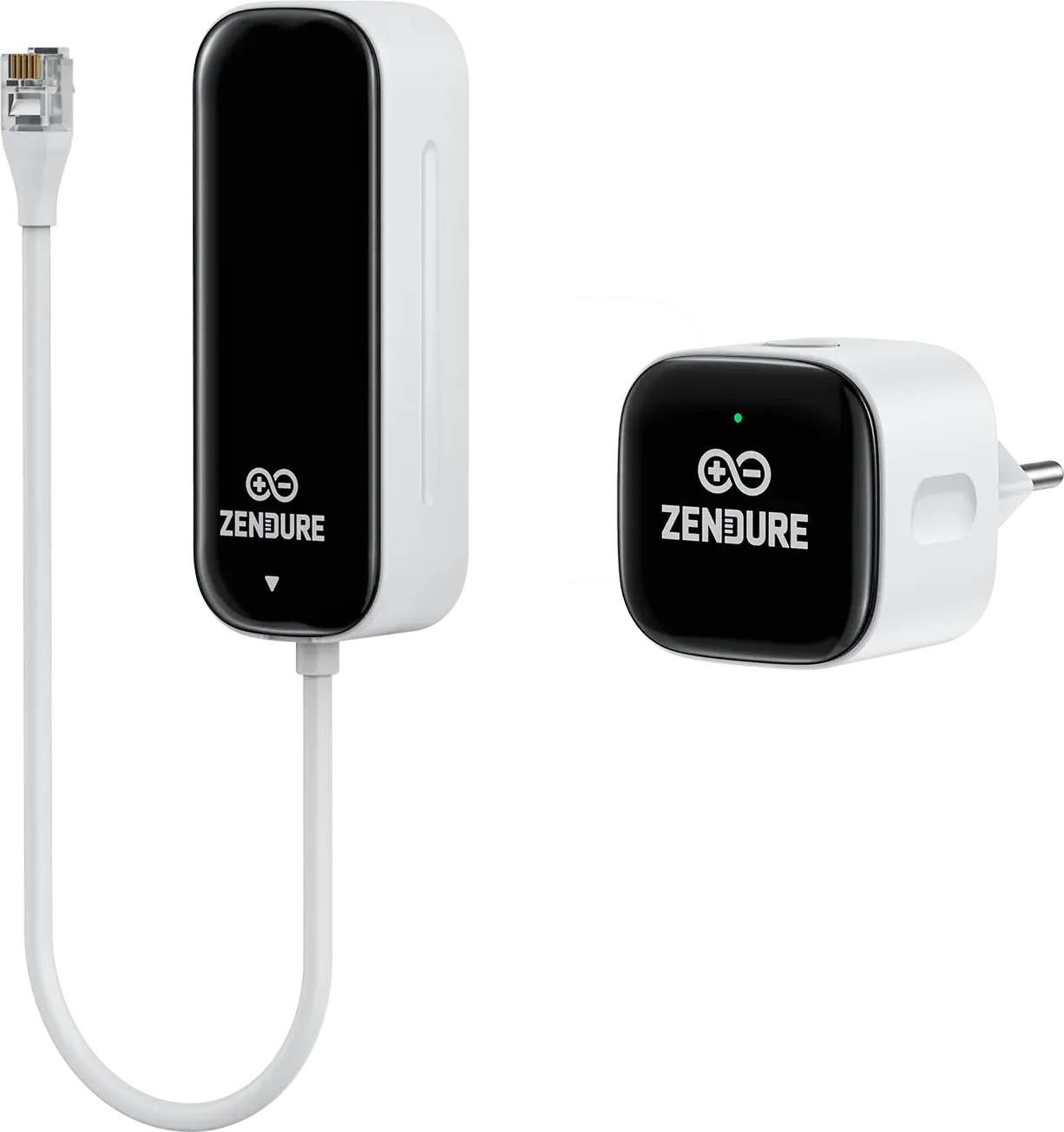 ---
## System Integration
The P1 Meter is a monitoring-only device that provides real-time grid data. This data is used by the to determine the necessary power setpoints for the battery system.
> [!NOTE] Companion Device
> To control your battery storage based on the P1 Meter's readings, see the [Zendure SolarFlow Documentation](../PV-hybrid-and-battery-inverters/Zendure-SolarFlow).
---
## Configuration
### 1. Installation Requirement
The P1 Meter must be connected to the P1 port of your digital utility meter and be joined to the same local network as the .
### 2. Network Stability
As with all Zendure local API devices, you should **connect it via MAC Address Reservation**.
### 3. Required Parameters
* **IP Address:** The local IP of the P1 Meter.
# Ziv
import { BrandName, ControllerName } from '@site/src/components/customFields';
import RS485ConnectionTable from '@site/src/components/RS485ConnectionTable';
import ClickableImage from '@site/src/components/ClickableImage';
import RS485AddressNote from '@site/src/components/RS485AddressNote';
import DeviceSupportTable from '@site/src/components/DeviceSupportTable';
---
## System Integration
The P1 Meter is a monitoring-only device that provides real-time grid data. This data is used by the to determine the necessary power setpoints for the battery system.
> [!NOTE] Companion Device
> To control your battery storage based on the P1 Meter's readings, see the [Zendure SolarFlow Documentation](../PV-hybrid-and-battery-inverters/Zendure-SolarFlow).
---
## Configuration
### 1. Installation Requirement
The P1 Meter must be connected to the P1 port of your digital utility meter and be joined to the same local network as the .
### 2. Network Stability
As with all Zendure local API devices, you should **connect it via MAC Address Reservation**.
### 3. Required Parameters
* **IP Address:** The local IP of the P1 Meter.
# Ziv
import { BrandName, ControllerName } from '@site/src/components/customFields';
import RS485ConnectionTable from '@site/src/components/RS485ConnectionTable';
import ClickableImage from '@site/src/components/ClickableImage';
import RS485AddressNote from '@site/src/components/RS485AddressNote';
import DeviceSupportTable from '@site/src/components/DeviceSupportTable';
 ## Supported Devices
| Device Type | Variants | P1 to USB |
|:--:|:--:|:--:|
| DSMR Smart Meter | / | ✅ |
# a-TroniX
# ABB
import { BrandName, ControllerName } from '@site/src/components/customFields';
import RS485ConnectionTable from '@site/src/components/RS485ConnectionTable';
import ClickableImage from '@site/src/components/ClickableImage';
import DeviceSupportTable from '@site/src/components/DeviceSupportTable';
# ABB charging stations
## Supported Devices
## Wiring
### Ethernet
For correct ethernet wiring: Follow the [the guidelines for ethernet wiring](/Controller/wiring-best-practices/#ethernet).
### RS485
## Configuration
After the electrical installation of a charger is complete, follow these steps to configure the charger:
1. Install ABB TerraConfig using the links on the official [Terra AC digital tools page](https://new.abb.com/ev-charging/terra-ac-wallbox/digital-tools). Current manuals are available in the [ABB EV charging document library](https://new.abb.com/ev-charging/ev-charging-infrastructure/documents).
2. On the dashboard, select "Configure a charger."
3. Enable Bluetooth on your phone, as this is necessary for the app to communicate with the charger during the commissioning process.
4. Choose a charger from the available list.
5. You can also select a charger by scanning the SN barcode with the app.
6. Be sure to scan the charger's SN bar code, which usually begins with "TAC" (although this may vary depending on the product variant).
7. After selecting a charger to connect to, enter the PIN.
8. Select below the option "EDIT CURRENT CONFIGURATION" - or if the charging station has not yet been configured, then select "Start from scratch."
9. Make sure your phone or mobile app is connected to the Internet for PIN validation.
10. Throughout the process, the app will display a pop-up confirming that all settings will be applied to the charger simultaneously once you get to the last step.
11. Click on the "Energy management" submenu.
12. Toggle "Modbus" on.
13. Select "Local controller" and then "Modbus RTU (RS485)" or "Modbus TCP/IP" depending on whether the charging station is connected to the via RS485 or Ethernet.
**Modbus RTU (RS485)**
14. Choose a unique Modbus address, different from all other Modbus addresses of devices on the same RS485 bus.
15. Choose baud rate 9600, parity Even, stop bits 1 and data bits 8.
**Modbus TCP/IP**
16. You must set a fixed IP address in the charging station within the same network range as the.
17. Important: Always choose 502 as the server port.
18. For home and small business networks, a typical setup is with e.g. fixed IP address 192.168.1.50:
- IP address: 192.168.1.50
- Mask address: 255.255.255.0
- Gateway address (the address of your router): 192.168.1.1
- Server Port: 502
# Alfen
import { BrandName, ControllerName } from '@site/src/components/customFields';
import RS485ConnectionTable from '@site/src/components/RS485ConnectionTable';
import ClickableImage from '@site/src/components/ClickableImage';
import DeviceSupportTable from '@site/src/components/DeviceSupportTable';
# Alfen charging stations
## Supported Devices
| Device Type | Variants | P1 to USB |
|:--:|:--:|:--:|
| DSMR Smart Meter | / | ✅ |
# a-TroniX
# ABB
import { BrandName, ControllerName } from '@site/src/components/customFields';
import RS485ConnectionTable from '@site/src/components/RS485ConnectionTable';
import ClickableImage from '@site/src/components/ClickableImage';
import DeviceSupportTable from '@site/src/components/DeviceSupportTable';
# ABB charging stations
## Supported Devices
## Wiring
### Ethernet
For correct ethernet wiring: Follow the [the guidelines for ethernet wiring](/Controller/wiring-best-practices/#ethernet).
### RS485
## Configuration
After the electrical installation of a charger is complete, follow these steps to configure the charger:
1. Install ABB TerraConfig using the links on the official [Terra AC digital tools page](https://new.abb.com/ev-charging/terra-ac-wallbox/digital-tools). Current manuals are available in the [ABB EV charging document library](https://new.abb.com/ev-charging/ev-charging-infrastructure/documents).
2. On the dashboard, select "Configure a charger."
3. Enable Bluetooth on your phone, as this is necessary for the app to communicate with the charger during the commissioning process.
4. Choose a charger from the available list.
5. You can also select a charger by scanning the SN barcode with the app.
6. Be sure to scan the charger's SN bar code, which usually begins with "TAC" (although this may vary depending on the product variant).
7. After selecting a charger to connect to, enter the PIN.
8. Select below the option "EDIT CURRENT CONFIGURATION" - or if the charging station has not yet been configured, then select "Start from scratch."
9. Make sure your phone or mobile app is connected to the Internet for PIN validation.
10. Throughout the process, the app will display a pop-up confirming that all settings will be applied to the charger simultaneously once you get to the last step.
11. Click on the "Energy management" submenu.
12. Toggle "Modbus" on.
13. Select "Local controller" and then "Modbus RTU (RS485)" or "Modbus TCP/IP" depending on whether the charging station is connected to the via RS485 or Ethernet.
**Modbus RTU (RS485)**
14. Choose a unique Modbus address, different from all other Modbus addresses of devices on the same RS485 bus.
15. Choose baud rate 9600, parity Even, stop bits 1 and data bits 8.
**Modbus TCP/IP**
16. You must set a fixed IP address in the charging station within the same network range as the.
17. Important: Always choose 502 as the server port.
18. For home and small business networks, a typical setup is with e.g. fixed IP address 192.168.1.50:
- IP address: 192.168.1.50
- Mask address: 255.255.255.0
- Gateway address (the address of your router): 192.168.1.1
- Server Port: 502
# Alfen
import { BrandName, ControllerName } from '@site/src/components/customFields';
import RS485ConnectionTable from '@site/src/components/RS485ConnectionTable';
import ClickableImage from '@site/src/components/ClickableImage';
import DeviceSupportTable from '@site/src/components/DeviceSupportTable';
# Alfen charging stations
 This guide will serve as a guide to adjust the Alfen charging station settings to allow communication with and control by the .
For more in depth information you can use the [Alfen Smart charging implementation guide](https://knowledge.alfen.com/space/SER/854327297/Manuals+and+Guides+in+English_EN)
## Supported Devices
## Configuration
Install the charging station.
1. Update the Alfen charging station to firmware version 4.2.0 (or higher).
2. Connect the Alfen charging station to a network with the following requirements:
- The charging station is in the same local network as the .
- Make sure the communication between the charging station and the is open.
3. Install the [ACE service installer tool](https://knowledge.alfen.com/space/IN/1627488257/Download+the+ACE+Service+Installer), or search for the latest version of the ACE service installer on the internet if the link does not work.
4. Create a valid account for Alfen ACE Service Installer now (to be requested via https://support.alfen.com)
5. To control the charging station, the smart charging functionality must first be purchased and then rolled out.
1. Unlocking functionality via the ACE Service Installer: to unlock functionality via the ACE Service Installer, do the following:
1. Open the ACE Service Installer
2. Click on the desired charging station
3. Go to the *General info* tab and select *License key*
4. Click *Update license key* to activate the purchased functionality. The charging station will restart after the license key is updated.
2. If the location has a weak internet connection, the following procedure can be used to unlock the desired functionality:
1. Open the ACE Service Installer
2. Go to *Device* in the menu
3. Select *Install feature(s)*
4. Enter the license key and click *OK*. The charging station will restart after the license key is updated.
6. Configuring ALB via the ACE Service Installer
1. Open the ACE Service Installer
2. Select the charging station
3. Select the *Smart Charging* tab
4. Check the box next to *Active load balancing*. The following parameters are displayed.
5. Data Source; enter the data source type:
- Energy Management System: The customer's Energy Management System will transmit the dynamic minimum and maximum values to the charging station. Based on these values, the charging station will increase or decrease the power output from the socket.
6. Enter the Safe current. This is the current limit the charging station uses when the connection between the charging station and the energy meter/Energy Management System is lost.
7. If permitted, enter the phase rotation. Note: This is the phase sequence of the power cable (to the charging station). There are several options depending on the type of charging station and connection.
8. Click *Save*
9. Click the power button to restart the charging station.
7. Configuring an EMS via the ACE Service Installer
1. If the Energy Management System is selected as the data source (see step 6: "Configuring ALB via the ACE Service Installer"), an additional page will appear on the screen. Double-click to open the screen. Select *TCP/IP EMS* in the menu.
2. Enter the mode. Select whether the EMS manages each individual socket or an entire Smart Charging Network.
3. Enter the validity period (default 60 s). If the charging station has not received updates from the EMS within the configured validity period, it will interpret this as a disconnection and will return to the configured safe current.
8. Test the connection of a ALB with a EMS
1. Configure the installation according to the instructions in the previous steps.
2. Go to the *Live Monitoring* tab, select *States*, and observe the Modbus TCP/IP connection status as shown below:
If this status is *Not in use (communication idle)*, there is a loss of communication. Check your installation or consult the *Troubleshooting* section for more information.
3. Connect a vehicle and start a charging session.
4. Use the EMS to change the maximum available power. The method for doing this varies by EMS. Consult the EMS manufacturer's manual for more information.
5. Go to the *Live Monitoring* tab, select *Currents*, and view the currents being drawn.
# Alpitronic
import { BrandName, ControllerName } from '@site/src/components/customFields';
import RS485ConnectionTable from '@site/src/components/RS485ConnectionTable';
import ClickableImage from '@site/src/components/ClickableImage';
import DeviceSupportTable from '@site/src/components/DeviceSupportTable';
# Alpitronic charging stations
This guide will serve as a guide to adjust the Alfen charging station settings to allow communication with and control by the .
For more in depth information you can use the [Alfen Smart charging implementation guide](https://knowledge.alfen.com/space/SER/854327297/Manuals+and+Guides+in+English_EN)
## Supported Devices
## Configuration
Install the charging station.
1. Update the Alfen charging station to firmware version 4.2.0 (or higher).
2. Connect the Alfen charging station to a network with the following requirements:
- The charging station is in the same local network as the .
- Make sure the communication between the charging station and the is open.
3. Install the [ACE service installer tool](https://knowledge.alfen.com/space/IN/1627488257/Download+the+ACE+Service+Installer), or search for the latest version of the ACE service installer on the internet if the link does not work.
4. Create a valid account for Alfen ACE Service Installer now (to be requested via https://support.alfen.com)
5. To control the charging station, the smart charging functionality must first be purchased and then rolled out.
1. Unlocking functionality via the ACE Service Installer: to unlock functionality via the ACE Service Installer, do the following:
1. Open the ACE Service Installer
2. Click on the desired charging station
3. Go to the *General info* tab and select *License key*
4. Click *Update license key* to activate the purchased functionality. The charging station will restart after the license key is updated.
2. If the location has a weak internet connection, the following procedure can be used to unlock the desired functionality:
1. Open the ACE Service Installer
2. Go to *Device* in the menu
3. Select *Install feature(s)*
4. Enter the license key and click *OK*. The charging station will restart after the license key is updated.
6. Configuring ALB via the ACE Service Installer
1. Open the ACE Service Installer
2. Select the charging station
3. Select the *Smart Charging* tab
4. Check the box next to *Active load balancing*. The following parameters are displayed.
5. Data Source; enter the data source type:
- Energy Management System: The customer's Energy Management System will transmit the dynamic minimum and maximum values to the charging station. Based on these values, the charging station will increase or decrease the power output from the socket.
6. Enter the Safe current. This is the current limit the charging station uses when the connection between the charging station and the energy meter/Energy Management System is lost.
7. If permitted, enter the phase rotation. Note: This is the phase sequence of the power cable (to the charging station). There are several options depending on the type of charging station and connection.
8. Click *Save*
9. Click the power button to restart the charging station.
7. Configuring an EMS via the ACE Service Installer
1. If the Energy Management System is selected as the data source (see step 6: "Configuring ALB via the ACE Service Installer"), an additional page will appear on the screen. Double-click to open the screen. Select *TCP/IP EMS* in the menu.
2. Enter the mode. Select whether the EMS manages each individual socket or an entire Smart Charging Network.
3. Enter the validity period (default 60 s). If the charging station has not received updates from the EMS within the configured validity period, it will interpret this as a disconnection and will return to the configured safe current.
8. Test the connection of a ALB with a EMS
1. Configure the installation according to the instructions in the previous steps.
2. Go to the *Live Monitoring* tab, select *States*, and observe the Modbus TCP/IP connection status as shown below:
If this status is *Not in use (communication idle)*, there is a loss of communication. Check your installation or consult the *Troubleshooting* section for more information.
3. Connect a vehicle and start a charging session.
4. Use the EMS to change the maximum available power. The method for doing this varies by EMS. Consult the EMS manufacturer's manual for more information.
5. Go to the *Live Monitoring* tab, select *Currents*, and view the currents being drawn.
# Alpitronic
import { BrandName, ControllerName } from '@site/src/components/customFields';
import RS485ConnectionTable from '@site/src/components/RS485ConnectionTable';
import ClickableImage from '@site/src/components/ClickableImage';
import DeviceSupportTable from '@site/src/components/DeviceSupportTable';
# Alpitronic charging stations
 ## Supported Devices
## Configuration
External control of the charging station must be activated in the configuration menu via the web page of the charging station. To do this:
1. Surf to the IP address and log in with the default data or your own set of data (default user = admin, default password = admin123).
2. In the settings of the charging station:
1. Go to "General"
2. Go to "Power"
3. Set "ModBus Enabled" to "True"
4. Click on "Save Settings"
3. "Grid Fallback Timeout" is the maximum time allowed between 2 commands from the . The default is 5 seconds, set this to 60 seconds by default. Afterward, click "Save Settings" again.
4. Activate the changes by Resetting the charging station.
1. Go to the main page
2. Check that no cars are connected to the charging station
3. Go to "Reset"
4. Click on "Soft Reset HYC"
# Autel
import { BrandName, ControllerName } from '@site/src/components/customFields';
import RS485ConnectionTable from '@site/src/components/RS485ConnectionTable';
import ClickableImage from '@site/src/components/ClickableImage';
import DeviceSupportTable from '@site/src/components/DeviceSupportTable';
# Autel charging stations
## Supported Devices
## Configuration
External control of the charging station must be activated in the configuration menu via the web page of the charging station. To do this:
1. Surf to the IP address and log in with the default data or your own set of data (default user = admin, default password = admin123).
2. In the settings of the charging station:
1. Go to "General"
2. Go to "Power"
3. Set "ModBus Enabled" to "True"
4. Click on "Save Settings"
3. "Grid Fallback Timeout" is the maximum time allowed between 2 commands from the . The default is 5 seconds, set this to 60 seconds by default. Afterward, click "Save Settings" again.
4. Activate the changes by Resetting the charging station.
1. Go to the main page
2. Check that no cars are connected to the charging station
3. Go to "Reset"
4. Click on "Soft Reset HYC"
# Autel
import { BrandName, ControllerName } from '@site/src/components/customFields';
import RS485ConnectionTable from '@site/src/components/RS485ConnectionTable';
import ClickableImage from '@site/src/components/ClickableImage';
import DeviceSupportTable from '@site/src/components/DeviceSupportTable';
# Autel charging stations
 ## Supported Devices
## Wiring
### Ethernet
For correct Ethernet wiring, follow the [guidelines for Ethernet wiring](/Controller/wiring-best-practices/#ethernet).
### RS485
## Configuration
After the electrical installation of a charger is complete, follow these steps to configure communication with the .
---
### MaxiCharger DC Compact and DC Fast
#### Step 1 – Access the Local Service Portal
1. On the charging station’s touchscreen, go to the **Home** screen.
2. **Double-tap the upper-left corner** of the screen.
3. Tap **Device Maintenance**.
4. Enter the password — the **last six digits of the serial number** found on the product label.
---
#### Step 2 – Set Modbus Parameters
1. Tap **Set Parameters**.
2. Wait for the system to load data.
3. Configure communication settings as follows:
##### For **Modbus TCP (Ethernet)**
- **OCPP IP**: IP of the (e.g. `192.168.1.100`)
- **OCPP PORT**: `502`
- **MGR IP / URL / PORT**: Optional management platform details
- **Running environment**: Select correct region (EU, UK, USA, etc.)
##### For **Modbus RTU (RS485)**
- **Modbus Slave Address**: Unique ID (1–247)
- **Baud Rate**: `9600`
- **Parity**: `None`
- **Data Bits**: `8`
- **Stop Bits**: `1`
---
#### Step 3 – Save and Verify
1. Tap **Save**. The system will restart with the new settings.
2. Wait for about 1–2 minutes until boot completes.
3. On the Home screen, check the **Internet connection icon**:
- ✅ Connected — icon shows a network link
- ❌ Disconnected — icon shows “x”; check cables or settings
---
### MaxiCharger AC Ultra
#### Step 1 – Power On and Initial Setup
1. Switch on the power to the charger.
2. The charger will launch the setup wizard.
3. Follow the on-screen steps:
- Select the **language**.
- Connect via **Wi‑Fi**, **Ethernet**, or **Cellular**.
- Set **time zone**.
- Set **maximum input current** to match grid capacity.
---
#### Step 2 – Access the Maintenance Menu
1. On the **Standby Screen**, tap the **currency ($)** icon (bottom-left corner).
2. The **Cost Details** screen will open.
3. **Double-tap the top-left corner** to enter the maintenance menu.
4. Tap **Device Maintenance**.
5. Enter the **last six digits of the charger’s serial number**.
---
#### Step 3 – Configure Modbus TCP Settings
1. Tap **Set Parameters**.
2. Fill in the following fields:
| Setting | Description | Example |
|----------|--------------|----------|
| **OCPP IP** | IP address of the | `192.168.1.100` |
| **OCPP PORT** | Modbus port number | `502` |
| **MGR IP/URL/PORT** | Optional backend connection details | – |
| **Running Environment** | Corresponding operating region | `Europe` |
---
#### Step 4 – Save and Verify
1. Tap **Save** to confirm and restart the device.
2. Once restarted, confirm the connection icon shows active network status.
# Blitz-Power
import { BrandName, ControllerName } from '@site/src/components/customFields';
import RS485ConnectionTable from '@site/src/components/RS485ConnectionTable';
import ClickableImage from '@site/src/components/ClickableImage';
import DeviceSupportTable from '@site/src/components/DeviceSupportTable';
## Access to the web interface
### Accessing the Blitz Power Station web interface
> [!NOTE] After starting up the charging station, the webpage becomes accessible after about 8 minutes.
To access the platform, there are 2 different options:
Via Internet connection (see image next to this)
1. You must connect the ETH0 port via a router to access the Master BPS from your PC if it is connected to the same router.
2. Browse to: http://ev3000.local:3000.
3. The webpage opens and you can start the configuration.
4. We recommend assigning a static IP address to the charging station via the network settings now. Note: if the Blitz webpage does not open, follow this step.
> [!NOTE]
> If the Blitz webpage does not open, follow these steps:
1. Make sure the PC you are connecting with is set to DHCP (automatic IP address assignment) in the internet settings. You can check this via network connections:
## Configuration via Modbus modbusTcp
1. Click on Load Management in the menu bar.
2. Enter a custom name under Charging Park Name.
3. Set the maximum current value of the fuse protecting the charging park under Load Circuit Fuse.
4. For High Level Measuring, choose the communication protocol. • IP Address
5. Enter the (IP) address of the energy meter from the electrical cabinet.
6. Device type is EEM377 (if the meter is supplied by Blitz Power).
7. Under Charging Points, select the charging points that should participate in Load Management.
8. Click Save: Success appears on the screen.
9. Perform a restart of the charging station.
> [!WARNING]
> Dynamic Load Management only works if the facilities for the charging station are tapped directly from the main fuse.
## Configuration via RS485
Dynamic load management (WITH energy meter)
1. Click on Load Management in the menu bar.
2. Enter a custom name under Charging Park Name.
3. Set the maximum current value of the main fuse protecting the entire site under Load Circuit Fuse.
4. For High Level Measuring, choose the communication protocol. • RS 485 (modbus)
5. Select the name of the master charging station (position 1).
6. Under Charging Points, select the charging points that should participate in Load Management.
7. Click Save: Success appears on the screen.
8. Perform a restart of the charging station.
> [!WARNING]
> Dynamic Load Management only works if the facilities for the charging station are tapped directly from the main fuse.
# Easee
import { BrandName, ControllerName } from '@site/src/components/customFields';
import RS485ConnectionTable from '@site/src/components/RS485ConnectionTable';
import ClickableImage from '@site/src/components/ClickableImage';
import DeviceSupportTable from '@site/src/components/DeviceSupportTable';
## Supported Devices
## Wiring
### Ethernet
For correct Ethernet wiring, follow the [guidelines for Ethernet wiring](/Controller/wiring-best-practices/#ethernet).
### RS485
## Configuration
After the electrical installation of a charger is complete, follow these steps to configure communication with the .
---
### MaxiCharger DC Compact and DC Fast
#### Step 1 – Access the Local Service Portal
1. On the charging station’s touchscreen, go to the **Home** screen.
2. **Double-tap the upper-left corner** of the screen.
3. Tap **Device Maintenance**.
4. Enter the password — the **last six digits of the serial number** found on the product label.
---
#### Step 2 – Set Modbus Parameters
1. Tap **Set Parameters**.
2. Wait for the system to load data.
3. Configure communication settings as follows:
##### For **Modbus TCP (Ethernet)**
- **OCPP IP**: IP of the (e.g. `192.168.1.100`)
- **OCPP PORT**: `502`
- **MGR IP / URL / PORT**: Optional management platform details
- **Running environment**: Select correct region (EU, UK, USA, etc.)
##### For **Modbus RTU (RS485)**
- **Modbus Slave Address**: Unique ID (1–247)
- **Baud Rate**: `9600`
- **Parity**: `None`
- **Data Bits**: `8`
- **Stop Bits**: `1`
---
#### Step 3 – Save and Verify
1. Tap **Save**. The system will restart with the new settings.
2. Wait for about 1–2 minutes until boot completes.
3. On the Home screen, check the **Internet connection icon**:
- ✅ Connected — icon shows a network link
- ❌ Disconnected — icon shows “x”; check cables or settings
---
### MaxiCharger AC Ultra
#### Step 1 – Power On and Initial Setup
1. Switch on the power to the charger.
2. The charger will launch the setup wizard.
3. Follow the on-screen steps:
- Select the **language**.
- Connect via **Wi‑Fi**, **Ethernet**, or **Cellular**.
- Set **time zone**.
- Set **maximum input current** to match grid capacity.
---
#### Step 2 – Access the Maintenance Menu
1. On the **Standby Screen**, tap the **currency ($)** icon (bottom-left corner).
2. The **Cost Details** screen will open.
3. **Double-tap the top-left corner** to enter the maintenance menu.
4. Tap **Device Maintenance**.
5. Enter the **last six digits of the charger’s serial number**.
---
#### Step 3 – Configure Modbus TCP Settings
1. Tap **Set Parameters**.
2. Fill in the following fields:
| Setting | Description | Example |
|----------|--------------|----------|
| **OCPP IP** | IP address of the | `192.168.1.100` |
| **OCPP PORT** | Modbus port number | `502` |
| **MGR IP/URL/PORT** | Optional backend connection details | – |
| **Running Environment** | Corresponding operating region | `Europe` |
---
#### Step 4 – Save and Verify
1. Tap **Save** to confirm and restart the device.
2. Once restarted, confirm the connection icon shows active network status.
# Blitz-Power
import { BrandName, ControllerName } from '@site/src/components/customFields';
import RS485ConnectionTable from '@site/src/components/RS485ConnectionTable';
import ClickableImage from '@site/src/components/ClickableImage';
import DeviceSupportTable from '@site/src/components/DeviceSupportTable';
## Access to the web interface
### Accessing the Blitz Power Station web interface
> [!NOTE] After starting up the charging station, the webpage becomes accessible after about 8 minutes.
To access the platform, there are 2 different options:
Via Internet connection (see image next to this)
1. You must connect the ETH0 port via a router to access the Master BPS from your PC if it is connected to the same router.
2. Browse to: http://ev3000.local:3000.
3. The webpage opens and you can start the configuration.
4. We recommend assigning a static IP address to the charging station via the network settings now. Note: if the Blitz webpage does not open, follow this step.
> [!NOTE]
> If the Blitz webpage does not open, follow these steps:
1. Make sure the PC you are connecting with is set to DHCP (automatic IP address assignment) in the internet settings. You can check this via network connections:
## Configuration via Modbus modbusTcp
1. Click on Load Management in the menu bar.
2. Enter a custom name under Charging Park Name.
3. Set the maximum current value of the fuse protecting the charging park under Load Circuit Fuse.
4. For High Level Measuring, choose the communication protocol. • IP Address
5. Enter the (IP) address of the energy meter from the electrical cabinet.
6. Device type is EEM377 (if the meter is supplied by Blitz Power).
7. Under Charging Points, select the charging points that should participate in Load Management.
8. Click Save: Success appears on the screen.
9. Perform a restart of the charging station.
> [!WARNING]
> Dynamic Load Management only works if the facilities for the charging station are tapped directly from the main fuse.
## Configuration via RS485
Dynamic load management (WITH energy meter)
1. Click on Load Management in the menu bar.
2. Enter a custom name under Charging Park Name.
3. Set the maximum current value of the main fuse protecting the entire site under Load Circuit Fuse.
4. For High Level Measuring, choose the communication protocol. • RS 485 (modbus)
5. Select the name of the master charging station (position 1).
6. Under Charging Points, select the charging points that should participate in Load Management.
7. Click Save: Success appears on the screen.
8. Perform a restart of the charging station.
> [!WARNING]
> Dynamic Load Management only works if the facilities for the charging station are tapped directly from the main fuse.
# Easee
import { BrandName, ControllerName } from '@site/src/components/customFields';
import RS485ConnectionTable from '@site/src/components/RS485ConnectionTable';
import ClickableImage from '@site/src/components/ClickableImage';
import DeviceSupportTable from '@site/src/components/DeviceSupportTable';

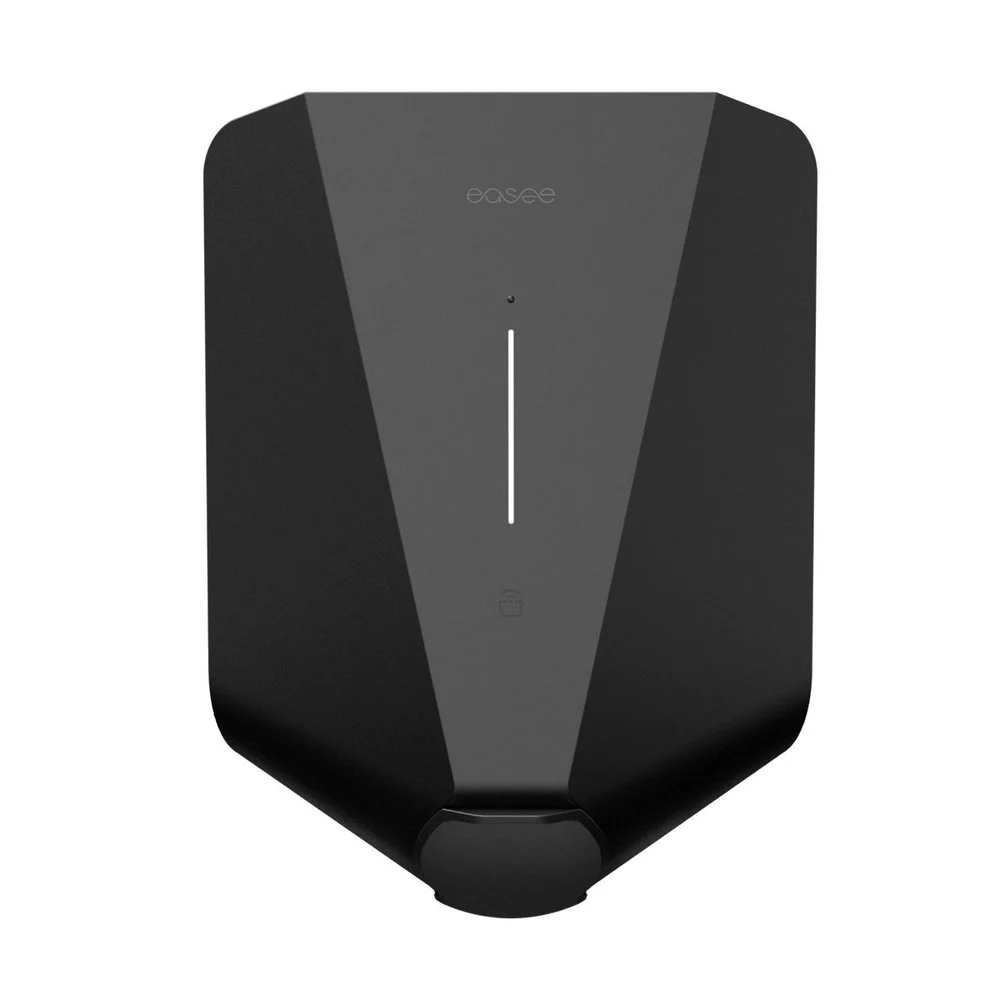 ## Configuration
The communicates with Easee chargers via the Easee API.
To enable communication, you need to have an account on the Easee Cloud platform and link your chargers to that account.
You can then enter your Easee Cloud credentials in the configuration.
In addition, an _site key_ is needed. This can be found in the __Easee__ app. This is the card shown when you press About in the Site Settings page.
More information about this card can be found in the [site card page of the Easee documentation](https://support.easee.com/hc/en-gb/articles/7807449952401-About-Site-Card).
## Configuration
The communicates with Easee chargers via the Easee API.
To enable communication, you need to have an account on the Easee Cloud platform and link your chargers to that account.
You can then enter your Easee Cloud credentials in the configuration.
In addition, an _site key_ is needed. This can be found in the __Easee__ app. This is the card shown when you press About in the Site Settings page.
More information about this card can be found in the [site card page of the Easee documentation](https://support.easee.com/hc/en-gb/articles/7807449952401-About-Site-Card).
 # Enovates
import { BrandName, ControllerName } from '@site/src/components/customFields';
import RS485ConnectionTable from '@site/src/components/RS485ConnectionTable';
import ClickableImage from '@site/src/components/ClickableImage';
import DeviceSupportTable from '@site/src/components/DeviceSupportTable';
# Enovates
import { BrandName, ControllerName } from '@site/src/components/customFields';
import RS485ConnectionTable from '@site/src/components/RS485ConnectionTable';
import ClickableImage from '@site/src/components/ClickableImage';
import DeviceSupportTable from '@site/src/components/DeviceSupportTable';
 # Enovates charging stations
## Supported Devices
---
## Wiring
### Ethernet
1. Connect the LAN (Ethernet) port of the charger to the same network as the .
2. For correct Ethernet wiring standards, follow the [Ethernet wiring guidelines](/Controller/wiring-best-practices/#ethernet).
3. Make sure port 502 (Modbus TCP) is not blocked by your firewall or switch configuration.
---
## Configuration
After completing the physical installation and powering on the unit, follow these steps to configure the Wallbox.
### 1. Install the *My‑eNovates* App
The charger is configured using the official **My‑eNovates** mobile app.
### 2. Prepare the charger
1. **Power on** the charger and wait until the LED frame lights up.
- **Steady yellow:** Vehicle detected / ready for authorization
- **Steady green:** Authorized / ready for charging
2. Enable **Bluetooth** on your phone or tablet.
3. Locate the **User QR code** printed on the back of the installer manual or charger label. You will need this to connect through the app.
### 3. Connect and configure the device
1. Open **My‑eNovates** and **scan** the User QR code.
2. Follow the app’s instructions to connect to the charger and set parameters:
- **Charger name (alias)** – for easy identification
- **Authentication mode**
- *Plug & Charge* – charging starts automatically when a car is plugged in
- *RFID authorization* – the user must swipe a valid RFID card
- **Token management** – add or remove RFID tags
- **Charging schedule** – optional time scheduling
- **LED light intensity** – adjust brightness if required
3. Confirm and **save settings**. All configurations are stored locally in the charger.
### 4. Verify network and Modbus TCP access
1. Connect the **Ethernet port** of the charger to the site LAN that hosts the .
2. Ensure the charger is assign**ed a fixed IP address** (either manually or via DHCP reservation).
3. The **Modbus TCP port 502** must be open.
4. You can confirm accessibility by pinging the charger’s IP from a PC or the controller network.
5. On the interface, go to:
**Devices → Add device → EV Charging Station → Modbus TCP**
- **IP address:** enter the charger’s IP
- **Port:** 502
- **Unit ID:** 1 (default)
Start the scan. The controller detects the Enovates Wallbox automatically and creates:
- One **parent node** for the charger
- One **child node per connector**
# Etrel
import { BrandName, ControllerName } from '@site/src/components/customFields';
import RS485ConnectionTable from '@site/src/components/RS485ConnectionTable';
import ClickableImage from '@site/src/components/ClickableImage';
import DeviceSupportTable from '@site/src/components/DeviceSupportTable';
# Etrel INCH charging stations
# Enovates charging stations
## Supported Devices
---
## Wiring
### Ethernet
1. Connect the LAN (Ethernet) port of the charger to the same network as the .
2. For correct Ethernet wiring standards, follow the [Ethernet wiring guidelines](/Controller/wiring-best-practices/#ethernet).
3. Make sure port 502 (Modbus TCP) is not blocked by your firewall or switch configuration.
---
## Configuration
After completing the physical installation and powering on the unit, follow these steps to configure the Wallbox.
### 1. Install the *My‑eNovates* App
The charger is configured using the official **My‑eNovates** mobile app.
### 2. Prepare the charger
1. **Power on** the charger and wait until the LED frame lights up.
- **Steady yellow:** Vehicle detected / ready for authorization
- **Steady green:** Authorized / ready for charging
2. Enable **Bluetooth** on your phone or tablet.
3. Locate the **User QR code** printed on the back of the installer manual or charger label. You will need this to connect through the app.
### 3. Connect and configure the device
1. Open **My‑eNovates** and **scan** the User QR code.
2. Follow the app’s instructions to connect to the charger and set parameters:
- **Charger name (alias)** – for easy identification
- **Authentication mode**
- *Plug & Charge* – charging starts automatically when a car is plugged in
- *RFID authorization* – the user must swipe a valid RFID card
- **Token management** – add or remove RFID tags
- **Charging schedule** – optional time scheduling
- **LED light intensity** – adjust brightness if required
3. Confirm and **save settings**. All configurations are stored locally in the charger.
### 4. Verify network and Modbus TCP access
1. Connect the **Ethernet port** of the charger to the site LAN that hosts the .
2. Ensure the charger is assign**ed a fixed IP address** (either manually or via DHCP reservation).
3. The **Modbus TCP port 502** must be open.
4. You can confirm accessibility by pinging the charger’s IP from a PC or the controller network.
5. On the interface, go to:
**Devices → Add device → EV Charging Station → Modbus TCP**
- **IP address:** enter the charger’s IP
- **Port:** 502
- **Unit ID:** 1 (default)
Start the scan. The controller detects the Enovates Wallbox automatically and creates:
- One **parent node** for the charger
- One **child node per connector**
# Etrel
import { BrandName, ControllerName } from '@site/src/components/customFields';
import RS485ConnectionTable from '@site/src/components/RS485ConnectionTable';
import ClickableImage from '@site/src/components/ClickableImage';
import DeviceSupportTable from '@site/src/components/DeviceSupportTable';
# Etrel INCH charging stations
 This guide explains how to configure and connect the **Etrel INCH** and **INCH Duo** smart AC chargers for communication with the .
## Supported Devices
## Wiring
### Ethernet connection
1. Connect the **Ethernet (LAN)** port of the charging station to the same local network as the .
2. Make sure the LAN connection is live and the LEDs on the port are on.
3. Recommended network cable: **Cat 5e or higher**, shielded for outdoor use if needed.
For general Ethernet wiring best practices, see the [Ethernet wiring guidelines](/Controller/wiring-best-practices/#ethernet).
---
## Configuration
After the electrical installation of a charger is complete:
1. **Power up the charger.**
- The green LED will blink while the unit boots.
- Wait until the LED turns steady green (charger ready).
2. **Access the local web interface.**
- Connect your laptop to the same network as the charger.
- Open a web browser and enter the **charger IP address** shown on the sticker inside the side maintenance door.
- If you cannot find the IP, press and hold the small **reset button** inside the maintenance area until a beep—then the current IP address is displayed on the screen.
3. **Log in and verify communication settings.**
- Check that the **network configuration** uses a fixed IP address in the same range as the .
- Subnet mask `255.255.255.0` and **port 502** must be open for Modbus TCP.
- DHCP can also be used if the controller supports automatic discovery.
4. **Enable Modbus TCP communication.**
- Open the web‑interface settings menu.
- Ensure **Modbus TCP** communication is active (default unit ID = 1 / port 502).
- No RS485 configuration is necessary.
5. **Check protection devices.**
- Confirm that RCD and over‑current protection are installed and active.
- Etrel INCH units without built‑in RCD / MCB must be protected by external devices in the main distribution cabinet.
6. **Verify the LED and LCD indicators.**
- **Steady green:** charger available.
- **Blue blinking:** charging in progress.
- **Red:** fault—inspect or reboot before proceeding.
7. **Test communication.**
- From a PC, run `ping ` to verify the connection.
- Then add the charger in the interface (**Devices → Add device → EV charging station → Modbus TCP**).
- Enter the charger IP and port 502. Keep Unit ID = 1.
8. **Confirm Modbus control.**
- The controller will automatically read model, serial number, and connector data.
- Each connector appears as a controllable child node.
> [!NOTE] Installer tip
> If connection fails, use the side maintenance door to restart the station. Hold the reset button for 4 seconds until the beep, then choose **Reset network** to restore default IP (192.168.1.250).
# EVChargeKing
import { BrandName, ControllerName } from '@site/src/components/customFields';
import ClickableImage from '@site/src/components/ClickableImage';
import DeviceSupportTable from '@site/src/components/DeviceSupportTable';
# EVChargeKing charging stations
This guide explains how to configure and connect the **Etrel INCH** and **INCH Duo** smart AC chargers for communication with the .
## Supported Devices
## Wiring
### Ethernet connection
1. Connect the **Ethernet (LAN)** port of the charging station to the same local network as the .
2. Make sure the LAN connection is live and the LEDs on the port are on.
3. Recommended network cable: **Cat 5e or higher**, shielded for outdoor use if needed.
For general Ethernet wiring best practices, see the [Ethernet wiring guidelines](/Controller/wiring-best-practices/#ethernet).
---
## Configuration
After the electrical installation of a charger is complete:
1. **Power up the charger.**
- The green LED will blink while the unit boots.
- Wait until the LED turns steady green (charger ready).
2. **Access the local web interface.**
- Connect your laptop to the same network as the charger.
- Open a web browser and enter the **charger IP address** shown on the sticker inside the side maintenance door.
- If you cannot find the IP, press and hold the small **reset button** inside the maintenance area until a beep—then the current IP address is displayed on the screen.
3. **Log in and verify communication settings.**
- Check that the **network configuration** uses a fixed IP address in the same range as the .
- Subnet mask `255.255.255.0` and **port 502** must be open for Modbus TCP.
- DHCP can also be used if the controller supports automatic discovery.
4. **Enable Modbus TCP communication.**
- Open the web‑interface settings menu.
- Ensure **Modbus TCP** communication is active (default unit ID = 1 / port 502).
- No RS485 configuration is necessary.
5. **Check protection devices.**
- Confirm that RCD and over‑current protection are installed and active.
- Etrel INCH units without built‑in RCD / MCB must be protected by external devices in the main distribution cabinet.
6. **Verify the LED and LCD indicators.**
- **Steady green:** charger available.
- **Blue blinking:** charging in progress.
- **Red:** fault—inspect or reboot before proceeding.
7. **Test communication.**
- From a PC, run `ping ` to verify the connection.
- Then add the charger in the interface (**Devices → Add device → EV charging station → Modbus TCP**).
- Enter the charger IP and port 502. Keep Unit ID = 1.
8. **Confirm Modbus control.**
- The controller will automatically read model, serial number, and connector data.
- Each connector appears as a controllable child node.
> [!NOTE] Installer tip
> If connection fails, use the side maintenance door to restart the station. Hold the reset button for 4 seconds until the beep, then choose **Reset network** to restore default IP (192.168.1.250).
# EVChargeKing
import { BrandName, ControllerName } from '@site/src/components/customFields';
import ClickableImage from '@site/src/components/ClickableImage';
import DeviceSupportTable from '@site/src/components/DeviceSupportTable';
# EVChargeKing charging stations
 ## Supported Devices
## ETAP Pro Configuration
1. Download the E-Tap mobile app and create an account.
2. Scan the QR code on the E-Tap Pro device or card it comes with to add it in the app
3. During the setup, connect the EVChargeKing charging station to a network with the following requirements:
- The charging station is in the same local network as the .
- Make sure the communication between the charging station and the is open.
4. Check that the device is connected to the internet in settings -> chargers -> select the charger -> Connection status. Either Wifi or Ethernet should be connected.
5. Find the mac address of the device in settings -> chargers -> select the charger -> Information. This will be needed to add the device in the .
6. The device should now be ready to be added in the .
# FLEXeCHARGE
import { BrandName, ControllerName } from '@site/src/components/customFields';
import RS485ConnectionTable from '@site/src/components/RS485ConnectionTable';
import ClickableImage from '@site/src/components/ClickableImage';
import DeviceSupportTable from '@site/src/components/DeviceSupportTable';
# FLEXeCHARGE charging stations
## Supported Devices
## ETAP Pro Configuration
1. Download the E-Tap mobile app and create an account.
2. Scan the QR code on the E-Tap Pro device or card it comes with to add it in the app
3. During the setup, connect the EVChargeKing charging station to a network with the following requirements:
- The charging station is in the same local network as the .
- Make sure the communication between the charging station and the is open.
4. Check that the device is connected to the internet in settings -> chargers -> select the charger -> Connection status. Either Wifi or Ethernet should be connected.
5. Find the mac address of the device in settings -> chargers -> select the charger -> Information. This will be needed to add the device in the .
6. The device should now be ready to be added in the .
# FLEXeCHARGE
import { BrandName, ControllerName } from '@site/src/components/customFields';
import RS485ConnectionTable from '@site/src/components/RS485ConnectionTable';
import ClickableImage from '@site/src/components/ClickableImage';
import DeviceSupportTable from '@site/src/components/DeviceSupportTable';
# FLEXeCHARGE charging stations
 This guide will help installers set up the FLEXeCHARGE charging station, ensuring proper communication and integration with the . This guide covers common configurations, but **always refer to the official FLEXeCHARGE manuals** available at [FLEXeCHARGE Help Desk] for the most accurate and up-to-date instructions [[1]](https://support.flexecharge.com/hc/en-dk/categories/10364785688988-Manuals)[[2]](https://support.flexecharge.com/hc/en-dk).
## Supported Devices
---
## Wiring
### Ethernet
For a proper Ethernet connection:
1. Connect the FLEXeCHARGE controller to the local network via an Ethernet cable.
2. Ensure TCP port **502** is open between the FLEXeCHARGE controller and the .
3. Follow the [Ethernet wiring best practices](/Controller/wiring-best-practices/#ethernet).
---
## Configuration
**Step 1: Configure the FLEXeCHARGE Gateway**
1. **Connect to the Gateway:** Connect your laptop directly to the Gateway via Ethernet.
2. **Access the Gateway Interface:** Open a web browser and enter the Gateway's IP address. The default IP address is likely `192.168.0.10` [[3]](https://support.flexecharge.com/hc/en-dk/articles/16573654926876-2-Configuration-Manual-for-Hybrid-Setup), but **verify this in the Gateway manual**.
3. **Log In:** Log in to the Gateway interface. The default username and password are often `admin` [[3]](https://support.flexecharge.com/hc/en-dk/articles/16573654926876-2-Configuration-Manual-for-Hybrid-Setup), but **verify this in the Gateway manual and change it immediately for security reasons.**
4. **Network Configuration:**
* Assign a fixed IP address to the Gateway [[3]](https://support.flexecharge.com/hc/en-dk/articles/16573654926876-2-Configuration-Manual-for-Hybrid-Setup). This IP address should be within the same subnet as your local network and the .
* Configure the Subnet Mask and Gateway address to match your network settings.
* Connect the Gateway to your local network router [[3]](https://support.flexecharge.com/hc/en-dk/articles/16573654926876-2-Configuration-Manual-for-Hybrid-Setup).
5. **HARMON-E Registration:** Ensure the Gateway is registered with your HARMON-E account. Follow the instructions in the FLEXeCHARGE manual for registering the Gateway [[3]](https://support.flexecharge.com/hc/en-dk/articles/16573654926876-2-Configuration-Manual-for-Hybrid-Setup). You may need to contact FLEXeCHARGE support to link the power meter to your cloud site [[3]](https://support.flexecharge.com/hc/en-dk/articles/16573654926876-2-Configuration-Manual-for-Hybrid-Setup).
**Step 2: Configure the FLEXeCHARGE Charging Station**
1. **Access the Charging Station Interface:** Once the Gateway is configured and connected to the internet, you should be able to access the charging station's configuration interface through the Gateway. The exact method for accessing the charging station's interface will be detailed in the FLEXeCHARGE manual.
2. **Enable Modbus TCP:** Navigate to the communication settings and enable Modbus TCP.
3. **Modbus TCP Settings:**
* Set the IP address of the charging station. This IP address should be different from the Gateway's IP address but within the same subnet.
* Set the Modbus Unit ID (Modbus address). Choose a unique address between 1-247 that does not conflict with other Modbus devices on the network.
* Ensure the port is set to 502.
**Step 3: Configure the **
1. In the interface, add a new Modbus TCP device.
2. Enter the IP address of the **charging station** (not the Gateway).
3. Enter the Modbus Unit ID you configured in Step 2.
4. Start the scan to confirm the connection.
### Setup without FLEXeCHARGE Gateway (Direct Connection)
If you are not using a FLEXeCHARGE Gateway, you may be able to connect the charging station directly to your network.
1. **Connect to the Charging Station:** Connect your laptop to the charging station via Ethernet. You might need to set a static IP address on your laptop to be in the same subnet as the charging station's default IP address (check the manual).
2. **Access the Charging Station Interface:** Open a web browser and enter the charging station's IP address (check the manual for the default IP address).
3. **Log In:** Log in to the charging station interface (check the manual for the default username and password).
4. **Configure Network Settings:** Assign a static IP address, subnet mask, and gateway address to the charging station.
5. **Enable Modbus TCP and set the Modbus Unit ID as described in "Step 2: Configure the FLEXeCHARGE Charging Station" above.**
6. **Configure the as described in "Step 3: Configure the " above.**
# Go-e
import { BrandName, ControllerName } from '@site/src/components/customFields';
import RS485ConnectionTable from '@site/src/components/RS485ConnectionTable';
import ClickableImage from '@site/src/components/ClickableImage';
import DeviceSupportTable from '@site/src/components/DeviceSupportTable';
# Go-e EV charger
This guide will help installers set up the FLEXeCHARGE charging station, ensuring proper communication and integration with the . This guide covers common configurations, but **always refer to the official FLEXeCHARGE manuals** available at [FLEXeCHARGE Help Desk] for the most accurate and up-to-date instructions [[1]](https://support.flexecharge.com/hc/en-dk/categories/10364785688988-Manuals)[[2]](https://support.flexecharge.com/hc/en-dk).
## Supported Devices
---
## Wiring
### Ethernet
For a proper Ethernet connection:
1. Connect the FLEXeCHARGE controller to the local network via an Ethernet cable.
2. Ensure TCP port **502** is open between the FLEXeCHARGE controller and the .
3. Follow the [Ethernet wiring best practices](/Controller/wiring-best-practices/#ethernet).
---
## Configuration
**Step 1: Configure the FLEXeCHARGE Gateway**
1. **Connect to the Gateway:** Connect your laptop directly to the Gateway via Ethernet.
2. **Access the Gateway Interface:** Open a web browser and enter the Gateway's IP address. The default IP address is likely `192.168.0.10` [[3]](https://support.flexecharge.com/hc/en-dk/articles/16573654926876-2-Configuration-Manual-for-Hybrid-Setup), but **verify this in the Gateway manual**.
3. **Log In:** Log in to the Gateway interface. The default username and password are often `admin` [[3]](https://support.flexecharge.com/hc/en-dk/articles/16573654926876-2-Configuration-Manual-for-Hybrid-Setup), but **verify this in the Gateway manual and change it immediately for security reasons.**
4. **Network Configuration:**
* Assign a fixed IP address to the Gateway [[3]](https://support.flexecharge.com/hc/en-dk/articles/16573654926876-2-Configuration-Manual-for-Hybrid-Setup). This IP address should be within the same subnet as your local network and the .
* Configure the Subnet Mask and Gateway address to match your network settings.
* Connect the Gateway to your local network router [[3]](https://support.flexecharge.com/hc/en-dk/articles/16573654926876-2-Configuration-Manual-for-Hybrid-Setup).
5. **HARMON-E Registration:** Ensure the Gateway is registered with your HARMON-E account. Follow the instructions in the FLEXeCHARGE manual for registering the Gateway [[3]](https://support.flexecharge.com/hc/en-dk/articles/16573654926876-2-Configuration-Manual-for-Hybrid-Setup). You may need to contact FLEXeCHARGE support to link the power meter to your cloud site [[3]](https://support.flexecharge.com/hc/en-dk/articles/16573654926876-2-Configuration-Manual-for-Hybrid-Setup).
**Step 2: Configure the FLEXeCHARGE Charging Station**
1. **Access the Charging Station Interface:** Once the Gateway is configured and connected to the internet, you should be able to access the charging station's configuration interface through the Gateway. The exact method for accessing the charging station's interface will be detailed in the FLEXeCHARGE manual.
2. **Enable Modbus TCP:** Navigate to the communication settings and enable Modbus TCP.
3. **Modbus TCP Settings:**
* Set the IP address of the charging station. This IP address should be different from the Gateway's IP address but within the same subnet.
* Set the Modbus Unit ID (Modbus address). Choose a unique address between 1-247 that does not conflict with other Modbus devices on the network.
* Ensure the port is set to 502.
**Step 3: Configure the **
1. In the interface, add a new Modbus TCP device.
2. Enter the IP address of the **charging station** (not the Gateway).
3. Enter the Modbus Unit ID you configured in Step 2.
4. Start the scan to confirm the connection.
### Setup without FLEXeCHARGE Gateway (Direct Connection)
If you are not using a FLEXeCHARGE Gateway, you may be able to connect the charging station directly to your network.
1. **Connect to the Charging Station:** Connect your laptop to the charging station via Ethernet. You might need to set a static IP address on your laptop to be in the same subnet as the charging station's default IP address (check the manual).
2. **Access the Charging Station Interface:** Open a web browser and enter the charging station's IP address (check the manual for the default IP address).
3. **Log In:** Log in to the charging station interface (check the manual for the default username and password).
4. **Configure Network Settings:** Assign a static IP address, subnet mask, and gateway address to the charging station.
5. **Enable Modbus TCP and set the Modbus Unit ID as described in "Step 2: Configure the FLEXeCHARGE Charging Station" above.**
6. **Configure the as described in "Step 3: Configure the " above.**
# Go-e
import { BrandName, ControllerName } from '@site/src/components/customFields';
import RS485ConnectionTable from '@site/src/components/RS485ConnectionTable';
import ClickableImage from '@site/src/components/ClickableImage';
import DeviceSupportTable from '@site/src/components/DeviceSupportTable';
# Go-e EV charger
 ## Supported Devices
## Configuration
1. In the go-e application, go to your device, then "Settings".
2. Go in the "Connection" tab.
3. Go in the "API Settings" tab.
4. Be sure that the "Allow local Modbus TCP API" and "Swap Registers" option are enabled.
5. Then reboot your go-e.
# Huawei EV Chargers
import { BrandName, ControllerName } from '@site/src/components/customFields';
import ClickableImage from '@site/src/components/ClickableImage';
import DeviceSupportTable from '@site/src/components/DeviceSupportTable';
## Supported Devices
## Configuration
1. In the go-e application, go to your device, then "Settings".
2. Go in the "Connection" tab.
3. Go in the "API Settings" tab.
4. Be sure that the "Allow local Modbus TCP API" and "Swap Registers" option are enabled.
5. Then reboot your go-e.
# Huawei EV Chargers
import { BrandName, ControllerName } from '@site/src/components/customFields';
import ClickableImage from '@site/src/components/ClickableImage';
import DeviceSupportTable from '@site/src/components/DeviceSupportTable';
 # Huawei EV Chargers
Two Huawei product families are supported: the **SCharger** (AC wallbox) and the **FusionCharge** (commercial DC fast charger). Both communicate via Modbus TCP.
## Supported Devices
---
## SCharger
The SCharger is an AC wallbox for residential and light commercial use.
### Wiring
#### Power Wiring
* **SCharger-7KS-S0 (1-Phase):** L1, N, PE.
* **SCharger-22KT-S0 (3-Phase):** L1, L2, L3, N, PE.
#### Network Connection (FE/Ethernet)
For the most stable connection with the , use a hardwired Ethernet (FE) connection.
1. Open the charger cover.
2. Route the network cable through the **left cable hole** at the bottom of the rear cover.
3. Connect the network cable to the **FE port** on the rear side of the internal unit.
4. Connect the other end to the same router/network switch as the .
> [!NOTE]
> While the charger supports Wi-Fi, a wired Ethernet connection is strongly recommended for reliable control by the .
### Configuration
#### 1. Initial Setup (via Huawei App)
Use the **FusionSolar App** (Installer account) to configure the network and Modbus settings.
1. Log in to the FusionSolar app as an **Installer**.
2. Tap **Setup Wizard** > Scan the QR code on the side of the charger.
3. Connect to the charger's internal WLAN hotspot (password is on the label).
#### 2. Enable Third-Party Control (Modbus TCP)
By default, the charger does not accept commands from external controllers. You must enable this:
1. In the FusionSolar app (connected to the device hotspot), go to **Settings**.
2. Navigate to **Communication configuration** > **Dongle parameter settings**.
3. Find **Modbus TCP**.
4. Set to **Enable (unrestricted)** or **Enable**.
5. Ensure the port is set to **502**.
> [!WARNING]
> If Modbus TCP is not enabled here, the cannot detect or control the charger.
#### 3. Static IP Address
To ensure the never loses connection, assign a static IP:
1. Go to **Quick Settings** > **Communication networking**.
2. Select **FE** (Fast Ethernet) if wired, or **WLAN** if wireless.
3. **Disable DHCP**.
4. Enter a static **IP Address**, **Subnet Mask**, and **Gateway** matching the site network.
#### 4. Eniris Controller Configuration
| Setting | Value |
| :--- | :--- |
| **IP Address** | The static IP you assigned in step 3 (e.g., `192.168.1.50`) |
| **Port** | `502` |
| **Slave ID** | `1` (default) |
---
## FusionCharge
The FusionCharge is a commercial DC fast charger with multiple physical connector slots.
### Configuration
#### Enable Modbus TCP
Access the antohill web interface or use antoeci cloud.
1. Navigate to **Settings** > **Communication configuration**.
2. Find **Modbus TCP** and set it to **Enable (unrestricted)** or **Enable**.
3. Confirm the port is set to **502**.
# Huawei EV Chargers
Two Huawei product families are supported: the **SCharger** (AC wallbox) and the **FusionCharge** (commercial DC fast charger). Both communicate via Modbus TCP.
## Supported Devices
---
## SCharger
The SCharger is an AC wallbox for residential and light commercial use.
### Wiring
#### Power Wiring
* **SCharger-7KS-S0 (1-Phase):** L1, N, PE.
* **SCharger-22KT-S0 (3-Phase):** L1, L2, L3, N, PE.
#### Network Connection (FE/Ethernet)
For the most stable connection with the , use a hardwired Ethernet (FE) connection.
1. Open the charger cover.
2. Route the network cable through the **left cable hole** at the bottom of the rear cover.
3. Connect the network cable to the **FE port** on the rear side of the internal unit.
4. Connect the other end to the same router/network switch as the .
> [!NOTE]
> While the charger supports Wi-Fi, a wired Ethernet connection is strongly recommended for reliable control by the .
### Configuration
#### 1. Initial Setup (via Huawei App)
Use the **FusionSolar App** (Installer account) to configure the network and Modbus settings.
1. Log in to the FusionSolar app as an **Installer**.
2. Tap **Setup Wizard** > Scan the QR code on the side of the charger.
3. Connect to the charger's internal WLAN hotspot (password is on the label).
#### 2. Enable Third-Party Control (Modbus TCP)
By default, the charger does not accept commands from external controllers. You must enable this:
1. In the FusionSolar app (connected to the device hotspot), go to **Settings**.
2. Navigate to **Communication configuration** > **Dongle parameter settings**.
3. Find **Modbus TCP**.
4. Set to **Enable (unrestricted)** or **Enable**.
5. Ensure the port is set to **502**.
> [!WARNING]
> If Modbus TCP is not enabled here, the cannot detect or control the charger.
#### 3. Static IP Address
To ensure the never loses connection, assign a static IP:
1. Go to **Quick Settings** > **Communication networking**.
2. Select **FE** (Fast Ethernet) if wired, or **WLAN** if wireless.
3. **Disable DHCP**.
4. Enter a static **IP Address**, **Subnet Mask**, and **Gateway** matching the site network.
#### 4. Eniris Controller Configuration
| Setting | Value |
| :--- | :--- |
| **IP Address** | The static IP you assigned in step 3 (e.g., `192.168.1.50`) |
| **Port** | `502` |
| **Slave ID** | `1` (default) |
---
## FusionCharge
The FusionCharge is a commercial DC fast charger with multiple physical connector slots.
### Configuration
#### Enable Modbus TCP
Access the antohill web interface or use antoeci cloud.
1. Navigate to **Settings** > **Communication configuration**.
2. Find **Modbus TCP** and set it to **Enable (unrestricted)** or **Enable**.
3. Confirm the port is set to **502**.
 > [!WARNING]
> If Modbus TCP is not enabled, the cannot detect or control the charger.
### Technical Notes
#### Multi-Connector Aggregation
The FusionCharge has multiple physical connector slots, but accepts a single global power setpoint. The therefore treats all connectors as one virtual connector for control, while still reading each one individually for monitoring:
- **Power** is summed across all active connectors.
- **Status** follows a priority hierarchy the most significant active state is reported.
- **State of Charge (SOC)** is averaged over all connected vehicles.
# Ilumen
import { BrandName, ControllerName } from '@site/src/components/customFields';
import RS485ConnectionTable from '@site/src/components/RS485ConnectionTable';
import ClickableImage from '@site/src/components/ClickableImage';
import DeviceSupportTable from '@site/src/components/DeviceSupportTable';
# Ilumen charging stations
> [!WARNING]
> If Modbus TCP is not enabled, the cannot detect or control the charger.
### Technical Notes
#### Multi-Connector Aggregation
The FusionCharge has multiple physical connector slots, but accepts a single global power setpoint. The therefore treats all connectors as one virtual connector for control, while still reading each one individually for monitoring:
- **Power** is summed across all active connectors.
- **Status** follows a priority hierarchy the most significant active state is reported.
- **State of Charge (SOC)** is averaged over all connected vehicles.
# Ilumen
import { BrandName, ControllerName } from '@site/src/components/customFields';
import RS485ConnectionTable from '@site/src/components/RS485ConnectionTable';
import ClickableImage from '@site/src/components/ClickableImage';
import DeviceSupportTable from '@site/src/components/DeviceSupportTable';
# Ilumen charging stations
 ## Supported Devices
## Wiring
### Ethernet
For communication with Eniris (Modbus TCP) the Ilumen charging station must be connected to a local IP network.
- The charger must have a fixed/static IP address (recommended) or a DHCP reservation.
- The Eniris gateway must be able to reach the charger's IP address on TCP port 502.
- Use standard Ethernet cabling and switches; follow the general [Ethernet wiring guidelines](/Controller/wiring-best-practices/#ethernet).
> [!WARNING]
> Port 502 (Modbus TCP) is commonly used across the network. Ensure firewall rules allow TCP traffic between the Eniris gateway and the charger's IP on port 502. Do NOT expose port 502 to the public internet.
### RS485
Ilumen devices supported by this driver communicate over Modbus TCP only. RS485/Modbus RTU is not supported by the Ilumen driver described here.
## Configuration
Follow these steps to enable Modbus TCP communication between an Ilumen charging station and the Eniris gateway. The steps assume the charger is already powered and reachable on the local network.
1. Access the charge station network configuration:
- Use the Ilumen configuration UI (web interface) or the vendor-provided configuration tool.
- If the charger uses DHCP by default, set a static IP or reserve an IP in your DHCP server for the charger.
2. Network settings:
- Set IP address within the same subnet as the Eniris gateway (for example: 192.168.1.50).
- Set subnet mask and gateway consistent with your local network.
- DNS is optional for Modbus TCP but may be required for firmware updates or vendor tools.
3. Modbus TCP server settings:
- Enable Modbus communication and select "Modbus TCP/IP" as the communication mode.
- Set the server port to 502 (the Eniris Modbus driver expects port 502).
- Confirm the Modbus unit/slave ID (also called Device ID). Typical range: 1–247. Note this ID is required by the Eniris Modbus driver configuration.
> [!TIP]
> The Ilumen driver in Eniris expects Modbus slave IDs in the 1–247 range. Use a unique ID on the network to avoid collisions with other Modbus/TCP devices.
4. Ensure the device is reachable:
- From the Eniris gateway, verify TCP connectivity: e.g., use telnet 502 or an equivalent network test.
- If connectivity fails, check switch/router VLANs, firewall rules, and physical cabling.
5. Configure the Eniris gateway:
- In Eniris device configuration, create a device entry with:
- Protocol: "Ilumen EV Charger protocol V1"
- Connection mode: Modbus TCP
- IP address: the charger's static IP (or DNS name)
- Port: 502
- Modbus slave/unit ID: the configured Device ID on the charger
- Optionally provide serial number and model in the driver parameters to help device identification.
6. Match communication parameters:
- Modbus TCP: no serial line parameters required (baud/parity/stopbits do not apply).
- Ensure the Eniris gateway's Modbus client is configured to use Modbus TCP framing.
7. Discovery and verification:
- After adding the device in Eniris, run a device scan/discovery.
- The driver validates the device by reading specific registers (e.g., voltage measurement registers). Successful reads confirm the charger is online.
- In Eniris logs you should see the charger appear with a nodeId like: SGW-Ilumen-EVC-.
# Ev Charging Station
import { FolderOverview } from '@/components/FolderOverview';
# Ev Charging Station
# Kempower
import { BrandName, ControllerName } from '@site/src/components/customFields';
import RS485ConnectionTable from '@site/src/components/RS485ConnectionTable';
import ClickableImage from '@site/src/components/ClickableImage';
import DeviceSupportTable from '@site/src/components/DeviceSupportTable';
# Kempower Charging Stations
## Supported Devices
## Wiring
### Ethernet
For communication with Eniris (Modbus TCP) the Ilumen charging station must be connected to a local IP network.
- The charger must have a fixed/static IP address (recommended) or a DHCP reservation.
- The Eniris gateway must be able to reach the charger's IP address on TCP port 502.
- Use standard Ethernet cabling and switches; follow the general [Ethernet wiring guidelines](/Controller/wiring-best-practices/#ethernet).
> [!WARNING]
> Port 502 (Modbus TCP) is commonly used across the network. Ensure firewall rules allow TCP traffic between the Eniris gateway and the charger's IP on port 502. Do NOT expose port 502 to the public internet.
### RS485
Ilumen devices supported by this driver communicate over Modbus TCP only. RS485/Modbus RTU is not supported by the Ilumen driver described here.
## Configuration
Follow these steps to enable Modbus TCP communication between an Ilumen charging station and the Eniris gateway. The steps assume the charger is already powered and reachable on the local network.
1. Access the charge station network configuration:
- Use the Ilumen configuration UI (web interface) or the vendor-provided configuration tool.
- If the charger uses DHCP by default, set a static IP or reserve an IP in your DHCP server for the charger.
2. Network settings:
- Set IP address within the same subnet as the Eniris gateway (for example: 192.168.1.50).
- Set subnet mask and gateway consistent with your local network.
- DNS is optional for Modbus TCP but may be required for firmware updates or vendor tools.
3. Modbus TCP server settings:
- Enable Modbus communication and select "Modbus TCP/IP" as the communication mode.
- Set the server port to 502 (the Eniris Modbus driver expects port 502).
- Confirm the Modbus unit/slave ID (also called Device ID). Typical range: 1–247. Note this ID is required by the Eniris Modbus driver configuration.
> [!TIP]
> The Ilumen driver in Eniris expects Modbus slave IDs in the 1–247 range. Use a unique ID on the network to avoid collisions with other Modbus/TCP devices.
4. Ensure the device is reachable:
- From the Eniris gateway, verify TCP connectivity: e.g., use telnet 502 or an equivalent network test.
- If connectivity fails, check switch/router VLANs, firewall rules, and physical cabling.
5. Configure the Eniris gateway:
- In Eniris device configuration, create a device entry with:
- Protocol: "Ilumen EV Charger protocol V1"
- Connection mode: Modbus TCP
- IP address: the charger's static IP (or DNS name)
- Port: 502
- Modbus slave/unit ID: the configured Device ID on the charger
- Optionally provide serial number and model in the driver parameters to help device identification.
6. Match communication parameters:
- Modbus TCP: no serial line parameters required (baud/parity/stopbits do not apply).
- Ensure the Eniris gateway's Modbus client is configured to use Modbus TCP framing.
7. Discovery and verification:
- After adding the device in Eniris, run a device scan/discovery.
- The driver validates the device by reading specific registers (e.g., voltage measurement registers). Successful reads confirm the charger is online.
- In Eniris logs you should see the charger appear with a nodeId like: SGW-Ilumen-EVC-.
# Ev Charging Station
import { FolderOverview } from '@/components/FolderOverview';
# Ev Charging Station
# Kempower
import { BrandName, ControllerName } from '@site/src/components/customFields';
import RS485ConnectionTable from '@site/src/components/RS485ConnectionTable';
import ClickableImage from '@site/src/components/ClickableImage';
import DeviceSupportTable from '@site/src/components/DeviceSupportTable';
# Kempower Charging Stations
 ## Supported Devices
## Configuration and Interface Details
The Kempower Charging Station uses Modbus TCP as the communication basis.
To ensure communication with the , note the following:
1. **Connection Requirements:** Connections are only allowed from the same subnet the charging station is connected to.
2. **Modbus Port:** The standard Modbus Port used is **502**.
3. **Maximum Connections:** The maximum number of simultaneous connections is **10**.
### Power Limit Management
The Kempower Charging Station accepts power limit control *only* via the Modbus TCP interface when Modbus messages are detected.
* **OCPP Conflict:** OCPP power limitation messages are not accepted when Modbus is used.
* **Fallback Power:** The maximum power used when communication times out reverts to the **Fallback Power (W)** setting. This power is also used at startup until the **Assigned Maximum Power** has been received.
* **Minimum Power:** Any power limit values below 1000W are interpreted as 0W, which effectively stops charging.
# Amtron
import { BrandName, ControllerName } from '@site/src/components/customFields';
import RS485ConnectionTable from '@site/src/components/RS485ConnectionTable';
import ClickableImage from '@site/src/components/ClickableImage';
import DeviceSupportTable from '@site/src/components/DeviceSupportTable';
# Mennekes
## Supported Devices
## Configuration and Interface Details
The Kempower Charging Station uses Modbus TCP as the communication basis.
To ensure communication with the , note the following:
1. **Connection Requirements:** Connections are only allowed from the same subnet the charging station is connected to.
2. **Modbus Port:** The standard Modbus Port used is **502**.
3. **Maximum Connections:** The maximum number of simultaneous connections is **10**.
### Power Limit Management
The Kempower Charging Station accepts power limit control *only* via the Modbus TCP interface when Modbus messages are detected.
* **OCPP Conflict:** OCPP power limitation messages are not accepted when Modbus is used.
* **Fallback Power:** The maximum power used when communication times out reverts to the **Fallback Power (W)** setting. This power is also used at startup until the **Assigned Maximum Power** has been received.
* **Minimum Power:** Any power limit values below 1000W are interpreted as 0W, which effectively stops charging.
# Amtron
import { BrandName, ControllerName } from '@site/src/components/customFields';
import RS485ConnectionTable from '@site/src/components/RS485ConnectionTable';
import ClickableImage from '@site/src/components/ClickableImage';
import DeviceSupportTable from '@site/src/components/DeviceSupportTable';
# Mennekes
 ## Supported Devices
## Configuration
1. In the application, go to your device, then "Settings".
2. Go in the "Connection" tab to enable Modbus TCP, and set the Modbus TCP server to **"Read and Write"** mode (HEMS Read and Write). In "Read only" mode the can read the charger's data but cannot control its charging current.
3. Give the charger a fixed IP address in the same network as the .
# MyEnergi EV Charging Stations
import { BrandName, ControllerName } from '@site/src/components/customFields';
import ClickableImage from '@site/src/components/ClickableImage';
import DeviceSupportTable from '@site/src/components/DeviceSupportTable';
## Supported Devices
## Configuration
1. In the application, go to your device, then "Settings".
2. Go in the "Connection" tab to enable Modbus TCP, and set the Modbus TCP server to **"Read and Write"** mode (HEMS Read and Write). In "Read only" mode the can read the charger's data but cannot control its charging current.
3. Give the charger a fixed IP address in the same network as the .
# MyEnergi EV Charging Stations
import { BrandName, ControllerName } from '@site/src/components/customFields';
import ClickableImage from '@site/src/components/ClickableImage';
import DeviceSupportTable from '@site/src/components/DeviceSupportTable';
 # MyEnergi EV Charging Stations
## Supported Devices
> [!WARNING]
>
> Control is not possible! Only monitoring is supported.
>
## Connection
The communication between the and the Zappi EV Chargers operates via API.
### API
You need an API key to connect the Zappi EV Charger to the . To generate an API key, follow these steps:
1. Log in to the MyEnergi portal.
2. Go to the "Products" tab.
3. Under your Gateway or Zappi click "Advanced"
4. Click "Generate new API key"
# NexBlue
import { BrandName, ControllerName } from '@site/src/components/customFields';
import RS485ConnectionTable from '@site/src/components/RS485ConnectionTable';
import ClickableImage from '@site/src/components/ClickableImage';
import DeviceSupportTable from '@site/src/components/DeviceSupportTable';
# NexBlue
# MyEnergi EV Charging Stations
## Supported Devices
> [!WARNING]
>
> Control is not possible! Only monitoring is supported.
>
## Connection
The communication between the and the Zappi EV Chargers operates via API.
### API
You need an API key to connect the Zappi EV Charger to the . To generate an API key, follow these steps:
1. Log in to the MyEnergi portal.
2. Go to the "Products" tab.
3. Under your Gateway or Zappi click "Advanced"
4. Click "Generate new API key"
# NexBlue
import { BrandName, ControllerName } from '@site/src/components/customFields';
import RS485ConnectionTable from '@site/src/components/RS485ConnectionTable';
import ClickableImage from '@site/src/components/ClickableImage';
import DeviceSupportTable from '@site/src/components/DeviceSupportTable';
# NexBlue

 ## Supported Devices
## Wiring
### Ethernet connection
1. Connect the **Ethernet (LAN)** port of the charging station to the same local network as the .
2. Make sure the LAN connection is live and the LEDs on the port are on.
3. Recommended network cable: **Cat 5e or higher**, shielded for outdoor use if needed.
For general Ethernet wiring best practices, see the [Ethernet wiring guidelines](/Controller/wiring-best-practices/#ethernet).
# OCPP
import { BrandName, ControllerName } from '@site/src/components/customFields';
import RS485ConnectionTable from '@site/src/components/RS485ConnectionTable';
import ClickableImage from '@site/src/components/ClickableImage';
import DeviceSupportTable from '@site/src/components/DeviceSupportTable';
# Charging stations with OCPP support
## Supported Devices
## Wiring
### Ethernet connection
1. Connect the **Ethernet (LAN)** port of the charging station to the same local network as the .
2. Make sure the LAN connection is live and the LEDs on the port are on.
3. Recommended network cable: **Cat 5e or higher**, shielded for outdoor use if needed.
For general Ethernet wiring best practices, see the [Ethernet wiring guidelines](/Controller/wiring-best-practices/#ethernet).
# OCPP
import { BrandName, ControllerName } from '@site/src/components/customFields';
import RS485ConnectionTable from '@site/src/components/RS485ConnectionTable';
import ClickableImage from '@site/src/components/ClickableImage';
import DeviceSupportTable from '@site/src/components/DeviceSupportTable';
# Charging stations with OCPP support
 ## Supported Devices
> [!WARNING]
> OCPP is only supported on chargers that do not need to be connected to a mobility service provider backend. This by definition excludes all public charging stations.
> [!WARNING]
> The OCPP enabled charger must allow setting a local IP address as the OCPP backend. Consult the charger manufacturer in case of doubt.
## Configuration
OCPP is enabled by default on the on TCP port 9000.
> [!WARNING]
> The controller must be configured to have a fixed IP address in your network to enable OCPP. This is because the acts as an OCPP server, and the IP adress must be configured in your charger. See [Network](/Controller/network-configuration/) on how to set up a fixed IP address.
In the charger's settings, go the OCPP settings and follow these steps:
1. Enable OCPP on the charger.
2. Set the address to: **ws://[ IP address]:9000**.
3. Check that the OCPP version is set to version **1.6J** if the option is present.
It is recommended to wait a minute or two for the charger to connect to the before adding it as a device in the commissioning interface.
# Peblar EV Charging Stations
import { BrandName, ControllerName } from '@site/src/components/customFields';
import ClickableImage from '@site/src/components/ClickableImage';
import DeviceSupportTable from '@site/src/components/DeviceSupportTable';
## Supported Devices
> [!WARNING]
> OCPP is only supported on chargers that do not need to be connected to a mobility service provider backend. This by definition excludes all public charging stations.
> [!WARNING]
> The OCPP enabled charger must allow setting a local IP address as the OCPP backend. Consult the charger manufacturer in case of doubt.
## Configuration
OCPP is enabled by default on the on TCP port 9000.
> [!WARNING]
> The controller must be configured to have a fixed IP address in your network to enable OCPP. This is because the acts as an OCPP server, and the IP adress must be configured in your charger. See [Network](/Controller/network-configuration/) on how to set up a fixed IP address.
In the charger's settings, go the OCPP settings and follow these steps:
1. Enable OCPP on the charger.
2. Set the address to: **ws://[ IP address]:9000**.
3. Check that the OCPP version is set to version **1.6J** if the option is present.
It is recommended to wait a minute or two for the charger to connect to the before adding it as a device in the commissioning interface.
# Peblar EV Charging Stations
import { BrandName, ControllerName } from '@site/src/components/customFields';
import ClickableImage from '@site/src/components/ClickableImage';
import DeviceSupportTable from '@site/src/components/DeviceSupportTable';
 # Peblar EV Charging Stations
## Supported Devices
## Connection
The communication between the and the Peblar EV Chargers operates via Modbus TCP.
### Settings
The Peblar EV Chargers need to have modbus enabled:
1. Open the chargers web interface
2. Navigate to "Settings" -> "Advanced"
3. Enable "Modbus API"
4. Set the "Access mode" to "Read & write"
# Raedian
import { BrandName, ControllerName } from '@site/src/components/customFields';
import RS485ConnectionTable from '@site/src/components/RS485ConnectionTable';
import ClickableImage from '@site/src/components/ClickableImage';
import DeviceSupportTable from '@site/src/components/DeviceSupportTable';
# Raedian charging stations
# Peblar EV Charging Stations
## Supported Devices
## Connection
The communication between the and the Peblar EV Chargers operates via Modbus TCP.
### Settings
The Peblar EV Chargers need to have modbus enabled:
1. Open the chargers web interface
2. Navigate to "Settings" -> "Advanced"
3. Enable "Modbus API"
4. Set the "Access mode" to "Read & write"
# Raedian
import { BrandName, ControllerName } from '@site/src/components/customFields';
import RS485ConnectionTable from '@site/src/components/RS485ConnectionTable';
import ClickableImage from '@site/src/components/ClickableImage';
import DeviceSupportTable from '@site/src/components/DeviceSupportTable';
# Raedian charging stations
 ## Supported Devices
## Wiring
### Ethernet (Raedian NEX)
For correct ethernet wiring: Follow the [the guidelines for ethernet wiring](/Controller/wiring-best-practices/#ethernet).
### RS485 (Raedian NEO)
> [!NOTE]
> Ensure the termination resistor is set correctly if the charger is at the end of the RS485 bus.
## Configuration
After the electrical installation is complete, you need to configure the charger using the **Raedian App**.
1. Download the **Raedian** app from the App Store or Google Play Store.
2. Open the app and register/login.
3. Add the charging station via Bluetooth/Wi-Fi following the in-app instructions.
4. Once connected, navigate to the **Settings** menu (usually represented by a gear icon).
### For Raedian NEO (RS485)
To allow the to control the NEO charger via Modbus RTU:
1. In the settings menu, look for **Communication** or **Modbus Settings**.
2. Enable **Modbus RTU**.
3. Configure the following parameters:
* **Address (Slave ID):** Set a unique address (e.g., 1). This must match the configuration in the .
* **Baud Rate:** 9600 (Recommended)
* **Parity:** None
* **Data Bits:** 8
* **Stop Bits:** 1
4. Save the settings and reboot the charger if prompted.
### For Raedian NEX (Modbus TCP)
To allow the to control the NEX charger via Modbus TCP:
1. Ensure the charger is connected to the same local network as the via Ethernet or Wi-Fi.
2. In the app settings, go to **Network Settings**.
3. It is highly recommended to assign a **Static IP** to the charger to ensure connectivity remains stable after power outages.
* **IP Address:** Choose a free IP in your network range (e.g., 192.168.1.50)
* **Subnet Mask:** 255.255.255.0
* **Gateway:** Your router IP (e.g., 192.168.1.1)
4. Enable **Modbus TCP** in the Communication settings.
5. Ensure the **Port** is set to `502`.
# Schneider Electric
import { BrandName, ControllerName } from '@site/src/components/customFields';
import RS485ConnectionTable from '@site/src/components/RS485ConnectionTable';
import ClickableImage from '@site/src/components/ClickableImage';
import DeviceSupportTable from '@site/src/components/DeviceSupportTable';
# Schneider Electric charging stations
## Supported Devices
## Connection
The communication between the and the Schneider charging station takes place via **Modbus TCP**.
1. Connect the charging station to the same local network (LAN) as the using an Ethernet cable.
2. For correct ethernet wiring standards, follow the [guidelines for ethernet wiring](/Controller/wiring-best-practices/#ethernet).
## Configuration
To allow the to control the station, you must enable Modbus TCP via the **eSetup for Electrician** app or the charger's web interface.
1. Log in to the charger using the **eSetup** app.
2. Go to the **Network** settings and assign a **Static IP address** to the charger. This ensures the can always find it.
3. Go to **Communication** (or Backend) settings.
4. Set **Modbus TCP** to **Enable**.
5. Ensure the Port is set to **502**.
6. Save the settings and reboot the charger if prompted.
> [!WARNING]
> Make sure the Modbus Slave ID is set to **1** (or between 1 and 247). The default address is usually 1 or 255.
### Adding to the Controller
1. Go to the web interface.
2. Navigate to **Devices** > **Add Device**.
3. Select **Schneider** > **Modbus TCP**.
4. Enter the **IP Address** you configured in the charger.
5. Enter Port **502**.
6. Click **Scan**.
# Siemens
# SMA
import { BrandName, ControllerName } from '@site/src/components/customFields';
import RS485ConnectionTable from '@site/src/components/RS485ConnectionTable';
import ClickableImage from '@site/src/components/ClickableImage';
import DeviceSupportTable from '@site/src/components/DeviceSupportTable';
# SMA EV Business Charger
## Supported Devices
## Wiring
### Ethernet (Raedian NEX)
For correct ethernet wiring: Follow the [the guidelines for ethernet wiring](/Controller/wiring-best-practices/#ethernet).
### RS485 (Raedian NEO)
> [!NOTE]
> Ensure the termination resistor is set correctly if the charger is at the end of the RS485 bus.
## Configuration
After the electrical installation is complete, you need to configure the charger using the **Raedian App**.
1. Download the **Raedian** app from the App Store or Google Play Store.
2. Open the app and register/login.
3. Add the charging station via Bluetooth/Wi-Fi following the in-app instructions.
4. Once connected, navigate to the **Settings** menu (usually represented by a gear icon).
### For Raedian NEO (RS485)
To allow the to control the NEO charger via Modbus RTU:
1. In the settings menu, look for **Communication** or **Modbus Settings**.
2. Enable **Modbus RTU**.
3. Configure the following parameters:
* **Address (Slave ID):** Set a unique address (e.g., 1). This must match the configuration in the .
* **Baud Rate:** 9600 (Recommended)
* **Parity:** None
* **Data Bits:** 8
* **Stop Bits:** 1
4. Save the settings and reboot the charger if prompted.
### For Raedian NEX (Modbus TCP)
To allow the to control the NEX charger via Modbus TCP:
1. Ensure the charger is connected to the same local network as the via Ethernet or Wi-Fi.
2. In the app settings, go to **Network Settings**.
3. It is highly recommended to assign a **Static IP** to the charger to ensure connectivity remains stable after power outages.
* **IP Address:** Choose a free IP in your network range (e.g., 192.168.1.50)
* **Subnet Mask:** 255.255.255.0
* **Gateway:** Your router IP (e.g., 192.168.1.1)
4. Enable **Modbus TCP** in the Communication settings.
5. Ensure the **Port** is set to `502`.
# Schneider Electric
import { BrandName, ControllerName } from '@site/src/components/customFields';
import RS485ConnectionTable from '@site/src/components/RS485ConnectionTable';
import ClickableImage from '@site/src/components/ClickableImage';
import DeviceSupportTable from '@site/src/components/DeviceSupportTable';
# Schneider Electric charging stations
## Supported Devices
## Connection
The communication between the and the Schneider charging station takes place via **Modbus TCP**.
1. Connect the charging station to the same local network (LAN) as the using an Ethernet cable.
2. For correct ethernet wiring standards, follow the [guidelines for ethernet wiring](/Controller/wiring-best-practices/#ethernet).
## Configuration
To allow the to control the station, you must enable Modbus TCP via the **eSetup for Electrician** app or the charger's web interface.
1. Log in to the charger using the **eSetup** app.
2. Go to the **Network** settings and assign a **Static IP address** to the charger. This ensures the can always find it.
3. Go to **Communication** (or Backend) settings.
4. Set **Modbus TCP** to **Enable**.
5. Ensure the Port is set to **502**.
6. Save the settings and reboot the charger if prompted.
> [!WARNING]
> Make sure the Modbus Slave ID is set to **1** (or between 1 and 247). The default address is usually 1 or 255.
### Adding to the Controller
1. Go to the web interface.
2. Navigate to **Devices** > **Add Device**.
3. Select **Schneider** > **Modbus TCP**.
4. Enter the **IP Address** you configured in the charger.
5. Enter Port **502**.
6. Click **Scan**.
# Siemens
# SMA
import { BrandName, ControllerName } from '@site/src/components/customFields';
import RS485ConnectionTable from '@site/src/components/RS485ConnectionTable';
import ClickableImage from '@site/src/components/ClickableImage';
import DeviceSupportTable from '@site/src/components/DeviceSupportTable';
# SMA EV Business Charger
 ## Supported Devices
## Configuration
1. Connect to your computer in the same LAN network as the charging station, and surf to the charging station's IP address.
2. Log into the charging station's local web interface (default login "operator", password "service.kraft"), and go to the "Load Management" tab.
3. Fill this out exactly as shown in the image on the below and click save.
> [!WARNING] Please note:
> - Different configurations from the indicated image have not been tested.
> - In all cases, you must turn on the Modbus TCP server, leave the base port at 502 and set the register address group to TQ-DM100.
> - If you activate SEMP interface, EEBUS, Dynamic Load Management or ASKI via OCPP-S, it may interfere with the control of the . It is strongly discouraged to activate these functions.
# Smappee
import { ControllerName } from '@site/src/components/customFields';
import ClickableImage from '@site/src/components/ClickableImage';
# Smappee EV chargers
The connects to the Smappee Flex (Genius II) on the local network. This gateway exposes the connected EV chargers through its local MQTT broker. The controller reads charging states and energy measurements and sends charging commands through that connection.
> [!IMPORTANT]
> Keep the default TCP port `443` for this connection. The Smappee EV integration uses MQTT over TLS on this port, not the generic MQTT TLS port `8883`.
## Connection settings
| Wizard setting | What to enter |
| --- | --- |
| Gateway address | Local IP address of the Smappee Flex (Genius II). |
| Communication protocol | `MQTT over TLS` |
| TCP connection port | `443` |
| MQTT username and password | Credentials generated for Local MQTT in Smappee. |
| Charger UUID | Optional. Leave blank to discover chargers communicating with this gateway. |
## Enable Local MQTT in Smappee
1. Make sure the Flex (Genius II) is activated at the location in Smappee.
2. Open the Smappee mobile app and go to `Control → Smappee Store`.
3. Choose `Manage`, find the `MQTT` app and select `Install Integration`.
4. Generate and retain the local MQTT username and password.
These are credentials for the local Smappee gateway, generated in Smappee. They are not credentials for the Eniris MQTT broker. A separate connection to the Eniris broker uses credentials requested through the [Eniris webshop](https://webshop.eniris.com/).
## Add the chargers
1. Connect the controller and the Smappee gateway to the same local network. Allow the controller to reach the gateway on TCP port `443`.
2. In the device wizard, choose `EV charging station → Smappee`.
3. Enter the gateway's local IP address and local MQTT credentials. Keep port `443`.
4. Leave `Charger UUID` blank to discover chargers exposed by that gateway, or enter a specific UUID from `Local MQTT` in the Smappee Expert Portal.
5. Run discovery, add the required chargers and check their charging state and measurements.
If a UUID copied from the mobile app does not find the expected charger, leave the field empty and run discovery again. The charger must be communicating with the gateway's MQTT broker to be discovered.
## Multiple connectors and charging states
A single gateway can expose multiple connectors. Each connector appears as a separate child device and can be controlled independently while sharing the gateway connection.
| Charging state | Meaning |
| --- | --- |
| No vehicle connected | No vehicle is plugged in. |
| Vehicle connected | A vehicle is plugged in but is not charging. |
| Charging | The charging session is active. |
| Paused | The session is paused. |
| Session ended | The charging session has finished. |
| Unavailable | The connector is unavailable. |
| Error | The charger reports a fault. |
| Booting | The charger is starting up. |
## If the connection fails
- Verify the gateway's local IP address and TCP port `443`.
- Check that Local MQTT is enabled and that you used its generated credentials.
- Check whether local MQTT access was revoked in Smappee.
- For an empty discovery result, check the gateway connection and try without a charger UUID.
# Sofar
import { BrandName, ControllerName } from '@site/src/components/customFields';
import RS485ConnectionTable from '@site/src/components/RS485ConnectionTable';
import ClickableImage from '@site/src/components/ClickableImage';
import DeviceSupportTable from '@site/src/components/DeviceSupportTable';
# Sofar charging stations
## Supported Devices
## Configuration
1. Connect to your computer in the same LAN network as the charging station, and surf to the charging station's IP address.
2. Log into the charging station's local web interface (default login "operator", password "service.kraft"), and go to the "Load Management" tab.
3. Fill this out exactly as shown in the image on the below and click save.
> [!WARNING] Please note:
> - Different configurations from the indicated image have not been tested.
> - In all cases, you must turn on the Modbus TCP server, leave the base port at 502 and set the register address group to TQ-DM100.
> - If you activate SEMP interface, EEBUS, Dynamic Load Management or ASKI via OCPP-S, it may interfere with the control of the . It is strongly discouraged to activate these functions.
# Smappee
import { ControllerName } from '@site/src/components/customFields';
import ClickableImage from '@site/src/components/ClickableImage';
# Smappee EV chargers
The connects to the Smappee Flex (Genius II) on the local network. This gateway exposes the connected EV chargers through its local MQTT broker. The controller reads charging states and energy measurements and sends charging commands through that connection.
> [!IMPORTANT]
> Keep the default TCP port `443` for this connection. The Smappee EV integration uses MQTT over TLS on this port, not the generic MQTT TLS port `8883`.
## Connection settings
| Wizard setting | What to enter |
| --- | --- |
| Gateway address | Local IP address of the Smappee Flex (Genius II). |
| Communication protocol | `MQTT over TLS` |
| TCP connection port | `443` |
| MQTT username and password | Credentials generated for Local MQTT in Smappee. |
| Charger UUID | Optional. Leave blank to discover chargers communicating with this gateway. |
## Enable Local MQTT in Smappee
1. Make sure the Flex (Genius II) is activated at the location in Smappee.
2. Open the Smappee mobile app and go to `Control → Smappee Store`.
3. Choose `Manage`, find the `MQTT` app and select `Install Integration`.
4. Generate and retain the local MQTT username and password.
These are credentials for the local Smappee gateway, generated in Smappee. They are not credentials for the Eniris MQTT broker. A separate connection to the Eniris broker uses credentials requested through the [Eniris webshop](https://webshop.eniris.com/).
## Add the chargers
1. Connect the controller and the Smappee gateway to the same local network. Allow the controller to reach the gateway on TCP port `443`.
2. In the device wizard, choose `EV charging station → Smappee`.
3. Enter the gateway's local IP address and local MQTT credentials. Keep port `443`.
4. Leave `Charger UUID` blank to discover chargers exposed by that gateway, or enter a specific UUID from `Local MQTT` in the Smappee Expert Portal.
5. Run discovery, add the required chargers and check their charging state and measurements.
If a UUID copied from the mobile app does not find the expected charger, leave the field empty and run discovery again. The charger must be communicating with the gateway's MQTT broker to be discovered.
## Multiple connectors and charging states
A single gateway can expose multiple connectors. Each connector appears as a separate child device and can be controlled independently while sharing the gateway connection.
| Charging state | Meaning |
| --- | --- |
| No vehicle connected | No vehicle is plugged in. |
| Vehicle connected | A vehicle is plugged in but is not charging. |
| Charging | The charging session is active. |
| Paused | The session is paused. |
| Session ended | The charging session has finished. |
| Unavailable | The connector is unavailable. |
| Error | The charger reports a fault. |
| Booting | The charger is starting up. |
## If the connection fails
- Verify the gateway's local IP address and TCP port `443`.
- Check that Local MQTT is enabled and that you used its generated credentials.
- Check whether local MQTT access was revoked in Smappee.
- For an empty discovery result, check the gateway connection and try without a charger UUID.
# Sofar
import { BrandName, ControllerName } from '@site/src/components/customFields';
import RS485ConnectionTable from '@site/src/components/RS485ConnectionTable';
import ClickableImage from '@site/src/components/ClickableImage';
import DeviceSupportTable from '@site/src/components/DeviceSupportTable';
# Sofar charging stations
 This guide will serve as a guide to adjust the Sofar charging station settings to allow communication with and control by the .
## Supported Devices
Note that, for access via Modbus TCP, an external converter is required. For more information you can check our [supported accessories.](/Controller/Accessories/rs485-ethernet)
# Teltonika EV Charging Stations
import { BrandName, ControllerName } from '@site/src/components/customFields';
import ClickableImage from '@site/src/components/ClickableImage';
import DeviceSupportTable from '@site/src/components/DeviceSupportTable';
import RS485ConnectionTable from '@site/src/components/RS485ConnectionTable';
import RS485AddressNote from '@site/src/components/RS485AddressNote';
This guide will serve as a guide to adjust the Sofar charging station settings to allow communication with and control by the .
## Supported Devices
Note that, for access via Modbus TCP, an external converter is required. For more information you can check our [supported accessories.](/Controller/Accessories/rs485-ethernet)
# Teltonika EV Charging Stations
import { BrandName, ControllerName } from '@site/src/components/customFields';
import ClickableImage from '@site/src/components/ClickableImage';
import DeviceSupportTable from '@site/src/components/DeviceSupportTable';
import RS485ConnectionTable from '@site/src/components/RS485ConnectionTable';
import RS485AddressNote from '@site/src/components/RS485AddressNote';
 # Teltonika EV Charging Stations
## Supported Devices
> [!WARNING]
> TCP is only available for version EVC2 or newer generation EV chargers.
## Connection
The communication between the and the TeltoCharge operates via an RS-485 serial bus or Modbus TCP.
### Settings
Follow the steps below to enable Modbus on the TeltoCharge:
- Open the device settings in the Teltonika app.
- Open the Installer Menu, you will need to input the installer code to access this menu.
- Open the Load management menu.
- Select the Modbus RTU option. You will need to disable other communication options to enable Modbus RTU.
- Select "Secondary device" mode, and enable it. You can also set the Modbus address and other advanced settings in this menu, but the default settings should work fine.
- The will now be able to communicate with the TeltoCharge via Modbus RTU. You can check the connection status in the app.
## Older Models
The TeltoCharge needs to have modbus enabled:
1. Open the Teltonika app
2. Navigate to "Settings" -> "Installer Menu"
3. Enable "Dynamic Load Balancing"
4. After doing this "Dynamic Load Management" will become visible
5. Scroll down and enable "Dynamic Load Management"
6. Click "Save"
7. The TeltoCharge will now reboot and modbus will be enabled
# Triathlon
import { BrandName, ControllerName } from '@site/src/components/customFields';
import RS485ConnectionTable from '@site/src/components/RS485ConnectionTable';
import ClickableImage from '@site/src/components/ClickableImage';
import DeviceSupportTable from '@site/src/components/DeviceSupportTable';
# Triathlon charging stations
# Teltonika EV Charging Stations
## Supported Devices
> [!WARNING]
> TCP is only available for version EVC2 or newer generation EV chargers.
## Connection
The communication between the and the TeltoCharge operates via an RS-485 serial bus or Modbus TCP.
### Settings
Follow the steps below to enable Modbus on the TeltoCharge:
- Open the device settings in the Teltonika app.
- Open the Installer Menu, you will need to input the installer code to access this menu.
- Open the Load management menu.
- Select the Modbus RTU option. You will need to disable other communication options to enable Modbus RTU.
- Select "Secondary device" mode, and enable it. You can also set the Modbus address and other advanced settings in this menu, but the default settings should work fine.
- The will now be able to communicate with the TeltoCharge via Modbus RTU. You can check the connection status in the app.
## Older Models
The TeltoCharge needs to have modbus enabled:
1. Open the Teltonika app
2. Navigate to "Settings" -> "Installer Menu"
3. Enable "Dynamic Load Balancing"
4. After doing this "Dynamic Load Management" will become visible
5. Scroll down and enable "Dynamic Load Management"
6. Click "Save"
7. The TeltoCharge will now reboot and modbus will be enabled
# Triathlon
import { BrandName, ControllerName } from '@site/src/components/customFields';
import RS485ConnectionTable from '@site/src/components/RS485ConnectionTable';
import ClickableImage from '@site/src/components/ClickableImage';
import DeviceSupportTable from '@site/src/components/DeviceSupportTable';
# Triathlon charging stations
 ## Supported Devices
## Configuration
> [!IMPORTANT]
> Make sure that the battery and the are connected to the same network /subnetwork.
# Veton
import { BrandName, ControllerName } from '@site/src/components/customFields';
import RS485ConnectionTable from '@site/src/components/RS485ConnectionTable';
import ClickableImage from '@site/src/components/ClickableImage';
import DeviceSupportTable from '@site/src/components/DeviceSupportTable';
# Veton charging stations
## Supported Devices
## Configuration
> [!IMPORTANT]
> Make sure that the battery and the are connected to the same network /subnetwork.
# Veton
import { BrandName, ControllerName } from '@site/src/components/customFields';
import RS485ConnectionTable from '@site/src/components/RS485ConnectionTable';
import ClickableImage from '@site/src/components/ClickableImage';
import DeviceSupportTable from '@site/src/components/DeviceSupportTable';
# Veton charging stations
 ## Supported Devices
## Access to the web interface
### Accessing the Veton Station web interface
> [!NOTE] After starting up the charging station, the webpage becomes accessible after about 8 minutes.
To access the platform, there are 2 different options:
Via Internet connection (see image next to this)
1. You must connect the ETH0 port via a router to access the Master BPS from your PC if it is connected to the same router.
2. Browse to: http://ev3000.local:3000.
3. The webpage opens and you can start the configuration.
4. We recommend assigning a static IP address to the charging station via the network settings now. Note: if the Veton webpage does not open, follow this step.
> [!NOTE]
> If the Veton webpage does not open, follow these steps:
1. Make sure the PC you are connecting with is set to DHCP (automatic IP address assignment) in the internet settings. You can check this via network connections:
## Configuration via Modbus modbusTcp
1. Click on Load Management in the menu bar.
2. Enter a custom name under Charging Park Name.
3. Set the maximum current value of the fuse protecting the charging park under Load Circuit Fuse.
4. For High Level Measuring, choose the communication protocol. • IP Address
5. Enter the (IP) address of the energy meter from the electrical cabinet.
6. Device type is EEM377 (if the meter is supplied by Veton).
7. Under Charging Points, select the charging points that should participate in Load Management.
8. Click Save: Success appears on the screen.
9. Perform a restart of the charging station.
> [!WARNING]
> Dynamic Load Management only works if the facilities for the charging station are tapped directly from the main fuse.
## Configuration via RS485
Dynamic load management (WITH energy meter)
1. Click on Load Management in the menu bar.
2. Enter a custom name under Charging Park Name.
3. Set the maximum current value of the main fuse protecting the entire site under Load Circuit Fuse.
4. For High Level Measuring, choose the communication protocol. • RS 485 (modbus)
5. Select the name of the master charging station (position 1).
6. Under Charging Points, select the charging points that should participate in Load Management.
7. Click Save: Success appears on the screen.
8. Perform a restart of the charging station.
> [!WARNING]
> Dynamic Load Management only works if the facilities for the charging station are tapped directly from the main fuse.
# Volt-Time
import { BrandName, ControllerName } from '@site/src/components/customFields';
import ClickableImage from '@site/src/components/ClickableImage';
import DeviceSupportTable from '@site/src/components/DeviceSupportTable';
## Supported Devices
## Access to the web interface
### Accessing the Veton Station web interface
> [!NOTE] After starting up the charging station, the webpage becomes accessible after about 8 minutes.
To access the platform, there are 2 different options:
Via Internet connection (see image next to this)
1. You must connect the ETH0 port via a router to access the Master BPS from your PC if it is connected to the same router.
2. Browse to: http://ev3000.local:3000.
3. The webpage opens and you can start the configuration.
4. We recommend assigning a static IP address to the charging station via the network settings now. Note: if the Veton webpage does not open, follow this step.
> [!NOTE]
> If the Veton webpage does not open, follow these steps:
1. Make sure the PC you are connecting with is set to DHCP (automatic IP address assignment) in the internet settings. You can check this via network connections:
## Configuration via Modbus modbusTcp
1. Click on Load Management in the menu bar.
2. Enter a custom name under Charging Park Name.
3. Set the maximum current value of the fuse protecting the charging park under Load Circuit Fuse.
4. For High Level Measuring, choose the communication protocol. • IP Address
5. Enter the (IP) address of the energy meter from the electrical cabinet.
6. Device type is EEM377 (if the meter is supplied by Veton).
7. Under Charging Points, select the charging points that should participate in Load Management.
8. Click Save: Success appears on the screen.
9. Perform a restart of the charging station.
> [!WARNING]
> Dynamic Load Management only works if the facilities for the charging station are tapped directly from the main fuse.
## Configuration via RS485
Dynamic load management (WITH energy meter)
1. Click on Load Management in the menu bar.
2. Enter a custom name under Charging Park Name.
3. Set the maximum current value of the main fuse protecting the entire site under Load Circuit Fuse.
4. For High Level Measuring, choose the communication protocol. • RS 485 (modbus)
5. Select the name of the master charging station (position 1).
6. Under Charging Points, select the charging points that should participate in Load Management.
7. Click Save: Success appears on the screen.
8. Perform a restart of the charging station.
> [!WARNING]
> Dynamic Load Management only works if the facilities for the charging station are tapped directly from the main fuse.
# Volt-Time
import { BrandName, ControllerName } from '@site/src/components/customFields';
import ClickableImage from '@site/src/components/ClickableImage';
import DeviceSupportTable from '@site/src/components/DeviceSupportTable';
 ## Supported Devices
# Vool
import { BrandName, ControllerName } from '@site/src/components/customFields';
import ClickableImage from '@site/src/components/ClickableImage';
import DeviceSupportTable from '@site/src/components/DeviceSupportTable';
# Vool EV Charger
## Supported Devices
# Vool
import { BrandName, ControllerName } from '@site/src/components/customFields';
import ClickableImage from '@site/src/components/ClickableImage';
import DeviceSupportTable from '@site/src/components/DeviceSupportTable';
# Vool EV Charger
 ## Supported Devices
## Configuration
1. Connect your computer to the same LAN network as the Vool charger.
2. Access the charger's configuration interface and enable parameter **522 – Enable Modbus TCP/UDP interface**. By default, Modbus is disabled on the charger.
3. Ensure the charger is reachable on port **502** (TCP).
> [!WARNING] Please note:
> - Modbus and OCPP cannot be used simultaneously. The charger uses one common interface at a time — hybrid connections (e.g. Modbus on Wi-Fi and OCPP on Ethernet) are not supported.
> - The Modbus interface does not include any security. Only use Modbus in local, secure networks.
> - The charger supports a maximum of **3 simultaneous Modbus connections**. Additional connection attempts will be rejected.
## Supported Devices
## Configuration
1. Connect your computer to the same LAN network as the Vool charger.
2. Access the charger's configuration interface and enable parameter **522 – Enable Modbus TCP/UDP interface**. By default, Modbus is disabled on the charger.
3. Ensure the charger is reachable on port **502** (TCP).
> [!WARNING] Please note:
> - Modbus and OCPP cannot be used simultaneously. The charger uses one common interface at a time — hybrid connections (e.g. Modbus on Wi-Fi and OCPP on Ethernet) are not supported.
> - The Modbus interface does not include any security. Only use Modbus in local, secure networks.
> - The charger supports a maximum of **3 simultaneous Modbus connections**. Additional connection attempts will be rejected.
 # Wallbox EV Charging Stations
import { BrandName, ControllerName } from '@site/src/components/customFields';
import DeviceSupportTable from '@site/src/components/DeviceSupportTable';
# Wallbox EV Charging Stations
import { BrandName, ControllerName } from '@site/src/components/customFields';
import DeviceSupportTable from '@site/src/components/DeviceSupportTable';
 # Wallbox EV Charging Stations
## Supported Devices
## Connection
The communication between the and the Wallbox EV Charging Stations is established through API and Modbus TCP. No physical cables are required to the .
## Settings
### Pulsar | eM4 | Quasar 2
No additional settings have to be made on the Wallbox side.
### Supernova
# Wallbox EV Charging Stations
## Supported Devices
## Connection
The communication between the and the Wallbox EV Charging Stations is established through API and Modbus TCP. No physical cables are required to the .
## Settings
### Pulsar | eM4 | Quasar 2
No additional settings have to be made on the Wallbox side.
### Supernova
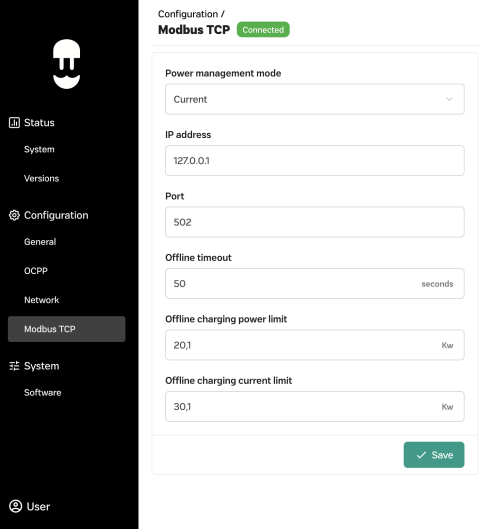 1. Open the WebManager of the Supernova
2. Go to "Configuration" > "Modbus TCP"
3. Set the "Power Management Mode" to "Current"
4. Set a static IP address for the Supernova
5. Set the "Port" to "502"
6. Save the settings
# Zaptec
import { BrandName, ControllerName } from '@site/src/components/customFields';
import RS485ConnectionTable from '@site/src/components/RS485ConnectionTable';
import ClickableImage from '@site/src/components/ClickableImage';
import RS485AddressNote from '@site/src/components/RS485AddressNote';
import DeviceSupportTable from '@site/src/components/DeviceSupportTable';
import YouTubeEmbed from '@/components/YouTubeEmbed'
1. Open the WebManager of the Supernova
2. Go to "Configuration" > "Modbus TCP"
3. Set the "Power Management Mode" to "Current"
4. Set a static IP address for the Supernova
5. Set the "Port" to "502"
6. Save the settings
# Zaptec
import { BrandName, ControllerName } from '@site/src/components/customFields';
import RS485ConnectionTable from '@site/src/components/RS485ConnectionTable';
import ClickableImage from '@site/src/components/ClickableImage';
import RS485AddressNote from '@site/src/components/RS485AddressNote';
import DeviceSupportTable from '@site/src/components/DeviceSupportTable';
import YouTubeEmbed from '@/components/YouTubeEmbed'
 # Zaptec EV Charging Stations
## Supported Devices
# Zaptec EV Charging Stations
## Supported Devices
## Connection
The communication between the and the charging stations is established through API. Make sure the charging stations have a functioning internet connection.
## Configuration
Make sure the charging station is connected to the Internet and Zaptec's portal. When you add the charging station to the controller, you will be prompted for your portal login to add your station. Have this information ready ahead of time.
No additional communication wiring between the controller and the charging stations is required. Configure the charging mode and available current in the Zaptec portal before using SmartgridOne to manage charging.
### Configure the Zaptec portal
1. Open the relevant installation in the Zaptec portal and go to **Settings > Power management** (the **Charging mode / Laadmodus** section).
2. Select **Standard charging** (**Standaard laden**) for this SmartgridOne integration. Do not leave **Automatic charging** (**Automatisch opladen**) active alongside SmartgridOne's control: Zaptec's own power management can otherwise restrict charging.
3. Set **Available current** (**Beschikbare stroom**) for **phase 1, phase 2 and phase 3** to the current the charging installation is allowed to use, then save. Choose values high enough for the intended charging capacity, within the site's electrical limits. These are limits for the charging installation per phase, not a separate allowance for each charging point.
SmartgridOne adjusts the maximum charging current for each charging point according to the available capacity at the site. The available-current settings in Zaptec remain an additional ceiling: a higher current allowance from SmartgridOne cannot override a lower limit in Zaptec.
**Choose a safe current limit.** Account for the main fuse, charging circuits, cabling and other building loads. Do not rely on active EMS control alone when choosing this ceiling: the installation must remain safe if EMS communication stops. There is no single current value suitable for every site.
### If charging power remains too low
Check the charging mode and all three available-current values in Zaptec first. Then compare SmartgridOne's permitted current with the actual charging current. The vehicle, cable and number of phases in use can also limit charging power.
## How to install Zaptec
## More installation information about Zaptec
Zaptec Go & Zaptec Go 2: [https://help.zaptec.com/installation/how-to-install-zaptec-go-and-zaptec-go-2](https://help.zaptec.com/installation/how-to-install-zaptec-go-and-zaptec-go-2)
Zaptec Pro: [https://help.zaptec.com/installation/how-to-install-zaptec-pro](https://help.zaptec.com/installation/how-to-install-zaptec-pro)
# Xargeon / ZhongDe Energy
import { BrandName, ControllerName } from '@site/src/components/customFields';
import DeviceSupportTable from '@site/src/components/DeviceSupportTable';
import Details from '@theme/Details';
import ClickableImage from '@site/src/components/ClickableImage';

 # Xargeon / ZhongDe Energy
The supports two versions of the booster product
line. The booster is a DC-fast charger with a built-in battery. Typically the battery is used to support the grid
when charging an EV at high power, but it can be used for other purposes.
# Xargeon / ZhongDe Energy
The supports two versions of the booster product
line. The booster is a DC-fast charger with a built-in battery. Typically the battery is used to support the grid
when charging an EV at high power, but it can be used for other purposes.
 ## Supported Devices
## Setup
> [!DANGER]
> ### Safety warning: risk of electrocution
> Disconnect power before performing the steps below. When the back panel is opened, it exposes a high voltage 800v DC bus.
__Prerequisites:__
The system should be physically installed and connected to the power using the installation manual.
The guide below only covers the installation if the communication with the network and with the .
__Step 1:__
The communication between the and the Xargeon Booster is established through Modbus TCP.
Shutdown the power and open the back panel of the booster. Focus on the marked part in the picture:
__Step 2:__
Use two ethernet cables to connect:
- Yellow: The interface for Modbus TCP. This cable can be connected to a network switch that is in the same subnet as the .a
- Orange: The interface for internet. This is, among other things, used for the payment interface.
__Step 3:__
Only for commissioning: Connect your computer with a LAN cable directly to the diagnostic interface of the Booster. This is the interface marked
in purple in the image above. After commissioning, you do not need this interface anymore.
__Step 4:__
Open the network settings on you computer, and manually assign IP address 192.168.1.101:
__Step 5:__
Open the browser and go to https://192.168.1.1/.
Proceed trough security dialogs if the browser warns about an insecure page.
The default username is `default_admin` and the default password is `Default_Admin22!` (pay attention to the capital letters).
__Step 6:__
In the sidebar, select 'Online configuration', and scroll down on the page. Adjust your settings to the marked areas in the image below:
__Step 7:__
In this step, we need to upload a setting file to enable remote control.
IMPORTANT: This setting file __must__ be provided by Xargeon.
, nor yourself can create this setting file as it the file is only accepted if it is electronically signed by Xargeon.
__Step 8:__
Check the firewall settings. You have two options here:
1. Disable the firewall entirely. This is the easiest option but should only be used in secure environments.
2. Enable the firewall, and create a whitelist entry for the on port 502. You need to use the IP-address here.
__Completed:__ The system is now prepared for a connection with the . Proceed in
the interface find the device in the wizard.
{/*
## Supported Devices
## Setup
> [!DANGER]
> ### Safety warning: risk of electrocution
> Disconnect power before performing the steps below. When the back panel is opened, it exposes a high voltage 800v DC bus.
__Prerequisites:__
The system should be physically installed and connected to the power using the installation manual.
The guide below only covers the installation if the communication with the network and with the .
__Step 1:__
The communication between the and the Xargeon Booster is established through Modbus TCP.
Shutdown the power and open the back panel of the booster. Focus on the marked part in the picture:
__Step 2:__
Use two ethernet cables to connect:
- Yellow: The interface for Modbus TCP. This cable can be connected to a network switch that is in the same subnet as the .a
- Orange: The interface for internet. This is, among other things, used for the payment interface.
__Step 3:__
Only for commissioning: Connect your computer with a LAN cable directly to the diagnostic interface of the Booster. This is the interface marked
in purple in the image above. After commissioning, you do not need this interface anymore.
__Step 4:__
Open the network settings on you computer, and manually assign IP address 192.168.1.101:
__Step 5:__
Open the browser and go to https://192.168.1.1/.
Proceed trough security dialogs if the browser warns about an insecure page.
The default username is `default_admin` and the default password is `Default_Admin22!` (pay attention to the capital letters).
__Step 6:__
In the sidebar, select 'Online configuration', and scroll down on the page. Adjust your settings to the marked areas in the image below:
__Step 7:__
In this step, we need to upload a setting file to enable remote control.
IMPORTANT: This setting file __must__ be provided by Xargeon.
, nor yourself can create this setting file as it the file is only accepted if it is electronically signed by Xargeon.
__Step 8:__
Check the firewall settings. You have two options here:
1. Disable the firewall entirely. This is the easiest option but should only be used in secure environments.
2. Enable the firewall, and create a whitelist entry for the on port 502. You need to use the IP-address here.
__Completed:__ The system is now prepared for a connection with the . Proceed in
the interface find the device in the wizard.
{/* 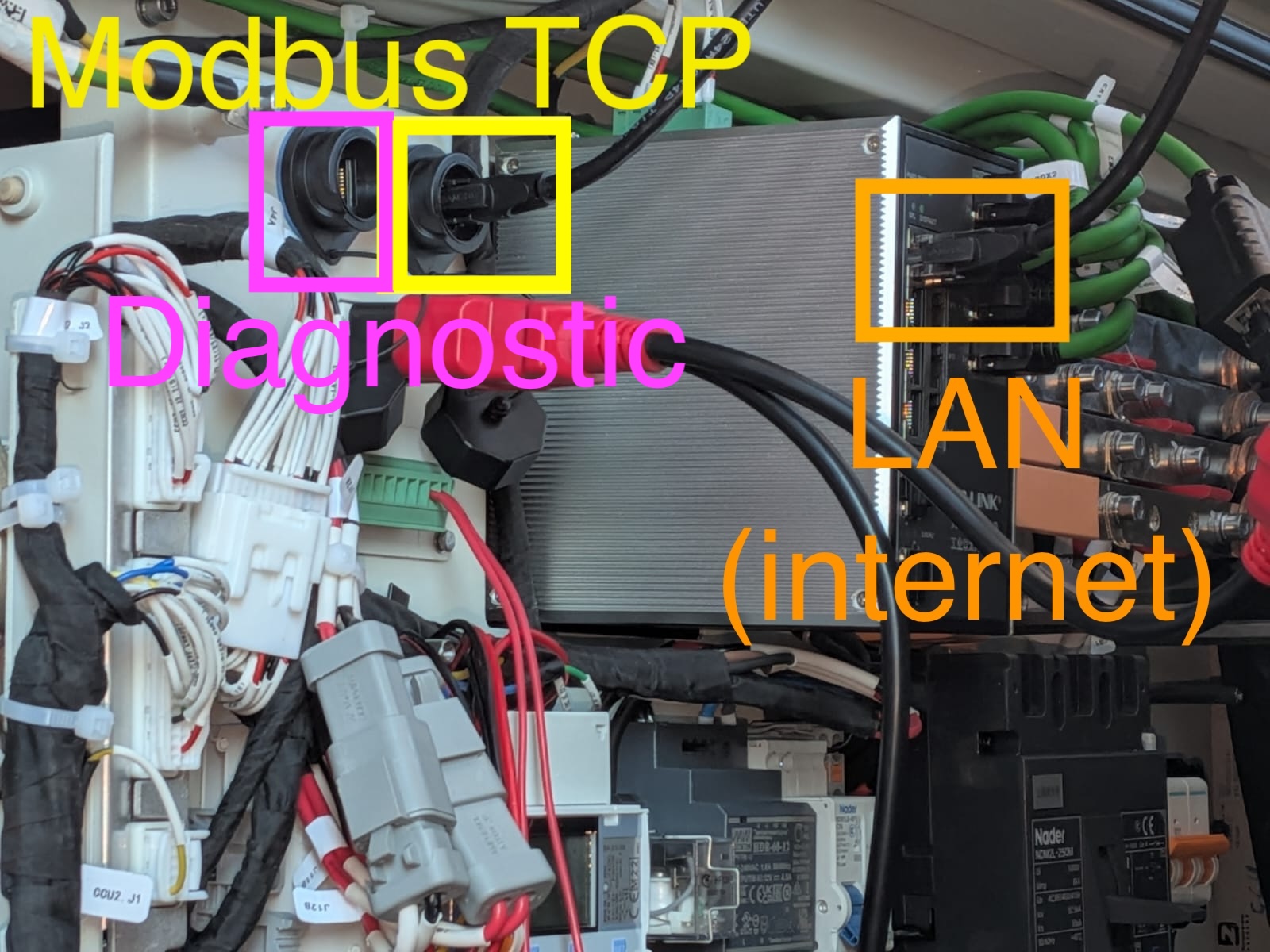 */}
## Settings
## Technical notes
### Booster generation 2
#### Control modes
The Booster generation 2 has the following characteristics:
- 80 kW AC/DC converter
- EV connector 1: 200 kW DC
- EV connector 2: 210 kW DC
- Battery 218 kWh energy capacity; 240 kW power capacity
This means that the battery can only be (dis)charged with 80 kW __from and to the grid__.
The discharge power is up to 200 kW __when discharged to DC meant for EV charging__.
Depending on the battery control power, we switch between two modes that are provided by Xargeon:
- Recharge mode: This is activated when the battery is charged from the AC side or when the battery setpoint is 0.
When this is active, the EV charging power is limited to 200 for EV connector 1 and 210 kW DC for EV connector 2 (combined up to 240 kW)
- Feed in mode: This is activated when the battery is discharged to the AC side.
When this is active, the EV charging power is limited to 130 for EV connector 1 and 140 kW DC for EV connector 2 (combined up to 160 kW).
#### Minimum state of charge
By default, the minimum state of charge is set to 10%. When it discharges to this level, it should be charged __up to 20%__
before discharging again.
# Zerova
import { BrandName, ControllerName } from '@site/src/components/customFields';
import DeviceSupportTable from '@site/src/components/DeviceSupportTable';
import ClickableImage from '@site/src/components/ClickableImage';
*/}
## Settings
## Technical notes
### Booster generation 2
#### Control modes
The Booster generation 2 has the following characteristics:
- 80 kW AC/DC converter
- EV connector 1: 200 kW DC
- EV connector 2: 210 kW DC
- Battery 218 kWh energy capacity; 240 kW power capacity
This means that the battery can only be (dis)charged with 80 kW __from and to the grid__.
The discharge power is up to 200 kW __when discharged to DC meant for EV charging__.
Depending on the battery control power, we switch between two modes that are provided by Xargeon:
- Recharge mode: This is activated when the battery is charged from the AC side or when the battery setpoint is 0.
When this is active, the EV charging power is limited to 200 for EV connector 1 and 210 kW DC for EV connector 2 (combined up to 240 kW)
- Feed in mode: This is activated when the battery is discharged to the AC side.
When this is active, the EV charging power is limited to 130 for EV connector 1 and 140 kW DC for EV connector 2 (combined up to 160 kW).
#### Minimum state of charge
By default, the minimum state of charge is set to 10%. When it discharges to this level, it should be charged __up to 20%__
before discharging again.
# Zerova
import { BrandName, ControllerName } from '@site/src/components/customFields';
import DeviceSupportTable from '@site/src/components/DeviceSupportTable';
import ClickableImage from '@site/src/components/ClickableImage';
 # Zerova charging stations
 ## Connection
The communication between the and the Zerova charging station takes place via **Modbus TCP**.
1. Connect the charging station to the same local network (LAN) as the using an Ethernet cable.
2. For correct ethernet wiring standards, follow the [guidelines for ethernet wiring](/Controller/wiring-best-practices/#ethernet).
## Configuration
To allow the to control the station, you must enable Modbus TCP via the Zerova web portal.
### Enable Modbus TCP
1. Log in to the Zerova web portal of the charger.
2. Go to **SET** > **Backend**.
3. Open the **Modbus TCP Server** section.
4. Set **Mode** to **Enable**.
5. Leave **Password Verify** and **TLS encryption** unchecked.
6. Save the settings.
### Check the model name and serial number
1. Go to **SET** > **System**.
2. Under **System Information**, you will find the **Model Name** and **Serial Number** of the charger.
### Check the IP and MAC address
1. Go to **SET** > **Network**.
2. Open the **Ethernet** section to find the **MAC Address** and **IP Address** of the charger.
> [!TIP]
> Assign a **static IP address** to the charger (or a DHCP reservation for its MAC address in your router). This makes sure the can always find it.
### Adding to the Controller
1. Go to the web interface.
2. Navigate to **Devices** > **Add Device**.
3. Select **Zerova** > **Modbus TCP**.
4. Enter the **IP Address** of the charger.
5. Enter Port **502** and Modbus address **1**.
6. Click *
*Scan**.
# Eniris
# Hager
import DeviceSupportTable from '@site/src/components/DeviceSupportTable';
> [!NOTE]
> If you want to change the interval between measurements to avoid granularity issues you can go in Settings > Advanced Settings and modify :
>
## Connection
The communication between the and the Zerova charging station takes place via **Modbus TCP**.
1. Connect the charging station to the same local network (LAN) as the using an Ethernet cable.
2. For correct ethernet wiring standards, follow the [guidelines for ethernet wiring](/Controller/wiring-best-practices/#ethernet).
## Configuration
To allow the to control the station, you must enable Modbus TCP via the Zerova web portal.
### Enable Modbus TCP
1. Log in to the Zerova web portal of the charger.
2. Go to **SET** > **Backend**.
3. Open the **Modbus TCP Server** section.
4. Set **Mode** to **Enable**.
5. Leave **Password Verify** and **TLS encryption** unchecked.
6. Save the settings.
### Check the model name and serial number
1. Go to **SET** > **System**.
2. Under **System Information**, you will find the **Model Name** and **Serial Number** of the charger.
### Check the IP and MAC address
1. Go to **SET** > **Network**.
2. Open the **Ethernet** section to find the **MAC Address** and **IP Address** of the charger.
> [!TIP]
> Assign a **static IP address** to the charger (or a DHCP reservation for its MAC address in your router). This makes sure the can always find it.
### Adding to the Controller
1. Go to the web interface.
2. Navigate to **Devices** > **Add Device**.
3. Select **Zerova** > **Modbus TCP**.
4. Enter the **IP Address** of the charger.
5. Enter Port **502** and Modbus address **1**.
6. Click *
*Scan**.
# Eniris
# Hager
import DeviceSupportTable from '@site/src/components/DeviceSupportTable';
> [!NOTE]
> If you want to change the interval between measurements to avoid granularity issues you can go in Settings > Advanced Settings and modify :
>
> - Data reading period : How often the data is read out from the devices. You should set this to 0, which means as fast as possible.
> - Scheduler run period : How much seconds there must be at least between two consecutive control loop executions. Less excecutions mean less data usage, but come at the cost of slower and less accurate control.
>
# Gas Meter
import { FolderOverview } from '@/components/FolderOverview';
# Gas Meter
# a-TroniX
import { BrandName, ControllerName } from '@site/src/components/customFields';
import ClickableImage from '@site/src/components/ClickableImage';
import DeviceSupportTable from '@site/src/components/DeviceSupportTable';
 # A-TroniX Heatpumps
## Supported Devices
> [!WARNING]
>
> Control is only possible to turn on or off the smart grid mode of the device.
> Specific Wattage control or Boost and Block mode is not supported!
>
### Ethernet
## Connection
The communication between the and the A-TroniX Heatpump is SG-Ready.
# Daikin Altherma 3 Heatpumps
import { BrandName, ControllerName } from "@site/src/components/customFields";
import ClickableImage from "@site/src/components/ClickableImage";
import DeviceSupportTable from "@site/src/components/DeviceSupportTable";
# A-TroniX Heatpumps
## Supported Devices
> [!WARNING]
>
> Control is only possible to turn on or off the smart grid mode of the device.
> Specific Wattage control or Boost and Block mode is not supported!
>
### Ethernet
## Connection
The communication between the and the A-TroniX Heatpump is SG-Ready.
# Daikin Altherma 3 Heatpumps
import { BrandName, ControllerName } from "@site/src/components/customFields";
import ClickableImage from "@site/src/components/ClickableImage";
import DeviceSupportTable from "@site/src/components/DeviceSupportTable";
 # Daikin Altherma 3 Heatpumps
## Supported Devices
> [!WARNING]
>
> Control is only possible using Boost or Block.
> Specific Wattage control is not supported!
>
## Connection
The communication between the and the Daikin heatpump operates via Relays.
This guide follows the installation of the installer reference guide.
### 1. Preparation
Turn off the heat pump completely by disconnecting the power supply to the heat pump.
### 2. Opening the Switchbox
Follow the steps as described in section **7.2.4 - To open the indoor unit** of the installers reference guide:
- Remove the **MMI plate**.
- Then remove the **front plate**.
### 3. Locating Terminal Block X5M
Locate terminal block **X5M** inside the unit. On this terminal block, you will find:
- **Positions 9-10**: `S10S` (12V)
- **Positions 5-6**: `S11S` (12V)
### 4. Wiring to the Controller
For the connection between the and the Daikin Altherma heat pump wire with 0.5mm2 cross section is required.
Wire the heat pump to the controller as follows:
| Terminal X5M | Controller |
| ------------ | ---------- |
| 9 | R1 NO |
| 10 | R1 COM |
| 5 | R2 NO |
| 6 | R2 COM |
### 5. Adding the Heat Pump to the Controller
In the controller interface, navigate to:
Devices > Start device wizard > Heat Pump > Generic > Relays > Relay-controlled heat pump > My device is fully connected.
Then enter the following data:
- An estimate of the **maximum required power** for the heat pump at that location.
Continue through the wizard to complete the setup.
You may modify the device settings afterward as desired, but the default values are sufficient in most cases.
### 6. Reconnecting the Heat Pump
Once the wiring is complete, you may power the heat pump back on.
### 7. Configuration via MMI
Using the heat pump's MMI, enter **installer mode** and set the following parameters:
| Breadcrumb | Value | Name |
| ---------- | ---------------- | ------------------------- |
| 9.8.4 | 3 = Smart Grid | Benefit kWh power supply |
| 9.8.5 | _set as desired_ | Smart Grid operation mode |
| 9.8.6 | _set as desired_ | Allow electrical heaters |
| 9.8.7 | _set as desired_ | Enable room buffering |
| 9.8.8 | _set as desired_ | Limit setting kW |
> 💡 **Tip**: To turn on the breadcrumbs press the (i) button on the MMI while on the homescreen.
---
After completing these steps, the heat pump will be properly connected, registered in the software, and configured for use via relay control.
# Heat Pump
import { FolderOverview } from '@/components/FolderOverview';
# Heat Pump
# Itho-Daalderop
import { BrandName, ControllerName } from '@site/src/components/customFields';
import ClickableImage from '@site/src/components/ClickableImage';
import DeviceSupportTable from '@site/src/components/DeviceSupportTable';
import RS485ConnectionTable from '@site/src/components/RS485ConnectionTable';
# Daikin Altherma 3 Heatpumps
## Supported Devices
> [!WARNING]
>
> Control is only possible using Boost or Block.
> Specific Wattage control is not supported!
>
## Connection
The communication between the and the Daikin heatpump operates via Relays.
This guide follows the installation of the installer reference guide.
### 1. Preparation
Turn off the heat pump completely by disconnecting the power supply to the heat pump.
### 2. Opening the Switchbox
Follow the steps as described in section **7.2.4 - To open the indoor unit** of the installers reference guide:
- Remove the **MMI plate**.
- Then remove the **front plate**.
### 3. Locating Terminal Block X5M
Locate terminal block **X5M** inside the unit. On this terminal block, you will find:
- **Positions 9-10**: `S10S` (12V)
- **Positions 5-6**: `S11S` (12V)
### 4. Wiring to the Controller
For the connection between the and the Daikin Altherma heat pump wire with 0.5mm2 cross section is required.
Wire the heat pump to the controller as follows:
| Terminal X5M | Controller |
| ------------ | ---------- |
| 9 | R1 NO |
| 10 | R1 COM |
| 5 | R2 NO |
| 6 | R2 COM |
### 5. Adding the Heat Pump to the Controller
In the controller interface, navigate to:
Devices > Start device wizard > Heat Pump > Generic > Relays > Relay-controlled heat pump > My device is fully connected.
Then enter the following data:
- An estimate of the **maximum required power** for the heat pump at that location.
Continue through the wizard to complete the setup.
You may modify the device settings afterward as desired, but the default values are sufficient in most cases.
### 6. Reconnecting the Heat Pump
Once the wiring is complete, you may power the heat pump back on.
### 7. Configuration via MMI
Using the heat pump's MMI, enter **installer mode** and set the following parameters:
| Breadcrumb | Value | Name |
| ---------- | ---------------- | ------------------------- |
| 9.8.4 | 3 = Smart Grid | Benefit kWh power supply |
| 9.8.5 | _set as desired_ | Smart Grid operation mode |
| 9.8.6 | _set as desired_ | Allow electrical heaters |
| 9.8.7 | _set as desired_ | Enable room buffering |
| 9.8.8 | _set as desired_ | Limit setting kW |
> 💡 **Tip**: To turn on the breadcrumbs press the (i) button on the MMI while on the homescreen.
---
After completing these steps, the heat pump will be properly connected, registered in the software, and configured for use via relay control.
# Heat Pump
import { FolderOverview } from '@/components/FolderOverview';
# Heat Pump
# Itho-Daalderop
import { BrandName, ControllerName } from '@site/src/components/customFields';
import ClickableImage from '@site/src/components/ClickableImage';
import DeviceSupportTable from '@site/src/components/DeviceSupportTable';
import RS485ConnectionTable from '@site/src/components/RS485ConnectionTable';
 # Itho-Daalderop Heatpump
## Supported Devices
> [!WARNING]
>
> Control is only possible using Boost or Block.
> Specific Wattage control is not supported!
>
## Connection
The communication between the and the Itho-Daalderop heatpump operates via RS485.
### RS485
# MyEnergi Heatpumps and Boilers
import { BrandName, ControllerName } from '@site/src/components/customFields';
import ClickableImage from '@site/src/components/ClickableImage';
import DeviceSupportTable from '@site/src/components/DeviceSupportTable';
# MyEnergi Heatpumps and Boilers
## Supported Devices
> [!WARNING]
>
> Control is only possible using Boost or Block.
> Specific Wattage control is not supported!
>
## Connection
The communication between the and the Eddi operates via API.
### API
You need an API key to connect the Eddi to the . To generate an API key, follow these steps:
1. Log in to the MyEnergi portal.
2. Go to the "Products" tab.
3. Under your Gateway or Eddi click "Advanced"
4. Click "Generate new API key"
# Nibe
import { BrandName, ControllerName } from '@site/src/components/customFields';
import DeviceSupportTable from '@site/src/components/DeviceSupportTable';
import RS485ConnectionTable from '@site/src/components/RS485ConnectionTable';
# Itho-Daalderop Heatpump
## Supported Devices
> [!WARNING]
>
> Control is only possible using Boost or Block.
> Specific Wattage control is not supported!
>
## Connection
The communication between the and the Itho-Daalderop heatpump operates via RS485.
### RS485
# MyEnergi Heatpumps and Boilers
import { BrandName, ControllerName } from '@site/src/components/customFields';
import ClickableImage from '@site/src/components/ClickableImage';
import DeviceSupportTable from '@site/src/components/DeviceSupportTable';
# MyEnergi Heatpumps and Boilers
## Supported Devices
> [!WARNING]
>
> Control is only possible using Boost or Block.
> Specific Wattage control is not supported!
>
## Connection
The communication between the and the Eddi operates via API.
### API
You need an API key to connect the Eddi to the . To generate an API key, follow these steps:
1. Log in to the MyEnergi portal.
2. Go to the "Products" tab.
3. Under your Gateway or Eddi click "Advanced"
4. Click "Generate new API key"
# Nibe
import { BrandName, ControllerName } from '@site/src/components/customFields';
import DeviceSupportTable from '@site/src/components/DeviceSupportTable';
import RS485ConnectionTable from '@site/src/components/RS485ConnectionTable';
 # NIBE heat pumps
The connection and available functions differ between the F-series and the S-series. Use the section for the heat pump installed on your site: a Modbus connection for monitoring does not automatically provide heating control.
| Heat pump | Connection covered here | Function |
| --- | --- | --- |
| F-series | RS485 / Modbus RTU through a NIBE MODBUS 40 module | The existing wired connection is described below. Available heating functions depend on the controller software; this page does not establish rollout of additional control modes. |
| S1155, S1156, S1255 and S1256 | Built-in Modbus TCP/IP | Monitoring connection currently being validated. Heating boost, blocking and direct power control are not provided by this connection. |
## F-series: RS485 connection
### Supported devices
The **[NIBE MODBUS 40 communication module](https://www.nibe.eu/nl-nl/producten/accessoires/modbus-40)** is required to enable Modbus communication on the F-series heat pump.
The communication between the and the F-series heat pump operates via RS485.
## S-series: monitoring over Modbus TCP/IP
> [!IMPORTANT]
> The S-series monitoring connection is currently being validated. Contact support to arrange the appropriate controller software before commissioning it. Do not use this connection as a basis for a promise of heating control.
This connection covers the **S1155, S1156, S1255 and S1256** register set. These models have built-in Modbus TCP/IP, so this connection does **not** use the MODBUS 40 module required for the F-series route above.
### Prepare the heat pump
1. Connect the heat pump and the to the same local network.
2. On the heat pump, open **5.2 — Network settings** and configure Ethernet or Wi-Fi.
3. Open **7.5.9 — Modbus TCP/IP** and enable Modbus TCP/IP.
4. Note the heat pump's IP address under **3.1.13 — Connections**. The connection uses **TCP port 502**.
5. If **IP address restriction** is enabled, allow the 's IP address. **Reading Modbus only** can remain enabled for this monitoring connection.
### Add it to the controller
With the appropriate controller software installed, open the commissioning wizard and select **Heat pump → Nibe → S-Series** with a **Modbus TCP** connection. Enter the heat pump's local IP address and port **502**, then discover and add the device.
Compare the first readings with **3.1 — Operating info** on the heat pump display.
If the device is reachable but not detected, check that the heat pump reports a valid **BT50 room temperature between 0 °C and 50 °C**. A missing room sensor or a value outside that range can prevent detection.
### What is monitored?
| Measurement group | Examples |
| --- | --- |
| Temperatures | Outdoor and room temperature, supply and return temperature, hot-water temperatures and brine temperatures. |
| Circulation pumps | Heating-medium and brine-pump speeds. |
| Compressor and operating state | Compressor frequency, on/off status and whether the reversing valve is in the heating or hot-water position. |
Readings depend on the sensors and accessories present on the heat pump. This connection does not provide an electrical consumption measurement in watts or kWh.
### Monitoring is not heating control
The S-series connection described here does **not** provide **Boost**, **Block** or a target power in watts. Keep the heat pump's own heating controls in place. A separate SG Ready or PV-contact arrangement is a different connection and is not established by enabling Modbus TCP/IP.
For the manufacturer's menu descriptions and register information, see [NIBE's S-series Modbus guide](https://www.nibe.eu/download/18.42a6470a1963dded290bb1/1746538843623/Technical%20information%20Modbus%20S-Series.pdf).
# Remeha
import { BrandName, ControllerName } from '@site/src/components/customFields';
import ClickableImage from '@site/src/components/ClickableImage';
import DeviceSupportTable from '@site/src/components/DeviceSupportTable';
import RS485ConnectionTable from '@site/src/components/RS485ConnectionTable';
# NIBE heat pumps
The connection and available functions differ between the F-series and the S-series. Use the section for the heat pump installed on your site: a Modbus connection for monitoring does not automatically provide heating control.
| Heat pump | Connection covered here | Function |
| --- | --- | --- |
| F-series | RS485 / Modbus RTU through a NIBE MODBUS 40 module | The existing wired connection is described below. Available heating functions depend on the controller software; this page does not establish rollout of additional control modes. |
| S1155, S1156, S1255 and S1256 | Built-in Modbus TCP/IP | Monitoring connection currently being validated. Heating boost, blocking and direct power control are not provided by this connection. |
## F-series: RS485 connection
### Supported devices
The **[NIBE MODBUS 40 communication module](https://www.nibe.eu/nl-nl/producten/accessoires/modbus-40)** is required to enable Modbus communication on the F-series heat pump.
The communication between the and the F-series heat pump operates via RS485.
## S-series: monitoring over Modbus TCP/IP
> [!IMPORTANT]
> The S-series monitoring connection is currently being validated. Contact support to arrange the appropriate controller software before commissioning it. Do not use this connection as a basis for a promise of heating control.
This connection covers the **S1155, S1156, S1255 and S1256** register set. These models have built-in Modbus TCP/IP, so this connection does **not** use the MODBUS 40 module required for the F-series route above.
### Prepare the heat pump
1. Connect the heat pump and the to the same local network.
2. On the heat pump, open **5.2 — Network settings** and configure Ethernet or Wi-Fi.
3. Open **7.5.9 — Modbus TCP/IP** and enable Modbus TCP/IP.
4. Note the heat pump's IP address under **3.1.13 — Connections**. The connection uses **TCP port 502**.
5. If **IP address restriction** is enabled, allow the 's IP address. **Reading Modbus only** can remain enabled for this monitoring connection.
### Add it to the controller
With the appropriate controller software installed, open the commissioning wizard and select **Heat pump → Nibe → S-Series** with a **Modbus TCP** connection. Enter the heat pump's local IP address and port **502**, then discover and add the device.
Compare the first readings with **3.1 — Operating info** on the heat pump display.
If the device is reachable but not detected, check that the heat pump reports a valid **BT50 room temperature between 0 °C and 50 °C**. A missing room sensor or a value outside that range can prevent detection.
### What is monitored?
| Measurement group | Examples |
| --- | --- |
| Temperatures | Outdoor and room temperature, supply and return temperature, hot-water temperatures and brine temperatures. |
| Circulation pumps | Heating-medium and brine-pump speeds. |
| Compressor and operating state | Compressor frequency, on/off status and whether the reversing valve is in the heating or hot-water position. |
Readings depend on the sensors and accessories present on the heat pump. This connection does not provide an electrical consumption measurement in watts or kWh.
### Monitoring is not heating control
The S-series connection described here does **not** provide **Boost**, **Block** or a target power in watts. Keep the heat pump's own heating controls in place. A separate SG Ready or PV-contact arrangement is a different connection and is not established by enabling Modbus TCP/IP.
For the manufacturer's menu descriptions and register information, see [NIBE's S-series Modbus guide](https://www.nibe.eu/download/18.42a6470a1963dded290bb1/1746538843623/Technical%20information%20Modbus%20S-Series.pdf).
# Remeha
import { BrandName, ControllerName } from '@site/src/components/customFields';
import ClickableImage from '@site/src/components/ClickableImage';
import DeviceSupportTable from '@site/src/components/DeviceSupportTable';
import RS485ConnectionTable from '@site/src/components/RS485ConnectionTable';
 # Remeha Heatpump
## Supported Devices
> [!WARNING]
>
> Control is only possible using Boost or Block.
> Specific Wattage control is not supported!
>
## Connection
The communication between the and the Remeha heatpump operates via RS485 or Modbus TCP.
### RS485
# Heatpump via Shelly relays
import { BrandName, ControllerName } from '@site/src/components/customFields';
import ClickableImage from '@site/src/components/ClickableImage';
import DeviceSupportTable from '@site/src/components/DeviceSupportTable';
Shelly relays can be used to control heat pumps with smartgrid ready contacts.
See [Smartgrid Ready Contacts](/Devices/Heat-pump/SmartgridReadyContact) for more information on smartgrid ready contacts.
## Supported Devices
> [!NOTE]
> Please note: This integration has not been tested with all the devices listed above. However, since they utilize the same communication protocol, they are expected to operate seamlessly.
> Configuration examples in this document are based on the **Shelly Pro 2** relay.
## Wiring
The communication between the **** and the Shelly relay is established via **Local API** (over TCP/IP).
For proper Ethernet wiring, please follow the [Ethernet wiring guidelines](/Controller/wiring-best-practices/#ethernet).
## Wiring Instructions
1. **Power Supply Connections**
- **L (Live)**: Connect the live wire to the **L** terminal of the device.
- **N (Neutral)**: Connect the neutral wire to the **N** terminal of the device.
2. **Relay Output Connections**
- **O1 (Relay 1)**: Connect the live wire for the first circuit to the **O1** terminal.
- **O2 (Relay 2)**: Connect the live wire for the second circuit to the **O2** terminal.
3. **Device Diagram**
Refer to the diagram printed on the device for detailed wiring instructions. Ensure all connections match the diagram.
---
## Configuration Instructions
1. **Wire the Device**
Ensure the device is wired according to the provided wiring diagram and connect the Ethernet cable securely.
2. **Access the Shelly Interface**
- Using a phone or other device, connect to the Shelly relay's Wi-Fi network (e.g. **SSID: ShellyPro2-XXXXXX**).
- Open a browser and navigate to **http://192.168.33.1** to access the Shelly interface.
3. **Locate the Ethernet Settings**
- In the Shelly interface, navigate to the **Ethernet Settings** section.
- Here, you will find the assigned **Ethernet IP address**, which is required for connecting the device to the controller.
> [!NOTE]
> **Note**: Do not modify any settings while locating the Ethernet IP address.
By following these steps, you will retrieve the required IP address for integrating the Shelly relay with the ****.
For further details and comprehensive documentation, please refer to the official [Shelly Installation Guides](https://kb.shelly.cloud/knowledge-base/installation-guides).
# Smartgrid Ready Heat Pumps
# ✅ Smart Grid Ready Heat Pumps
This list contains heat pump models that support SG Ready
---
## 2G Energy AG
- afilia air series
e.g., `afilia air C-sl 0452 HE/XL/RV P2U- R454B` and variants
## Airwell
- Wellea Monobloc A, DF, WT, Monobloc R32, Split R32
- Wellea Split A
- R290 Series: `4DC`, `6DC`, `9DC`, `12DC`, `16DC`, `19DC`
- DCT-R290 Series: `9DCT`, `12DCT`, `16DCT`, `19DCT`, `22DCT`
## Alpha Innotec
- Luxtronik controlled heat pumps
## Atag
- Energion M Compact / Hybrid / Plus
- Energion M All Electric series
## Atlantic
- Alfea Extensa M
- Calypso VM
- Explorer V4
## Bosch
- Compress 3400i AWS
- Compress 7000 LW, 7800i LW
- Compress Hybrid 3000i, 5800i, 7000i AW
- CS 3000 AWP
## Bulex
- MagnaAqua (PV-ready)
## Clivet
- Aqua Plus
- Sphera Evo
## CTC
- GSI
- EcoZenith
- EcoLogic L M
## Daikin
- Altherma 3 H HT F, 3 H MT F, 3 M, 3 RF, 3 RW
- Altherma H Hybrid
- EKHHE, EKHHP, EHS, RoCon HP
## Dynamis (Kospel)
- HPM2
## Heliotherm
- Models with Remote Control Gateway
## Hitachi
- Yutaki Series
- Yutaki S Combi
## IDM
- Smart Grid Ready models (unspecified)
## Itho Daalderop
- Amber
## Kronoterm
- VERSI-I, VERSI-X
- ETERA S, M, L
- VERSI-O
## LG
- HN1616.NK5
- HN1616M.NK5
- HN0916M.NK4
- HN091MR.NK5
- HN1600MB.NK0
## Midea
- ESG INV M (Swimming Pool Heat Pumps)
## Mitsubishi Electric
- Ecodan Series
- Ecodan EHPT20X-MHEDW
- PAC-IF071B-E
- PAC-TH012HT-E
- Hydrobox
## Nefit (Bosch Group)
- EnviLine AW Monoblock / IDU Monoblock E / TTS
- EnviLine AW Split
## Nibe
- F1155, F1245
- S1155, S1255
- Other Smart Grid Ready variants
## Nulite
- R290 Series
- Flamingo Series
- Geothermal Series *(SG Ready to be confirmed model-by-model)*
## Ochsner
- AIR FALCON 212
- AIR HAWK 208
- AIR M2+M4
## Panasonic
- Aquarea Series
- WH-MDC Monobloc
- WH-SDC
- WH-UD/UX/UQ Series
- EasyPLUG (PAW) for SG 230V
## R-Aqua
- HPB 100–300
- HPB-S Solar
## Remeha
- Elga Ace (hybrid air-water)
## Rinnai
- Enviroflo Hot Water Heat Pumps *(SG capability in development — verify)*
## Stiebel Eltron
- SG Ready models available *(verify per model)*
## Thermia
- Atlas
- Calibra
- Mega
## Tongyi Heat Pump
- SG Ready certification (model-specific confirmation needed)
## Vaillant
- aroTHERM (plus)
- aroSTOR
- flexoTHERM
- flexoCOMPACT
- climaVAIR
## Viessmann
- Vitocal Series
- e.g., Vitocal 250-A
## Vivax
- HPP Swimming Pool
## Weishaupt
- Geoblock WGB
- Splitblock WSB
## Wolf
- BWL
- FHA
- CHA
# Smartgrid Ready Contact
import { BrandName, ControllerName, CustomerName, InsightsName, InsightsUrl } from '@site/src/components/customFields';
import RS485ConnectionTable from '@site/src/components/RS485ConnectionTable';
> [!NOTE]
> We support most heat pumps with a Smartgrid Ready contact.
## What is SG-Ready?
SG-Ready (Smart Grid Ready) is a standardized interface defined by the German Heat Pump Association (BWP). It lets an energy management system control a heat pump using just **two physical relay contacts**, no digital communication required.
Each relay is either open (off = `0`) or closed (on = `1`). The combination of both relays encodes one of four operating modes. The **binary code** in the table below directly represents the relay states: the **first digit is Relay 1**, the **second digit is Relay 2**.
For example, `10` means Relay 1 is closed and Relay 2 is open.
This relay mapping is **standardized**, every SG-Ready certified heat pump uses the same relay ordering. The exact behavior (e.g. how aggressively the pump boosts) depends on the manufacturer.
## The Four SG-Ready Modes
| Binary Code | Relay 1 | Relay 2 | Mode |
| :---: | :---: | :---: | :--- |
| **00** | Open | Open | Normal operation: heat pump runs on its own schedule |
| **01** | Open | Closed | Recommended operation: heat pump is encouraged to run more (e.g. solar surplus) |
| **10** | Closed | Open | Block: heat pump is switched off to reduce grid load |
| **11** | Closed | Closed | Boost: heat pump runs at maximum power |
## How Uses SG-Ready
uses three of the four modes. Mode `01` (Recommended) is part of the standard but is not currently used.
| Binary Code | Relay 1 | Relay 2 | Purpose | Typical Heat Pump Response |
| :---: | :---: | :---: | :--- | :--- |
| **00** | Open | Open | Default: device operates autonomously | Runs according to its own internal schedule |
| **10** | Closed | Open | Grid stabilization: reduce consumption | Switches off immediately; resumes when signal changes |
| **11** | Closed | Closed | Boost: maximize self-consumption or support the grid | Runs at maximum power regardless of internal state |
## Practical Example: Daikin Altherma
On a Daikin Altherma, Relay 1 connects to terminal **S10S** (pins 9–10) and Relay 2 connects to terminal **S11S** (pins 5–6).
| Situation | Relay 1 | Relay 2 | Code | Effect |
| :--- | :---: | :---: | :---: | :--- |
| High electricity price or grid overload | Closed | Open | **10** | Heat pump switches off |
| Excess solar energy or cheap grid electricity | Closed | Closed | **11** | Heat pump runs at full output |
| No active signal | Open | Open | **00** | Heat pump manages itself |
See the [Daikin Altherma installation guide](/Devices/Heat-pump/DaikinAltherma/) for full wiring instructions.
# Vaillant
import { BrandName, ControllerName } from '@site/src/components/customFields';
import ClickableImage from '@site/src/components/ClickableImage';
import DeviceSupportTable from '@site/src/components/DeviceSupportTable';
# Remeha Heatpump
## Supported Devices
> [!WARNING]
>
> Control is only possible using Boost or Block.
> Specific Wattage control is not supported!
>
## Connection
The communication between the and the Remeha heatpump operates via RS485 or Modbus TCP.
### RS485
# Heatpump via Shelly relays
import { BrandName, ControllerName } from '@site/src/components/customFields';
import ClickableImage from '@site/src/components/ClickableImage';
import DeviceSupportTable from '@site/src/components/DeviceSupportTable';
Shelly relays can be used to control heat pumps with smartgrid ready contacts.
See [Smartgrid Ready Contacts](/Devices/Heat-pump/SmartgridReadyContact) for more information on smartgrid ready contacts.
## Supported Devices
> [!NOTE]
> Please note: This integration has not been tested with all the devices listed above. However, since they utilize the same communication protocol, they are expected to operate seamlessly.
> Configuration examples in this document are based on the **Shelly Pro 2** relay.
## Wiring
The communication between the **** and the Shelly relay is established via **Local API** (over TCP/IP).
For proper Ethernet wiring, please follow the [Ethernet wiring guidelines](/Controller/wiring-best-practices/#ethernet).
## Wiring Instructions
1. **Power Supply Connections**
- **L (Live)**: Connect the live wire to the **L** terminal of the device.
- **N (Neutral)**: Connect the neutral wire to the **N** terminal of the device.
2. **Relay Output Connections**
- **O1 (Relay 1)**: Connect the live wire for the first circuit to the **O1** terminal.
- **O2 (Relay 2)**: Connect the live wire for the second circuit to the **O2** terminal.
3. **Device Diagram**
Refer to the diagram printed on the device for detailed wiring instructions. Ensure all connections match the diagram.
---
## Configuration Instructions
1. **Wire the Device**
Ensure the device is wired according to the provided wiring diagram and connect the Ethernet cable securely.
2. **Access the Shelly Interface**
- Using a phone or other device, connect to the Shelly relay's Wi-Fi network (e.g. **SSID: ShellyPro2-XXXXXX**).
- Open a browser and navigate to **http://192.168.33.1** to access the Shelly interface.
3. **Locate the Ethernet Settings**
- In the Shelly interface, navigate to the **Ethernet Settings** section.
- Here, you will find the assigned **Ethernet IP address**, which is required for connecting the device to the controller.
> [!NOTE]
> **Note**: Do not modify any settings while locating the Ethernet IP address.
By following these steps, you will retrieve the required IP address for integrating the Shelly relay with the ****.
For further details and comprehensive documentation, please refer to the official [Shelly Installation Guides](https://kb.shelly.cloud/knowledge-base/installation-guides).
# Smartgrid Ready Heat Pumps
# ✅ Smart Grid Ready Heat Pumps
This list contains heat pump models that support SG Ready
---
## 2G Energy AG
- afilia air series
e.g., `afilia air C-sl 0452 HE/XL/RV P2U- R454B` and variants
## Airwell
- Wellea Monobloc A, DF, WT, Monobloc R32, Split R32
- Wellea Split A
- R290 Series: `4DC`, `6DC`, `9DC`, `12DC`, `16DC`, `19DC`
- DCT-R290 Series: `9DCT`, `12DCT`, `16DCT`, `19DCT`, `22DCT`
## Alpha Innotec
- Luxtronik controlled heat pumps
## Atag
- Energion M Compact / Hybrid / Plus
- Energion M All Electric series
## Atlantic
- Alfea Extensa M
- Calypso VM
- Explorer V4
## Bosch
- Compress 3400i AWS
- Compress 7000 LW, 7800i LW
- Compress Hybrid 3000i, 5800i, 7000i AW
- CS 3000 AWP
## Bulex
- MagnaAqua (PV-ready)
## Clivet
- Aqua Plus
- Sphera Evo
## CTC
- GSI
- EcoZenith
- EcoLogic L M
## Daikin
- Altherma 3 H HT F, 3 H MT F, 3 M, 3 RF, 3 RW
- Altherma H Hybrid
- EKHHE, EKHHP, EHS, RoCon HP
## Dynamis (Kospel)
- HPM2
## Heliotherm
- Models with Remote Control Gateway
## Hitachi
- Yutaki Series
- Yutaki S Combi
## IDM
- Smart Grid Ready models (unspecified)
## Itho Daalderop
- Amber
## Kronoterm
- VERSI-I, VERSI-X
- ETERA S, M, L
- VERSI-O
## LG
- HN1616.NK5
- HN1616M.NK5
- HN0916M.NK4
- HN091MR.NK5
- HN1600MB.NK0
## Midea
- ESG INV M (Swimming Pool Heat Pumps)
## Mitsubishi Electric
- Ecodan Series
- Ecodan EHPT20X-MHEDW
- PAC-IF071B-E
- PAC-TH012HT-E
- Hydrobox
## Nefit (Bosch Group)
- EnviLine AW Monoblock / IDU Monoblock E / TTS
- EnviLine AW Split
## Nibe
- F1155, F1245
- S1155, S1255
- Other Smart Grid Ready variants
## Nulite
- R290 Series
- Flamingo Series
- Geothermal Series *(SG Ready to be confirmed model-by-model)*
## Ochsner
- AIR FALCON 212
- AIR HAWK 208
- AIR M2+M4
## Panasonic
- Aquarea Series
- WH-MDC Monobloc
- WH-SDC
- WH-UD/UX/UQ Series
- EasyPLUG (PAW) for SG 230V
## R-Aqua
- HPB 100–300
- HPB-S Solar
## Remeha
- Elga Ace (hybrid air-water)
## Rinnai
- Enviroflo Hot Water Heat Pumps *(SG capability in development — verify)*
## Stiebel Eltron
- SG Ready models available *(verify per model)*
## Thermia
- Atlas
- Calibra
- Mega
## Tongyi Heat Pump
- SG Ready certification (model-specific confirmation needed)
## Vaillant
- aroTHERM (plus)
- aroSTOR
- flexoTHERM
- flexoCOMPACT
- climaVAIR
## Viessmann
- Vitocal Series
- e.g., Vitocal 250-A
## Vivax
- HPP Swimming Pool
## Weishaupt
- Geoblock WGB
- Splitblock WSB
## Wolf
- BWL
- FHA
- CHA
# Smartgrid Ready Contact
import { BrandName, ControllerName, CustomerName, InsightsName, InsightsUrl } from '@site/src/components/customFields';
import RS485ConnectionTable from '@site/src/components/RS485ConnectionTable';
> [!NOTE]
> We support most heat pumps with a Smartgrid Ready contact.
## What is SG-Ready?
SG-Ready (Smart Grid Ready) is a standardized interface defined by the German Heat Pump Association (BWP). It lets an energy management system control a heat pump using just **two physical relay contacts**, no digital communication required.
Each relay is either open (off = `0`) or closed (on = `1`). The combination of both relays encodes one of four operating modes. The **binary code** in the table below directly represents the relay states: the **first digit is Relay 1**, the **second digit is Relay 2**.
For example, `10` means Relay 1 is closed and Relay 2 is open.
This relay mapping is **standardized**, every SG-Ready certified heat pump uses the same relay ordering. The exact behavior (e.g. how aggressively the pump boosts) depends on the manufacturer.
## The Four SG-Ready Modes
| Binary Code | Relay 1 | Relay 2 | Mode |
| :---: | :---: | :---: | :--- |
| **00** | Open | Open | Normal operation: heat pump runs on its own schedule |
| **01** | Open | Closed | Recommended operation: heat pump is encouraged to run more (e.g. solar surplus) |
| **10** | Closed | Open | Block: heat pump is switched off to reduce grid load |
| **11** | Closed | Closed | Boost: heat pump runs at maximum power |
## How Uses SG-Ready
uses three of the four modes. Mode `01` (Recommended) is part of the standard but is not currently used.
| Binary Code | Relay 1 | Relay 2 | Purpose | Typical Heat Pump Response |
| :---: | :---: | :---: | :--- | :--- |
| **00** | Open | Open | Default: device operates autonomously | Runs according to its own internal schedule |
| **10** | Closed | Open | Grid stabilization: reduce consumption | Switches off immediately; resumes when signal changes |
| **11** | Closed | Closed | Boost: maximize self-consumption or support the grid | Runs at maximum power regardless of internal state |
## Practical Example: Daikin Altherma
On a Daikin Altherma, Relay 1 connects to terminal **S10S** (pins 9–10) and Relay 2 connects to terminal **S11S** (pins 5–6).
| Situation | Relay 1 | Relay 2 | Code | Effect |
| :--- | :---: | :---: | :---: | :--- |
| High electricity price or grid overload | Closed | Open | **10** | Heat pump switches off |
| Excess solar energy or cheap grid electricity | Closed | Closed | **11** | Heat pump runs at full output |
| No active signal | Open | Open | **00** | Heat pump manages itself |
See the [Daikin Altherma installation guide](/Devices/Heat-pump/DaikinAltherma/) for full wiring instructions.
# Vaillant
import { BrandName, ControllerName } from '@site/src/components/customFields';
import ClickableImage from '@site/src/components/ClickableImage';
import DeviceSupportTable from '@site/src/components/DeviceSupportTable';
 # Vaillant Heatpumps
## Supported Devices
> [!WARNING]
>
> Control is only possible to turn on or off the smart grid mode of the device.
> Specific Wattage control or Boost and Block mode is not supported!
>
### Ethernet
For correct ethernet wiring: Follow the [the guidelines for ethernet wiring](/Controller/wiring-best-practices/#ethernet).
## Connection
The communication between the and the Vaillant Heatpump operates via TCP.
# Supported Devices
# Supported devices overview
import CollapsibleBrandTable from '@site/src/components/CollapsibleBrandTable';
## Wind turbines, water turbines and gensets
Wind turbines, water turbines (hydro) and gensets (backup power generators) are supported device categories from controller software **1.32**. The corresponding category must be enabled by the controller licence.
| Supported equipment | Production monitoring | Control options |
| --- | --- | --- |
| **Wind turbines** | Through a compatible energy meter or a custom Modbus turbine integration. | Production limiting through a compatible turbine integration. |
| **Water turbines (hydro)** | Through a compatible energy meter or a custom Modbus turbine integration. | Production limiting through a compatible turbine integration. |
| **Gensets / backup power generators** | Through a compatible energy meter configured for generator production. | Start/stop through a separately configured relay based on battery state of charge; no variable-power regulation. |
A meter-only connection measures production but cannot limit the connected turbine or control the generator. Direct turbine control requires a supported writable production-limit interface; custom turbine integrations can use Modbus TCP or Modbus RTU (RS485).
[See connection options, configuration and control behaviour for turbines and gensets](/Controller/Devices/wind-and-water-turbines/).
## Device brands and models
Click on a brand name ('+' icon) to expand/collapse the list of its supported devices within the table.
Entries marked ⚠️ are in testing or validation and require controller software that includes the integration. They are not a promise of availability on every installed controller. Open the corresponding device guide for connection details and limitations.
# Vaillant Heatpumps
## Supported Devices
> [!WARNING]
>
> Control is only possible to turn on or off the smart grid mode of the device.
> Specific Wattage control or Boost and Block mode is not supported!
>
### Ethernet
For correct ethernet wiring: Follow the [the guidelines for ethernet wiring](/Controller/wiring-best-practices/#ethernet).
## Connection
The communication between the and the Vaillant Heatpump operates via TCP.
# Supported Devices
# Supported devices overview
import CollapsibleBrandTable from '@site/src/components/CollapsibleBrandTable';
## Wind turbines, water turbines and gensets
Wind turbines, water turbines (hydro) and gensets (backup power generators) are supported device categories from controller software **1.32**. The corresponding category must be enabled by the controller licence.
| Supported equipment | Production monitoring | Control options |
| --- | --- | --- |
| **Wind turbines** | Through a compatible energy meter or a custom Modbus turbine integration. | Production limiting through a compatible turbine integration. |
| **Water turbines (hydro)** | Through a compatible energy meter or a custom Modbus turbine integration. | Production limiting through a compatible turbine integration. |
| **Gensets / backup power generators** | Through a compatible energy meter configured for generator production. | Start/stop through a separately configured relay based on battery state of charge; no variable-power regulation. |
A meter-only connection measures production but cannot limit the connected turbine or control the generator. Direct turbine control requires a supported writable production-limit interface; custom turbine integrations can use Modbus TCP or Modbus RTU (RS485).
[See connection options, configuration and control behaviour for turbines and gensets](/Controller/Devices/wind-and-water-turbines/).
## Device brands and models
Click on a brand name ('+' icon) to expand/collapse the list of its supported devices within the table.
Entries marked ⚠️ are in testing or validation and require controller software that includes the integration. They are not a promise of availability on every installed controller. Open the corresponding device guide for connection details and limitations.
{/* TODO: It is probably possible to generate this and/or individual device pages automatically based on a type of JSON.*/}
### Boilers
### Cloud Supported Devices
### Energy Meters
### Solar irradiance sensor
The IMT Si-RS485TC-T-MB measures sunlight in W/m² through RS485 / Modbus RTU. In the commissioning wizard, it is listed in the Energy meter category under manufacturer IMT.
[Connect and commission the IMT irradiance sensor](/Controller/Devices/Energy-meter/IMT).
### EV Charging Stations
### Gas Meter
### Heat Pumps
### PLC Supported Devices
### PV/Hybrid Inverters
### Switched loads
### Water meters
# New integrations
import { BrandName, ControllerName } from '@site/src/components/customFields';
import PdfLink from '@site/src/components/PdfLink';
## Write your own Modbus driver
For installers and integrators who want to build their own device integration, the standalone [Custom Modbus drivers guide](/Controller/Devices/custom-modbus-drivers/) explains how to write a driver from the manufacturer's register map. It includes the practical video, measurements, command logic and testing.
## Request a new integration
New integrations may be considered for inclusion and added to our roadmap.
Review the requirements and submit your request through the [Eniris integration request form](https://eniris.com/knowledge/integration-request-from).
For faster integration, be sure to:
- Look up / ask the communication protocol or API documentation to the manufacturer of the device and include it in your request.
- Include the contacts of the right technical persons of the manufacturer of your device.
- Provide a test installation.
- Include how many installations you already have with this device.
If you need a new integration with high priority, please contact the sales department of your redistributor.
Eniris evaluates submitted requests against the current product roadmap and available engineering capacity.
## For devices without a protocol
We kindly invite you to implement the protocol, which will work out of the box with the .
You can download the specifications through this link.
> [!NOTE]
> You can request to have the protocol labeled with your brand in the software.
> Please use the [Eniris integration request form](https://eniris.com/knowledge/integration-request-from).
# EME eCON++ Fluvius Telecontrole v4 Gateway
import { BrandName, ControllerName } from '@site/src/components/customFields';

# EME eCON++ Fluvius Telecontrole v4 Gateway
> [!WARNING] Prefer the native Fluvius Telecontrole support
> The can talk to the Fluvius Telecontrole RTU directly, without an
> EME eCON++ Gateway or any other gateway in between. That setup is recommended and easier to commission, but it
> requires a with two ethernet ports, because the Fluvius RTU is connected to a
> network port of its own. Only use the integration described on this page when the installation already has an
> EME eCON++ Gateway.
> See [Adding Fluvius Telecontrole RTU](/Controller/External%20Signals/DSO/fluvius#adding-fluvius-telecontrole-rtu).
On some medium voltage installations, Fluvius Telecontrole is not wired to the
directly, but through an **EME eCON++ Gateway** (Electro Mechanic Equipment nv, Glabbeek). This manual describes
what that gateway does and how to configure both halves of the integration.
## How the gateway works
Fluvius does not speak Modbus. The chain looks as follows:
```
Fluvius RTU ──IEC 60870-5-104──► IEC104 gateway ──Modbus TCP──► EME eCON++ Gateway ──Modbus TCP──► EMS controller
(server/slave) (client/master)
```
The EME eCON++ Gateway is a **Modbus TCP server**; the connects to it as a client
on port 502. The gateway mirrors the Fluvius telecontrol signals onto its Modbus registers:
- The **commands** coming from Fluvius (control mode, test operation, active and reactive power setpoint) are
published on its input registers (3x).
- The **command feedback** is expected back on its holding registers (4x). The gateway relays that feedback to
Fluvius. Fluvius uses it to confirm that the EMS received and accepted the command — if the feedback stops, the
DSO no longer sees a working EMS.
- The **process data** measured by Fluvius at the access point (active and reactive power, the three phase-phase
voltages) is also published on the input registers. Fluvius refreshes this data once per minute.
> [!IMPORTANT] The device and the external signal driver always go together
> The device driver only *reads* the Fluvius commands and answers the feedback handshake. It does not curtail
> anything by itself. Translating the setpoints into actual limits is done by the **Eme Fluvius Modbus TCP**
> external signal driver. An installation with only one of the two is not functional:
> - device without external signal driver → the Fluvius setpoints are recorded but never applied;
> - external signal driver without device → it reports *"No EME Modbus Device found in site devices."*
## Step 1: Network configuration
Connect the to the ethernet switch of the EME eCON++ Gateway and give it a fixed
IP address in the same subnet as the gateway. The gateway must be reachable on **TCP port 502**. The IP addresses
and the Modbus unit address are site specific; ask EME or the panel builder for the ones used in your
installation.
The link between the Fluvius RTU, the IEC104 gateway and the EME eCON++ Gateway is configured by EME and is
outside the scope of the .
## Step 2: Configure the grid limits
Fluvius sends its setpoints as a **percentage**, and the converts them into power
limits using the grid limits of the site. All four limits below must be filled in before the external signal
driver can work.
1. Under **Settings → Grid limits**, set *Allowed grid import power* and *Allowed grid export power*
(see [Grid limits](/Controller/Configuration%20from%20A%20to%20Z/3-grid-limits/)). These are the 100 % reference for the
active power setpoint. They are already requested during the initial setup of the site.
2. Under **Settings → Advanced settings**, set *Enable reactive power control (Experimental)* to **True**. The two
reactive limits only appear once this is enabled.
3. Still under **Advanced settings**, set *Allowed grid import reactive power (kVAr)* and *Allowed grid export
reactive power (kVAr)*. These are the 100 % reference for the reactive power setpoint.
> [!WARNING] The reactive limits are not optional
> Even when Fluvius only sends active power setpoints, the external signal driver reads all four limits on every
> remote control cycle. If the two reactive limits have never been saved on the site, the external signal driver
> fails and no Fluvius setpoint is applied at all. Open **Advanced settings** and save them explicitly, also when
> you keep the proposed values.
## Step 3: Add the gateway as a device
1. Go to **Devices** and start the wizard.
2. Choose the category **Energy meter**, brand **EME**, connection **Modbus TCP**, and select
**EME eCON++ Fluvius Telecontrole v4 Gateway**.
3. Fill in the IP address and port (502) of the gateway and its Modbus unit address (1 by default).
The device reports the Fluvius commands and the access point measurements it reads from the gateway:
| Measurement | Meaning |
| --- | --- |
| `controlMode` | 0 = undefined, 1 = local control, 2 = remote control by Fluvius |
| `testOperation` | Test operation requested by the Fluvius RTU (0 = low, 1 = high) |
| `powerSetpointPercentage` | Active power setpoint from Fluvius, −100 % … +100 % |
| `reactivePowerSetpointPercentage` | Reactive power setpoint from Fluvius, −100 % … +100 % |
| `actualPowerTot_W`, `reacPowerTot_VAr` | Active and reactive power at the access point, as measured by Fluvius |
| `voltageL1L2_V`, `voltageL2L3_V`, `voltageL3L1_V` | Phase-phase voltages at the access point |
> [!WARNING] Not a grid meter
> These measurements come from Fluvius and are only refreshed once per minute. Do not use this device as the main
> grid meter of the site — the control algorithms need a meter that is read at the normal measurement interval.
## Step 4: Add the Fluvius Telecontrole external signal driver
1. Click **External Signals** in the top menu and start the wizard.
2. Choose **Distribution system operator / grid operator**, select **Fluvius**, then select
**Eme Fluvius Modbus TCP** as the external signal driver and click *Next*.
There is nothing to fill in: the external signal driver takes everything it needs from the device and from the
grid limits of the site. See
[Fluvius (through an EME eCON++ gateway)](/External%20Signals/DSO/fluvius-eme-econ/).
## What the does with the Fluvius commands
| Fluvius command | Behaviour of the |
| --- | --- |
| Control mode = 0 (undefined) or 1 (local) | No action. The site keeps running on its own strategy. |
| Control mode = 2 (remote), active setpoint = 0 % | Import and export limit are both set to 0 W, so the site stops exchanging power with the grid. A small minimum band is kept for stability. |
| Control mode = 2, active setpoint > 0 % | Import limit = setpoint % × *Allowed grid import power*. |
| Control mode = 2, active setpoint < 0 % | Export limit = setpoint % × *Allowed grid export power*. |
| Control mode = 2, reactive setpoint > 0 % | Reactive power setpoint = setpoint % × *Allowed grid import reactive power*. |
| Control mode = 2, reactive setpoint < 0 % | Reactive power setpoint = setpoint % × *Allowed grid export reactive power*. |
Independently of the control mode, the device answers every command with the matching feedback and mirrors the
heartbeat back to the gateway, so Fluvius keeps seeing a responsive EMS.
Fluvius allows the installation up to **3 minutes** to settle on a new setpoint after it has changed.
## Verifying the installation
1. Open the device in the commissioning interface and check that `controlMode` and the setpoint percentages are
being read. As long as Fluvius is in local control, the control mode is 1.
2. Check the feedback message of the external signal driver under **External Signals**. It reports whether Fluvius
is in local control, or which setpoint is being applied.
3. Ask Fluvius to perform a test operation. The gateway raises `testOperation`, and
the answers it immediately.
## Troubleshooting
| Symptom | Cause |
| --- | --- |
| The external signal driver reports *"No EME Modbus Device found in site devices."* | The gateway device is not added, or is not communicating. Add it as described in step 3. |
| Setpoints are visible on the device, but nothing is curtailed | The external signal driver is not added, or the grid limits of the site are not completely configured — including the two reactive limits of step 2. |
| Fluvius reports that the EMS does not answer | The device is not communicating with the gateway, so the command feedback is no longer written. Check the IP address, port 502 and the Modbus unit address. |
# Fluvius Telecontrol through Third Party PLC
import { BrandName, ControllerName } from '@site/src/components/customFields';
import RS485ConnectionTable from '@site/src/components/RS485ConnectionTable';
import RS485AddressNote from '@site/src/components/RS485AddressNote';
import ClickableImage from '@site/src/components/ClickableImage';
import PdfLink from '@site/src/components/PdfLink';
# Fluvius Telecontrol through Third Party PLC
You can add a third party PLC to the for Fluvius Telecontrol. The function of this PLC is twofold:
- It directly connects to the controlled devices.
- It combines the Fluvius Telecontrol signal with the control signals from the .
The PLC must be programmed to allow being added as a Modbus TCP slave to the . See also [PLC / Datalogger / Gateway as a slave](/Devices/PLC/plc-slave-protocol/) for more details and the Modbus registers that must be provided.
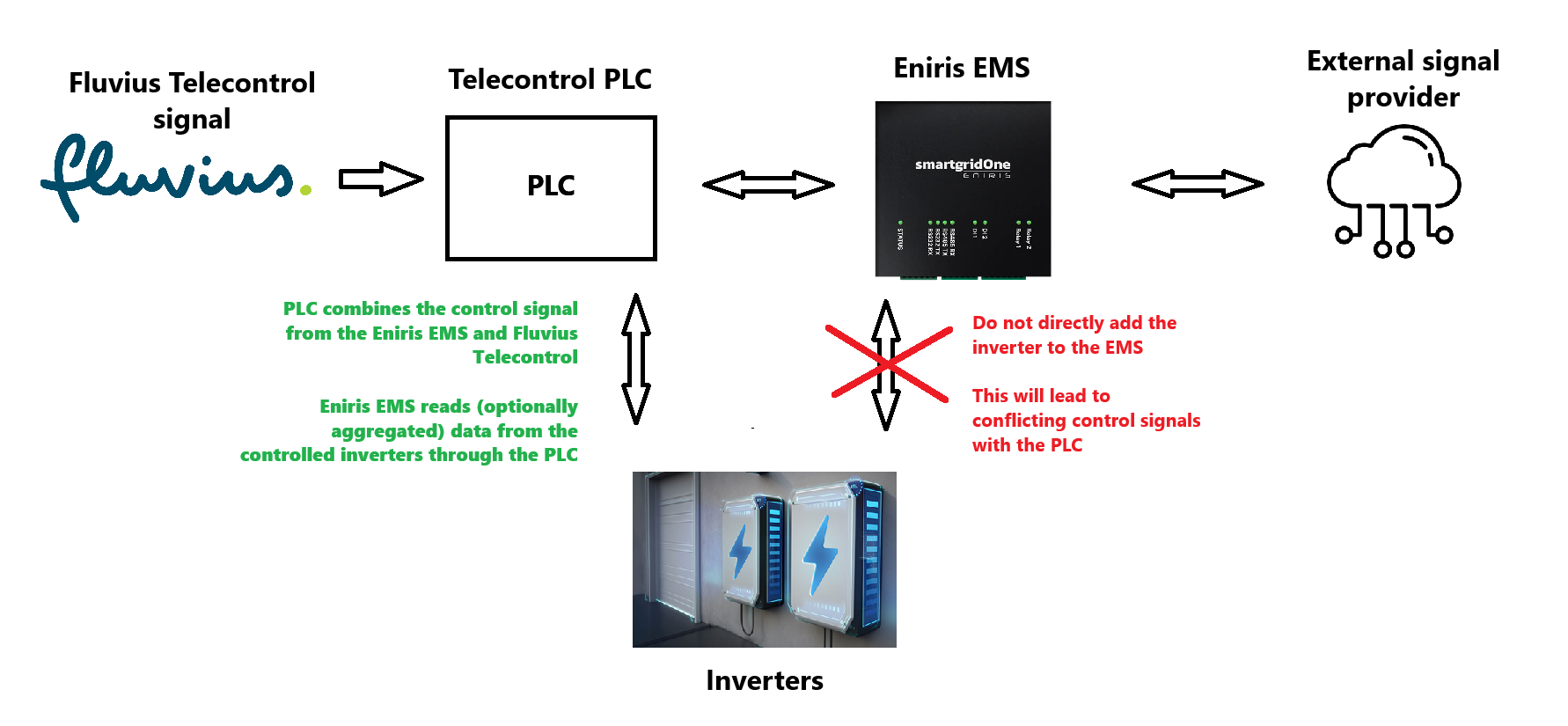 > [!WARNING] Adding devices that are controlled by the PLC directly to the EMS
> Do NOT add a device that is controlled by the PLC directly to the EMS. This could lead to conflicting control signals and doubly counted power values.
# Plc
import { FolderOverview } from '@/components/FolderOverview';
# Plc
# PLC / Datalogger / Gateway as a slave
import { BrandName, ControllerName } from '@site/src/components/customFields';
import { Download } from 'lucide-react'
import RS485ConnectionTable from '@site/src/components/RS485ConnectionTable';
import RS485AddressNote from '@site/src/components/RS485AddressNote';
import ClickableImage from '@site/src/components/ClickableImage';
import PdfLink from '@site/src/components/PdfLink';
import DownloadButton from '@site/src/components/DownloadButton';
# PLC / Datalogger / Gateway as a slave
The supports adding a PLC, Datalogger, Gateway or hub as a slave device through the protocol.
This function is provided for when there is a hub that has to receive control signals itself from the .
When your device has implemented the protocol, you can add your device through the device wizard, choosing "Solar Inverter", "Generic", "Ethernet TCP" and "PLC (Generic protocol)".
## Protocol implementation
You have two options when implementing the protocol on the hub:
1. Or you only implement the data and control registers for the totals of all PV, storage etc. They are added in the as one big aggregated device (or one EV charger, one energy meter, one hybrid inverter if applicable).
2. Or you implement the data and control registers for each individual device. Each individual device is added in the separately.
> [!WARNING] Adding devices that are controlled by the PLC directly to the EMS
> Do NOT add a device that is controlled by the PLC directly to the EMS. This could lead to conflicting control signals and doubly counted power values.
> [!WARNING] Aggregate device & groups
> In case your hub only implements the totals, the will treat this as one big controllable aggregated device. You can still put the aggregated device in any group, just like any other device. However, there are a few things to keep in mind if the individual devices that form up the aggregated device are in reality spread among different groups:
> - The will not be able to guard properly against overload on those groups.
> - The will for those groups not be able to determine the complete path of all power. This may lead to the seeing production by an "unknown source" or consumption by an "unknown load" if there are energy meters on those groups. Some power might be reported double.
>
> **If the devices behind the hub are spread out over different groups, you must implement the data and control registers for each individual device.**
## Examples
### A PLC that controls PV production and wants to accept a control signal from the
The premise of the protocol in this case is that the sees the PLC itself as a controllable PV inverter.
The minimum required if you want to control PV inverters through a PLC with a signal from the , is that the PLC:
1. tells the that there is only PV;
2. returns how much PV power is produced in total by the inverters;
3. accepts the setpoints of the ;
For point 1:
- Input register 0, (32 bit unsigned int), must contain the fixed value "0x454E4952" (protocol identification)
- Input register 100, (16 bit unsigned int), must contain the value "0", so the knows that the PLC doesn't supply grid energy measurements.
- Input register 300, (16 bit unsigned int), must contain the value "1", so the knows that there is PV.
- Input register 400, (16 bit unsigned int), must contain the value "0", so the knows that there is no storage.
For point 2:
- Input register 202, (32 bit signed int), contains the AC power of the inverters. Negative is towards the grid, positive is from the grid.
- Input register 303, (32 bit unsigned int), contains the total PV production power in W. (Always a positive number)
For point 3:
- Holding register 1001, (16 bit unsigned int), will be set to "1" by the if it wants to apply a control setpoint, or "0" when the PLC should fall back to its own control
- Holding register 1002, (32 bit unsigned int), will be set by the and contains the maximum allowed PV production power in W. (Always a positive number)
> [!WARNING] Non-implemented registers
> **IMPORTANT: ALL NON-IMPLEMENTED REGISTERS MUST CONTAIN THE NON-IMPLEMENTED VALUE OF THEIR TYPE, AS DESCRIBED IN THE PROTOCOL.**
>
> The registers above are the absolute minimum required. The will assume that all the PV that is connected to the PLC behaves as if it were a single PV inverter, with power factor 1 and symmetric three phase behaviour.
>
> If enhanced control is necessary, e.g. to keep an eye on phase currents etc., it is best to implement the recommended registers as well.
# a-TroniX
import { BrandName, ControllerName } from '@site/src/components/customFields';
import RS485ConnectionTable from '@site/src/components/RS485ConnectionTable';
import ClickableImage from '@site/src/components/ClickableImage';
import DeviceSupportTable from '@site/src/components/DeviceSupportTable';
# a-TroniX Inverters
## Supported Devices
## Wiring
### RS485
The inverter can be connected to the via RS485. This is done through connection [J] in the image below.
## Configuration
### 1. Activation monitoring & management inverter
The control must be activated through the inverter, and the meter must be deactivated. This is done through the display in the Feature Parm menu.
First, open the Feature Parm menu as follows:
1. Go to the Menu.
2. Enter the password. The default is 0000.
3. Select Settings.
4. Select Feature Parm
### 2. Activating remote control
Use the display further from the Feature page to activate the control, following the steps below:
1. Select Remote control
2. Set it to Enable
### 3. Deactivating meter
The meter must be deactivated. The control will be taken over by the . Therefore, the meter should not be connected to the inverter but to the . To deactivate the meter in the settings, follow these steps:
1. Go back to the Feature page.
2. Select Meter1
3. Select Set
4. Set it to Disable
### 4. Settings inverter address
The address of the inverter can also be set through the display.
1. Go to the Settings menu as described earlier.
2. Select Communication
3. Select RS485
4. Select Device ID
5. Set the device ID to the desired address.
If you connect multiple devices to the same RS485 bus, you must give each a unique address.
> [!TIP]
> ### Faster scanning
> The starts scanning from address 1 by default. Choosing a lower address will make your inverter be found faster.
> [!WARNING]
> ### Multiple inverters
> If you have multiple inverters then it is important to set the parallel addresses, each inverter should have a different address.
# ABB, FIMER
import { BrandName, ControllerName } from '@site/src/components/customFields';
import RS485ConnectionTable from '@site/src/components/RS485ConnectionTable';
import ClickableImage from '@site/src/components/ClickableImage';
import RS485AddressNote from '@site/src/components/RS485AddressNote';
import DeviceSupportTable from '@site/src/components/DeviceSupportTable';
import Details from '@theme/Details';
# ABB, Fimer inverters
> [!WARNING] Adding devices that are controlled by the PLC directly to the EMS
> Do NOT add a device that is controlled by the PLC directly to the EMS. This could lead to conflicting control signals and doubly counted power values.
# Plc
import { FolderOverview } from '@/components/FolderOverview';
# Plc
# PLC / Datalogger / Gateway as a slave
import { BrandName, ControllerName } from '@site/src/components/customFields';
import { Download } from 'lucide-react'
import RS485ConnectionTable from '@site/src/components/RS485ConnectionTable';
import RS485AddressNote from '@site/src/components/RS485AddressNote';
import ClickableImage from '@site/src/components/ClickableImage';
import PdfLink from '@site/src/components/PdfLink';
import DownloadButton from '@site/src/components/DownloadButton';
# PLC / Datalogger / Gateway as a slave
The supports adding a PLC, Datalogger, Gateway or hub as a slave device through the protocol.
This function is provided for when there is a hub that has to receive control signals itself from the .
When your device has implemented the protocol, you can add your device through the device wizard, choosing "Solar Inverter", "Generic", "Ethernet TCP" and "PLC (Generic protocol)".
## Protocol implementation
You have two options when implementing the protocol on the hub:
1. Or you only implement the data and control registers for the totals of all PV, storage etc. They are added in the as one big aggregated device (or one EV charger, one energy meter, one hybrid inverter if applicable).
2. Or you implement the data and control registers for each individual device. Each individual device is added in the separately.
> [!WARNING] Adding devices that are controlled by the PLC directly to the EMS
> Do NOT add a device that is controlled by the PLC directly to the EMS. This could lead to conflicting control signals and doubly counted power values.
> [!WARNING] Aggregate device & groups
> In case your hub only implements the totals, the will treat this as one big controllable aggregated device. You can still put the aggregated device in any group, just like any other device. However, there are a few things to keep in mind if the individual devices that form up the aggregated device are in reality spread among different groups:
> - The will not be able to guard properly against overload on those groups.
> - The will for those groups not be able to determine the complete path of all power. This may lead to the seeing production by an "unknown source" or consumption by an "unknown load" if there are energy meters on those groups. Some power might be reported double.
>
> **If the devices behind the hub are spread out over different groups, you must implement the data and control registers for each individual device.**
## Examples
### A PLC that controls PV production and wants to accept a control signal from the
The premise of the protocol in this case is that the sees the PLC itself as a controllable PV inverter.
The minimum required if you want to control PV inverters through a PLC with a signal from the , is that the PLC:
1. tells the that there is only PV;
2. returns how much PV power is produced in total by the inverters;
3. accepts the setpoints of the ;
For point 1:
- Input register 0, (32 bit unsigned int), must contain the fixed value "0x454E4952" (protocol identification)
- Input register 100, (16 bit unsigned int), must contain the value "0", so the knows that the PLC doesn't supply grid energy measurements.
- Input register 300, (16 bit unsigned int), must contain the value "1", so the knows that there is PV.
- Input register 400, (16 bit unsigned int), must contain the value "0", so the knows that there is no storage.
For point 2:
- Input register 202, (32 bit signed int), contains the AC power of the inverters. Negative is towards the grid, positive is from the grid.
- Input register 303, (32 bit unsigned int), contains the total PV production power in W. (Always a positive number)
For point 3:
- Holding register 1001, (16 bit unsigned int), will be set to "1" by the if it wants to apply a control setpoint, or "0" when the PLC should fall back to its own control
- Holding register 1002, (32 bit unsigned int), will be set by the and contains the maximum allowed PV production power in W. (Always a positive number)
> [!WARNING] Non-implemented registers
> **IMPORTANT: ALL NON-IMPLEMENTED REGISTERS MUST CONTAIN THE NON-IMPLEMENTED VALUE OF THEIR TYPE, AS DESCRIBED IN THE PROTOCOL.**
>
> The registers above are the absolute minimum required. The will assume that all the PV that is connected to the PLC behaves as if it were a single PV inverter, with power factor 1 and symmetric three phase behaviour.
>
> If enhanced control is necessary, e.g. to keep an eye on phase currents etc., it is best to implement the recommended registers as well.
# a-TroniX
import { BrandName, ControllerName } from '@site/src/components/customFields';
import RS485ConnectionTable from '@site/src/components/RS485ConnectionTable';
import ClickableImage from '@site/src/components/ClickableImage';
import DeviceSupportTable from '@site/src/components/DeviceSupportTable';
# a-TroniX Inverters
## Supported Devices
## Wiring
### RS485
The inverter can be connected to the via RS485. This is done through connection [J] in the image below.
## Configuration
### 1. Activation monitoring & management inverter
The control must be activated through the inverter, and the meter must be deactivated. This is done through the display in the Feature Parm menu.
First, open the Feature Parm menu as follows:
1. Go to the Menu.
2. Enter the password. The default is 0000.
3. Select Settings.
4. Select Feature Parm
### 2. Activating remote control
Use the display further from the Feature page to activate the control, following the steps below:
1. Select Remote control
2. Set it to Enable
### 3. Deactivating meter
The meter must be deactivated. The control will be taken over by the . Therefore, the meter should not be connected to the inverter but to the . To deactivate the meter in the settings, follow these steps:
1. Go back to the Feature page.
2. Select Meter1
3. Select Set
4. Set it to Disable
### 4. Settings inverter address
The address of the inverter can also be set through the display.
1. Go to the Settings menu as described earlier.
2. Select Communication
3. Select RS485
4. Select Device ID
5. Set the device ID to the desired address.
If you connect multiple devices to the same RS485 bus, you must give each a unique address.
> [!TIP]
> ### Faster scanning
> The starts scanning from address 1 by default. Choosing a lower address will make your inverter be found faster.
> [!WARNING]
> ### Multiple inverters
> If you have multiple inverters then it is important to set the parallel addresses, each inverter should have a different address.
# ABB, FIMER
import { BrandName, ControllerName } from '@site/src/components/customFields';
import RS485ConnectionTable from '@site/src/components/RS485ConnectionTable';
import ClickableImage from '@site/src/components/ClickableImage';
import RS485AddressNote from '@site/src/components/RS485AddressNote';
import DeviceSupportTable from '@site/src/components/DeviceSupportTable';
import Details from '@theme/Details';
# ABB, Fimer inverters
 ## Supported Devices
The supports two protocols that widely used by Fimer ABB inverters.
By looking at the the inverter's data sheet, you can determine which protocol is supported by your inverter.
Any Fimer ABB inverter supports the "Modbus Sunspec" protocol.
All Fimer ABB inverters produced after 2022 support the SunSpec protocol.
For models produced before 2022, check the data sheet to see if it supports the "SunSpec" protocol.
Most models (also the older ones) support the "SunSpec" protocol.
__If Sunspec is supported, we recommend using the Sunspec protocol.__ If Sunspec is not supported, you can use the "Aurora Power One" protocol.
## Configuration
You need to configure the inverter to communicate with the .
The first step is to ensure that the Fimer ABB is connected to the same network as the .
For correct ethernet wiring: Follow the [the guidelines for ethernet wiring](/Controller/wiring-best-practices/#ethernet)
The second step is to find the Fimer ABB inverter's IP address and to open that address in a web browser.
This will open the inverter's web interface:
Log in with a user that has __admin__ rights. Admin rights are required to change communication settings. If you do not have admin rights, you will see that certain options are unavailable.
## Supported Devices
The supports two protocols that widely used by Fimer ABB inverters.
By looking at the the inverter's data sheet, you can determine which protocol is supported by your inverter.
Any Fimer ABB inverter supports the "Modbus Sunspec" protocol.
All Fimer ABB inverters produced after 2022 support the SunSpec protocol.
For models produced before 2022, check the data sheet to see if it supports the "SunSpec" protocol.
Most models (also the older ones) support the "SunSpec" protocol.
__If Sunspec is supported, we recommend using the Sunspec protocol.__ If Sunspec is not supported, you can use the "Aurora Power One" protocol.
## Configuration
You need to configure the inverter to communicate with the .
The first step is to ensure that the Fimer ABB is connected to the same network as the .
For correct ethernet wiring: Follow the [the guidelines for ethernet wiring](/Controller/wiring-best-practices/#ethernet)
The second step is to find the Fimer ABB inverter's IP address and to open that address in a web browser.
This will open the inverter's web interface:
Log in with a user that has __admin__ rights. Admin rights are required to change communication settings. If you do not have admin rights, you will see that certain options are unavailable.
Choose the "Forgot password" option on the login page. Find the product key on the inverter's label and enter it in the field.
The product key is shown on the inverter's label as "Product Key" or "PK":
For example:
After logging in, you reach this page:
Please proceed to the sections Modbus TCP or RS485, depending on your choice of communication.
### Modbus TCP (Ethernet)
On the left side menu, go to the '_Modbus_' settings page:
Ensure that the '_Communication protocol server_' is set to 'Sunspec'.
If Sunspec is not available, you can select 'Aurora Power One' as a protocol, but this will not support curtailment.
Modbus TCP is now enabled. In the , you can find and add this inverter on the same IP address.
### RS485
On the left side menu, go to the '_RS485_' settings page:
Multiple RS485 ports can be available on the inverter, but "Modbus Sunspec" is only supported on inverter connection **RS485-2**.
By default, the first scans for devices with a baud rate of `9600` and parity `None`. __We recommended to set baud rate and parity on this page accordingly__ and also verify that the __RS485 Node Address (same as bus address) is unique and no other device on the RS485 bus has the same address__:
Wire the inverter to the as shown in the wiring diagram below.
Use the same RS485 port on the inverter as configured in the last step. In the example, this is RS485-2.
# ADS-Tec
import { BrandName, ControllerName } from '@site/src/components/customFields';
import DeviceSupportTable from '@site/src/components/DeviceSupportTable';
 # ADS-Tec StoraXe Battery
> [!NOTE]
> This integration monitors ADS-Tec StoraXe modular battery containers via Modbus TCP on the . It provides read-only telemetry; curtailment and dispatch are not supported.
## Supported Devices
## Wiring
- Connect the StoraXe controller (or site gateway) to the LAN with an RJ45 Ethernet cable.
- Ensure TCP port **502** is open between the ADS-Tec controller and the .
- Follow the [Ethernet wiring best practices](/Controller/wiring-best-practices/#ethernet).
> The driver addresses Modbus Unit ID **1**. Leave the controller at this default; other IDs are ignored.
## Configuration
1. Power up the StoraXe controller and connect it to the site LAN.
2. Reserve or note the controller’s IP address so it remains reachable.
3. In the UI, open **Devices → Add device**.
4. Select **Modbus TCP**, enter the StoraXe IP address, keep the unit ID at **1**, and click **Scan**.
5. Choose “ADS-Tec StoraXe” when it appears and press **Add**.
## Driver notes
- Device discovery relies on the StoraXe toggle bit (input register 6) alternating between 0 and 1. Keep this diagnostic register enabled; disabling it will prevent the integration from finding the system.
- The controller reads the serial number from registers 203–207. If those fields are blank, the integration falls back to a generated identifier.
# Afore
## Supported Devices
import Tabs from '@theme/Tabs';
import TabItem from '@theme/TabItem';
import DeviceSupportTable from '@site/src/components/DeviceSupportTable';
### Specific Models
## Configuration
### 1. Accessing the Inverter's Interface
1. **Power On the Inverter**
- Ensure the inverter is powered and operational
2. **Navigate to the Main Menu**
- Use the inverter's display panel to access the main menu
### 2. Locating Communication Settings
1. **Enter the Settings Menu**
- From the main menu, select 'Settings' or 'Advanced Settings'
2. **Find Communication Options**
- Look for options labeled 'Communication', 'RS485', or 'Modbus'
### 3. Configuring Modbus Parameters
1. **Set Communication Protocol**
- Choose 'Modbus RTU' as the protocol
2. **Adjust Communication Parameters**
| Parameter | Value |
|:---------:|:-----:|
| Baud Rate | 9600 or 19200 bps |
| Parity | None or Even |
| Data Bits | 8 |
| Stop Bits | 1 |
3. **Assign Modbus Address**
- Provide a unique slave ID (e.g., 1, 2, etc.) for the inverter
# AlphaESS
import { BrandName, ControllerName } from '@site/src/components/customFields';
import RS485ConnectionTable from '@site/src/components/RS485ConnectionTable';
import RS485AddressNote from '@site/src/components/RS485AddressNote';
import ClickableImage from '@site/src/components/ClickableImage';
import DeviceSupportTable from '@site/src/components/DeviceSupportTable';
# ADS-Tec StoraXe Battery
> [!NOTE]
> This integration monitors ADS-Tec StoraXe modular battery containers via Modbus TCP on the . It provides read-only telemetry; curtailment and dispatch are not supported.
## Supported Devices
## Wiring
- Connect the StoraXe controller (or site gateway) to the LAN with an RJ45 Ethernet cable.
- Ensure TCP port **502** is open between the ADS-Tec controller and the .
- Follow the [Ethernet wiring best practices](/Controller/wiring-best-practices/#ethernet).
> The driver addresses Modbus Unit ID **1**. Leave the controller at this default; other IDs are ignored.
## Configuration
1. Power up the StoraXe controller and connect it to the site LAN.
2. Reserve or note the controller’s IP address so it remains reachable.
3. In the UI, open **Devices → Add device**.
4. Select **Modbus TCP**, enter the StoraXe IP address, keep the unit ID at **1**, and click **Scan**.
5. Choose “ADS-Tec StoraXe” when it appears and press **Add**.
## Driver notes
- Device discovery relies on the StoraXe toggle bit (input register 6) alternating between 0 and 1. Keep this diagnostic register enabled; disabling it will prevent the integration from finding the system.
- The controller reads the serial number from registers 203–207. If those fields are blank, the integration falls back to a generated identifier.
# Afore
## Supported Devices
import Tabs from '@theme/Tabs';
import TabItem from '@theme/TabItem';
import DeviceSupportTable from '@site/src/components/DeviceSupportTable';
### Specific Models
## Configuration
### 1. Accessing the Inverter's Interface
1. **Power On the Inverter**
- Ensure the inverter is powered and operational
2. **Navigate to the Main Menu**
- Use the inverter's display panel to access the main menu
### 2. Locating Communication Settings
1. **Enter the Settings Menu**
- From the main menu, select 'Settings' or 'Advanced Settings'
2. **Find Communication Options**
- Look for options labeled 'Communication', 'RS485', or 'Modbus'
### 3. Configuring Modbus Parameters
1. **Set Communication Protocol**
- Choose 'Modbus RTU' as the protocol
2. **Adjust Communication Parameters**
| Parameter | Value |
|:---------:|:-----:|
| Baud Rate | 9600 or 19200 bps |
| Parity | None or Even |
| Data Bits | 8 |
| Stop Bits | 1 |
3. **Assign Modbus Address**
- Provide a unique slave ID (e.g., 1, 2, etc.) for the inverter
# AlphaESS
import { BrandName, ControllerName } from '@site/src/components/customFields';
import RS485ConnectionTable from '@site/src/components/RS485ConnectionTable';
import RS485AddressNote from '@site/src/components/RS485AddressNote';
import ClickableImage from '@site/src/components/ClickableImage';
import DeviceSupportTable from '@site/src/components/DeviceSupportTable';
 # AlphaESS Inverters
AlphaESS is a leading global energy storage solution and service provider specializing in both residential and commercial applications. Their product range includes the SMILE and STORION series, offering reliable and efficient energy storage solutions.
## Supported Devices
{/* ### STORION Series
The STORION series offers high-power hybrid inverters designed for both residential and commercial applications. */}
> [!WARNING]
> For Smile 5:\
> • SN starting with AL701XXXXXX → Modbus TCP supported.\
> • SN starting with AL200XXXXXX → Modbus RTU (RS485) only.
{/* ### SMILE Series
The SMILE series provides flexible solutions for residential energy storage needs. */}
## Communication Options
### Ethernet (Modbus TCP)
All AlphaESS inverters support Modbus TCP communication through their ethernet port. This provides:
- Fast and reliable communication
- Easy integration with home networks
- Remote monitoring capabilities
### RS485
Most models (except STORION-H30) support RS485 communication, offering:
- Reliable long-distance communication
- Multiple device daisy-chaining
- Industry-standard protocol support
## Wiring
### Ethernet Connection
For correct ethernet wiring, follow the [guidelines for ethernet wiring](/Controller/wiring-best-practices/#ethernet).
### RS485 Connection
For models supporting RS485:
- Use shielded twisted pair cable
- Maximum cable length: 1000m
- Maintain proper polarity (A to A, B to B)
## Configuration
### Network Setup
1. Connect the inverter to your local network via ethernet cable
2. Make sure your IP address is in the same subnet as the
# Alpvolt
import { BrandName, ControllerName } from '@site/src/components/customFields';
import DeviceSupportTable from '@site/src/components/DeviceSupportTable';
# AlphaESS Inverters
AlphaESS is a leading global energy storage solution and service provider specializing in both residential and commercial applications. Their product range includes the SMILE and STORION series, offering reliable and efficient energy storage solutions.
## Supported Devices
{/* ### STORION Series
The STORION series offers high-power hybrid inverters designed for both residential and commercial applications. */}
> [!WARNING]
> For Smile 5:\
> • SN starting with AL701XXXXXX → Modbus TCP supported.\
> • SN starting with AL200XXXXXX → Modbus RTU (RS485) only.
{/* ### SMILE Series
The SMILE series provides flexible solutions for residential energy storage needs. */}
## Communication Options
### Ethernet (Modbus TCP)
All AlphaESS inverters support Modbus TCP communication through their ethernet port. This provides:
- Fast and reliable communication
- Easy integration with home networks
- Remote monitoring capabilities
### RS485
Most models (except STORION-H30) support RS485 communication, offering:
- Reliable long-distance communication
- Multiple device daisy-chaining
- Industry-standard protocol support
## Wiring
### Ethernet Connection
For correct ethernet wiring, follow the [guidelines for ethernet wiring](/Controller/wiring-best-practices/#ethernet).
### RS485 Connection
For models supporting RS485:
- Use shielded twisted pair cable
- Maximum cable length: 1000m
- Maintain proper polarity (A to A, B to B)
## Configuration
### Network Setup
1. Connect the inverter to your local network via ethernet cable
2. Make sure your IP address is in the same subnet as the
# Alpvolt
import { BrandName, ControllerName } from '@site/src/components/customFields';
import DeviceSupportTable from '@site/src/components/DeviceSupportTable';
 # Alpvolt
## Supported Devices
## Configuration
### Ethernet Connection
Make sure that the Controller and the Powerbox 261 are connected to the same network.
For correct ethernet wiring, follow the [guidelines for ethernet wiring](/Controller/wiring-best-practices/#ethernet).
# Ampowr
import { BrandName, ControllerName } from '@site/src/components/customFields';
import RS485ConnectionTable from '@site/src/components/RS485ConnectionTable';
import RS485AddressNote from '@site/src/components/RS485AddressNote';
import ClickableImage from '@site/src/components/ClickableImage';
import DeviceSupportTable from '@site/src/components/DeviceSupportTable';
# Alpvolt
## Supported Devices
## Configuration
### Ethernet Connection
Make sure that the Controller and the Powerbox 261 are connected to the same network.
For correct ethernet wiring, follow the [guidelines for ethernet wiring](/Controller/wiring-best-practices/#ethernet).
# Ampowr
import { BrandName, ControllerName } from '@site/src/components/customFields';
import RS485ConnectionTable from '@site/src/components/RS485ConnectionTable';
import RS485AddressNote from '@site/src/components/RS485AddressNote';
import ClickableImage from '@site/src/components/ClickableImage';
import DeviceSupportTable from '@site/src/components/DeviceSupportTable';
 # Ampowr Inverters
## Supported Devices
## Wiring
The and the Ampihone inverters communicate via RS485 or Ethernet.
### Ethernet
For correct ethernet wiring: Follow the [the guidelines for ethernet wiring](/Controller/wiring-best-practices/#ethernet).
### RS485
> [!WARNING] I can't find my Ampihome inverter
> For Ampowr hybrid inverters, the default bus addresses are 247 for Modbus RTU and 255 for Modbus TCP.
> The will scan for devices on all addresses from 1 to 255.
> __Therefore, it can take a while to scan for devices.__
>
> __TIP:__ If you know the bus address of your inverter, you can set it in the to speed up the scanning process.
## Configuration
### Ampihome Single-Phase
The Ampihome Single-Phase needs to be set to Slave Secondary Port:
1. Open the ESS Link app
2. Select "My" in the bottom-right corner
3. Select "My Device"
4. Select on the device's "Comm No."
5. Select "Parameter Settings"
6. Set "Working Mode" to "Timed Charge Mode (C&D)"
7. Select "Advanced" in the top-right corner
8. Set "BMS1 RS485 Multiplexing" to "Slave Secondary Port"
# Angile
import { BrandName, ControllerName } from '@site/src/components/customFields';
import ClickableImage from '@site/src/components/ClickableImage';
import RS485ConnectionTable from '@site/src/components/RS485ConnectionTable';
import RS485AddressNote from '@site/src/components/RS485AddressNote';
import DeviceSupportTable from '@site/src/components/DeviceSupportTable';
# Ampowr Inverters
## Supported Devices
## Wiring
The and the Ampihone inverters communicate via RS485 or Ethernet.
### Ethernet
For correct ethernet wiring: Follow the [the guidelines for ethernet wiring](/Controller/wiring-best-practices/#ethernet).
### RS485
> [!WARNING] I can't find my Ampihome inverter
> For Ampowr hybrid inverters, the default bus addresses are 247 for Modbus RTU and 255 for Modbus TCP.
> The will scan for devices on all addresses from 1 to 255.
> __Therefore, it can take a while to scan for devices.__
>
> __TIP:__ If you know the bus address of your inverter, you can set it in the to speed up the scanning process.
## Configuration
### Ampihome Single-Phase
The Ampihome Single-Phase needs to be set to Slave Secondary Port:
1. Open the ESS Link app
2. Select "My" in the bottom-right corner
3. Select "My Device"
4. Select on the device's "Comm No."
5. Select "Parameter Settings"
6. Set "Working Mode" to "Timed Charge Mode (C&D)"
7. Select "Advanced" in the top-right corner
8. Set "BMS1 RS485 Multiplexing" to "Slave Secondary Port"
# Angile
import { BrandName, ControllerName } from '@site/src/components/customFields';
import ClickableImage from '@site/src/components/ClickableImage';
import RS485ConnectionTable from '@site/src/components/RS485ConnectionTable';
import RS485AddressNote from '@site/src/components/RS485AddressNote';
import DeviceSupportTable from '@site/src/components/DeviceSupportTable';
 ## Supported Devices
## Wiring
### RS485
To connect te Angile to RS485 you need to connect it through the D-B/485 port on the inverter.
## Configuration
# Anklous PV, Hybrid and Battery Inverters
import { BrandName, ControllerName } from '@site/src/components/customFields';
import DeviceSupportTable from '@site/src/components/DeviceSupportTable';
## Supported Devices
## Wiring
### RS485
To connect te Angile to RS485 you need to connect it through the D-B/485 port on the inverter.
## Configuration
# Anklous PV, Hybrid and Battery Inverters
import { BrandName, ControllerName } from '@site/src/components/customFields';
import DeviceSupportTable from '@site/src/components/DeviceSupportTable';
 # Anklous PV, Hybrid and Battery Inverters
## Supported Devices
## Wiring
The communication between the and the Anklous inverters operates via Modbus TCP.
For correct ethernet wiring: Follow the [the guidelines for ethernet wiring](/Controller/wiring-best-practices/#ethernet).
### Energon Series
No settings need to be made on the Anklous Energon Series inverters.
The Modbus TCP connection is established via the LAN port on the inverter.
After adding the battery through the interface, control will be established automatically.
### Smart261L
No settings need to be made on the Anklous Smart261kWh Liquid.
The Modbus TCP connection is established via the LAN port on the inverter.
After adding the battery through the interface, control will be established automatically.
# APsystems
import { BrandName, ControllerName } from '@site/src/components/customFields';
import DeviceSupportTable from '@site/src/components/DeviceSupportTable';
# Anklous PV, Hybrid and Battery Inverters
## Supported Devices
## Wiring
The communication between the and the Anklous inverters operates via Modbus TCP.
For correct ethernet wiring: Follow the [the guidelines for ethernet wiring](/Controller/wiring-best-practices/#ethernet).
### Energon Series
No settings need to be made on the Anklous Energon Series inverters.
The Modbus TCP connection is established via the LAN port on the inverter.
After adding the battery through the interface, control will be established automatically.
### Smart261L
No settings need to be made on the Anklous Smart261kWh Liquid.
The Modbus TCP connection is established via the LAN port on the inverter.
After adding the battery through the interface, control will be established automatically.
# APsystems
import { BrandName, ControllerName } from '@site/src/components/customFields';
import DeviceSupportTable from '@site/src/components/DeviceSupportTable';
 # APsystems
## Supported Devices
## Configuration
### Ethernet Connection
Make sure that the Controller and the APstorage are connected to the same network.
For correct ethernet wiring, follow the [guidelines for ethernet wiring](/Controller/wiring-best-practices/#ethernet).
### RS485 Connection
For RS485 wiring, follow the [guidelines for RS485 wiring](/Controller/wiring-best-practices/#rs485).
# Ateps Battery
import { BrandName, ControllerName } from '@site/src/components/customFields';
import DeviceSupportTable from '@site/src/components/DeviceSupportTable';
# APsystems
## Supported Devices
## Configuration
### Ethernet Connection
Make sure that the Controller and the APstorage are connected to the same network.
For correct ethernet wiring, follow the [guidelines for ethernet wiring](/Controller/wiring-best-practices/#ethernet).
### RS485 Connection
For RS485 wiring, follow the [guidelines for RS485 wiring](/Controller/wiring-best-practices/#rs485).
# Ateps Battery
import { BrandName, ControllerName } from '@site/src/components/customFields';
import DeviceSupportTable from '@site/src/components/DeviceSupportTable';
 # Ateps
> [!NOTE]
> This integration connects Ateps Storage Control System battery containers to the via Modbus TCP. It supports monitoring and remote power control.
## Supported Devices
## Wiring
- Connect the Ateps controller (or site gateway) to the LAN with an RJ45 Ethernet cable.
- Confirm TCP port **502** is open between the Ateps device and the .
- Follow the [Ethernet wiring best practices](/Controller/wiring-best-practices/#ethernet).
> The integration uses Modbus TCP only. Unit ID **1** is scanned by default.
## Configuration
### 1. Network
1. Power up the Ateps controller and connect it to the site LAN.
2. Reserve or note the controller’s IP address so it remains reachable.
### 2. Ateps settings
1. Log in to the Ateps interface with an admin account.
2. Enable the Modbus TCP server on port **502** and keep the Unit ID at **1**.
3. Save the changes (reboot if requested).
### 3. Add the device in
1. In the UI, open **Devices → Add device**.
2. Choose **Modbus TCP**, enter the Ateps IP address, and leave the unit ID at **1**.
3. Start the scan, select “Ateps Storage Control System” when it appears, and click **Add**.
## Remote power control (optional)
When site policies allow curtailment:
1. Enable smart grid control for the device in the .
2. Set the desired power target (positive values request charging, negative values request discharging).
3. To stop control, disable smart grid mode; the controller will release the battery.
## Troubleshooting
- **Device not detected:** Check IP reachability and ensure port 502 is open. Verify the Modbus TCP server is enabled.
- **No telemetry updates:** Confirm the Ateps device reports a valid state of charge (0.0–1.0). Restart the Modbus service if needed.
- **Control commands ignored:** Make sure smart grid mode is enabled and the site allows external dispatch requests.
# Autarco Hybrid Inverters
import { BrandName, ControllerName } from '@site/src/components/customFields';
import RS485ConnectionTable from '@site/src/components/RS485ConnectionTable';
import RS485AddressNote from '@site/src/components/RS485AddressNote';
import ClickableImage from '@site/src/components/ClickableImage';
import DeviceSupportTable from '@site/src/components/DeviceSupportTable';
import Mermaid from '@theme/Mermaid';
# Ateps
> [!NOTE]
> This integration connects Ateps Storage Control System battery containers to the via Modbus TCP. It supports monitoring and remote power control.
## Supported Devices
## Wiring
- Connect the Ateps controller (or site gateway) to the LAN with an RJ45 Ethernet cable.
- Confirm TCP port **502** is open between the Ateps device and the .
- Follow the [Ethernet wiring best practices](/Controller/wiring-best-practices/#ethernet).
> The integration uses Modbus TCP only. Unit ID **1** is scanned by default.
## Configuration
### 1. Network
1. Power up the Ateps controller and connect it to the site LAN.
2. Reserve or note the controller’s IP address so it remains reachable.
### 2. Ateps settings
1. Log in to the Ateps interface with an admin account.
2. Enable the Modbus TCP server on port **502** and keep the Unit ID at **1**.
3. Save the changes (reboot if requested).
### 3. Add the device in
1. In the UI, open **Devices → Add device**.
2. Choose **Modbus TCP**, enter the Ateps IP address, and leave the unit ID at **1**.
3. Start the scan, select “Ateps Storage Control System” when it appears, and click **Add**.
## Remote power control (optional)
When site policies allow curtailment:
1. Enable smart grid control for the device in the .
2. Set the desired power target (positive values request charging, negative values request discharging).
3. To stop control, disable smart grid mode; the controller will release the battery.
## Troubleshooting
- **Device not detected:** Check IP reachability and ensure port 502 is open. Verify the Modbus TCP server is enabled.
- **No telemetry updates:** Confirm the Ateps device reports a valid state of charge (0.0–1.0). Restart the Modbus service if needed.
- **Control commands ignored:** Make sure smart grid mode is enabled and the site allows external dispatch requests.
# Autarco Hybrid Inverters
import { BrandName, ControllerName } from '@site/src/components/customFields';
import RS485ConnectionTable from '@site/src/components/RS485ConnectionTable';
import RS485AddressNote from '@site/src/components/RS485AddressNote';
import ClickableImage from '@site/src/components/ClickableImage';
import DeviceSupportTable from '@site/src/components/DeviceSupportTable';
import Mermaid from '@theme/Mermaid';
 # Autarco Hybrid Inverters
The Autarco hybrid inverters are designed for both solar energy generation and battery storage, providing a versatile solution for energy management. The supports the Autarco hybrid inverters product line.
## Supported Devices
> [!WARNING]
> The SmartgridOne Controller works best with communication stick firmware 100101B0.
## Wiring (Modbus TCP)
> [!NOTE]
> The information below is based on Autarco's official guidance. Check the [Autarco energy-management help center](https://help.autarco.com/en/services) for the latest instructions.
To enable TCP/IP you need the following:
- Communication: S2.LAN.STICK.D (see the [Autarco hardware help center](https://help.autarco.com/en/hardware))
- Communication stick firmware: equal to 100101B0
When the firmware is correct TCP/IP is enabled.
_How to update the firmware version?_
→ Updating the firmware version of the communication stick is currently possible via Digital O&M in Helios. Check the [Autarco software help center](https://help.autarco.com/en/software) for the latest procedure.
## Wiring (RS485)
The wiring between the and the Autarco can be done with the following guides:
If your model is not listed, we refer to the manual of the Autarco inverter. It should always include a section on how to wire a rs485 communication with external EMS-systems.
# Autarco LH-series RS485 wiring
import { BrandName, ControllerName } from '@site/src/components/customFields';
import RS485ConnectionTable from '@site/src/components/RS485ConnectionTable';
import RS485AddressNote from '@site/src/components/RS485AddressNote';
import ClickableImage from '@site/src/components/ClickableImage';
import DeviceSupportTable from '@site/src/components/DeviceSupportTable';
# Autarco Hybrid Inverters
The Autarco hybrid inverters are designed for both solar energy generation and battery storage, providing a versatile solution for energy management. The supports the Autarco hybrid inverters product line.
## Supported Devices
> [!WARNING]
> The SmartgridOne Controller works best with communication stick firmware 100101B0.
## Wiring (Modbus TCP)
> [!NOTE]
> The information below is based on Autarco's official guidance. Check the [Autarco energy-management help center](https://help.autarco.com/en/services) for the latest instructions.
To enable TCP/IP you need the following:
- Communication: S2.LAN.STICK.D (see the [Autarco hardware help center](https://help.autarco.com/en/hardware))
- Communication stick firmware: equal to 100101B0
When the firmware is correct TCP/IP is enabled.
_How to update the firmware version?_
→ Updating the firmware version of the communication stick is currently possible via Digital O&M in Helios. Check the [Autarco software help center](https://help.autarco.com/en/software) for the latest procedure.
## Wiring (RS485)
The wiring between the and the Autarco can be done with the following guides:
If your model is not listed, we refer to the manual of the Autarco inverter. It should always include a section on how to wire a rs485 communication with external EMS-systems.
# Autarco LH-series RS485 wiring
import { BrandName, ControllerName } from '@site/src/components/customFields';
import RS485ConnectionTable from '@site/src/components/RS485ConnectionTable';
import RS485AddressNote from '@site/src/components/RS485AddressNote';
import ClickableImage from '@site/src/components/ClickableImage';
import DeviceSupportTable from '@site/src/components/DeviceSupportTable';
 This page describes the communication with an Autarco LH-series hybrid inverter over Modbus-RTU (rs485).
By default, the inverter is set to address 1. The RS485 interface is a 4-pin connector called "COM" located on the bottom of the inverter
behind a protective plate. The exact position is marked in the orange box in the image below:
Looking closer the port looks like this:
An appropriate connector should be used for this 4-pin connector on the Autarco inverter to connect to the .
On the , the inverter can be connected to the RS485 port. The wiring is as follows:
# Autarco LQH-series RS485 wiring
import { BrandName, ControllerName } from '@site/src/components/customFields';
import RS485ConnectionTable from '@site/src/components/RS485ConnectionTable';
import RS485AddressNote from '@site/src/components/RS485AddressNote';
import ClickableImage from '@site/src/components/ClickableImage';
import DeviceSupportTable from '@site/src/components/DeviceSupportTable';
This page describes the communication with an Autarco LH-series hybrid inverter over Modbus-RTU (rs485).
By default, the inverter is set to address 1. The RS485 interface is a 4-pin connector called "COM" located on the bottom of the inverter
behind a protective plate. The exact position is marked in the orange box in the image below:
Looking closer the port looks like this:
An appropriate connector should be used for this 4-pin connector on the Autarco inverter to connect to the .
On the , the inverter can be connected to the RS485 port. The wiring is as follows:
# Autarco LQH-series RS485 wiring
import { BrandName, ControllerName } from '@site/src/components/customFields';
import RS485ConnectionTable from '@site/src/components/RS485ConnectionTable';
import RS485AddressNote from '@site/src/components/RS485AddressNote';
import ClickableImage from '@site/src/components/ClickableImage';
import DeviceSupportTable from '@site/src/components/DeviceSupportTable';
 This page describes the communication with an Autarco LqH-series hybrid inverter over Modbus-RTU (rs485).
By default, the inverter is set to address 1. The RS485 communication happens over a RJ45 interface called located on the bottom of the inverter
behind a protective plate. The exact position is marked in the orange box in the image below:
The pin definition of the RS485 Port is following (EIA/TIA 568B):
- RS485A on Pin 5: blue/white
- RS485B on Pin 4: blue
After a successful RS485 connection and communication with the over the Modbus-RTU protocol,
the Autarco inverter will now show a new blue icon on its status indicator panel:
This page describes the communication with an Autarco LqH-series hybrid inverter over Modbus-RTU (rs485).
By default, the inverter is set to address 1. The RS485 communication happens over a RJ45 interface called located on the bottom of the inverter
behind a protective plate. The exact position is marked in the orange box in the image below:
The pin definition of the RS485 Port is following (EIA/TIA 568B):
- RS485A on Pin 5: blue/white
- RS485B on Pin 4: blue
After a successful RS485 connection and communication with the over the Modbus-RTU protocol,
the Autarco inverter will now show a new blue icon on its status indicator panel:
 # Autarco MH-series RS485 wiring
import { BrandName, ControllerName } from '@site/src/components/customFields';
import RS485ConnectionTable from '@site/src/components/RS485ConnectionTable';
import RS485AddressNote from '@site/src/components/RS485AddressNote';
import ClickableImage from '@site/src/components/ClickableImage';
import DeviceSupportTable from '@site/src/components/DeviceSupportTable';
# Autarco MH-series RS485 wiring
import { BrandName, ControllerName } from '@site/src/components/customFields';
import RS485ConnectionTable from '@site/src/components/RS485ConnectionTable';
import RS485AddressNote from '@site/src/components/RS485AddressNote';
import ClickableImage from '@site/src/components/ClickableImage';
import DeviceSupportTable from '@site/src/components/DeviceSupportTable';
 This page describes the communication with an Autarco LH-series hybrid inverter over Modbus-RTU (rs485).
By default, the inverter is set to address 1. The RS485 interface is a 4-pin connector called "COM" located on the bottom of the inverter
behind a protective plate. The exact position is marked in the orange box in the image below:
Looking closer the port looks like this:
An appropriate connector should be used for this 4-pin connector on the Autarco inverter to connect to the .
On the , the inverter can be connected to the RS485 port. The wiring is as follows:
# Autarco
import { BrandName, ControllerName } from '@site/src/components/customFields';
import RS485ConnectionTable from '@site/src/components/RS485ConnectionTable';
import RS485AddressNote from '@site/src/components/RS485AddressNote';
import ClickableImage from '@site/src/components/ClickableImage';
import ClickableVideo from '@site/src/components/ClickableVideo';
The support the Autarco solar-only and hybrid inverters product lines.
Continue to the guide for the specific product line you are interested in:
# Autarco On-grid Inverters
import { BrandName, ControllerName } from '@site/src/components/customFields';
import RS485ConnectionTable from '@site/src/components/RS485ConnectionTable';
import RS485AddressNote from '@site/src/components/RS485AddressNote';
import ClickableImage from '@site/src/components/ClickableImage';
import DeviceSupportTable from '@site/src/components/DeviceSupportTable';
# Autarco On Grid Inverters
The Autarco on grid inverters are designed for solar energy generation. The supports the Autarco on-grid inverters product line.
## Supported Devices
This page describes the communication with an Autarco LH-series hybrid inverter over Modbus-RTU (rs485).
By default, the inverter is set to address 1. The RS485 interface is a 4-pin connector called "COM" located on the bottom of the inverter
behind a protective plate. The exact position is marked in the orange box in the image below:
Looking closer the port looks like this:
An appropriate connector should be used for this 4-pin connector on the Autarco inverter to connect to the .
On the , the inverter can be connected to the RS485 port. The wiring is as follows:
# Autarco
import { BrandName, ControllerName } from '@site/src/components/customFields';
import RS485ConnectionTable from '@site/src/components/RS485ConnectionTable';
import RS485AddressNote from '@site/src/components/RS485AddressNote';
import ClickableImage from '@site/src/components/ClickableImage';
import ClickableVideo from '@site/src/components/ClickableVideo';
The support the Autarco solar-only and hybrid inverters product lines.
Continue to the guide for the specific product line you are interested in:
# Autarco On-grid Inverters
import { BrandName, ControllerName } from '@site/src/components/customFields';
import RS485ConnectionTable from '@site/src/components/RS485ConnectionTable';
import RS485AddressNote from '@site/src/components/RS485AddressNote';
import ClickableImage from '@site/src/components/ClickableImage';
import DeviceSupportTable from '@site/src/components/DeviceSupportTable';
# Autarco On Grid Inverters
The Autarco on grid inverters are designed for solar energy generation. The supports the Autarco on-grid inverters product line.
## Supported Devices
\* Modbus-TCP is __only__ supported with an Autarco LAN-stick. Check the [Autarco hardware help center](https://help.autarco.com/en/hardware) for the current LAN-Stick-D information.
## Wiring (Modbus TCP)
> [!NOTE]
> The information below is based on Autarco's official guidance. Check the [Autarco energy-management help center](https://help.autarco.com/en/services) for the latest instructions.
To enable TCP/IP you need the following:
- Communication: S2.LAN.STICK.D (see the [Autarco hardware help center](https://help.autarco.com/en/hardware))
- Communication stick firmware: equal to 100101B0
When the firmware is correct TCP/IP is enabled.
_How to update the firmware version?_
→ Updating the firmware version of the communication stick is currently possible via Digital O&M in Helios. Check the [Autarco software help center](https://help.autarco.com/en/software) for the latest procedure.
## Wiring (RS485)
The wiring between the and the Autarco can be done with the following guides:
If your model is not listed, we refer to the manual of the Autarco inverter. It should always include a section on how to wire a rs485 communication with external EMS-systems.
# Autarco LD-series RS485 wiring
import { BrandName, ControllerName } from '@site/src/components/customFields';
import RS485ConnectionTable from '@site/src/components/RS485ConnectionTable';
import RS485AddressNote from '@site/src/components/RS485AddressNote';
import ClickableImage from '@site/src/components/ClickableImage';
import DeviceSupportTable from '@site/src/components/DeviceSupportTable';
 This page describes the communication with an Autarco LD-series hybrid inverter over Modbus-RTU (rs485).
By default, the inverter is set to address 1. The RS485 interface is a 4-pin connector on the bottom of the inverter
behind a protective plate. The exact position is marked in the orange box in the image below:
Looking closer the port looks like this:
An appropriate connector should be used for this 4-pin connector on the Autarco inverter to connect to the .
On the , the inverter can be connected to the RS485 port. The wiring is as follows:
# Autarco LQ series RS485 wiring
import { BrandName, ControllerName } from '@site/src/components/customFields';
import RS485ConnectionTable from '@site/src/components/RS485ConnectionTable';
import RS485AddressNote from '@site/src/components/RS485AddressNote';
import ClickableImage from '@site/src/components/ClickableImage';
import DeviceSupportTable from '@site/src/components/DeviceSupportTable';
This page describes the communication with an Autarco LQ-series hybrid inverter over Modbus-RTU (rs485).
By default, the inverter is set to address 1. The RS485 interface is a 4-pin connector on the bottom of the inverter
behind a protective plate. The exact position is marked in the orange box in the image below:
Looking closer the port looks like this:
An appropriate connector should be used for this 4-pin connector on the Autarco inverter to connect to the .
On the , the inverter can be connected to the RS485 port. The wiring is as follows:
# Autarco OX-series RS485 wiring
import { BrandName, ControllerName } from '@site/src/components/customFields';
import RS485ConnectionTable from '@site/src/components/RS485ConnectionTable';
import RS485AddressNote from '@site/src/components/RS485AddressNote';
import ClickableImage from '@site/src/components/ClickableImage';
import DeviceSupportTable from '@site/src/components/DeviceSupportTable';
This page describes the communication with an Autarco LD-series hybrid inverter over Modbus-RTU (rs485).
By default, the inverter is set to address 1. The RS485 interface is a 4-pin connector on the bottom of the inverter
behind a protective plate. The exact position is marked in the orange box in the image below:
Looking closer the port looks like this:
An appropriate connector should be used for this 4-pin connector on the Autarco inverter to connect to the .
On the , the inverter can be connected to the RS485 port. The wiring is as follows:
# Autarco LQ series RS485 wiring
import { BrandName, ControllerName } from '@site/src/components/customFields';
import RS485ConnectionTable from '@site/src/components/RS485ConnectionTable';
import RS485AddressNote from '@site/src/components/RS485AddressNote';
import ClickableImage from '@site/src/components/ClickableImage';
import DeviceSupportTable from '@site/src/components/DeviceSupportTable';
This page describes the communication with an Autarco LQ-series hybrid inverter over Modbus-RTU (rs485).
By default, the inverter is set to address 1. The RS485 interface is a 4-pin connector on the bottom of the inverter
behind a protective plate. The exact position is marked in the orange box in the image below:
Looking closer the port looks like this:
An appropriate connector should be used for this 4-pin connector on the Autarco inverter to connect to the .
On the , the inverter can be connected to the RS485 port. The wiring is as follows:
# Autarco OX-series RS485 wiring
import { BrandName, ControllerName } from '@site/src/components/customFields';
import RS485ConnectionTable from '@site/src/components/RS485ConnectionTable';
import RS485AddressNote from '@site/src/components/RS485AddressNote';
import ClickableImage from '@site/src/components/ClickableImage';
import DeviceSupportTable from '@site/src/components/DeviceSupportTable';
 This page describes the communication with an Autarco OX-series on-grid inverter over Modbus-RTU (rs485).
By default, the inverter is set to address 1.
The OX inverters have the following communication ports:
- COM1: Green 4 pin connector for WiFi/Cellular datalogger.
- COM2 and COM3: Cable glands and cover with following connection points behind:
- 2 x RJ45 connections
- 1 x RS485 terminal bloc
Specifically for the , the RS485 communication happens over the 'COM2 Terminal Block' port. This marked in the orange box in the image below:
The port is an RJ45-port, used for the RS485 communication.
A cable need to be prepared to connect the inverter to the inverter.
2. Insert the wire into the RJ45 connector then crimp the connector with the crimping tool.
3. Removethe cap nut from the waterproof cable glands labeled COM2 and COM3 at the
bottom of the inverter. Remove the plug from the fitting.
4. Insert the RJ45 connector into the RJ45 port in the inverter maintenance chamber.
5. Replace the cap nuts for COM2/3 and tighten firmly.
# BatterX
# BatterX
This page describes the communication with an Autarco OX-series on-grid inverter over Modbus-RTU (rs485).
By default, the inverter is set to address 1.
The OX inverters have the following communication ports:
- COM1: Green 4 pin connector for WiFi/Cellular datalogger.
- COM2 and COM3: Cable glands and cover with following connection points behind:
- 2 x RJ45 connections
- 1 x RS485 terminal bloc
Specifically for the , the RS485 communication happens over the 'COM2 Terminal Block' port. This marked in the orange box in the image below:
The port is an RJ45-port, used for the RS485 communication.
A cable need to be prepared to connect the inverter to the inverter.
2. Insert the wire into the RJ45 connector then crimp the connector with the crimping tool.
3. Removethe cap nut from the waterproof cable glands labeled COM2 and COM3 at the
bottom of the inverter. Remove the plug from the fitting.
4. Insert the RJ45 connector into the RJ45 port in the inverter maintenance chamber.
5. Replace the cap nuts for COM2/3 and tighten firmly.
# BatterX
# BatterX
 ## Supported Devices
The communicates with the inverter through the **batterX EMX**, the batterX EMS box.
## Connection
Install the batterX EMX according to the installation manual. You can find the document on the [batterX website](https://www.batterx.de).
Connect the EMX with an appropriate Ethernet cable at the designated port. For correct Ethernet wiring, follow the [guidelines for ethernet wiring](/Controller/wiring-best-practices/#ethernet).
## Configuration
After installing the batterX EMX and running through the automatic installation routine, open the batterX portal to view the system.
### Set the Modbus TCP protocol
1. Go to **System Settings** and scroll down to **Other Settings**.
2. Use the drop-down menu next to **Modbus TCP Protocol** and select **Eniris**.
3. Click the **Apply** button next to it to save this setting.
### Enable remote control
1. Use the drop-down menu next to **Remote Control** and select **Enabled**.
2. Click the **Apply** button next to it to save this setting.
3. Confirm your selection by clicking **OK** in the pop-up.
# Battlink
import { BrandName, ControllerName } from '@site/src/components/customFields';
import DeviceSupportTable from '@site/src/components/DeviceSupportTable';
import ClickableImage from '@site/src/components/ClickableImage';
 ## Supported Devices
## Wiring Modbus TCP
- Both the battery and the should be connected to the same network.
- Allow TCP port 502 between the battery and the
### Ethernet
For correct ethernet wiring: Follow the [the guidelines for ethernet wiring](/Controller/wiring-best-practices/#ethernet).
# Beauvent
import { BrandName, ControllerName } from '@site/src/components/customFields';
import DeviceSupportTable from '@site/src/components/DeviceSupportTable';
## Supported Devices
## Wiring Modbus TCP
- Both the battery and the should be connected to the same network.
- Allow TCP port 502 between the battery and the
### Ethernet
For correct ethernet wiring: Follow the [the guidelines for ethernet wiring](/Controller/wiring-best-practices/#ethernet).
# Beauvent
import { BrandName, ControllerName } from '@site/src/components/customFields';
import DeviceSupportTable from '@site/src/components/DeviceSupportTable';
 # Beauvent Inverter
> [!NOTE]
> This integration connects Beauvent PV inverters to the over Modbus TCP. It provides monitoring and allows the controller to limit active power when smart grid mode is enabled.
## Supported Devices
## Wiring
- Connect the inverter (or site gateway) to the LAN with an RJ45 cable.
- Allow TCP port **502** between the inverter and the .
- Follow the [Ethernet wiring best practices](/Controller/wiring-best-practices/#ethernet).
> The Modbus server listens on Unit ID **1**. Keep this address unless the site uses a different value.
# C-Battery
# Beauvent Inverter
> [!NOTE]
> This integration connects Beauvent PV inverters to the over Modbus TCP. It provides monitoring and allows the controller to limit active power when smart grid mode is enabled.
## Supported Devices
## Wiring
- Connect the inverter (or site gateway) to the LAN with an RJ45 cable.
- Allow TCP port **502** between the inverter and the .
- Follow the [Ethernet wiring best practices](/Controller/wiring-best-practices/#ethernet).
> The Modbus server listens on Unit ID **1**. Keep this address unless the site uses a different value.
# C-Battery
 > [!NOTE]
> ### Supported Devices
> The following devices are supported and existing integrations remain available. However, these brands and models were integrated several years ago and are not commonly used by our current customers. If you require support or assistance with these devices, please contact us for further guidance.
# Cellpower
import { BrandName, ControllerName } from '@site/src/components/customFields';
import DeviceSupportTable from '@site/src/components/DeviceSupportTable';
import RS485ConnectionTable from '@site/src/components/RS485ConnectionTable';
import RS485AddressNote from '@site/src/components/RS485AddressNote';
> [!NOTE]
> ### Supported Devices
> The following devices are supported and existing integrations remain available. However, these brands and models were integrated several years ago and are not commonly used by our current customers. If you require support or assistance with these devices, please contact us for further guidance.
# Cellpower
import { BrandName, ControllerName } from '@site/src/components/customFields';
import DeviceSupportTable from '@site/src/components/DeviceSupportTable';
import RS485ConnectionTable from '@site/src/components/RS485ConnectionTable';
import RS485AddressNote from '@site/src/components/RS485AddressNote';
 # Cellpower
## Supported Devices
## Wiring
The and the Cellpower CESS communicate via Ethernet.
### Ethernet
For correct ethernet wiring: Follow the [the guidelines for ethernet wiring](/Controller/wiring-best-practices/#ethernet).
# Chisage
import { BrandName, ControllerName } from '@site/src/components/customFields';
import ClickableImage from '@site/src/components/ClickableImage';
import RS485ConnectionTable from '@site/src/components/RS485ConnectionTable';
import RS485AddressNote from '@site/src/components/RS485AddressNote';
import DeviceSupportTable from '@site/src/components/DeviceSupportTable';
# Cellpower
## Supported Devices
## Wiring
The and the Cellpower CESS communicate via Ethernet.
### Ethernet
For correct ethernet wiring: Follow the [the guidelines for ethernet wiring](/Controller/wiring-best-practices/#ethernet).
# Chisage
import { BrandName, ControllerName } from '@site/src/components/customFields';
import ClickableImage from '@site/src/components/ClickableImage';
import RS485ConnectionTable from '@site/src/components/RS485ConnectionTable';
import RS485AddressNote from '@site/src/components/RS485AddressNote';
import DeviceSupportTable from '@site/src/components/DeviceSupportTable';
 # Chisage Inverters
Chisage is a manufacturer of PV-hybrid and battery inverters for residential and commercial applications. Their product line includes both single-phase (Jup series) and three-phase (Mars series) hybrid inverters, as well as grid-tie inverters. Chisage inverters support operation with both solar panels and battery storage.
## Supported Devices
## Wiring
The and the Chisage inverters communicate via RS485.
### RS485
To connect the Chisage inverter to RS485, use the D-B/485 port on the inverter. The specific pinout may vary, so consult the inverter's manual for the exact connections. A typical RS485 connection table is shown below:
Consult the specific manual for your Chisage inverter model for detailed wiring diagrams and instructions.
## Configuration
The following steps provide a general overview of configuring Chisage inverters. Consult the specific user manual for your inverter model for detailed instructions and safety precautions.
1. **Initial Setup:** Upon initial startup, configure essential system settings such as the grid standard, language, and time zone.
2. **Parameter Settings:** Access the parameter setting menu, typically through the inverter's LCD touch screen or a dedicated mobile app. Navigate through the menu using the provided buttons or touch controls.
3. **Battery Settings:** Configure battery parameters to match your battery type and specifications. This includes settings such as battery capacity, charging voltage limits, and discharging voltage limits.
4. **Grid Settings:** Configure grid parameters to comply with local grid regulations. This includes settings such as voltage limits, frequency limits, and power factor.
5. **Smart Load Settings (if applicable):** Configure settings related to smart load power, such as the conditions for enabling or disabling power to the smart load based on battery SOC or voltage.
For more information about specific models, visit [Chisage manuals](https://chisagess.com/download/solar-inverter-2/).
# Danfoss
import { BrandName, ControllerName } from '@site/src/components/customFields';
import RS485ConnectionTable from '@site/src/components/RS485ConnectionTable';
import ClickableImage from '@site/src/components/ClickableImage';
import DeviceSupportTable from '@site/src/components/DeviceSupportTable';
# Chisage Inverters
Chisage is a manufacturer of PV-hybrid and battery inverters for residential and commercial applications. Their product line includes both single-phase (Jup series) and three-phase (Mars series) hybrid inverters, as well as grid-tie inverters. Chisage inverters support operation with both solar panels and battery storage.
## Supported Devices
## Wiring
The and the Chisage inverters communicate via RS485.
### RS485
To connect the Chisage inverter to RS485, use the D-B/485 port on the inverter. The specific pinout may vary, so consult the inverter's manual for the exact connections. A typical RS485 connection table is shown below:
Consult the specific manual for your Chisage inverter model for detailed wiring diagrams and instructions.
## Configuration
The following steps provide a general overview of configuring Chisage inverters. Consult the specific user manual for your inverter model for detailed instructions and safety precautions.
1. **Initial Setup:** Upon initial startup, configure essential system settings such as the grid standard, language, and time zone.
2. **Parameter Settings:** Access the parameter setting menu, typically through the inverter's LCD touch screen or a dedicated mobile app. Navigate through the menu using the provided buttons or touch controls.
3. **Battery Settings:** Configure battery parameters to match your battery type and specifications. This includes settings such as battery capacity, charging voltage limits, and discharging voltage limits.
4. **Grid Settings:** Configure grid parameters to comply with local grid regulations. This includes settings such as voltage limits, frequency limits, and power factor.
5. **Smart Load Settings (if applicable):** Configure settings related to smart load power, such as the conditions for enabling or disabling power to the smart load based on battery SOC or voltage.
For more information about specific models, visit [Chisage manuals](https://chisagess.com/download/solar-inverter-2/).
# Danfoss
import { BrandName, ControllerName } from '@site/src/components/customFields';
import RS485ConnectionTable from '@site/src/components/RS485ConnectionTable';
import ClickableImage from '@site/src/components/ClickableImage';
import DeviceSupportTable from '@site/src/components/DeviceSupportTable';
 ## Supported Devices
> [!NOTE]
> ### Supported Devices
> The above devices are supported and existing integrations remain available. However, these brands and models were integrated several years ago and are not commonly used by our current customers. If you require support or assistance with these devices, please contact us for further guidance.
# Delta
import { BrandName, ControllerName } from '@site/src/components/customFields';
import RS485AddressNote from '@site/src/components/RS485AddressNote';
import ClickableImage from '@site/src/components/ClickableImage';
import DeviceSupportTable from '@site/src/components/DeviceSupportTable';
## Supported Devices
> [!NOTE]
> ### Supported Devices
> The above devices are supported and existing integrations remain available. However, these brands and models were integrated several years ago and are not commonly used by our current customers. If you require support or assistance with these devices, please contact us for further guidance.
# Delta
import { BrandName, ControllerName } from '@site/src/components/customFields';
import RS485AddressNote from '@site/src/components/RS485AddressNote';
import ClickableImage from '@site/src/components/ClickableImage';
import DeviceSupportTable from '@site/src/components/DeviceSupportTable';
 # Delta Inverters
## Supported Devices
## Wiring
The and the Delta inverters communicate via RS485.
### RS485
| Setting | options |
|---|---|
| Baudrate | 2400 / 4800 / 9600 / 19200 (default) / 38400 |
| Data bits | 8 |
| Parity | None |
| Stop bits | 1 |
## Configuration
# DET Power PV, Hybrid and Battery Inverters
import { BrandName, ControllerName } from '@site/src/components/customFields';
import DeviceSupportTable from '@site/src/components/DeviceSupportTable';
# Delta Inverters
## Supported Devices
## Wiring
The and the Delta inverters communicate via RS485.
### RS485
| Setting | options |
|---|---|
| Baudrate | 2400 / 4800 / 9600 / 19200 (default) / 38400 |
| Data bits | 8 |
| Parity | None |
| Stop bits | 1 |
## Configuration
# DET Power PV, Hybrid and Battery Inverters
import { BrandName, ControllerName } from '@site/src/components/customFields';
import DeviceSupportTable from '@site/src/components/DeviceSupportTable';
 # DET Power PV, Hybrid and Battery Inverters
## Supported Devices
## Connection
The communication between the and the DET Power inverters operates via Modbus TCP.
For correct ethernet wiring: Follow the [the guidelines for ethernet wiring](/Controller/wiring-best-practices/#ethernet).
### 10ft Battery ESS
No settings need to be made on the DET Power 10ft Battery ESS.
The Modbus TCP connection is established via the LAN port on the inverter.
After adding the battery through the interface, control will be established automatically.
# DEYE
import { BrandName, ControllerName } from '@site/src/components/customFields';
import RS485ConnectionTable from '@site/src/components/RS485ConnectionTable';
import ClickableImage from '@site/src/components/ClickableImage';
import RS485AddressNote from '@site/src/components/RS485AddressNote';
import DeviceSupportTable from '@site/src/components/DeviceSupportTable';
# DET Power PV, Hybrid and Battery Inverters
## Supported Devices
## Connection
The communication between the and the DET Power inverters operates via Modbus TCP.
For correct ethernet wiring: Follow the [the guidelines for ethernet wiring](/Controller/wiring-best-practices/#ethernet).
### 10ft Battery ESS
No settings need to be made on the DET Power 10ft Battery ESS.
The Modbus TCP connection is established via the LAN port on the inverter.
After adding the battery through the interface, control will be established automatically.
# DEYE
import { BrandName, ControllerName } from '@site/src/components/customFields';
import RS485ConnectionTable from '@site/src/components/RS485ConnectionTable';
import ClickableImage from '@site/src/components/ClickableImage';
import RS485AddressNote from '@site/src/components/RS485AddressNote';
import DeviceSupportTable from '@site/src/components/DeviceSupportTable';
 ## Supported Devices
## Wiring
### RS485
## Configuration
Go to “Main Screen” >> “System Settings” >> “Advanced Function.”
- Modbus SN should be set to any number between 1 and 247. Do not select 0!! Note that if there are multiple devices on the RS485 bus, each should be given a unique number. This is the address.
- Slave should be checked.
- Only when an additional meter is connected directly to the inverter should “EX_meter For CT” be checked. If there is only a meter in parallel with the it should be unchecked.
- Make sure the following settings are all correct: "Max A Charge", "Max A Discharge", "Grid Charge Ampere"
# Diehl-Ako
import { BrandName, ControllerName } from '@site/src/components/customFields';
import RS485ConnectionTable from '@site/src/components/RS485ConnectionTable';
import ClickableImage from '@site/src/components/ClickableImage';
import RS485AddressNote from '@site/src/components/RS485AddressNote';
import DeviceSupportTable from '@site/src/components/DeviceSupportTable';
## Supported Devices
## Wiring
### RS485
## Configuration
Go to “Main Screen” >> “System Settings” >> “Advanced Function.”
- Modbus SN should be set to any number between 1 and 247. Do not select 0!! Note that if there are multiple devices on the RS485 bus, each should be given a unique number. This is the address.
- Slave should be checked.
- Only when an additional meter is connected directly to the inverter should “EX_meter For CT” be checked. If there is only a meter in parallel with the it should be unchecked.
- Make sure the following settings are all correct: "Max A Charge", "Max A Discharge", "Grid Charge Ampere"
# Diehl-Ako
import { BrandName, ControllerName } from '@site/src/components/customFields';
import RS485ConnectionTable from '@site/src/components/RS485ConnectionTable';
import ClickableImage from '@site/src/components/ClickableImage';
import RS485AddressNote from '@site/src/components/RS485AddressNote';
import DeviceSupportTable from '@site/src/components/DeviceSupportTable';
 ## Supported Devices
## Wiring
### RS485
## Configuration
Diehl-Ako uses a non-Modbus protocol and has automatic device recognition. It is not necessary to set individual addresses to the inverters.
# DMEGC Inverters
import DeviceSupportTable from '@site/src/components/DeviceSupportTable';
## Supported Devices
## Wiring
### RS485
## Configuration
Diehl-Ako uses a non-Modbus protocol and has automatic device recognition. It is not necessary to set individual addresses to the inverters.
# DMEGC Inverters
import DeviceSupportTable from '@site/src/components/DeviceSupportTable';
 # DMEGC Inverters
## Supported Devices
## Wiring
### Ethernet Connection
For correct ethernet wiring, follow the [guidelines for ethernet wiring](/Controller/wiring-best-practices/#ethernet).
# Dunext
import { BrandName, ControllerName } from '@site/src/components/customFields';
# Dunext PowerHill 261
The PowerHill 261 is a battery storage system connected locally to the through its Ethernet interface. The connection reads the system's power and battery information and provides a battery power setpoint.
> [!IMPORTANT] Testing
> Testing is ongoing for the PowerHill 261 connection. It requires controller software that includes this integration; it is not available in every installed software version.
## Compatibility
| Device | Ethernet / Modbus TCP | RS485 | Status | Instruction video |
| --- | --- | --- | --- | --- |
| Dunext PowerHill 261 | Port `502` | Not offered by this integration | Testing | |
This page covers the **PowerHill 261**. It does not list other Dunext models as compatible.
## Connect the system
1. Connect the PowerHill 261's Ethernet interface and the to the same local network. Follow the [Ethernet wiring guidelines](/Controller/wiring-best-practices/#ethernet).
2. Note the IP address of the PowerHill 261 system.
3. In the controller's device setup, select the battery category, manufacturer **Dunext** and device **Dunext PowerHill 261**.
4. Choose **Modbus TCP**, enter the system's IP address and port `502`, and use Modbus address `1` for this connection.
5. Add the detected system. Check that battery state of charge, voltage, current and system power update before enabling energy management.
## Measurements and control
| Part of the installation | Information provided |
| --- | --- |
| System | AC active power |
| Battery | State of charge, state of health, voltage, current and calculated battery power |
| PV, when detected | PV power |
The battery is represented with a capacity of **261 kWh**. The controller applies a battery power setpoint through the system's local interface and switches the system to remote control when energy management is active.
The presence of a PV power measurement does **not** mean that separate PV curtailment is available. This integration does not provide an independent PV power-limit command.
## If the system is not found
- Check that you selected **Dunext PowerHill 261**, rather than a similarly sized battery from another manufacturer.
- Check the system's IP address, network connection, Modbus TCP availability and port `502`.
- Use the connection address `1`. The controller handles the system's internal components as part of this connection.
- If the PowerHill 261 selection is absent, the installed controller software does not offer this connection. It cannot be added by choosing another device model.
# Dyness
import { BrandName, ControllerName } from '@site/src/components/customFields';
import RS485ConnectionTable from '@site/src/components/RS485ConnectionTable';
import RS485AddressNote from '@site/src/components/RS485AddressNote';
import ClickableImage from '@site/src/components/ClickableImage';
import DeviceSupportTable from '@site/src/components/DeviceSupportTable';
# DMEGC Inverters
## Supported Devices
## Wiring
### Ethernet Connection
For correct ethernet wiring, follow the [guidelines for ethernet wiring](/Controller/wiring-best-practices/#ethernet).
# Dunext
import { BrandName, ControllerName } from '@site/src/components/customFields';
# Dunext PowerHill 261
The PowerHill 261 is a battery storage system connected locally to the through its Ethernet interface. The connection reads the system's power and battery information and provides a battery power setpoint.
> [!IMPORTANT] Testing
> Testing is ongoing for the PowerHill 261 connection. It requires controller software that includes this integration; it is not available in every installed software version.
## Compatibility
| Device | Ethernet / Modbus TCP | RS485 | Status | Instruction video |
| --- | --- | --- | --- | --- |
| Dunext PowerHill 261 | Port `502` | Not offered by this integration | Testing | |
This page covers the **PowerHill 261**. It does not list other Dunext models as compatible.
## Connect the system
1. Connect the PowerHill 261's Ethernet interface and the to the same local network. Follow the [Ethernet wiring guidelines](/Controller/wiring-best-practices/#ethernet).
2. Note the IP address of the PowerHill 261 system.
3. In the controller's device setup, select the battery category, manufacturer **Dunext** and device **Dunext PowerHill 261**.
4. Choose **Modbus TCP**, enter the system's IP address and port `502`, and use Modbus address `1` for this connection.
5. Add the detected system. Check that battery state of charge, voltage, current and system power update before enabling energy management.
## Measurements and control
| Part of the installation | Information provided |
| --- | --- |
| System | AC active power |
| Battery | State of charge, state of health, voltage, current and calculated battery power |
| PV, when detected | PV power |
The battery is represented with a capacity of **261 kWh**. The controller applies a battery power setpoint through the system's local interface and switches the system to remote control when energy management is active.
The presence of a PV power measurement does **not** mean that separate PV curtailment is available. This integration does not provide an independent PV power-limit command.
## If the system is not found
- Check that you selected **Dunext PowerHill 261**, rather than a similarly sized battery from another manufacturer.
- Check the system's IP address, network connection, Modbus TCP availability and port `502`.
- Use the connection address `1`. The controller handles the system's internal components as part of this connection.
- If the PowerHill 261 selection is absent, the installed controller software does not offer this connection. It cannot be added by choosing another device model.
# Dyness
import { BrandName, ControllerName } from '@site/src/components/customFields';
import RS485ConnectionTable from '@site/src/components/RS485ConnectionTable';
import RS485AddressNote from '@site/src/components/RS485AddressNote';
import ClickableImage from '@site/src/components/ClickableImage';
import DeviceSupportTable from '@site/src/components/DeviceSupportTable';
 # Dyness Inverters
> [!IMPORTANT]
> Currently, the integration is support upto a state of charge limit to 95%. This is because when the state of charge goes beyond 95%, the battery can stop listening to setpoints due to the actions of the battery management system.
> We are working on resolving this issue with Dyness and other partners.
## Supported Devices
## Model-specific connection settings
| Model family | Modbus TCP port | RS485 settings | Modbus address range |
| --- | --- | --- | --- |
| LS and HT-A | `502` | `9600 baud, 8N1` | `1–247` |
| DH800Y | `502` | `115200 baud, 8N1` | `1–99` |
LS and HT-A are separate choices in the device wizard. Select the model installed on site rather than using a DH100F profile.
> [!IMPORTANT]
> The DH800Y connection requires controller software that includes it and is currently available in the testing software line. Its presence on this page does not mean every installed controller already offers it.
DH800Y supports a battery AC power setpoint and battery-cluster, state-of-charge, energy and alarm readings. A PV power reading does not provide separate PV curtailment: that command is not available through this integration.
Before controlling a DH800Y, open its HMI or web interface and set `Control mode → Remote mode`. The controller does not enable this setting automatically.
## Wiring
The and the Dyness inverters communicate via RS485 or Ethernet.
### Ethernet
For correct ethernet wiring: Follow the [the guidelines for ethernet wiring](/Controller/wiring-best-practices/#ethernet).
### RS485
The COM6 wiring example below belongs to the cabinet-style connection. Do not reuse it as an LS or HT-A terminal diagram; use the RS485 terminal markings in the manual for that model.
## Configuration
### DH100F
The Dyness DH100F needs to be set to remote mode:
1. Click the main menu icon on the upper right corner of the main interface
2. Click "Data" in the main menu bar
3. Click "EMS" in the sub-menu bar
4. Click "RunSet" at the upper left of the navigation bar
5. Set the Control Mode to "Remote"
# Dysun Energy
import { BrandName, ControllerName } from '@site/src/components/customFields';
import RS485ConnectionTable from '@site/src/components/RS485ConnectionTable';
import DeviceSupportTable from '@site/src/components/DeviceSupportTable';
import RS485AddressNote from '@site/src/components/RS485AddressNote';
# Dyness Inverters
> [!IMPORTANT]
> Currently, the integration is support upto a state of charge limit to 95%. This is because when the state of charge goes beyond 95%, the battery can stop listening to setpoints due to the actions of the battery management system.
> We are working on resolving this issue with Dyness and other partners.
## Supported Devices
## Model-specific connection settings
| Model family | Modbus TCP port | RS485 settings | Modbus address range |
| --- | --- | --- | --- |
| LS and HT-A | `502` | `9600 baud, 8N1` | `1–247` |
| DH800Y | `502` | `115200 baud, 8N1` | `1–99` |
LS and HT-A are separate choices in the device wizard. Select the model installed on site rather than using a DH100F profile.
> [!IMPORTANT]
> The DH800Y connection requires controller software that includes it and is currently available in the testing software line. Its presence on this page does not mean every installed controller already offers it.
DH800Y supports a battery AC power setpoint and battery-cluster, state-of-charge, energy and alarm readings. A PV power reading does not provide separate PV curtailment: that command is not available through this integration.
Before controlling a DH800Y, open its HMI or web interface and set `Control mode → Remote mode`. The controller does not enable this setting automatically.
## Wiring
The and the Dyness inverters communicate via RS485 or Ethernet.
### Ethernet
For correct ethernet wiring: Follow the [the guidelines for ethernet wiring](/Controller/wiring-best-practices/#ethernet).
### RS485
The COM6 wiring example below belongs to the cabinet-style connection. Do not reuse it as an LS or HT-A terminal diagram; use the RS485 terminal markings in the manual for that model.
## Configuration
### DH100F
The Dyness DH100F needs to be set to remote mode:
1. Click the main menu icon on the upper right corner of the main interface
2. Click "Data" in the main menu bar
3. Click "EMS" in the sub-menu bar
4. Click "RunSet" at the upper left of the navigation bar
5. Set the Control Mode to "Remote"
# Dysun Energy
import { BrandName, ControllerName } from '@site/src/components/customFields';
import RS485ConnectionTable from '@site/src/components/RS485ConnectionTable';
import DeviceSupportTable from '@site/src/components/DeviceSupportTable';
import RS485AddressNote from '@site/src/components/RS485AddressNote';
 ## Supported Devices
## Wiring
### Dysun Hybrid
#### Modbus TCP
- Connect the inverter's LAN port to your local network.
- Default port: **502**.
- The Modbus unit ID must be set between **1–247** (default **1**).
#### RS485
Serial settings:
| Parameter | Value |
|------------|---------------------|
| Baud rate | 9600 (default) or as configured in the inverter menu |
| Data bits | 8 |
| Parity | None |
| Stop bits | 1 |
---
### FlexAmp
The FlexAmp series communicates exclusively over RS485.
Serial settings:
| Parameter | Value |
|------------|---------------------|
| Baud rate | 9600 (default) |
| Data bits | 8 |
| Parity | None |
| Stop bits | 1 |
## Configuration
- Set the Modbus address (slave ID) between **1–247** in the device menu.
- Each device on the RS485 bus must have a unique address.
### FlexAmp Setup
During device scanning or manual configuration, you will be prompted:
**"What is included in the installation?"**
| Option | When to select |
|--------|----------------|
| Solar panels and battery *(default)* | Both PV and battery are installed |
| Only solar panels | No battery is present |
| Only battery | No PV is present |
Select the option that matches your installation. An incorrect selection will result in missing or incorrect measurements.
## Control
### Dysun Hybrid
The inverter supports battery control:
- **Charge mode**: Set charge current in amperes
- **Discharge mode**: Set discharge power as a percentage of nominal power
- When smart grid control is disabled, the inverter returns to autonomous operation
> [!CAUTION] Experimental
> Control features for the Dysun Hybrid have not been validated on live hardware.
---
### FlexAmp
The FlexAmp series supports **PV curtailment** — the controller can limit the maximum solar production power in real time.
- The active power limit is written as a percentage of nominal power.
- When smart grid control is disabled, the device reverts to its configured local settings (typically unrestricted output).
- Curtailment applies to the total production of all connected PV strings.
| Model | Rated power | Max curtailment resolution |
|------------------|-------------|---------------------------|
| FlexAmp One 3.6K | 3 600 W | 1 W |
| FlexAmp One 5K | 5 000 W | 1 W |
| FlexAmp One 8k | 8 000 W | 1 W |
| FlexAmp One 10k | 10 000 W | 1 W |
| FlexAmp One 12k | 12 000 W | 1 W |
# Ecosourcen
import { BrandName, ControllerName } from '@site/src/components/customFields';
import DeviceSupportTable from '@site/src/components/DeviceSupportTable';
## Supported Devices
## Wiring
### Dysun Hybrid
#### Modbus TCP
- Connect the inverter's LAN port to your local network.
- Default port: **502**.
- The Modbus unit ID must be set between **1–247** (default **1**).
#### RS485
Serial settings:
| Parameter | Value |
|------------|---------------------|
| Baud rate | 9600 (default) or as configured in the inverter menu |
| Data bits | 8 |
| Parity | None |
| Stop bits | 1 |
---
### FlexAmp
The FlexAmp series communicates exclusively over RS485.
Serial settings:
| Parameter | Value |
|------------|---------------------|
| Baud rate | 9600 (default) |
| Data bits | 8 |
| Parity | None |
| Stop bits | 1 |
## Configuration
- Set the Modbus address (slave ID) between **1–247** in the device menu.
- Each device on the RS485 bus must have a unique address.
### FlexAmp Setup
During device scanning or manual configuration, you will be prompted:
**"What is included in the installation?"**
| Option | When to select |
|--------|----------------|
| Solar panels and battery *(default)* | Both PV and battery are installed |
| Only solar panels | No battery is present |
| Only battery | No PV is present |
Select the option that matches your installation. An incorrect selection will result in missing or incorrect measurements.
## Control
### Dysun Hybrid
The inverter supports battery control:
- **Charge mode**: Set charge current in amperes
- **Discharge mode**: Set discharge power as a percentage of nominal power
- When smart grid control is disabled, the inverter returns to autonomous operation
> [!CAUTION] Experimental
> Control features for the Dysun Hybrid have not been validated on live hardware.
---
### FlexAmp
The FlexAmp series supports **PV curtailment** — the controller can limit the maximum solar production power in real time.
- The active power limit is written as a percentage of nominal power.
- When smart grid control is disabled, the device reverts to its configured local settings (typically unrestricted output).
- Curtailment applies to the total production of all connected PV strings.
| Model | Rated power | Max curtailment resolution |
|------------------|-------------|---------------------------|
| FlexAmp One 3.6K | 3 600 W | 1 W |
| FlexAmp One 5K | 5 000 W | 1 W |
| FlexAmp One 8k | 8 000 W | 1 W |
| FlexAmp One 10k | 10 000 W | 1 W |
| FlexAmp One 12k | 12 000 W | 1 W |
# Ecosourcen
import { BrandName, ControllerName } from '@site/src/components/customFields';
import DeviceSupportTable from '@site/src/components/DeviceSupportTable';
 # Ecosourcen Storage Systems
## Supported Devices
The **Risen Storage – Golden Electronic V2** connection is a separate variant. Its validation status and connection settings are described below; do not treat it as the same connection as the SU215E105LM above.
## Wiring
The and the Ecosourcen storage systems communicate via Ethernet.
### Ethernet
For correct ethernet wiring: Follow the [the guidelines for ethernet wiring](/Controller/wiring-best-practices/#ethernet).
## Risen Storage – Golden Electronic V2
> [!IMPORTANT] In validation
> Testing is ongoing for the Golden Electronic V2 connection, including the charge/discharge direction and battery-rack measurements. It is not listed here as a validated replacement for the SU215E105LM connection.
| Setting | Value |
| --- | --- |
| Manufacturer selection | **EcoSourcen** |
| Device selection | **Risen Storage – Golden Electronic V2** |
| Connection | Ethernet / Modbus TCP |
| TCP port | `502` |
| Modbus address | The EMS's configured address; default `1` |
| RS485 connection | Not offered by this integration |
The V2 connection is intended for a storage system with the Golden Electronic V2 EMS interface. It brings the system's PCS, battery total, detected battery racks and first grid meter into one local connection. It does not add a PV inverter.
### Connection setup for validation installations
1. Connect the EMS and the to the same local network.
2. Select **EcoSourcen**, then **Risen Storage – Golden Electronic V2** in the controller's battery setup.
3. Enter the EMS's IP address, port `502` and configured Modbus address. Keep the existing address of the EMS; the supported address range is `1`–`247`.
4. Check the detected battery total and battery racks. The connection only creates racks that return a valid state-of-health reading.
5. Check the grid-meter measurements against the installation's meter. This connection reads the first meter exposed by the EMS, not all of its possible meter slots.
### What is being validated
The connection reads system active and reactive power, battery state of charge, voltage and current, and the available rack measurements and battery limits. Its control function uses one AC active-power setpoint for the system, rather than separate setpoints per battery rack.
Verify the physical charging and discharging direction against the displayed power during commissioning. A successful network connection or a populated state-of-charge value alone does not establish that the power direction and rack readings are correct.
# Eenovance
import { BrandName, ControllerName } from '@site/src/components/customFields';
import DeviceSupportTable from '@site/src/components/DeviceSupportTable';
import RS485ConnectionTable from '@site/src/components/RS485ConnectionTable';
import RS485AddressNote from '@site/src/components/RS485AddressNote';
# Ecosourcen Storage Systems
## Supported Devices
The **Risen Storage – Golden Electronic V2** connection is a separate variant. Its validation status and connection settings are described below; do not treat it as the same connection as the SU215E105LM above.
## Wiring
The and the Ecosourcen storage systems communicate via Ethernet.
### Ethernet
For correct ethernet wiring: Follow the [the guidelines for ethernet wiring](/Controller/wiring-best-practices/#ethernet).
## Risen Storage – Golden Electronic V2
> [!IMPORTANT] In validation
> Testing is ongoing for the Golden Electronic V2 connection, including the charge/discharge direction and battery-rack measurements. It is not listed here as a validated replacement for the SU215E105LM connection.
| Setting | Value |
| --- | --- |
| Manufacturer selection | **EcoSourcen** |
| Device selection | **Risen Storage – Golden Electronic V2** |
| Connection | Ethernet / Modbus TCP |
| TCP port | `502` |
| Modbus address | The EMS's configured address; default `1` |
| RS485 connection | Not offered by this integration |
The V2 connection is intended for a storage system with the Golden Electronic V2 EMS interface. It brings the system's PCS, battery total, detected battery racks and first grid meter into one local connection. It does not add a PV inverter.
### Connection setup for validation installations
1. Connect the EMS and the to the same local network.
2. Select **EcoSourcen**, then **Risen Storage – Golden Electronic V2** in the controller's battery setup.
3. Enter the EMS's IP address, port `502` and configured Modbus address. Keep the existing address of the EMS; the supported address range is `1`–`247`.
4. Check the detected battery total and battery racks. The connection only creates racks that return a valid state-of-health reading.
5. Check the grid-meter measurements against the installation's meter. This connection reads the first meter exposed by the EMS, not all of its possible meter slots.
### What is being validated
The connection reads system active and reactive power, battery state of charge, voltage and current, and the available rack measurements and battery limits. Its control function uses one AC active-power setpoint for the system, rather than separate setpoints per battery rack.
Verify the physical charging and discharging direction against the displayed power during commissioning. A successful network connection or a populated state-of-charge value alone does not establish that the power direction and rack readings are correct.
# Eenovance
import { BrandName, ControllerName } from '@site/src/components/customFields';
import DeviceSupportTable from '@site/src/components/DeviceSupportTable';
import RS485ConnectionTable from '@site/src/components/RS485ConnectionTable';
import RS485AddressNote from '@site/src/components/RS485AddressNote';
 # Eenovance Hybrid Inverters
## Supported Devices
## Wiring
The and the Eenovance hybrid inverters communicate via Ethernet.
### Ethernet
For correct ethernet wiring: Follow the [the guidelines for ethernet wiring](/Controller/wiring-best-practices/#ethernet).
# Elecnova
import { BrandName, ControllerName } from '@site/src/components/customFields';
import DeviceSupportTable from '@site/src/components/DeviceSupportTable';
import RS485ConnectionTable from '@site/src/components/RS485ConnectionTable';
import RS485AddressNote from '@site/src/components/RS485AddressNote';
# Eenovance Hybrid Inverters
## Supported Devices
## Wiring
The and the Eenovance hybrid inverters communicate via Ethernet.
### Ethernet
For correct ethernet wiring: Follow the [the guidelines for ethernet wiring](/Controller/wiring-best-practices/#ethernet).
# Elecnova
import { BrandName, ControllerName } from '@site/src/components/customFields';
import DeviceSupportTable from '@site/src/components/DeviceSupportTable';
import RS485ConnectionTable from '@site/src/components/RS485ConnectionTable';
import RS485AddressNote from '@site/src/components/RS485AddressNote';
 # Elecnova Hybrid Inverters
## Supported Devices
## Wiring
The and the Elecnova hybrid inverters communicate via Ethernet.
### Ethernet
For correct ethernet wiring: Follow the [the guidelines for ethernet wiring](/Controller/wiring-best-practices/#ethernet).
# Enbrilion
import { BrandName, ControllerName } from '@site/src/components/customFields';
import RS485ConnectionTable from '@site/src/components/RS485ConnectionTable';
import RS485AddressNote from '@site/src/components/RS485AddressNote';
import ClickableImage from '@site/src/components/ClickableImage';
import DeviceSupportTable from '@site/src/components/DeviceSupportTable';
# Elecnova Hybrid Inverters
## Supported Devices
## Wiring
The and the Elecnova hybrid inverters communicate via Ethernet.
### Ethernet
For correct ethernet wiring: Follow the [the guidelines for ethernet wiring](/Controller/wiring-best-practices/#ethernet).
# Enbrilion
import { BrandName, ControllerName } from '@site/src/components/customFields';
import RS485ConnectionTable from '@site/src/components/RS485ConnectionTable';
import RS485AddressNote from '@site/src/components/RS485AddressNote';
import ClickableImage from '@site/src/components/ClickableImage';
import DeviceSupportTable from '@site/src/components/DeviceSupportTable';
 # Enbrilion Inverters
## Supported Devices
## Wiring
The and the Enbrilion inverters communicate via RS485 or Ethernet.
### Ethernet
For correct ethernet wiring: Follow the [the guidelines for ethernet wiring](/Controller/wiring-best-practices/#ethernet).
### RS485
# Energreen
import { BrandName, ControllerName } from '@site/src/components/customFields';
import RS485ConnectionTable from '@site/src/components/RS485ConnectionTable';
import RS485AddressNote from '@site/src/components/RS485AddressNote';
import ClickableImage from '@site/src/components/ClickableImage';
import DeviceSupportTable from '@site/src/components/DeviceSupportTable';
# Enbrilion Inverters
## Supported Devices
## Wiring
The and the Enbrilion inverters communicate via RS485 or Ethernet.
### Ethernet
For correct ethernet wiring: Follow the [the guidelines for ethernet wiring](/Controller/wiring-best-practices/#ethernet).
### RS485
# Energreen
import { BrandName, ControllerName } from '@site/src/components/customFields';
import RS485ConnectionTable from '@site/src/components/RS485ConnectionTable';
import RS485AddressNote from '@site/src/components/RS485AddressNote';
import ClickableImage from '@site/src/components/ClickableImage';
import DeviceSupportTable from '@site/src/components/DeviceSupportTable';
 # Energreen Inverters
## Supported Devices
## Wiring
The and the Dyness inverters communicate via RS485 or Ethernet.
### Ethernet
For correct ethernet wiring: Follow the [the guidelines for ethernet wiring](/Controller/wiring-best-practices/#ethernet).
### RS485
## Configuration
Ensure that modbus is enabled:
1. From the main page go to "Device"
2. Click "Powerhouse Settings"
3. Enable "Modbus TCP Server Enable"
Ensure that the inverter has been set to Remote EMS Mode:
1. From the main page go to "System"
2. Click the three dots next to the installation namespace
3. Click "System Settings"
4. Click "Operational Mode"
5. Select "Remote EMS Mode"
Disable any grid limits:
1. From the main page go to "System"
2. Click the three dots next to the installation namespace
3. Click "System Settings"
4. Under "Operational Parameters" disable "Export Limitation" and "Import Limitation"
5. Set "Grid Connection Point Reserve Power Control Method" to "Power Per Phase"
# Enerlution
import { BrandName, ControllerName } from '@site/src/components/customFields';
import RS485ConnectionTable from '@site/src/components/RS485ConnectionTable';
import RS485AddressNote from '@site/src/components/RS485AddressNote';
import ClickableImage from '@site/src/components/ClickableImage';
import DeviceSupportTable from '@site/src/components/DeviceSupportTable';
# Energreen Inverters
## Supported Devices
## Wiring
The and the Dyness inverters communicate via RS485 or Ethernet.
### Ethernet
For correct ethernet wiring: Follow the [the guidelines for ethernet wiring](/Controller/wiring-best-practices/#ethernet).
### RS485
## Configuration
Ensure that modbus is enabled:
1. From the main page go to "Device"
2. Click "Powerhouse Settings"
3. Enable "Modbus TCP Server Enable"
Ensure that the inverter has been set to Remote EMS Mode:
1. From the main page go to "System"
2. Click the three dots next to the installation namespace
3. Click "System Settings"
4. Click "Operational Mode"
5. Select "Remote EMS Mode"
Disable any grid limits:
1. From the main page go to "System"
2. Click the three dots next to the installation namespace
3. Click "System Settings"
4. Under "Operational Parameters" disable "Export Limitation" and "Import Limitation"
5. Set "Grid Connection Point Reserve Power Control Method" to "Power Per Phase"
# Enerlution
import { BrandName, ControllerName } from '@site/src/components/customFields';
import RS485ConnectionTable from '@site/src/components/RS485ConnectionTable';
import RS485AddressNote from '@site/src/components/RS485AddressNote';
import ClickableImage from '@site/src/components/ClickableImage';
import DeviceSupportTable from '@site/src/components/DeviceSupportTable';
 # Enerlution Inverters
## Supported Devices
## Wiring
The and the Enerlution inverters communicate via RS485.
### RS485
# EnjoyPowers
import { BrandName, ControllerName } from '@site/src/components/customFields';
import RS485ConnectionTable from '@site/src/components/RS485ConnectionTable';
import RS485AddressNote from '@site/src/components/RS485AddressNote';
import ClickableImage from '@site/src/components/ClickableImage';
import DeviceSupportTable from '@site/src/components/DeviceSupportTable';
# EnjoyPowers
> [!WARNING] EnjoyPowers in combination with a Poweroad BMS
> Starting from software version 1.17.0.x, you must add the EnjoyPowers inverter and Poweroad BMS as separate devices, and dc-link them through the groups page. For more information, see: [DC-linking inverters, batteries and BMS systems](/Controller/Configuration%20from%20A%20to%20Z/11-Extra-Information/dc-linking/)
## Supported Devices
## Wiring
For correct ethernet wiring: Follow the [the guidelines for ethernet wiring](/Controller/wiring-best-practices/#ethernet).
## Configuration
### 1. Set in remote control mode
1. Go to "EMS Parameter Settings"
2. Go to "Control Parameter"
3. Set "Control mode" on "Remote"
# Enphase
import DeviceSupportTable from '@site/src/components/DeviceSupportTable';
# Enerlution Inverters
## Supported Devices
## Wiring
The and the Enerlution inverters communicate via RS485.
### RS485
# EnjoyPowers
import { BrandName, ControllerName } from '@site/src/components/customFields';
import RS485ConnectionTable from '@site/src/components/RS485ConnectionTable';
import RS485AddressNote from '@site/src/components/RS485AddressNote';
import ClickableImage from '@site/src/components/ClickableImage';
import DeviceSupportTable from '@site/src/components/DeviceSupportTable';
# EnjoyPowers
> [!WARNING] EnjoyPowers in combination with a Poweroad BMS
> Starting from software version 1.17.0.x, you must add the EnjoyPowers inverter and Poweroad BMS as separate devices, and dc-link them through the groups page. For more information, see: [DC-linking inverters, batteries and BMS systems](/Controller/Configuration%20from%20A%20to%20Z/11-Extra-Information/dc-linking/)
## Supported Devices
## Wiring
For correct ethernet wiring: Follow the [the guidelines for ethernet wiring](/Controller/wiring-best-practices/#ethernet).
## Configuration
### 1. Set in remote control mode
1. Go to "EMS Parameter Settings"
2. Go to "Control Parameter"
3. Set "Control mode" on "Remote"
# Enphase
import DeviceSupportTable from '@site/src/components/DeviceSupportTable';
 ## Supported Devices
## Configuration
To connect the Enphase Gateway IQ to the controller, you need to provide your Enphase Enlighten credentials.
If you do not have one, please create an account on [Enphase Enlighten](https://enlighten.enphaseenergy.com/).
Make sure to add the device to your account.
# EP Equipment
import { BrandName, ControllerName } from '@site/src/components/customFields';
import ClickableImage from '@site/src/components/ClickableImage';
## Supported Devices
## Configuration
To connect the Enphase Gateway IQ to the controller, you need to provide your Enphase Enlighten credentials.
If you do not have one, please create an account on [Enphase Enlighten](https://enlighten.enphaseenergy.com/).
Make sure to add the device to your account.
# EP Equipment
import { BrandName, ControllerName } from '@site/src/components/customFields';
import ClickableImage from '@site/src/components/ClickableImage';
 ## Supported Devices
| Device Type | Modbus TCP (Ethernet) | RS485 | Reactive power control |
| :--: | :--: | :--: | :---: |
| EPES 233 | ✅ | ❌ | — |
| EPES 261L | ✅ | ❌ | — |
## Wiring
### Ethernet
For correct ethernet wiring: Follow the [the guidelines for ethernet wiring](/Controller/wiring-best-practices/#ethernet).
# ESY Inverters
import { BrandName, ControllerName } from '@site/src/components/customFields';
import RS485ConnectionTable from '@site/src/components/RS485ConnectionTable';
import RS485AddressNote from '@site/src/components/RS485AddressNote';
import ClickableImage from '@site/src/components/ClickableImage';
import DeviceSupportTable from '@site/src/components/DeviceSupportTable';
## Supported Devices
| Device Type | Modbus TCP (Ethernet) | RS485 | Reactive power control |
| :--: | :--: | :--: | :---: |
| EPES 233 | ✅ | ❌ | — |
| EPES 261L | ✅ | ❌ | — |
## Wiring
### Ethernet
For correct ethernet wiring: Follow the [the guidelines for ethernet wiring](/Controller/wiring-best-practices/#ethernet).
# ESY Inverters
import { BrandName, ControllerName } from '@site/src/components/customFields';
import RS485ConnectionTable from '@site/src/components/RS485ConnectionTable';
import RS485AddressNote from '@site/src/components/RS485AddressNote';
import ClickableImage from '@site/src/components/ClickableImage';
import DeviceSupportTable from '@site/src/components/DeviceSupportTable';
 # ESY Residential Hybrid Inverters
## Supported Devices
## Wiring
The and the ESY inverters communicate via RS485.
## Configuration
> [!WARNING]
> Inverters with firmware version older than the following have a minimum SoC level of 35%.
> Starting from this version, this setting can be configured by the user.
>
> Minimum required version: MCU version 1040, DSP version 1042.
# EVE
import { BrandName, ControllerName } from '@site/src/components/customFields';
import RS485ConnectionTable from '@site/src/components/RS485ConnectionTable';
import ClickableImage from '@site/src/components/ClickableImage';
import RS485AddressNote from '@site/src/components/RS485AddressNote';
import DeviceSupportTable from '@site/src/components/DeviceSupportTable';
# ESY Residential Hybrid Inverters
## Supported Devices
## Wiring
The and the ESY inverters communicate via RS485.
## Configuration
> [!WARNING]
> Inverters with firmware version older than the following have a minimum SoC level of 35%.
> Starting from this version, this setting can be configured by the user.
>
> Minimum required version: MCU version 1040, DSP version 1042.
# EVE
import { BrandName, ControllerName } from '@site/src/components/customFields';
import RS485ConnectionTable from '@site/src/components/RS485ConnectionTable';
import ClickableImage from '@site/src/components/ClickableImage';
import RS485AddressNote from '@site/src/components/RS485AddressNote';
import DeviceSupportTable from '@site/src/components/DeviceSupportTable';
 # EVE
## Supported Devices
## Wiring
### Ethernet
For correct ethernet wiring: Follow the [the guidelines for ethernet wiring](/Controller/wiring-best-practices/#ethernet).
## Configuration
### Enable remote mode on the inverter
| Steps |
|------|
| **1**. Navigate to the local web interface of the Eve system by surfing to the IP address of the Eve system. The port of the web interface is by default 8888, so you access the web interface through http://x.x.x.x:8888 |
| **2**. Once you are logged in, go to the "Manual" tab and configure the Remote mode as Remote:
# EVE
## Supported Devices
## Wiring
### Ethernet
For correct ethernet wiring: Follow the [the guidelines for ethernet wiring](/Controller/wiring-best-practices/#ethernet).
## Configuration
### Enable remote mode on the inverter
| Steps |
|------|
| **1**. Navigate to the local web interface of the Eve system by surfing to the IP address of the Eve system. The port of the web interface is by default 8888, so you access the web interface through http://x.x.x.x:8888 |
| **2**. Once you are logged in, go to the "Manual" tab and configure the Remote mode as Remote:  |
# Fairland
import { BrandName, ControllerName } from '@site/src/components/customFields';
import RS485ConnectionTable from '@/components/RS485ConnectionTable';
import RS485AddressNote from '@/components/RS485AddressNote';
import ClickableImage from '@/components/ClickableImage';
import DeviceSupportTable from '@/components/DeviceSupportTable';
|
# Fairland
import { BrandName, ControllerName } from '@site/src/components/customFields';
import RS485ConnectionTable from '@/components/RS485ConnectionTable';
import RS485AddressNote from '@/components/RS485AddressNote';
import ClickableImage from '@/components/ClickableImage';
import DeviceSupportTable from '@/components/DeviceSupportTable';
 ## Supported Devices
## Wiring
Connect the RS485 lines to the **ARM_485** terminal block on the inverter:
- **ARM_485_A** → D+ (positive / non-inverting)
- **ARM_485_B** → D– (negative / inverting)
## Configuration
### 1. Check RS485 settings on the inverter
The factory default RS485 communication parameters are:
| Parameter | Value |
|:------------|:-------------|
| Protocol | Modbus RTU |
| Baud rate | 9600 |
| Data bits | 8 |
| Parity | None |
| Stop bits | 1 |
| Address range | 1 – 247 |
The default slave address is **1**. The address can be changed in the inverter menu if multiple devices share the same RS485 bus.
### 2. Add the device in the
1. Open the commissioning interface.
2. Go to **Devices** → **Add device**.
3. Select the connection type **RS485**.
4. Choose **Fairland Inverx Hybrid Inverter RTU** from the device list.
5. The controller will automatically scan for the device using the default settings (9600 baud, 8N1).
6. If the device is not found automatically, set the Modbus address manually.
7. *(Optional)* Set the number of **PV strings (MPPT inputs)** connected — enter a value between 1 and 4. Leave blank to use the default (4).
8. *(Optional)* Set the number of **battery packs** installed — enter a value between 1 and 32. Leave blank to use the default (1).
9. Save and apply the configuration.
> [!NOTE]
> Setting the correct PV string count prevents the controller from polling unused MPPT inputs. If fewer strings are physically connected than the default of 4, the controller verifies each string by reading its voltage on first connection.
### 3. Verify communication
After saving, check that live data appears for:
- **Grid**: active power (import/export in W), phase voltages (L1/L2/L3), frequency
- **PV**: power per MPPT string and total PV power
- **Battery**: voltage, current, state of charge (SOC), state of health (SOH), power
> [!NOTE]
> If no battery is physically installed, the controller will display a **"No battery detected by inverter"** warning. This is expected behaviour — the inverter reports battery type code `100` (no battery) and the controller suppresses battery metrics accordingly.
## / Curtailment Control
The Fairland Inverx Elite supports two control modes:
| Control mode | Type | Description |
|:-----------------|:------------|:------------|
| **AC export limit** | `limit` | Limits grid feed-in power as a percentage of rated inverter power. Supports soft limit (default) and hard limit modes. |
| **Battery setpoint** | `setpoint` | Forces the battery to charge or discharge at a specific power level (W). |
### AC export limit details
- The export limit percentage is calculated from a live reading of the inverter's rated power (register 4051).
- **Soft limit**: holding register `21221` is set to `161`.
- **Hard limit**: holding register `21221` is set to `162`.
- **Disabled**: holding register `21221` is set to `85` (SmartGrid mode off).
### Battery setpoint details
- Power is written in **10 W steps** (raw value = W ÷ 10, clamped to 0 – 600,000 mW).
- **Charge**: command register `23147` = `0xAA` (170) + power register `23148` = raw value.
- **Discharge**: command register `23147` = `0xBB` (187) + power register `23148` = raw value.
- **Stop forced mode**: command register `23147` = `0xCC` (204), energy management mode register `23146` = `0`.
- Forced charge/discharge mode is activated by writing `2` to register `23146`.
## Known Issues
> [!WARNING]
> **Battery type always returns code 1080.** The inverter consistently reports battery type `1080`, which is not documented in the official Modbus protocol. This is a known hardware/firmware bug and does **not** affect operation — the controller uses voltage and SOC values to confirm battery presence instead.
> [!NOTE]
> **Per-string PV power is calculated, not measured.** There is no dedicated power register per MPPT string. Power is derived as voltage × current for each string.
# Fortona
import { BrandName, ControllerName } from '@site/src/components/customFields';
import RS485ConnectionTable from '@site/src/components/RS485ConnectionTable';
import ClickableImage from '@site/src/components/ClickableImage';
import RS485AddressNote from '@site/src/components/RS485AddressNote';
import DeviceSupportTable from '@site/src/components/DeviceSupportTable';
## Supported Devices
## Wiring
Connect the RS485 lines to the **ARM_485** terminal block on the inverter:
- **ARM_485_A** → D+ (positive / non-inverting)
- **ARM_485_B** → D– (negative / inverting)
## Configuration
### 1. Check RS485 settings on the inverter
The factory default RS485 communication parameters are:
| Parameter | Value |
|:------------|:-------------|
| Protocol | Modbus RTU |
| Baud rate | 9600 |
| Data bits | 8 |
| Parity | None |
| Stop bits | 1 |
| Address range | 1 – 247 |
The default slave address is **1**. The address can be changed in the inverter menu if multiple devices share the same RS485 bus.
### 2. Add the device in the
1. Open the commissioning interface.
2. Go to **Devices** → **Add device**.
3. Select the connection type **RS485**.
4. Choose **Fairland Inverx Hybrid Inverter RTU** from the device list.
5. The controller will automatically scan for the device using the default settings (9600 baud, 8N1).
6. If the device is not found automatically, set the Modbus address manually.
7. *(Optional)* Set the number of **PV strings (MPPT inputs)** connected — enter a value between 1 and 4. Leave blank to use the default (4).
8. *(Optional)* Set the number of **battery packs** installed — enter a value between 1 and 32. Leave blank to use the default (1).
9. Save and apply the configuration.
> [!NOTE]
> Setting the correct PV string count prevents the controller from polling unused MPPT inputs. If fewer strings are physically connected than the default of 4, the controller verifies each string by reading its voltage on first connection.
### 3. Verify communication
After saving, check that live data appears for:
- **Grid**: active power (import/export in W), phase voltages (L1/L2/L3), frequency
- **PV**: power per MPPT string and total PV power
- **Battery**: voltage, current, state of charge (SOC), state of health (SOH), power
> [!NOTE]
> If no battery is physically installed, the controller will display a **"No battery detected by inverter"** warning. This is expected behaviour — the inverter reports battery type code `100` (no battery) and the controller suppresses battery metrics accordingly.
## / Curtailment Control
The Fairland Inverx Elite supports two control modes:
| Control mode | Type | Description |
|:-----------------|:------------|:------------|
| **AC export limit** | `limit` | Limits grid feed-in power as a percentage of rated inverter power. Supports soft limit (default) and hard limit modes. |
| **Battery setpoint** | `setpoint` | Forces the battery to charge or discharge at a specific power level (W). |
### AC export limit details
- The export limit percentage is calculated from a live reading of the inverter's rated power (register 4051).
- **Soft limit**: holding register `21221` is set to `161`.
- **Hard limit**: holding register `21221` is set to `162`.
- **Disabled**: holding register `21221` is set to `85` (SmartGrid mode off).
### Battery setpoint details
- Power is written in **10 W steps** (raw value = W ÷ 10, clamped to 0 – 600,000 mW).
- **Charge**: command register `23147` = `0xAA` (170) + power register `23148` = raw value.
- **Discharge**: command register `23147` = `0xBB` (187) + power register `23148` = raw value.
- **Stop forced mode**: command register `23147` = `0xCC` (204), energy management mode register `23146` = `0`.
- Forced charge/discharge mode is activated by writing `2` to register `23146`.
## Known Issues
> [!WARNING]
> **Battery type always returns code 1080.** The inverter consistently reports battery type `1080`, which is not documented in the official Modbus protocol. This is a known hardware/firmware bug and does **not** affect operation — the controller uses voltage and SOC values to confirm battery presence instead.
> [!NOTE]
> **Per-string PV power is calculated, not measured.** There is no dedicated power register per MPPT string. Power is derived as voltage × current for each string.
# Fortona
import { BrandName, ControllerName } from '@site/src/components/customFields';
import RS485ConnectionTable from '@site/src/components/RS485ConnectionTable';
import ClickableImage from '@site/src/components/ClickableImage';
import RS485AddressNote from '@site/src/components/RS485AddressNote';
import DeviceSupportTable from '@site/src/components/DeviceSupportTable';
 # Fortona 48TL200 Battery System
## Supported Devices
---
## Wiring
The communicates with the Fortona 48TL200 battery system via **RS485 (Modbus RTU)**.
Connect the RS485 lines to the RJ45 communication ports on the front panel of the battery.
---
## Configuration
### 1. Check RS485 Wiring
- Ensure that the **RS485 D+**, **RS485 D–**, and **GND** lines are correctly connected.
- Use twisted-pair cable suitable for RS485 communication.
- If multiple devices are connected to the same bus, terminate the last device according to RS485 best practices.
- Verify that all devices share the same communication parameters.
> [!TIP] Communication parameters
> - **Protocol:** Modbus RTU
> - **Baud rate:** 115200
> - **Parity:** Odd or Even
> - **Stop bits:** 1
> - **Modbus address range:** 1–247 (each device must have a unique ID)
---
### 2. Configure the
In the interface:
1. Add a new RS485 device.
2. Select **“Fortona 48TL200 Battery Modbus Protocol”**.
3. Enter the same RS485 parameters as above:
- Baud rate: **115200**
- Parity: **Odd** (or **Even**, depending on the system)
- Stop bits: **1**
4. Set the correct **Modbus address** for the battery.
5. Save and apply the configuration.
> [!WARNING]
> Each Fortona 48TL200 battery must have a **unique Modbus slave ID**.
> Avoid duplicate IDs on the same RS485 line.
---
### 3. Power On and Verify
1. Apply **54–60 VDC** to the battery system.
2. Turn the **main switch ON**.
3. The BMS will initialize — both LEDs on the front panel will blink during startup.
4. Once the system is operational, both LEDs turn **solid**.
5. The should now automatically detect and read data from the battery.
> [!TIP]
> The battery automatically begins charging if the **state of charge (SOC)** is below 100%.
---
# FoxESS GMAX
import { BrandName, ControllerName } from '@site/src/components/customFields';
import RS485ConnectionTable from '@site/src/components/RS485ConnectionTable';
import ClickableImage from '@site/src/components/ClickableImage';
import DeviceSupportTable from '@site/src/components/DeviceSupportTable';
# Fortona 48TL200 Battery System
## Supported Devices
---
## Wiring
The communicates with the Fortona 48TL200 battery system via **RS485 (Modbus RTU)**.
Connect the RS485 lines to the RJ45 communication ports on the front panel of the battery.
---
## Configuration
### 1. Check RS485 Wiring
- Ensure that the **RS485 D+**, **RS485 D–**, and **GND** lines are correctly connected.
- Use twisted-pair cable suitable for RS485 communication.
- If multiple devices are connected to the same bus, terminate the last device according to RS485 best practices.
- Verify that all devices share the same communication parameters.
> [!TIP] Communication parameters
> - **Protocol:** Modbus RTU
> - **Baud rate:** 115200
> - **Parity:** Odd or Even
> - **Stop bits:** 1
> - **Modbus address range:** 1–247 (each device must have a unique ID)
---
### 2. Configure the
In the interface:
1. Add a new RS485 device.
2. Select **“Fortona 48TL200 Battery Modbus Protocol”**.
3. Enter the same RS485 parameters as above:
- Baud rate: **115200**
- Parity: **Odd** (or **Even**, depending on the system)
- Stop bits: **1**
4. Set the correct **Modbus address** for the battery.
5. Save and apply the configuration.
> [!WARNING]
> Each Fortona 48TL200 battery must have a **unique Modbus slave ID**.
> Avoid duplicate IDs on the same RS485 line.
---
### 3. Power On and Verify
1. Apply **54–60 VDC** to the battery system.
2. Turn the **main switch ON**.
3. The BMS will initialize — both LEDs on the front panel will blink during startup.
4. Once the system is operational, both LEDs turn **solid**.
5. The should now automatically detect and read data from the battery.
> [!TIP]
> The battery automatically begins charging if the **state of charge (SOC)** is below 100%.
---
# FoxESS GMAX
import { BrandName, ControllerName } from '@site/src/components/customFields';
import RS485ConnectionTable from '@site/src/components/RS485ConnectionTable';
import ClickableImage from '@site/src/components/ClickableImage';
import DeviceSupportTable from '@site/src/components/DeviceSupportTable';
 ## Supported Devices
## Configuration
> [!IMPORTANT]
> Make sure that the battery and the are connected to the same network /subnetwork.
# FoxESS H-Series
import { BrandName, ControllerName } from '@site/src/components/customFields';
import RS485ConnectionTable from '@site/src/components/RS485ConnectionTable';
import ClickableImage from '@site/src/components/ClickableImage';
import DeviceSupportTable from '@site/src/components/DeviceSupportTable';
## Supported Devices
> [!CAUTION]
> ### H3 (Non-Pro, Non-Smart)
> The H3 (Non-Pro, Non-Smart) has different communication protocol depending on the inverter 'master version' and 'manager version'.
> Choose the corresponding integration based on the inverter's software versions.
>
> ✅ Curtailment is supported for Firmware versions master v.2.05 and manager v.1.85 and below.
>
> ⌛ Curtailment is in development for Firmware versions master v.2.06 and manager v.1.86 and above.
> [!WARNING]
> The H3 (non-pro, non-smart) series uses a __different communication protocol__ than the H3 Pro and H3 Smart series.
> Therefore, when selecting the device type in the , you must be __very sure__ that you select the correct type.
> [!NOTE]
> ### Supported Firmware versions
> (*) The integration may work for older firmware versions, but these are not tested.
## Wiring
> [!WARNING]
> The default modbus address, or device ID, is 247. Keep this in mind when scanning for an inverter.
> You can change the minimum and maximum bus addresses the controller will scan in the scan parameters.
### Ethernet
For correct ethernet wiring: Follow the [the guidelines for ethernet wiring](/Controller/wiring-best-practices/#ethernet).
> [!WARNING]
> You cannot connect it through the WiFi dongle.
### RS485
The inverter can be connected to the via RS485. This is done through connection [J] in the image below.
#### RS485 H3 Pro
## Configuration for H3 (Non-Pro, Non-Smart) and H1-G2
### 1. Activation monitoring & management inverter
The control must be activated through the inverter, and the meter must be deactivated. This is done through the display in the Feature Parm menu.
First, open the Feature Parm menu as follows:
1. Go to the Menu.
2. Enter the password. The default is 0000.
3. Select Settings.
4. Select Feature Parm.
### 2. Activating remote control
Use the display further from the Feature page to activate the control, following the steps below:
1. Select Remote control.
2. Set it to Enable.
### 3. Deactivating meter
The meter must be deactivated. The control will be taken over by the . Therefore, the meter should not be connected to the inverter but to the . To deactivate the meter in the settings, follow these steps:
1. Go back to the Feature page.
2. Select Meter1.
3. Select Set.
4. Set it to Disable.
### 4. Settings inverter address
The address of the inverter can also be set through the display.
1. Go to the Settings menu as described earlier.
2. Select Communication.
3. Select RS485.
4. Select Device ID.
5. Set the device ID to the desired address.
If you connect multiple devices to the same RS485 bus, you must give each a unique address.
> [!TIP]
> ### Faster scanning
> The starts scanning from address 1 by default. Choosing a lower address will make your inverter be found faster.
> [!WARNING]
> ### Multiple inverters
> If you have multiple inverters then it is important to set the parallel addresses, each inverter should have a different address.
## Configuration for H3-smart and H3-Pro
Remote control is activated by default, you do not need to change any settings.
Changing the inverter address (or device ID) can be done in the smae way as the H3 (see above).
# FoxESS R-Series
import { BrandName, ControllerName } from '@site/src/components/customFields';
import RS485ConnectionTable from '@site/src/components/RS485ConnectionTable';
import ClickableImage from '@site/src/components/ClickableImage';
import DeviceSupportTable from '@site/src/components/DeviceSupportTable';
## Supported Devices
## Wiring
The and the FoxESS R Series solar inverters communicate via RS485 or Ethernet.
### Ethernet
For correct ethernet wiring: Follow the [the guidelines for ethernet wiring](/Controller/wiring-best-practices/#ethernet).
### RS485
# Foxess
import { FolderOverview } from '@/components/FolderOverview';
# Foxess
# Frax
import { BrandName, ControllerName } from '@site/src/components/customFields';
import ClickableImage from '@site/src/components/ClickableImage';
import DeviceSupportTable from '@site/src/components/DeviceSupportTable';
## Supported Devices
## Configuration
> [!IMPORTANT]
> Make sure that the battery and the are connected to the same network /subnetwork.
# FoxESS H-Series
import { BrandName, ControllerName } from '@site/src/components/customFields';
import RS485ConnectionTable from '@site/src/components/RS485ConnectionTable';
import ClickableImage from '@site/src/components/ClickableImage';
import DeviceSupportTable from '@site/src/components/DeviceSupportTable';
## Supported Devices
> [!CAUTION]
> ### H3 (Non-Pro, Non-Smart)
> The H3 (Non-Pro, Non-Smart) has different communication protocol depending on the inverter 'master version' and 'manager version'.
> Choose the corresponding integration based on the inverter's software versions.
>
> ✅ Curtailment is supported for Firmware versions master v.2.05 and manager v.1.85 and below.
>
> ⌛ Curtailment is in development for Firmware versions master v.2.06 and manager v.1.86 and above.
> [!WARNING]
> The H3 (non-pro, non-smart) series uses a __different communication protocol__ than the H3 Pro and H3 Smart series.
> Therefore, when selecting the device type in the , you must be __very sure__ that you select the correct type.
> [!NOTE]
> ### Supported Firmware versions
> (*) The integration may work for older firmware versions, but these are not tested.
## Wiring
> [!WARNING]
> The default modbus address, or device ID, is 247. Keep this in mind when scanning for an inverter.
> You can change the minimum and maximum bus addresses the controller will scan in the scan parameters.
### Ethernet
For correct ethernet wiring: Follow the [the guidelines for ethernet wiring](/Controller/wiring-best-practices/#ethernet).
> [!WARNING]
> You cannot connect it through the WiFi dongle.
### RS485
The inverter can be connected to the via RS485. This is done through connection [J] in the image below.
#### RS485 H3 Pro
## Configuration for H3 (Non-Pro, Non-Smart) and H1-G2
### 1. Activation monitoring & management inverter
The control must be activated through the inverter, and the meter must be deactivated. This is done through the display in the Feature Parm menu.
First, open the Feature Parm menu as follows:
1. Go to the Menu.
2. Enter the password. The default is 0000.
3. Select Settings.
4. Select Feature Parm.
### 2. Activating remote control
Use the display further from the Feature page to activate the control, following the steps below:
1. Select Remote control.
2. Set it to Enable.
### 3. Deactivating meter
The meter must be deactivated. The control will be taken over by the . Therefore, the meter should not be connected to the inverter but to the . To deactivate the meter in the settings, follow these steps:
1. Go back to the Feature page.
2. Select Meter1.
3. Select Set.
4. Set it to Disable.
### 4. Settings inverter address
The address of the inverter can also be set through the display.
1. Go to the Settings menu as described earlier.
2. Select Communication.
3. Select RS485.
4. Select Device ID.
5. Set the device ID to the desired address.
If you connect multiple devices to the same RS485 bus, you must give each a unique address.
> [!TIP]
> ### Faster scanning
> The starts scanning from address 1 by default. Choosing a lower address will make your inverter be found faster.
> [!WARNING]
> ### Multiple inverters
> If you have multiple inverters then it is important to set the parallel addresses, each inverter should have a different address.
## Configuration for H3-smart and H3-Pro
Remote control is activated by default, you do not need to change any settings.
Changing the inverter address (or device ID) can be done in the smae way as the H3 (see above).
# FoxESS R-Series
import { BrandName, ControllerName } from '@site/src/components/customFields';
import RS485ConnectionTable from '@site/src/components/RS485ConnectionTable';
import ClickableImage from '@site/src/components/ClickableImage';
import DeviceSupportTable from '@site/src/components/DeviceSupportTable';
## Supported Devices
## Wiring
The and the FoxESS R Series solar inverters communicate via RS485 or Ethernet.
### Ethernet
For correct ethernet wiring: Follow the [the guidelines for ethernet wiring](/Controller/wiring-best-practices/#ethernet).
### RS485
# Foxess
import { FolderOverview } from '@/components/FolderOverview';
# Foxess
# Frax
import { BrandName, ControllerName } from '@site/src/components/customFields';
import ClickableImage from '@site/src/components/ClickableImage';
import DeviceSupportTable from '@site/src/components/DeviceSupportTable';
 ## Supported Devices
## Wiring
### Ethernet
For correct ethernet wiring: Follow the [the guidelines for ethernet wiring](/Controller/wiring-best-practices/#ethernet).
> [!TIP]
> Make note of the Modbus TCP port number in the TCP/IP Configuration menu. The default is typically port 502, but this may vary depending on your inverter's firmware version.
# Fronius
import { BrandName, ControllerName } from '@site/src/components/customFields';
import RS485ConnectionTable from '@site/src/components/RS485ConnectionTable';
import RS485AddressNote from '@site/src/components/RS485AddressNote';
import ClickableImage from '@site/src/components/ClickableImage';
import DeviceSupportTable from '@site/src/components/DeviceSupportTable';

# Fronius
## Supported Devices
## Wiring
For correct ethernet wiring: Follow the [the guidelines for ethernet wiring](/Controller/wiring-best-practices/#ethernet).
## Configuration
### 1. Modbus TCP must be enabled.
Activate Modbus TCP/IP in the inverter's interface: see the
link below for instructions on how to connect to the
inverter.
[https://www.youtube.com/watch?v\=T25omrhcroU](https://www.youtube.com/watch?v=T25omrhcroU)
1. Select the menu Communication > Modbus
2. Activate Slave as Modbus TCP
3. Choose SunSpec Model Type "Float"
4. Enable Inverter Control via Modbus
5. Save your settings by clicking Save
## Supported Devices
## Wiring
### Ethernet
For correct ethernet wiring: Follow the [the guidelines for ethernet wiring](/Controller/wiring-best-practices/#ethernet).
> [!TIP]
> Make note of the Modbus TCP port number in the TCP/IP Configuration menu. The default is typically port 502, but this may vary depending on your inverter's firmware version.
# Fronius
import { BrandName, ControllerName } from '@site/src/components/customFields';
import RS485ConnectionTable from '@site/src/components/RS485ConnectionTable';
import RS485AddressNote from '@site/src/components/RS485AddressNote';
import ClickableImage from '@site/src/components/ClickableImage';
import DeviceSupportTable from '@site/src/components/DeviceSupportTable';

# Fronius
## Supported Devices
## Wiring
For correct ethernet wiring: Follow the [the guidelines for ethernet wiring](/Controller/wiring-best-practices/#ethernet).
## Configuration
### 1. Modbus TCP must be enabled.
Activate Modbus TCP/IP in the inverter's interface: see the
link below for instructions on how to connect to the
inverter.
[https://www.youtube.com/watch?v\=T25omrhcroU](https://www.youtube.com/watch?v=T25omrhcroU)
1. Select the menu Communication > Modbus
2. Activate Slave as Modbus TCP
3. Choose SunSpec Model Type "Float"
4. Enable Inverter Control via Modbus
5. Save your settings by clicking Save
 # GoodWe
import { BrandName, ControllerName } from '@site/src/components/customFields';
import RS485ConnectionTable from '@site/src/components/RS485ConnectionTable';
import DeviceSupportTable from '@site/src/components/DeviceSupportTable';
# GoodWe
import { BrandName, ControllerName } from '@site/src/components/customFields';
import RS485ConnectionTable from '@site/src/components/RS485ConnectionTable';
import DeviceSupportTable from '@site/src/components/DeviceSupportTable';
 ## Supported Devices
> [!WARNING]
> Modbus TCP is only available using a **Wi-Fi/Lan kit**
## Configuration
### 1: Connecting the RS485
## Supported Devices
> [!WARNING]
> Modbus TCP is only available using a **Wi-Fi/Lan kit**
## Configuration
### 1: Connecting the RS485
 ### 2: SolarGo Settings
| Step | Image |
|------|-------|
| **2a**. Connect to the inverter’s WiFi and open the **SolarGo** app. |
### 2: SolarGo Settings
| Step | Image |
|------|-------|
| **2a**. Connect to the inverter’s WiFi and open the **SolarGo** app. |  |
| **2b**. Click **More**. |
|
| **2b**. Click **More**. | 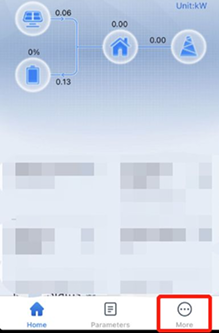 |
| **2c**. Click **Advanced Setting** (you can find the password in the **SolarGo manual**). |
|
| **2c**. Click **Advanced Setting** (you can find the password in the **SolarGo manual**). | 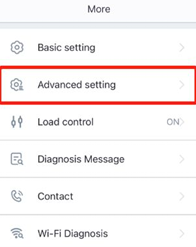 |
| **2d**. Select **Grid Parameter Setting**. |
|
| **2d**. Select **Grid Parameter Setting**. | 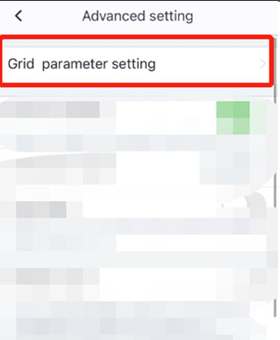 |
| **2e**. Turn off **Power Limit** (If it is on, power from the battery cannot be fed into the grid). |
|
| **2e**. Turn off **Power Limit** (If it is on, power from the battery cannot be fed into the grid). | 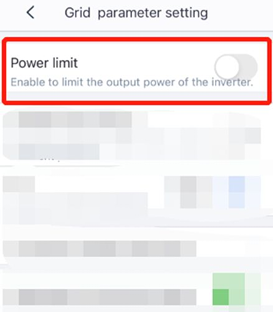 |
| **2f**. Go back and click **Cancel** (these settings will be saved anyway, no restart is needed). |
|
| **2f**. Go back and click **Cancel** (these settings will be saved anyway, no restart is needed). |  |
---
### 3: Battery Settings in SolarGo.
| Step | Image |
|------|-------|
| **3a**. Select **Battery Setting**. |
|
---
### 3: Battery Settings in SolarGo.
| Step | Image |
|------|-------|
| **3a**. Select **Battery Setting**. |  |
| **3b**. Turn off **SOC Protection**. |
|
| **3b**. Turn off **SOC Protection**. |  |
| **3c**. Go back and click **Cancel** (these settings will be saved anyway, no restart is needed). | |
## Wiring
If you have multiple GoodWe devices, you can change their addresses separately or connect them in a daisy chain. Follow the [wiring guidelines](/Controller/wiring-best-practices/#wiring).
# Gotion
import { BrandName, ControllerName } from '@site/src/components/customFields';
import DeviceSupportTable from '@site/src/components/DeviceSupportTable';
import RS485ConnectionTable from '@site/src/components/RS485ConnectionTable';
import RS485AddressNote from '@site/src/components/RS485AddressNote';
|
| **3c**. Go back and click **Cancel** (these settings will be saved anyway, no restart is needed). | |
## Wiring
If you have multiple GoodWe devices, you can change their addresses separately or connect them in a daisy chain. Follow the [wiring guidelines](/Controller/wiring-best-practices/#wiring).
# Gotion
import { BrandName, ControllerName } from '@site/src/components/customFields';
import DeviceSupportTable from '@site/src/components/DeviceSupportTable';
import RS485ConnectionTable from '@site/src/components/RS485ConnectionTable';
import RS485AddressNote from '@site/src/components/RS485AddressNote';
 # Gotion PCS Cabinets
## Supported Devices
## Wiring
The and the Gotion storage systems communicate via Ethernet or RS485.
### Ethernet
For correct ethernet wiring: Follow the [the guidelines for ethernet wiring](/Controller/wiring-best-practices/#ethernet).
### RS485
# Greener / Alfen
import DeviceSupportTable from '@site/src/components/DeviceSupportTable';
import ClickableImage from '@site/src/components/ClickableImage';
# Gotion PCS Cabinets
## Supported Devices
## Wiring
The and the Gotion storage systems communicate via Ethernet or RS485.
### Ethernet
For correct ethernet wiring: Follow the [the guidelines for ethernet wiring](/Controller/wiring-best-practices/#ethernet).
### RS485
# Greener / Alfen
import DeviceSupportTable from '@site/src/components/DeviceSupportTable';
import ClickableImage from '@site/src/components/ClickableImage';
 ## Supported devices
---
## Configuration steps
1. **API credentials**
- Retrieve the *API key* and *Battery ID* in the Greener portal.
- They are required by the driver’s “User Inputs”.
2. **Add the device**
- In *Integrations → Add device* choose **Greener API for Alfen Battery Control**.
- Enter the API key and Battery ID exactly as provided.
- Confirm → the container appears with SOC and power.
3. **Optional – setpoint control**
When *Smart-Grid Mode* is enabled the driver sends a constant-power
set-point (positive = charge, negative = discharge) to
`/control/batteries//command/set_constant_power_setpoint`.
---
## Metrics exposed
| Key | Description | Unit |
|------------------------|---------------------------------|------|
| `actualPowerTot_W` | Battery power (+ = discharge) | W |
| `stateOfCharge_frac` | State of Charge (0–1) | – |
| `importedEnergyDeltaTot_Wh` | Energy charged Δ | Wh |
| `exportedEnergyDeltaTot_Wh` | Energy discharged Δ | Wh |
---
## Troubleshooting
* **401 Unauthorized** – check the API key string (no spaces, full length).
* **404 on Battery ID** – verify the exact `GREENER_XXX` identifier.
* **Power not updating** – Greener API provides new datapoints every ~10 s;
ensure outbound HTTPS (443) traffic is allowed.
# Growatt MAX Series
import DeviceSupportTable from '@site/src/components/DeviceSupportTable';
# Growatt MAX Series
## Supported Devices
# Growatt
import { FolderOverview } from '@/components/FolderOverview';
# Growatt
# Growatt MIC Series
import { BrandName, ControllerName } from '@site/src/components/customFields';
import RS485ConnectionTable from '@site/src/components/RS485ConnectionTable';
import RS485AddressNote from '@site/src/components/RS485AddressNote';
import ClickableImage from '@site/src/components/ClickableImage';
import DeviceSupportTable from '@site/src/components/DeviceSupportTable';
## Supported devices
---
## Configuration steps
1. **API credentials**
- Retrieve the *API key* and *Battery ID* in the Greener portal.
- They are required by the driver’s “User Inputs”.
2. **Add the device**
- In *Integrations → Add device* choose **Greener API for Alfen Battery Control**.
- Enter the API key and Battery ID exactly as provided.
- Confirm → the container appears with SOC and power.
3. **Optional – setpoint control**
When *Smart-Grid Mode* is enabled the driver sends a constant-power
set-point (positive = charge, negative = discharge) to
`/control/batteries//command/set_constant_power_setpoint`.
---
## Metrics exposed
| Key | Description | Unit |
|------------------------|---------------------------------|------|
| `actualPowerTot_W` | Battery power (+ = discharge) | W |
| `stateOfCharge_frac` | State of Charge (0–1) | – |
| `importedEnergyDeltaTot_Wh` | Energy charged Δ | Wh |
| `exportedEnergyDeltaTot_Wh` | Energy discharged Δ | Wh |
---
## Troubleshooting
* **401 Unauthorized** – check the API key string (no spaces, full length).
* **404 on Battery ID** – verify the exact `GREENER_XXX` identifier.
* **Power not updating** – Greener API provides new datapoints every ~10 s;
ensure outbound HTTPS (443) traffic is allowed.
# Growatt MAX Series
import DeviceSupportTable from '@site/src/components/DeviceSupportTable';
# Growatt MAX Series
## Supported Devices
# Growatt
import { FolderOverview } from '@/components/FolderOverview';
# Growatt
# Growatt MIC Series
import { BrandName, ControllerName } from '@site/src/components/customFields';
import RS485ConnectionTable from '@site/src/components/RS485ConnectionTable';
import RS485AddressNote from '@site/src/components/RS485AddressNote';
import ClickableImage from '@site/src/components/ClickableImage';
import DeviceSupportTable from '@site/src/components/DeviceSupportTable';
 ## Supported Devices
## Wiring
### RS485
## Configuration
By default, the inverter is set to address 1. This can be changed via the settings menu of the inverter. This is only necessary if several devices are connected to the RS485 communication bus.
You can change the address of the inverter via the touch control. It works as follows:
| Touch control | Impact |
|:--:|:--:|
| Touch once | Change display or number + 1 |
| Touch twice | Enter or confirm |
| Touching three times | Previous menu |
| Keep touched for 5 seconds |
## Supported Devices
## Wiring
### RS485
## Configuration
By default, the inverter is set to address 1. This can be changed via the settings menu of the inverter. This is only necessary if several devices are connected to the RS485 communication bus.
You can change the address of the inverter via the touch control. It works as follows:
| Touch control | Impact |
|:--:|:--:|
| Touch once | Change display or number + 1 |
| Touch twice | Enter or confirm |
| Touching three times | Previous menu |
| Keep touched for 5 seconds | - Confirm country setting or number.
- Restore default value.
|
Change the address by going to the "Set Comaddr" menu as shown in the image to the left or above. Set the address to a unique value. See Chapter 7 of the inverter manual for more information.
# Growatt MID Series
import { BrandName, ControllerName } from '@site/src/components/customFields';
import RS485ConnectionTable from '@site/src/components/RS485ConnectionTable';
import RS485AddressNote from '@site/src/components/RS485AddressNote';
import ClickableImage from '@site/src/components/ClickableImage';
import DeviceSupportTable from '@site/src/components/DeviceSupportTable';
## Supported Devices
## Wiring
### RS485 - MID 11-30K-TL3-XH
# Growatt MIN Series
import { BrandName, ControllerName } from '@site/src/components/customFields';
import RS485ConnectionTable from '@site/src/components/RS485ConnectionTable';
import RS485AddressNote from '@site/src/components/RS485AddressNote';
import ClickableImage from '@site/src/components/ClickableImage';
import DeviceSupportTable from '@site/src/components/DeviceSupportTable';
## Supported Devices
## Wiring
### RS485 - MIN 2500-6000TL
### RS485 - MIN 7000-10000TL
# Growatt MOD Series
import { BrandName, ControllerName } from '@site/src/components/customFields';
import RS485ConnectionTable from '@site/src/components/RS485ConnectionTable';
import RS485AddressNote from '@site/src/components/RS485AddressNote';
import ClickableImage from '@site/src/components/ClickableImage';
import DeviceSupportTable from '@site/src/components/DeviceSupportTable';
## Supported Devices
## Wiring
### RS485 - MOD 3-10K-TL3-XH
### RS485 - MOD 3-15K-TL3-X
# Growatt SPA Series
import { BrandName, ControllerName } from '@site/src/components/customFields';
import RS485ConnectionTable from '@site/src/components/RS485ConnectionTable';
import RS485AddressNote from '@site/src/components/RS485AddressNote';
import ClickableImage from '@site/src/components/ClickableImage';
import DeviceSupportTable from '@site/src/components/DeviceSupportTable';
## Supported Devices
## Wiring
### RS485
# Growatt SPH Series
import { BrandName, ControllerName } from '@site/src/components/customFields';
import RS485ConnectionTable from '@site/src/components/RS485ConnectionTable';
import RS485AddressNote from '@site/src/components/RS485AddressNote';
import ClickableImage from '@site/src/components/ClickableImage';
import DeviceSupportTable from '@site/src/components/DeviceSupportTable';
## Supported Devices
> [!WARNING]
> Not all batteries are compatible with Growatt’s control systems. Before installation, confirm that your specific battery model is on the official Growatt compatibility list and that the inverter firmware supports the battery's communication requirements.
## Wiring
### RS485
# Growatt UE Series
import { BrandName, ControllerName } from '@site/src/components/customFields';
import RS485ConnectionTable from '@site/src/components/RS485ConnectionTable';
import RS485AddressNote from '@site/src/components/RS485AddressNote';
import ClickableImage from '@site/src/components/ClickableImage';
import DeviceSupportTable from '@site/src/components/DeviceSupportTable';
## Supported Devices
> [!NOTE]
> The **UE Series** supports both RS485 (Serial) and Modbus TCP (via Ethernet dongle). Ensure you select the correct connection mode in the controller.
## Wiring
### RS485 (10000 - 20000 UE)
The 10000-20000 UE series uses a specialized **circular waterproof connector** for RS485 communication. You must disassemble this connector to wire it.
**Pin Definition:**
Inside the circular connector, the pins are numbered 1 and 2.
*Note: Consult the manual if your model uses a different connector type.*
### RS485 (4000 - 6000 UE)
For the smaller UE models, the connection is typically via the terminal block or DB9 port. Please verify with the specific manual linked above.
## Configuration
To change the Modbus address on the Growatt UE LCD display:
1. Double tap the front button/screen to enter the menu.
2. Navigate to **Settings** -> **Set COM Address**.
3. Select **Set Manual**.
4. Single tap to increment the number.
5. Double tap to confirm ("Set Addr OK!").
# Growatt WIT Series
import { BrandName, ControllerName } from '@site/src/components/customFields';
import RS485ConnectionTable from '@site/src/components/RS485ConnectionTable';
import RS485AddressNote from '@site/src/components/RS485AddressNote';
import ClickableImage from '@site/src/components/ClickableImage';
import DeviceSupportTable from '@site/src/components/DeviceSupportTable';
## Supported Devices
## Wiring
### RS485 - MID 100K-TL3-H
# Hite
import { BrandName, ControllerName } from '@site/src/components/customFields';
import ClickableImage from '@site/src/components/ClickableImage';
import RS485ConnectionTable from '@site/src/components/RS485ConnectionTable';
import RS485AddressNote from '@site/src/components/RS485AddressNote';
import DeviceSupportTable from '@site/src/components/DeviceSupportTable';
 ## Supported Devices
## Wiring
### TCP
For correct ethernet wiring: Follow the [the guidelines for ethernet wiring](/Controller/wiring-best-practices/#ethernet).
## Configuration
Please consult the manual of the device to enable Modbus TCP.
# Hithium
import { BrandName, ControllerName } from '@site/src/components/customFields';
import ClickableImage from '@site/src/components/ClickableImage';
import DeviceSupportTable from '@site/src/components/DeviceSupportTable';
## Supported Devices
## Wiring
### TCP
For correct ethernet wiring: Follow the [the guidelines for ethernet wiring](/Controller/wiring-best-practices/#ethernet).
## Configuration
Please consult the manual of the device to enable Modbus TCP.
# Hithium
import { BrandName, ControllerName } from '@site/src/components/customFields';
import ClickableImage from '@site/src/components/ClickableImage';
import DeviceSupportTable from '@site/src/components/DeviceSupportTable';
 ## Supported Devices
## Wiring
### Ethernet
For correct ethernet wiring: Follow the [the guidelines for ethernet wiring](/Controller/wiring-best-practices/#ethernet).
# Hoymiles
import { BrandName, ControllerName } from '@site/src/components/customFields';
import DeviceSupportTable from '@site/src/components/DeviceSupportTable';
## Supported Devices
## Wiring
### Ethernet
For correct ethernet wiring: Follow the [the guidelines for ethernet wiring](/Controller/wiring-best-practices/#ethernet).
# Hoymiles
import { BrandName, ControllerName } from '@site/src/components/customFields';
import DeviceSupportTable from '@site/src/components/DeviceSupportTable';
 # Hoymiles
The integrates with two Hoymiles product families: the **DTU-Pro / Pro-S**
microinverter gateway and the **HoyUltra** energy storage systems (ESS).
## Supported Devices
## DTU-Pro / Pro-S (Microinverters)
The DTU-Pro/Pro-S is a gateway that collects production data from the connected microinverters and forwards
power-limit commands to all of them. Each microinverter port is read individually (voltage, current, power,
energy and temperature), while curtailment is applied to the system as a whole.
> [!NOTE]
> Curtailment is applied as a single active-power limit (in %) to **all** microinverters connected to the
> DTU simultaneously. Individual microinverters cannot be curtailed separately. The limit is clamped to a
> minimum of 2% for third-generation inverters; a setpoint of 0% switches all microinverters off.
### Ethernet Connection (Modbus TCP)
Make sure that the and the DTU are connected to the same network, and that the DTU has
Modbus TCP enabled (default port `502`).
For correct ethernet wiring, follow the [guidelines for ethernet wiring](/Controller/wiring-best-practices/#ethernet).
### RS485 Connection
For RS485 wiring, follow the [guidelines for RS485 wiring](/Controller/wiring-best-practices/#rs485).
Use the following serial settings:
| Setting | Value |
| --------- | ----- |
| Baud rate | 9600 |
| Data bits | 8 |
| Parity | None |
| Stop bits | 1 |
## HoyUltra (Energy Storage)
The HoyUltra ESS consists of a Power Conversion System (PCS/EMS) and one or more battery units. The
reads system- and unit-level state of charge, state of health, power and energy, and
controls the system through an active-power setpoint.
### Ethernet Connection (Modbus TCP)
HoyUltra systems are controlled exclusively over Modbus TCP (default port `502`). Make sure the
and the HoyUltra EMS are on the same network.
For correct ethernet wiring, follow the [guidelines for ethernet wiring](/Controller/wiring-best-practices/#ethernet).
> [!IMPORTANT]
> Before commissioning, you **must contact Hoymiles ([support@hoymiles.com](mailto:support@hoymiles.com))
> to set the EMS Modbus communication timeout to 30 seconds.** If this timeout is not configured correctly,
> the EMS will repeatedly drop the connection and the will report communication errors and
> lose control of the system.
# Huawei
import { BrandName, ControllerName } from '@site/src/components/customFields';
import RS485ConnectionTable from '@site/src/components/RS485ConnectionTable';
import RS485AddressNote from '@site/src/components/RS485AddressNote';
import ClickableImage from '@site/src/components/ClickableImage';
import DeviceSupportTable from '@site/src/components/DeviceSupportTable';
# Huawei
The supports Huawei **SUN2000** inverters, **LUNA 2000**
batteries and the **SmartLogger 3000**. The controller auto-detects whether a SmartLogger is
present, so in most cases it just works. The installer should prepare the Huawei
side and then run the search wizard on the SmartLogger IP address. If no Smartlogger is placed,
run the wizard on each inverter's IP address.
This guide walks you through it:
1. [Identify your setup](#1-identify-your-setup) — SmartLogger or direct
2. [Wiring](#2-wiring)
3. [Configure the Huawei equipment](#3-configure-the-huawei-equipment)
4. [Add the system in the controller](#4-add-the-system-in-the-controller)
## Supported devices
The **SmartLogger 1000a** is on the roadmap but not yet supported. Practically all SUN2000
inverters with a communication interface are supported (including the SUN2000L residential
range) — not every interface is present on every inverter, so check yours.
# Hoymiles
The integrates with two Hoymiles product families: the **DTU-Pro / Pro-S**
microinverter gateway and the **HoyUltra** energy storage systems (ESS).
## Supported Devices
## DTU-Pro / Pro-S (Microinverters)
The DTU-Pro/Pro-S is a gateway that collects production data from the connected microinverters and forwards
power-limit commands to all of them. Each microinverter port is read individually (voltage, current, power,
energy and temperature), while curtailment is applied to the system as a whole.
> [!NOTE]
> Curtailment is applied as a single active-power limit (in %) to **all** microinverters connected to the
> DTU simultaneously. Individual microinverters cannot be curtailed separately. The limit is clamped to a
> minimum of 2% for third-generation inverters; a setpoint of 0% switches all microinverters off.
### Ethernet Connection (Modbus TCP)
Make sure that the and the DTU are connected to the same network, and that the DTU has
Modbus TCP enabled (default port `502`).
For correct ethernet wiring, follow the [guidelines for ethernet wiring](/Controller/wiring-best-practices/#ethernet).
### RS485 Connection
For RS485 wiring, follow the [guidelines for RS485 wiring](/Controller/wiring-best-practices/#rs485).
Use the following serial settings:
| Setting | Value |
| --------- | ----- |
| Baud rate | 9600 |
| Data bits | 8 |
| Parity | None |
| Stop bits | 1 |
## HoyUltra (Energy Storage)
The HoyUltra ESS consists of a Power Conversion System (PCS/EMS) and one or more battery units. The
reads system- and unit-level state of charge, state of health, power and energy, and
controls the system through an active-power setpoint.
### Ethernet Connection (Modbus TCP)
HoyUltra systems are controlled exclusively over Modbus TCP (default port `502`). Make sure the
and the HoyUltra EMS are on the same network.
For correct ethernet wiring, follow the [guidelines for ethernet wiring](/Controller/wiring-best-practices/#ethernet).
> [!IMPORTANT]
> Before commissioning, you **must contact Hoymiles ([support@hoymiles.com](mailto:support@hoymiles.com))
> to set the EMS Modbus communication timeout to 30 seconds.** If this timeout is not configured correctly,
> the EMS will repeatedly drop the connection and the will report communication errors and
> lose control of the system.
# Huawei
import { BrandName, ControllerName } from '@site/src/components/customFields';
import RS485ConnectionTable from '@site/src/components/RS485ConnectionTable';
import RS485AddressNote from '@site/src/components/RS485AddressNote';
import ClickableImage from '@site/src/components/ClickableImage';
import DeviceSupportTable from '@site/src/components/DeviceSupportTable';
# Huawei
The supports Huawei **SUN2000** inverters, **LUNA 2000**
batteries and the **SmartLogger 3000**. The controller auto-detects whether a SmartLogger is
present, so in most cases it just works. The installer should prepare the Huawei
side and then run the search wizard on the SmartLogger IP address. If no Smartlogger is placed,
run the wizard on each inverter's IP address.
This guide walks you through it:
1. [Identify your setup](#1-identify-your-setup) — SmartLogger or direct
2. [Wiring](#2-wiring)
3. [Configure the Huawei equipment](#3-configure-the-huawei-equipment)
4. [Add the system in the controller](#4-add-the-system-in-the-controller)
## Supported devices
The **SmartLogger 1000a** is on the roadmap but not yet supported. Practically all SUN2000
inverters with a communication interface are supported (including the SUN2000L residential
range) — not every interface is present on every inverter, so check yours.
Show all supported SUN2000 models
- SUN2000-100KTL-H0
- SUN2000-100KTL-H1
- SUN2000-100KTL-H2
- SUN2000-100KTL-INM0
- SUN2000-100KTL-M0
- SUN2000-100KTL-M1
- SUN2000-100KTL-USH0
- SUN2000-105KTL-H1
- SUN2000-10KTL
- SUN2000-10KTL-M0
- SUN2000-10KTL-M1
- SUN2000-10KTL-M2
- SUN2000-10KTL-USL0
- SUN2000-11.4KTL-USL0
- SUN2000-110KTL-M0
- SUN2000-125KTL-JPH0
- SUN2000-125KTL-M0
- SUN2000-12KTL
- SUN2000-12KTL-M0
- SUN2000-12KTL-M1
- SUN2000-12KTL-M2
- SUN2000-15KTL
- SUN2000-15KTL-M0
- SUN2000-15KTL-M2
- SUN2000-15KTL-M3
- SUN2000-168KTL-H1
- SUN2000-175KTL-H0
- SUN2000-17KTL
- SUN2000-17KTL-M0
- SUN2000-17KTL-M2
- SUN2000-17KTL-M3
- SUN2000-185KTL-H1
- SUN2000-185KTL-INH0
- SUN2000-193KTL-H0
- SUN2000-196KTL-H0
- SUN2000-196KTL-H1
- SUN2000-196KTL-H3
- SUN2000-200KTL-H2
- SUN2000-20KTL
- SUN2000-20KTL-M0
- SUN2000-20KTL-M2
- SUN2000-20KTL-M3
- SUN2000-215KTL-H0
- SUN2000-22KTL-US
- SUN2000-23KTL
- SUN2000-23KTL-M3
- SUN2000-24.5KTL
- SUN2000-24.5KTL-M3
- SUN2000-24.7KTL-JP
- SUN2000-25KTL-NAM3
- SUN2000-25KTL-US
- SUN2000-28KTL
- SUN2000-28KTL-M3
- SUN2000-29.9KTL
- SUN2000-29.9KTL-M3
- SUN2000-2KTL-L0
- SUN2000-2KTL-L1
- SUN2000-3.68KTL-L10
- SUN2000-3.8KTL-USL0
- SUN2000-30KTL-A
- SUN2000-30KTL-M3
- SUN2000-30KTL-NAM3
- SUN2000-30KTL-US
- SUN2000-33KTL
- SUN2000-33KTL-A
- SUN2000-33KTL-E001
- SUN2000-33KTL-JP
- SUN2000-33KTL-NAM3
- SUN2000-33KTL-NHM3
- SUN2000-33KTL-US
- SUN2000-36KTL
- SUN2000-36KTL-M3
- SUN2000-36KTL-NAM3
- SUN2000-36KTL-US
- SUN2000-3KTL-CNL0
- SUN2000-3KTL-L0
- SUN2000-3KTL-L1
- SUN2000-3KTL-M0
- SUN2000-3KTL-M1
- SUN2000-4.6KTL-L1
- SUN2000-4.95KTL-JPL0
- SUN2000-4.95KTL-JPL1
- SUN2000-40KTL
- SUN2000-40KTL-JP
- SUN2000-40KTL-M3
- SUN2000-40KTL-NAM3
- SUN2000-40KTL-NHM3
- SUN2000-40KTL-US
- SUN2000-42KTL
- SUN2000-42KTL-M3
- SUN2000-43KTL-IN-C1
- SUN2000-43KTL-INM3
- SUN2000-44KTL-M3
- SUN2000-45KTL-US-HV-D0
- SUN2000-4KTL-CNL0
- SUN2000-4KTL-L0
- SUN2000-4KTL-L1
- SUN2000-4KTL-M0
- SUN2000-4KTL-M1
- SUN2000-50KTL
- SUN2000-50KTL-C1
- SUN2000-50KTL-JPM0
- SUN2000-50KTL-JPM1
- SUN2000-50KTL-M0
- SUN2000-50KTL-M3
- SUN2000-55KTL-HV-D1
- SUN2000-55KTL-HV-D1-001
- SUN2000-55KTL-IN-HV-D1
- SUN2000-5KTL-CNL0
- SUN2000-5KTL-L0
- SUN2000-5KTL-L1
- SUN2000-5KTL-M0
- SUN2000-5KTL-M1
- SUN2000-5KTL-USL0
- SUN2000-60KTL-HV-D1
- SUN2000-60KTL-HV-D1-001
- SUN2000-60KTL-M0
- SUN2000-63KTL-JPH0
- SUN2000-63KTL-JPM0
- SUN2000-65KTL-M0
- SUN2000-6KTL-CNL0
- SUN2000-6KTL-L1
- SUN2000-6KTL-M0
- SUN2000-6KTL-M1
- SUN2000-7.6KTL-USL0
- SUN2000-70KTL-C1
- SUN2000-70KTL-INM0
- SUN2000-75KTL-C1
- SUN2000-8KTL
- SUN2000-8KTL-M0
- SUN2000-8KTL-M1
- SUN2000-8KTL-M2
- SUN2000-90KTL-H0
- SUN2000-90KTL-H1
- SUN2000-90KTL-H2
- SUN2000-95KTL-INH0
- SUN2000-95KTL-INH1
- SUN2000-9KTL-USL0
- SUN2000L-2KTL
- SUN2000L-3.68KTL
- SUN2000L-3KTL
- SUN2000L-3KTL-CN
- SUN2000L-3KTL-CN-4G
- SUN2000L-4.125KTL-JP
- SUN2000L-4.6KTL
- SUN2000L-4.95KTL-JP
- SUN2000L-4KTL
- SUN2000L-4KTL-CN
- SUN2000L-4KTL-CN-4G
- SUN2000L-5KTL
- SUN2000L-5KTL-CN
- SUN2000L-5KTL-CN-4G
- SUN8000-500KTL
## 1. Identify your setup
The controller scans for a SmartLogger when it connects and
adapts automatically. What you *do* need to know is **which IP address to run the search wizard
on**, because that differs per setup:
| If the site has… | Run the search wizard on… | The inverters are then… |
|:--|:--|:--|
| **A SmartLogger 3000** | the **SmartLogger's IP address** (one search) | automatically added via the SmartLogger; all curtailment and/or battery control goes through the SmartLogger. |
| **No SmartLogger** | **each inverter's IP address** (one search per inverter) | controlled **directly** |
> [!IMPORTANT]
> If the site has a SmartLogger, add the system **only on the SmartLogger's IP address**. The
> SmartLogger already exposes every inverter and meter connected to it, so they are all found in
> one go. **Do not add the inverters one by one on their individual IP addresses** — this is the
> most common setup mistake.
Routing all control through the SmartLogger (instead of the individual inverters) is intentional:
it prevents two systems from controlling the same inverters. **You still get the measurements of
every inverter individually** — "monitoring-only" means control is centralised through the
SmartLogger, not that any data is lost. This works over both Ethernet (Modbus-TCP) and RS485.
### SmartLogger with both a battery and solar inverters
> [!WARNING]
> If a battery **and** solar inverters are both connected to the SmartLogger for control, remove
> the solar inverters from the SmartLogger and add them directly to the .
> The SmartLogger can become unstable when it is commanded to control both the battery and the
> solar inverters.
On such a site, the SmartLogger controls only the battery:
1. Remove the solar inverters from the SmartLogger. Leave the battery, and the inverter it sits
behind, on the SmartLogger.
2. Prepare each solar inverter for a direct connection, as described in
[Without a SmartLogger](#without-a-smartlogger-direct-to-each-inverter).
3. Run the search wizard on the **SmartLogger's IP address** and choose **Only battery**.
4. Run the search wizard on **each solar inverter's IP address** and choose **Only solar**.
## 2. Wiring
**Ethernet** — follow the [guidelines for ethernet wiring](/Controller/wiring-best-practices/#ethernet).
RS485 wiring (only when using RS485 on SUN2000 / LUNA 2000!)
## 3. Configure the Huawei equipment
We recommend doing a **factory reset of the inverter** before adding it — this gives a clean
initial connection and avoids many issues. Then follow the section that matches your setup.
### With a SmartLogger 3000
The SmartLogger reads and controls all of the energy meters, inverters and batteries connected
to it. Configure it in its web interface (browse to its IP address, default password "Changeme").
#### a. Enable Modbus
1. Change "Link setting" to **Enable (Unlimited)**.
2. Set "Address mode" to **Communication address**.
3. Choose the Modbus address of the logger — make it **different** from the inverter addresses (see the next step).
4. Click submit.
#### b. Give every device a unique Modbus address
The SmartLogger connects inverters and meters across 3 COM ports. **Every Modbus address must be
unique.** It is easiest to first set non-overlapping address ranges per COM port, then re-add any
clashing devices with a free address.
#### c. Enable remote communication scheduling
This is **required for curtailment / power limiting**. Without it the controller and SmartLogger
report no errors, but the inverters keep producing at full power.
Go to Settings > Power Adjustment > Active Power Control and configure exactly like in the screenshot.
- Active power control mode: Remote communication scheduling
- Schedule strategy: Strategy 1
- Adjustment coefficient: 1.000
- Time for communication exception detection: 300
- Automatic startup upon communication recovery: Enable
#### d. Enable remote power scheduling on every inverter
This is **required for curtailment / power limiting**. Without it the controller and SmartLogger
report no errors, but the inverters keep producing at full power. Do this for **every** inverter:
1. Select an inverter in the device tree on the left (e.g. `Inverter(COM2-11)`).
2. Go to **Monitoring → Running Param. → Power Adjustment**.
3. Set **Remote power schedule** to **Enable** and click **Submit**.
4. Repeat for every inverter in the tree (`COM2-11`, `COM2-12`, …).
### Without a SmartLogger (direct to each inverter)
Configure each inverter from the **FusionSolar app**.
#### a. Install the FusionSolar app
| Smartphone OS | Installation instructions |
|:--|:--|
| iOS | Search the App Store for FusionSolar and download the app. |
| Android | [Download the app here](https://intl.fusionsolar.huawei.com/fusionsolarapp). |
| Huawei Phone | Search FusionSolar in the Huawei App Gallery. |
#### b. Connect to the inverter
Make sure the AC or DC side of the inverter is powered, then connect your phone to it. Pick the
method that suits the inverter:
- **WLAN** — plug the WLAN module into the USB port at the bottom of the inverter, enable WLAN/Bluetooth on your phone, and stay within 5 m.
- **Bluetooth** — open the app, tap connect, then scan the QR/bar code or select Bluetooth → "Search for Device". With USB Adapter2000-B the device name is "last 8 characters of the serial number + HWAPP".
- **USB** — connect the inverter's USB port to your phone (the screen shows 'Connected to USB Accessory'), open the app, tap connect, select USB and allow access.
#### c. Enable Modbus-TCP
1. On the home page, go to **Settings → Communication configuration**.
2. Open **Dongle parameter settings**.
3. Select **Modbus-TCP** and set Connection to **Enable (unrestricted)**. If there is no Modbus-TCP option, [the inverter must be updated](https://support.huawei.com/enterprise/en/fusionsolar/sun2000l-pid-22027611?category=installation-upgrade).
4. Still in Dongle parameter settings, change the **starting address for automatic address allocation** to any other value — the connection only activates once this has changed. (This is not the Modbus address the controller talks to, just a starting value.)
#### d. Enable remote power control
Required for curtailment: on the home page go to **Power adjustment → Grid-tied point control →
Active power**, and set the Control mode to **Remote output control**.
### LUNA 2000 battery
The LUNA 2000 needs no separate connection steps — it is read and controlled through the inverter
or SmartLogger it sits behind. Just choose **Both solar and battery** or **Only battery** in the
wizard (next step) so the controller adds it.
## 4. Add the system in the controller
Run the search wizard on the [correct IP address](#1-identify-your-setup) — the **SmartLogger's
IP** if there is one, otherwise **each inverter's IP**. During the wizard you choose whether an
**energy meter** is connected (so the controller can read grid data) and **what is connected to
the inverter** (solar, battery, or both). That's it — the controller discovers and adds the rest.
If a battery and solar inverters are both connected to the SmartLogger, follow
[SmartLogger with both a battery and solar inverters](#smartlogger-with-both-a-battery-and-solar-inverters)
instead.
## Advanced: curtailing a subset of inverters (bypass mode)
By default, when a SmartLogger is present, **all** curtailment goes through the SmartLogger's own
aggregate registers — the SmartLogger is the only system writing to the inverters, and the
controller sends it one fleet-wide power limit. This is the normal, recommended setup, and the
reason all control is routed through the SmartLogger in the first place (see
[step 1](#1-identify-your-setup)).
Some counterparties we integrate with (for example **Yuso Solar**) require the ability to curtail
or shut off a **subset** of inverters rather than the whole installation. The SmartLogger's
aggregate registers cannot do this — they only expose one plant-wide percentage/setpoint, with no
way to target or exclude individual inverters. For this specific requirement only, the SmartLogger
device has a manual action, **"Enable/Disable the smartlogger bypass"**, that writes curtailment
setpoints directly to each inverter's own register instead of through the SmartLogger. Once
enabled, every SUN2000 inverter behind the SmartLogger becomes independently controllable — you'll
find a separate manual test entry for each inverter instead of one for "PV of all SUN2000s
combined".
> [!WARNING]
> Only enable this if a subset of inverters genuinely needs to be curtailed independently. In every
> other case, leave it disabled and let the SmartLogger do the controlling.
>
> Enabling bypass mode on the controller is **not enough by itself**. As long as the SmartLogger's
> own active power control is still active, it keeps writing its own setpoint to every inverter on
> its own schedule too — with two systems writing to the same inverter, whichever writes most
> recently wins, causing brief production spikes. **Step b below (setting the SmartLogger's own
> Active power control mode to "No limit") is what stops the SmartLogger from doing this — both
> steps are required together, step a alone is not enough.**
**Do not continue with the steps below unless you can confirm all of the following:**
- You understand *why* bypass mode is needed for this specific installation (a counterparty
requires curtailing/shutting off a subset of inverters — this is not a general-purpose
curtailment mode, and enabling it "just in case" or to work around an unrelated issue is wrong).
- You will complete **both** steps below (a and b) — enabling bypass without also setting the
SmartLogger to "No limit" causes the production spikes described above.
- You have explained this to the customer/installer responsible for the site.
If you cannot confirm all three, stop here and use the SmartLogger's normal aggregate control
instead.
### a. Enable bypass mode on the controller
1. On the SmartLogger's device row, click **Other actions**.
2. Select **"Enable/Disable the smartlogger bypass"** and click **Execute action**.
3. Confirm it worked: open **Test / manual override** for the SmartLogger. You should now see one
entry per SUN2000 inverter (each with its own maximum production power field), instead of a
single "PV of all SUN2000s combined" entry.
### b. Set the SmartLogger's own active power control to "No limit"
This step is required, not optional — see the warning above. It stops the SmartLogger from also
writing its own setpoint to the inverters, which is what causes the production spikes when only
step a has been done.
In the SmartLogger's own web interface (**Settings → Power Adjustment → Active Power Control**),
set **Active power control mode** to **No limit** and submit.
> [!IMPORTANT]
> Only change this SmartLogger setting when **all** of the following are true: you use a
> SmartLogger, you need inverter-individual curtailment, and you have already enabled the
> smartlogger bypass setting in the controller (step a above). Changing it in any other situation
> disables curtailment for this SmartLogger entirely.
## Troubleshooting
**Curtailment / power limiting has no effect.**
The inverters are almost certainly missing the remote-scheduling setting. Re-check that
**Remote power schedule** is enabled on *every* inverter (SmartLogger setup,
[step 3d](#d-enable-remote-power-scheduling-on-every-inverter)) — the controller will report no
error even when this is the cause.
**Devices won't connect, values can't be read, or the SmartLogger reports 0 power.**
First, update firmware. In **FusionSolar**, check for and install updates for **both** the Huawei
software (SmartLogger / dongle) **and** each inverter, keeping them on matching versions —
outdated or mismatched firmware is a common cause of missing registers, unreadable values and
ignored commands. If the SmartLogger still reports 0 power after enabling Modbus, contact Huawei.
# Hypontech
import { BrandName, ControllerName } from '@site/src/components/customFields';
import RS485ConnectionTable from '@site/src/components/RS485ConnectionTable';
import RS485AddressNote from '@site/src/components/RS485AddressNote';
import ClickableImage from '@site/src/components/ClickableImage';
import DeviceSupportTable from '@site/src/components/DeviceSupportTable';
 # Hypontech Inverters
## Supported Devices
> [!NOTE]
> This integration has not been tested with all the devices listed above, however, since they all use the same communication protocol, they should work without issues.
## Wiring
The and the Hypontech inverters communicate via RS485.
### RS485
# All In One ESS
import { BrandName, ControllerName } from '@site/src/components/customFields';
import RS485ConnectionTable from '@site/src/components/RS485ConnectionTable';
import RS485AddressNote from '@site/src/components/RS485AddressNote';
import ClickableImage from '@site/src/components/ClickableImage';
import DeviceSupportTable from '@site/src/components/DeviceSupportTable';
# Hypontech Inverters
## Supported Devices
> [!NOTE]
> This integration has not been tested with all the devices listed above, however, since they all use the same communication protocol, they should work without issues.
## Wiring
The and the Hypontech inverters communicate via RS485.
### RS485
# All In One ESS
import { BrandName, ControllerName } from '@site/src/components/customFields';
import RS485ConnectionTable from '@site/src/components/RS485ConnectionTable';
import RS485AddressNote from '@site/src/components/RS485AddressNote';
import ClickableImage from '@site/src/components/ClickableImage';
import DeviceSupportTable from '@site/src/components/DeviceSupportTable';
 ## Supported Devices
## Wiring
### RS485
For RS485 Wiring, use the COM port (N° 5) on the inverter.
# Hybrid Inverters
import { BrandName, ControllerName } from '@site/src/components/customFields';
import RS485ConnectionTable from '@site/src/components/RS485ConnectionTable';
import RS485AddressNote from '@site/src/components/RS485AddressNote';
import ClickableImage from '@site/src/components/ClickableImage';
import DeviceSupportTable from '@site/src/components/DeviceSupportTable';
## Supported Devices
## Wiring
### RS485
For RS485 Wiring, use the Reserved Communication port (N° 14) on the inverter.
# Hyxipower
import { FolderOverview } from '@/components/FolderOverview';
# Hyxipower
# Pv Hybrid And Battery Inverters
import { FolderOverview } from '@/components/FolderOverview';
# Pv Hybrid And Battery Inverters
# iWell
import { BrandName, ControllerName } from '@site/src/components/customFields';
import DeviceSupportTable from '@site/src/components/DeviceSupportTable';
import RS485ConnectionTable from '@site/src/components/RS485ConnectionTable';
import ClickableImage from '@site/src/components/ClickableImage';
## Supported Devices
## Wiring
### RS485
For RS485 Wiring, use the COM port (N° 5) on the inverter.
# Hybrid Inverters
import { BrandName, ControllerName } from '@site/src/components/customFields';
import RS485ConnectionTable from '@site/src/components/RS485ConnectionTable';
import RS485AddressNote from '@site/src/components/RS485AddressNote';
import ClickableImage from '@site/src/components/ClickableImage';
import DeviceSupportTable from '@site/src/components/DeviceSupportTable';
## Supported Devices
## Wiring
### RS485
For RS485 Wiring, use the Reserved Communication port (N° 14) on the inverter.
# Hyxipower
import { FolderOverview } from '@/components/FolderOverview';
# Hyxipower
# Pv Hybrid And Battery Inverters
import { FolderOverview } from '@/components/FolderOverview';
# Pv Hybrid And Battery Inverters
# iWell
import { BrandName, ControllerName } from '@site/src/components/customFields';
import DeviceSupportTable from '@site/src/components/DeviceSupportTable';
import RS485ConnectionTable from '@site/src/components/RS485ConnectionTable';
import ClickableImage from '@site/src/components/ClickableImage';
 # iWell Cube Battery
## Supported Devices
---
## Wiring
The communicates with the iWell Cube battery system using **Modbus TCP (Ethernet)**.
Connect the Ethernet (LAN) port of the battery system to the same network as the .
> [!TIP]
> Ensure both the and the iWell Cube battery are in the **same IP subnet**
> (e.g. 192.168.1.xxx) and can communicate over port **1025**.
> [!WARNING]
> The iWell Cube Modbus TCP interface is active only when the battery system is powered on and initialized.
> Do **not** connect to inactive units or during firmware updates.
---
# Jinko
import { BrandName, ControllerName } from '@site/src/components/customFields';
import RS485ConnectionTable from '@site/src/components/RS485ConnectionTable';
import DeviceSupportTable from '@site/src/components/DeviceSupportTable';
# iWell Cube Battery
## Supported Devices
---
## Wiring
The communicates with the iWell Cube battery system using **Modbus TCP (Ethernet)**.
Connect the Ethernet (LAN) port of the battery system to the same network as the .
> [!TIP]
> Ensure both the and the iWell Cube battery are in the **same IP subnet**
> (e.g. 192.168.1.xxx) and can communicate over port **1025**.
> [!WARNING]
> The iWell Cube Modbus TCP interface is active only when the battery system is powered on and initialized.
> Do **not** connect to inactive units or during firmware updates.
---
# Jinko
import { BrandName, ControllerName } from '@site/src/components/customFields';
import RS485ConnectionTable from '@site/src/components/RS485ConnectionTable';
import DeviceSupportTable from '@site/src/components/DeviceSupportTable';
 ## Supported Devices
## Configuration
### 1: Connecting the LAN (Ethernet) to the Inverter
**1a**. Connect the **LAN (Ethernet cable)** to the **RJ45 port** on the Jinko SunGiga.
### 2: Jinko SunGiga Configuration
| Steps |
|------|
| **2a**. Open the Jinko SunGiga web interface by entering the IP address of the system in a web browser. |
| **2b**. Make sure **High priority local control** and **Enable total active power setting** are configured as **Close**:
## Supported Devices
## Configuration
### 1: Connecting the LAN (Ethernet) to the Inverter
**1a**. Connect the **LAN (Ethernet cable)** to the **RJ45 port** on the Jinko SunGiga.
### 2: Jinko SunGiga Configuration
| Steps |
|------|
| **2a**. Open the Jinko SunGiga web interface by entering the IP address of the system in a web browser. |
| **2b**. Make sure **High priority local control** and **Enable total active power setting** are configured as **Close**:  |
| **2c**. Make sure **Remote/Local** is configured as **Remote**:
|
| **2c**. Make sure **Remote/Local** is configured as **Remote**:  |
# Kaco
import { BrandName, ControllerName } from '@site/src/components/customFields';
import RS485ConnectionTable from '@site/src/components/RS485ConnectionTable';
import RS485AddressNote from '@site/src/components/RS485AddressNote';
import ClickableImage from '@site/src/components/ClickableImage';
import DeviceSupportTable from '@site/src/components/DeviceSupportTable';
|
# Kaco
import { BrandName, ControllerName } from '@site/src/components/customFields';
import RS485ConnectionTable from '@site/src/components/RS485ConnectionTable';
import RS485AddressNote from '@site/src/components/RS485AddressNote';
import ClickableImage from '@site/src/components/ClickableImage';
import DeviceSupportTable from '@site/src/components/DeviceSupportTable';
 # KACO Inverters
## Supported Devices
> [!WARNING]
> Curtailment of the blueplanet TL3 87.0 / 92.0 / 105.0 inverters is only possible with software version V03-59-REL-03aaf518 or newer.
> You can check the software version of the inverter under the "info" tab.
>
>
## Wiring
The and the Kaco inverters communicate via Ethernet.
### Ethernet
For correct ethernet wiring: Follow the [the guidelines for ethernet wiring](/Controller/wiring-best-practices/#ethernet).
## Configuration
### blueplanet 50.0 / 60.0 TL3
Modbus Write access must be enabled in the settings of the inverter:
1. Log in to the interface of the inverter on the local Network
2. Go to Interfaces and Network Services
3. Enable the "Modbus TCP Write access" setting
### blueplanet 92.0 / 105.0 TL3
Modbus Write access must be enabled in the settings of the inverter:
1. Log in to the interface of the inverter on the local Network
2. Go to Interfaces and then Network Services
3. Enable both the "Modbus TCP/UDP Read access" and "Modbus TCP/UDP Write access" settings
# Kehua
import { BrandName, ControllerName } from '@site/src/components/customFields';
import RS485ConnectionTable from '@site/src/components/RS485ConnectionTable';
import DeviceSupportTable from '@site/src/components/DeviceSupportTable';
import RS485AddressNote from '@site/src/components/RS485AddressNote';
import ClickableImage from '@site/src/components/ClickableImage';
# KACO Inverters
## Supported Devices
> [!WARNING]
> Curtailment of the blueplanet TL3 87.0 / 92.0 / 105.0 inverters is only possible with software version V03-59-REL-03aaf518 or newer.
> You can check the software version of the inverter under the "info" tab.
>
>
## Wiring
The and the Kaco inverters communicate via Ethernet.
### Ethernet
For correct ethernet wiring: Follow the [the guidelines for ethernet wiring](/Controller/wiring-best-practices/#ethernet).
## Configuration
### blueplanet 50.0 / 60.0 TL3
Modbus Write access must be enabled in the settings of the inverter:
1. Log in to the interface of the inverter on the local Network
2. Go to Interfaces and Network Services
3. Enable the "Modbus TCP Write access" setting
### blueplanet 92.0 / 105.0 TL3
Modbus Write access must be enabled in the settings of the inverter:
1. Log in to the interface of the inverter on the local Network
2. Go to Interfaces and then Network Services
3. Enable both the "Modbus TCP/UDP Read access" and "Modbus TCP/UDP Write access" settings
# Kehua
import { BrandName, ControllerName } from '@site/src/components/customFields';
import RS485ConnectionTable from '@site/src/components/RS485ConnectionTable';
import DeviceSupportTable from '@site/src/components/DeviceSupportTable';
import RS485AddressNote from '@site/src/components/RS485AddressNote';
import ClickableImage from '@site/src/components/ClickableImage';
 # Kehua
## Supported Devices
## Wiring
For correct ethernet wiring: Follow the [the guidelines for ethernet wiring](/Controller/wiring-best-practices/#ethernet).
# RS485
## PCS models (BCS1725K-B-HUD, NXPCS, BCS200K-B-HM)
To establish communication between the PCS and , use the RS485 interface available on the external wiring terminal bar, as shown below. This terminal provides dedicated ports for RS485 communication, which is used for both PC and BMS connections.
# Kehua
## Supported Devices
## Wiring
For correct ethernet wiring: Follow the [the guidelines for ethernet wiring](/Controller/wiring-best-practices/#ethernet).
# RS485
## PCS models (BCS1725K-B-HUD, NXPCS, BCS200K-B-HM)
To establish communication between the PCS and , use the RS485 interface available on the external wiring terminal bar, as shown below. This terminal provides dedicated ports for RS485 communication, which is used for both PC and BMS connections.
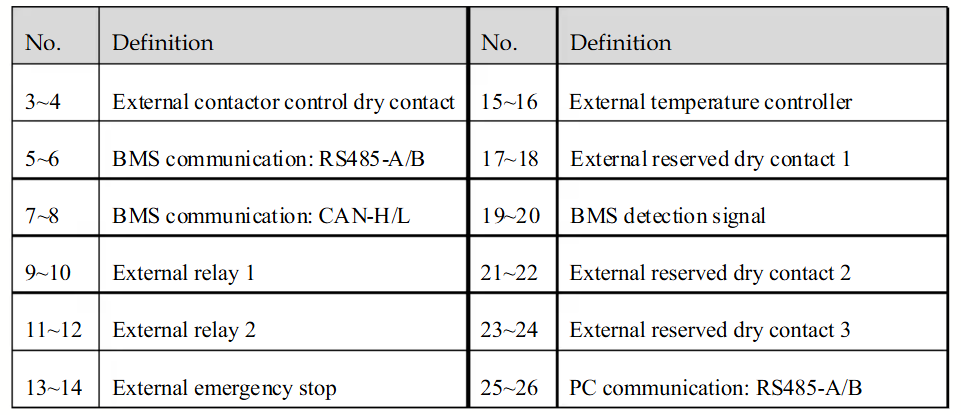 ## SPI string PV inverters
The SPI string PV inverters use a different physical RS485 connection than the PCS models above. The serial settings are the same for all SPI models:
| Setting | Value |
| --- | --- |
| Protocol | Modbus RTU |
| Baud rate | 9600 (default), configurable to 2400 / 4800 / 19200 / 38400 / 115200 |
| Parity | None |
| Data bits | 8 |
| Stop bits | 1 |
| Modbus address | 1 - 247 |
### SPI-B X2 series (SPI8000-B-X2 up to SPI33K-B X2)
The **COM.** port (a waterproof RJ45 plug, ③ in the figure below) is the only wired RS485 interface on these models. It must be configured as RS485 communication port (not as DRM port). Pins 7 and 8 of the RJ45 plug are the RS485 A and B lines.
## SPI string PV inverters
The SPI string PV inverters use a different physical RS485 connection than the PCS models above. The serial settings are the same for all SPI models:
| Setting | Value |
| --- | --- |
| Protocol | Modbus RTU |
| Baud rate | 9600 (default), configurable to 2400 / 4800 / 19200 / 38400 / 115200 |
| Parity | None |
| Data bits | 8 |
| Stop bits | 1 |
| Modbus address | 1 - 247 |
### SPI-B X2 series (SPI8000-B-X2 up to SPI33K-B X2)
The **COM.** port (a waterproof RJ45 plug, ③ in the figure below) is the only wired RS485 interface on these models. It must be configured as RS485 communication port (not as DRM port). Pins 7 and 8 of the RJ45 plug are the RS485 A and B lines.
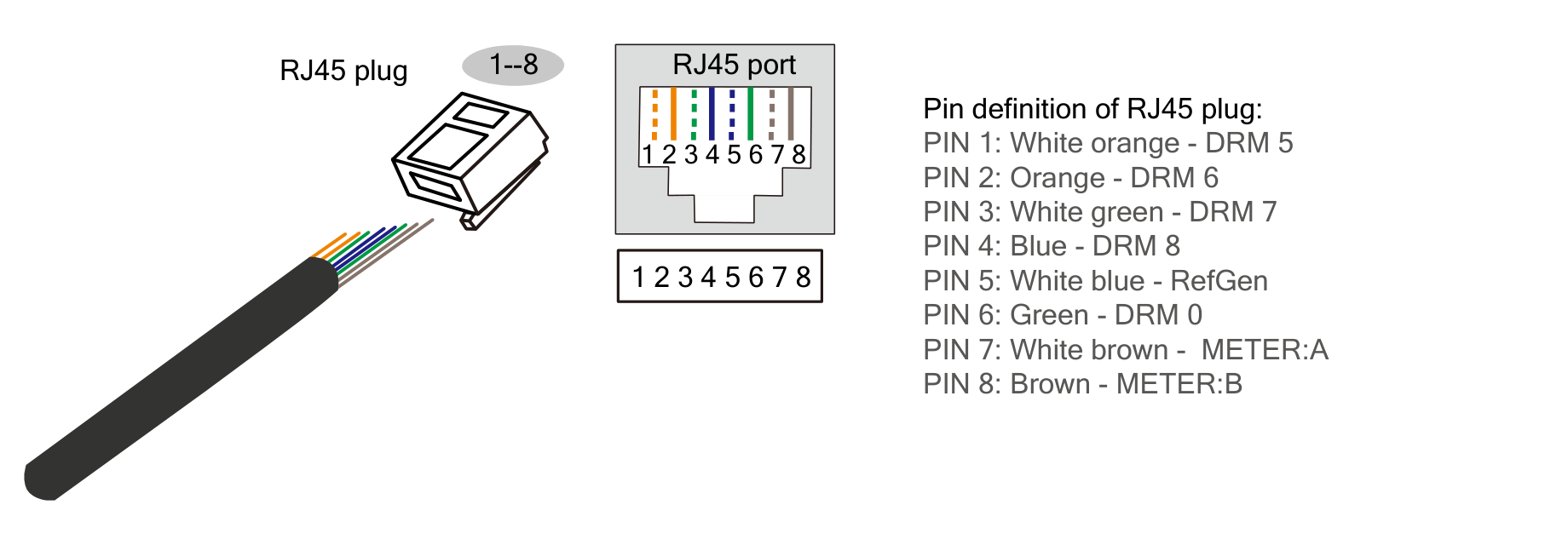 **Important — verify on site:** the Kehua user manuals label pins 7 and 8 as **METER:A** / **METER:B** and only describe them for the smart-meter (zero-export) function. Kehua's northbound Modbus protocol (V2.11) does list these models as supporting RS485 monitoring, and this RJ45 is the only wired RS485 interface they have, but Kehua's documentation does not explicitly confirm that monitoring uses these pins. Verify this connection on site or with Kehua support before relying on it. Also note that if the zero-export smart-meter function is in use, this port is occupied by the meter and cannot be used for monitoring at the same time.
The Modbus address and baud rate of these models are set with the Kehua monitoring software (default baud rate 9600). Multiple inverters can be daisy-chained on the same RS485 bus.
### Larger SPI models (SPI125K-B, SPI250K-B-H, SPI320K-B-H)
These models have a dedicated RS485 port on the communication board inside the wiring box; the Kehua user manual confirms this port "is mainly used for LAN monitoring, which can realize the background remote monitoring". Connect the RS485 wires to that port and route them separately from the AC and DC power wiring to avoid communication interference.
- On the SPI 75K-150K models (e.g. SPI125K-B), the Modbus address is set in binary with the SW1 dial switch on the communication board (e.g. `000001` = address 1). The baud rate is set with the Kehua WiseEnergy software (default 9600).
- On the SPI-B-H models (SPI250K-B-H, SPI320K-B-H), the RS485 connection is located in the **COM.** wiring box, next to the (optional) Ethernet connection.
# Kostal
import { BrandName, ControllerName } from '@site/src/components/customFields';
import RS485ConnectionTable from '@site/src/components/RS485ConnectionTable';
import ClickableImage from '@site/src/components/ClickableImage';
import RS485AddressNote from '@site/src/components/RS485AddressNote';
import DeviceSupportTable from '@site/src/components/DeviceSupportTable';
import Details from '@theme/Details';
**Important — verify on site:** the Kehua user manuals label pins 7 and 8 as **METER:A** / **METER:B** and only describe them for the smart-meter (zero-export) function. Kehua's northbound Modbus protocol (V2.11) does list these models as supporting RS485 monitoring, and this RJ45 is the only wired RS485 interface they have, but Kehua's documentation does not explicitly confirm that monitoring uses these pins. Verify this connection on site or with Kehua support before relying on it. Also note that if the zero-export smart-meter function is in use, this port is occupied by the meter and cannot be used for monitoring at the same time.
The Modbus address and baud rate of these models are set with the Kehua monitoring software (default baud rate 9600). Multiple inverters can be daisy-chained on the same RS485 bus.
### Larger SPI models (SPI125K-B, SPI250K-B-H, SPI320K-B-H)
These models have a dedicated RS485 port on the communication board inside the wiring box; the Kehua user manual confirms this port "is mainly used for LAN monitoring, which can realize the background remote monitoring". Connect the RS485 wires to that port and route them separately from the AC and DC power wiring to avoid communication interference.
- On the SPI 75K-150K models (e.g. SPI125K-B), the Modbus address is set in binary with the SW1 dial switch on the communication board (e.g. `000001` = address 1). The baud rate is set with the Kehua WiseEnergy software (default 9600).
- On the SPI-B-H models (SPI250K-B-H, SPI320K-B-H), the RS485 connection is located in the **COM.** wiring box, next to the (optional) Ethernet connection.
# Kostal
import { BrandName, ControllerName } from '@site/src/components/customFields';
import RS485ConnectionTable from '@site/src/components/RS485ConnectionTable';
import ClickableImage from '@site/src/components/ClickableImage';
import RS485AddressNote from '@site/src/components/RS485AddressNote';
import DeviceSupportTable from '@site/src/components/DeviceSupportTable';
import Details from '@theme/Details';
 # Kostal Inverters
## Supported Devices
The supports Kostal Pico inverters that use the "Kostal Pico protocol". This includes many inverters from the PIKO series.
> [!NOTE] Curtailment
> While these inverters support active power control and feed-in limitation, the protocol driver used by the does not currently support sending curtailment commands.
## Configuration
Kostal inverters can be connected to the via Modbus TCP (Ethernet) or RS485.
### Modbus TCP (Ethernet)
1. Connect the inverter to the same local network as the using an Ethernet (RJ45) cable.
2. The communicates with the inverter on **TCP Port 81**.
3. The inverters are typically configured for DHCP by default, meaning they will get an IP address automatically from your network router.
4. You can access the inverter's built-in web server by typing its IP address into a web browser.
### RS485
The default RS485 bus address is often **1**. If you have more than one inverter on the bus, you must assign a unique address to each one. This can typically be done via the inverter's display menu or web server.
#### Wiring
The physical RS485 connection varies by inverter model. Please consult your specific inverter's installation manual for the correct terminals and pinout.
* **Common Connection Types:** Inverters may have either **RJ45 sockets** (for easy daisy-chaining) or a **terminal block** for the RS485 connection.
* **Required Signals:** You will need to identify and connect the **Data A**, **Data B**, and **Ground (GND)** signals to the corresponding ports on the .
Connect the inverter's RS485 terminals to the as follows:
# KSTAR C&I Hybrid Inverters
import { BrandName, ControllerName } from '@site/src/components/customFields';
import RS485ConnectionTable from '@site/src/components/RS485ConnectionTable';
import RS485AddressNote from '@site/src/components/RS485AddressNote';
import ClickableImage from '@site/src/components/ClickableImage';
import DeviceSupportTable from '@site/src/components/DeviceSupportTable';
# Kostal Inverters
## Supported Devices
The supports Kostal Pico inverters that use the "Kostal Pico protocol". This includes many inverters from the PIKO series.
> [!NOTE] Curtailment
> While these inverters support active power control and feed-in limitation, the protocol driver used by the does not currently support sending curtailment commands.
## Configuration
Kostal inverters can be connected to the via Modbus TCP (Ethernet) or RS485.
### Modbus TCP (Ethernet)
1. Connect the inverter to the same local network as the using an Ethernet (RJ45) cable.
2. The communicates with the inverter on **TCP Port 81**.
3. The inverters are typically configured for DHCP by default, meaning they will get an IP address automatically from your network router.
4. You can access the inverter's built-in web server by typing its IP address into a web browser.
### RS485
The default RS485 bus address is often **1**. If you have more than one inverter on the bus, you must assign a unique address to each one. This can typically be done via the inverter's display menu or web server.
#### Wiring
The physical RS485 connection varies by inverter model. Please consult your specific inverter's installation manual for the correct terminals and pinout.
* **Common Connection Types:** Inverters may have either **RJ45 sockets** (for easy daisy-chaining) or a **terminal block** for the RS485 connection.
* **Required Signals:** You will need to identify and connect the **Data A**, **Data B**, and **Ground (GND)** signals to the corresponding ports on the .
Connect the inverter's RS485 terminals to the as follows:
# KSTAR C&I Hybrid Inverters
import { BrandName, ControllerName } from '@site/src/components/customFields';
import RS485ConnectionTable from '@site/src/components/RS485ConnectionTable';
import RS485AddressNote from '@site/src/components/RS485AddressNote';
import ClickableImage from '@site/src/components/ClickableImage';
import DeviceSupportTable from '@site/src/components/DeviceSupportTable';
 # KSTAR C&I Hybrid Inverters
## Supported Devices
## Wiring
The and the KSTAR inverters communicate via Ethernet or RS485.
### Ethernet
For correct ethernet wiring: Follow the [the guidelines for ethernet wiring](/Controller/wiring-best-practices/#ethernet).
### RS485
## Configuration
# KSTAR BluE-S Series (Gen 1)
import { BrandName, ControllerName } from '@site/src/components/customFields';
import RS485AddressNote from '@site/src/components/RS485AddressNote';
import ClickableImage from '@site/src/components/ClickableImage';
import DeviceSupportTable from '@site/src/components/DeviceSupportTable';
# KSTAR BluE-S Series (Gen 1)
## Supported Devices
> [!WARNING]
> Official KSTAR documentation confirms that Modbus TCP (Ethernet) is **not supported** for third-party control on these devices.
> We recommend connecting the KSTAR battery and the using **RS485**.
## Wiring
The and the KSTAR inverters communicate via RS485.
### Single-Phase Wiring (BluE-S 3680D/5000D/6000D-M1)
Connect the to the **CT/METER** Port using an RS-485 cable.
* **RS485-A:** PIN 3
* **RS485-B:** PIN 4
### Three-Phase Wiring (E4KT...E12KT)
Connect the to the **METER/DRY** Port (specifically the CT/METER pins).
* **RS485-A:** PIN 6
* **RS485-B:** PIN 5
## Configuration
To ensure the can control the inverter, the following settings must be configured on the inverter via the Screen or App.
### 1. Work Mode Settings
For VPP control to function reliably, you must configure the following:
1. Set **Work Mode** to **Self-Consumption**.
2. Set **Charge from Grid** to **Disable** (inside the Self-Consumption menu).
### 2. Disable Conflicting Modes
The following modes have higher priority than remote control and must be **Disabled**:
* **Force Charge/Discharge** (Set to "Invalid" or 0)
* **Generator Mode**
### 3. Port Configuration
Ensure the communication port is set correctly:
* **CT/Meter Selection:** Set to **CT** (Default).
* **Baud Rate:** 9600.
> [!NOTE]
> Restart the battery inverter after changing the settings.
# KSTAR C&I Hybrid Inverters
## Supported Devices
## Wiring
The and the KSTAR inverters communicate via Ethernet or RS485.
### Ethernet
For correct ethernet wiring: Follow the [the guidelines for ethernet wiring](/Controller/wiring-best-practices/#ethernet).
### RS485
## Configuration
# KSTAR BluE-S Series (Gen 1)
import { BrandName, ControllerName } from '@site/src/components/customFields';
import RS485AddressNote from '@site/src/components/RS485AddressNote';
import ClickableImage from '@site/src/components/ClickableImage';
import DeviceSupportTable from '@site/src/components/DeviceSupportTable';
# KSTAR BluE-S Series (Gen 1)
## Supported Devices
> [!WARNING]
> Official KSTAR documentation confirms that Modbus TCP (Ethernet) is **not supported** for third-party control on these devices.
> We recommend connecting the KSTAR battery and the using **RS485**.
## Wiring
The and the KSTAR inverters communicate via RS485.
### Single-Phase Wiring (BluE-S 3680D/5000D/6000D-M1)
Connect the to the **CT/METER** Port using an RS-485 cable.
* **RS485-A:** PIN 3
* **RS485-B:** PIN 4
### Three-Phase Wiring (E4KT...E12KT)
Connect the to the **METER/DRY** Port (specifically the CT/METER pins).
* **RS485-A:** PIN 6
* **RS485-B:** PIN 5
## Configuration
To ensure the can control the inverter, the following settings must be configured on the inverter via the Screen or App.
### 1. Work Mode Settings
For VPP control to function reliably, you must configure the following:
1. Set **Work Mode** to **Self-Consumption**.
2. Set **Charge from Grid** to **Disable** (inside the Self-Consumption menu).
### 2. Disable Conflicting Modes
The following modes have higher priority than remote control and must be **Disabled**:
* **Force Charge/Discharge** (Set to "Invalid" or 0)
* **Generator Mode**
### 3. Port Configuration
Ensure the communication port is set correctly:
* **CT/Meter Selection:** Set to **CT** (Default).
* **Baud Rate:** 9600.
> [!NOTE]
> Restart the battery inverter after changing the settings.
> [!CAUTION]
> Because the battery goes into **sleep mode** at **10% SoC**, we recommend setting the **minimum state of charge** level to at least **12%**.
> When the battery goes into sleep mode, it **cannot be controlled** by the .
# KSTAR BlueSpark Series (Gen 2)
import { BrandName, ControllerName } from '@site/src/components/customFields';
import RS485AddressNote from '@site/src/components/RS485AddressNote';
import ClickableImage from '@site/src/components/ClickableImage';
import DeviceSupportTable from '@site/src/components/DeviceSupportTable';
# KSTAR BlueSpark Series (Gen 2)
## Supported Devices
## Wiring
The and the KSTAR inverters communicate via RS485 or TCP.
### RS485 Wiring
#### Single-Phase Wiring (E..KS-D22)
Connect the to the **CT/METER** Port using an RS-485 cable.
* **RS485-A:** PIN 6
* **RS485-B:** PIN 5
#### Three-Phase Wiring (E..KT-D22)
Connect the to the **METER/DRY** Port (specifically the CT/METER pins).
* **RS485-A:** PIN 6
* **RS485-B:** PIN 5
### TCP Wiring
Connecting the to the KSTAR inverter via TCP is possible by using the KSTAR Logger.
Connect the KSTAR WiFi/LAN dongle to the COM port. Connect both the KSTAR WiFi/LAN dongle and the to the same network.
The communicates with the KSTAR Logger via Modbus TCP on port **502**.
#### Single-Phase TCP Wiring (E..KS-D22)
#### Three-Phase TCP Wiring (E..KT-D22)
## Configuration
To ensure the can control the inverter, the following settings must be configured on the inverter via the Screen or App.
### 1. Work Mode Settings
For VPP control to function reliably, you must configure the following:
1. Set **Work Mode** to **Self-Consumption**.
2. Set **Charge from Grid** to **Disable** (inside the Self-Consumption menu).
### 2. Disable Conflicting Modes
The following modes have higher priority than remote control and must be **Disabled**:
* **Force Charge/Discharge** (Set to "Invalid" or 0)
* **Generator Mode**
### 3. Port Configuration
Ensure the communication port is set correctly:
* **CT/Meter Selection:** Set to **CT** (Default).
* **Baud Rate:** 9600.
> [!NOTE]
> Restart the battery inverter after changing the settings.
> BlueSpark E12KT-D22: This model features a simplified installation architecture that completely eliminates the need for an external parallel box
> [!CAUTION]
> Because the battery goes into **sleep mode** at **10% SoC**, we recommend setting the **minimum state of charge** level to at least **12%**.
> When the battery goes into sleep mode, it **cannot be controlled** by the .
# Kstar
import { FolderOverview } from '@/components/FolderOverview';
# Kstar
# KSTAR KSG Inverters
import { BrandName, ControllerName } from '@site/src/components/customFields';
import RS485ConnectionTable from '@site/src/components/RS485ConnectionTable';
import RS485AddressNote from '@site/src/components/RS485AddressNote';
import ClickableImage from '@site/src/components/ClickableImage';
import DeviceSupportTable from '@site/src/components/DeviceSupportTable';
# KSTAR KSG Inverters
## Supported Devices
## Wiring
The and the KSTAR inverters communicate via RS485.
## Configuration
# Libattion
import { BrandName, ControllerName } from '@site/src/components/customFields';
import RS485ConnectionTable from '@site/src/components/RS485ConnectionTable';
import ClickableImage from '@site/src/components/ClickableImage';
import DeviceSupportTable from '@site/src/components/DeviceSupportTable';
# Libattion
 ## Supported Devices
## Wiring
Connecting an External EMS or Plant Controller
Connect Port A of the Libattion system to the external third-party EMS or plant controller and ensure that the system has access to the internet.
There are two possible configurations:
Option A – Connection via an Ethernet switch
Connect both the Libattion Controller and the external third-party EMS or plant controller to an Ethernet switch. The switch should be connected to a router providing internet access.
Option B – Direct connection
Connect the Libattion Controller directly to the external third-party EMS or plant controller. In this configuration, the connected system must provide internet access to the Libattion Controller.
Network requirements
In both configurations, the Libattion Controller must receive an IP address from a DHCP server on the local network.
If firewall rules are configured to restrict outgoing connections, the firewall requirements for the customer's local network must be respected to ensure proper communication and connectivity.
### Connecting an External EMS or Plant Controller
Connect **Port A** of the Libattion system to the external third-party EMS or Plant Controller and ensure that the system has access to the internet.
There are two possible configurations:
#### Option A – Connection via an Ethernet Switch
Connect both the Libattion Controller and the external third-party EMS or Plant Controller to an Ethernet switch. The switch should be connected to a router providing internet access.
#### Option B – Direct Connection
Connect the Libattion Controller directly to the external third-party EMS or Plant Controller. In this configuration, the connected system must provide internet access to the Libattion Controller.
### Network Requirements
For both configurations, the Libattion Controller must receive an IP address from a **DHCP server** on the local network.
If firewall rules are configured to restrict outgoing connections, ensure that the firewall requirements for the customer's local network are respected to allow proper communication and connectivity.
### Ethernet Connection
Make sure that the and the Libattion system are connected to the same network.
For general Ethernet wiring best practices, see the [Ethernet wiring guidelines](/Controller/wiring-best-practices/#ethernet).
#### Commissioning
The Libattion Controller will boot automatically once connected to power.
Contact the Libattion Service Team for the comissioning beforehand.
#### Commissioning
The Libattion Controller will boot automatically once connected to power.
Please contact the Libattion Service Team before commissioning the installation.
# LONGi
import { BrandName, ControllerName } from '@site/src/components/customFields';
import ClickableImage from '@site/src/components/ClickableImage';
import DeviceSupportTable from '@site/src/components/DeviceSupportTable';
## Supported Devices
## Wiring
Connecting an External EMS or Plant Controller
Connect Port A of the Libattion system to the external third-party EMS or plant controller and ensure that the system has access to the internet.
There are two possible configurations:
Option A – Connection via an Ethernet switch
Connect both the Libattion Controller and the external third-party EMS or plant controller to an Ethernet switch. The switch should be connected to a router providing internet access.
Option B – Direct connection
Connect the Libattion Controller directly to the external third-party EMS or plant controller. In this configuration, the connected system must provide internet access to the Libattion Controller.
Network requirements
In both configurations, the Libattion Controller must receive an IP address from a DHCP server on the local network.
If firewall rules are configured to restrict outgoing connections, the firewall requirements for the customer's local network must be respected to ensure proper communication and connectivity.
### Connecting an External EMS or Plant Controller
Connect **Port A** of the Libattion system to the external third-party EMS or Plant Controller and ensure that the system has access to the internet.
There are two possible configurations:
#### Option A – Connection via an Ethernet Switch
Connect both the Libattion Controller and the external third-party EMS or Plant Controller to an Ethernet switch. The switch should be connected to a router providing internet access.
#### Option B – Direct Connection
Connect the Libattion Controller directly to the external third-party EMS or Plant Controller. In this configuration, the connected system must provide internet access to the Libattion Controller.
### Network Requirements
For both configurations, the Libattion Controller must receive an IP address from a **DHCP server** on the local network.
If firewall rules are configured to restrict outgoing connections, ensure that the firewall requirements for the customer's local network are respected to allow proper communication and connectivity.
### Ethernet Connection
Make sure that the and the Libattion system are connected to the same network.
For general Ethernet wiring best practices, see the [Ethernet wiring guidelines](/Controller/wiring-best-practices/#ethernet).
#### Commissioning
The Libattion Controller will boot automatically once connected to power.
Contact the Libattion Service Team for the comissioning beforehand.
#### Commissioning
The Libattion Controller will boot automatically once connected to power.
Please contact the Libattion Service Team before commissioning the installation.
# LONGi
import { BrandName, ControllerName } from '@site/src/components/customFields';
import ClickableImage from '@site/src/components/ClickableImage';
import DeviceSupportTable from '@site/src/components/DeviceSupportTable';
 # LONGi
The integrates with the LONGi **PCS cabinet integrated energy storage
system** over Modbus TCP. Both single units and multi-unit installations (up to 10 devices) are supported.
## Supported Devices
## Connection Guide
### Modbus TCP
The EMS controller can be connected to the via an RJ45 Ethernet cable, as shown in the
diagram below.
> [!NOTE]
> Please use the **LAN5** port to connect to the .
For correct ethernet wiring, follow the [guidelines for ethernet wiring](/Controller/wiring-best-practices/#ethernet).
## Setup and Query Guide
1. The LAN5 port of a factory-default EMS controller usually has the default IP address
`192.168.189.36`. Connect a laptop to the LAN5 port with a network cable, then enter the URL
`http://192.168.189.36:10180` in the browser to access the EMS page.
2. Click on **eEMS** on the left side of the interface to reveal the login button. Enter your username and
password to log into the system.
3. Click on **eEMS**, go to **System Settings**, scroll down and click **Network Settings**. There you can
see the IP address corresponding to each network port.
# Marstek
import { BrandName, ControllerName } from '@site/src/components/customFields';
import RS485ConnectionTable from '@site/src/components/RS485ConnectionTable';
import RS485AddressNote from '@site/src/components/RS485AddressNote';
import ClickableImage from '@site/src/components/ClickableImage';
import PdfLink from '@site/src/components/PdfLink';
import DeviceSupportTable from '@site/src/components/DeviceSupportTable';
# LONGi
The integrates with the LONGi **PCS cabinet integrated energy storage
system** over Modbus TCP. Both single units and multi-unit installations (up to 10 devices) are supported.
## Supported Devices
## Connection Guide
### Modbus TCP
The EMS controller can be connected to the via an RJ45 Ethernet cable, as shown in the
diagram below.
> [!NOTE]
> Please use the **LAN5** port to connect to the .
For correct ethernet wiring, follow the [guidelines for ethernet wiring](/Controller/wiring-best-practices/#ethernet).
## Setup and Query Guide
1. The LAN5 port of a factory-default EMS controller usually has the default IP address
`192.168.189.36`. Connect a laptop to the LAN5 port with a network cable, then enter the URL
`http://192.168.189.36:10180` in the browser to access the EMS page.
2. Click on **eEMS** on the left side of the interface to reveal the login button. Enter your username and
password to log into the system.
3. Click on **eEMS**, go to **System Settings**, scroll down and click **Network Settings**. There you can
see the IP address corresponding to each network port.
# Marstek
import { BrandName, ControllerName } from '@site/src/components/customFields';
import RS485ConnectionTable from '@site/src/components/RS485ConnectionTable';
import RS485AddressNote from '@site/src/components/RS485AddressNote';
import ClickableImage from '@site/src/components/ClickableImage';
import PdfLink from '@site/src/components/PdfLink';
import DeviceSupportTable from '@site/src/components/DeviceSupportTable';
 # Marstek Inverters
## Supported Devices
> [!NOTE] Device Compatibility
> Please update your inverter to the latest firmware version to enable modbusTCP, this is supported from v144 onwards.
> [!NOTE] Device Compatibility
> This integration was tested with Venus C device. However, other devices using the same communication protocol, such as Venus E, may also be compatible.
> If you have such a device, it is likely to work, but we are awaiting official confirmation from the manufacturer.
For the configuration of the device, please follow the guide:
Marstek official guide
## Wiring
The and the Marstek inverters communicate via RS485.
From the V3 version of Marstek, there is native Modbus TCP support that can be used to connect directly through the LAN cable.
### RS485
The RS485 port can be found in the following diagram and the cabling is depending on the version of the device.
The A and B cables are different for V2 and V3.
Below you can see the connection for V2.
For V3 the cables 1 and 2 represent B and A respectively, while cables 4-5 are connecting to VCC amd 7-8 to GND.
Once connected, the cable will be as such:
# Mastervolt
import { BrandName, ControllerName } from '@site/src/components/customFields';
import RS485ConnectionTable from '@site/src/components/RS485ConnectionTable';
import ClickableImage from '@site/src/components/ClickableImage';
import DeviceSupportTable from '@site/src/components/DeviceSupportTable';
# Marstek Inverters
## Supported Devices
> [!NOTE] Device Compatibility
> Please update your inverter to the latest firmware version to enable modbusTCP, this is supported from v144 onwards.
> [!NOTE] Device Compatibility
> This integration was tested with Venus C device. However, other devices using the same communication protocol, such as Venus E, may also be compatible.
> If you have such a device, it is likely to work, but we are awaiting official confirmation from the manufacturer.
For the configuration of the device, please follow the guide:
Marstek official guide
## Wiring
The and the Marstek inverters communicate via RS485.
From the V3 version of Marstek, there is native Modbus TCP support that can be used to connect directly through the LAN cable.
### RS485
The RS485 port can be found in the following diagram and the cabling is depending on the version of the device.
The A and B cables are different for V2 and V3.
Below you can see the connection for V2.
For V3 the cables 1 and 2 represent B and A respectively, while cables 4-5 are connecting to VCC amd 7-8 to GND.
Once connected, the cable will be as such:
# Mastervolt
import { BrandName, ControllerName } from '@site/src/components/customFields';
import RS485ConnectionTable from '@site/src/components/RS485ConnectionTable';
import ClickableImage from '@site/src/components/ClickableImage';
import DeviceSupportTable from '@site/src/components/DeviceSupportTable';
 ## Supported Devices
## Wiring
### RS485
For RS485 wiring, follow the [guidelines for RS485 wiring](/Controller/wiring-best-practices/#rs485).
# MidTeQ
import { BrandName, ControllerName } from '@site/src/components/customFields';
import DeviceSupportTable from '@site/src/components/DeviceSupportTable';
import ClickableImage from '@site/src/components/ClickableImage';
## Supported Devices
## Wiring
### RS485
For RS485 wiring, follow the [guidelines for RS485 wiring](/Controller/wiring-best-practices/#rs485).
# MidTeQ
import { BrandName, ControllerName } from '@site/src/components/customFields';
import DeviceSupportTable from '@site/src/components/DeviceSupportTable';
import ClickableImage from '@site/src/components/ClickableImage';
 The MidTeQ inverter is all-in-one hybrid inverter that can be used with the to monitor and
control your solar power and battery system. It supports both Modbus TCP and Modbus RTU (RS485) communication protocols.
## Supported Devices
The MidTeQ inverter has a nominal power output of 10 kW, regardless of the battery energy capacity.
Make sure to configure the inverter correctly in the to match your system's specifications.
However, the maximum charge and discharge power depends on the battery energy capacity. See the table below for the correct settings.
__If the maximum charge and discharge power of your MidTeQ inverter is not set to correctly in the , it leads to unstable operation of the inverter.__
| Battery energy capacity | Maximum charge and discharge power |
| -------- | ------- |
| 5 kWh system | 🟠 __2.6 kW charge and 2.6 kW discharge__ to be configured in the device settings.|
| 10 kWh system | 🟠 __2.6 kW charge & 5.2 kW discharge__ to be configured in the device settings.|
| 15 kWh system | 🟠 __5.2 kW charge & 7.6 kW discharge__ to be configured in the device settings.|
| 20 kWh system | 🟠 __7.6 kW charge & 10 kW discharge__ to be configured in the device settings.|
| 15 kWh until 75 kWh | ✅ 10 kW (no limit needed) |
> [!WARNING] I can't find my MidTeQ
> The MidTeQ default bus addresses are 247 for Modbus RTU and 255 for Modbus TCP.
> The will scan for devices on all addresses from 1 to 255.
> __Therefore, it can take a while to scan for devices.__
>
> __TIP:__ If you know the bus address of your MidTeQ inverter, you can set it in the to speed up the scanning process. See the section "Speed up scan process (TCP/RTU)" below.
## Modbus TCP
Connect the MidTeQ inverter to your network using an Ethernet cable and the COM-adapter that is provided with the inverter:
Check in the MidTeQ app or monitoring portal that the inverter is connected to your network and has an IP address assigned.
Modbus TCP is by default enabled on the MidTeQ inverters. No additional configuration is required.
The default bus address for Modbus TCP is 255.
Other common bus addresses for Modbus TCP are 1, 8, 247.
## Speed up scan process (TCP)
If you know the bus address of your MidTeQ inverter, you can set it in the to speed up the scanning process.
The example below is for a MidTeQ connected using Modbus TCP with bus address 255. By changing the min. bus address to 254, we tell the
to only scan for devices on bus addresses 254 and 255 and to skip the other addresses.
## Modbus RTU (RS485)
Crimp an RJ45 plug on one end of an Ethernet cable according to the T568B wiring standard.
Insert the crimped RJ45 plug into the .
On the other end of the Ethernet cable, connect the blue/white wire to connector pin 13 and the solid blue wire to pin 14.
Finally, connect the USB end of the dongle to an available USB port on the .
The default modbus bus address or RTU is 247.
# Motoma
import { BrandName, ControllerName } from '@site/src/components/customFields';
import RS485ConnectionTable from '@site/src/components/RS485ConnectionTable';
import DeviceSupportTable from '@site/src/components/DeviceSupportTable';
import RS485AddressNote from '@site/src/components/RS485AddressNote';
import ClickableImage from '@site/src/components/ClickableImage';
The MidTeQ inverter is all-in-one hybrid inverter that can be used with the to monitor and
control your solar power and battery system. It supports both Modbus TCP and Modbus RTU (RS485) communication protocols.
## Supported Devices
The MidTeQ inverter has a nominal power output of 10 kW, regardless of the battery energy capacity.
Make sure to configure the inverter correctly in the to match your system's specifications.
However, the maximum charge and discharge power depends on the battery energy capacity. See the table below for the correct settings.
__If the maximum charge and discharge power of your MidTeQ inverter is not set to correctly in the , it leads to unstable operation of the inverter.__
| Battery energy capacity | Maximum charge and discharge power |
| -------- | ------- |
| 5 kWh system | 🟠 __2.6 kW charge and 2.6 kW discharge__ to be configured in the device settings.|
| 10 kWh system | 🟠 __2.6 kW charge & 5.2 kW discharge__ to be configured in the device settings.|
| 15 kWh system | 🟠 __5.2 kW charge & 7.6 kW discharge__ to be configured in the device settings.|
| 20 kWh system | 🟠 __7.6 kW charge & 10 kW discharge__ to be configured in the device settings.|
| 15 kWh until 75 kWh | ✅ 10 kW (no limit needed) |
> [!WARNING] I can't find my MidTeQ
> The MidTeQ default bus addresses are 247 for Modbus RTU and 255 for Modbus TCP.
> The will scan for devices on all addresses from 1 to 255.
> __Therefore, it can take a while to scan for devices.__
>
> __TIP:__ If you know the bus address of your MidTeQ inverter, you can set it in the to speed up the scanning process. See the section "Speed up scan process (TCP/RTU)" below.
## Modbus TCP
Connect the MidTeQ inverter to your network using an Ethernet cable and the COM-adapter that is provided with the inverter:
Check in the MidTeQ app or monitoring portal that the inverter is connected to your network and has an IP address assigned.
Modbus TCP is by default enabled on the MidTeQ inverters. No additional configuration is required.
The default bus address for Modbus TCP is 255.
Other common bus addresses for Modbus TCP are 1, 8, 247.
## Speed up scan process (TCP)
If you know the bus address of your MidTeQ inverter, you can set it in the to speed up the scanning process.
The example below is for a MidTeQ connected using Modbus TCP with bus address 255. By changing the min. bus address to 254, we tell the
to only scan for devices on bus addresses 254 and 255 and to skip the other addresses.
## Modbus RTU (RS485)
Crimp an RJ45 plug on one end of an Ethernet cable according to the T568B wiring standard.
Insert the crimped RJ45 plug into the .
On the other end of the Ethernet cable, connect the blue/white wire to connector pin 13 and the solid blue wire to pin 14.
Finally, connect the USB end of the dongle to an available USB port on the .
The default modbus bus address or RTU is 247.
# Motoma
import { BrandName, ControllerName } from '@site/src/components/customFields';
import RS485ConnectionTable from '@site/src/components/RS485ConnectionTable';
import DeviceSupportTable from '@site/src/components/DeviceSupportTable';
import RS485AddressNote from '@site/src/components/RS485AddressNote';
import ClickableImage from '@site/src/components/ClickableImage';
 ## Supported Devices
## Wiring
You need to connect the battery tothe inverter, for that plug the red and black cables in the red and black battery port on the inverter, then you need to connect the two via the black cable as follow :
### RS485
To connect the controller to the inverter you will need a Modbus Card, put it in the intelligent slot of the inverter (you may need to remove the cache by unscrewing the two black plates, see the picture below).
Configure the Modbus Card according to the current documentation in the manufacturer's [communication downloads](https://nextups.eu/category/communication/).
Once the Modbus Card is well configured, you can plug the cables into the controller, for that strip one end of your RS485 cable and take the cables corresponding to the pins 4 (usually blue) and 5 (usually blue and white).
Then plug the pin 4 into the RS485B port of the controller and the pin 5 in the RS485A port of the controller.
## Connection to the Controller
You then need to connect the device to the controller, for that follow this guide : [Adding a device](/Controller/Configuration%20from%20A%20to%20Z/11-Extra-Information/adding-device/).
# Octave Energy
import { BrandName, ControllerName } from '@site/src/components/customFields';
import ClickableImage from '@site/src/components/ClickableImage';
import DeviceSupportTable from '@site/src/components/DeviceSupportTable';
## Supported Devices
## Wiring
You need to connect the battery tothe inverter, for that plug the red and black cables in the red and black battery port on the inverter, then you need to connect the two via the black cable as follow :
### RS485
To connect the controller to the inverter you will need a Modbus Card, put it in the intelligent slot of the inverter (you may need to remove the cache by unscrewing the two black plates, see the picture below).
Configure the Modbus Card according to the current documentation in the manufacturer's [communication downloads](https://nextups.eu/category/communication/).
Once the Modbus Card is well configured, you can plug the cables into the controller, for that strip one end of your RS485 cable and take the cables corresponding to the pins 4 (usually blue) and 5 (usually blue and white).
Then plug the pin 4 into the RS485B port of the controller and the pin 5 in the RS485A port of the controller.
## Connection to the Controller
You then need to connect the device to the controller, for that follow this guide : [Adding a device](/Controller/Configuration%20from%20A%20to%20Z/11-Extra-Information/adding-device/).
# Octave Energy
import { BrandName, ControllerName } from '@site/src/components/customFields';
import ClickableImage from '@site/src/components/ClickableImage';
import DeviceSupportTable from '@site/src/components/DeviceSupportTable';
 ## Supported Devices
## Wiring
### Ethernet
For correct ethernet wiring: Follow the [the guidelines for ethernet wiring](/Controller/wiring-best-practices/#ethernet).
## Configuration
> [!WARNING] Port 5021
> Unlike standard Modbus devices which typically use port 502, the Octave Energy Battery Cabinet uses **TCP Port 5021**.
> Please ensure you configure this specific port in the device settings when adding it to the .
# OmniPower
import { BrandName, ControllerName } from '@site/src/components/customFields';
import DeviceSupportTable from '@site/src/components/DeviceSupportTable';
import ClickableImage from '@site/src/components/ClickableImage';
## Supported Devices
## Wiring
### Ethernet
For correct ethernet wiring: Follow the [the guidelines for ethernet wiring](/Controller/wiring-best-practices/#ethernet).
## Configuration
> [!WARNING] Port 5021
> Unlike standard Modbus devices which typically use port 502, the Octave Energy Battery Cabinet uses **TCP Port 5021**.
> Please ensure you configure this specific port in the device settings when adding it to the .
# OmniPower
import { BrandName, ControllerName } from '@site/src/components/customFields';
import DeviceSupportTable from '@site/src/components/DeviceSupportTable';
import ClickableImage from '@site/src/components/ClickableImage';
 # OmniPower
The OmniPower Qualtech Battery is a high-voltage battery cabinet that communicates directly via Modbus TCP.
## Supported Devices
> [!NOTE] Features
> While active power curtailment is not supported, the driver does support **remote restarting** of the battery system via the interface.
## Wiring
### Ethernet
For correct ethernet wiring: Follow the [the guidelines for ethernet wiring](/Controller/wiring-best-practices/#ethernet).
## Configuration
To configure the OmniPower Qualtech Battery in the , you need to provide specific network settings and system details.
> [!WARNING] Port 2404
> Unlike standard Modbus devices which typically use port 502, the OmniPower Qualtech Battery communicates on **TCP Port 2404**.
> Please ensure you configure this specific port in the device settings when adding it to the .
# OX-Power
import { BrandName, ControllerName } from '@site/src/components/customFields';
import RS485ConnectionTable from '@site/src/components/RS485ConnectionTable';
import ClickableImage from '@site/src/components/ClickableImage';
import DeviceSupportTable from '@site/src/components/DeviceSupportTable';
# OmniPower
The OmniPower Qualtech Battery is a high-voltage battery cabinet that communicates directly via Modbus TCP.
## Supported Devices
> [!NOTE] Features
> While active power curtailment is not supported, the driver does support **remote restarting** of the battery system via the interface.
## Wiring
### Ethernet
For correct ethernet wiring: Follow the [the guidelines for ethernet wiring](/Controller/wiring-best-practices/#ethernet).
## Configuration
To configure the OmniPower Qualtech Battery in the , you need to provide specific network settings and system details.
> [!WARNING] Port 2404
> Unlike standard Modbus devices which typically use port 502, the OmniPower Qualtech Battery communicates on **TCP Port 2404**.
> Please ensure you configure this specific port in the device settings when adding it to the .
# OX-Power
import { BrandName, ControllerName } from '@site/src/components/customFields';
import RS485ConnectionTable from '@site/src/components/RS485ConnectionTable';
import ClickableImage from '@site/src/components/ClickableImage';
import DeviceSupportTable from '@site/src/components/DeviceSupportTable';
 ## Supported Devices
## Wiring
### Ethernet
For correct ethernet wiring: Follow the [the guidelines for ethernet wiring](/Controller/wiring-best-practices/#ethernet).
# Pixii
import { BrandName, ControllerName } from '@site/src/components/customFields';
import RS485ConnectionTable from '@site/src/components/RS485ConnectionTable';
import DeviceSupportTable from '@site/src/components/DeviceSupportTable';
## Supported Devices
## Wiring
### Ethernet
For correct ethernet wiring: Follow the [the guidelines for ethernet wiring](/Controller/wiring-best-practices/#ethernet).
# Pixii
import { BrandName, ControllerName } from '@site/src/components/customFields';
import RS485ConnectionTable from '@site/src/components/RS485ConnectionTable';
import DeviceSupportTable from '@site/src/components/DeviceSupportTable';
 > [!NOTE] Device Compatibility
> This integration was tested with Powershaper XL device. However, other devices using the same communication protocol, such as Powershaper, Powershaper 2, may also be compatible.
> If you have such a device, it is likely to work, but we are awaiting official confirmation from the manufacturer.
## Configuration
Make sure that the Controller and the Pixii PowerShaper are connected to the same network.
### Ethernet Connection
For correct ethernet wiring, follow the [guidelines for ethernet wiring](/Controller/wiring-best-practices/#ethernet).
### 2: Pixii PowerShaper Configuration
| Steps |
|------|
| **2a**. Open the Pixii PowerShaper web interface by entering the IP address of the system in a web browser. |
| **2b**. To allow communication make sure the **Enabled** checkbox is checked and the **Type** is set to the appropriate type
> [!NOTE] Device Compatibility
> This integration was tested with Powershaper XL device. However, other devices using the same communication protocol, such as Powershaper, Powershaper 2, may also be compatible.
> If you have such a device, it is likely to work, but we are awaiting official confirmation from the manufacturer.
## Configuration
Make sure that the Controller and the Pixii PowerShaper are connected to the same network.
### Ethernet Connection
For correct ethernet wiring, follow the [guidelines for ethernet wiring](/Controller/wiring-best-practices/#ethernet).
### 2: Pixii PowerShaper Configuration
| Steps |
|------|
| **2a**. Open the Pixii PowerShaper web interface by entering the IP address of the system in a web browser. |
| **2b**. To allow communication make sure the **Enabled** checkbox is checked and the **Type** is set to the appropriate type 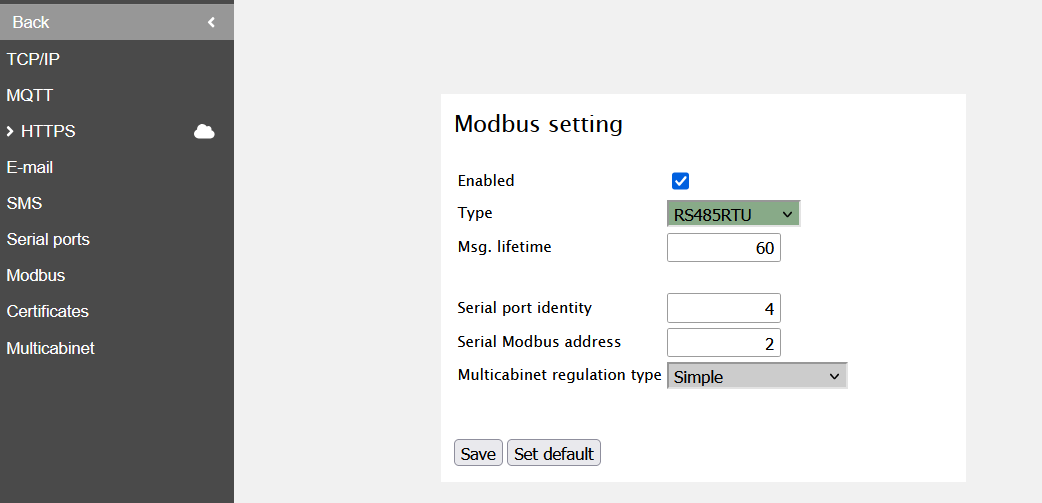 |
# Power-Sonic
import { BrandName, ControllerName } from '@site/src/components/customFields';
import RS485ConnectionTable from '@site/src/components/RS485ConnectionTable';
import ClickableImage from '@site/src/components/ClickableImage';
import RS485AddressNote from '@site/src/components/RS485AddressNote';
import DeviceSupportTable from '@site/src/components/DeviceSupportTable';
|
# Power-Sonic
import { BrandName, ControllerName } from '@site/src/components/customFields';
import RS485ConnectionTable from '@site/src/components/RS485ConnectionTable';
import ClickableImage from '@site/src/components/ClickableImage';
import RS485AddressNote from '@site/src/components/RS485AddressNote';
import DeviceSupportTable from '@site/src/components/DeviceSupportTable';
 ## Supported Devices
## Wiring
### RS485
## Configuration
1. Set the working mode to Self Consume.
2. Set Zero Export to Disable.
3. Set Remote Control to Enable.
4. Set the RS485 address. The default baudrate is 9600, if not, set it to 9600.
5. Set the charge current.
Set the charge current.
> [!WARNING] IMPORTANT!
> For a 5KT set it to 100
> For 10KT set it to 160
6. Set AC Couple to Enable.
# Poweroad
import { BrandName, ControllerName } from '@site/src/components/customFields';
import RS485ConnectionTable from '@site/src/components/RS485ConnectionTable';
import DeviceSupportTable from '@site/src/components/DeviceSupportTable';
import RS485AddressNote from '@site/src/components/RS485AddressNote';
import ClickableImage from '@site/src/components/ClickableImage';
## Supported Devices
## Wiring
### RS485
## Configuration
1. Set the working mode to Self Consume.
2. Set Zero Export to Disable.
3. Set Remote Control to Enable.
4. Set the RS485 address. The default baudrate is 9600, if not, set it to 9600.
5. Set the charge current.
Set the charge current.
> [!WARNING] IMPORTANT!
> For a 5KT set it to 100
> For 10KT set it to 160
6. Set AC Couple to Enable.
# Poweroad
import { BrandName, ControllerName } from '@site/src/components/customFields';
import RS485ConnectionTable from '@site/src/components/RS485ConnectionTable';
import DeviceSupportTable from '@site/src/components/DeviceSupportTable';
import RS485AddressNote from '@site/src/components/RS485AddressNote';
import ClickableImage from '@site/src/components/ClickableImage';
 # Poweroad
> [!WARNING] Sinexcel and EnjoyPowers inverters in combination with a Poweroad BMS
> Starting from software version 1.17.0.x, you must add the inverter and Poweroad BMS as separate devices, and dc-link them through the groups page. For more information, see: [DC-linking inverters, batteries and BMS systems](/Controller/Configuration%20from%20A%20to%20Z/11-Extra-Information/dc-linking/)
## Supported Devices
## Wiring
For correct ethernet wiring: Follow the [the guidelines for ethernet wiring](/Controller/wiring-best-practices/#ethernet).
RS485 connection is possible but may need an update from Poweroad.
Please contact Poweroad support for more information.
## Configuration
Modbus TCP is enabled by default on Poweroad devices, no extra configuration is needed.
# Pylontech
import { BrandName, ControllerName } from '@site/src/components/customFields';
import RS485ConnectionTable from '@site/src/components/RS485ConnectionTable';
import RS485AddressNote from '@site/src/components/RS485AddressNote';
import ClickableImage from '@site/src/components/ClickableImage';
import DeviceSupportTable from '@site/src/components/DeviceSupportTable';
import Mermaid from '@theme/Mermaid';
# Poweroad
> [!WARNING] Sinexcel and EnjoyPowers inverters in combination with a Poweroad BMS
> Starting from software version 1.17.0.x, you must add the inverter and Poweroad BMS as separate devices, and dc-link them through the groups page. For more information, see: [DC-linking inverters, batteries and BMS systems](/Controller/Configuration%20from%20A%20to%20Z/11-Extra-Information/dc-linking/)
## Supported Devices
## Wiring
For correct ethernet wiring: Follow the [the guidelines for ethernet wiring](/Controller/wiring-best-practices/#ethernet).
RS485 connection is possible but may need an update from Poweroad.
Please contact Poweroad support for more information.
## Configuration
Modbus TCP is enabled by default on Poweroad devices, no extra configuration is needed.
# Pylontech
import { BrandName, ControllerName } from '@site/src/components/customFields';
import RS485ConnectionTable from '@site/src/components/RS485ConnectionTable';
import RS485AddressNote from '@site/src/components/RS485AddressNote';
import ClickableImage from '@site/src/components/ClickableImage';
import DeviceSupportTable from '@site/src/components/DeviceSupportTable';
import Mermaid from '@theme/Mermaid';
 # Pylontech battery systems
The supports Pylontech containerized systems via the L-EMS protocol over Modbus TCP.
## Supported Devices
> [!NOTE]
> The Pylontech integration currently only supports communication via Modbus TCP using the L-EMS protocol.
> This protocol is available on Pylontech devices with a 'recent' firmware version. Please refer to the Pylontech
> support or documentation to check if your device supports the L-EMS protocol.
## Configuration
1. Open the front panel of the cabinet:
2. Focus on the market area in the picture below:
3. Connect `LAN2` with a RJ45 cable to a network switch exposed to the internet.
4. (Optional, but recommended): Connect a grid meter to the Pylontech. This allows the to do an improved, more accurate, self-consumption on this device.
This should be connected to __meter input 2__.
5. Inside the Pylontech web interface, check for the following:
- If it can be reached and the system is healthy.
- __IMPORTANT__: That the fallback mode is set to self-consumption.
6. The Pylontech is now ready to be controlled via the .
# RCT Power
import { BrandName, ControllerName } from "@site/src/components/customFields";
import DeviceSupportTable from "@site/src/components/DeviceSupportTable";
# Pylontech battery systems
The supports Pylontech containerized systems via the L-EMS protocol over Modbus TCP.
## Supported Devices
> [!NOTE]
> The Pylontech integration currently only supports communication via Modbus TCP using the L-EMS protocol.
> This protocol is available on Pylontech devices with a 'recent' firmware version. Please refer to the Pylontech
> support or documentation to check if your device supports the L-EMS protocol.
## Configuration
1. Open the front panel of the cabinet:
2. Focus on the market area in the picture below:
3. Connect `LAN2` with a RJ45 cable to a network switch exposed to the internet.
4. (Optional, but recommended): Connect a grid meter to the Pylontech. This allows the to do an improved, more accurate, self-consumption on this device.
This should be connected to __meter input 2__.
5. Inside the Pylontech web interface, check for the following:
- If it can be reached and the system is healthy.
- __IMPORTANT__: That the fallback mode is set to self-consumption.
6. The Pylontech is now ready to be controlled via the .
# RCT Power
import { BrandName, ControllerName } from "@site/src/components/customFields";
import DeviceSupportTable from "@site/src/components/DeviceSupportTable";
 # RCT Power
## Supported Devices
## Wiring
The communication between the and the Tesvolt system operates via Modbus TCP.
For correct ethernet wiring: Follow the [the guidelines for ethernet wiring](/Controller/wiring-best-practices/#ethernet).
## Configuration
### Network Setup
1. Connect the inverter to your local network via ethernet cable
2. Make sure your IP address is in the same subnet as the
### Device Setup
Make sure to allow external signals in the device settings. This can't be managed from the Eniris controller.
# Refurb
import { BrandName, ControllerName } from '@site/src/components/customFields';
import RS485ConnectionTable from '@site/src/components/RS485ConnectionTable';
import ClickableImage from '@site/src/components/ClickableImage';
import RS485AddressNote from '@site/src/components/RS485AddressNote';
import DeviceSupportTable from '@site/src/components/DeviceSupportTable';
# RCT Power
## Supported Devices
## Wiring
The communication between the and the Tesvolt system operates via Modbus TCP.
For correct ethernet wiring: Follow the [the guidelines for ethernet wiring](/Controller/wiring-best-practices/#ethernet).
## Configuration
### Network Setup
1. Connect the inverter to your local network via ethernet cable
2. Make sure your IP address is in the same subnet as the
### Device Setup
Make sure to allow external signals in the device settings. This can't be managed from the Eniris controller.
# Refurb
import { BrandName, ControllerName } from '@site/src/components/customFields';
import RS485ConnectionTable from '@site/src/components/RS485ConnectionTable';
import ClickableImage from '@site/src/components/ClickableImage';
import RS485AddressNote from '@site/src/components/RS485AddressNote';
import DeviceSupportTable from '@site/src/components/DeviceSupportTable';
 # Refurb
## Supported Devices
## Wiring
### Ethernet
For correct ethernet wiring: Follow the [the guidelines for ethernet wiring](/Controller/wiring-best-practices/#ethernet).
## Configuration
If you are connecting through TCP, be sure that the device is configured to communicate with port 502.
# Regitec
import { BrandName, ControllerName } from '@site/src/components/customFields';
import RS485ConnectionTable from '@site/src/components/RS485ConnectionTable';
import ClickableImage from '@site/src/components/ClickableImage';
import DeviceSupportTable from '@site/src/components/DeviceSupportTable';
# Regitec Inverters
# Refurb
## Supported Devices
## Wiring
### Ethernet
For correct ethernet wiring: Follow the [the guidelines for ethernet wiring](/Controller/wiring-best-practices/#ethernet).
## Configuration
If you are connecting through TCP, be sure that the device is configured to communicate with port 502.
# Regitec
import { BrandName, ControllerName } from '@site/src/components/customFields';
import RS485ConnectionTable from '@site/src/components/RS485ConnectionTable';
import ClickableImage from '@site/src/components/ClickableImage';
import DeviceSupportTable from '@site/src/components/DeviceSupportTable';
# Regitec Inverters
 ## Supported Devices
The supports Regitec Hybrid inverters via both Modbus TCP (Ethernet) and Modbus RTU (RS485).
## Wiring
### Ethernet
For correct ethernet wiring: Follow the [the guidelines for ethernet wiring](/Controller/wiring-best-practices/#ethernet).
### RS485
> [!NOTE]
> Ensure the termination resistor is set correctly if the inverter is at the end of the RS485 bus.
> [!WARNING]
> The Regitec driver is strictly configured for a **Baud Rate of 9600**. Ensure the inverter is not set to 19200 or 115200, as this will prevent communication.
# Renon
import { BrandName, ControllerName } from '@site/src/components/customFields';
import RS485ConnectionTable from '@site/src/components/RS485ConnectionTable';
import ClickableImage from '@site/src/components/ClickableImage';
import RS485AddressNote from '@site/src/components/RS485AddressNote';
import DeviceSupportTable from '@site/src/components/DeviceSupportTable';
## Supported Devices
The supports Regitec Hybrid inverters via both Modbus TCP (Ethernet) and Modbus RTU (RS485).
## Wiring
### Ethernet
For correct ethernet wiring: Follow the [the guidelines for ethernet wiring](/Controller/wiring-best-practices/#ethernet).
### RS485
> [!NOTE]
> Ensure the termination resistor is set correctly if the inverter is at the end of the RS485 bus.
> [!WARNING]
> The Regitec driver is strictly configured for a **Baud Rate of 9600**. Ensure the inverter is not set to 19200 or 115200, as this will prevent communication.
# Renon
import { BrandName, ControllerName } from '@site/src/components/customFields';
import RS485ConnectionTable from '@site/src/components/RS485ConnectionTable';
import ClickableImage from '@site/src/components/ClickableImage';
import RS485AddressNote from '@site/src/components/RS485AddressNote';
import DeviceSupportTable from '@site/src/components/DeviceSupportTable';
 # Renon Power
> [!CAUTION]
> ### LIMITED FUNCTIONALITY
> Renon inverters are not able to sell to the grid
## Supported Devices
## Wiring
### Ethernet
For correct ethernet wiring: Follow the [the guidelines for ethernet wiring](/Controller/wiring-best-practices/#ethernet).
# Ritar
import { BrandName, ControllerName } from '@site/src/components/customFields';
import RS485ConnectionTable from '@site/src/components/RS485ConnectionTable';
import RS485AddressNote from '@site/src/components/RS485AddressNote';
import DeviceSupportTable from '@site/src/components/DeviceSupportTable';
# Renon Power
> [!CAUTION]
> ### LIMITED FUNCTIONALITY
> Renon inverters are not able to sell to the grid
## Supported Devices
## Wiring
### Ethernet
For correct ethernet wiring: Follow the [the guidelines for ethernet wiring](/Controller/wiring-best-practices/#ethernet).
# Ritar
import { BrandName, ControllerName } from '@site/src/components/customFields';
import RS485ConnectionTable from '@site/src/components/RS485ConnectionTable';
import RS485AddressNote from '@site/src/components/RS485AddressNote';
import DeviceSupportTable from '@site/src/components/DeviceSupportTable';
 ## Supported Devices
## Connection
The communication between the and the battery operates via Modbus TCP.
### Ethernet
For correct ethernet wiring: Follow the [the guidelines for ethernet wiring](/Controller/wiring-best-practices/#ethernet).
### RS485
# SAJ
import { BrandName, ControllerName } from "@site/src/components/customFields";
import DeviceSupportTable from "@site/src/components/DeviceSupportTable";
## Supported Devices
## Connection
The communication between the and the battery operates via Modbus TCP.
### Ethernet
For correct ethernet wiring: Follow the [the guidelines for ethernet wiring](/Controller/wiring-best-practices/#ethernet).
### RS485
# SAJ
import { BrandName, ControllerName } from "@site/src/components/customFields";
import DeviceSupportTable from "@site/src/components/DeviceSupportTable";
 # SAJ
## Supported Devices
For a site connected through a **SAJ eManager-C1 Pro**, use the separate [eManager connection](#saj-emanager-c1-pro) below instead of selecting an individual inverter model.
## SAJ eManager-C1 Pro
The eManager is a local gateway for the inverters connected to it. This connection reads the combined installation through the eManager rather than opening a separate connection to every inverter.
> [!IMPORTANT] Testing
> The eManager connection is currently in testing and requires controller software that includes it. This is a separate connection from the direct SAJ inverter integrations listed above.
| Setting | Value |
| --- | --- |
| Manufacturer and device selection | **SAJ → eManager** |
| Connection | Ethernet / Modbus TCP |
| TCP port | `502` |
| Modbus address | The eManager's configured address; default `1` |
| Inverter count | The number of inverters connected to the eManager, from `1` to `255` |
### Connect the eManager
1. Connect the eManager and the to the same local network. Follow the [Ethernet wiring guidelines](/Controller/wiring-best-practices/#ethernet).
2. Open the controller's device setup and select **SAJ**, then **eManager**.
3. Enter the eManager's IP address, TCP port `502` and configured Modbus address. This connection uses Ethernet, not the RS485 settings for other SAJ equipment.
4. Fill in **How many inverters are connected to the eManager?** with the actual number connected to this gateway.
5. Add the connection and check the displayed system power, battery state of charge, grid measurements, phase voltages and frequency before enabling energy management.
### Why the inverter count matters
The eManager combines readings from its connected inverters. The controller uses the inverter count to convert the combined voltage and frequency readings back to meaningful values. For example, four connected inverters can return a combined frequency reading of `200 Hz`; an inverter count of `4` produces the expected `50 Hz` display.
If voltage or frequency appears to be a multiple of the expected value, correct **Inverter count**. Do not compensate by changing the electrical installation settings. The power readings represent the combined system and are not divided by this count.
The connection provides an AC active-power setpoint for the combined system. It does not provide independent setpoints for every inverter behind the eManager, or a separate PV power-limit command.
## Configuration
### 1: Physical Connection Setup
#### For Ethernet Connection:
1. Locate the communication interface on your SAJ inverter
2. Connect an ethernet cable between the inverter and your local network
3. Follow the [ethernet wiring guidelines](/Controller/wiring-best-practices/#ethernet) for proper installation
#### For RS485 Connection:
1. Locate the RS485 port on your SAJ inverter
2. Connect the RS485 cable according to the following pinout:
- PIN A: RS485+
- PIN B: RS485-
- GND: Ground (if available)
### 2: Network Configuration
1. By default, the inverter is set to obtain an IP address automatically via DHCP
2. If using a static IP configuration:
- Access the inverter's web interface
- Navigate to Network Settings
- Configure the IP address, subnet mask, and gateway as needed
### 3: Communication Settings
For optimal performance, ensure the following communication parameters:
- Modbus TCP port: 502 (default)
- RS485 baud rate: 9600
- Data bits: 8
- Stop bits: 1
- Parity: None
## Wiring
### Ethernet Connection
- Use CAT5e or CAT6 ethernet cable
- Maximum cable length: 100 meters
- Follow [the guidelines for ethernet wiring](/Controller/wiring-best-practices/#ethernet)
### RS485 Connection
- Use shielded twisted pair cable
- Maximum cable length: 1000 meters
- Connect the shield to ground at one end only
- Maintain proper RS485 bus topology
## eSAJ Home settings
| Step | Image |
| :-----------------------------------------------------------------------------------------------: | :----------------------------------------------------------------------------------------------------------------------: |
| Open ESAJ Home and connect to the inverter | |
| Select SAJ in battery settings and click Save after the change |
# SAJ
## Supported Devices
For a site connected through a **SAJ eManager-C1 Pro**, use the separate [eManager connection](#saj-emanager-c1-pro) below instead of selecting an individual inverter model.
## SAJ eManager-C1 Pro
The eManager is a local gateway for the inverters connected to it. This connection reads the combined installation through the eManager rather than opening a separate connection to every inverter.
> [!IMPORTANT] Testing
> The eManager connection is currently in testing and requires controller software that includes it. This is a separate connection from the direct SAJ inverter integrations listed above.
| Setting | Value |
| --- | --- |
| Manufacturer and device selection | **SAJ → eManager** |
| Connection | Ethernet / Modbus TCP |
| TCP port | `502` |
| Modbus address | The eManager's configured address; default `1` |
| Inverter count | The number of inverters connected to the eManager, from `1` to `255` |
### Connect the eManager
1. Connect the eManager and the to the same local network. Follow the [Ethernet wiring guidelines](/Controller/wiring-best-practices/#ethernet).
2. Open the controller's device setup and select **SAJ**, then **eManager**.
3. Enter the eManager's IP address, TCP port `502` and configured Modbus address. This connection uses Ethernet, not the RS485 settings for other SAJ equipment.
4. Fill in **How many inverters are connected to the eManager?** with the actual number connected to this gateway.
5. Add the connection and check the displayed system power, battery state of charge, grid measurements, phase voltages and frequency before enabling energy management.
### Why the inverter count matters
The eManager combines readings from its connected inverters. The controller uses the inverter count to convert the combined voltage and frequency readings back to meaningful values. For example, four connected inverters can return a combined frequency reading of `200 Hz`; an inverter count of `4` produces the expected `50 Hz` display.
If voltage or frequency appears to be a multiple of the expected value, correct **Inverter count**. Do not compensate by changing the electrical installation settings. The power readings represent the combined system and are not divided by this count.
The connection provides an AC active-power setpoint for the combined system. It does not provide independent setpoints for every inverter behind the eManager, or a separate PV power-limit command.
## Configuration
### 1: Physical Connection Setup
#### For Ethernet Connection:
1. Locate the communication interface on your SAJ inverter
2. Connect an ethernet cable between the inverter and your local network
3. Follow the [ethernet wiring guidelines](/Controller/wiring-best-practices/#ethernet) for proper installation
#### For RS485 Connection:
1. Locate the RS485 port on your SAJ inverter
2. Connect the RS485 cable according to the following pinout:
- PIN A: RS485+
- PIN B: RS485-
- GND: Ground (if available)
### 2: Network Configuration
1. By default, the inverter is set to obtain an IP address automatically via DHCP
2. If using a static IP configuration:
- Access the inverter's web interface
- Navigate to Network Settings
- Configure the IP address, subnet mask, and gateway as needed
### 3: Communication Settings
For optimal performance, ensure the following communication parameters:
- Modbus TCP port: 502 (default)
- RS485 baud rate: 9600
- Data bits: 8
- Stop bits: 1
- Parity: None
## Wiring
### Ethernet Connection
- Use CAT5e or CAT6 ethernet cable
- Maximum cable length: 100 meters
- Follow [the guidelines for ethernet wiring](/Controller/wiring-best-practices/#ethernet)
### RS485 Connection
- Use shielded twisted pair cable
- Maximum cable length: 1000 meters
- Connect the shield to ground at one end only
- Maintain proper RS485 bus topology
## eSAJ Home settings
| Step | Image |
| :-----------------------------------------------------------------------------------------------: | :----------------------------------------------------------------------------------------------------------------------: |
| Open ESAJ Home and connect to the inverter | |
| Select SAJ in battery settings and click Save after the change | 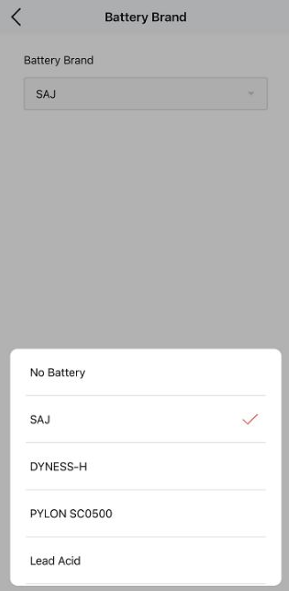 |
| Click initialization and select grid for the country |
|
| Click initialization and select grid for the country | 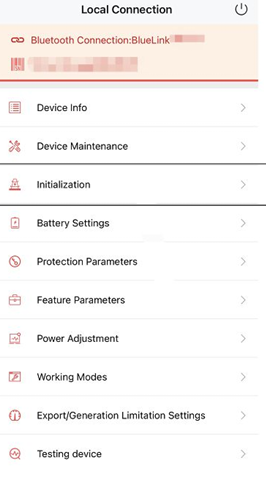 |
| Disable Export limitation (if it is enabled power from the inverter cannot be fed into the grid). |
|
| Disable Export limitation (if it is enabled power from the inverter cannot be fed into the grid). | 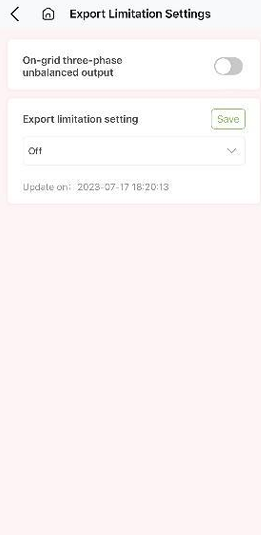 |
## Troubleshooting
Common issues and solutions:
1. No Communication
- Check physical connections
- Verify network settings
- Ensure proper Modbus address configuration
2. Intermittent Connection
- Check cable quality and connections
- Verify there's no electromagnetic interference
- Ensure proper cable routing
# Sav
import { BrandName, ControllerName } from '@site/src/components/customFields';
import RS485ConnectionTable from '@site/src/components/RS485ConnectionTable';
import DeviceSupportTable from '@site/src/components/DeviceSupportTable';
import ClickableImage from '@/components/ClickableImage'
|
## Troubleshooting
Common issues and solutions:
1. No Communication
- Check physical connections
- Verify network settings
- Ensure proper Modbus address configuration
2. Intermittent Connection
- Check cable quality and connections
- Verify there's no electromagnetic interference
- Ensure proper cable routing
# Sav
import { BrandName, ControllerName } from '@site/src/components/customFields';
import RS485ConnectionTable from '@site/src/components/RS485ConnectionTable';
import DeviceSupportTable from '@site/src/components/DeviceSupportTable';
import ClickableImage from '@/components/ClickableImage'
 ## Supported Devices
> ⚠️ Testing is ongoing for this device
## Configuration
### RS485
For RS485 wiring, follow the [guidelines for RS485 wiring](/Controller/wiring-best-practices/#rs485).
# Schneider SunEzy
import { BrandName, ControllerName } from '@site/src/components/customFields';
import RS485ConnectionTable from '@site/src/components/RS485ConnectionTable';
import ClickableImage from '@site/src/components/ClickableImage';
import DeviceSupportTable from '@site/src/components/DeviceSupportTable';
import RS485AddressNote from '@site/src/components/RS485AddressNote';
# Schneider Electric SunEzy Inverters
---
## Supported Devices
---
## Wiring
### RS485 Connection
For most SunEzy models (2000 / 2800 / 4000 / 400E / 600E):
> [!NOTE]
> SunEzy inverters using RS232 (DB9 interface) can be connected via an RS232-to-RS485 converter when required.
---
# Schuco
import { BrandName, ControllerName } from '@site/src/components/customFields';
import RS485ConnectionTable from '@site/src/components/RS485ConnectionTable';
import RS485AddressNote from '@site/src/components/RS485AddressNote';
import ClickableImage from '@site/src/components/ClickableImage';
import DeviceSupportTable from '@site/src/components/DeviceSupportTable';
## Supported Devices
> ⚠️ Testing is ongoing for this device
## Configuration
### RS485
For RS485 wiring, follow the [guidelines for RS485 wiring](/Controller/wiring-best-practices/#rs485).
# Schneider SunEzy
import { BrandName, ControllerName } from '@site/src/components/customFields';
import RS485ConnectionTable from '@site/src/components/RS485ConnectionTable';
import ClickableImage from '@site/src/components/ClickableImage';
import DeviceSupportTable from '@site/src/components/DeviceSupportTable';
import RS485AddressNote from '@site/src/components/RS485AddressNote';
# Schneider Electric SunEzy Inverters
---
## Supported Devices
---
## Wiring
### RS485 Connection
For most SunEzy models (2000 / 2800 / 4000 / 400E / 600E):
> [!NOTE]
> SunEzy inverters using RS232 (DB9 interface) can be connected via an RS232-to-RS485 converter when required.
---
# Schuco
import { BrandName, ControllerName } from '@site/src/components/customFields';
import RS485ConnectionTable from '@site/src/components/RS485ConnectionTable';
import RS485AddressNote from '@site/src/components/RS485AddressNote';
import ClickableImage from '@site/src/components/ClickableImage';
import DeviceSupportTable from '@site/src/components/DeviceSupportTable';
 # Schuco Inverters
## Supported Devices
Whitelabeled Kaco inverters from before 2014 are supported for monitoring only.
# SCU
import { BrandName, ControllerName } from '@site/src/components/customFields';
import RS485ConnectionTable from '@site/src/components/RS485ConnectionTable';
import RS485AddressNote from '@site/src/components/RS485AddressNote';
import ClickableImage from '@site/src/components/ClickableImage';
import DeviceSupportTable from '@site/src/components/DeviceSupportTable';
# Schuco Inverters
## Supported Devices
Whitelabeled Kaco inverters from before 2014 are supported for monitoring only.
# SCU
import { BrandName, ControllerName } from '@site/src/components/customFields';
import RS485ConnectionTable from '@site/src/components/RS485ConnectionTable';
import RS485AddressNote from '@site/src/components/RS485AddressNote';
import ClickableImage from '@site/src/components/ClickableImage';
import DeviceSupportTable from '@site/src/components/DeviceSupportTable';
 # SCU Battery Container
## Configuration
### SCU Battery Container
In the SCU interface:
1. Go to "Maintenance"
2. Go to "Comm Settings"
3. Go to "PCS"
4. Under "BMS: Number of devices" -> Set this to the amount of batteries / BMS systems that are connected.
### GRES-300-200
The GRES-300-200 is a battery container with its own inverter. The connects to it over a single Modbus TCP connection, to the container's industrial PC.
In the SCU interface:
1. Go to "Maintenance" → "Comm Settings" → "PCS"
2. Under **"BMS: Number of devices"**, set the number of battery modules that are connected (up to 10)
3. Set the PCS control mode to **Remote**. In any other mode the cannot steer the container, and the device reports "Remote control is not enabled on the GRES-300-200".
When adding the device to the :
- Choose **SCU Protocol For GRES-300-200**
- Modbus TCP port: `502`
- Modbus address: `1`
Good to know:
- The steers the container as one unit, with a single power setpoint. The container divides that power over its battery modules itself. The modules are shown separately in the app, but they cannot be charged or discharged separately.
- PV connected to the container through PDMD modules is not supported.
# Sessy
import { BrandName, ControllerName } from '@site/src/components/customFields';
import RS485ConnectionTable from '@site/src/components/RS485ConnectionTable';
import RS485AddressNote from '@site/src/components/RS485AddressNote';
import ClickableImage from '@site/src/components/ClickableImage';
import DeviceSupportTable from '@site/src/components/DeviceSupportTable';
## Supported Devices
You'll need to input your Sessy battery dongle username and password when connecting your battery.
# Sigenergy
import { BrandName, ControllerName } from '@site/src/components/customFields';
import RS485ConnectionTable from '@site/src/components/RS485ConnectionTable';
import RS485AddressNote from '@site/src/components/RS485AddressNote';
import ClickableImage from '@site/src/components/ClickableImage';
import DeviceSupportTable from '@site/src/components/DeviceSupportTable';
# SCU Battery Container
## Configuration
### SCU Battery Container
In the SCU interface:
1. Go to "Maintenance"
2. Go to "Comm Settings"
3. Go to "PCS"
4. Under "BMS: Number of devices" -> Set this to the amount of batteries / BMS systems that are connected.
### GRES-300-200
The GRES-300-200 is a battery container with its own inverter. The connects to it over a single Modbus TCP connection, to the container's industrial PC.
In the SCU interface:
1. Go to "Maintenance" → "Comm Settings" → "PCS"
2. Under **"BMS: Number of devices"**, set the number of battery modules that are connected (up to 10)
3. Set the PCS control mode to **Remote**. In any other mode the cannot steer the container, and the device reports "Remote control is not enabled on the GRES-300-200".
When adding the device to the :
- Choose **SCU Protocol For GRES-300-200**
- Modbus TCP port: `502`
- Modbus address: `1`
Good to know:
- The steers the container as one unit, with a single power setpoint. The container divides that power over its battery modules itself. The modules are shown separately in the app, but they cannot be charged or discharged separately.
- PV connected to the container through PDMD modules is not supported.
# Sessy
import { BrandName, ControllerName } from '@site/src/components/customFields';
import RS485ConnectionTable from '@site/src/components/RS485ConnectionTable';
import RS485AddressNote from '@site/src/components/RS485AddressNote';
import ClickableImage from '@site/src/components/ClickableImage';
import DeviceSupportTable from '@site/src/components/DeviceSupportTable';
## Supported Devices
You'll need to input your Sessy battery dongle username and password when connecting your battery.
# Sigenergy
import { BrandName, ControllerName } from '@site/src/components/customFields';
import RS485ConnectionTable from '@site/src/components/RS485ConnectionTable';
import RS485AddressNote from '@site/src/components/RS485AddressNote';
import ClickableImage from '@site/src/components/ClickableImage';
import DeviceSupportTable from '@site/src/components/DeviceSupportTable';
 # Sigenergy Inverters
## Supported Devices
## Wiring
The and the Dyness inverters communicate via RS485 or Ethernet.
### Ethernet
For correct ethernet wiring: Follow the [the guidelines for ethernet wiring](/Controller/wiring-best-practices/#ethernet).
### RS485
## Configuration
Ensure that modbus is enabled:
1. From the main page go to "Device"
2. Click "Powerhouse Settings"
3. Enable "Modbus TCP Server Enable"
Ensure that the inverter has been set to Remote EMS Mode:
1. From the main page go to "System"
2. Click the three dots next to the installation namespace
3. Click "System Settings"
4. Click "Operational Mode"
5. Select "Remote EMS Mode"
Disable any grid limits:
1. From the main page go to "System"
2. Click the three dots next to the installation namespace
3. Click "System Settings"
4. Under "Operational Parameters" disable "Export Limitation" and "Import Limitation"
5. Set "Grid Connection Point Reserve Power Control Method" to "Power Per Phase"
# Sinexcel
import { BrandName, ControllerName } from '@site/src/components/customFields';
import RS485ConnectionTable from '@site/src/components/RS485ConnectionTable';
import RS485AddressNote from '@site/src/components/RS485AddressNote';
import ClickableImage from '@site/src/components/ClickableImage';
import DeviceSupportTable from '@site/src/components/DeviceSupportTable';
# Sigenergy Inverters
## Supported Devices
## Wiring
The and the Dyness inverters communicate via RS485 or Ethernet.
### Ethernet
For correct ethernet wiring: Follow the [the guidelines for ethernet wiring](/Controller/wiring-best-practices/#ethernet).
### RS485
## Configuration
Ensure that modbus is enabled:
1. From the main page go to "Device"
2. Click "Powerhouse Settings"
3. Enable "Modbus TCP Server Enable"
Ensure that the inverter has been set to Remote EMS Mode:
1. From the main page go to "System"
2. Click the three dots next to the installation namespace
3. Click "System Settings"
4. Click "Operational Mode"
5. Select "Remote EMS Mode"
Disable any grid limits:
1. From the main page go to "System"
2. Click the three dots next to the installation namespace
3. Click "System Settings"
4. Under "Operational Parameters" disable "Export Limitation" and "Import Limitation"
5. Set "Grid Connection Point Reserve Power Control Method" to "Power Per Phase"
# Sinexcel
import { BrandName, ControllerName } from '@site/src/components/customFields';
import RS485ConnectionTable from '@site/src/components/RS485ConnectionTable';
import RS485AddressNote from '@site/src/components/RS485AddressNote';
import ClickableImage from '@site/src/components/ClickableImage';
import DeviceSupportTable from '@site/src/components/DeviceSupportTable';
 # Sinexcel Inverters
> [!WARNING] Sinexcel in combination with a Poweroad BMS
> Starting from software version 1.17.0.x, you must add the Sinexcel inverter and Poweroad BMS as separate devices, and dc-link them through the groups page. For more information, see: [DC-linking inverters, batteries and BMS systems](/Controller/Configuration%20from%20A%20to%20Z/11-Extra-Information/dc-linking/)
## Supported Devices
{/* TODO: Confirm the models */}
## Wiring
For correct ethernet wiring: Follow the [the guidelines for ethernet wiring](/Controller/wiring-best-practices/#ethernet).
## Configuration
The external control of the inverter for modbus TCP communication has to be activated in the configuration screen of the inverter.
On the touchscreen of the inverter:
1. Go to the Login/Logout/User tab
2. Use the code "123456" to log in
On the touchscreen of the inverter:
1. Go to the "Ctrl mode" tab
2. Put modus on "Remote control"
> [!TIP]
> In case the mode is already on "Remote control", but the battery does not respond, put the mode first on "Local Manual" and then select again "Remote control" to reactivate the remote control function.
# API
import { BrandName, ControllerName } from '@site/src/components/customFields';
import RS485ConnectionTable from '@site/src/components/RS485ConnectionTable';
import RS485AddressNote from '@site/src/components/RS485AddressNote';
import ClickableImage from '@site/src/components/ClickableImage';
import YouTubeEmbed from '@site/src/components/YouTubeEmbed';
import DeviceSupportTable from '@site/src/components/DeviceSupportTable';
> [!WARNING]
> - Control of SMA inverters is only available with the cloud , not with the physical devices.
> - The SMA API is paid. The API usage fees will be charged through.
## Supported Devices
## Configuration
To control the SMA inverters via the API, you must log in locally to the data manager. Follow the steps below to configure the SMA Data Manager for API access.
# Sinexcel Inverters
> [!WARNING] Sinexcel in combination with a Poweroad BMS
> Starting from software version 1.17.0.x, you must add the Sinexcel inverter and Poweroad BMS as separate devices, and dc-link them through the groups page. For more information, see: [DC-linking inverters, batteries and BMS systems](/Controller/Configuration%20from%20A%20to%20Z/11-Extra-Information/dc-linking/)
## Supported Devices
{/* TODO: Confirm the models */}
## Wiring
For correct ethernet wiring: Follow the [the guidelines for ethernet wiring](/Controller/wiring-best-practices/#ethernet).
## Configuration
The external control of the inverter for modbus TCP communication has to be activated in the configuration screen of the inverter.
On the touchscreen of the inverter:
1. Go to the Login/Logout/User tab
2. Use the code "123456" to log in
On the touchscreen of the inverter:
1. Go to the "Ctrl mode" tab
2. Put modus on "Remote control"
> [!TIP]
> In case the mode is already on "Remote control", but the battery does not respond, put the mode first on "Local Manual" and then select again "Remote control" to reactivate the remote control function.
# API
import { BrandName, ControllerName } from '@site/src/components/customFields';
import RS485ConnectionTable from '@site/src/components/RS485ConnectionTable';
import RS485AddressNote from '@site/src/components/RS485AddressNote';
import ClickableImage from '@site/src/components/ClickableImage';
import YouTubeEmbed from '@site/src/components/YouTubeEmbed';
import DeviceSupportTable from '@site/src/components/DeviceSupportTable';
> [!WARNING]
> - Control of SMA inverters is only available with the cloud , not with the physical devices.
> - The SMA API is paid. The API usage fees will be charged through.
## Supported Devices
## Configuration
To control the SMA inverters via the API, you must log in locally to the data manager. Follow the steps below to configure the SMA Data Manager for API access.
### Opening configuration wizard
Click on “Configuration” and then go to the “Grid Management” section. In the grid management section, under the “Actual Power” section, click “Go to Configuration.”
### Wizard step 1
In the wizard in the SMA data manager, no changes have to be made in step 1. Go to step 2.
### Wizard step 2
When doing curtailment, we can differentiate between curtailing to zero production or to zero export.
When choosing for zero production, the inverter will not produce any power at all.
When choosing for zero export, the inverter will produce power, but it will be consumed and nothing will be exported to the grid (best effort).
Select the first option ("Besturing") for zero production. Select the second option ("Regeling") for zero export power:
Below, you need to click on “Direct Marketing Interface” and then on “SMA Spot”
### Wizard step 3
No changes have to be made in step 3. Go to step 4.
### Wizard step 4
Here you adjust the fallback to the converter power.
I.e., if the internet goes down between the data manager and our server, it will fall back to the preset value within 600 seconds.
# Battery
import { FolderOverview } from '@/components/FolderOverview';
# Battery
# Sunny Boy Storage
import { BrandName, ControllerName } from '@site/src/components/customFields';
import RS485ConnectionTable from '@site/src/components/RS485ConnectionTable';
import RS485AddressNote from '@site/src/components/RS485AddressNote';
import ClickableImage from '@site/src/components/ClickableImage';
import DeviceSupportTable from '@site/src/components/DeviceSupportTable';
## Supported Devices
## Wiring
For correct ethernet wiring: Follow the [the guidelines for ethernet wiring](/Controller/wiring-best-practices/#ethernet).
## Configuration
1. Connect with your computer on the same LAN network as the SMA Sunny Boy Storage.
2. In your web browser, surf to the IP address of the device.
3. Log in as "Installer."
4. Go to the device parameters tab.
5. Click "Edit parameters."
6. Open the "External Communication" dropdown menu → "Modbus" → "TCP server."
7. Set "Activated" to "Yes" and "Port" to "502".
8. At the top of the page, click "Save all."
## Connection to the Controller
You then need to connect the device to the controller, for that follow this guide : [Adding a device](/Controller/Configuration%20from%20A%20to%20Z/11-Extra-Information/adding-device/).
# Sunny Island
import { BrandName, ControllerName } from '@site/src/components/customFields';
import RS485ConnectionTable from '@site/src/components/RS485ConnectionTable';
import RS485AddressNote from '@site/src/components/RS485AddressNote';
import ClickableImage from '@site/src/components/ClickableImage';
import DeviceSupportTable from '@site/src/components/DeviceSupportTable';
## Supported Devices
## Wiring
For correct ethernet wiring: Follow the [the guidelines for ethernet wiring](/Controller/wiring-best-practices/#ethernet).
## Configuration
1. Connect with your computer on the same LAN network as the SMA Sunny Island.
2. In your web browser, surf to the IP address of the device.
3. Log in as "Installer."
4. Go to the device parameters tab.
5. Click "Edit parameters."
6. Open the "External Communication" dropdown menu → "Modbus" → "TCP server."
7. Set "Activated" to "Yes" and "Port" to "502".
8. At the top of the page, click "Save all."
# Sunny Island X
import { BrandName, ControllerName } from '@site/src/components/customFields';
import RS485ConnectionTable from '@site/src/components/RS485ConnectionTable';
import RS485AddressNote from '@site/src/components/RS485AddressNote';
import ClickableImage from '@site/src/components/ClickableImage';
import DeviceSupportTable from '@site/src/components/DeviceSupportTable';
## Supported Devices
## Wiring
For correct ethernet wiring: Follow the [the guidelines for ethernet wiring](/Controller/wiring-best-practices/#ethernet).
## Configuration
1. Connect with your computer on the same LAN network as the SMA Sunny Island X.
2. In your web browser, surf to the IP address of the device.
3. Log in as "Installer."
4. Go to the device parameters tab.
5. Click "Edit parameters."
6. Open the "External Communication" dropdown menu → "Modbus" → "TCP server."
7. Set "Activated" to "Yes" and "Port" to "502".
8. At the top of the page, click "Save all."
# Sunny Tripower Storage
import { BrandName, ControllerName } from '@site/src/components/customFields';
import RS485ConnectionTable from '@site/src/components/RS485ConnectionTable';
import RS485AddressNote from '@site/src/components/RS485AddressNote';
import ClickableImage from '@site/src/components/ClickableImage';
import DeviceSupportTable from '@site/src/components/DeviceSupportTable';
## Supported Devices
## Wiring
For correct ethernet wiring: Follow the [the guidelines for ethernet wiring](/Controller/wiring-best-practices/#ethernet).
## Configuration
1. Connect with your computer on the same LAN network as the SMA Sunny Tripower Storage.
2. In your web browser, surf to the IP address of the device.
3. Log in as "Installer."
4. Go to the device parameters tab.
5. Click "Edit parameters."
6. Open the "External Communication" dropdown menu → "Modbus" → "TCP server."
7. Set "Activated" to "Yes" and "Port" to "502".
8. At the top of the page, click "Save all."
# Data Manager M
import { BrandName, ControllerName } from '@site/src/components/customFields';
import RS485ConnectionTable from '@site/src/components/RS485ConnectionTable';
import RS485AddressNote from '@site/src/components/RS485AddressNote';
import ClickableImage from '@site/src/components/ClickableImage';
import DeviceSupportTable from '@site/src/components/DeviceSupportTable';
## Supported Devices
## Wiring
For correct ethernet wiring: Follow the [the guidelines for ethernet wiring](/Controller/wiring-best-practices/#ethernet).
## Configuration
The SMA Data Manager M only follows the power limits of the when two things are set up on it: the Modbus server, and active power control by Modbus in the grid management services. With only the Modbus server active, the can read the data but the Data Manager ignores its limits.
1. Connect with your computer on the same LAN network as the SMA Data Manager M.
2. In your web browser, surf to the IP address of the Data Manager and log in as "Installer."
3. Check that the correct country standard was selected during commissioning.
4. Activate the Modbus server on the Data Manager. Only Modbus TCP works (not UDP).
5. In the "Configuration" menu, open "Grid management services."
6. Click "Configuration and activation" in the "Active power method" row.
7. Select the operating mode "Closed loop" or "Open loop."
8. Select "Modbus" as the signal source.
9. Make the remaining settings as the grid operator specifies, and confirm each step with "Continue."
10. Click "Save."
If active power control by Modbus is not enabled, the "Control" column of the Data Manager on the devices page of the turns red with the message "Grid management services are not enabled in the SMA Data Manager, so it ignores our setpoints."
# Hybrid
import { FolderOverview } from '@/components/FolderOverview';
# Hybrid
# Sunny Boy Smart Energy
import { BrandName, ControllerName } from '@site/src/components/customFields';
import RS485ConnectionTable from '@site/src/components/RS485ConnectionTable';
import RS485AddressNote from '@site/src/components/RS485AddressNote';
import ClickableImage from '@site/src/components/ClickableImage';
import DeviceSupportTable from '@site/src/components/DeviceSupportTable';
## Supported Devices
## Wiring
For correct ethernet wiring: Follow the [the guidelines for ethernet wiring](/Controller/wiring-best-practices/#ethernet).
## Configuration
1. Connect with your computer on the same LAN network as the SMA Sunny Boy Smart Energy.
2. In your web browser, surf to the IP address of the device.
3. Log in as "Installer."
4. Go to the device parameters tab.
5. Click "Edit parameters."
6. Open the "External Communication" dropdown menu → "Modbus" → "TCP server."
7. Set "Activated" to "Yes" and "Port" to "502".
8. At the top of the page, click "Save all."
## Connection to the Controller
You then need to connect the device to the controller, for that follow this guide : [Adding a device](/Controller/Configuration%20from%20A%20to%20Z/11-Extra-Information/adding-device/).
# Sunny Tripower Smart Energy
import { BrandName, ControllerName } from '@site/src/components/customFields';
import RS485ConnectionTable from '@site/src/components/RS485ConnectionTable';
import RS485AddressNote from '@site/src/components/RS485AddressNote';
import ClickableImage from '@site/src/components/ClickableImage';
import DeviceSupportTable from '@site/src/components/DeviceSupportTable';
## Supported Devices
## Wiring
For correct ethernet wiring: Follow the [the guidelines for ethernet wiring](/Controller/wiring-best-practices/#ethernet).
## Configuration
1. Connect with your computer on the same LAN network as the SMA Sunny Tripower Smart Energy.
2. In your web browser, surf to the IP address of the device.
3. Log in as "Installer."
4. Go to the device parameters tab.
5. Click "Edit parameters."
6. Open the "External Communication" dropdown menu → "Modbus" → "TCP server."
7. Set "Activated" to "Yes" and "Port" to "502".
8. At the top of the page, click "Save all."
# Sma
import { FolderOverview } from '@/components/FolderOverview';
# Sma
# Solar
import { FolderOverview } from '@/components/FolderOverview';
# Solar
# Sunny Boy
import { BrandName, ControllerName } from '@site/src/components/customFields';
import RS485ConnectionTable from '@site/src/components/RS485ConnectionTable';
import RS485AddressNote from '@site/src/components/RS485AddressNote';
import ClickableImage from '@site/src/components/ClickableImage';
import DeviceSupportTable from '@site/src/components/DeviceSupportTable';
## Supported Devices
## Wiring
For correct ethernet wiring: Follow the [the guidelines for ethernet wiring](/Controller/wiring-best-practices/#ethernet).
## Configuration
1. Connect with your computer on the same LAN network as the SMA Sunny Boy.
2. In your web browser, surf to the IP address of the device.
3. Log in as "Installer."
4. Go to the device parameters tab.
5. Click "Edit parameters."
6. Open the "External Communication" dropdown menu → "Modbus" → "TCP server."
7. Set "Activated" to "Yes" and "Port" to "502".
8. At the top of the page, click "Save all."
## Connection to the Controller
You then need to connect the device to the controller, for that follow this guide : [Adding a device](/Controller/Configuration%20from%20A%20to%20Z/11-Extra-Information/adding-device/).
# Sunny Tripower
import { BrandName, ControllerName } from '@site/src/components/customFields';
import RS485ConnectionTable from '@site/src/components/RS485ConnectionTable';
import RS485AddressNote from '@site/src/components/RS485AddressNote';
import ClickableImage from '@site/src/components/ClickableImage';
import DeviceSupportTable from '@site/src/components/DeviceSupportTable';
## Supported Devices
## Wiring
For correct ethernet wiring: Follow the [the guidelines for ethernet wiring](/Controller/wiring-best-practices/#ethernet).
## Configuration
1. Connect with your computer on the same LAN network as the SMA Sunny Tripower.
2. In your web browser, surf to the IP address of the device.
3. Log in as "Installer."
4. Go to the device parameters tab.
5. Click "Edit parameters."
6. Open the "External Communication" dropdown menu → "Modbus" → "TCP server."
7. Set "Activated" to "Yes" and "Port" to "502".
8. At the top of the page, click "Save all."
# Socomec
import { BrandName, ControllerName } from '@site/src/components/customFields';
import DeviceSupportTable from '@site/src/components/DeviceSupportTable';
## Supported Devices
## Wiring
### Ethernet
For correct ethernet wiring: Follow the [the guidelines for ethernet wiring](/Controller/wiring-best-practices/#ethernet).
# HYD 3000…6000-ES
{/* TODO: It looks like this is valid for more inverters? */}
import { BrandName, ControllerName } from '@site/src/components/customFields';
import RS485ConnectionTable from '@site/src/components/RS485ConnectionTable';
import RS485AddressNote from '@site/src/components/RS485AddressNote';
import ClickableImage from '@site/src/components/ClickableImage';
import DeviceSupportTable from '@site/src/components/DeviceSupportTable';
# Sofar HYD 3000…6000-ES Inverters
## Supported Devices
> [!WARNING]
> - It is recommended to use RS485, as the Solarman dongle may change firmware and lock Modbus TCP access!
> - If you use a Solarman dongle, then it is recommended to use the ethernet dongle for connection stability.
## Wiring
### Ethernet
For correct ethernet wiring: Follow the [the guidelines for ethernet wiring](/Controller/wiring-best-practices/#ethernet).
Connect the inverter to your internet network using the "Solarman dongle".
1. Install the WiFi or Ethernet dongle into the inverter and make sure it is connected to your network.
2. Write down the serial number of the dongle (see the picture on the left/above). You will need this when setting up communication with the controller.
> [!NOTE] Dongle firmware
> WiFi dongle firmware LSW3_15_FFFF_1.0.65 and ethernet dongle firmware ME_08_2701_2.06 have been tested. In case of problems you can try to put these specific firmware versions on the dongle. Please contact the supplier of your dongle for this.
### RS485
## Configuration
### Activating external battery control
External battery control must be activated in the inverter configuration menu via the LCD display. In the inverter settings:
1. Go to "Basic settings".
2. Go to "Energy Storage Mode"
3. Set this to “Set Passive Mode”
4. For more information, see the Sofar HYD 3000/4000/5000/6000-ES Owner's Manual page 26 and following.
### RS485
External inverter control must be activated in the configuration menu of the inverter via the LCD screen.
1. Click shortly on the button down.
2. You'll see "1. Enter settings", press button down for 2 seconds to enter the settings.
3. Go through the settings until you see:
- Modbus Address or
- Set ComProtocol
4. Press button down for 2 seconds to set the address.
5. Set the Address to the wanted value.
# Sofar
import { FolderOverview } from '@/components/FolderOverview';
# Sofar
# PowerMagic
import { BrandName, ControllerName } from '@site/src/components/customFields';
import RS485ConnectionTable from '@site/src/components/RS485ConnectionTable';
import RS485AddressNote from '@site/src/components/RS485AddressNote';
import ClickableImage from '@site/src/components/ClickableImage';
import DeviceSupportTable from '@site/src/components/DeviceSupportTable';
# Sofar C&I ESS - PowerMagic
## Supported Devices
> [!WARNING] My Sofar PowerMagic shows a warning "Status unknown"?
>
> This is a known issue with some Sofar PowerMagic inverters. It does not affect the functionality of the inverter, and can be ignored.
> A future update from Sofar should resolve this issue.
>
> __Why does this happen?__ The reads the status of the inverter via Modbus TCP. The PowerMagic
> responds a code between 0 and 4 that indicates the status of the inverter. However, in some cases the PowerMagic responds with a code 5, which is not recognized by the and therefore shows "Status unknown".
## Wiring
### Ethernet
Through an ethernet cable, one end is connected to the WEB port on the
BESS door board, and the other end is connected to the internet. A communication connection will be established between the BESS and the
local network.
The system is powered up (see the power-on step for details) to ensure that the
auxiliary power supply of the BESS is working properly (the 'power' indicator light on the door panel can be observed, and if the indicator light is on, it
indicates that the auxiliary power supply is working properly). After waiting for
about 1 minute:
- If the network port on your network switch indicator light flashes, it indicates that the
communication between BESS and network has been established .
- If the indicator light is not on, check the network connection
The login interface of the BESS can be entered through a browser on a computer or mobile. By default, this is http://192.168.1.100.
The initial user account is “user”. For the initial password of the user, please
contact the Sofar customer service staff
When you can reach the login interface of the BESS, it indicates that the communication between the BESS and the network has been established.
For more tips on ethernet wiring: Follow [the guidelines for ethernet wiring](/Controller/wiring-best-practices/#ethernet).
## Configuration
Check if the PowerMagic is online and if there are no errors. This can be done in the web interface of the PowerMagic, by looking on the topology diagram:
Modbus is enabled by default on the PowerMagic. The default Modbus TCP port is 502 and the default Modbus slave ID is 1.
When adding the device on the , it will automatically scan for Sofar PowerMagic devices with the default settings.
## A note on response times in standby mode
The Sofar PowerMagic has a 'Standby Mode' that it enters after a period of inactivity.
We notice when sending a (dis)charge command, the PowerMagic may take up to 2 minutes to respond while in standby mode.
Once the PowerMagic is active again, it leaves the standby mode and the response time is back to normal (1 second).
# Sofar - String inverter
import { FolderOverview } from '@/components/FolderOverview'
# Sofar - String inverter
# TL-G3 and TLM/X-G3 Series
import { BrandName, ControllerName } from '@site/src/components/customFields';
import RS485ConnectionTable from '@site/src/components/RS485ConnectionTable';
import RS485AddressNote from '@site/src/components/RS485AddressNote';
import ClickableImage from '@site/src/components/ClickableImage';
import DeviceSupportTable from '@site/src/components/DeviceSupportTable';
This guide covers the listed TL-G3, TLM and TLX families. Connector layouts and communication options can differ between model revisions, so verify the exact model label before wiring.
# Sofar TL-G3 and TLM/X-G3 Series Inverters
## Supported Devices
> [!WARNING]
> - Most of the devices can communicate using modbus TCP. This is not valid for the series "SOFAR 1...40KTL"
> - Some inverters require specific firmware that is limited to certain distributors. Consult your distributor in case of doubt.
## Wiring
### Ethernet
Connect the inverter to your internet network using the "SOFAR SOLAR ETHERNET STICK LSE3".
For correct ethernet wiring: Follow the [the guidelines for ethernet wiring](/Controller/wiring-best-practices/#ethernet).
### RS485
#### ...TL-G3 & G1 & G2
#### ...TLX & TLM
## Configuration
### RS485
External inverter control must be activated in the configuration menu of the inverter via the LCD screen.
1. Click shortly on the button down.
2. You'll see "1. Enter settings", press button down for 2 seconds to enter the settings.
3. Go through the settings until you see:
- Modbus Address or
- Set ComProtocol
4. Press button down for 2 seconds to set the address.
5. Set the Address to the wanted value.
# API
import { BrandName, ControllerName } from '@site/src/components/customFields';
import RS485ConnectionTable from '@site/src/components/RS485ConnectionTable';
import ClickableImage from '@site/src/components/ClickableImage';
import DownloadButton from '@site/src/components/DownloadButton';
> [!TIP]
> See [SolarEdge Cloud API](/Devices/Cloud/SolarEdge/) for more information.
> [!WARNING]
> The API is only aviable for Cloud controllers.
# Solaredge
import { FolderOverview } from '@/components/FolderOverview';
# Solaredge
# SE3.5K - SE33.3K Series
import { BrandName, ControllerName } from '@site/src/components/customFields';
import RS485ConnectionTable from '@site/src/components/RS485ConnectionTable';
import RS485AddressNote from '@site/src/components/RS485AddressNote';
import ClickableImage from '@site/src/components/ClickableImage';
import DeviceSupportTable from '@site/src/components/DeviceSupportTable';
 # SolarEdge SE3.5K - 33.3K inverters
## Supported Devices
> [!WARNING] CURTAILMENT IS ONLY SUPPORTED AFTER OBTAINING AN AGREEMENT WITH SOLAREDGE
> If curtailment is not working on your SolarEdge device, it is probably not enabled by SolarEdge.
> Reach out to SolarEdge to enable control of your devices.
> [!WARNING] SolarEdge refuses to help customers with curtailment!
## Wiring
For correct ethernet wiring: Follow the [the guidelines for ethernet wiring](/Controller/wiring-best-practices/#ethernet).
> [!WARNING] MULTIPLE SOLAR EDGE DEVICES IN A CHAIN
> Although it is theoretically possible to read out multiple SolarEdge linked via RS485 over Modbus TCP in a master-slave configuration, in practice this communication is NOT reliable.
>
> You MUST connect each inverter individually via Modbus TCP!
## Activating Modbus TCP communication
### Via the SolarEdge SetApp (may require credentials)
1. Connect the inverter to the same LAN network as the controller and make sure it is on.
2. Download the SolarEdge SetApp: https://www.solaredge.com/nl/producten/software/setapp
3. Open the SolarEdge SetApp and connect to the inverter. The app will help you do this.
4. In the app, once connected to the inverter, go to the "Communication" -> "Modbus TCP" -> "Enable" menu and enable Modbus TCP.
5. The Modbus TCP port is set to 1502 by default. Please leave it as is, and if it is set to another port, change it to port 1502. You can also use port 502 if necessary, but you will need to select the protocol for port 502 later when adding on the controller.
### Via the inverter's Web interface via the inverter's WiFi access point (no credentials required)
1. Activate the inverter's WiFi access point by switching the red toggle switch at the bottom of the inverter to the "P" position for less than 5 seconds.
2. Connect to the WiFi access point with a smartphone or computer. The WiFi password is on the label on the inverter
3. In a Web browser, surf to http://172.16.0.1
4. Go to "Site communication" -> "Modbus TCP port" -> "Modbus TCP" and set it to "Enabled".
5. The Modbus TCP port is set to 1502 by default. Please leave it as is, and if it is set to another port, change it to port 1502. You can also use port 502 if necessary, but you will need to select the protocol for port 502 later when adding on the controller.
# SE50K - SE120K Synergy Series
import { BrandName, ControllerName } from '@site/src/components/customFields';
import RS485ConnectionTable from '@site/src/components/RS485ConnectionTable';
import RS485AddressNote from '@site/src/components/RS485AddressNote';
import ClickableImage from '@site/src/components/ClickableImage';
import DeviceSupportTable from '@site/src/components/DeviceSupportTable';
# SolarEdge SE50K - SE120K Synergy inverters
## Supported Devices
> [!WARNING] CURTAILMENT IS ONLY SUPPORTED AFTER OBTAINING AN AGREEMENT WITH SOLAREDGE
> If curtailment is not working on your SolarEdge device, it is probably not enabled by SolarEdge.
> Reach out to SolarEdge to enable control of your devices.
> [!WARNING] SolarEdge refuses to help customers with curtailment!
## Wiring
For correct ethernet wiring: Follow the [the guidelines for ethernet wiring](/Controller/wiring-best-practices/#ethernet).
> [!WARNING] MULTIPLE SOLAR EDGE DEVICES IN A CHAIN
> Although it is theoretically possible to read out multiple SolarEdge linked via RS485 over Modbus TCP in a master-slave configuration, in practice this communication is NOT reliable.
>
> You MUST connect each inverter individually via Modbus TCP!
## Activating Modbus TCP communication
### Via the SolarEdge SetApp (may require credentials)
1. Connect the inverter to the same LAN network as the controller and make sure it is on.
2. Download the SolarEdge SetApp: https://www.solaredge.com/nl/producten/software/setapp
3. Open the SolarEdge SetApp and connect to the inverter. The app will help you do this.
4. In the app, once connected to the inverter, go to the "Communication" -> "Modbus TCP" -> "Enable" menu and enable Modbus TCP.
5. The Modbus TCP port is set to 1502 by default. Please leave it as is, and if it is set to another port, change it to port 1502. You can also use port 502 if necessary, but you will need to select the protocol for port 502 later when adding on the controller.
### Via the inverter's Web interface via the inverter's WiFi access point (no credentials required)
1. Activate the inverter's WiFi access point by switching the red toggle switch at the bottom of the inverter to the "P" position for less than 5 seconds.
2. Connect to the WiFi access point with a smartphone or computer. The WiFi password is on the label on the inverter
3. In a Web browser, surf to http://172.16.0.1
4. Go to "Site communication" -> "Modbus TCP port" -> "Modbus TCP" and set it to "Enabled".
5. The Modbus TCP port is set to 1502 by default. Please leave it as is, and if it is set to another port, change it to port 1502. You can also use port 502 if necessary, but you will need to select the protocol for port 502 later when adding on the controller.
# SE2200H - SE6000H
import { BrandName, ControllerName } from '@site/src/components/customFields';
import RS485ConnectionTable from '@site/src/components/RS485ConnectionTable';
import RS485AddressNote from '@site/src/components/RS485AddressNote';
import ClickableImage from '@site/src/components/ClickableImage';
import DeviceSupportTable from '@site/src/components/DeviceSupportTable';
# SolarEdge SE2200H - SE6000H inverters
## Supported Devices
> [!WARNING]
> ### CURTAILMENT IS ONLY SUPPORTED AFTER OBTAINING AN AGREEMENT WITH SOLAREDGE
> If curtailment is not working on your SolarEdge device, it is probably not enabled by SolarEdge.
> Reach out to SolarEdge to enable control of your devices.
> [!WARNING] SolarEdge refuses to help customers with curtailment!
## Wiring
For correct ethernet wiring: Follow the [the guidelines for ethernet wiring](/Controller/wiring-best-practices/#ethernet).
## Configuration
### Activating Modbus TCP communication
In the menu, navigate to "Communication" -> "LAN Conf" -> "Modbus TCP", and activate Modbus TCP.
When Modbus TCP is activated, the following status screen will be displayed:
Modbus TCP: <status>
IP:192.168.1.210
Port:502
# Solarlog
import { BrandName, ControllerName } from '@site/src/components/customFields';
import DeviceSupportTable from '@site/src/components/DeviceSupportTable';
import ClickableImage from '@site/src/components/ClickableImage';
# SolarEdge SE3.5K - 33.3K inverters
## Supported Devices
> [!WARNING] CURTAILMENT IS ONLY SUPPORTED AFTER OBTAINING AN AGREEMENT WITH SOLAREDGE
> If curtailment is not working on your SolarEdge device, it is probably not enabled by SolarEdge.
> Reach out to SolarEdge to enable control of your devices.
> [!WARNING] SolarEdge refuses to help customers with curtailment!
## Wiring
For correct ethernet wiring: Follow the [the guidelines for ethernet wiring](/Controller/wiring-best-practices/#ethernet).
> [!WARNING] MULTIPLE SOLAR EDGE DEVICES IN A CHAIN
> Although it is theoretically possible to read out multiple SolarEdge linked via RS485 over Modbus TCP in a master-slave configuration, in practice this communication is NOT reliable.
>
> You MUST connect each inverter individually via Modbus TCP!
## Activating Modbus TCP communication
### Via the SolarEdge SetApp (may require credentials)
1. Connect the inverter to the same LAN network as the controller and make sure it is on.
2. Download the SolarEdge SetApp: https://www.solaredge.com/nl/producten/software/setapp
3. Open the SolarEdge SetApp and connect to the inverter. The app will help you do this.
4. In the app, once connected to the inverter, go to the "Communication" -> "Modbus TCP" -> "Enable" menu and enable Modbus TCP.
5. The Modbus TCP port is set to 1502 by default. Please leave it as is, and if it is set to another port, change it to port 1502. You can also use port 502 if necessary, but you will need to select the protocol for port 502 later when adding on the controller.
### Via the inverter's Web interface via the inverter's WiFi access point (no credentials required)
1. Activate the inverter's WiFi access point by switching the red toggle switch at the bottom of the inverter to the "P" position for less than 5 seconds.
2. Connect to the WiFi access point with a smartphone or computer. The WiFi password is on the label on the inverter
3. In a Web browser, surf to http://172.16.0.1
4. Go to "Site communication" -> "Modbus TCP port" -> "Modbus TCP" and set it to "Enabled".
5. The Modbus TCP port is set to 1502 by default. Please leave it as is, and if it is set to another port, change it to port 1502. You can also use port 502 if necessary, but you will need to select the protocol for port 502 later when adding on the controller.
# SE50K - SE120K Synergy Series
import { BrandName, ControllerName } from '@site/src/components/customFields';
import RS485ConnectionTable from '@site/src/components/RS485ConnectionTable';
import RS485AddressNote from '@site/src/components/RS485AddressNote';
import ClickableImage from '@site/src/components/ClickableImage';
import DeviceSupportTable from '@site/src/components/DeviceSupportTable';
# SolarEdge SE50K - SE120K Synergy inverters
## Supported Devices
> [!WARNING] CURTAILMENT IS ONLY SUPPORTED AFTER OBTAINING AN AGREEMENT WITH SOLAREDGE
> If curtailment is not working on your SolarEdge device, it is probably not enabled by SolarEdge.
> Reach out to SolarEdge to enable control of your devices.
> [!WARNING] SolarEdge refuses to help customers with curtailment!
## Wiring
For correct ethernet wiring: Follow the [the guidelines for ethernet wiring](/Controller/wiring-best-practices/#ethernet).
> [!WARNING] MULTIPLE SOLAR EDGE DEVICES IN A CHAIN
> Although it is theoretically possible to read out multiple SolarEdge linked via RS485 over Modbus TCP in a master-slave configuration, in practice this communication is NOT reliable.
>
> You MUST connect each inverter individually via Modbus TCP!
## Activating Modbus TCP communication
### Via the SolarEdge SetApp (may require credentials)
1. Connect the inverter to the same LAN network as the controller and make sure it is on.
2. Download the SolarEdge SetApp: https://www.solaredge.com/nl/producten/software/setapp
3. Open the SolarEdge SetApp and connect to the inverter. The app will help you do this.
4. In the app, once connected to the inverter, go to the "Communication" -> "Modbus TCP" -> "Enable" menu and enable Modbus TCP.
5. The Modbus TCP port is set to 1502 by default. Please leave it as is, and if it is set to another port, change it to port 1502. You can also use port 502 if necessary, but you will need to select the protocol for port 502 later when adding on the controller.
### Via the inverter's Web interface via the inverter's WiFi access point (no credentials required)
1. Activate the inverter's WiFi access point by switching the red toggle switch at the bottom of the inverter to the "P" position for less than 5 seconds.
2. Connect to the WiFi access point with a smartphone or computer. The WiFi password is on the label on the inverter
3. In a Web browser, surf to http://172.16.0.1
4. Go to "Site communication" -> "Modbus TCP port" -> "Modbus TCP" and set it to "Enabled".
5. The Modbus TCP port is set to 1502 by default. Please leave it as is, and if it is set to another port, change it to port 1502. You can also use port 502 if necessary, but you will need to select the protocol for port 502 later when adding on the controller.
# SE2200H - SE6000H
import { BrandName, ControllerName } from '@site/src/components/customFields';
import RS485ConnectionTable from '@site/src/components/RS485ConnectionTable';
import RS485AddressNote from '@site/src/components/RS485AddressNote';
import ClickableImage from '@site/src/components/ClickableImage';
import DeviceSupportTable from '@site/src/components/DeviceSupportTable';
# SolarEdge SE2200H - SE6000H inverters
## Supported Devices
> [!WARNING]
> ### CURTAILMENT IS ONLY SUPPORTED AFTER OBTAINING AN AGREEMENT WITH SOLAREDGE
> If curtailment is not working on your SolarEdge device, it is probably not enabled by SolarEdge.
> Reach out to SolarEdge to enable control of your devices.
> [!WARNING] SolarEdge refuses to help customers with curtailment!
## Wiring
For correct ethernet wiring: Follow the [the guidelines for ethernet wiring](/Controller/wiring-best-practices/#ethernet).
## Configuration
### Activating Modbus TCP communication
In the menu, navigate to "Communication" -> "LAN Conf" -> "Modbus TCP", and activate Modbus TCP.
When Modbus TCP is activated, the following status screen will be displayed:
Modbus TCP: <status>
IP:192.168.1.210
Port:502
# Solarlog
import { BrandName, ControllerName } from '@site/src/components/customFields';
import DeviceSupportTable from '@site/src/components/DeviceSupportTable';
import ClickableImage from '@site/src/components/ClickableImage';
 ## Supported Devices
---
## Configuration steps
> **Prerequisite:** the **Solar-Log 400e** is powered and connected to the local
> network via Ethernet (DHCP by default).
1. **Find the IP address**
Use your router’s DHCP list or a network scanner to locate the
*Solar-Log 400e* on port **80**.
2. **Verify local API**
Open `http:///pc.js?min0` in a browser.
A plain-text JavaScript file should appear – this means the local API is
enabled.
3. **Add the device in **
- Go to **Integrations → Add device**.
- Choose **Solar-Log Gateway Local API**.
- Enter the IP address, keep the default port **80** and confirm.
- The gateway and its attached inverters will be detected automatically.
4. **(Optional) Static IP**
For stable operation, reserve the IP in your DHCP server or configure a
static address in the Solar-Log web UI (**Settings → Network**).
---
## Metrics exposed
| Key | Description | Unit |
| --------------------------- | ------------------------------------------- | ---- |
| `actualPowerTot_W` | Instantaneous AC power of the PV plant | W |
| `producedEnergyDeltaTot_Wh` | Energy produced since previous read-out¹ | Wh |
| `importedEnergyDeltaTot_Wh` | Imported energy (if the gateway measures it)| Wh |
| `exportedEnergyDeltaTot_Wh` | Exported energy (feed-in) | Wh |
¹ The driver integrates `actualPowerTot_W` over time when absolute kWh
counters are not available.
---
## Troubleshooting
* **No data / status 302** – check that `/pc.js?min0` returns HTTP 200 and
contains the variables `Serialnr`, `Pac`, `SLTyp`, `WRTyp`.
A redirect or login page indicates the local API is disabled.
* **Power always zero** – firmware **< 2.1** may report `Pac=0`.
Update to a recent firmware from the Solar-Log support portal.
* **Multiple gateways** – be sure each Solar-Log has a unique hostname
or static IP to avoid discovery conflicts.
---
### Useful resources
* **Solar-Log knowledge-base** –
[https://www.solar-log.com/en/support/faq]
* Modbus/TCP documentation – available in the “Downloads” section of the
Solar-Log portal.
# SolarMax
import { BrandName, ControllerName } from '@site/src/components/customFields';
import RS485ConnectionTable from '@site/src/components/RS485ConnectionTable';
import ClickableImage from '@site/src/components/ClickableImage';
import DeviceSupportTable from '@site/src/components/DeviceSupportTable';
## Supported Devices
---
## Configuration steps
> **Prerequisite:** the **Solar-Log 400e** is powered and connected to the local
> network via Ethernet (DHCP by default).
1. **Find the IP address**
Use your router’s DHCP list or a network scanner to locate the
*Solar-Log 400e* on port **80**.
2. **Verify local API**
Open `http:///pc.js?min0` in a browser.
A plain-text JavaScript file should appear – this means the local API is
enabled.
3. **Add the device in **
- Go to **Integrations → Add device**.
- Choose **Solar-Log Gateway Local API**.
- Enter the IP address, keep the default port **80** and confirm.
- The gateway and its attached inverters will be detected automatically.
4. **(Optional) Static IP**
For stable operation, reserve the IP in your DHCP server or configure a
static address in the Solar-Log web UI (**Settings → Network**).
---
## Metrics exposed
| Key | Description | Unit |
| --------------------------- | ------------------------------------------- | ---- |
| `actualPowerTot_W` | Instantaneous AC power of the PV plant | W |
| `producedEnergyDeltaTot_Wh` | Energy produced since previous read-out¹ | Wh |
| `importedEnergyDeltaTot_Wh` | Imported energy (if the gateway measures it)| Wh |
| `exportedEnergyDeltaTot_Wh` | Exported energy (feed-in) | Wh |
¹ The driver integrates `actualPowerTot_W` over time when absolute kWh
counters are not available.
---
## Troubleshooting
* **No data / status 302** – check that `/pc.js?min0` returns HTTP 200 and
contains the variables `Serialnr`, `Pac`, `SLTyp`, `WRTyp`.
A redirect or login page indicates the local API is disabled.
* **Power always zero** – firmware **< 2.1** may report `Pac=0`.
Update to a recent firmware from the Solar-Log support portal.
* **Multiple gateways** – be sure each Solar-Log has a unique hostname
or static IP to avoid discovery conflicts.
---
### Useful resources
* **Solar-Log knowledge-base** –
[https://www.solar-log.com/en/support/faq]
* Modbus/TCP documentation – available in the “Downloads” section of the
Solar-Log portal.
# SolarMax
import { BrandName, ControllerName } from '@site/src/components/customFields';
import RS485ConnectionTable from '@site/src/components/RS485ConnectionTable';
import ClickableImage from '@site/src/components/ClickableImage';
import DeviceSupportTable from '@site/src/components/DeviceSupportTable';
 # SolarMax Inverters
## Supported Devices
> [!WARNING]
> All SolarMax inverters that support the SolarMax protocol can be added. The SolarMax protocol does not allow curtailment.
# Solarwatt
import { BrandName, ControllerName } from '@site/src/components/customFields';
import RS485ConnectionTable from '@site/src/components/RS485ConnectionTable';
import ClickableImage from '@site/src/components/ClickableImage';
import DeviceSupportTable from '@site/src/components/DeviceSupportTable';
# SolarMax Inverters
## Supported Devices
> [!WARNING]
> All SolarMax inverters that support the SolarMax protocol can be added. The SolarMax protocol does not allow curtailment.
# Solarwatt
import { BrandName, ControllerName } from '@site/src/components/customFields';
import RS485ConnectionTable from '@site/src/components/RS485ConnectionTable';
import ClickableImage from '@site/src/components/ClickableImage';
import DeviceSupportTable from '@site/src/components/DeviceSupportTable';
 ## Supported Devices
> [!NOTE] Supported Firmware versions
> (*) The integration may work for older firmware versions, but these are not tested.
## Wiring
### Ethernet
For correct ethernet wiring: Follow the [the guidelines for ethernet wiring](/Controller/wiring-best-practices/#ethernet).
> [!WARNING]
> You cannot connect it through the WiFi dongle.
### RS485
# Solax
import { BrandName, ControllerName } from '@site/src/components/customFields';
import RS485ConnectionTable from '@site/src/components/RS485ConnectionTable';
import ClickableImage from '@site/src/components/ClickableImage';
import DeviceSupportTable from '@site/src/components/DeviceSupportTable';
import ApacheLicense from '@site/src/components/ApacheLicense';
## Supported Devices
> [!NOTE] Supported Firmware versions
> (*) The integration may work for older firmware versions, but these are not tested.
## Wiring
### Ethernet
For correct ethernet wiring: Follow the [the guidelines for ethernet wiring](/Controller/wiring-best-practices/#ethernet).
> [!WARNING]
> You cannot connect it through the WiFi dongle.
### RS485
# Solax
import { BrandName, ControllerName } from '@site/src/components/customFields';
import RS485ConnectionTable from '@site/src/components/RS485ConnectionTable';
import ClickableImage from '@site/src/components/ClickableImage';
import DeviceSupportTable from '@site/src/components/DeviceSupportTable';
import ApacheLicense from '@site/src/components/ApacheLicense';
 ## Supported Devices
## Installation
> [!NOTE]
> For the Solax X3 Hybrid G4 please make sure that the inverter has the latest firmware version installed.
### Connection methods
- SolaX G2, SolaX G3 Hybrids, Solax ESS (TRENE and AELIO) have built in Ethernet (The Qcells Q.VOLT HYB-G3-3P is a SolaX G4 despite the G3 naming).
- SolaX G4 and other don't have built-in Ethernet, communication is possible via serial RS485 COM port.
The RS485 interface uses only the pin4 (blue wire) and pin5 (white-blue). Polarity matters, so make sure pin4 (blue wire in typical cables) is connected to the A lead of your adapter and pin5 (white-blue wire) to the B lead of your adapter.
RS485 cables can be fairly long, so 25 meter or more is possible. You can use the blue pair of a standard cat5 or cat6 cable.
The inverter leaves the factory at 19200 baud, with 8 data bits, no parity and 1 stop bit. The baud rate can be changed on the inverter, and Solax also allows 9600, 14400, 38400, 56000, 57600 and 115200 - so check what your inverter is actually set to, and make sure the Ethernet to RS485 adapter is set to the same baud rate.
You can confirm the baud rate on the LCD screen on the front of your Inverter, within the Menu's.
The Modbus address by default is 1. Some people have reported that their Modbus address was 4.
> [!NOTE]
> There is a port marked COM on the G4 inverter, some user manuals by mistake claim that this is an Ethernet port.
>
> DO NOT CONNECT THIS COM PORT TO AN ETHERNET SWITCH - your Ethernet switch port will die if you do!!!
### RS485 to ETH
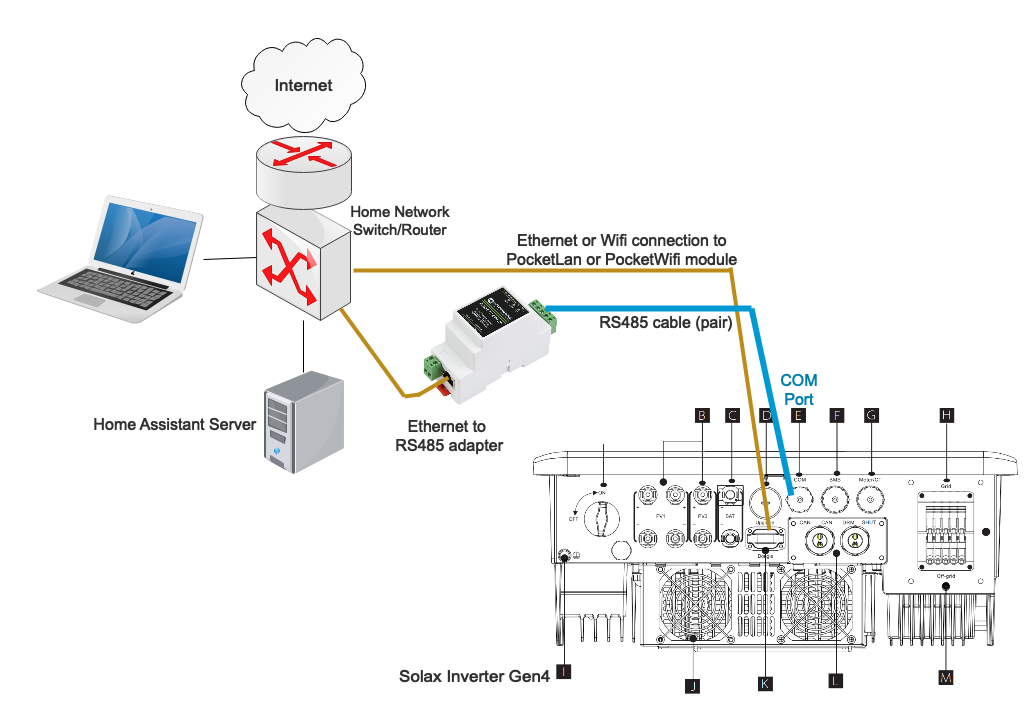
- connects through Ethernet to your home network router/switch
When configuring the SolaX Modbus integration, specify the network IP address of the converter device, not the address of the SolaX.
Do not tick the Serial RS485 flag; the serial port is ignored in this setup.
### Multiple inverters connected to one RS485 adaptor & Terminating resistors
It should be possible to connect multiple inverters to the same RS485 adapter (eg Waveshare). The inverters must have different Modbus addresses, so you need to change the Modbus addresses of the inverters first. Then configure one instance for each inverter. The configuration dialogue allows you to set the Modbus address.
The use of Terminating resistors is required when connecting multiple Inverters. Place a 120Ohm resistor accross A&B at the RS485 adaptor and place a 120Ohm resistor accross A&B on the last connected Inverter.
# Solinteg
import { BrandName, ControllerName } from '@site/src/components/customFields';
import DeviceSupportTable from '@site/src/components/DeviceSupportTable';
import ClickableImage from '@site/src/components/ClickableImage';
## Supported Devices
## Installation
> [!NOTE]
> For the Solax X3 Hybrid G4 please make sure that the inverter has the latest firmware version installed.
### Connection methods
- SolaX G2, SolaX G3 Hybrids, Solax ESS (TRENE and AELIO) have built in Ethernet (The Qcells Q.VOLT HYB-G3-3P is a SolaX G4 despite the G3 naming).
- SolaX G4 and other don't have built-in Ethernet, communication is possible via serial RS485 COM port.
The RS485 interface uses only the pin4 (blue wire) and pin5 (white-blue). Polarity matters, so make sure pin4 (blue wire in typical cables) is connected to the A lead of your adapter and pin5 (white-blue wire) to the B lead of your adapter.
RS485 cables can be fairly long, so 25 meter or more is possible. You can use the blue pair of a standard cat5 or cat6 cable.
The inverter leaves the factory at 19200 baud, with 8 data bits, no parity and 1 stop bit. The baud rate can be changed on the inverter, and Solax also allows 9600, 14400, 38400, 56000, 57600 and 115200 - so check what your inverter is actually set to, and make sure the Ethernet to RS485 adapter is set to the same baud rate.
You can confirm the baud rate on the LCD screen on the front of your Inverter, within the Menu's.
The Modbus address by default is 1. Some people have reported that their Modbus address was 4.
> [!NOTE]
> There is a port marked COM on the G4 inverter, some user manuals by mistake claim that this is an Ethernet port.
>
> DO NOT CONNECT THIS COM PORT TO AN ETHERNET SWITCH - your Ethernet switch port will die if you do!!!
### RS485 to ETH

- connects through Ethernet to your home network router/switch
When configuring the SolaX Modbus integration, specify the network IP address of the converter device, not the address of the SolaX.
Do not tick the Serial RS485 flag; the serial port is ignored in this setup.
### Multiple inverters connected to one RS485 adaptor & Terminating resistors
It should be possible to connect multiple inverters to the same RS485 adapter (eg Waveshare). The inverters must have different Modbus addresses, so you need to change the Modbus addresses of the inverters first. Then configure one instance for each inverter. The configuration dialogue allows you to set the Modbus address.
The use of Terminating resistors is required when connecting multiple Inverters. Place a 120Ohm resistor accross A&B at the RS485 adaptor and place a 120Ohm resistor accross A&B on the last connected Inverter.
# Solinteg
import { BrandName, ControllerName } from '@site/src/components/customFields';
import DeviceSupportTable from '@site/src/components/DeviceSupportTable';
import ClickableImage from '@site/src/components/ClickableImage';
 ## Supported Devices
The supports a wide range of Solinteg inverters via Modbus TCP and Modbus RTU (RS485), because Solinteg a standardized protocol across all their inverters.
## Supported Devices
The supports a wide range of Solinteg inverters via Modbus TCP and Modbus RTU (RS485), because Solinteg a standardized protocol across all their inverters.
 ## Integration versions
__On firmware version 1.22.1.1 or higher, we offer an improved Solinteg integration:__
This new version includes:
- Faster device readout and faster finding of Solinteg inverters
- Curtailment
- Option to enable battery priority mode (only for hybrid inverters with both battery and solar): when enabled, the inverter will prioritize discharging the battery before exporting solar power to the grid. This is useful when the battery participates in energy trading and you want certainty about battery power availability.
The classic version is still available and can be used when choosing the 'stable' version. When facing issues with the beta version, you can always switch back to the stable version.
## Integration versions
__On firmware version 1.22.1.1 or higher, we offer an improved Solinteg integration:__
This new version includes:
- Faster device readout and faster finding of Solinteg inverters
- Curtailment
- Option to enable battery priority mode (only for hybrid inverters with both battery and solar): when enabled, the inverter will prioritize discharging the battery before exporting solar power to the grid. This is useful when the battery participates in energy trading and you want certainty about battery power availability.
The classic version is still available and can be used when choosing the 'stable' version. When facing issues with the beta version, you can always switch back to the stable version.
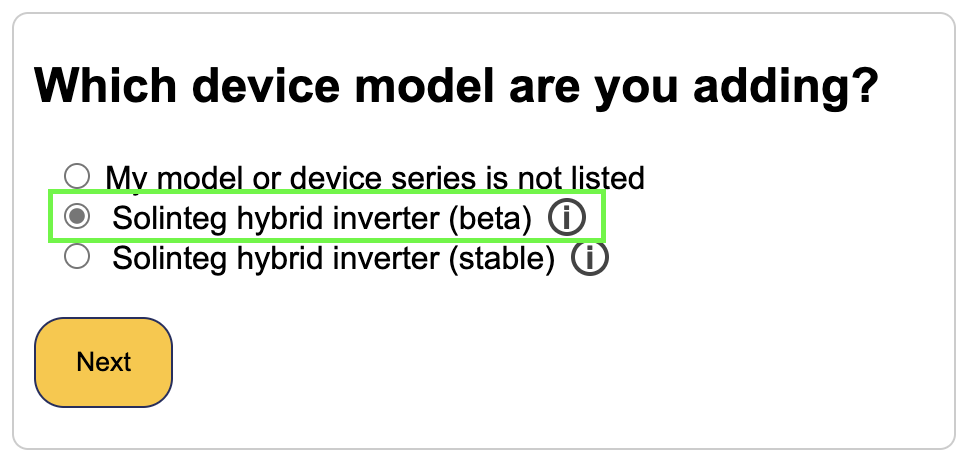 __On firmware version 1.22.1.0 or below, we only offer the classic version of this integration:__
The classic version still supports other functionality like battery control/readout, grid meter readout, solar power measurement.
## Modbus RTU (RS485)
Crimp an RJ45 plug on one end of an Ethernet cable according to the T568B wiring standard.
Insert the crimped RJ45 plug into the .
On the other end of the Ethernet cable, connect the blue/white wire to connector pin 13 and the solid blue wire to pin 14.
Finally, connect the USB end of the dongle to an available USB port on the .
The default modbus bus address or RTU is 247.
## Modbus TCP
Modbus TCP is by default enabled on the Solinteg inverters. No additional configuration is required.
The default bus address for Modbus TCP is 255.
Other common bus addresses for Modbus TCP are 1, 8, 247.
## Troubleshooting
### My Solinteg is not found when scanning for devices
> [!TIP]
> __Starting from firmware version 1.22.1.1, this issue should not occur anymore, as the scanning process has been optimized.__
The Solinteg default bus addresses are 247 for Modbus RTU and 255 for Modbus TCP.
The will scan for devices on all addresses from 1 to 255.
__Therefore, it can take a while to scan for devices.__
If you know the bus address of your Solinteg inverter, you can set it in the to speed up the scanning process.
The example below is for a Solinteg connected using Modbus TCP with bus address 255. By changing the min. bus address to 254, we tell the
to only scan for devices on bus addresses 254 and 255 and to skip the other addresses.
## Note when having two or more Solinteg inverters
If you have multiple Solinteg inverters, be aware that:
- No master-slave configuration is supported. Each inverter must be connected individually to the . __Any master-slave configuration should be disabled on the inverters.__
- The Solinteg grid meter is not supported when having multiple Solinteg inverters. When importing a Solinteg, use the following setting:
Use a dedicated meter for grid measurements on the , that is not affiliated with any of the Solinteg inverters.
# Solis Grid-tied Inverters
import { BrandName, ControllerName } from '@site/src/components/customFields';
import RS485ConnectionTable from '@site/src/components/RS485ConnectionTable';
import RS485AddressNote from '@site/src/components/RS485AddressNote';
import ClickableImage from '@site/src/components/ClickableImage';
import DeviceSupportTable from '@site/src/components/DeviceSupportTable';
# Solis On Grid Inverters
## Choose a compatible datalogger
> [!IMPORTANT]
> An online Solis datalogger—whether connected to Wi-Fi or visible in SolisCloud—is not proof that a local Modbus TCP interface is available. Check the model number on the logger itself before commissioning.
| Solis datalogger | Connector | Local Modbus TCP | SmartgridOne connection |
| --- | --- | --- | --- |
| **S2-WL-ST** | 4-pin | ✅ Port 502 | Compatible and verified in the field |
| **S3-WIFI-ST** | 4-pin | ❌ Not available | Not compatible with the Modbus TCP connection described on this page |
The S2-WL-ST is a Wi-Fi/LAN logger that [officially supports Modbus TCP](https://www.solisinverters.com/us/accessories9/S2_WL_ST_nl.html). Solis also provides a [Modbus TCP setup guide for the S2-WL-ST](https://usservice.solisinverters.com/support/solutions/articles/73000670200-modbus-tcp-communication-guide-for-s2-wl-st-wi-fi-lan-logger). The S3-WIFI-ST is a Wi-Fi-only logger: it can send data to SolisCloud, but it does not expose the local Modbus TCP server required by the .
If an S3-WIFI-ST is installed, replace it with an **S2-WL-ST (4-pin)** before using Modbus TCP, or connect the inverter directly through RS485 when that is suitable for the installation.
### Pre-commissioning check
1. Read the full model number from the datalogger label. Do not rely on its appearance or SolisCloud status.
2. For Ethernet communication, install an **S2-WL-ST with the 4-pin connector**.
3. Connect the datalogger and the to the same local network.
4. Give the datalogger a stable IP address, preferably through a DHCP reservation or a static configuration.
5. Confirm that the datalogger responds locally on TCP port **502**.
6. In the commissioning wizard, add a TCP connection with the datalogger IP address and port **502**, then scan the inverter's Modbus address. The factory-default address is **1**.
> [!TIP]
> If the logger is online in SolisCloud but port 502 times out, verify the logger model first. Changing the inverter address or repeating a scan will not make an S3-WIFI-ST provide Modbus TCP.
## Supported Devices
__On firmware version 1.22.1.0 or below, we only offer the classic version of this integration:__
The classic version still supports other functionality like battery control/readout, grid meter readout, solar power measurement.
## Modbus RTU (RS485)
Crimp an RJ45 plug on one end of an Ethernet cable according to the T568B wiring standard.
Insert the crimped RJ45 plug into the .
On the other end of the Ethernet cable, connect the blue/white wire to connector pin 13 and the solid blue wire to pin 14.
Finally, connect the USB end of the dongle to an available USB port on the .
The default modbus bus address or RTU is 247.
## Modbus TCP
Modbus TCP is by default enabled on the Solinteg inverters. No additional configuration is required.
The default bus address for Modbus TCP is 255.
Other common bus addresses for Modbus TCP are 1, 8, 247.
## Troubleshooting
### My Solinteg is not found when scanning for devices
> [!TIP]
> __Starting from firmware version 1.22.1.1, this issue should not occur anymore, as the scanning process has been optimized.__
The Solinteg default bus addresses are 247 for Modbus RTU and 255 for Modbus TCP.
The will scan for devices on all addresses from 1 to 255.
__Therefore, it can take a while to scan for devices.__
If you know the bus address of your Solinteg inverter, you can set it in the to speed up the scanning process.
The example below is for a Solinteg connected using Modbus TCP with bus address 255. By changing the min. bus address to 254, we tell the
to only scan for devices on bus addresses 254 and 255 and to skip the other addresses.
## Note when having two or more Solinteg inverters
If you have multiple Solinteg inverters, be aware that:
- No master-slave configuration is supported. Each inverter must be connected individually to the . __Any master-slave configuration should be disabled on the inverters.__
- The Solinteg grid meter is not supported when having multiple Solinteg inverters. When importing a Solinteg, use the following setting:
Use a dedicated meter for grid measurements on the , that is not affiliated with any of the Solinteg inverters.
# Solis Grid-tied Inverters
import { BrandName, ControllerName } from '@site/src/components/customFields';
import RS485ConnectionTable from '@site/src/components/RS485ConnectionTable';
import RS485AddressNote from '@site/src/components/RS485AddressNote';
import ClickableImage from '@site/src/components/ClickableImage';
import DeviceSupportTable from '@site/src/components/DeviceSupportTable';
# Solis On Grid Inverters
## Choose a compatible datalogger
> [!IMPORTANT]
> An online Solis datalogger—whether connected to Wi-Fi or visible in SolisCloud—is not proof that a local Modbus TCP interface is available. Check the model number on the logger itself before commissioning.
| Solis datalogger | Connector | Local Modbus TCP | SmartgridOne connection |
| --- | --- | --- | --- |
| **S2-WL-ST** | 4-pin | ✅ Port 502 | Compatible and verified in the field |
| **S3-WIFI-ST** | 4-pin | ❌ Not available | Not compatible with the Modbus TCP connection described on this page |
The S2-WL-ST is a Wi-Fi/LAN logger that [officially supports Modbus TCP](https://www.solisinverters.com/us/accessories9/S2_WL_ST_nl.html). Solis also provides a [Modbus TCP setup guide for the S2-WL-ST](https://usservice.solisinverters.com/support/solutions/articles/73000670200-modbus-tcp-communication-guide-for-s2-wl-st-wi-fi-lan-logger). The S3-WIFI-ST is a Wi-Fi-only logger: it can send data to SolisCloud, but it does not expose the local Modbus TCP server required by the .
If an S3-WIFI-ST is installed, replace it with an **S2-WL-ST (4-pin)** before using Modbus TCP, or connect the inverter directly through RS485 when that is suitable for the installation.
### Pre-commissioning check
1. Read the full model number from the datalogger label. Do not rely on its appearance or SolisCloud status.
2. For Ethernet communication, install an **S2-WL-ST with the 4-pin connector**.
3. Connect the datalogger and the to the same local network.
4. Give the datalogger a stable IP address, preferably through a DHCP reservation or a static configuration.
5. Confirm that the datalogger responds locally on TCP port **502**.
6. In the commissioning wizard, add a TCP connection with the datalogger IP address and port **502**, then scan the inverter's Modbus address. The factory-default address is **1**.
> [!TIP]
> If the logger is online in SolisCloud but port 502 times out, verify the logger model first. Changing the inverter address or repeating a scan will not make an S3-WIFI-ST provide Modbus TCP.
## Supported Devices
## Wiring
### RS485
By default, the inverter is set to address 1. This can be changed via the display of the inverter. You can find the procedure in chapter 7.3.2 of the manual.
# Large PV Grid Inverters
import { BrandName, ControllerName } from '@site/src/components/customFields';
import RS485ConnectionTable from '@site/src/components/RS485ConnectionTable';
import RS485AddressNote from '@site/src/components/RS485AddressNote';
import ClickableImage from '@site/src/components/ClickableImage';
import DeviceSupportTable from '@site/src/components/DeviceSupportTable';
# Solis Large PV Grid Inverters
### RS485
## Configuration
### RS485
By default, the inverter is set to address 1. This can be changed via the display of the inverter. You can find the procedure in chapter 7.3.2 of the manual.
# S-Series (grid-tied)
import { BrandName, ControllerName } from '@site/src/components/customFields';
import RS485ConnectionTable from '@site/src/components/RS485ConnectionTable';
import RS485AddressNote from '@site/src/components/RS485AddressNote';
import ClickableImage from '@site/src/components/ClickableImage';
import DeviceSupportTable from '@site/src/components/DeviceSupportTable';
# Solis S-Series (Grid-tied)
## Wiring
The RS485 connection is made via the 16-pin COM connector at the bottom of the converter.
## Configuration
### RS485
By default, the inverter is set to address 1. This can be changed via the display of the inverter. You can find the procedure in chapter 7.3.2 of the manual.
# 3t10K-HVES-G5 Wiring
import { BrandName, ControllerName } from '@site/src/components/customFields';
import RS485ConnectionTable from '@site/src/components/RS485ConnectionTable';
import RS485AddressNote from '@site/src/components/RS485AddressNote';
import ClickableImage from '@site/src/components/ClickableImage';
import DeviceSupportTable from '@site/src/components/DeviceSupportTable';
This page describes the communication with a Solis 3T10K over Modbus-RTU (rs485). By default, the inverter is set to address 1. This can be changed via the display of the inverter. You can find the procedure in chapter 7.3.2 of the manual. The RS485 terminals are located on the bottom of the inverter behind a protective plate.
# Solis Hybrid Inverters
import { BrandName, ControllerName } from '@site/src/components/customFields';
import RS485ConnectionTable from '@site/src/components/RS485ConnectionTable';
import RS485AddressNote from '@site/src/components/RS485AddressNote';
import ClickableImage from '@site/src/components/ClickableImage';
import DeviceSupportTable from '@site/src/components/DeviceSupportTable';
import Mermaid from '@theme/Mermaid';
# Solis Hybrid Inverters
## Supported Devices
> [!NOTE]
> Currently, only the connection via RS485 has been tested, but you may also be able to run the inverter via Ethernet.
## Control Features
> [!CAUTION] Solis Inverter Firmware
> Ensure that you have the latest firmware installed on your Solis inverter. The functionality of external control
> features like battery control and curtailment is dependent on the firmware version.
The setup of your Solis is an important factor in which EMS-features supported:
to the Solis inverter?]) --> |Yes| Battery
Start --> |No| NoGrid
Battery[Is a grid meter connected
to the Solis inverter?]
NoGrid[Is a grid meter connected
to the Solis inverter?]
Battery --> |Yes| BatteryGridYes[✅ Battery control
supported
✅ Curtailment
supported]
Battery --> |No| BatteryGridNo[✅ Battery control
supported
✅ Curtailment
supported]
NoGrid --> |Yes| NoGridYes[✅ Curtailment
supported]
NoGrid --> |No| NoGridNo[❌ Curtailment
not supported]
classDef question fill:#f0f8ff,stroke:#0066cc,stroke-width:2px
classDef success fill:#e6ffe6,stroke:#28a745,stroke-width:2px
classDef warning fill:#fffacc,stroke:#ffc107,stroke-width:2px
classDef error fill:#ffe6e6,stroke:#dc3545,stroke-width:2px
class Start,Battery,NoGrid question
class BatteryGridNo,BatteryGridYes success
class NoGridYes warning
class NoGridNo error`}
/>
Curtailment is now supported for Solis hybrid inverters. The latest firmware version by Solis includes curtailment registers that allow external control of the inverter's output power without writing to the flash memory.
## Wiring (RS485)
The wiring between the and the Solis can be done with the following guides:
If your model is not listed, we refer to the manual of the Solis inverter. It should always include a section on how to wire a rs485 communication with external EMS-systems.
# S-Series-Hybrid
import { BrandName, ControllerName } from '@site/src/components/customFields';
import RS485ConnectionTable from '@site/src/components/RS485ConnectionTable';
import RS485AddressNote from '@site/src/components/RS485AddressNote';
import ClickableImage from '@site/src/components/ClickableImage';
import DeviceSupportTable from '@site/src/components/DeviceSupportTable';
# Solis S-Series Hybrid Inverters
## Wiring
The RS485 connection is made via the 16-pin COM connector at the bottom of the converter.
## Configuration
### RS485
By default, the inverter is set to address 1. This can be changed via the display of the inverter. You can find the procedure in chapter 7.3.2 of the manual.
# Solis
import { BrandName, ControllerName } from '@site/src/components/customFields';
import RS485ConnectionTable from '@site/src/components/RS485ConnectionTable';
import RS485AddressNote from '@site/src/components/RS485AddressNote';
import ClickableImage from '@site/src/components/ClickableImage';
import ClickableVideo from '@site/src/components/ClickableVideo';
The supports the Solis grid-tied and hybrid inverter product lines. The two product lines use separate communication protocols.
Before we continue, we need to know in which product line your inverter is in.
> [!IMPORTANT]
> **Planning a Modbus TCP connection for a grid-tied inverter?** Check the exact datalogger model before going on site. The **S2-WL-ST (4-pin)** provides the required local Modbus TCP connection on port **502**. The **S3-WIFI-ST** is a Wi-Fi-only logger and cannot be used for this connection. See the [grid-tied Solis instructions](/Controller/Devices/PV-hybrid-and-battery-inverters/Solis/Grid%20tied%20line/#choose-a-compatible-datalogger) for the compatibility check and commissioning steps.
Understanding the difference between inverter types
Go to the official Solis website.
Lookup your model in either the 'Hybrid & Off Grid Inverters' or 'Grid Tie Inverters' section, marked by the blue arrows in the image below.
If your model is not listed under the 'Hybrid & Off Grid Inverters' on the Solis website, open both the Hybrid and Off-grid line and Grid-tied line pages to see if your model is listed in either section.
Grid-tied Line:
- Only-solar inverters that convert DC power from solar panels to AC power
- Only work when grid power is available
- No battery storage capability
Hybrid Line:
- Hybrid inverters that can work with both solar panels and batteries
- Can store excess solar energy in batteries
- Choose this if you have (or plan to have) battery storage
# Solplanet
import { BrandName, ControllerName } from '@site/src/components/customFields';
import DeviceSupportTable from '@site/src/components/DeviceSupportTable';
import RS485ConnectionTable from '@site/src/components/RS485ConnectionTable';
import ClickableImage from '@site/src/components/ClickableImage';
 # Solplanet
## Supported Devices
# Wiring
The and the ASW LT-G2 Pro 3-20kW Solplanet inverter communicate via RS485.
### RS485 for the ASW LT-G2 Pro 3-20kW Solplanet inverter
# Sungrow
import { FolderOverview } from '@/components/FolderOverview';
# Sungrow
# Powerstack
import { BrandName, ControllerName } from '@site/src/components/customFields';
import DeviceSupportTable from '@site/src/components/DeviceSupportTable';
import RS485ConnectionTable from '@site/src/components/RS485ConnectionTable';
import RS485AddressNote from '@site/src/components/RS485AddressNote';
import ClickableImage from '@site/src/components/ClickableImage';
# Sungrow Inverters
## Supported Devices
## Wiring
The and the battery system communicate via RS485 or Ethernet.
### Ethernet
For correct ethernet wiring: Follow the [the guidelines for ethernet wiring](/Controller/wiring-best-practices/#ethernet).
### RS485
## Configuration
If you want to start the steering of the battery, or if it wasn't controlled for a long time, you can reactivate it by going into other actions and select "start the device".
# Sungrow Inverters
import { BrandName, ControllerName } from '@site/src/components/customFields';
import DeviceSupportTable from '@site/src/components/DeviceSupportTable';
# Sungrow Inverters
## Supported Devices
## Physical Connection
### Ethernet Connection
For correct ethernet wiring, follow the [guidelines for ethernet wiring](/Controller/wiring-best-practices/#ethernet).
### RS485 Connection
1. Locate the COM port on your Sungrow inverter
2. Connect the RS485 cable:
- Connect A+ (typically red) to pin 1
- Connect B- (typically black) to pin 2
- Connect GND (typically yellow) to pin 3 if available
## Network Configuration
### For Ethernet Connection
1. Set the inverter's network settings:
- Access the inverter's display interface
- Navigate to Settings → Communication Parameters
- Enable MODBUS-TCP
- Set the communication address (default: 502)
- Configure DHCP or static IP as needed
## Device Configuration
### Enabling Modbus Communication
1. Access the inverter's LCD screen
2. Navigate to Settings → Communication Parameters
3. Set the following:
- Protocol: MODBUS
- Device Address: Set a unique address (1-247)
4. For Modbus TCP:
- Enable MODBUS-TCP
- Port: 502 (default)
- IP Address: Configure as per your network requirements
### Verification
1. Check the communication LED indicator:
- Steady green: Normal communication
- Blinking green: Data transmission in progress
- Off: No communication
2. Verify network connectivity using ping test (for Ethernet)
### LED Status Indicators
| LED Status | Meaning | Action Required |
|:--|:--|:--|
| Steady Green | Normal operation | None |
| Blinking Green | Data transmission | Normal operation |
| Off | No communication | Check connections and settings |
| Red | Communication error | Check configuration and cables |
# Sunsynk
import { BrandName, ControllerName } from '@site/src/components/customFields';
import RS485ConnectionTable from '@site/src/components/RS485ConnectionTable';
import ClickableImage from '@site/src/components/ClickableImage';
import RS485AddressNote from '@site/src/components/RS485AddressNote';
import DeviceSupportTable from '@site/src/components/DeviceSupportTable';
# Solplanet
## Supported Devices
# Wiring
The and the ASW LT-G2 Pro 3-20kW Solplanet inverter communicate via RS485.
### RS485 for the ASW LT-G2 Pro 3-20kW Solplanet inverter
# Sungrow
import { FolderOverview } from '@/components/FolderOverview';
# Sungrow
# Powerstack
import { BrandName, ControllerName } from '@site/src/components/customFields';
import DeviceSupportTable from '@site/src/components/DeviceSupportTable';
import RS485ConnectionTable from '@site/src/components/RS485ConnectionTable';
import RS485AddressNote from '@site/src/components/RS485AddressNote';
import ClickableImage from '@site/src/components/ClickableImage';
# Sungrow Inverters
## Supported Devices
## Wiring
The and the battery system communicate via RS485 or Ethernet.
### Ethernet
For correct ethernet wiring: Follow the [the guidelines for ethernet wiring](/Controller/wiring-best-practices/#ethernet).
### RS485
## Configuration
If you want to start the steering of the battery, or if it wasn't controlled for a long time, you can reactivate it by going into other actions and select "start the device".
# Sungrow Inverters
import { BrandName, ControllerName } from '@site/src/components/customFields';
import DeviceSupportTable from '@site/src/components/DeviceSupportTable';
# Sungrow Inverters
## Supported Devices
## Physical Connection
### Ethernet Connection
For correct ethernet wiring, follow the [guidelines for ethernet wiring](/Controller/wiring-best-practices/#ethernet).
### RS485 Connection
1. Locate the COM port on your Sungrow inverter
2. Connect the RS485 cable:
- Connect A+ (typically red) to pin 1
- Connect B- (typically black) to pin 2
- Connect GND (typically yellow) to pin 3 if available
## Network Configuration
### For Ethernet Connection
1. Set the inverter's network settings:
- Access the inverter's display interface
- Navigate to Settings → Communication Parameters
- Enable MODBUS-TCP
- Set the communication address (default: 502)
- Configure DHCP or static IP as needed
## Device Configuration
### Enabling Modbus Communication
1. Access the inverter's LCD screen
2. Navigate to Settings → Communication Parameters
3. Set the following:
- Protocol: MODBUS
- Device Address: Set a unique address (1-247)
4. For Modbus TCP:
- Enable MODBUS-TCP
- Port: 502 (default)
- IP Address: Configure as per your network requirements
### Verification
1. Check the communication LED indicator:
- Steady green: Normal communication
- Blinking green: Data transmission in progress
- Off: No communication
2. Verify network connectivity using ping test (for Ethernet)
### LED Status Indicators
| LED Status | Meaning | Action Required |
|:--|:--|:--|
| Steady Green | Normal operation | None |
| Blinking Green | Data transmission | Normal operation |
| Off | No communication | Check connections and settings |
| Red | Communication error | Check configuration and cables |
# Sunsynk
import { BrandName, ControllerName } from '@site/src/components/customFields';
import RS485ConnectionTable from '@site/src/components/RS485ConnectionTable';
import ClickableImage from '@site/src/components/ClickableImage';
import RS485AddressNote from '@site/src/components/RS485AddressNote';
import DeviceSupportTable from '@site/src/components/DeviceSupportTable';
 ## Supported Devices
## Wiring
### RS485
## Configuration
Go to “Main Screen” >> “System Settings” >> “Advanced Function.”
- Modbus SN should be set to any number between 1 and 247. Do not select 0!! Note that if there are multiple devices on the RS485 bus, each should be given a unique number. This is the address.
- Slave should be checked.
- Only when an additional meter is connected directly to the inverter should “EX_meter For CT” be checked. If there is only a meter in parallel with the it should be unchecked.
- Make sure the following settings are all correct: "Max A Charge", "Max A Discharge", "Grid Charge Ampere"
# Sunwaytech
import { BrandName, ControllerName } from '@site/src/components/customFields';
import DeviceSupportTable from '@site/src/components/DeviceSupportTable';
import RS485ConnectionTable from '@site/src/components/RS485ConnectionTable';
## Supported Devices
## Wiring
### RS485
## Configuration
Go to “Main Screen” >> “System Settings” >> “Advanced Function.”
- Modbus SN should be set to any number between 1 and 247. Do not select 0!! Note that if there are multiple devices on the RS485 bus, each should be given a unique number. This is the address.
- Slave should be checked.
- Only when an additional meter is connected directly to the inverter should “EX_meter For CT” be checked. If there is only a meter in parallel with the it should be unchecked.
- Make sure the following settings are all correct: "Max A Charge", "Max A Discharge", "Grid Charge Ampere"
# Sunwaytech
import { BrandName, ControllerName } from '@site/src/components/customFields';
import DeviceSupportTable from '@site/src/components/DeviceSupportTable';
import RS485ConnectionTable from '@site/src/components/RS485ConnectionTable';
 # Sunwaytech
## Supported Devices
## Physical Connection
### RS485 Connection
The communication between the and the Sunwaytech inverter is done via RS485.
# Sunwoda
import { FolderOverview } from '@/components/FolderOverview';
# Sunwoda
# Sunwoda Oasis
import { BrandName, ControllerName } from '@site/src/components/customFields';
import RS485ConnectionTable from '@site/src/components/RS485ConnectionTable';
import ClickableImage from '@site/src/components/ClickableImage';
import RS485AddressNote from '@site/src/components/RS485AddressNote';
import DeviceSupportTable from '@site/src/components/DeviceSupportTable';
# Sunwoda
## Supported Devices
## Wiring
### Ethernet
For correct ethernet wiring: Follow the [the guidelines for ethernet wiring](/Controller/wiring-best-practices/#ethernet).
### RS485
## Configuration
If you are connecting through TCP, be sure that the device is configured to communicate with port 502.
# Sunwoda OSP
import { BrandName, ControllerName } from '@site/src/components/customFields';
import RS485ConnectionTable from '@site/src/components/RS485ConnectionTable';
import ClickableImage from '@site/src/components/ClickableImage';
import RS485AddressNote from '@site/src/components/RS485AddressNote';
import DeviceSupportTable from '@site/src/components/DeviceSupportTable';
# Sunwoda
## Supported Devices
> [!CAUTION] Important for batteries larger than 100 kW
> If your battery power is rated for 100 kW or more, contact the Sunwoda support to enlargen the power limitation register.
> By default, the power limitation is set to 100 kW. This can be updated by Sunwoda support on register `0x78f6`. will then be able to control the power limitation.
## Wiring
### Ethernet
For correct ethernet wiring: Follow the [the guidelines for ethernet wiring](/Controller/wiring-best-practices/#ethernet).
### RS485
## Configuration
If you are connecting through TCP, be sure that the device is configured to communicate with port 502.
# Sunwoda SunESS
import { BrandName, ControllerName } from '@site/src/components/customFields';
import RS485ConnectionTable from '@site/src/components/RS485ConnectionTable';
import ClickableImage from '@site/src/components/ClickableImage';
import RS485AddressNote from '@site/src/components/RS485AddressNote';
import DeviceSupportTable from '@site/src/components/DeviceSupportTable';
# Sunwoda SunESS
## Supported Devices
## Wiring
### Ethernet
For correct ethernet wiring: Follow the [the guidelines for ethernet wiring](/Controller/wiring-best-practices/#ethernet).
### RS485
---
## 1. Overview
Sunwoda SunESS-H systems support external EMS integration using the PCS communication port, which provides **RS485 (Modbus RTU)** and **CAN**.
This document describes how to connect a SunESS system to an EMS using **RS485 RTU**.
---
## 2. Required Hardware
### 2.1 PCS Communication Port
Located on the right side of the SunESS Control Module and labeled:
**PCS Communication (RS485/CAN)**
### 2.2 RS485 Pinout (RJ45)
| Pin | Function | Wire Color |
|-----|------------|----------------|
| 1 | RS485 A | Orange-white |
| 2 | RS485 B | Orange |
| 3 | NC | Green-white |
| 4 | CANH | Blue |
| 5 | CANL | Blue-white |
| 6 | NC | Green |
| 7 | Wakeup +5V | Brown-white |
| 8 | Wakeup – | Brown |
Only **Pin 1 (A)** and **Pin 2 (B)** are used for RS485.
---
## 3. Wiring the SunESS to an EMS (RS485)
### 3.1 RS485 Wiring
- SunESS PCS Port EMS RTU Port
- Pin 1 (A) ---------> RS485 A (D+)
- Pin 2 (B) ---------> RS485 B (D-)
### 3.2 Cable Recommendations
- Twisted pair, shielded
- 24–18 AWG
- Ground shield at **one side only** (typically EMS side)
---
## 4. Termination & RS485 Bus Rules
### 4.1 Termination
SunESS requires:
- **120 Ω resistor installed on COM1 port**
When used in parallel systems, termination is applied **only on the master unit**.
### 4.2 RS485 Bus Rules
- Daisy-chain only (no star topology)
- A ↔ A and B ↔ B must be consistent across devices
- Ensure EMS termination is set appropriately (ON or off depending on your wiring)
---
## 5. Configuring SunESS for EMS (RS485) Communication
Configuration is performed using the **PowerLite app**.
### Steps
1. Connect to SunESS using Bluetooth/Wi-Fi
2. Enter the device settings
3. Open **PCS Setting**
4. Select the protocol: **Default (INV-08)**
- Enables SunESS standard RS485/CAN protocol
This is required for EMS communication.
---
## 6. EMS Communication Settings (Modbus RTU)
> Note: Actual SunESS register maps are not included in the manufacturer manual and must be requested from Sunwoda or inverter/EMS vendor.
Typical working defaults:
| Parameter | Value |
|----------|--------|
| Protocol | Modbus RTU |
| Baudrate | 57600 |
| Data bits | 8 |
| Parity | None |
| Stop bits | 1 |
| Slave ID | 1 |
---
## 7. Parallel SunESS Systems
Up to 3 cabinets can be connected in parallel.
### 7.1 Battery-to-Battery Communication
- **COM0 → COM1** is used for internal SunESS communication
- Daisy-chain between cabinets
### 7.2 EMS Connection
- Only the **master SunESS** communicates with the EMS
- Connect the EMS RS485 lines to the **master’s PCS port**
---
## 8. Startup & Verification
### 8.1 Power-Up Sequence
1. Close inverter battery switch (if installed)
2. Close SunESS circuit breaker (MCB)
3. Hold **Power** button for ≥3 seconds
4. Display lights up and system boots
### 8.2 Communication Verification
EMS should:
- Poll the SunESS slave ID and receive valid Modbus responses
- Report SOC, voltage, current, alarms, etc.
SunESS should:
- Display solid status LED (normal operation)
---
## 9. Troubleshooting
Common issues and checks:
### Issue: EMS cannot read SunESS registers
- A/B reversed → swap RS485 A/B
- Termination missing → ensure 120 Ω installed at COM1
- Wrong PCS protocol → select **Default (INV-08)**
- Wrong Modbus settings → verify baud, parity, ID
### Issue: Parallel system not synchronizing
- COM0/COM1 cables not daisy-chained correctly
- Slave cabinet not powered on
- Incorrect master selection
---
## 10. Field Procedure (Quick Guide)
1. Wire RS485:
- Pin 1 → EMS A
- Pin 2 → EMS B
2. Install 120 Ω resistor on COM1
3. Configure PCS protocol = Default (INV-08)
4. Configure EMS Modbus settings
5. Power on SunESS
6. Verify Modbus communication
# Sus-Power
# Sunwaytech
## Supported Devices
## Physical Connection
### RS485 Connection
The communication between the and the Sunwaytech inverter is done via RS485.
# Sunwoda
import { FolderOverview } from '@/components/FolderOverview';
# Sunwoda
# Sunwoda Oasis
import { BrandName, ControllerName } from '@site/src/components/customFields';
import RS485ConnectionTable from '@site/src/components/RS485ConnectionTable';
import ClickableImage from '@site/src/components/ClickableImage';
import RS485AddressNote from '@site/src/components/RS485AddressNote';
import DeviceSupportTable from '@site/src/components/DeviceSupportTable';
# Sunwoda
## Supported Devices
## Wiring
### Ethernet
For correct ethernet wiring: Follow the [the guidelines for ethernet wiring](/Controller/wiring-best-practices/#ethernet).
### RS485
## Configuration
If you are connecting through TCP, be sure that the device is configured to communicate with port 502.
# Sunwoda OSP
import { BrandName, ControllerName } from '@site/src/components/customFields';
import RS485ConnectionTable from '@site/src/components/RS485ConnectionTable';
import ClickableImage from '@site/src/components/ClickableImage';
import RS485AddressNote from '@site/src/components/RS485AddressNote';
import DeviceSupportTable from '@site/src/components/DeviceSupportTable';
# Sunwoda
## Supported Devices
> [!CAUTION] Important for batteries larger than 100 kW
> If your battery power is rated for 100 kW or more, contact the Sunwoda support to enlargen the power limitation register.
> By default, the power limitation is set to 100 kW. This can be updated by Sunwoda support on register `0x78f6`. will then be able to control the power limitation.
## Wiring
### Ethernet
For correct ethernet wiring: Follow the [the guidelines for ethernet wiring](/Controller/wiring-best-practices/#ethernet).
### RS485
## Configuration
If you are connecting through TCP, be sure that the device is configured to communicate with port 502.
# Sunwoda SunESS
import { BrandName, ControllerName } from '@site/src/components/customFields';
import RS485ConnectionTable from '@site/src/components/RS485ConnectionTable';
import ClickableImage from '@site/src/components/ClickableImage';
import RS485AddressNote from '@site/src/components/RS485AddressNote';
import DeviceSupportTable from '@site/src/components/DeviceSupportTable';
# Sunwoda SunESS
## Supported Devices
## Wiring
### Ethernet
For correct ethernet wiring: Follow the [the guidelines for ethernet wiring](/Controller/wiring-best-practices/#ethernet).
### RS485
---
## 1. Overview
Sunwoda SunESS-H systems support external EMS integration using the PCS communication port, which provides **RS485 (Modbus RTU)** and **CAN**.
This document describes how to connect a SunESS system to an EMS using **RS485 RTU**.
---
## 2. Required Hardware
### 2.1 PCS Communication Port
Located on the right side of the SunESS Control Module and labeled:
**PCS Communication (RS485/CAN)**
### 2.2 RS485 Pinout (RJ45)
| Pin | Function | Wire Color |
|-----|------------|----------------|
| 1 | RS485 A | Orange-white |
| 2 | RS485 B | Orange |
| 3 | NC | Green-white |
| 4 | CANH | Blue |
| 5 | CANL | Blue-white |
| 6 | NC | Green |
| 7 | Wakeup +5V | Brown-white |
| 8 | Wakeup – | Brown |
Only **Pin 1 (A)** and **Pin 2 (B)** are used for RS485.
---
## 3. Wiring the SunESS to an EMS (RS485)
### 3.1 RS485 Wiring
- SunESS PCS Port EMS RTU Port
- Pin 1 (A) ---------> RS485 A (D+)
- Pin 2 (B) ---------> RS485 B (D-)
### 3.2 Cable Recommendations
- Twisted pair, shielded
- 24–18 AWG
- Ground shield at **one side only** (typically EMS side)
---
## 4. Termination & RS485 Bus Rules
### 4.1 Termination
SunESS requires:
- **120 Ω resistor installed on COM1 port**
When used in parallel systems, termination is applied **only on the master unit**.
### 4.2 RS485 Bus Rules
- Daisy-chain only (no star topology)
- A ↔ A and B ↔ B must be consistent across devices
- Ensure EMS termination is set appropriately (ON or off depending on your wiring)
---
## 5. Configuring SunESS for EMS (RS485) Communication
Configuration is performed using the **PowerLite app**.
### Steps
1. Connect to SunESS using Bluetooth/Wi-Fi
2. Enter the device settings
3. Open **PCS Setting**
4. Select the protocol: **Default (INV-08)**
- Enables SunESS standard RS485/CAN protocol
This is required for EMS communication.
---
## 6. EMS Communication Settings (Modbus RTU)
> Note: Actual SunESS register maps are not included in the manufacturer manual and must be requested from Sunwoda or inverter/EMS vendor.
Typical working defaults:
| Parameter | Value |
|----------|--------|
| Protocol | Modbus RTU |
| Baudrate | 57600 |
| Data bits | 8 |
| Parity | None |
| Stop bits | 1 |
| Slave ID | 1 |
---
## 7. Parallel SunESS Systems
Up to 3 cabinets can be connected in parallel.
### 7.1 Battery-to-Battery Communication
- **COM0 → COM1** is used for internal SunESS communication
- Daisy-chain between cabinets
### 7.2 EMS Connection
- Only the **master SunESS** communicates with the EMS
- Connect the EMS RS485 lines to the **master’s PCS port**
---
## 8. Startup & Verification
### 8.1 Power-Up Sequence
1. Close inverter battery switch (if installed)
2. Close SunESS circuit breaker (MCB)
3. Hold **Power** button for ≥3 seconds
4. Display lights up and system boots
### 8.2 Communication Verification
EMS should:
- Poll the SunESS slave ID and receive valid Modbus responses
- Report SOC, voltage, current, alarms, etc.
SunESS should:
- Display solid status LED (normal operation)
---
## 9. Troubleshooting
Common issues and checks:
### Issue: EMS cannot read SunESS registers
- A/B reversed → swap RS485 A/B
- Termination missing → ensure 120 Ω installed at COM1
- Wrong PCS protocol → select **Default (INV-08)**
- Wrong Modbus settings → verify baud, parity, ID
### Issue: Parallel system not synchronizing
- COM0/COM1 cables not daisy-chained correctly
- Slave cabinet not powered on
- Incorrect master selection
---
## 10. Field Procedure (Quick Guide)
1. Wire RS485:
- Pin 1 → EMS A
- Pin 2 → EMS B
2. Install 120 Ω resistor on COM1
3. Configure PCS protocol = Default (INV-08)
4. Configure EMS Modbus settings
5. Power on SunESS
6. Verify Modbus communication
# Sus-Power
 > [!NOTE] Supported Devices
> The following devices are supported and existing integrations remain available. However, these brands and models were integrated several years ago and are not commonly used by our current customers. If you require support or assistance with these devices, please contact us for further guidance.
# Tecloman
import { BrandName, ControllerName } from '@site/src/components/customFields';
import ClickableImage from '@site/src/components/ClickableImage';
import DeviceSupportTable from '@site/src/components/DeviceSupportTable';
> [!NOTE] Supported Devices
> The following devices are supported and existing integrations remain available. However, these brands and models were integrated several years ago and are not commonly used by our current customers. If you require support or assistance with these devices, please contact us for further guidance.
# Tecloman
import { BrandName, ControllerName } from '@site/src/components/customFields';
import ClickableImage from '@site/src/components/ClickableImage';
import DeviceSupportTable from '@site/src/components/DeviceSupportTable';
 ## Supported Devices
## Connection
The communication between the and the tecloman inverters operates via Modbus TCP.
For correct ethernet wiring: Follow the [the guidelines for ethernet wiring](/Controller/wiring-best-practices/#ethernet).
# Teplore
import { BrandName, ControllerName } from '@site/src/components/customFields';
import ClickableImage from '@site/src/components/ClickableImage';
import DeviceSupportTable from '@site/src/components/DeviceSupportTable';
## Supported Devices
## Connection
The communication between the and the tecloman inverters operates via Modbus TCP.
For correct ethernet wiring: Follow the [the guidelines for ethernet wiring](/Controller/wiring-best-practices/#ethernet).
# Teplore
import { BrandName, ControllerName } from '@site/src/components/customFields';
import ClickableImage from '@site/src/components/ClickableImage';
import DeviceSupportTable from '@site/src/components/DeviceSupportTable';
 ## Supported Devices
## Connection
The communication between the and the Teplore inverters operates via Modbus TCP.
For correct ethernet wiring: Follow the [the guidelines for ethernet wiring](/Controller/wiring-best-practices/#ethernet).
# Tesvolt
import { BrandName, ControllerName } from '@site/src/components/customFields';
import DeviceSupportTable from '@site/src/components/DeviceSupportTable';
import ClickableImage from '@site/src/components/ClickableImage';
## Supported Devices
## Connection
The communication between the and the Teplore inverters operates via Modbus TCP.
For correct ethernet wiring: Follow the [the guidelines for ethernet wiring](/Controller/wiring-best-practices/#ethernet).
# Tesvolt
import { BrandName, ControllerName } from '@site/src/components/customFields';
import DeviceSupportTable from '@site/src/components/DeviceSupportTable';
import ClickableImage from '@site/src/components/ClickableImage';
 # Tesvolt
## Supported Devices
## Wiring
The communication between the and the Tesvolt system operates via Modbus TCP.
For correct ethernet wiring: Follow the [the guidelines for ethernet wiring](/Controller/wiring-best-practices/#ethernet).
## Energy Manager
### Tesvolt Energy Manager Configuration
| Steps |
|------|
| **1a**. Open the Tesvolt Energy Manager web interface. Request the link to the portal, and its login credentials from your installer |
| **1b**. Go to **Remote Control Signals** under **Device Settings** and press **Configure a Remote Control Signal**:
# Tesvolt
## Supported Devices
## Wiring
The communication between the and the Tesvolt system operates via Modbus TCP.
For correct ethernet wiring: Follow the [the guidelines for ethernet wiring](/Controller/wiring-best-practices/#ethernet).
## Energy Manager
### Tesvolt Energy Manager Configuration
| Steps |
|------|
| **1a**. Open the Tesvolt Energy Manager web interface. Request the link to the portal, and its login credentials from your installer |
| **1b**. Go to **Remote Control Signals** under **Device Settings** and press **Configure a Remote Control Signal**:  |
| **1c**. Configure the device with the correct IP address(Listen Address) and slave address(Unit ID) and press **Save**:
|
| **1c**. Configure the device with the correct IP address(Listen Address) and slave address(Unit ID) and press **Save**:  |
{/* TODO pictures don't work? */}
### Troubleshooting
Inside the Tesvolt Energy manager web interface, it's possible to check the signals that are sent by the to the Tesvolt Energy Manager.
It can be reached using this way:
#### PV control issues:
If any issues occur related to PV control, check if the following value corresponds with the value set by the controller:
#### Battery control issues:
If any issues occur related to battery control, check if the following value corresponds with the value set by the controller:
{/* TODO pictures don't work? */}
# TWS
import { BrandName, ControllerName } from '@site/src/components/customFields';
import DeviceSupportTable from '@site/src/components/DeviceSupportTable';
import RS485ConnectionTable from '@site/src/components/RS485ConnectionTable';
import ClickableImage from '@site/src/components/ClickableImage';
|
{/* TODO pictures don't work? */}
### Troubleshooting
Inside the Tesvolt Energy manager web interface, it's possible to check the signals that are sent by the to the Tesvolt Energy Manager.
It can be reached using this way:
#### PV control issues:
If any issues occur related to PV control, check if the following value corresponds with the value set by the controller:
#### Battery control issues:
If any issues occur related to battery control, check if the following value corresponds with the value set by the controller:
{/* TODO pictures don't work? */}
# TWS
import { BrandName, ControllerName } from '@site/src/components/customFields';
import DeviceSupportTable from '@site/src/components/DeviceSupportTable';
import RS485ConnectionTable from '@site/src/components/RS485ConnectionTable';
import ClickableImage from '@site/src/components/ClickableImage';
 # TWS
## Supported Devices
## Wiring
### Ethernet
For correct ethernet wiring: Follow the [the guidelines for ethernet wiring](/Controller/wiring-best-practices/#ethernet).
## Configuration
Make sure that the TWS Cabinet is configured this way:
# Vacon
import { BrandName, ControllerName } from '@site/src/components/customFields';
import RS485ConnectionTable from '@site/src/components/RS485ConnectionTable';
import ClickableImage from '@site/src/components/ClickableImage';
import DeviceSupportTable from '@site/src/components/DeviceSupportTable';
## Supported Devices
> [!NOTE] Supported Devices
> The above devices are supported and existing integrations remain available. However, these brands and models were integrated several years ago and are not commonly used by our current customers. If you require support or assistance with these devices, please contact us for further guidance.
# Victron
import { BrandName, ControllerName } from '@site/src/components/customFields';
import RS485ConnectionTable from '@site/src/components/RS485ConnectionTable';
import RS485AddressNote from '@site/src/components/RS485AddressNote';
import ClickableImage from '@site/src/components/ClickableImage';
import DeviceSupportTable from '@site/src/components/DeviceSupportTable';
import ClickableVideo from '@site/src/components/ClickableVideo';
# TWS
## Supported Devices
## Wiring
### Ethernet
For correct ethernet wiring: Follow the [the guidelines for ethernet wiring](/Controller/wiring-best-practices/#ethernet).
## Configuration
Make sure that the TWS Cabinet is configured this way:
# Vacon
import { BrandName, ControllerName } from '@site/src/components/customFields';
import RS485ConnectionTable from '@site/src/components/RS485ConnectionTable';
import ClickableImage from '@site/src/components/ClickableImage';
import DeviceSupportTable from '@site/src/components/DeviceSupportTable';
## Supported Devices
> [!NOTE] Supported Devices
> The above devices are supported and existing integrations remain available. However, these brands and models were integrated several years ago and are not commonly used by our current customers. If you require support or assistance with these devices, please contact us for further guidance.
# Victron
import { BrandName, ControllerName } from '@site/src/components/customFields';
import RS485ConnectionTable from '@site/src/components/RS485ConnectionTable';
import RS485AddressNote from '@site/src/components/RS485AddressNote';
import ClickableImage from '@site/src/components/ClickableImage';
import DeviceSupportTable from '@site/src/components/DeviceSupportTable';
import ClickableVideo from '@site/src/components/ClickableVideo';
 # Victron
## Supported Devices
> [!DANGER]
> ### Important
> If you already have your PV or other devices connected to the Victron system make sure not to add them again to the . This can cause double measurements.
## Wiring
For correct ethernet wiring: Follow the [the guidelines for ethernet wiring](/Controller/wiring-best-practices/#ethernet).
## Video
## Configuration
### 1. Modbus TCP must be enabled.
In the settings of the inverter:
1. Go to "Settings"
2. Go to "Services"
3. Go to "Modbus TCP"
4. Select "Enable Modbus/TCP."
### 2. The ESS must be in a mode that allows steering. In the inverter settings, go to:
1. Go to "Settings"
2. Go to "ESS"
3. Select mode "Optimized (**without** BatteryLife)"
> [!DANGER]
> ### Important
> IF THIS MODE IS CHANGED, THE SYSTEM WILL NOT WORK PROPERLY!
### 3. Disable scheduled loading
1. Go to "Settings"
2. Go to "ESS"
3. Go to "Scheduled charge levels"
4. Disable all scheduled charge levels
### 4. Activate switch
The switch at the bottom of the inverter must be in position 1 to accept the control.
## Troubleshooting
#### If your inverter still is not working properly, please check the following:
1. Dynamic ESS must be disabled.
2. Are your grid limits set correctly?
3. Are your groups set correctly in the controller? (See example below)
4. If the battery is oscillating, set the scheduler run time to 5s minimum in the advanced settings.
#### If you experience problems with the control of the inverter, please follow these steps:
1. Before following these steps make sure to remove the Victron inverter from the controller so that the controller doesn't interfere with the testing.
2. Now go to the Victron interface. Under the "Settings" tab, go to "System Setup".
3. Go to "ESS".
4. Press "Grid setpoint".
5. Set the grid setpoint to a certain value so that the battery will start charging or discharging.
6. Validate on the overview page that the battery is charging or discharging.
7. If there is no response to the setpoint then this indicates there is an issue with the Victron inverter, rather than the controller."
# Volstora
import { BrandName, ControllerName } from '@site/src/components/customFields';
import ClickableImage from '@site/src/components/ClickableImage';
import DeviceSupportTable from '@site/src/components/DeviceSupportTable';
# Victron
## Supported Devices
> [!DANGER]
> ### Important
> If you already have your PV or other devices connected to the Victron system make sure not to add them again to the . This can cause double measurements.
## Wiring
For correct ethernet wiring: Follow the [the guidelines for ethernet wiring](/Controller/wiring-best-practices/#ethernet).
## Video
## Configuration
### 1. Modbus TCP must be enabled.
In the settings of the inverter:
1. Go to "Settings"
2. Go to "Services"
3. Go to "Modbus TCP"
4. Select "Enable Modbus/TCP."
### 2. The ESS must be in a mode that allows steering. In the inverter settings, go to:
1. Go to "Settings"
2. Go to "ESS"
3. Select mode "Optimized (**without** BatteryLife)"
> [!DANGER]
> ### Important
> IF THIS MODE IS CHANGED, THE SYSTEM WILL NOT WORK PROPERLY!
### 3. Disable scheduled loading
1. Go to "Settings"
2. Go to "ESS"
3. Go to "Scheduled charge levels"
4. Disable all scheduled charge levels
### 4. Activate switch
The switch at the bottom of the inverter must be in position 1 to accept the control.
## Troubleshooting
#### If your inverter still is not working properly, please check the following:
1. Dynamic ESS must be disabled.
2. Are your grid limits set correctly?
3. Are your groups set correctly in the controller? (See example below)
4. If the battery is oscillating, set the scheduler run time to 5s minimum in the advanced settings.
#### If you experience problems with the control of the inverter, please follow these steps:
1. Before following these steps make sure to remove the Victron inverter from the controller so that the controller doesn't interfere with the testing.
2. Now go to the Victron interface. Under the "Settings" tab, go to "System Setup".
3. Go to "ESS".
4. Press "Grid setpoint".
5. Set the grid setpoint to a certain value so that the battery will start charging or discharging.
6. Validate on the overview page that the battery is charging or discharging.
7. If there is no response to the setpoint then this indicates there is an issue with the Victron inverter, rather than the controller."
# Volstora
import { BrandName, ControllerName } from '@site/src/components/customFields';
import ClickableImage from '@site/src/components/ClickableImage';
import DeviceSupportTable from '@site/src/components/DeviceSupportTable';
 # Volstora
## Supported Devices
## Connection & Wiring
The connects to the Volstora battery container using a standard Ethernet (network) cable. The communication runs on the **Modbus TCP** protocol.
> [!INFO]
> ### Connection Details
> * **Protocol:** Modbus TCP
> * **IP Address:** You must get this from the Volstora system's network settings.
> * **Port:** The default Modbus port is **502**.
> * **Slave ID / Unit ID:** This is the Modbus address of the battery, typically 1.
For correct ethernet wiring, please follow the [guidelines for ethernet wiring](/Controller/wiring-best-practices/#ethernet).
## Configuration in the
When you add the Volstora battery in the setup, you will be asked for one specific setting:
> [!DANGER]
> ### Critical Setting: Battery Size
> You **must** select the correct **"Battery Size (ft)"** from the dropdown menu.
>
> * 4ft
> * 10ft
> * 20ft
>
> This setting is critical. The uses it to set the correct power limits for charging and discharging. **Choosing the wrong size will lead to incorrect battery control and may prevent the system from working.**
## Troubleshooting
If the cannot find the device or isn't showing any data, you can test the network connection manually.
> [!TIP]
> ### Testing Tool
> You will need a Modbus testing tool (like **Modbus Poll**) on a laptop or computer that is on the same network as the Volstora battery.
1. Open your Modbus tool and set up a new **Modbus TCP** connection.
2. Enter the battery's **IP Address** and the default port **502**.
3. Set the **Slave ID** (or Unit ID) to match the battery's address (e.g., 1).
4. Try to read **Holding Registers** (Function Code 3) at the following addresses:
* **Register Address: 302**
* **Quantity:** 1
* **What it is:** State of Charge (SoC).
* **Expected Result:** You should see an integer value representing the SoC. For example, `5000` means 50.0%.
* **Register Address: 303**
* **Quantity:** 2 (This is a 32-bit value)
* **What it is:** Active Power.
* **Expected Result:** You should see the battery's current power reading in Watts.
If you can read these values, the network connection is working. If not, double-check your IP address, port, and that the battery is on the same network.
## Status & Alarm Codes
If you see a warning or error message for the Volstora battery in the interface, that message is coming directly from the battery itself. This table shows what the most common codes mean.
| Code Range | Status | Example Messages |
| :--- | :--- | :--- |
| 1 - 49 | **Info (Operational)** | `Container is operational` (1)
# Volstora
## Supported Devices
## Connection & Wiring
The connects to the Volstora battery container using a standard Ethernet (network) cable. The communication runs on the **Modbus TCP** protocol.
> [!INFO]
> ### Connection Details
> * **Protocol:** Modbus TCP
> * **IP Address:** You must get this from the Volstora system's network settings.
> * **Port:** The default Modbus port is **502**.
> * **Slave ID / Unit ID:** This is the Modbus address of the battery, typically 1.
For correct ethernet wiring, please follow the [guidelines for ethernet wiring](/Controller/wiring-best-practices/#ethernet).
## Configuration in the
When you add the Volstora battery in the setup, you will be asked for one specific setting:
> [!DANGER]
> ### Critical Setting: Battery Size
> You **must** select the correct **"Battery Size (ft)"** from the dropdown menu.
>
> * 4ft
> * 10ft
> * 20ft
>
> This setting is critical. The uses it to set the correct power limits for charging and discharging. **Choosing the wrong size will lead to incorrect battery control and may prevent the system from working.**
## Troubleshooting
If the cannot find the device or isn't showing any data, you can test the network connection manually.
> [!TIP]
> ### Testing Tool
> You will need a Modbus testing tool (like **Modbus Poll**) on a laptop or computer that is on the same network as the Volstora battery.
1. Open your Modbus tool and set up a new **Modbus TCP** connection.
2. Enter the battery's **IP Address** and the default port **502**.
3. Set the **Slave ID** (or Unit ID) to match the battery's address (e.g., 1).
4. Try to read **Holding Registers** (Function Code 3) at the following addresses:
* **Register Address: 302**
* **Quantity:** 1
* **What it is:** State of Charge (SoC).
* **Expected Result:** You should see an integer value representing the SoC. For example, `5000` means 50.0%.
* **Register Address: 303**
* **Quantity:** 2 (This is a 32-bit value)
* **What it is:** Active Power.
* **Expected Result:** You should see the battery's current power reading in Watts.
If you can read these values, the network connection is working. If not, double-check your IP address, port, and that the battery is on the same network.
## Status & Alarm Codes
If you see a warning or error message for the Volstora battery in the interface, that message is coming directly from the battery itself. This table shows what the most common codes mean.
| Code Range | Status | Example Messages |
| :--- | :--- | :--- |
| 1 - 49 | **Info (Operational)** | `Container is operational` (1)
`Container is charging` (5)
`Container is discharging` (6)
`Container is balancing` (7) |
| 50 - 119 | **Warning** | `General warning reported by container` (50)
`Batteries not responding` (58)
`Battery cell imbalance` (65)
`Cell temperature high` (84)
`String imbalance` (95) |
| 120 - 150 | **Error (Fault)** | `E-stop pressed (local or remote)` (120)
`Failure reported by container` (127)
`Dangerously low cell voltage` (130)
`Dangerously high cell temperature` (132) |
# WattsNext
import { BrandName, ControllerName } from '@site/src/components/customFields';
import DeviceSupportTable from '@site/src/components/DeviceSupportTable';
import ApacheLicense from '@site/src/components/ApacheLicense';
 # WattsNext
## Supported Devices
## Installation
### Connection
- The WattsNext cabinet connects via **Ethernet (Modbus TCP)**.
- **Port:** 502
- **Default Modbus address:** 1
- Make sure the cabinet and the are on the **same local network**.
- No RS485 or serial communication is used.
> [!NOTE]
> Only one Modbus address is supported (address 1).
---
### Configuration in
1. Open the configuration interface.
2. Add a new device and select **WattsNext EMS Protocol (TCP)**.
3. Enter the **IP address** of the WattsNext cabinet.
4. Leave the **port** as `502`.
5. Click **Save** and restart communication.
# Weiheng
import { BrandName, ControllerName } from '@site/src/components/customFields';
import DeviceSupportTable from '@site/src/components/DeviceSupportTable';
import ClickableImage from '@site/src/components/ClickableImage';
# Weiheng
## Supported Devices
| Device Type | Modbus TCP (Ethernet) | RS485 | Curtailment | Reactive power control |
| --- | :---: | :---: | :---: | :---: |
| EMS100 | ✅ | ❌ | ⚠️ | — |
- **Protocol driver:** `Weiheng EMS100 Modbus TCP`
- **Default TCP port:** `502`
## Configuration
### Ethernet Connection
Make sure the Controller and the Weiheng EMS100 are connected to the **same network**.
- Connect the EMS100 Ethernet port to the same switch/router as the Controller.
- Ensure the EMS100 has a reachable IP address.
- TCP port must be **502** .
For correct ethernet wiring: Follow the [the guidelines for ethernet wiring](/Controller/wiring-best-practices/#ethernet).
### Device settings
⚠️ Make sure the device Direct power control read-only mode is off.
If it is on we can't send commands with the EMS100.
# Hybrid Inverter 3.6-6kW
import { BrandName, ControllerName } from '@site/src/components/customFields';
import DeviceSupportTable from '@site/src/components/DeviceSupportTable';
import RS485ConnectionTable from '@site/src/components/RS485ConnectionTable';
import RS485AddressNote from '@site/src/components/RS485AddressNote';
# Hybrid Inverter 3.6-6kW
## Supported Devices
- **Protocol driver:** `WHES Single Phase Hybrid Inverter Protocol (RTU)`
## Configuration
### RS485 Connection
The communicates with this device over **Modbus RTU on RS485**.
This device has **no Modbus TCP interface**, so an Ethernet connection cannot be used.
Run the communication cable directly from the **VPP 485** port of the device to an RS485 port on
the .
The supports only these serial settings for this device:
| Setting | Value |
| --- | --- |
| Protocol | Modbus RTU |
| Baud rate | 115200 |
| Parity | None |
| Data bits | 8 |
| Stop bits | 1 |
| Modbus address | 1 (default), 1 - 247 supported |
### Grid meter
The meter built into this inverter measures **one phase only**. On a single-phase grid connection it can serve as the grid meter.
⚠️ On a **three-phase grid connection**, install a separate three-phase grid meter. The built-in meter only sees its own phase and misses the power on the other two.
The built-in meter reports any grid power between about -100 W and +100 W as 0 W. This dead zone is fixed in the inverter firmware and cannot be changed with a setting.
# Hybrid Inverter 5-13kW
import { BrandName, ControllerName } from '@site/src/components/customFields';
import DeviceSupportTable from '@site/src/components/DeviceSupportTable';
import RS485ConnectionTable from '@site/src/components/RS485ConnectionTable';
import RS485AddressNote from '@site/src/components/RS485AddressNote';
# Hybrid Inverter 5-13kW
## Supported Devices
- **Protocol driver:** `WHES Three Phase Hybrid Inverter Protocol (RTU)`
## Configuration
### RS485 Connection
The communicates with this device over **Modbus RTU on RS485**.
This device has **no Modbus TCP interface**, so an Ethernet connection cannot be used.
Run the communication cable directly from the **VPP 485** port of the device to an RS485 port on
the .
The supports only these serial settings for this device:
| Setting | Value |
| --- | --- |
| Protocol | Modbus RTU |
| Baud rate | 115200 |
| Parity | None |
| Data bits | 8 |
| Stop bits | 1 |
| Modbus address | 1 (default), 1 - 247 supported |
# WHES
import { FolderOverview } from '@/components/FolderOverview';
# WHES (WeiHeng Energy Storage Systems)
# PC-G1 100kW/233kWh
import { BrandName, ControllerName } from '@site/src/components/customFields';
import DeviceSupportTable from '@site/src/components/DeviceSupportTable';
# PC-G1 100kW/233kWh
## Supported Devices
- **Protocol driver:** `Weiheng EMS100 Modbus TCP`
- **Default TCP port:** `502`
## Configuration
### Ethernet Connection
Make sure the Controller and the EMS100 are connected to the **same network**.
- Connect the EMS100 Ethernet port to the same switch/router as the Controller.
- Ensure the EMS100 has a reachable IP address.
- TCP port must be **502** .
For correct ethernet wiring: Follow the [the guidelines for ethernet wiring](/Controller/wiring-best-practices/#ethernet).
### Device settings
⚠️ Make sure the device Direct power control read-only mode is off.
If it is on we can't send commands with the .
# PC-G2 250kW/509kWh
import { BrandName, ControllerName } from '@site/src/components/customFields';
import DeviceSupportTable from '@site/src/components/DeviceSupportTable';
# PC-G2 250kW/509kWh
## Supported Devices
- **Protocol driver:** `Weiheng EMS100 Modbus TCP`
- **Default TCP port:** `502`
## Configuration
### Ethernet Connection
Make sure the Controller and the EMS100 are connected to the **same network**.
- Connect the EMS100 Ethernet port to the same switch/router as the Controller.
- Ensure the EMS100 has a reachable IP address.
- TCP port must be **502** .
For correct ethernet wiring: Follow the [the guidelines for ethernet wiring](/Controller/wiring-best-practices/#ethernet).
### Device settings
⚠️ Make sure the device Direct power control read-only mode is off.
If it is on we can't send commands with the .
# PC-mini 29.9-50kW 57-100kWh
import { BrandName, ControllerName } from '@site/src/components/customFields';
import DeviceSupportTable from '@site/src/components/DeviceSupportTable';
# PC-mini 29.9-50kW 57-100kWh
## Supported Devices
- **Protocol driver:** `Weiheng EMS100 Modbus TCP`
- **Default TCP port:** `502`
## Configuration
### Ethernet Connection
Make sure the Controller and the EMS100 are connected to the **same network**.
- Connect the EMS100 Ethernet port to the same switch/router as the Controller.
- Ensure the EMS100 has a reachable IP address.
- TCP port must be **502** .
For correct ethernet wiring: Follow the [the guidelines for ethernet wiring](/Controller/wiring-best-practices/#ethernet).
### Device settings
⚠️ Make sure the device Direct power control read-only mode is off.
If it is on we can't send commands with the .
# PP-S1 3.6-6kW/5.12-10.24kWh
import { BrandName, ControllerName } from '@site/src/components/customFields';
import DeviceSupportTable from '@site/src/components/DeviceSupportTable';
# PP-S1 3.6-6kW/5.12-10.24kWh
## Supported Devices
- **Protocol driver:** `WHES Single Phase Hybrid Inverter Protocol (RTU)`
## Configuration
### RS485 Connection
The communicates with this device over **Modbus RTU on RS485**.
This device has **no Modbus TCP interface**, so an Ethernet connection cannot be used.
Run the communication cable directly from the **VPP 485** port of the device to an RS485 port on
the .
The supports only these serial settings for this device:
| Setting | Value |
| --- | --- |
| Protocol | Modbus RTU |
| Baud rate | 115200 |
| Parity | None |
| Data bits | 8 |
| Stop bits | 1 |
| Modbus address | 1 (default), 1 - 247 supported |
### Grid meter
The meter built into this inverter measures **one phase only**. On a single-phase grid connection it can serve as the grid meter.
⚠️ On a **three-phase grid connection**, install a separate three-phase grid meter. The built-in meter only sees its own phase and misses the power on the other two.
The built-in meter reports any grid power between about -100 W and +100 W as 0 W. This dead zone is fixed in the inverter firmware and cannot be changed with a setting.
# PP-S2 3.6-10kW/4.99kWh-99.9kWh
import { BrandName, ControllerName } from '@site/src/components/customFields';
import DeviceSupportTable from '@site/src/components/DeviceSupportTable';
import RS485ConnectionTable from '@site/src/components/RS485ConnectionTable';
import RS485AddressNote from '@site/src/components/RS485AddressNote';
# PP-S2 3.6-10kW/4.99kWh-99.9kWh
## Supported Devices
- **Protocol driver:** `WHES Single Phase Hybrid Inverter Protocol (RTU)`
## Configuration
### RS485 Connection
The communicates with this device over **Modbus RTU on RS485**.
This device has **no Modbus TCP interface**, so an Ethernet connection cannot be used.
Run the communication cable directly from the **VPP 485** port of the device to an RS485 port on
the .
The supports only these serial settings for this device:
| Setting | Value |
| --- | --- |
| Protocol | Modbus RTU |
| Baud rate | 115200 |
| Parity | None |
| Data bits | 8 |
| Stop bits | 1 |
| Modbus address | 1 (default), 1 - 247 supported |
### Grid meter
The meter built into this inverter measures **one phase only**. On a single-phase grid connection it can serve as the grid meter.
⚠️ On a **three-phase grid connection**, install a separate three-phase grid meter. The built-in meter only sees its own phase and misses the power on the other two.
The built-in meter reports any grid power between about -100 W and +100 W as 0 W. This dead zone is fixed in the inverter firmware and cannot be changed with a setting.
# PP-T1 5-13kW/9.98-29.94kWh
import { BrandName, ControllerName } from '@site/src/components/customFields';
import DeviceSupportTable from '@site/src/components/DeviceSupportTable';
# PP-T1 5-13kW/9.98-29.94kWh
## Supported Devices
- **Protocol driver:** `WHES Three Phase Hybrid Inverter Protocol (RTU)`
## Configuration
### RS485 Connection
The communicates with this device over **Modbus RTU on RS485**.
This device has **no Modbus TCP interface**, so an Ethernet connection cannot be used.
Run the communication cable directly from the **VPP 485** port of the device to an RS485 port on
the .
The supports only these serial settings for this device:
| Setting | Value |
| --- | --- |
| Protocol | Modbus RTU |
| Baud rate | 115200 |
| Parity | None |
| Data bits | 8 |
| Stop bits | 1 |
| Modbus address | 1 (default), 1 - 247 supported |
# Xantrex
import { BrandName, ControllerName } from '@site/src/components/customFields';
import DeviceSupportTable from '@site/src/components/DeviceSupportTable';
import ClickableImage from '@site/src/components/ClickableImage';
import RS485ConnectionTable from '@site/src/components/RS485ConnectionTable';
# WattsNext
## Supported Devices
## Installation
### Connection
- The WattsNext cabinet connects via **Ethernet (Modbus TCP)**.
- **Port:** 502
- **Default Modbus address:** 1
- Make sure the cabinet and the are on the **same local network**.
- No RS485 or serial communication is used.
> [!NOTE]
> Only one Modbus address is supported (address 1).
---
### Configuration in
1. Open the configuration interface.
2. Add a new device and select **WattsNext EMS Protocol (TCP)**.
3. Enter the **IP address** of the WattsNext cabinet.
4. Leave the **port** as `502`.
5. Click **Save** and restart communication.
# Weiheng
import { BrandName, ControllerName } from '@site/src/components/customFields';
import DeviceSupportTable from '@site/src/components/DeviceSupportTable';
import ClickableImage from '@site/src/components/ClickableImage';
# Weiheng
## Supported Devices
| Device Type | Modbus TCP (Ethernet) | RS485 | Curtailment | Reactive power control |
| --- | :---: | :---: | :---: | :---: |
| EMS100 | ✅ | ❌ | ⚠️ | — |
- **Protocol driver:** `Weiheng EMS100 Modbus TCP`
- **Default TCP port:** `502`
## Configuration
### Ethernet Connection
Make sure the Controller and the Weiheng EMS100 are connected to the **same network**.
- Connect the EMS100 Ethernet port to the same switch/router as the Controller.
- Ensure the EMS100 has a reachable IP address.
- TCP port must be **502** .
For correct ethernet wiring: Follow the [the guidelines for ethernet wiring](/Controller/wiring-best-practices/#ethernet).
### Device settings
⚠️ Make sure the device Direct power control read-only mode is off.
If it is on we can't send commands with the EMS100.
# Hybrid Inverter 3.6-6kW
import { BrandName, ControllerName } from '@site/src/components/customFields';
import DeviceSupportTable from '@site/src/components/DeviceSupportTable';
import RS485ConnectionTable from '@site/src/components/RS485ConnectionTable';
import RS485AddressNote from '@site/src/components/RS485AddressNote';
# Hybrid Inverter 3.6-6kW
## Supported Devices
- **Protocol driver:** `WHES Single Phase Hybrid Inverter Protocol (RTU)`
## Configuration
### RS485 Connection
The communicates with this device over **Modbus RTU on RS485**.
This device has **no Modbus TCP interface**, so an Ethernet connection cannot be used.
Run the communication cable directly from the **VPP 485** port of the device to an RS485 port on
the .
The supports only these serial settings for this device:
| Setting | Value |
| --- | --- |
| Protocol | Modbus RTU |
| Baud rate | 115200 |
| Parity | None |
| Data bits | 8 |
| Stop bits | 1 |
| Modbus address | 1 (default), 1 - 247 supported |
### Grid meter
The meter built into this inverter measures **one phase only**. On a single-phase grid connection it can serve as the grid meter.
⚠️ On a **three-phase grid connection**, install a separate three-phase grid meter. The built-in meter only sees its own phase and misses the power on the other two.
The built-in meter reports any grid power between about -100 W and +100 W as 0 W. This dead zone is fixed in the inverter firmware and cannot be changed with a setting.
# Hybrid Inverter 5-13kW
import { BrandName, ControllerName } from '@site/src/components/customFields';
import DeviceSupportTable from '@site/src/components/DeviceSupportTable';
import RS485ConnectionTable from '@site/src/components/RS485ConnectionTable';
import RS485AddressNote from '@site/src/components/RS485AddressNote';
# Hybrid Inverter 5-13kW
## Supported Devices
- **Protocol driver:** `WHES Three Phase Hybrid Inverter Protocol (RTU)`
## Configuration
### RS485 Connection
The communicates with this device over **Modbus RTU on RS485**.
This device has **no Modbus TCP interface**, so an Ethernet connection cannot be used.
Run the communication cable directly from the **VPP 485** port of the device to an RS485 port on
the .
The supports only these serial settings for this device:
| Setting | Value |
| --- | --- |
| Protocol | Modbus RTU |
| Baud rate | 115200 |
| Parity | None |
| Data bits | 8 |
| Stop bits | 1 |
| Modbus address | 1 (default), 1 - 247 supported |
# WHES
import { FolderOverview } from '@/components/FolderOverview';
# WHES (WeiHeng Energy Storage Systems)
# PC-G1 100kW/233kWh
import { BrandName, ControllerName } from '@site/src/components/customFields';
import DeviceSupportTable from '@site/src/components/DeviceSupportTable';
# PC-G1 100kW/233kWh
## Supported Devices
- **Protocol driver:** `Weiheng EMS100 Modbus TCP`
- **Default TCP port:** `502`
## Configuration
### Ethernet Connection
Make sure the Controller and the EMS100 are connected to the **same network**.
- Connect the EMS100 Ethernet port to the same switch/router as the Controller.
- Ensure the EMS100 has a reachable IP address.
- TCP port must be **502** .
For correct ethernet wiring: Follow the [the guidelines for ethernet wiring](/Controller/wiring-best-practices/#ethernet).
### Device settings
⚠️ Make sure the device Direct power control read-only mode is off.
If it is on we can't send commands with the .
# PC-G2 250kW/509kWh
import { BrandName, ControllerName } from '@site/src/components/customFields';
import DeviceSupportTable from '@site/src/components/DeviceSupportTable';
# PC-G2 250kW/509kWh
## Supported Devices
- **Protocol driver:** `Weiheng EMS100 Modbus TCP`
- **Default TCP port:** `502`
## Configuration
### Ethernet Connection
Make sure the Controller and the EMS100 are connected to the **same network**.
- Connect the EMS100 Ethernet port to the same switch/router as the Controller.
- Ensure the EMS100 has a reachable IP address.
- TCP port must be **502** .
For correct ethernet wiring: Follow the [the guidelines for ethernet wiring](/Controller/wiring-best-practices/#ethernet).
### Device settings
⚠️ Make sure the device Direct power control read-only mode is off.
If it is on we can't send commands with the .
# PC-mini 29.9-50kW 57-100kWh
import { BrandName, ControllerName } from '@site/src/components/customFields';
import DeviceSupportTable from '@site/src/components/DeviceSupportTable';
# PC-mini 29.9-50kW 57-100kWh
## Supported Devices
- **Protocol driver:** `Weiheng EMS100 Modbus TCP`
- **Default TCP port:** `502`
## Configuration
### Ethernet Connection
Make sure the Controller and the EMS100 are connected to the **same network**.
- Connect the EMS100 Ethernet port to the same switch/router as the Controller.
- Ensure the EMS100 has a reachable IP address.
- TCP port must be **502** .
For correct ethernet wiring: Follow the [the guidelines for ethernet wiring](/Controller/wiring-best-practices/#ethernet).
### Device settings
⚠️ Make sure the device Direct power control read-only mode is off.
If it is on we can't send commands with the .
# PP-S1 3.6-6kW/5.12-10.24kWh
import { BrandName, ControllerName } from '@site/src/components/customFields';
import DeviceSupportTable from '@site/src/components/DeviceSupportTable';
# PP-S1 3.6-6kW/5.12-10.24kWh
## Supported Devices
- **Protocol driver:** `WHES Single Phase Hybrid Inverter Protocol (RTU)`
## Configuration
### RS485 Connection
The communicates with this device over **Modbus RTU on RS485**.
This device has **no Modbus TCP interface**, so an Ethernet connection cannot be used.
Run the communication cable directly from the **VPP 485** port of the device to an RS485 port on
the .
The supports only these serial settings for this device:
| Setting | Value |
| --- | --- |
| Protocol | Modbus RTU |
| Baud rate | 115200 |
| Parity | None |
| Data bits | 8 |
| Stop bits | 1 |
| Modbus address | 1 (default), 1 - 247 supported |
### Grid meter
The meter built into this inverter measures **one phase only**. On a single-phase grid connection it can serve as the grid meter.
⚠️ On a **three-phase grid connection**, install a separate three-phase grid meter. The built-in meter only sees its own phase and misses the power on the other two.
The built-in meter reports any grid power between about -100 W and +100 W as 0 W. This dead zone is fixed in the inverter firmware and cannot be changed with a setting.
# PP-S2 3.6-10kW/4.99kWh-99.9kWh
import { BrandName, ControllerName } from '@site/src/components/customFields';
import DeviceSupportTable from '@site/src/components/DeviceSupportTable';
import RS485ConnectionTable from '@site/src/components/RS485ConnectionTable';
import RS485AddressNote from '@site/src/components/RS485AddressNote';
# PP-S2 3.6-10kW/4.99kWh-99.9kWh
## Supported Devices
- **Protocol driver:** `WHES Single Phase Hybrid Inverter Protocol (RTU)`
## Configuration
### RS485 Connection
The communicates with this device over **Modbus RTU on RS485**.
This device has **no Modbus TCP interface**, so an Ethernet connection cannot be used.
Run the communication cable directly from the **VPP 485** port of the device to an RS485 port on
the .
The supports only these serial settings for this device:
| Setting | Value |
| --- | --- |
| Protocol | Modbus RTU |
| Baud rate | 115200 |
| Parity | None |
| Data bits | 8 |
| Stop bits | 1 |
| Modbus address | 1 (default), 1 - 247 supported |
### Grid meter
The meter built into this inverter measures **one phase only**. On a single-phase grid connection it can serve as the grid meter.
⚠️ On a **three-phase grid connection**, install a separate three-phase grid meter. The built-in meter only sees its own phase and misses the power on the other two.
The built-in meter reports any grid power between about -100 W and +100 W as 0 W. This dead zone is fixed in the inverter firmware and cannot be changed with a setting.
# PP-T1 5-13kW/9.98-29.94kWh
import { BrandName, ControllerName } from '@site/src/components/customFields';
import DeviceSupportTable from '@site/src/components/DeviceSupportTable';
# PP-T1 5-13kW/9.98-29.94kWh
## Supported Devices
- **Protocol driver:** `WHES Three Phase Hybrid Inverter Protocol (RTU)`
## Configuration
### RS485 Connection
The communicates with this device over **Modbus RTU on RS485**.
This device has **no Modbus TCP interface**, so an Ethernet connection cannot be used.
Run the communication cable directly from the **VPP 485** port of the device to an RS485 port on
the .
The supports only these serial settings for this device:
| Setting | Value |
| --- | --- |
| Protocol | Modbus RTU |
| Baud rate | 115200 |
| Parity | None |
| Data bits | 8 |
| Stop bits | 1 |
| Modbus address | 1 (default), 1 - 247 supported |
# Xantrex
import { BrandName, ControllerName } from '@site/src/components/customFields';
import DeviceSupportTable from '@site/src/components/DeviceSupportTable';
import ClickableImage from '@site/src/components/ClickableImage';
import RS485ConnectionTable from '@site/src/components/RS485ConnectionTable';
 # Xantrex Inverters
## Supported Devices
The supports Xantrex inverters that utilize the **RS232** communication protocol.
## Wiring
### RS232 Connection
To connect the inverter to the , you must use the RS232 interface. This is distinct from the RS485 connection used by many other inverters.
1. **Port Selection:** Ensure you are connecting to the specific RS232 port on your controller (or using a supported USB-to-RS232 adapter).
2. **Cable:** You will typically need a DB9 serial cable.
| Pin (DB9) | Function |
| :---: | :--- |
| 2 | Rx (Receive) |
| 3 | Tx (Transmit) |
| 5 | GND (Ground) |
> [!WARNING] Distance Limit
> RS232 cables are designed for short distances. The cable length should generally not exceed **15 meters**. If the inverter is located far away from the controller, this connection method may not be reliable.
# Zendure SolarFlow
import { BrandName, ControllerName } from '@site/src/components/customFields';
import ClickableImage from '@site/src/components/ClickableImage';
import DeviceSupportTable from '@site/src/components/DeviceSupportTable';
## Supported Devices
This driver utilizes the **Zendure SolarFlow Local API** to provide real-time monitoring and control of the SolarFlow ecosystem.
# Xantrex Inverters
## Supported Devices
The supports Xantrex inverters that utilize the **RS232** communication protocol.
## Wiring
### RS232 Connection
To connect the inverter to the , you must use the RS232 interface. This is distinct from the RS485 connection used by many other inverters.
1. **Port Selection:** Ensure you are connecting to the specific RS232 port on your controller (or using a supported USB-to-RS232 adapter).
2. **Cable:** You will typically need a DB9 serial cable.
| Pin (DB9) | Function |
| :---: | :--- |
| 2 | Rx (Receive) |
| 3 | Tx (Transmit) |
| 5 | GND (Ground) |
> [!WARNING] Distance Limit
> RS232 cables are designed for short distances. The cable length should generally not exceed **15 meters**. If the inverter is located far away from the controller, this connection method may not be reliable.
# Zendure SolarFlow
import { BrandName, ControllerName } from '@site/src/components/customFields';
import ClickableImage from '@site/src/components/ClickableImage';
import DeviceSupportTable from '@site/src/components/DeviceSupportTable';
## Supported Devices
This driver utilizes the **Zendure SolarFlow Local API** to provide real-time monitoring and control of the SolarFlow ecosystem.
 ---
> [!TIP] Related Hardware
> If you are using the **Zendure P1 Smart Meter** to monitor your grid connection, please refer to the [Zendure P1 Meter Documentation](../Energy-meter/Zendure-P1-Meter).
---
## Configuration
### 1. Local Network Requirements
The Zendure Hub must be reachable via **Port 80** on your local network.
To ensure the maintains a consistent connection, you should **assign the connection via MAC Address Reservation**.
### 2. Authentication
The driver requires a unique **Authentication Key** (Handshake Key).
The API Key can be acquired via the app → account → **Authentication Cloud Key**.
> [!IMPORTANT]
> This key is required for local API access. It serves as the security token for control functionallity
---
## Troubleshooting
* **Incomplete Response:** Ensure the Hub is not being polled by multiple local instances simultaneously, as the local API can be sensitive to high-frequency requests.
* **Command Failures:** Re-add the device with your current account credentials and ensure it is in a state that allows remote control (e.g., HEMS = OFF).
# Zetara
import { BrandName, ControllerName } from '@site/src/components/customFields';
import RS485ConnectionTable from '@site/src/components/RS485ConnectionTable';
import RS485AddressNote from '@site/src/components/RS485AddressNote';
import ClickableImage from '@site/src/components/ClickableImage';
import DeviceSupportTable from '@site/src/components/DeviceSupportTable';
---
> [!TIP] Related Hardware
> If you are using the **Zendure P1 Smart Meter** to monitor your grid connection, please refer to the [Zendure P1 Meter Documentation](../Energy-meter/Zendure-P1-Meter).
---
## Configuration
### 1. Local Network Requirements
The Zendure Hub must be reachable via **Port 80** on your local network.
To ensure the maintains a consistent connection, you should **assign the connection via MAC Address Reservation**.
### 2. Authentication
The driver requires a unique **Authentication Key** (Handshake Key).
The API Key can be acquired via the app → account → **Authentication Cloud Key**.
> [!IMPORTANT]
> This key is required for local API access. It serves as the security token for control functionallity
---
## Troubleshooting
* **Incomplete Response:** Ensure the Hub is not being polled by multiple local instances simultaneously, as the local API can be sensitive to high-frequency requests.
* **Command Failures:** Re-add the device with your current account credentials and ensure it is in a state that allows remote control (e.g., HEMS = OFF).
# Zetara
import { BrandName, ControllerName } from '@site/src/components/customFields';
import RS485ConnectionTable from '@site/src/components/RS485ConnectionTable';
import RS485AddressNote from '@site/src/components/RS485AddressNote';
import ClickableImage from '@site/src/components/ClickableImage';
import DeviceSupportTable from '@site/src/components/DeviceSupportTable';
 # Zetara Inverters
Zetara offers high-performance energy storage solutions, primarily featuring the **Inspiration-T** series. These devices are whitelabeled versions of the AlphaESS Smile series, providing robust hybrid inverter capabilities for residential and commercial energy management.
## Supported Devices
The Zetara Inspiration-T is a hybrid system supporting both PV and Battery integration.
>[!NOTE]
The Zetara Inspiration-T uses the AlphaESS Smile communication protocol (V1.45). When configuring the device, it may be identified as an AlphaESS-compatible unit.
>
## Communication Options
### Ethernet (Modbus TCP)
The preferred method for connecting the Inspiration-T to the .
- **Default Port:** 502
- **Protocol:** Modbus TCP
### RS485 (Modbus RTU)
For installations where Ethernet is unavailable:
- **Protocol:** Modbus RTU
- **Baud Rate:** 9600 (default)
## Wiring
### Ethernet Connection
For correct ethernet wiring, follow the [guidelines for ethernet wiring](/Controller/wiring-best-practices/#ethernet).
### RS485 Connection
For models supporting RS485:
- Use shielded twisted pair (STP) cable.
- Maintain proper polarity (A to A, B to B).
## Configuration & Commissioning
### Critical Installation Requirements
> [!IMPORTANT]
> **Grid Meter Requirement**
> A compatible **grid meter must be installed** and correctly communicating with the Zetara inverter. If the grid meter is missing or offline, the device will **not follow power setpoints** (charge/discharge commands) from the .
> [!CAUTION]
> **PV Input Detection**
> During the initial device scan, a **detectable voltage must be present** on each PV input you wish to monitor. If a PV string is not producing voltage (e.g., during night-time or if disconnected), the driver will not add that specific module to the system tree.
## Device Components
When scanned, the Inspiration-T will present as a composite device:
* **Inverter:** The primary management unit.
* **PV Total:** Aggregated data from all active strings (up to 6).
* **Battery Input:** Real-time data for SOC and battery power.
# Zeversolar
import { BrandName, ControllerName } from '@site/src/components/customFields';
import ClickableImage from '@site/src/components/ClickableImage';
import DeviceSupportTable from '@site/src/components/DeviceSupportTable';
# Zetara Inverters
Zetara offers high-performance energy storage solutions, primarily featuring the **Inspiration-T** series. These devices are whitelabeled versions of the AlphaESS Smile series, providing robust hybrid inverter capabilities for residential and commercial energy management.
## Supported Devices
The Zetara Inspiration-T is a hybrid system supporting both PV and Battery integration.
>[!NOTE]
The Zetara Inspiration-T uses the AlphaESS Smile communication protocol (V1.45). When configuring the device, it may be identified as an AlphaESS-compatible unit.
>
## Communication Options
### Ethernet (Modbus TCP)
The preferred method for connecting the Inspiration-T to the .
- **Default Port:** 502
- **Protocol:** Modbus TCP
### RS485 (Modbus RTU)
For installations where Ethernet is unavailable:
- **Protocol:** Modbus RTU
- **Baud Rate:** 9600 (default)
## Wiring
### Ethernet Connection
For correct ethernet wiring, follow the [guidelines for ethernet wiring](/Controller/wiring-best-practices/#ethernet).
### RS485 Connection
For models supporting RS485:
- Use shielded twisted pair (STP) cable.
- Maintain proper polarity (A to A, B to B).
## Configuration & Commissioning
### Critical Installation Requirements
> [!IMPORTANT]
> **Grid Meter Requirement**
> A compatible **grid meter must be installed** and correctly communicating with the Zetara inverter. If the grid meter is missing or offline, the device will **not follow power setpoints** (charge/discharge commands) from the .
> [!CAUTION]
> **PV Input Detection**
> During the initial device scan, a **detectable voltage must be present** on each PV input you wish to monitor. If a PV string is not producing voltage (e.g., during night-time or if disconnected), the driver will not add that specific module to the system tree.
## Device Components
When scanned, the Inspiration-T will present as a composite device:
* **Inverter:** The primary management unit.
* **PV Total:** Aggregated data from all active strings (up to 6).
* **Battery Input:** Real-time data for SOC and battery power.
# Zeversolar
import { BrandName, ControllerName } from '@site/src/components/customFields';
import ClickableImage from '@site/src/components/ClickableImage';
import DeviceSupportTable from '@site/src/components/DeviceSupportTable';
 ## Supported Devices
> [!WARNING]
> ### Supported Devices
> Important Notice:
> The above devices are supported and existing integrations remain available. However, please note that the manufacturer ceased operations on December 31, 2019. While we maintain the integration functionality, we can only provide limited support for these devices due to this circumstance.
# HomeWizard
import { BrandName, ControllerName } from '@site/src/components/customFields';
import ClickableImage from '@site/src/components/ClickableImage';
import DeviceSupportTable from '@site/src/components/DeviceSupportTable';
## Supported Devices
The **** communicates with the Energy Socket over its **Local API** (TCP/IP, port 80).
The socket and the controller must be connected to the same network.
## Configuration
To communicate with your HomeWizard device the local API must be enabled.
1. Set up the Energy Socket in the HomeWizard Energy app and connect it to the same network as the ****.
2. Open the HomeWizard Energy app.
3. Go to "Settings"
4. Go to "Meters"
5. Select the Energy Socket you want to connect to.
6. Enable the "Local API" option.
> [!NOTE]
> As long as the Local API is disabled, the socket refuses every request. The controller will then
> report that the local API must be enabled instead of showing any measurements.
## Use as switched load or as energy meter
When adding the Energy Socket to the ****, the setup wizard asks how you want to use it:
- **Switched Load**: the can switch the socket on and off for load control, and it monitors
the power and energy consumption of the connected appliance.
- **Energy Meter**: the only monitors the power and energy consumption of the connected
appliance. It will never switch the socket, so the appliance always stays powered.
Choose **Energy Meter** if you only want submetering — for example for an appliance that must never be
switched off.
## Switch lock
The HomeWizard Energy app has a "Switch lock" option that prevents the socket from being switched off.
When you use the socket as a **Switched Load**, this option must stay disabled — otherwise the
v cannot switch the socket off and will report that the switch lock is enabled.
# Switched Loads
import { FolderOverview } from '@/components/FolderOverview';
# Switched Loads
# Mystrom
import { BrandName, ControllerName } from '@site/src/components/customFields';
import ClickableImage from '@site/src/components/ClickableImage';
import DeviceSupportTable from '@site/src/components/DeviceSupportTable';
## Supported Devices
> [!WARNING]
> ### Supported Devices
> Important Notice:
> The above devices are supported and existing integrations remain available. However, please note that the manufacturer ceased operations on December 31, 2019. While we maintain the integration functionality, we can only provide limited support for these devices due to this circumstance.
# HomeWizard
import { BrandName, ControllerName } from '@site/src/components/customFields';
import ClickableImage from '@site/src/components/ClickableImage';
import DeviceSupportTable from '@site/src/components/DeviceSupportTable';
## Supported Devices
The **** communicates with the Energy Socket over its **Local API** (TCP/IP, port 80).
The socket and the controller must be connected to the same network.
## Configuration
To communicate with your HomeWizard device the local API must be enabled.
1. Set up the Energy Socket in the HomeWizard Energy app and connect it to the same network as the ****.
2. Open the HomeWizard Energy app.
3. Go to "Settings"
4. Go to "Meters"
5. Select the Energy Socket you want to connect to.
6. Enable the "Local API" option.
> [!NOTE]
> As long as the Local API is disabled, the socket refuses every request. The controller will then
> report that the local API must be enabled instead of showing any measurements.
## Use as switched load or as energy meter
When adding the Energy Socket to the ****, the setup wizard asks how you want to use it:
- **Switched Load**: the can switch the socket on and off for load control, and it monitors
the power and energy consumption of the connected appliance.
- **Energy Meter**: the only monitors the power and energy consumption of the connected
appliance. It will never switch the socket, so the appliance always stays powered.
Choose **Energy Meter** if you only want submetering — for example for an appliance that must never be
switched off.
## Switch lock
The HomeWizard Energy app has a "Switch lock" option that prevents the socket from being switched off.
When you use the socket as a **Switched Load**, this option must stay disabled — otherwise the
v cannot switch the socket off and will report that the switch lock is enabled.
# Switched Loads
import { FolderOverview } from '@/components/FolderOverview';
# Switched Loads
# Mystrom
import { BrandName, ControllerName } from '@site/src/components/customFields';
import ClickableImage from '@site/src/components/ClickableImage';
import DeviceSupportTable from '@site/src/components/DeviceSupportTable';
 ## Supported Devices
# Shelly Relay
import { BrandName, ControllerName } from '@site/src/components/customFields';
import ClickableImage from '@site/src/components/ClickableImage';
import DeviceSupportTable from '@site/src/components/DeviceSupportTable';
## Supported Devices
> [!NOTE]
> Please note: This integration has not been tested with all the devices listed above. However, since they utilize the same communication protocol, they are expected to operate seamlessly.
> Configuration examples in this document are based on the **Shelly Pro 2** relay.
## Wiring
The communication between the **** and the Shelly relay is established via **Local API** (over TCP/IP).
For proper Ethernet wiring, please follow the [Ethernet wiring guidelines](/Controller/wiring-best-practices/#ethernet).
## Wiring Instructions
1. **Power Supply Connections**
- **L (Live)**: Connect the live wire to the **L** terminal of the device.
- **N (Neutral)**: Connect the neutral wire to the **N** terminal of the device.
2. **Relay Output Connections**
- **O1 (Relay 1)**: Connect the live wire for the first circuit to the **O1** terminal.
- **O2 (Relay 2)**: Connect the live wire for the second circuit to the **O2** terminal.
3. **Device Diagram**
Refer to the diagram printed on the device for detailed wiring instructions. Ensure all connections match the diagram.
---
## Configuration Instructions
1. **Wire the Device**
Ensure the device is wired according to the provided wiring diagram and connect the Ethernet cable securely.
2. **Access the Shelly Interface**
- Using a phone or other device, connect to the Shelly relay's Wi-Fi network (e.g. **SSID: ShellyPro2-XXXXXX**).
- Open a browser and navigate to **http://192.168.33.1** to access the Shelly interface.
3. **Locate the Ethernet Settings**
- In the Shelly interface, navigate to the **Ethernet Settings** section.
- Here, you will find the assigned **Ethernet IP address**, which is required for connecting the device to the controller.
> [!NOTE]
> **Note**: Do not modify any settings while locating the Ethernet IP address.
By following these steps, you will retrieve the required IP address for integrating the Shelly relay with the ****.
For further details and comprehensive documentation, please refer to the official [Shelly Installation Guides](https://kb.shelly.cloud/knowledge-base/installation-guides).
# Cadis
import { BrandName, ControllerName } from '@site/src/components/customFields';
import RS485ConnectionTable from '@site/src/components/RS485ConnectionTable';
import ClickableImage from '@site/src/components/ClickableImage';
import DeviceSupportTable from '@site/src/components/DeviceSupportTable';
import RS485AddressNote from '@site/src/components/RS485AddressNote';
## Supported Devices
# Shelly Relay
import { BrandName, ControllerName } from '@site/src/components/customFields';
import ClickableImage from '@site/src/components/ClickableImage';
import DeviceSupportTable from '@site/src/components/DeviceSupportTable';
## Supported Devices
> [!NOTE]
> Please note: This integration has not been tested with all the devices listed above. However, since they utilize the same communication protocol, they are expected to operate seamlessly.
> Configuration examples in this document are based on the **Shelly Pro 2** relay.
## Wiring
The communication between the **** and the Shelly relay is established via **Local API** (over TCP/IP).
For proper Ethernet wiring, please follow the [Ethernet wiring guidelines](/Controller/wiring-best-practices/#ethernet).
## Wiring Instructions
1. **Power Supply Connections**
- **L (Live)**: Connect the live wire to the **L** terminal of the device.
- **N (Neutral)**: Connect the neutral wire to the **N** terminal of the device.
2. **Relay Output Connections**
- **O1 (Relay 1)**: Connect the live wire for the first circuit to the **O1** terminal.
- **O2 (Relay 2)**: Connect the live wire for the second circuit to the **O2** terminal.
3. **Device Diagram**
Refer to the diagram printed on the device for detailed wiring instructions. Ensure all connections match the diagram.
---
## Configuration Instructions
1. **Wire the Device**
Ensure the device is wired according to the provided wiring diagram and connect the Ethernet cable securely.
2. **Access the Shelly Interface**
- Using a phone or other device, connect to the Shelly relay's Wi-Fi network (e.g. **SSID: ShellyPro2-XXXXXX**).
- Open a browser and navigate to **http://192.168.33.1** to access the Shelly interface.
3. **Locate the Ethernet Settings**
- In the Shelly interface, navigate to the **Ethernet Settings** section.
- Here, you will find the assigned **Ethernet IP address**, which is required for connecting the device to the controller.
> [!NOTE]
> **Note**: Do not modify any settings while locating the Ethernet IP address.
By following these steps, you will retrieve the required IP address for integrating the Shelly relay with the ****.
For further details and comprehensive documentation, please refer to the official [Shelly Installation Guides](https://kb.shelly.cloud/knowledge-base/installation-guides).
# Cadis
import { BrandName, ControllerName } from '@site/src/components/customFields';
import RS485ConnectionTable from '@site/src/components/RS485ConnectionTable';
import ClickableImage from '@site/src/components/ClickableImage';
import DeviceSupportTable from '@site/src/components/DeviceSupportTable';
import RS485AddressNote from '@site/src/components/RS485AddressNote';
 # Cadis water meter
The Cadis AQUAVISION CONTROL is a module for monitoring and leak detection. It is designed to connect to water meters that have a pulse output and can control motorized shut-off valves to automatically stop water supply in case of a large leak. The module can monitor up to 5 pipes and control up to 3 automatic shut-off valves.
The module can transmit data to a Building Management System (BMS) via Modbus TCP/IP over a computer network or via a Modbus RTU (RS485) connection.
## Supported Devices
## Wiring
The can communicate with the AQUAVISION CONTROL module via either Ethernet (Modbus TCP) or RS485 (Modbus RTU).
### Ethernet (Modbus TCP)
Connect a standard RJ45 network cable from your network switch to the dedicated network port. This port is located on the **bottom left side** of the module housing.
For correct ethernet wiring, follow the [guidelines for ethernet wiring](/Controller/wiring-best-practices/#ethernet).
### RS485 (Modbus RTU)
If a network connection is not possible, wire the RS485 A/B lines from the to the terminals on the module's main board. The connection terminals are D29 for Modbus A and D30 for Modbus B.
## Configuration
### Modbus RTU
Configuration for Modbus RTU is straightforward as the main parameter is fixed:
* **Modbus Address:** The Modbus slave address is **fixed at 1** and cannot be changed.
Based on the driver, the recommended serial settings are:
* **Baud Rate:** 19200
* **Parity:** None or Even
* **Data Bits:** 8
* **Stop Bits:** 1
### Modbus TCP
For Modbus TCP communication, the module must be connected to the local computer network. The module's IP address and network settings must be configured via its touchscreen to match your network.
### Water Meter Setup (Required)
For the module to register consumption correctly, you must configure the pulse ratio (K-value) for each connected water meter.
* This value represents the **liters of water per pulse**.
* The recommended K-value for a connected water meter is between **1 and 10 liters per pulse**.
* This value must be entered during the module's startup configuration.
> [!WARNING]
> You must not connect a second readout system (like a BMS) in parallel to the same water meter pulse output. If this is required, a pulse splitter (e.g., Cadis ref. CA-PULSE-SPL) must be installed first.
# Eniris
import { BrandName, ControllerName } from '@site/src/components/customFields';
import RS485ConnectionTable from '@site/src/components/RS485ConnectionTable';
import ClickableImage from '@site/src/components/ClickableImage';
import DeviceSupportTable from '@site/src/components/DeviceSupportTable';
## Supported Devices
The integration is intended for **any water meter that offers a clean pulse
output** (normally‑open or normally‑closed contact). Typical examples are the
popular **ZENNER**, **Itron**, **Kamstrup**, or **Sensus** models equipped with
pulse modules – but *any* dry‑contact 1 pulse = `x l` counter will work.
## Wiring
Pulses are read via the **digital input** (DIA/DIB) of the or Smart Grid Controller. Wire the meter’s open‑collector
or reed switch as illustrated below:
* **Polarity** does not matter for dry contacts.\* Use twisted pair cable for
long distances (> 10 m) to minimise interference.
## Configuration in the Eniris Portal
1. Add a new device and select **“Generic Digital Input → Water Meter”**.
2. Choose the digital input (DIA or DIB) you have connected the meter to.
3. Enter the *pulses per m³* (e.g. `1000` pulses/m³ for many domestic meters).
4. Save — the driver will immediately start logging cumulative consumption
and flow‑rate.
> **Tip :** If you see negative deltas, invert the wiring or change the input
> logic from *normally‑open* to *normally‑closed* in the device settings.
## Metrics exposed
| Key | Description | Unit |
| ------------------------- | ------------------------------ | ---- |
| `flowRate_lps` | Instantaneous flow rate | L/s |
| `importedAbsWaterTot_l` | Total volume consumed | L |
| `importedWaterDeltaTot_l` | Delta volume since last period | L |
All metrics are stored in the `waterMeterMetrics` measurement and retained
with 1 s resolution by default.
## Troubleshooting
* No data? Check that the contact actually toggles using a multimeter or LED
tester, and verify the correct digital input is selected.
* Erratic pulses? Add a 1 kΩ pull‑up resistor or enable the built‑in pull‑up in
the controller.
* Flow too high/low? Confirm the *pulses per m³* factor from the meter
datasheet.
---
Need help? Reach out to support at **[support@eniris.io](mailto:support@eniris.io)**.
# Water Meter
import { FolderOverview } from '@/components/FolderOverview';
# Water Meter
# Keyence Flowmeter
import { BrandName, ControllerName } from '@site/src/components/customFields';
import DeviceSupportTable from '@site/src/components/DeviceSupportTable';
import RS485ConnectionTable from '@site/src/components/RS485ConnectionTable';
import ClickableImage from '@site/src/components/ClickableImage';
import RS485AddressNote from '@site/src/components/RS485AddressNote';
# Cadis water meter
The Cadis AQUAVISION CONTROL is a module for monitoring and leak detection. It is designed to connect to water meters that have a pulse output and can control motorized shut-off valves to automatically stop water supply in case of a large leak. The module can monitor up to 5 pipes and control up to 3 automatic shut-off valves.
The module can transmit data to a Building Management System (BMS) via Modbus TCP/IP over a computer network or via a Modbus RTU (RS485) connection.
## Supported Devices
## Wiring
The can communicate with the AQUAVISION CONTROL module via either Ethernet (Modbus TCP) or RS485 (Modbus RTU).
### Ethernet (Modbus TCP)
Connect a standard RJ45 network cable from your network switch to the dedicated network port. This port is located on the **bottom left side** of the module housing.
For correct ethernet wiring, follow the [guidelines for ethernet wiring](/Controller/wiring-best-practices/#ethernet).
### RS485 (Modbus RTU)
If a network connection is not possible, wire the RS485 A/B lines from the to the terminals on the module's main board. The connection terminals are D29 for Modbus A and D30 for Modbus B.
## Configuration
### Modbus RTU
Configuration for Modbus RTU is straightforward as the main parameter is fixed:
* **Modbus Address:** The Modbus slave address is **fixed at 1** and cannot be changed.
Based on the driver, the recommended serial settings are:
* **Baud Rate:** 19200
* **Parity:** None or Even
* **Data Bits:** 8
* **Stop Bits:** 1
### Modbus TCP
For Modbus TCP communication, the module must be connected to the local computer network. The module's IP address and network settings must be configured via its touchscreen to match your network.
### Water Meter Setup (Required)
For the module to register consumption correctly, you must configure the pulse ratio (K-value) for each connected water meter.
* This value represents the **liters of water per pulse**.
* The recommended K-value for a connected water meter is between **1 and 10 liters per pulse**.
* This value must be entered during the module's startup configuration.
> [!WARNING]
> You must not connect a second readout system (like a BMS) in parallel to the same water meter pulse output. If this is required, a pulse splitter (e.g., Cadis ref. CA-PULSE-SPL) must be installed first.
# Eniris
import { BrandName, ControllerName } from '@site/src/components/customFields';
import RS485ConnectionTable from '@site/src/components/RS485ConnectionTable';
import ClickableImage from '@site/src/components/ClickableImage';
import DeviceSupportTable from '@site/src/components/DeviceSupportTable';
## Supported Devices
The integration is intended for **any water meter that offers a clean pulse
output** (normally‑open or normally‑closed contact). Typical examples are the
popular **ZENNER**, **Itron**, **Kamstrup**, or **Sensus** models equipped with
pulse modules – but *any* dry‑contact 1 pulse = `x l` counter will work.
## Wiring
Pulses are read via the **digital input** (DIA/DIB) of the or Smart Grid Controller. Wire the meter’s open‑collector
or reed switch as illustrated below:
* **Polarity** does not matter for dry contacts.\* Use twisted pair cable for
long distances (> 10 m) to minimise interference.
## Configuration in the Eniris Portal
1. Add a new device and select **“Generic Digital Input → Water Meter”**.
2. Choose the digital input (DIA or DIB) you have connected the meter to.
3. Enter the *pulses per m³* (e.g. `1000` pulses/m³ for many domestic meters).
4. Save — the driver will immediately start logging cumulative consumption
and flow‑rate.
> **Tip :** If you see negative deltas, invert the wiring or change the input
> logic from *normally‑open* to *normally‑closed* in the device settings.
## Metrics exposed
| Key | Description | Unit |
| ------------------------- | ------------------------------ | ---- |
| `flowRate_lps` | Instantaneous flow rate | L/s |
| `importedAbsWaterTot_l` | Total volume consumed | L |
| `importedWaterDeltaTot_l` | Delta volume since last period | L |
All metrics are stored in the `waterMeterMetrics` measurement and retained
with 1 s resolution by default.
## Troubleshooting
* No data? Check that the contact actually toggles using a multimeter or LED
tester, and verify the correct digital input is selected.
* Erratic pulses? Add a 1 kΩ pull‑up resistor or enable the built‑in pull‑up in
the controller.
* Flow too high/low? Confirm the *pulses per m³* factor from the meter
datasheet.
---
Need help? Reach out to support at **[support@eniris.io](mailto:support@eniris.io)**.
# Water Meter
import { FolderOverview } from '@/components/FolderOverview';
# Water Meter
# Keyence Flowmeter
import { BrandName, ControllerName } from '@site/src/components/customFields';
import DeviceSupportTable from '@site/src/components/DeviceSupportTable';
import RS485ConnectionTable from '@site/src/components/RS485ConnectionTable';
import ClickableImage from '@site/src/components/ClickableImage';
import RS485AddressNote from '@site/src/components/RS485AddressNote';
 # Keyence FD‑EC Flowmeter
## Supported Devices
## Wiring
The communicates with the FD‑EC amplifier via **Ethernet (Modbus TCP)**.
Connect the Ethernet cable from the amplifier unit to any free controller network port or network switch on the same LAN.
---
## Software Configuration (Installer Menu)
### 1. Add the Device
1. On the screen or web interface, open
**Settings → Devices → Add Device**.
2. Select **“Keyence Flowmeter protocol”** from the device list.
3. Choose **TCP** as the connection type.
---
### 2. Enter Connection Details
1. In the connection window, enter:
- **IP address** – the address of the FD‑EC amplifier (for example: `192.168.1.120`).
- **TCP port** – `502` (default).
- **Slave address** – `1` (fixed value for this model).
2. Save to return to the device list.
> [!TIP]
> To find or set the amplifier’s IP address, use the **MP‑F Monitor** software or the setup menu on the amplifier display.
> Keep your controller and the FD‑EC on the **same local subnet**.
---
### 3. Configure Data Channels
1. Open the **Keyence Flowmeter** device settings screen.
2. Set the number of connected **flow sensors** (for example, `1` or `2`).
3. For each sensor, enable or disable data channels such as:
- **Flow rate (L/min)**
- **Total water usage (L)**
- **Temperature (°C)**
- **Heat power (kW)**
- **Energy consumption (kWh)**
4. Save your changes and press **Apply Configuration**.
> [!WARNING]
> Avoid polling the same FD‑EC unit from multiple controllers or software tools simultaneously.
> Only **one active Modbus‑TCP connection** is supported at a time.
# Wind turbines, water turbines and gensets
import { BrandName, ControllerName } from '@site/src/components/customFields';
# Wind turbines, water turbines and gensets
The supports wind turbines and water turbines (run-of-river hydro) as production devices, next to PV. A turbine is controlled like a PV inverter: the sends it a production limit, never a consumption setpoint. The difference is that a turbine does not depend on the sun, so the controls and monitors it around the clock.
This page explains how a turbine is added, how it is controlled, which external signals and alarms apply to it, and how backup power generators are handled.
> [!NOTE]
> Wind turbines, water turbines and backup power generators are supported from software version 1.32. On older versions, the device wizard and the energy meter settings do not offer them yet. The corresponding device category must also be enabled by the controller licence.
## Supported equipment at a glance
| Equipment | How to connect it | What is supported |
| --- | --- | --- |
| **Wind turbine** | A compatible energy meter, or a custom Modbus turbine integration over TCP or RS485. | Production monitoring; production limiting when the turbine integration supports control. |
| **Water turbine (hydro)** | A compatible energy meter, or a custom Modbus turbine integration over TCP or RS485. | Production monitoring; production limiting when the turbine integration supports control. |
| **Genset / backup power generator** | A compatible energy meter; add a separate relay if start/stop control is required. | Generator production monitoring and optional relay start/stop based on battery state of charge. No variable-power regulation. |
Use the sections below for [turbine connections](#adding-a-turbine), [turbine control](#control) and [backup power generators](#backup-power-generators).
## Adding a turbine
There are two ways to bring a turbine into the : as a device, so that it can be controlled, or through an energy meter, so that its production is measured.
### As a device
The device wizard on the "Devices" tab has a **Wind turbine** and a **Water turbine** tile (see [Adding a device](/Controller/Configuration%20from%20A%20to%20Z/11-Extra-Information/adding-device/)).
For a direct connection, use a compatible turbine integration. The **Custom Modbus drivers** module supports wind and water turbines over **Modbus TCP** or **Modbus RTU (RS485)**. It can read production measurements and, if the turbine provides a writable power-limit interface, send a maximum production power. A monitoring-only integration does not provide curtailment.
To create this connection, use the manufacturer's register map to define the measurements and supported control operations, then test the integration before adding the turbine. Follow the [Custom Modbus drivers guide](/Controller/Devices/custom-modbus-drivers/) for the editor, connection settings and testing workflow. If a new integration is needed, use [New integrations](/Controller/Devices/new-integrations/) and include the manufacturer's protocol documentation.
### With an energy meter
For production monitoring without a direct turbine connection, use a compatible energy meter on its feeder:
1. Add the energy meter like any other energy meter (see [Supported devices](/Controller/Devices/)).
2. Open the device settings of the meter and answer "What does the energy meter mainly measure?" with **Wind turbine** or **Water turbine**. Keep **Energy production** for meters that measure PV.
The production of such a meter counts as production of the site: in the production, self-consumption and export figures, and on the data analysis page of the commissioning interface, where the "Solar" labels become "Production" as soon as the site has a producer that is not PV.
An energy meter only measures. The cannot limit a turbine that it only sees through a meter, the meter gets no no-production alarm of its own, and it does not count for the license. It also does not change how batteries are run at night (see [Batteries at night](#batteries-at-night)): what a meter measures is entered by hand, so only a turbine that is added as a device makes the expect production at night.
### Turbines that were added as PV inverters
On older sites, a turbine whose inverter speaks the protocol of a PV inverter may have been added with a PV inverter driver. Such a device is handled as PV, not as a turbine: the around-the-clock behaviour described on this page only applies to devices that are added as a wind or water turbine. The [Negative price wind control](/Controller/Configuration%20from%20A%20to%20Z/8-local-control-modes/special-local-control-modes/negative-price-wind-control/) mode can still be applied to them.
## Device settings
Besides the name and the phase settings that many devices have (see [Device settings](/Controller/Configuration%20from%20A%20to%20Z/11-Extra-Information/device-settings/)), a wind or water turbine has one setting on the "Devices" tab:
| Setting | Explanation |
|:--|:--|
| Nominal power (kW) | Required. The maximum AC power the turbine can deliver. The production limits that the sends are relative to this value, it is how an external setpoint is shared between several turbines, and it is the full-power setpoint of the negative price wind control. A wrong nominal power therefore leads to wrong limits. |
Like PV inverters, turbines have no priority setting.
## Control
### Working mode
Turbines follow the default working mode for **production devices** on the Settings page, the same one as the PV inverters (see [Setting control modes](/Controller/Configuration%20from%20A%20to%20Z/8-local-control-modes/setting-control-modes/)):
- **Don't control**: no active control.
- **Cost optimization**: production is switched off at negative purchase prices (you are then paid to consume), and limited to the consumption of the site at negative selling prices (you pay to inject your surplus). At other times, production is limited to the allowed grid export power.
- **Feed in restriction till allowed grid export power** (default): production is limited to the allowed grid export power.
- **Control exclusively through external API**: production is only limited by external control signals.
The difference with PV is the time of day. At night the leaves PV inverters alone, because they do not produce. A turbine keeps being controlled at night, so the export limit and the negative prices are also respected at night.
There is no dedicated wind or water production forecast: the reacts to the production that the turbine measures.
### Batteries at night
In [battery cost optimization](/Controller/Configuration%20from%20A%20to%20Z/8-local-control-modes/extra-battery-cost-optimization/), part of the battery is kept as a self-consumption variability buffer that absorbs excess production, and the setting "Preferentially store excess production immediately in the battery" charges excess production straight into the battery. On a site with only PV, both are only used by day, because there is no excess production at night. As soon as a wind or water turbine is added as a device, the knows that excess production can also occur at night, and uses both around the clock: excess turbine production at night is stored the same way as excess PV production by day.
A turbine that is only measured by an energy meter does not change this, and neither does a backup power generator.
### Negative price wind control
The special local control mode [Negative price wind control](/Controller/Configuration%20from%20A%20to%20Z/8-local-control-modes/special-local-control-modes/negative-price-wind-control/) switches the selected wind turbines off while the purchase price is negative, and lets them produce at their nominal power the rest of the time. It can be applied to wind turbines and to PV inverters (for turbines that were added as PV inverters), not to water turbines.
## External signals
A turbine is only controlled by the external signals that accept it. Every other external signal cannot select turbines: they keep following the default working mode.
| External signal | Wind turbines | Water turbines |
|:--|:--|:--|
| [Live MQTT control](/Controller/External%20Signals/MQTT/eniris-mqtt/) | ✅ | ✅ |
| [Scheduled MQTT control](/Controller/External%20Signals/MQTT/eniris-schedules-mqtt/) | ✅ | ✅ |
| [DNO Relay Control](/Controller/External%20Signals/dno-relay-control/) | ✅ | ✅ |
| [Fluvius](/Controller/External%20Signals/DSO/fluvius/) (V4 and V5 Netflex Telecontrole) | ✅ | ❌ |
| [Monitoring only](/Controller/Configuration%20from%20A%20to%20Z/8-local-control-modes/special-local-control-modes/monitoring-only/) | ✅ | ✅ |
| Custom control logic (public beta) | ✅ | ✅ |
| [Negative price wind control](/Controller/Configuration%20from%20A%20to%20Z/8-local-control-modes/special-local-control-modes/negative-price-wind-control/) | ✅ | ❌ |
- **MQTT control**: wind turbines and water turbines are their own device groups, `wind` and `water`, next to `solar`. They accept the same policies as `solar`, and a group setpoint is shared between the turbines of the group in proportion to their nominal power. See [Live MQTT control](/Controller/External%20Signals/MQTT/eniris-mqtt/#wind-and-water-turbines).
- **DNO Relay Control**: when the input for curtailment is active, the PV inverters and the turbines are all limited to 0 W.
- **Fluvius**: wind turbines can be selected for both Fluvius signals. With V5, the allowed production power is shared between the PV inverters and the wind turbines in proportion to their nominal power. Water turbines cannot be selected, because Fluvius foresees no asset group for them.
## Monitoring and alarms
### No production
The e-mail alarm for missing production (see [Email alarms](/Controller/Configuration%20from%20A%20to%20Z/11-Extra-Information/email-alarms/)) is named after the producers on the site, for example "Wind is not producing energy" or "PV or wind is not producing energy", and the e-mail says which device to check. A turbine is only checked when it is added as a device and has a nominal power.
When a device counts as not producing depends on what it is:
| Device | When it counts as not producing |
|:--|:--|
| PV | From two hours after sunrise until two hours before sunset, when it does not produce while production is expected. |
| Water turbine | Around the clock, with the same sensitivity as PV. |
| Wind turbine | When it has not produced anything for more than 12 hours in a row. A calm day is normal, so a short standstill is not an alarm. The count starts again when the measurements of the turbine are interrupted for more than 10 minutes, or while the itself limits the turbine to less than 8% of its nominal power, and the alarm clears as soon as the turbine produces again. |
A device counts as producing from 1% of its nominal power. As for every e-mail alarm, the problem must persist before a mail is sent.
### Following the production limit
A turbine is judged like a PV inverter by the alarm "Device not following the power setpoint or limit": the production limit is a maximum, so only producing more than the limit is reported. Producing less, for example because there is little wind, is not an error.
## Testing a turbine
The **Test / manual override** action on the "Devices" tab tests a turbine with a production limit, like a PV inverter (see [Testing and manual override](/Controller/Configuration%20from%20A%20to%20Z/11-Extra-Information/testing-and-manual-override/)). A limit can only be observed while the turbine produces: test on a moment with enough wind or water flow. When the turbine produces less than 100 W, the test page warns that there is not enough production to test curtailment. The automatic test procedure tests "Limit production to 15%" and "Limit production to 0%", and skips these tests when there is no wind or no water flow at the moment of testing.
## License
For the [license](/Controller/license/), the nominal power of a wind or water turbine counts like the nominal power of a PV inverter. Energy meters and backup power generators do not count.
## Backup power generators
Gensets are supported as **Backup power generator** production sources. To monitor a genset, add a compatible [energy meter](/Controller/Devices/Energy-meter/) on its feeder and set **What does the energy meter mainly measure?** to **Backup power generator**. The device wizard also has a **Backup power generator** category for compatible device integrations.
The generator device itself is monitoring-only: the does not send it a variable-power setpoint or production limit, and the "Devices" tab shows "Control is not supported". Its nominal power only serves the site overview. **Relay start/stop is a separate function**, configured through the low-battery-state-of-charge mode linked below; it does not regulate how much power the generator produces.
- Its production counts as production of the site. On a site with a generator, the data analysis page splits the production of the site into "Solar, wind and water production" and "Generator production".
- A generator does not make the batteries expect production at night: it runs on demand, for example during an outage, not on excess production.
- A generator gets no no-production alarm and no setpoint alarm, but it is still checked for missing measurements.
- To start a generator with a relay when the batteries run low, see [Switching on a generator at low battery state of charge](/Controller/Configuration%20from%20A%20to%20Z/8-local-control-modes/special-local-control-modes/switching-generator-on-at-low-battery-soc/).
# Agrola
import { BrandName, ControllerName, CustomerName, InsightsName, InsightsUrl } from '@site/src/components/customFields';
import RS485ConnectionTable from '@site/src/components/RS485ConnectionTable';
import ClickableImage from '@site/src/components/ClickableImage';
import DeviceSupportTable from '@site/src/components/DeviceSupportTable';
# Keyence FD‑EC Flowmeter
## Supported Devices
## Wiring
The communicates with the FD‑EC amplifier via **Ethernet (Modbus TCP)**.
Connect the Ethernet cable from the amplifier unit to any free controller network port or network switch on the same LAN.
---
## Software Configuration (Installer Menu)
### 1. Add the Device
1. On the screen or web interface, open
**Settings → Devices → Add Device**.
2. Select **“Keyence Flowmeter protocol”** from the device list.
3. Choose **TCP** as the connection type.
---
### 2. Enter Connection Details
1. In the connection window, enter:
- **IP address** – the address of the FD‑EC amplifier (for example: `192.168.1.120`).
- **TCP port** – `502` (default).
- **Slave address** – `1` (fixed value for this model).
2. Save to return to the device list.
> [!TIP]
> To find or set the amplifier’s IP address, use the **MP‑F Monitor** software or the setup menu on the amplifier display.
> Keep your controller and the FD‑EC on the **same local subnet**.
---
### 3. Configure Data Channels
1. Open the **Keyence Flowmeter** device settings screen.
2. Set the number of connected **flow sensors** (for example, `1` or `2`).
3. For each sensor, enable or disable data channels such as:
- **Flow rate (L/min)**
- **Total water usage (L)**
- **Temperature (°C)**
- **Heat power (kW)**
- **Energy consumption (kWh)**
4. Save your changes and press **Apply Configuration**.
> [!WARNING]
> Avoid polling the same FD‑EC unit from multiple controllers or software tools simultaneously.
> Only **one active Modbus‑TCP connection** is supported at a time.
# Wind turbines, water turbines and gensets
import { BrandName, ControllerName } from '@site/src/components/customFields';
# Wind turbines, water turbines and gensets
The supports wind turbines and water turbines (run-of-river hydro) as production devices, next to PV. A turbine is controlled like a PV inverter: the sends it a production limit, never a consumption setpoint. The difference is that a turbine does not depend on the sun, so the controls and monitors it around the clock.
This page explains how a turbine is added, how it is controlled, which external signals and alarms apply to it, and how backup power generators are handled.
> [!NOTE]
> Wind turbines, water turbines and backup power generators are supported from software version 1.32. On older versions, the device wizard and the energy meter settings do not offer them yet. The corresponding device category must also be enabled by the controller licence.
## Supported equipment at a glance
| Equipment | How to connect it | What is supported |
| --- | --- | --- |
| **Wind turbine** | A compatible energy meter, or a custom Modbus turbine integration over TCP or RS485. | Production monitoring; production limiting when the turbine integration supports control. |
| **Water turbine (hydro)** | A compatible energy meter, or a custom Modbus turbine integration over TCP or RS485. | Production monitoring; production limiting when the turbine integration supports control. |
| **Genset / backup power generator** | A compatible energy meter; add a separate relay if start/stop control is required. | Generator production monitoring and optional relay start/stop based on battery state of charge. No variable-power regulation. |
Use the sections below for [turbine connections](#adding-a-turbine), [turbine control](#control) and [backup power generators](#backup-power-generators).
## Adding a turbine
There are two ways to bring a turbine into the : as a device, so that it can be controlled, or through an energy meter, so that its production is measured.
### As a device
The device wizard on the "Devices" tab has a **Wind turbine** and a **Water turbine** tile (see [Adding a device](/Controller/Configuration%20from%20A%20to%20Z/11-Extra-Information/adding-device/)).
For a direct connection, use a compatible turbine integration. The **Custom Modbus drivers** module supports wind and water turbines over **Modbus TCP** or **Modbus RTU (RS485)**. It can read production measurements and, if the turbine provides a writable power-limit interface, send a maximum production power. A monitoring-only integration does not provide curtailment.
To create this connection, use the manufacturer's register map to define the measurements and supported control operations, then test the integration before adding the turbine. Follow the [Custom Modbus drivers guide](/Controller/Devices/custom-modbus-drivers/) for the editor, connection settings and testing workflow. If a new integration is needed, use [New integrations](/Controller/Devices/new-integrations/) and include the manufacturer's protocol documentation.
### With an energy meter
For production monitoring without a direct turbine connection, use a compatible energy meter on its feeder:
1. Add the energy meter like any other energy meter (see [Supported devices](/Controller/Devices/)).
2. Open the device settings of the meter and answer "What does the energy meter mainly measure?" with **Wind turbine** or **Water turbine**. Keep **Energy production** for meters that measure PV.
The production of such a meter counts as production of the site: in the production, self-consumption and export figures, and on the data analysis page of the commissioning interface, where the "Solar" labels become "Production" as soon as the site has a producer that is not PV.
An energy meter only measures. The cannot limit a turbine that it only sees through a meter, the meter gets no no-production alarm of its own, and it does not count for the license. It also does not change how batteries are run at night (see [Batteries at night](#batteries-at-night)): what a meter measures is entered by hand, so only a turbine that is added as a device makes the expect production at night.
### Turbines that were added as PV inverters
On older sites, a turbine whose inverter speaks the protocol of a PV inverter may have been added with a PV inverter driver. Such a device is handled as PV, not as a turbine: the around-the-clock behaviour described on this page only applies to devices that are added as a wind or water turbine. The [Negative price wind control](/Controller/Configuration%20from%20A%20to%20Z/8-local-control-modes/special-local-control-modes/negative-price-wind-control/) mode can still be applied to them.
## Device settings
Besides the name and the phase settings that many devices have (see [Device settings](/Controller/Configuration%20from%20A%20to%20Z/11-Extra-Information/device-settings/)), a wind or water turbine has one setting on the "Devices" tab:
| Setting | Explanation |
|:--|:--|
| Nominal power (kW) | Required. The maximum AC power the turbine can deliver. The production limits that the sends are relative to this value, it is how an external setpoint is shared between several turbines, and it is the full-power setpoint of the negative price wind control. A wrong nominal power therefore leads to wrong limits. |
Like PV inverters, turbines have no priority setting.
## Control
### Working mode
Turbines follow the default working mode for **production devices** on the Settings page, the same one as the PV inverters (see [Setting control modes](/Controller/Configuration%20from%20A%20to%20Z/8-local-control-modes/setting-control-modes/)):
- **Don't control**: no active control.
- **Cost optimization**: production is switched off at negative purchase prices (you are then paid to consume), and limited to the consumption of the site at negative selling prices (you pay to inject your surplus). At other times, production is limited to the allowed grid export power.
- **Feed in restriction till allowed grid export power** (default): production is limited to the allowed grid export power.
- **Control exclusively through external API**: production is only limited by external control signals.
The difference with PV is the time of day. At night the leaves PV inverters alone, because they do not produce. A turbine keeps being controlled at night, so the export limit and the negative prices are also respected at night.
There is no dedicated wind or water production forecast: the reacts to the production that the turbine measures.
### Batteries at night
In [battery cost optimization](/Controller/Configuration%20from%20A%20to%20Z/8-local-control-modes/extra-battery-cost-optimization/), part of the battery is kept as a self-consumption variability buffer that absorbs excess production, and the setting "Preferentially store excess production immediately in the battery" charges excess production straight into the battery. On a site with only PV, both are only used by day, because there is no excess production at night. As soon as a wind or water turbine is added as a device, the knows that excess production can also occur at night, and uses both around the clock: excess turbine production at night is stored the same way as excess PV production by day.
A turbine that is only measured by an energy meter does not change this, and neither does a backup power generator.
### Negative price wind control
The special local control mode [Negative price wind control](/Controller/Configuration%20from%20A%20to%20Z/8-local-control-modes/special-local-control-modes/negative-price-wind-control/) switches the selected wind turbines off while the purchase price is negative, and lets them produce at their nominal power the rest of the time. It can be applied to wind turbines and to PV inverters (for turbines that were added as PV inverters), not to water turbines.
## External signals
A turbine is only controlled by the external signals that accept it. Every other external signal cannot select turbines: they keep following the default working mode.
| External signal | Wind turbines | Water turbines |
|:--|:--|:--|
| [Live MQTT control](/Controller/External%20Signals/MQTT/eniris-mqtt/) | ✅ | ✅ |
| [Scheduled MQTT control](/Controller/External%20Signals/MQTT/eniris-schedules-mqtt/) | ✅ | ✅ |
| [DNO Relay Control](/Controller/External%20Signals/dno-relay-control/) | ✅ | ✅ |
| [Fluvius](/Controller/External%20Signals/DSO/fluvius/) (V4 and V5 Netflex Telecontrole) | ✅ | ❌ |
| [Monitoring only](/Controller/Configuration%20from%20A%20to%20Z/8-local-control-modes/special-local-control-modes/monitoring-only/) | ✅ | ✅ |
| Custom control logic (public beta) | ✅ | ✅ |
| [Negative price wind control](/Controller/Configuration%20from%20A%20to%20Z/8-local-control-modes/special-local-control-modes/negative-price-wind-control/) | ✅ | ❌ |
- **MQTT control**: wind turbines and water turbines are their own device groups, `wind` and `water`, next to `solar`. They accept the same policies as `solar`, and a group setpoint is shared between the turbines of the group in proportion to their nominal power. See [Live MQTT control](/Controller/External%20Signals/MQTT/eniris-mqtt/#wind-and-water-turbines).
- **DNO Relay Control**: when the input for curtailment is active, the PV inverters and the turbines are all limited to 0 W.
- **Fluvius**: wind turbines can be selected for both Fluvius signals. With V5, the allowed production power is shared between the PV inverters and the wind turbines in proportion to their nominal power. Water turbines cannot be selected, because Fluvius foresees no asset group for them.
## Monitoring and alarms
### No production
The e-mail alarm for missing production (see [Email alarms](/Controller/Configuration%20from%20A%20to%20Z/11-Extra-Information/email-alarms/)) is named after the producers on the site, for example "Wind is not producing energy" or "PV or wind is not producing energy", and the e-mail says which device to check. A turbine is only checked when it is added as a device and has a nominal power.
When a device counts as not producing depends on what it is:
| Device | When it counts as not producing |
|:--|:--|
| PV | From two hours after sunrise until two hours before sunset, when it does not produce while production is expected. |
| Water turbine | Around the clock, with the same sensitivity as PV. |
| Wind turbine | When it has not produced anything for more than 12 hours in a row. A calm day is normal, so a short standstill is not an alarm. The count starts again when the measurements of the turbine are interrupted for more than 10 minutes, or while the itself limits the turbine to less than 8% of its nominal power, and the alarm clears as soon as the turbine produces again. |
A device counts as producing from 1% of its nominal power. As for every e-mail alarm, the problem must persist before a mail is sent.
### Following the production limit
A turbine is judged like a PV inverter by the alarm "Device not following the power setpoint or limit": the production limit is a maximum, so only producing more than the limit is reported. Producing less, for example because there is little wind, is not an error.
## Testing a turbine
The **Test / manual override** action on the "Devices" tab tests a turbine with a production limit, like a PV inverter (see [Testing and manual override](/Controller/Configuration%20from%20A%20to%20Z/11-Extra-Information/testing-and-manual-override/)). A limit can only be observed while the turbine produces: test on a moment with enough wind or water flow. When the turbine produces less than 100 W, the test page warns that there is not enough production to test curtailment. The automatic test procedure tests "Limit production to 15%" and "Limit production to 0%", and skips these tests when there is no wind or no water flow at the moment of testing.
## License
For the [license](/Controller/license/), the nominal power of a wind or water turbine counts like the nominal power of a PV inverter. Energy meters and backup power generators do not count.
## Backup power generators
Gensets are supported as **Backup power generator** production sources. To monitor a genset, add a compatible [energy meter](/Controller/Devices/Energy-meter/) on its feeder and set **What does the energy meter mainly measure?** to **Backup power generator**. The device wizard also has a **Backup power generator** category for compatible device integrations.
The generator device itself is monitoring-only: the does not send it a variable-power setpoint or production limit, and the "Devices" tab shows "Control is not supported". Its nominal power only serves the site overview. **Relay start/stop is a separate function**, configured through the low-battery-state-of-charge mode linked below; it does not regulate how much power the generator produces.
- Its production counts as production of the site. On a site with a generator, the data analysis page splits the production of the site into "Solar, wind and water production" and "Generator production".
- A generator does not make the batteries expect production at night: it runs on demand, for example during an outage, not on excess production.
- A generator gets no no-production alarm and no setpoint alarm, but it is still checked for missing measurements.
- To start a generator with a relay when the batteries run low, see [Switching on a generator at low battery state of charge](/Controller/Configuration%20from%20A%20to%20Z/8-local-control-modes/special-local-control-modes/switching-generator-on-at-low-battery-soc/).
# Agrola
import { BrandName, ControllerName, CustomerName, InsightsName, InsightsUrl } from '@site/src/components/customFields';
import RS485ConnectionTable from '@site/src/components/RS485ConnectionTable';
import ClickableImage from '@site/src/components/ClickableImage';
import DeviceSupportTable from '@site/src/components/DeviceSupportTable';
 # Setting up Agrola
## Supported Devices
## Notifying Agrola
Agrola will require information about the before they can control any assets.
This includes the * Serial Number*, and the *SiteID*, which is the same as the Serial Number with '_site_0' appended at the end.
## Add 'Agrola' External Signal
In the next page, you have the option to include/exclude devices for remote control.
Ensure to mark all checkboxes of devices you'd like to include.
> [!NOTE]
> When using multiple batteries, they are aggregated into one (virtual) asset.
'Agrola' is now set up on the .
# Autarco
import { BrandName, ControllerName, CustomerName, InsightsName, InsightsUrl } from '@site/src/components/customFields';
import RS485ConnectionTable from '@site/src/components/RS485ConnectionTable';
import ClickableImage from '@site/src/components/ClickableImage';
import DeviceSupportTable from '@site/src/components/DeviceSupportTable';
# Setting up Agrola
## Supported Devices
## Notifying Agrola
Agrola will require information about the before they can control any assets.
This includes the * Serial Number*, and the *SiteID*, which is the same as the Serial Number with '_site_0' appended at the end.
## Add 'Agrola' External Signal
In the next page, you have the option to include/exclude devices for remote control.
Ensure to mark all checkboxes of devices you'd like to include.
> [!NOTE]
> When using multiple batteries, they are aggregated into one (virtual) asset.
'Agrola' is now set up on the .
# Autarco
import { BrandName, ControllerName, CustomerName, InsightsName, InsightsUrl } from '@site/src/components/customFields';
import RS485ConnectionTable from '@site/src/components/RS485ConnectionTable';
import ClickableImage from '@site/src/components/ClickableImage';
import DeviceSupportTable from '@site/src/components/DeviceSupportTable';
 > [!CAUTION] NOTE:
> Autarco external control is no longer active.
>
# Setting up Autarco (External Control)
The manual describes the steps to set up Autarco External Control on the .
When setting up this integration, permission is granted to Autarco to control the necessary devices.
## Supported Devices
## Prerequisites
### 1. Add the batteries
[Login to the commissioning interface](/Controller/Configuration%20from%20A%20to%20Z/2-accessing-commissioning-interface/) and make sure the [devices are added](/Controller/Configuration%20from%20A%20to%20Z/6-other-devices/) to the .
### 2. Check the grid power limits
In the settings, the grid power limits should be set correctly. Click Settings and check the highlighted setting in the image.
If necessary, adjust the settings.
## Add 'Autarco - External Control'
In the next page, you have the option to include/exclude devices for remote control.
Ensure to mark all checkboxes of devices you'd like to include.
> [!NOTE]
> When using multiple batteries, they are aggregated into one (virtual) asset for Autarco.
'Autarco' is now set up on the .
# Axpo
import { BrandName, ControllerName } from '@site/src/components/customFields';
import RS485ConnectionTable from '@site/src/components/RS485ConnectionTable';
import ClickableImage from '@site/src/components/ClickableImage';
import YouTubeEmbed from '@site/src/components/YouTubeEmbed';
import DeviceSupportTable from '@site/src/components/DeviceSupportTable';
import CountriesSupportTable from '@site/src/components/CountriesSupportTable';
import Details from '@theme/Details';
> [!CAUTION] NOTE:
> Autarco external control is no longer active.
>
# Setting up Autarco (External Control)
The manual describes the steps to set up Autarco External Control on the .
When setting up this integration, permission is granted to Autarco to control the necessary devices.
## Supported Devices
## Prerequisites
### 1. Add the batteries
[Login to the commissioning interface](/Controller/Configuration%20from%20A%20to%20Z/2-accessing-commissioning-interface/) and make sure the [devices are added](/Controller/Configuration%20from%20A%20to%20Z/6-other-devices/) to the .
### 2. Check the grid power limits
In the settings, the grid power limits should be set correctly. Click Settings and check the highlighted setting in the image.
If necessary, adjust the settings.
## Add 'Autarco - External Control'
In the next page, you have the option to include/exclude devices for remote control.
Ensure to mark all checkboxes of devices you'd like to include.
> [!NOTE]
> When using multiple batteries, they are aggregated into one (virtual) asset for Autarco.
'Autarco' is now set up on the .
# Axpo
import { BrandName, ControllerName } from '@site/src/components/customFields';
import RS485ConnectionTable from '@site/src/components/RS485ConnectionTable';
import ClickableImage from '@site/src/components/ClickableImage';
import YouTubeEmbed from '@site/src/components/YouTubeEmbed';
import DeviceSupportTable from '@site/src/components/DeviceSupportTable';
import CountriesSupportTable from '@site/src/components/CountriesSupportTable';
import Details from '@theme/Details';
 ## Overview
> [!CAUTION] NOTE:
> Axpo decides when and how your battery should charge or discharge through their system. Our platform simply carries out these battery operation decisions.
>
> If you have any questions about how your battery is being controlled or disagree with the charging/discharging decisions, please contact Axpo directly, as we cannot modify or influence their battery management strategy.
" This service allows you, as a customer of Axpo, to use your battery on various energy markets. The manual describes how we can set this up on the . At the end of this manual, Axpo will have control over the battery. When setting up this integration, permission is granted to Axpo to control this battery.
## Supported Devices and countries
The following devices types are supported by the Axpo integration:
## Prerequisites
### 1. Add the devices
[Login to the commissioning interface](/Controller/Configuration%20from%20A%20to%20Z/2-accessing-commissioning-interface/) and make sure the [devices are added](/Controller/Configuration%20from%20A%20to%20Z/6-other-devices/) to the .
### 2. Check the grid power limits
In the settings, the grid power limits should be set correctly. Click Settings and check the highlighted setting in the image.
If necessary, adjust the settings.
### 3. Check the address
Make sure [the address is set correctly](/Controller/Configuration%20from%20A%20to%20Z/4-location/).
> [!WARNING]
> The integration may not work correctly if the address is not correct!
## Enabling 'Axpo'
From the commissioning interface, go to the 'External Signals' tab.
Click on 'Energy Markets'.
Select 'Axpo' and click 'Next'.
Select the control tier which is applicable to your installation.
### Tier 1 - Setpoint Follower
Setpoints received from Axpo are sent directly to the devices. No local control is done by the .
### Tier 2 - Delta Stacking
The executes its own self-consumption algorithm, Axpo uses the battery availability to activate the battery on ancilliary markets.
### Tier 3 - Battery Splitting
Work in progress.
The battery is split into two virtual batteries. One part is controller by Axpo on various ancilliary energy markets, while the remaining portion of the battery is used for local control only.
## Device Selection
In the next page, you have the option to include/exclude devices for remote control.
Ensure to mark all checkboxes of devices you'd like to include.
> [!NOTE]
> When using multiple devices, they are aggregated into one (virtual) asset, per asset type, for Axpo.
'Axpo' is now set up on the .
# BEE Energy
import { BrandName, ControllerName, CustomerName, InsightsName, InsightsUrl } from '@site/src/components/customFields';
import RS485ConnectionTable from '@site/src/components/RS485ConnectionTable';
import ClickableImage from '@site/src/components/ClickableImage';
import DeviceSupportTable from '@site/src/components/DeviceSupportTable';
import CountriesSupportTable from '@site/src/components/CountriesSupportTable';
## Overview
> [!CAUTION] NOTE:
> Axpo decides when and how your battery should charge or discharge through their system. Our platform simply carries out these battery operation decisions.
>
> If you have any questions about how your battery is being controlled or disagree with the charging/discharging decisions, please contact Axpo directly, as we cannot modify or influence their battery management strategy.
" This service allows you, as a customer of Axpo, to use your battery on various energy markets. The manual describes how we can set this up on the . At the end of this manual, Axpo will have control over the battery. When setting up this integration, permission is granted to Axpo to control this battery.
## Supported Devices and countries
The following devices types are supported by the Axpo integration:
## Prerequisites
### 1. Add the devices
[Login to the commissioning interface](/Controller/Configuration%20from%20A%20to%20Z/2-accessing-commissioning-interface/) and make sure the [devices are added](/Controller/Configuration%20from%20A%20to%20Z/6-other-devices/) to the .
### 2. Check the grid power limits
In the settings, the grid power limits should be set correctly. Click Settings and check the highlighted setting in the image.
If necessary, adjust the settings.
### 3. Check the address
Make sure [the address is set correctly](/Controller/Configuration%20from%20A%20to%20Z/4-location/).
> [!WARNING]
> The integration may not work correctly if the address is not correct!
## Enabling 'Axpo'
From the commissioning interface, go to the 'External Signals' tab.
Click on 'Energy Markets'.
Select 'Axpo' and click 'Next'.
Select the control tier which is applicable to your installation.
### Tier 1 - Setpoint Follower
Setpoints received from Axpo are sent directly to the devices. No local control is done by the .
### Tier 2 - Delta Stacking
The executes its own self-consumption algorithm, Axpo uses the battery availability to activate the battery on ancilliary markets.
### Tier 3 - Battery Splitting
Work in progress.
The battery is split into two virtual batteries. One part is controller by Axpo on various ancilliary energy markets, while the remaining portion of the battery is used for local control only.
## Device Selection
In the next page, you have the option to include/exclude devices for remote control.
Ensure to mark all checkboxes of devices you'd like to include.
> [!NOTE]
> When using multiple devices, they are aggregated into one (virtual) asset, per asset type, for Axpo.
'Axpo' is now set up on the .
# BEE Energy
import { BrandName, ControllerName, CustomerName, InsightsName, InsightsUrl } from '@site/src/components/customFields';
import RS485ConnectionTable from '@site/src/components/RS485ConnectionTable';
import ClickableImage from '@site/src/components/ClickableImage';
import DeviceSupportTable from '@site/src/components/DeviceSupportTable';
import CountriesSupportTable from '@site/src/components/CountriesSupportTable';
 # Setting up BEE
The manual describes the steps to set up BEE External Control on the .
When setting up this integration, permission is granted to BEE to control the necessary devices.
## Supported Devices
## Supported Countries
## Prerequisites
### 1. Add the batteries
[Login to the commissioning interface](/Controller/Configuration%20from%20A%20to%20Z/2-accessing-commissioning-interface/) and make sure the [devices are added](/Controller/Configuration%20from%20A%20to%20Z/6-other-devices/) to the .
### 2. Check the grid power limits
In the settings, the grid power limits should be set correctly. Click Settings and check the highlighted setting in the image.
If necessary, adjust the settings.
## Add 'BEE - External Control'
In the next page, you have the option to include/exclude devices for remote control.
Ensure to mark all checkboxes of devices you'd like to include.
> [!NOTE]
> When using multiple batteries, they are aggregated into one (virtual) asset for BEE.
'BEE' is now set up on the .
# CKW
import { BrandName, ControllerName } from '@site/src/components/customFields';
import RS485ConnectionTable from '@site/src/components/RS485ConnectionTable';
import ClickableImage from '@site/src/components/ClickableImage';
import YouTubeEmbed from '@site/src/components/YouTubeEmbed';
import DeviceSupportTable from '@site/src/components/DeviceSupportTable';
import CountriesSupportTable from '@site/src/components/CountriesSupportTable';
import Details from '@theme/Details';
# Setting up BEE
The manual describes the steps to set up BEE External Control on the .
When setting up this integration, permission is granted to BEE to control the necessary devices.
## Supported Devices
## Supported Countries
## Prerequisites
### 1. Add the batteries
[Login to the commissioning interface](/Controller/Configuration%20from%20A%20to%20Z/2-accessing-commissioning-interface/) and make sure the [devices are added](/Controller/Configuration%20from%20A%20to%20Z/6-other-devices/) to the .
### 2. Check the grid power limits
In the settings, the grid power limits should be set correctly. Click Settings and check the highlighted setting in the image.
If necessary, adjust the settings.
## Add 'BEE - External Control'
In the next page, you have the option to include/exclude devices for remote control.
Ensure to mark all checkboxes of devices you'd like to include.
> [!NOTE]
> When using multiple batteries, they are aggregated into one (virtual) asset for BEE.
'BEE' is now set up on the .
# CKW
import { BrandName, ControllerName } from '@site/src/components/customFields';
import RS485ConnectionTable from '@site/src/components/RS485ConnectionTable';
import ClickableImage from '@site/src/components/ClickableImage';
import YouTubeEmbed from '@site/src/components/YouTubeEmbed';
import DeviceSupportTable from '@site/src/components/DeviceSupportTable';
import CountriesSupportTable from '@site/src/components/CountriesSupportTable';
import Details from '@theme/Details';
 ## Overview
> [!CAUTION] NOTE:
> CKW decides when and how your battery should charge or discharge through their system. Our platform simply carries out these battery operation decisions.
>
> If you have any questions about how your battery is being controlled or disagree with the charging/discharging decisions, please contact CKW directly, as we cannot modify or influence their battery management strategy.
" This service allows you, as a customer of CKW, to use your battery on various energy markets. The manual describes how we can set this up on the . At the end of this manual, CKW will have control over the battery. When setting up this integration, permission is granted to CKW to control this battery.
## Supported Devices and countries
The following devices types are supported by the CKW integration:
## Prerequisites
### 1. Add the devices
[Login to the commissioning interface](/Controller/Configuration%20from%20A%20to%20Z/2-accessing-commissioning-interface/) and make sure the [devices are added](/Controller/Configuration%20from%20A%20to%20Z/6-other-devices/) to the .
### 2. Check the grid power limits
In the settings, the grid power limits should be set correctly. Click Settings and check the highlighted setting in the image.
If necessary, adjust the settings.
### 3. Check the address
Make sure [the address is set correctly](/Controller/Configuration%20from%20A%20to%20Z/4-location/).
> [!WARNING]
> The integration may not work correctly if the address is not correct!
## Enabling 'CKW'
From the commissioning interface, go to the 'External Signals' tab.
Click on 'Energy Markets'.
Select 'CKW' and click 'Next'.
Select the control tier which is applicable to your installation.
### Tier 1 - Setpoint Follower
Setpoints received from CKW are sent directly to the devices. No local control is done by the .
### Tier 2 - Delta Stacking
The executes its own self-consumption algorithm, CKW uses the battery availability to activate the battery on ancilliary markets.
### Tier 3 - Battery Splitting
Work in progress.
The battery is split into two virtual batteries. One part is controller by CKW on various ancilliary energy markets, while the remaining portion of the battery is used for local control only.
## Device Selection
In the next page, you have the option to include/exclude devices for remote control.
Ensure to mark all checkboxes of devices you'd like to include.
> [!NOTE]
> When using multiple devices, they are aggregated into one (virtual) asset, per asset type, for CKW.
'CKW' is now set up on the .
# Companion Energy
import { BrandName, ControllerName, CustomerName, InsightsName, InsightsUrl } from '@site/src/components/customFields';
import RS485ConnectionTable from '@site/src/components/RS485ConnectionTable';
import ClickableImage from '@site/src/components/ClickableImage';
import DeviceSupportTable from '@site/src/components/DeviceSupportTable';
import CountriesSupportTable from '@site/src/components/CountriesSupportTable';
## Overview
> [!CAUTION] NOTE:
> CKW decides when and how your battery should charge or discharge through their system. Our platform simply carries out these battery operation decisions.
>
> If you have any questions about how your battery is being controlled or disagree with the charging/discharging decisions, please contact CKW directly, as we cannot modify or influence their battery management strategy.
" This service allows you, as a customer of CKW, to use your battery on various energy markets. The manual describes how we can set this up on the . At the end of this manual, CKW will have control over the battery. When setting up this integration, permission is granted to CKW to control this battery.
## Supported Devices and countries
The following devices types are supported by the CKW integration:
## Prerequisites
### 1. Add the devices
[Login to the commissioning interface](/Controller/Configuration%20from%20A%20to%20Z/2-accessing-commissioning-interface/) and make sure the [devices are added](/Controller/Configuration%20from%20A%20to%20Z/6-other-devices/) to the .
### 2. Check the grid power limits
In the settings, the grid power limits should be set correctly. Click Settings and check the highlighted setting in the image.
If necessary, adjust the settings.
### 3. Check the address
Make sure [the address is set correctly](/Controller/Configuration%20from%20A%20to%20Z/4-location/).
> [!WARNING]
> The integration may not work correctly if the address is not correct!
## Enabling 'CKW'
From the commissioning interface, go to the 'External Signals' tab.
Click on 'Energy Markets'.
Select 'CKW' and click 'Next'.
Select the control tier which is applicable to your installation.
### Tier 1 - Setpoint Follower
Setpoints received from CKW are sent directly to the devices. No local control is done by the .
### Tier 2 - Delta Stacking
The executes its own self-consumption algorithm, CKW uses the battery availability to activate the battery on ancilliary markets.
### Tier 3 - Battery Splitting
Work in progress.
The battery is split into two virtual batteries. One part is controller by CKW on various ancilliary energy markets, while the remaining portion of the battery is used for local control only.
## Device Selection
In the next page, you have the option to include/exclude devices for remote control.
Ensure to mark all checkboxes of devices you'd like to include.
> [!NOTE]
> When using multiple devices, they are aggregated into one (virtual) asset, per asset type, for CKW.
'CKW' is now set up on the .
# Companion Energy
import { BrandName, ControllerName, CustomerName, InsightsName, InsightsUrl } from '@site/src/components/customFields';
import RS485ConnectionTable from '@site/src/components/RS485ConnectionTable';
import ClickableImage from '@site/src/components/ClickableImage';
import DeviceSupportTable from '@site/src/components/DeviceSupportTable';
import CountriesSupportTable from '@site/src/components/CountriesSupportTable';
 # Setting up Companion
The manual describes the steps to set up Companion External Control on the .
When setting up this integration, permission is granted to Companion to control the necessary devices.
## Supported Devices
## Supported Countries
## Prerequisites
### 1. Add the batteries
[Login to the commissioning interface](/Controller/Configuration%20from%20A%20to%20Z/2-accessing-commissioning-interface/) and make sure the [devices are added](/Controller/Configuration%20from%20A%20to%20Z/6-other-devices/) to the .
### 2. Check the grid power limits
In the settings, the grid power limits should be set correctly. Click Settings and check the highlighted setting in the image.
If necessary, adjust the settings.
## Add 'Companion - External Control'
In the next page, you have the option to include/exclude devices for remote control.
Ensure to mark all checkboxes of devices you'd like to include.
> [!NOTE]
> When using multiple batteries, they are aggregated into one (virtual) asset for Companion.
'Companion' is now set up on the .
# Dynamic Energy Trading
import { BrandName, ControllerName, CustomerName, InsightsName, InsightsUrl } from '@site/src/components/customFields';
import RS485ConnectionTable from '@site/src/components/RS485ConnectionTable';
import ClickableImage from '@site/src/components/ClickableImage';
import DeviceSupportTable from '@site/src/components/DeviceSupportTable';
import CountriesSupportTable from '@site/src/components/CountriesSupportTable';
# Setting up Companion
The manual describes the steps to set up Companion External Control on the .
When setting up this integration, permission is granted to Companion to control the necessary devices.
## Supported Devices
## Supported Countries
## Prerequisites
### 1. Add the batteries
[Login to the commissioning interface](/Controller/Configuration%20from%20A%20to%20Z/2-accessing-commissioning-interface/) and make sure the [devices are added](/Controller/Configuration%20from%20A%20to%20Z/6-other-devices/) to the .
### 2. Check the grid power limits
In the settings, the grid power limits should be set correctly. Click Settings and check the highlighted setting in the image.
If necessary, adjust the settings.
## Add 'Companion - External Control'
In the next page, you have the option to include/exclude devices for remote control.
Ensure to mark all checkboxes of devices you'd like to include.
> [!NOTE]
> When using multiple batteries, they are aggregated into one (virtual) asset for Companion.
'Companion' is now set up on the .
# Dynamic Energy Trading
import { BrandName, ControllerName, CustomerName, InsightsName, InsightsUrl } from '@site/src/components/customFields';
import RS485ConnectionTable from '@site/src/components/RS485ConnectionTable';
import ClickableImage from '@site/src/components/ClickableImage';
import DeviceSupportTable from '@site/src/components/DeviceSupportTable';
import CountriesSupportTable from '@site/src/components/CountriesSupportTable';
 # Setting up Dynamic Energy Trading
## Supported Devices
## Supported Countries
## Notifying DET
DET will automatically be notified that the is ready for steering.
## Add 'DET' External Signal
In the next page, you have the option to include/exclude devices for remote control.
Ensure to mark all checkboxes of devices you'd like to include.
> [!NOTE]
> When using multiple batteries, they are aggregated into one (virtual) asset.
'DET' is now set up on the .
> [!TIP]
> When DET External Control is added, the algorithm has **no control** over the battery's behaviour.
# Dexter
import { BrandName, ControllerName, CustomerName, InsightsName, InsightsUrl } from '@site/src/components/customFields';
import RS485ConnectionTable from '@site/src/components/RS485ConnectionTable';
import ClickableImage from '@site/src/components/ClickableImage';
import DeviceSupportTable from '@site/src/components/DeviceSupportTable';
import CountriesSupportTable from '@site/src/components/CountriesSupportTable';
# Setting up Dynamic Energy Trading
## Supported Devices
## Supported Countries
## Notifying DET
DET will automatically be notified that the is ready for steering.
## Add 'DET' External Signal
In the next page, you have the option to include/exclude devices for remote control.
Ensure to mark all checkboxes of devices you'd like to include.
> [!NOTE]
> When using multiple batteries, they are aggregated into one (virtual) asset.
'DET' is now set up on the .
> [!TIP]
> When DET External Control is added, the algorithm has **no control** over the battery's behaviour.
# Dexter
import { BrandName, ControllerName, CustomerName, InsightsName, InsightsUrl } from '@site/src/components/customFields';
import RS485ConnectionTable from '@site/src/components/RS485ConnectionTable';
import ClickableImage from '@site/src/components/ClickableImage';
import DeviceSupportTable from '@site/src/components/DeviceSupportTable';
import CountriesSupportTable from '@site/src/components/CountriesSupportTable';
 ## Supported Devices
## Supported Countries
## Setting up Dexter - Curtailment
To use the Dexter integration, you need to inform Dexter that you wish to receive curtailment signals on this ,
because a contract with Dexter is required.
In the , you can set up the Dexter integration to receive curtailment signals.
You can find the Dexter integration in the list of external data sources. The following screen will appear:
The following fields need to be filled in:
- Username: Enter the username provided by Dexter.
- Password: Enter the password provided by Dexter.
- Refresh interval: This is the interval at which the will check for new curtailment signals from Dexter. The default value is 5 seconds, but you can adjust if requested by Dexter.
- Strike price: Consult with Dexter what strike price you should use. This is the price at which the curtailment signal will be activated and will be projected against the forecasted imbalance price given by Dexter.
- Timeout: This is the time in seconds that the will wait for a response from Dexter before timing out. The default value is 5 minutes, after we cancel any curtailment signal that was sent by Dexter.
- Country: Select the country where the is located. This is important for Dexter to determine the correct curtailment signals.
- Version number: This is the version of the Dexter integration. Use the latest version available, which is currently 2.
# Diagnostic tests
import { BrandName, ControllerName, CustomerName, InsightsName, InsightsUrl } from '@site/src/components/customFields';
import RS485ConnectionTable from '@site/src/components/RS485ConnectionTable';
import ClickableImage from '@site/src/components/ClickableImage';
import DeviceSupportTable from '@site/src/components/DeviceSupportTable';
# Diagnostics tests
The A- and D-series charge/discharge curves are diagnostic test profiles designed to validate the power control behavior, dynamic response, and sign-handling of flexible energy assets.
They are not intended to optimize energy or revenue, but to prove correct behavior under controlled, repeatable conditions.
Together, these tests answer three core questions:
- Can the asset follow a requested power setpoint accurately?
- How quickly and smoothly does it respond to changes?
- Does it behave symmetrically and safely across charge, discharge, and idle states?
## Supported Devices
## How to configure the diagnostic test
1. Go to 'External data sources', followed by 'External Signal'
2. Look for the Eniris or -logo in the list of providers and click on it.
3. Select 'Diagnostic tests'
4. Provide these two inputs:
- `Select the test curve to perform`: Select one of the tests from the dropdown menu.
- `Select the start time of the test (HH:MM) in the UTC timezone`: The test will start on this timestamp. Important,
the timestamp __must__ be given in the UTC timezone. If you are not sure what this means, go
to https://time.is/UTC to get the UTC time, and add 5 minutes. The test will automatically start in 5 minutes.
- `Maximum charge and discharge power in kW`: The tests maximum charge and discharge will be scaled towards this value.
In the images below, the test is scaled to 100 kW.
## Test types
### A-curves
A-curves are short tests to do an initial (and fast) test of the system performance.
### D-curve
The D-curve is implemented by design of the Swiss TSO (Swissgrid) to mimic a prequalification test.
# DNO Relay Control
import { BrandName, ControllerName, CustomerName, InsightsName, InsightsUrl } from '@site/src/components/customFields';
import RS485ConnectionTable from '@site/src/components/RS485ConnectionTable';
import ClickableImage from '@site/src/components/ClickableImage';
import DeviceSupportTable from '@site/src/components/DeviceSupportTable';
import CountriesSupportTable from '@site/src/components/CountriesSupportTable';
## Supported Devices
## Supported Countries
## Setting up Dexter - Curtailment
To use the Dexter integration, you need to inform Dexter that you wish to receive curtailment signals on this ,
because a contract with Dexter is required.
In the , you can set up the Dexter integration to receive curtailment signals.
You can find the Dexter integration in the list of external data sources. The following screen will appear:
The following fields need to be filled in:
- Username: Enter the username provided by Dexter.
- Password: Enter the password provided by Dexter.
- Refresh interval: This is the interval at which the will check for new curtailment signals from Dexter. The default value is 5 seconds, but you can adjust if requested by Dexter.
- Strike price: Consult with Dexter what strike price you should use. This is the price at which the curtailment signal will be activated and will be projected against the forecasted imbalance price given by Dexter.
- Timeout: This is the time in seconds that the will wait for a response from Dexter before timing out. The default value is 5 minutes, after we cancel any curtailment signal that was sent by Dexter.
- Country: Select the country where the is located. This is important for Dexter to determine the correct curtailment signals.
- Version number: This is the version of the Dexter integration. Use the latest version available, which is currently 2.
# Diagnostic tests
import { BrandName, ControllerName, CustomerName, InsightsName, InsightsUrl } from '@site/src/components/customFields';
import RS485ConnectionTable from '@site/src/components/RS485ConnectionTable';
import ClickableImage from '@site/src/components/ClickableImage';
import DeviceSupportTable from '@site/src/components/DeviceSupportTable';
# Diagnostics tests
The A- and D-series charge/discharge curves are diagnostic test profiles designed to validate the power control behavior, dynamic response, and sign-handling of flexible energy assets.
They are not intended to optimize energy or revenue, but to prove correct behavior under controlled, repeatable conditions.
Together, these tests answer three core questions:
- Can the asset follow a requested power setpoint accurately?
- How quickly and smoothly does it respond to changes?
- Does it behave symmetrically and safely across charge, discharge, and idle states?
## Supported Devices
## How to configure the diagnostic test
1. Go to 'External data sources', followed by 'External Signal'
2. Look for the Eniris or -logo in the list of providers and click on it.
3. Select 'Diagnostic tests'
4. Provide these two inputs:
- `Select the test curve to perform`: Select one of the tests from the dropdown menu.
- `Select the start time of the test (HH:MM) in the UTC timezone`: The test will start on this timestamp. Important,
the timestamp __must__ be given in the UTC timezone. If you are not sure what this means, go
to https://time.is/UTC to get the UTC time, and add 5 minutes. The test will automatically start in 5 minutes.
- `Maximum charge and discharge power in kW`: The tests maximum charge and discharge will be scaled towards this value.
In the images below, the test is scaled to 100 kW.
## Test types
### A-curves
A-curves are short tests to do an initial (and fast) test of the system performance.
### D-curve
The D-curve is implemented by design of the Swiss TSO (Swissgrid) to mimic a prequalification test.
# DNO Relay Control
import { BrandName, ControllerName, CustomerName, InsightsName, InsightsUrl } from '@site/src/components/customFields';
import RS485ConnectionTable from '@site/src/components/RS485ConnectionTable';
import ClickableImage from '@site/src/components/ClickableImage';
import DeviceSupportTable from '@site/src/components/DeviceSupportTable';
import CountriesSupportTable from '@site/src/components/CountriesSupportTable';
 # Setting up DNO Relay Control
The manual describes the steps to set up DNO Relay Control on the .
When setting up this integration, permission is granted to DNO to control the necessary devices.
## Supported Devices
## Supported Countries
## Prerequisites
### 1. Add the batteries and solar inverters
[Login to the commissioning interface](/Controller/Configuration%20from%20A%20to%20Z/2-accessing-commissioning-interface/) and make sure the [devices are added](/Controller/Configuration%20from%20A%20to%20Z/6-other-devices/) to the .
### 2. Add the Digital Inputs
This external signal operates using digital input devices which are connected to the .
The digital inputs can be connected using [DS1242](/Controller/Accessories/ds1242-Ethernet-Relay-module/) or other relay modules.
At least TWO digital inputs are required. These are used for battery control. A third digital input can be connected for PV-curtailment.
### 3. Check the grid power limits
In the settings, the grid power limits should be set correctly. Click Settings and check the highlighted setting in the image.
If necessary, adjust the settings.
## Add 'DNO- Relay Control'
In the next page, you have the option to include/exclude devices for remote control.
Ensure to mark all checkboxes of devices you'd like to include.
> [!NOTE]
> When using multiple devices of the same type, they are aggregated into one (virtual) asset.
'DNO Relay Control' is now set up on the .
# Fluvius (direct connection)
import { BrandName, ControllerName } from '@site/src/components/customFields';
import ClickableImage from '@site/src/components/ClickableImage';
# Setting up DNO Relay Control
The manual describes the steps to set up DNO Relay Control on the .
When setting up this integration, permission is granted to DNO to control the necessary devices.
## Supported Devices
## Supported Countries
## Prerequisites
### 1. Add the batteries and solar inverters
[Login to the commissioning interface](/Controller/Configuration%20from%20A%20to%20Z/2-accessing-commissioning-interface/) and make sure the [devices are added](/Controller/Configuration%20from%20A%20to%20Z/6-other-devices/) to the .
### 2. Add the Digital Inputs
This external signal operates using digital input devices which are connected to the .
The digital inputs can be connected using [DS1242](/Controller/Accessories/ds1242-Ethernet-Relay-module/) or other relay modules.
At least TWO digital inputs are required. These are used for battery control. A third digital input can be connected for PV-curtailment.
### 3. Check the grid power limits
In the settings, the grid power limits should be set correctly. Click Settings and check the highlighted setting in the image.
If necessary, adjust the settings.
## Add 'DNO- Relay Control'
In the next page, you have the option to include/exclude devices for remote control.
Ensure to mark all checkboxes of devices you'd like to include.
> [!NOTE]
> When using multiple devices of the same type, they are aggregated into one (virtual) asset.
'DNO Relay Control' is now set up on the .
# Fluvius (direct connection)
import { BrandName, ControllerName } from '@site/src/components/customFields';
import ClickableImage from '@site/src/components/ClickableImage';
# Adding Fluvius Telecontrole RTU
The manual describes the steps to set up the Fluvius Telecontrole RTU on the .
## Step 1: Network configuration
Required network configuration for Fluvius on **network port 2** (this is the upper port of the two – connect this to the Fluvius RTU):
## Step 2: Verify the voltages of the devices
For certain reactive power control modes, the medium voltage must be measured. If the main grid meter measures the medium voltage grid, then in the settings make sure to set this correctly:
If there are also lower voltage devices in the system, you must adjust their voltage settings as well in the device settings. For example:
## Step 3: Add the Fluvius Telecontrol external signal
#### 1. Click on '**External Signals**' in the top menu and click on the 'Start wizard' button.
#### 2. Choose '**Distribution system operator / grid operator**', select '**Fluvius**', then select '**Fluvius Telecontrole**' as the data source and click 'Next'.
#### 3. Fill in the required information and click 'Submit'.
1. **Installed active power as defined by Fluvius (kW)**: The installed active power as agreed upon with Fluvius.
2. **Nominal grid voltage (kV)**: The nominal voltage of the grid to which the installation is connected.
3. **Enable reactive power control by the **: Whether the performs reactive power control.
4. **Local reactive operation mode**: The reactive operation mode according to the grid study of Fluvius (e.g. 'Q/P control or cos phi control').
5. **Submode of the reactive operation mode**: The submode according to the grid study of Fluvius.
6. **Timeout (seconds)**: The site default strategy is applied after the Fluvius RTU has disconnected or deactivated the connection for this time.
> [!TIP]
> First test with reactive power control disabled, and then enable it. This helps separate active and reactive power control.
# Fluvius (through an EME eCON++ gateway)
import { BrandName, ControllerName } from '@site/src/components/customFields';
# Fluvius Telecontrole through an EME eCON++ Gateway
> [!WARNING] Prefer the native Fluvius Telecontrole support
> The can talk to the Fluvius Telecontrole RTU directly, without an
> EME eCON++ Gateway or any other gateway in between. That setup is recommended and easier to commission, but it
> requires a with two ethernet ports, because the Fluvius RTU is connected to a
> network port of its own. Only use the external signal driver described on this page when the installation
> already has an EME eCON++ Gateway.
> See [Adding Fluvius Telecontrole RTU](/Controller/External%20Signals/DSO/fluvius#adding-fluvius-telecontrole-rtu).
This external signal driver is used when Fluvius Telecontrole v4 is not connected
to the directly, but through an **EME eCON++ Gateway**.
> [!IMPORTANT] The EME eCON++ Gateway device must be added first
> This external signal driver does not talk to the gateway itself. It reads the Fluvius commands from the
> **EME eCON++ Fluvius Telecontrole v4 Gateway** device, which must already be added to the site, and it needs the
> grid limits of the site to convert the setpoint percentages into power limits. The full procedure — network,
> grid limits, device and external signal driver — is described in
> [EME eCON++ Fluvius Telecontrole v4 Gateway](/Devices/PLC/eme-econ-fluvius-telecontrole-v4/).
## Adding the external signal driver
1. Click **External Signals** in the top menu and click the *Start wizard* button.
2. Choose **Distribution system operator / grid operator**, select **Fluvius**, then select
**Eme Fluvius Modbus TCP** as the external signal driver and click *Next*.
This external signal driver has no additional input fields: everything it needs comes from the EME eCON++ Gateway
device and from the grid limits of the site.
# DSO
import { FolderOverview } from '@/components/FolderOverview';
# DSO
# ORES
import { BrandName, ControllerName, CustomerName, InsightsName, InsightsUrl } from '@site/src/components/customFields';
import RS485ConnectionTable from '@site/src/components/RS485ConnectionTable';
import ClickableImage from '@site/src/components/ClickableImage';
import DeviceSupportTable from '@site/src/components/DeviceSupportTable';

# Setting up ORES (External Control)
The manual describes the steps to set up ORES External Control on the .
When setting up this integration, permission is granted to ORES to control the necessary devices.
## Supported Devices
> [!CAUTION]
> ORES RTU requires a relay and a digital input to work. Please check if your has an available relay and digital input before setting up this integration.
> If not, you can use a [Relay-Ethernet Converter](/Controller/Accessories/relay-ethernet) to connect the ORES RTU to the .
> [!CAUTION]
> ORES RTU requires a RS485 serial port to work. Please check if your has an available RS485 port before setting up this integration.
> If not, you can use a [RS485-Ethernet Converter](/Controller/Accessories/rs485-ethernet#connecting-to-the-rs485-converter) or a [RS485-USB Converter](/Controller/Accessories/rs485-usb) to connect the ORES RTU to the .
> [!CAUTION]
> As ORES RTU is using a RS485 serial connection, the used RS485 port on the cannot be used for other devices and connections. Please check if your has an available RS485 port before setting up this integration.
## Prerequisites
### 1. Add the batteries and inverters
[Login to the commissioning interface](/Controller/Configuration%20from%20A%20to%20Z/2-accessing-commissioning-interface/) and make sure the [devices are added](/Controller/Configuration%20from%20A%20to%20Z/6-other-devices/) to the .
### 2. Check the grid power limits
In the settings, the grid power limits should be set correctly. Click Settings and check the highlighted setting in the image. If necessary, adjust the settings.
### 3. Add 'ORES' External Signal
#### 1. Click on '**External Signals**' in the top menu and click on the 'Start Wizard' button.
#### 2. Click on the '**Distribution System Operator**' button.
#### 3. Click on the 'ORES' button.
#### 4. Select '**ORES RTU Telecontrol**' and click 'Next'.
#### 5. Fill in the required information.
1. **RS485 Interface**: Select the RS485 serial port to which the ORES RTU is connected. If using a RS485-Ethernet Converter or a RS485-USB Converter, select the corresponding Ethernet or USB port.
2. **Digital Input Device**: Select the digital input device to which the ORES RTU is connected, this is used for the ORES RTU to detect if the connection with ORES is active.
3. **Relay Device**: Select the relay device to which the ORES RTU is connected, this is used for the ORES RTU to control the connection with ORES. If the relay is activated, the connection with ORES is active and ORES can control the devices. If the relay is deactivated, the connection with ORES is lost and ORES cannot control the devices.
4. **Contractual permanent power**: Fill in the contractual permanent power (in kW) that is agreed upon with the grid operator. This is used by our EMS to determine the maximum power that can be injected into the grid if we lose connection with ORES.
#### 6. Select **all the available devices**, this is required for ORES to be able to control the devices. Then click 'Submit'.
## Application example: decoupling cabinet
For an installation with a main and back-up switch, see [ORES: decoupling cabinet and I/O expansion](/Controller/External%20Signals/DSO/ORES-decoupling-cabinet). This separate application note explains the signal connections, I/O allocation and dS1242/dS3484 expansion.
# ORES: decoupling cabinet and I/O expansion
import { BrandName, ControllerName } from '@site/src/components/customFields';
import ClickableImage from '@site/src/components/ClickableImage';
# ORES: decoupling cabinet and I/O expansion
This application note extends the [ORES setup guide](/Controller/External%20Signals/DSO/ORES) for an installation with an ORES RTU, inverter control, a decoupling cabinet and a separate back-up circuit breaker, as found in a Phoenix Pilot style arrangement. Follow the original guide to configure ORES External Control; use this page to design the additional contact interface.
The available **digital inputs and potential-free relay outputs of the are used for this interface**. Digital inputs read external contacts; relay outputs switch the designated control circuits. When the available channels are insufficient, add an Ethernet I/O module such as the **dS1242 or dS3484** and configure the additional channels.
**P** means the main switch, **BU** the back-up switch, **DI** a digital input and **RO** a potential-free relay output. The diagrams below describe functions and signal directions. Terminal numbering, voltages and contact states follow the project's electrical drawings.
## System architecture
*Select the diagram to view it at full size.*
The example allocates **7 DI and 3 relay outputs**. DI and RO numbers identify logical functions; map them to the available controller and extension-module channels. Dashed connections represent the additional project-configured cabinet commands. The standard ORES interface uses the RTU watchdog input and controller availability relay; the protection circuits retain their independent function.
### Inverter communication and power control
The controller receives ORES power commands through the RTU interface and applies the corresponding regulation to the connected inverters. In an arrangement containing a Phoenix Pilot box, this is the inverter communication and power-control function. The RTU connection uses a dedicated RS485 interface; the inverter communication uses another interface. Keep a single controller responsible for writing the inverter control setpoints.
### RTU and cabinet contact interface
This diagram shows the **7 DI / 3 RO example** detailed below. An Ethernet I/O module exchanges its channel states with the controller over Modbus TCP. Existing controller I/O and extension-module I/O are combined in the channel allocation.
The standard ORES wizard assigns **one RTU watchdog input and one controller availability relay**. The two switch-command inputs, switch-position inputs and two cabinet command outputs are additional project functions. Their signal mapping, interlocks and operating sequence must be configured for the installation; adding the ORES external signal does not automatically create this cabinet logic.
### Grid protection and tripping
The voltage/frequency protection relay, trip circuits, interlocks and back-up protection retain their electrical protection function. The controller handles power regulation and the configured contact interface. Its presence does not replace the protection relay or establish the protection timing of the installation.
## Cabinet signals and terminal allocation
*Select the diagram to view it at full size. The grouping shows signal functions, not electrical bridges.*
The cable cores carry several different functions: commands, actual switch positions, protection status and trip-coil power. A terminal pair is not two independent commands, and a six-terminal connector is not necessarily six inputs.
| Signal designation | Function | Terminal and I/O allocation |
| --- | --- | --- |
| **WD Relais** | Availability contact of the protection relay | One contact circuit, normally represented by two terminals. This is distinct from the controller's **Wd PLC** signal. |
| **Trip 1 / Trip 2** | Separate protection trip circuits | Two contact circuits, normally four terminals in total. Retain their individual functions in the protection design. |
| **Status P / P NO / P NC** | Main-switch common and complementary auxiliary contacts | Three terminals; two DI when both open and closed indications are monitored. |
| **Status BU / BU NO / BU NC** | Back-up-switch common and complementary auxiliary contacts | Three terminals; two DI when both indications are monitored. |
| **MX 1+ / MX 1-** | Supply circuit for the back-up trip coil | Two coil terminals; these do not count as two digital inputs. |
These groups account for **14 terminals: 6 protection-contact terminals + 6 position-contact terminals + 2 coil terminals**. They do not represent 14 controller commands. Count the actual signals that the controller must read or switch, then allocate the corresponding channels.
Reading both auxiliary contacts provides separate open and closed indications. Define which contact combinations are valid and how long a transition may take. A relay command proves that a command was issued; the switch auxiliary contacts provide the actual position feedback.
## I/O requirements and signal allocation
The following allocation assumes that both main and back-up switch positions are read by the controller, both RTU switch commands enter the controller, and the controller has one independent command output for each switch circuit.
| Function | DI | RO | Assignment |
| --- | ---: | ---: | --- |
| Watchdog RTU | 1 | 0 | RTU contact to the watchdog input selected in the ORES wizard |
| Wd PLC / controller availability | 0 | 1 | Controller relay contact to the RTU availability input |
| P open and P closed | 2 | 0 | Two main-switch auxiliary indications |
| BU open and BU closed | 2 | 0 | Two back-up-switch auxiliary indications |
| Switch P and Switch BU | 2 | 0 | Two separate RTU command contacts |
| P and BU command circuits | 0 | 2 | Two independent, project-configured relay outputs |
| **Example total** | **7** | **3** | Excludes additional alarms and spare capacity |
| Optional Err V and Err Fq monitoring | **+2** | **0** | Separate voltage and frequency fault indications, if provided |
With the two optional fault indications, the allocation becomes **9 DI / 3 RO**. This is the channel budget for this example, not a universal ORES requirement. The standard ORES connection remains **1 DI / 1 RO plus dedicated RS485**. If the RTU commands act directly on the cabinet and the controller does not process them, those two command inputs and two command outputs are not part of the controller's allocation.
This budget assumes any additional hardwired status reporting to the RTU is provided through suitable auxiliary contacts or isolated interfaces. If the controller must reproduce P/BU positions or fault indications through separate relay outputs to the RTU, add those outputs individually. Do not assume that one physical contact can be shared between two independently supplied input circuits.
## I/O expansion module selection
Subtract the **unused, electrically suitable** controller channels from the budget before selecting the extension. Reserve the ORES watchdog input and availability relay as part of that calculation.
| Module | Potential-free changeover relays | Shared digital I/O configured as inputs | Interface / supply |
| --- | ---: | ---: | --- |
| **dS1242** | 2 | Up to 4 | Ethernet Modbus TCP / 12 V DC |
| **dS3484** | 4 | Up to 8 | Ethernet Modbus TCP / 12 V DC |
For the **7 DI / 3 RO** example:
- **One dS1242 plus at least 3 free controller DI and 1 free controller RO** supplies all required channels.
- **Two dS1242 modules** supply 8 DI and 4 RO when all shared I/O channels are configured as inputs.
- **One dS3484** supplies 8 DI and 4 RO, leaving 1 DI and 1 RO spare.
- For **9 DI / 3 RO**, provide at least one additional DI beyond the eight available on one dS3484 or two dS1242 modules.
The shared digital I/O channels can also operate as NPN outputs. An NPN output is not a potential-free relay contact, and using a shared channel as an output reduces the available input count. Use an electrically suitable interposing relay where a transistor output must switch an isolated contact circuit.
Follow the [dS1242 Ethernet relay module guide](/Controller/Accessories/ds1242-Ethernet-Relay-module) for the module connection and commissioning workflow. Register each required input and relay channel in the controller, using the physical channel count of the installed model. The dS1242 has two relay channels and four digital I/O channels; a longer channel list in a shared device driver does not add physical channels.
## Electrical connection and commissioning
1. **Document the signal list.** For every DI and RO, record the source, destination, common terminal, normal state, active state and loss-of-power state. Keep **Watchdog RTU**, **Wd PLC** and **WD Relais** as distinct signals.
2. **Match the electrical interfaces.** Use dry contacts with the module's specified input reference. Do not apply a 24 V or mains signal to an input specified for dry contacts. Keep separately supplied input circuits isolated where required.
3. **Design each coil circuit.** The relay switches the designated control supply. Check coil voltage, AC/DC type, inrush, inductive switching rating and pulse duration; use interposing relays or contactors where required. A resistive contact rating alone does not establish trip-coil suitability.
4. **Configure the base ORES connection.** Follow the [original setup guide](/Controller/External%20Signals/DSO/ORES), select the allocated watchdog input and availability relay, and set contractual permanent power. Configure cabinet commands and feedback as the separate project functions described above.
5. **Verify actual behaviour.** Test every input and output against the signal list, including open/closed feedback and command interlocks. Test RTU watchdog loss, controller restart, loss of the Ethernet I/O connection and protection tripping. Confirm the specified fallback and recovery behaviour and the independent operation of the protection circuit.
The standard ORES driver energises the controller availability relay during operation; this is not automatically a pulsed heartbeat. Match the RTU's expected contact behaviour. Loss of the RTU watchdog input invokes the configured contractual-power fallback. Confirm the input polarity and recovery sequence during commissioning.
See also [wiring and connectivity guidelines](/Controller/wiring-best-practices), [relay-Ethernet converters](/Controller/Accessories/relay-ethernet) and the [dS1242 module guide](/Controller/Accessories/ds1242-Ethernet-Relay-module).
# Poland — one controller for multiple PV inverters
# One central controller for multiple PV inverters in Poland
Polish distribution system operators (DSOs) are placing increasingly strict requirements on the control of PV plants. When a plant contains several inverters, the DSO may need to limit or shut down the complete installation as one system.
SmartgridOne supports this **integrator function** by forming the central connection between the DSO and all participating inverters. In this context, an integrator is the plant controller or gateway that translates one external command into the correct command for every connected inverter.
> [!IMPORTANT] Project-specific DSO approval
> Interface requirements differ between Polish DSOs and connection types. Treat the architecture below as a design pattern, not as a pre-approved configuration. Obtain the DSO's current technical requirements before engineering and commissioning the site.
## How the architecture works
One plant-level command path
Polish multi-inverter PV plant
External command
Polish DSO
Sends a plant limit, release, or shutdown command.
→
Central integrator
SmartgridOne
Validates, translates, and distributes the command.
→
Coordinated plant
Multiple PV inverters
PV 01
PV 02
PV 03+
The DSO does not have to address each inverter separately. It sends one command to SmartgridOne, which applies the appropriate command to every selected inverter. This enables the complete PV plant to be:
- limited to a common power level;
- shut down completely;
- released back to normal operation;
- monitored centrally; and
- controlled against one shared setpoint.
## Support for mixed inverter fleets
PV plants do not always consist of identical inverters. Extensions in particular may combine different brands, models, nominal powers, and communication interfaces.
SmartgridOne can bring several devices and protocols together within one installation. Each inverter remains individually addressable by the controller, while the DSO sees and controls a single coordinated plant.
This architecture is suitable for:
- installations with two or more inverters;
- inverters using different Modbus addresses;
- combinations of different manufacturers;
- existing plants that are expanded later; and
- hybrid sites with PV, battery storage, and other controllable equipment.
## Communication through Modbus and SunSpec
For multi-inverter plants, Polish DSOs commonly request one shared controller. Communication with that controller is often implemented through **RS485** and the **SunSpec protocol**.
SmartgridOne acts as the central gateway: it receives the external command and converts it into the correct instructions for the connected inverters. Depending on the project, the connection may use RS485, Ethernet, or an appropriate protocol converter.
| Connection layer | Typical interface | Function |
| --- | --- | --- |
| DSO to SmartgridOne | RS485 and SunSpec, as specified by the DSO | Transfers plant-level commands and any required feedback |
| SmartgridOne to inverters | Supported local device protocol over RS485 or Ethernet | Translates and distributes the command per inverter |
| Optional legacy shutdown | Relay or contactor | Provides full on/off control where no suitable data interface exists |
The exact interface, SunSpec configuration, command set, scaling, and feedback requirements must follow the technical specification of the DSO involved in the project.
## Older inverters without external control
Not every inverter provides Modbus or another usable external-control protocol. Such devices can still be included in some projects by letting SmartgridOne operate an external relay or contactor.
> [!CAUTION]
> A relay or contactor provides **full on/off control only**. Accurate active-power limiting is possible only when the inverter supports the required command through its communication interface. The electrical shutdown circuit must be designed and installed by qualified personnel.
## Safe behaviour if communication is lost
An integrator design must define what happens when communication with the DSO or a controlled device is interrupted. SmartgridOne supports watchdog and fallback functions so that an agreed safe state can be applied when no valid control command is received within a configured time.
Depending on the DSO's requirements, the plant can be configured to:
- fall back to a predefined power level;
- reduce production to zero;
- shut down the inverters; or
- be physically disconnected through a contactor.
The selected fail-safe behaviour must be verified during engineering and tested as part of commissioning.
## Project-specific engineering
Because requirements vary by Polish DSO and connection type, Eniris reviews each integrator solution individually. The review covers at least:
- the DSO responsible for the grid connection;
- the inverter manufacturers, models, firmware versions, and quantities;
- the required SunSpec commands and feedback values;
- the necessary RS485, Ethernet, and network connections;
- the timeout and required behaviour after communication loss;
- whether an external relay or contactor is needed; and
- the acceptance tests that must be completed during commissioning.
This creates one central, coordinated, and future-ready control system for the complete PV plant.
## Prepare your project
To assess a multi-inverter project, provide Eniris with:
1. the electrical single-line diagram;
2. the make, exact model, firmware version, and nominal power of every inverter;
3. the local DSO's current interface and control specification; and
4. the planned communication path, network details, and requested commissioning date.
Submit the available technical information through the [Eniris integration request form](https://www.eniris.com/integration_request). Eniris will determine the appropriate SmartgridOne configuration and identify any project-specific engineering or hardware requirements.
# RESA
import { BrandName, ControllerName, CustomerName, InsightsName, InsightsUrl } from '@site/src/components/customFields';
import RS485ConnectionTable from '@site/src/components/RS485ConnectionTable';
import ClickableImage from '@site/src/components/ClickableImage';
import DeviceSupportTable from '@site/src/components/DeviceSupportTable';

# Setting up RESA (External Control)
The manual describes the steps to set up RESA External Control on the .
When setting up this integration, permission is granted to RESA to control the necessary devices.
## Supported Devices
> [!CAUTION]
> RESA RTU requires a RS485 serial port to work. Please check if your has an available RS485 port before setting up this integration.
> If not, you can use a [RS485-Ethernet Converter](/Controller/Accessories/rs485-ethernet#connecting-to-the-rs485-converter) or a [RS485-USB Converter](/Controller/Accessories/rs485-usb) to connect the RESA RTU to the .
> [!CAUTION]
> As RESA RTU is using a RS485 serial connection, the used RS485 port on the cannot be used for other devices and connections. Please check if your has an available RS485 port before setting up this integration.
## Prerequisites
### 1. Add the batteries and inverters
[Login to the commissioning interface](/Controller/Configuration%20from%20A%20to%20Z/2-accessing-commissioning-interface/) and make sure the [devices are added](/Controller/Configuration%20from%20A%20to%20Z/6-other-devices/) to the .
### 2. Check the grid power limits
In the settings, the grid power limits should be set correctly. Click Settings and check the highlighted setting in the image. If necessary, adjust the settings.
### 3. Add 'RESA' External Signal
#### 1. Click on '**External Signals**' in the top menu and click on the 'Start Wizard' button.
#### 2. Click on the '**Distribution System Operator**' button.
#### 3. Click on the 'RESA' button.
#### 4. Select '**RESA RTU Telecontrol**' and click 'Next'.
#### 5. Fill in the required information.
1. **RS485 Interface**: Select the RS485 serial port to which the RESA RTU is connected. If using a RS485-Ethernet Converter or a RS485-USB Converter, select the corresponding Ethernet or USB port.
2. **M1 Energy Type**: Select the M1 Energy Type that corresponds to the devices you want to control with RESA. This should be set to 'Battery' if you want to control the storage or 'Solar' if you want to control the solar inverters.
3. **M2 Power Type**: Select the M2 Power Type that corresponds to the devices you want to control with RESA. This should be set to 'Battery' if you want to control the storage or 'Solar' if you want to control the solar inverters. This can also be set to 'N/A' if you only have one type of device.
4. **Contractual permanent power**: Fill in the contractual permanent power (in kW) that is agreed upon with the grid operator. This is used by our EMS to determine the maximum power that can be injected into the grid if we lose connection with RESA.
#### 6. Select **all the available devices**, this is required for RESA to be able to control the devices. Then click 'Submit'.
# Switzerland — DSO telecontrol and curtailment
import { BrandName, ControllerName } from '@site/src/components/customFields';
# Swiss DSO telecontrol and curtailment
In Switzerland, a distribution system operator (DSO) may require an installation to react to remote grid-control commands. Depending on the project, these commands can arrive as relay contacts from a **ripple-control receiver** (*Rundsteuerempfänger*) or through a local or cloud gateway.
This guide explains both approaches and, most importantly, where the standard configuration ends and a project-specific telecontrol integration begins.
> [!IMPORTANT]
> Obtain the DSO's approved interface description and signal truth table before wiring or configuring the installation. Signal polarity, permitted-power levels, reactive-power requirements, feedback signals and fail-safe behaviour are project-specific.
## Choose the correct integration path
| DSO interface | Use this path | Availability |
| --- | --- | --- |
| One or two relay signals for active-power limitation | [Standard ripple-control configuration](#standard-ripple-control-configuration) | Available through the commissioning interface |
| Modbus TCP, IEC 60870-5-104 or another local gateway protocol | [Project-specific gateway integration](#project-specific-gateway-integration) | Requires a technical feasibility review and an agreed data-point list |
| Cloud API or MQTT | [Project-specific gateway integration](#project-specific-gateway-integration) | Requires a technical feasibility review and an agreed security and data model |
| Reactive-power commands (Q, cos φ or power factor) | [Active power versus reactive power](#active-power-versus-reactive-power) | Not handled by the standard Swiss DSO relay strategies |
## Standard ripple-control configuration
The provides two standard Swiss DSO external-signal strategies. Both read one or two digital input devices and apply a configurable percentage of nominal active power.
| Strategy in the wizard | Controlled assets | What is limited |
| --- | --- | --- |
| **Swiss DSO Solar Peak Limiter** | Controllable solar inverters | Solar production |
| **Swiss DSO Power Limiter** | Controllable batteries, EV chargers and heat pumps | Active power of the selected devices |
You can add both strategies at a mixed site when the DSO must control solar production and controllable consumption. Configure and test the applicable assets separately.
> [!NOTE]
> A configured percentage is the **permitted active power as a percentage of the device's nominal power**. It is not the percentage that must be subtracted. A value of `0%` therefore means a zero-active-power command, while `30%` permits up to 30% of nominal power.
### Digital input encoding
With one digital input, the strategy provides binary control:
| DI1 | Result |
| --- | --- |
| `0` | No DSO limit |
| `1` | Configured limit level 1 |
With two digital inputs, four states are available:
| DI1 | DI2 | Result |
| --- | --- | --- |
| `0` | `0` | No DSO limit |
| `0` | `1` | Configured limit level 1 |
| `1` | `0` | Configured limit level 2 |
| `1` | `1` | Configured limit level 3 |
This supports a common four-stage requirement such as `100% / 60% / 30% / 0%`, but the order must come from the DSO's truth table. Enter the permitted-power percentage for each asserted state exactly as approved by the DSO. Do not assume that every receiver uses the same contact order or polarity.
### Hardware and wiring
The OM1 controller has two onboard digital inputs. They accept **5–50 Vdc**. A passive dry contact can be wired using the controller's 12 V wetting supply as shown in the [digital-input wiring guidelines](/Controller/wiring-best-practices/#digital-inputs--relay-outputs).
If the controller has no available onboard inputs, use a supported external input module such as the [dS1242 Ethernet relay module](/Controller/Accessories/ds1242-Ethernet-Relay-module/). The module or channel must appear as an eligible **External Input** in the commissioning wizard.
> [!WARNING]
> Wiring must be carried out by a qualified installer. Never apply an AC signal or a voltage outside the controller or input module rating. Check whether the DSO receiver provides a dry contact or an active voltage output before connecting it.
Do not assume that a generic smart relay is a drop-in replacement. It can only be used when its input channels are supported and appear as selectable External Input devices in the commissioning interface.
### Step 1: add the digital input devices
1. [Open the commissioning interface](/Controller/Configuration%20from%20A%20to%20Z/2-accessing-commissioning-interface/).
2. Open **Devices** and select **Start device wizard**.
3. For an onboard input, choose **Energy Meter → Generic → Relay → Digital Input Device** and select the connected controller input.
4. Repeat this for the second input when four-state control is required.
5. For an external module, add that module first and verify that each required input channel is visible as an External Input device.
6. Change the receiver contacts one at a time and verify that the displayed input states follow the approved truth table.
### Step 2: add the Swiss DSO external signal
1. Open **External Signals** and select **Start wizard**.
2. Choose **Distribution system operator / grid operator**.
3. Select provider **SwissDSO**.
4. Select **Swiss DSO Solar Peak Limiter** for PV curtailment or **Swiss DSO Power Limiter** for batteries, EV chargers and heat pumps.
5. Select **Digital input 1** and enter the permitted-power percentage for limit level 1.
6. Enable the second digital input when four states are required. Select **Digital input 2** and enter the percentages for levels 2 and 3.
7. Select all controllable devices to which the signal must apply.
8. Finish the wizard and confirm that the external signal reports a connected state.
The selected devices must be controllable and must have their nominal power configured. The strategy derives each power limit from that nominal value.
### Step 3: commission every state
Coordinate the acceptance test with the installer and, where required, the DSO.
1. Activate every receiver state separately.
2. Confirm the two digital input values in the commissioning interface.
3. Confirm that the external-signal status shows the expected percentage.
4. Verify the resulting active-power command and the response of every selected asset.
5. Return the receiver to its no-limit state and verify that normal control resumes.
6. Interrupt the receiver or input-module connection and verify the agreed fail-safe behaviour.
7. Record the accepted truth table, polarity, limit values and test result in the commissioning dossier.
## Active power versus reactive power
The standard **Swiss DSO Solar Peak Limiter** and **Swiss DSO Power Limiter** control active power only. Additional relay contacts do not automatically add reactive-power control.
If the DSO requires Q, cos φ, power-factor setpoints or a larger command matrix, first verify that the inverter or other controlled asset supports the required reactive-power commands. The interface must then be designed as a project-specific telecontrol integration. The required protocol, input hardware and feedback path depend on the DSO data-point list and the capabilities of the controlled devices.
## Project-specific gateway integration
A DSO gateway or SCADA connection is not configured through the standard Swiss relay wizard. Possible architectures include a local **Modbus TCP** or **IEC 60870-5-104** connection, or a cloud connection through **API** or **MQTT**. The actual choice, protocol role and data points must be agreed for each project.
Before the technical review, collect:
- the DSO's complete command and feedback data-point list;
- the required active- and reactive-power functions;
- protocol and role on both sides, for example Modbus client/server;
- register addresses, data types, byte order, scaling, units and valid ranges;
- network addressing, VLAN and firewall requirements;
- command validity, acknowledgement, watchdog, timeout and fail-safe behaviour;
- the exact brands, models and communication protocols of the controlled assets;
- the controller model and serial number;
- the planned commissioning date and responsible technical contacts.
The current intake asks you to confirm a telecontrol-capable controller with two onboard Ethernet ports, such as an applicable OM1 telecontrol, OM2 or Ultra model. Submit the [Telecontrol Request](https://media.eniris.be/telecontrole?lang=en) before fixing the commissioning date. Eniris will review device support, reactive-power capability, protocols and planning.
> [!IMPORTANT]
> Do not assume a Modbus register map, client/server role or IEC implementation before the technical review. A DSO data-point list is an input to the design, not proof that the interface is already available on the controller.
## Troubleshooting
### No digital input is available in the Swiss DSO wizard
Add the onboard input or external input module through the device wizard first. The Swiss DSO wizard only lists devices that are registered as eligible External Input devices.
### The wrong limit is applied
Check all of the following:
- whether the configured value is **permitted power**, not reduction percentage;
- the DI1/DI2 state and receiver polarity;
- the DSO truth table and the configured value for each level;
- the nominal power configured on every controlled asset.
### A selected device does not react
Verify that the device is online, controllable, included in the external signal and supports the requested active-power command. An EV charger without a connected vehicle may correctly report that no limit can currently be applied.
### Reactive power does not change
This is expected with the standard Swiss DSO relay strategies: they control active power only. Use the project-specific gateway process when Q or cos φ must also be controlled.
### Normal operation does not resume
Verify that the receiver has returned to the configured no-limit state and that both digital inputs display the expected values. Then check the external-signal status before investigating the local control strategy.
# Edmij
import { BrandName, ControllerName, CustomerName, InsightsName, InsightsUrl } from '@site/src/components/customFields';
import RS485ConnectionTable from '@site/src/components/RS485ConnectionTable';
import ClickableImage from '@site/src/components/ClickableImage';
import DeviceSupportTable from '@site/src/components/DeviceSupportTable';
import CountriesSupportTable from '@site/src/components/CountriesSupportTable';
 # Edmij
## Supported Devices
## Supported Countries
## Setup
To use the Edmij integration, you must inform Edmij that you wish to receive curtailment signals on this . This may require a contract with Edmij.
In your communication with Edmij, provide the following ID for a physical :
- [SERIAL NUMBER]_site_0
- Example: OM1230330XSQE4D1921_site_0
For cloud controllers you must provide the ID of the site to which the Edmij curtailment signal applies.
### Add 'Edmij' External Signal
#### Edmij - Imbalance control (v2)
You will be asked if you want to reserve a part of your battery capacity to only do peak-shaving.
If you choose "Yes, I want peak shaving" new fields will appear and you will need to fill them.
> [!NOTE]
> You need to be careful when choosing the values, because below the specified state of charge all of Edmij signals will be ignored (due to peak shaving only).
In the next page, you have the option to include/exclude devices for remote control.
Ensure to mark all checkboxes of devices you'd like to include.
You must also go through the steps of the "External data sources" wizard on the to indicate to which inverters the curtailment signal applies.
# Energy Flexibility Solutions (EFS)
import { BrandName, ControllerName, CustomerName, InsightsName, InsightsUrl } from '@site/src/components/customFields';
import RS485ConnectionTable from '@site/src/components/RS485ConnectionTable';
import ClickableImage from '@site/src/components/ClickableImage';
import DeviceSupportTable from '@site/src/components/DeviceSupportTable';
import CountriesSupportTable from '@site/src/components/CountriesSupportTable';
# Edmij
## Supported Devices
## Supported Countries
## Setup
To use the Edmij integration, you must inform Edmij that you wish to receive curtailment signals on this . This may require a contract with Edmij.
In your communication with Edmij, provide the following ID for a physical :
- [SERIAL NUMBER]_site_0
- Example: OM1230330XSQE4D1921_site_0
For cloud controllers you must provide the ID of the site to which the Edmij curtailment signal applies.
### Add 'Edmij' External Signal
#### Edmij - Imbalance control (v2)
You will be asked if you want to reserve a part of your battery capacity to only do peak-shaving.
If you choose "Yes, I want peak shaving" new fields will appear and you will need to fill them.
> [!NOTE]
> You need to be careful when choosing the values, because below the specified state of charge all of Edmij signals will be ignored (due to peak shaving only).
In the next page, you have the option to include/exclude devices for remote control.
Ensure to mark all checkboxes of devices you'd like to include.
You must also go through the steps of the "External data sources" wizard on the to indicate to which inverters the curtailment signal applies.
# Energy Flexibility Solutions (EFS)
import { BrandName, ControllerName, CustomerName, InsightsName, InsightsUrl } from '@site/src/components/customFields';
import RS485ConnectionTable from '@site/src/components/RS485ConnectionTable';
import ClickableImage from '@site/src/components/ClickableImage';
import DeviceSupportTable from '@site/src/components/DeviceSupportTable';
import CountriesSupportTable from '@site/src/components/CountriesSupportTable';
 # Setting up EFS
The manual describes the steps to set up EFS External Control on the .
When setting up this integration, permission is granted to EFS to control the necessary devices.
## Supported Devices
## Supported Countries
## Prerequisites
### 1. Add the batteries
[Login to the commissioning interface](/Controller/Configuration%20from%20A%20to%20Z/2-accessing-commissioning-interface/) and make sure the [devices are added](/Controller/Configuration%20from%20A%20to%20Z/6-other-devices/) to the .
### 2. Check the grid power limits
In the settings, the grid power limits should be set correctly. Click Settings and check the highlighted setting in the image.
If necessary, adjust the settings.
## Add 'EFS - External Control'
In the next page, you have the option to include/exclude devices for remote control.
Ensure to mark all checkboxes of devices you'd like to include.
> [!NOTE]
> When using multiple batteries, they are aggregated into one (virtual) asset for EFS.
'EFS' is now set up on the .
# Elia
import { BrandName, ControllerName, CustomerName, InsightsName, InsightsUrl } from '@site/src/components/customFields';
import RS485ConnectionTable from '@site/src/components/RS485ConnectionTable';
import ClickableImage from '@site/src/components/ClickableImage';
import DeviceSupportTable from '@site/src/components/DeviceSupportTable';
import CountriesSupportTable from '@site/src/components/CountriesSupportTable';
# Setting up EFS
The manual describes the steps to set up EFS External Control on the .
When setting up this integration, permission is granted to EFS to control the necessary devices.
## Supported Devices
## Supported Countries
## Prerequisites
### 1. Add the batteries
[Login to the commissioning interface](/Controller/Configuration%20from%20A%20to%20Z/2-accessing-commissioning-interface/) and make sure the [devices are added](/Controller/Configuration%20from%20A%20to%20Z/6-other-devices/) to the .
### 2. Check the grid power limits
In the settings, the grid power limits should be set correctly. Click Settings and check the highlighted setting in the image.
If necessary, adjust the settings.
## Add 'EFS - External Control'
In the next page, you have the option to include/exclude devices for remote control.
Ensure to mark all checkboxes of devices you'd like to include.
> [!NOTE]
> When using multiple batteries, they are aggregated into one (virtual) asset for EFS.
'EFS' is now set up on the .
# Elia
import { BrandName, ControllerName, CustomerName, InsightsName, InsightsUrl } from '@site/src/components/customFields';
import RS485ConnectionTable from '@site/src/components/RS485ConnectionTable';
import ClickableImage from '@site/src/components/ClickableImage';
import DeviceSupportTable from '@site/src/components/DeviceSupportTable';
import CountriesSupportTable from '@site/src/components/CountriesSupportTable';
 # Setting up Elia
The manual describes the steps to set up 'Elia - Imbalance' on the .
## Supported Devices
## Supported Countries
## Prerequisites
### 1. Add the batteries
[Login to the commissioning interface](/Controller/Configuration%20from%20A%20to%20Z/2-accessing-commissioning-interface/) and make sure the [devices are added](/Controller/Configuration%20from%20A%20to%20Z/6-other-devices/) to the .
### 2. Check the grid power limits
In the settings, the grid power limits should be set correctly. Click Settings and check the highlighted setting in the image.
If necessary, adjust the settings.
### 3. Custom Fields
The following information must be known before adding the Control Signal:
- Curtailment Threshold
- The imbalance price threshold at which curtailment begins.
- Curtailment Depth
- The percentage of nominal inverter power to be curtailed during curtailment periods.
- A value of 100 means 0% production during curtailment periods.
- Curtailment Strategy
- Limit the power of inverters (recommended).
- Switch off a subset of inverters (less accurate; only necessary if inverters do not support setpoint control).
- Timeout
- If the connection with the servers is lost, this defines how long we continue using the last received value before reverting to local control.
- Daily Overrides
- The values above can be adjusted on specific days of the week (e.g., Sunday) if needed.
- Use the format: `weekday (integer); start time (hh:mm); duration in minutes (integer); threshold; curtailment depth`.
## Add 'Elia - Imbalance'
In the next page, you have the option to include/exclude devices for remote control.
Ensure to mark all checkboxes of devices you'd like to include.
> [!NOTE]
> When using multiple batteries, they are aggregated into one (virtual) asset for Elia.
'Elia' is now set up on the .
# Dynamic Contracts
import { BrandName, ControllerName, CustomerName, InsightsName, InsightsUrl } from '@site/src/components/customFields';
import RS485ConnectionTable from '@site/src/components/RS485ConnectionTable';
import ClickableImage from '@site/src/components/ClickableImage';
import DeviceSupportTable from '@site/src/components/DeviceSupportTable';
import CountriesSupportTable from '@site/src/components/CountriesSupportTable';
# Setting up Elia
The manual describes the steps to set up 'Elia - Imbalance' on the .
## Supported Devices
## Supported Countries
## Prerequisites
### 1. Add the batteries
[Login to the commissioning interface](/Controller/Configuration%20from%20A%20to%20Z/2-accessing-commissioning-interface/) and make sure the [devices are added](/Controller/Configuration%20from%20A%20to%20Z/6-other-devices/) to the .
### 2. Check the grid power limits
In the settings, the grid power limits should be set correctly. Click Settings and check the highlighted setting in the image.
If necessary, adjust the settings.
### 3. Custom Fields
The following information must be known before adding the Control Signal:
- Curtailment Threshold
- The imbalance price threshold at which curtailment begins.
- Curtailment Depth
- The percentage of nominal inverter power to be curtailed during curtailment periods.
- A value of 100 means 0% production during curtailment periods.
- Curtailment Strategy
- Limit the power of inverters (recommended).
- Switch off a subset of inverters (less accurate; only necessary if inverters do not support setpoint control).
- Timeout
- If the connection with the servers is lost, this defines how long we continue using the last received value before reverting to local control.
- Daily Overrides
- The values above can be adjusted on specific days of the week (e.g., Sunday) if needed.
- Use the format: `weekday (integer); start time (hh:mm); duration in minutes (integer); threshold; curtailment depth`.
## Add 'Elia - Imbalance'
In the next page, you have the option to include/exclude devices for remote control.
Ensure to mark all checkboxes of devices you'd like to include.
> [!NOTE]
> When using multiple batteries, they are aggregated into one (virtual) asset for Elia.
'Elia' is now set up on the .
# Dynamic Contracts
import { BrandName, ControllerName, CustomerName, InsightsName, InsightsUrl } from '@site/src/components/customFields';
import RS485ConnectionTable from '@site/src/components/RS485ConnectionTable';
import ClickableImage from '@site/src/components/ClickableImage';
import DeviceSupportTable from '@site/src/components/DeviceSupportTable';
import CountriesSupportTable from '@site/src/components/CountriesSupportTable';
 # Setting up Elindus
The manual describes the steps to set up Elindus on the .
## Supported Countries
## Prerequisites
### 1. Choosing the Price Configuration
In the App, select Settings.
Select Elindus as the Price Configuration
Enter your two EAN numbers.
## Functionality
Elindus will provide with a formula for the day-ahead market. This formula will be applied to local control algorithms.
# Imbalance Control
import { BrandName, ControllerName, CustomerName, InsightsName, InsightsUrl } from '@site/src/components/customFields';
import RS485ConnectionTable from '@site/src/components/RS485ConnectionTable';
import ClickableImage from '@site/src/components/ClickableImage';
import DeviceSupportTable from '@site/src/components/DeviceSupportTable';
import CountriesSupportTable from '@site/src/components/CountriesSupportTable';
# Setting up Elindus
The manual describes the steps to set up Elindus External Control on the .
When setting up this integration, permission is granted to Elindus to control the necessary devices.
Only installations greater than 100kVA qualify for imbalance control.
## Supported Devices
## Supported Countries
## Prerequisites
### 1. Add the batteries
[Login to the commissioning interface](/Controller/Configuration%20from%20A%20to%20Z/2-accessing-commissioning-interface/) and make sure the [devices are added](/Controller/Configuration%20from%20A%20to%20Z/6-other-devices/) to the .
### 2. Check the grid power limits
In the settings, the grid power limits should be set correctly. Click Settings and check the highlighted setting in the image.
If necessary, adjust the settings.
## Add 'Elindus - External Control'
In the next page, you have the option to include/exclude devices for remote control.
Ensure to mark all checkboxes of devices you'd like to include.
> [!NOTE]
> When using multiple batteries, they are aggregated into one (virtual) asset for Elindus.
'Elindus' is now set up on the .
# Elindus
import { FolderOverview } from '@/components/FolderOverview';
# Elindus
# Enervalis
import { BrandName, ControllerName, CustomerName, InsightsName, InsightsUrl } from '@site/src/components/customFields';
import RS485ConnectionTable from '@site/src/components/RS485ConnectionTable';
import ClickableImage from '@site/src/components/ClickableImage';
# Setting up Elindus
The manual describes the steps to set up Elindus on the .
## Supported Countries
## Prerequisites
### 1. Choosing the Price Configuration
In the App, select Settings.
Select Elindus as the Price Configuration
Enter your two EAN numbers.
## Functionality
Elindus will provide with a formula for the day-ahead market. This formula will be applied to local control algorithms.
# Imbalance Control
import { BrandName, ControllerName, CustomerName, InsightsName, InsightsUrl } from '@site/src/components/customFields';
import RS485ConnectionTable from '@site/src/components/RS485ConnectionTable';
import ClickableImage from '@site/src/components/ClickableImage';
import DeviceSupportTable from '@site/src/components/DeviceSupportTable';
import CountriesSupportTable from '@site/src/components/CountriesSupportTable';
# Setting up Elindus
The manual describes the steps to set up Elindus External Control on the .
When setting up this integration, permission is granted to Elindus to control the necessary devices.
Only installations greater than 100kVA qualify for imbalance control.
## Supported Devices
## Supported Countries
## Prerequisites
### 1. Add the batteries
[Login to the commissioning interface](/Controller/Configuration%20from%20A%20to%20Z/2-accessing-commissioning-interface/) and make sure the [devices are added](/Controller/Configuration%20from%20A%20to%20Z/6-other-devices/) to the .
### 2. Check the grid power limits
In the settings, the grid power limits should be set correctly. Click Settings and check the highlighted setting in the image.
If necessary, adjust the settings.
## Add 'Elindus - External Control'
In the next page, you have the option to include/exclude devices for remote control.
Ensure to mark all checkboxes of devices you'd like to include.
> [!NOTE]
> When using multiple batteries, they are aggregated into one (virtual) asset for Elindus.
'Elindus' is now set up on the .
# Elindus
import { FolderOverview } from '@/components/FolderOverview';
# Elindus
# Enervalis
import { BrandName, ControllerName, CustomerName, InsightsName, InsightsUrl } from '@site/src/components/customFields';
import RS485ConnectionTable from '@site/src/components/RS485ConnectionTable';
import ClickableImage from '@site/src/components/ClickableImage';
 The supports receiving imbalance control signals from Scholt NL through local Enervalis Gateways, using Modbus TCP.
Please contact Scholt NL and Enervalis (now ABB) on how to set up this imbalance control.
# Engie
import { BrandName, ControllerName, CustomerName, InsightsName, InsightsUrl } from '@site/src/components/customFields';
import RS485ConnectionTable from '@site/src/components/RS485ConnectionTable';
import ClickableImage from '@site/src/components/ClickableImage';
import DeviceSupportTable from '@site/src/components/DeviceSupportTable';
import CountriesSupportTable from '@site/src/components/CountriesSupportTable';
The supports receiving imbalance control signals from Scholt NL through local Enervalis Gateways, using Modbus TCP.
Please contact Scholt NL and Enervalis (now ABB) on how to set up this imbalance control.
# Engie
import { BrandName, ControllerName, CustomerName, InsightsName, InsightsUrl } from '@site/src/components/customFields';
import RS485ConnectionTable from '@site/src/components/RS485ConnectionTable';
import ClickableImage from '@site/src/components/ClickableImage';
import DeviceSupportTable from '@site/src/components/DeviceSupportTable';
import CountriesSupportTable from '@site/src/components/CountriesSupportTable';
 # Setting up Engie
The manual describes the steps to set up Engie External Control on the .
When setting up this integration, permission is granted to Engie to control the necessary devices.
## Supported Devices
## Supported Countries
## Prerequisites
### 1. Add the batteries
[Login to the commissioning interface](/Controller/Configuration%20from%20A%20to%20Z/2-accessing-commissioning-interface/) and make sure the [devices are added](/Controller/Configuration%20from%20A%20to%20Z/6-other-devices/) to the .
### 2. Check the grid power limits
In the settings, the grid power limits should be set correctly. Click Settings and check the highlighted setting in the image.
If necessary, adjust the settings.
## Add 'Engie - External Control'
In the next page, you have the option to include/exclude devices for remote control.
Ensure to mark all checkboxes of devices you'd like to include.
> [!NOTE]
> When using multiple batteries, they are aggregated into one (virtual) asset for Engie.
'Engie' is now set up on the .
# Plan-ahead API
import { BrandName, ControllerName } from '@site/src/components/customFields';
import RS485ConnectionTable from '@site/src/components/RS485ConnectionTable';
import ClickableImage from '@site/src/components/ClickableImage';
import PdfLink from '@site/src/components/PdfLink';
> [!CAUTION] NOTE:
> The Plan-ahead API is no longer supported. For external control, see [Live MQTT control](/Controller/External%20Signals/mqtt/eniris-mqtt/) instead.
# EPEX Spot Solar
import { BrandName, ControllerName, CustomerName, InsightsName, InsightsUrl } from '@site/src/components/customFields';
import RS485ConnectionTable from '@site/src/components/RS485ConnectionTable';
import ClickableImage from '@site/src/components/ClickableImage';
import DeviceSupportTable from '@site/src/components/DeviceSupportTable';
import CountriesSupportTable from '@site/src/components/CountriesSupportTable';
# Setting up Engie
The manual describes the steps to set up Engie External Control on the .
When setting up this integration, permission is granted to Engie to control the necessary devices.
## Supported Devices
## Supported Countries
## Prerequisites
### 1. Add the batteries
[Login to the commissioning interface](/Controller/Configuration%20from%20A%20to%20Z/2-accessing-commissioning-interface/) and make sure the [devices are added](/Controller/Configuration%20from%20A%20to%20Z/6-other-devices/) to the .
### 2. Check the grid power limits
In the settings, the grid power limits should be set correctly. Click Settings and check the highlighted setting in the image.
If necessary, adjust the settings.
## Add 'Engie - External Control'
In the next page, you have the option to include/exclude devices for remote control.
Ensure to mark all checkboxes of devices you'd like to include.
> [!NOTE]
> When using multiple batteries, they are aggregated into one (virtual) asset for Engie.
'Engie' is now set up on the .
# Plan-ahead API
import { BrandName, ControllerName } from '@site/src/components/customFields';
import RS485ConnectionTable from '@site/src/components/RS485ConnectionTable';
import ClickableImage from '@site/src/components/ClickableImage';
import PdfLink from '@site/src/components/PdfLink';
> [!CAUTION] NOTE:
> The Plan-ahead API is no longer supported. For external control, see [Live MQTT control](/Controller/External%20Signals/mqtt/eniris-mqtt/) instead.
# EPEX Spot Solar
import { BrandName, ControllerName, CustomerName, InsightsName, InsightsUrl } from '@site/src/components/customFields';
import RS485ConnectionTable from '@site/src/components/RS485ConnectionTable';
import ClickableImage from '@site/src/components/ClickableImage';
import DeviceSupportTable from '@site/src/components/DeviceSupportTable';
import CountriesSupportTable from '@site/src/components/CountriesSupportTable';
 # Setting up EPEX Spot Solar
The manual describes the steps to set up EPEX Spot Solar on the .
When setting up this integration, the default control modes are overwritten for all selected PV devices. Batteries are **NOT** included.
## Supported Devices
## Supported Countries
## Prerequisites
### 1. Add the PV inverters
[Login to the commissioning interface](/Controller/Configuration%20from%20A%20to%20Z/2-accessing-commissioning-interface/) and make sure the [devices are added](/Controller/Configuration%20from%20A%20to%20Z/6-other-devices/) to the .
### 2. Check the grid power limits
In the settings, the grid power limits should be set correctly. Click Settings and check the highlighted setting in the image.
If necessary, adjust the settings.
## Add 'EPEX Spot Solar'
There are four available parameters:
1. Curtailment Threshold
When the Day-Ahead EPEX Price falls under this threshold, the PV inverters will be curtailed.
2. Market
Select the EPEX Market in Belgium or Netherlands
3. Days on which curtailment takes place
If curtailment must not take place every day of the week (e.g. excluding weekends), specific days can be selected.
4. Curtailment strategy
Curtailment entails either zero production, or zero injection. Zero production will shut off inverters during curtailment periods, whereas zero injection will ensure inverters produce enough to compensate for self-consumption.
In the next page, you have the option to include/exclude devices for remote control.
Ensure to mark all checkboxes of devices you'd like to include.
'EPEX Spot Solar' is now set up on the .
# European Commodities
import { BrandName, ControllerName, CustomerName, InsightsName, InsightsUrl } from '@site/src/components/customFields';
import RS485ConnectionTable from '@site/src/components/RS485ConnectionTable';
import ClickableImage from '@site/src/components/ClickableImage';
# Setting up EPEX Spot Solar
The manual describes the steps to set up EPEX Spot Solar on the .
When setting up this integration, the default control modes are overwritten for all selected PV devices. Batteries are **NOT** included.
## Supported Devices
## Supported Countries
## Prerequisites
### 1. Add the PV inverters
[Login to the commissioning interface](/Controller/Configuration%20from%20A%20to%20Z/2-accessing-commissioning-interface/) and make sure the [devices are added](/Controller/Configuration%20from%20A%20to%20Z/6-other-devices/) to the .
### 2. Check the grid power limits
In the settings, the grid power limits should be set correctly. Click Settings and check the highlighted setting in the image.
If necessary, adjust the settings.
## Add 'EPEX Spot Solar'
There are four available parameters:
1. Curtailment Threshold
When the Day-Ahead EPEX Price falls under this threshold, the PV inverters will be curtailed.
2. Market
Select the EPEX Market in Belgium or Netherlands
3. Days on which curtailment takes place
If curtailment must not take place every day of the week (e.g. excluding weekends), specific days can be selected.
4. Curtailment strategy
Curtailment entails either zero production, or zero injection. Zero production will shut off inverters during curtailment periods, whereas zero injection will ensure inverters produce enough to compensate for self-consumption.
In the next page, you have the option to include/exclude devices for remote control.
Ensure to mark all checkboxes of devices you'd like to include.
'EPEX Spot Solar' is now set up on the .
# European Commodities
import { BrandName, ControllerName, CustomerName, InsightsName, InsightsUrl } from '@site/src/components/customFields';
import RS485ConnectionTable from '@site/src/components/RS485ConnectionTable';
import ClickableImage from '@site/src/components/ClickableImage';
 > [!NOTE]
> Work In Progress
# Fleco Power
import { BrandName, ControllerName, CustomerName, InsightsName, InsightsUrl } from '@site/src/components/customFields';
import RS485ConnectionTable from '@site/src/components/RS485ConnectionTable';
import ClickableImage from '@site/src/components/ClickableImage';
import DeviceSupportTable from '@site/src/components/DeviceSupportTable';
import CountriesSupportTable from '@site/src/components/CountriesSupportTable';
> [!NOTE]
> Work In Progress
# Fleco Power
import { BrandName, ControllerName, CustomerName, InsightsName, InsightsUrl } from '@site/src/components/customFields';
import RS485ConnectionTable from '@site/src/components/RS485ConnectionTable';
import ClickableImage from '@site/src/components/ClickableImage';
import DeviceSupportTable from '@site/src/components/DeviceSupportTable';
import CountriesSupportTable from '@site/src/components/CountriesSupportTable';
 # Setting up Fleco Power
The manual describes the steps to set up Fleco Power External Control on the .
When setting up this integration, permission is granted to Fleco Power to control the necessary devices.
## Supported Devices
## Supported Countries
## Prerequisites
### 1. Add the batteries
[Login to the commissioning interface](/Controller/Configuration%20from%20A%20to%20Z/2-accessing-commissioning-interface/) and make sure the [devices are added](/Controller/Configuration%20from%20A%20to%20Z/6-other-devices/) to the .
### 2. Check the grid power limits
In the settings, the grid power limits should be set correctly. Click Settings and check the highlighted setting in the image.
If necessary, adjust the settings.
## Add 'Fleco Power - External Control'
In the next page, you have the option to include/exclude devices for remote control.
Ensure to mark all checkboxes of devices you'd like to include.
> [!NOTE]
> When using multiple batteries, they are aggregated into one (virtual) asset for Fleco Power.
'Fleco Power' is now set up on the .
# Flower
import { BrandName, ControllerName, CustomerName, InsightsName, InsightsUrl } from '@site/src/components/customFields';
import RS485ConnectionTable from '@site/src/components/RS485ConnectionTable';
import ClickableImage from '@site/src/components/ClickableImage';
import DeviceSupportTable from '@site/src/components/DeviceSupportTable';
import CountriesSupportTable from '@site/src/components/CountriesSupportTable';
# Setting up Fleco Power
The manual describes the steps to set up Fleco Power External Control on the .
When setting up this integration, permission is granted to Fleco Power to control the necessary devices.
## Supported Devices
## Supported Countries
## Prerequisites
### 1. Add the batteries
[Login to the commissioning interface](/Controller/Configuration%20from%20A%20to%20Z/2-accessing-commissioning-interface/) and make sure the [devices are added](/Controller/Configuration%20from%20A%20to%20Z/6-other-devices/) to the .
### 2. Check the grid power limits
In the settings, the grid power limits should be set correctly. Click Settings and check the highlighted setting in the image.
If necessary, adjust the settings.
## Add 'Fleco Power - External Control'
In the next page, you have the option to include/exclude devices for remote control.
Ensure to mark all checkboxes of devices you'd like to include.
> [!NOTE]
> When using multiple batteries, they are aggregated into one (virtual) asset for Fleco Power.
'Fleco Power' is now set up on the .
# Flower
import { BrandName, ControllerName, CustomerName, InsightsName, InsightsUrl } from '@site/src/components/customFields';
import RS485ConnectionTable from '@site/src/components/RS485ConnectionTable';
import ClickableImage from '@site/src/components/ClickableImage';
import DeviceSupportTable from '@site/src/components/DeviceSupportTable';
import CountriesSupportTable from '@site/src/components/CountriesSupportTable';
 > [!NOTE]
> Flower is not yet fully integrated.
>
# Setting up Flower
The manual describes the steps to set up Flower External Control on the .
When setting up this integration, permission is granted to Flower to control the battery and/or solar inverters.
## Supported Devices
## Supported Countries
## Prerequisites
### 1. Add the batteries
[Login to the commissioning interface](/Controller/Configuration%20from%20A%20to%20Z/2-accessing-commissioning-interface/) and make sure the [devices are added](/Controller/Configuration%20from%20A%20to%20Z/6-other-devices/) to the .
### 2. Check the grid power limits
In the settings, the grid power limits should be set correctly. Click Settings and check the highlighted setting in the image.
If necessary, adjust the settings.
### 3. Flower API Credentials
Flower will provide the following credentials, which must be used when adding the External Signal:
1. API Username
2. API Password
3. Partner ID (generally the same as the API Username)
4. MQTT Client ID
Alongside these credentials, select the devices and meters which exist and can be controller by Flower. This includes batteries, solar panels (or both), and grid meters.
Finally, the correct bidding zone of the asset must be selected.
## Add 'Flower - External Control'
In the next page, you have the option to include/exclude devices for remote control.
Ensure to mark all checkboxes of devices you'd like to include.
> [!NOTE]
> When using multiple batteries or solar inverters, they are aggregated into one (virtual) asset for Flower.
'Flower' is now set up on the .
# Frank Energie
import { BrandName, ControllerName } from '@site/src/components/customFields';
import RS485ConnectionTable from '@site/src/components/RS485ConnectionTable';
import ClickableImage from '@site/src/components/ClickableImage';
import YouTubeEmbed from '@site/src/components/YouTubeEmbed';
import DeviceSupportTable from '@site/src/components/DeviceSupportTable';
import CountriesSupportTable from '@site/src/components/CountriesSupportTable';
import Details from '@theme/Details';
> [!NOTE]
> Flower is not yet fully integrated.
>
# Setting up Flower
The manual describes the steps to set up Flower External Control on the .
When setting up this integration, permission is granted to Flower to control the battery and/or solar inverters.
## Supported Devices
## Supported Countries
## Prerequisites
### 1. Add the batteries
[Login to the commissioning interface](/Controller/Configuration%20from%20A%20to%20Z/2-accessing-commissioning-interface/) and make sure the [devices are added](/Controller/Configuration%20from%20A%20to%20Z/6-other-devices/) to the .
### 2. Check the grid power limits
In the settings, the grid power limits should be set correctly. Click Settings and check the highlighted setting in the image.
If necessary, adjust the settings.
### 3. Flower API Credentials
Flower will provide the following credentials, which must be used when adding the External Signal:
1. API Username
2. API Password
3. Partner ID (generally the same as the API Username)
4. MQTT Client ID
Alongside these credentials, select the devices and meters which exist and can be controller by Flower. This includes batteries, solar panels (or both), and grid meters.
Finally, the correct bidding zone of the asset must be selected.
## Add 'Flower - External Control'
In the next page, you have the option to include/exclude devices for remote control.
Ensure to mark all checkboxes of devices you'd like to include.
> [!NOTE]
> When using multiple batteries or solar inverters, they are aggregated into one (virtual) asset for Flower.
'Flower' is now set up on the .
# Frank Energie
import { BrandName, ControllerName } from '@site/src/components/customFields';
import RS485ConnectionTable from '@site/src/components/RS485ConnectionTable';
import ClickableImage from '@site/src/components/ClickableImage';
import YouTubeEmbed from '@site/src/components/YouTubeEmbed';
import DeviceSupportTable from '@site/src/components/DeviceSupportTable';
import CountriesSupportTable from '@site/src/components/CountriesSupportTable';
import Details from '@theme/Details';
 ## Table of Contents
- [Overview](#overview)
- [Prerequisites](#prerequisites)
- [Enabling 'Frank Energie - Slim Handelen'](#enabling-frank-energie---slim-handelen)
- [Troubleshooting](#troubleshooting)
- [Background information](#background-information)
- [Frank Energie Control Modes](#frank-energie-control-modes)
- [‘Onboarding’ process](#onboarding-process)
- [Underperforming battery](#underperforming-battery)
- [Offline or unresponsive battery](#offline---or-unresponsive-battery)
- [Minimum state of charge at 20%](#minimum-state-of-charge-at-20)
## Overview
> [!CAUTION] NOTE:
> Frank Energie decides when and how your battery should charge or discharge through their system. Our platform simply carries out these battery operation decisions.
>
> If you have any questions about how your battery is being controlled or disagree with the charging/discharging decisions, please contact Frank Energie directly, as we cannot modify or influence their battery management strategy.
" Slim Handelen " by Frank Energie is a service that allows you as a customer of Frank Energie to use your battery on the imbalance market. The manual describes how we can set this up on the . At the end of this manual, Frank Energie will have control over the battery and the battery will be shown in the Frank Energie app. When setting up this integration, permission is granted to Frank Energie to control this battery.
## Supported Devices and countries
The following devices types are supported by the Frank Energie - Slim Handelen integration:
The Frank Energie - Slim Handelen integration is currently supported in the following countries:
## Prerequisites
### 1. Add the batteries
[Login to the commissioning interface](/Controller/Configuration%20from%20A%20to%20Z/2-accessing-commissioning-interface/) and make sure the [devices are added](/Controller/Configuration%20from%20A%20to%20Z/6-other-devices/) to the .
### 2. Check the grid power limits
In the settings, the grid power limits should be set correctly. Click Settings and check the highlighted setting in the image.
If necessary, adjust the settings.
### 3. Check the address
Make sure [the address is set correctly](/Controller/Configuration%20from%20A%20to%20Z/4-location/).
> [!WARNING]
> The integration may not work correctly if the address is not correct!
### 4. Find the customer number
Ask the end customer to look up the customer number (of Frank Energie) and pass it on. The customer can look this up in the Frank Energie app.
## Enabling 'Frank Energie - Slim Handelen'
From the commissioning interface, go to the 'External Signals' tab.
Click on 'External signal'.
Select 'Frank Energie - Slim Handelen' and click 'Next'.
Enter the Frank Energie contract number and the company name.
The company name will reflect in the Frank Energie app. The default (blank) value is Eniris.
In the next page, you have the option to include/exclude devices for remote control.
Ensure to mark all checkboxes of devices you'd like to include.
> [!NOTE]
> When using multiple batteries, they are aggregated into one (virtual) asset for Frank Energie.
'Frank Energie - Slim Handelen' is now set up on the .
[//]: # ()
## Troubleshooting
> [!NOTE] Troubleshooting
> This section only includes troubleshooting steps specific to the Frank Energie integration. For issues with your inverter or battery, please refer to the appropriate section based on your connection type:
> - With RS485 connection follow this [link](/Controller/Troubleshooting/device-communication/#rs485)
> - With TCP connection follow this [link](/Controller/Troubleshooting/device-communication/#ethernet)
Issues related to Frank Energie integration can often be identified by checking the status page of the external signels on the .
Here you can find information about the last received signal, setpoints, and any errors encountered. The example image below shows a successful connection with Frank Energie, but if there are issues, error messages will be displayed here.
## Table of Contents
- [Overview](#overview)
- [Prerequisites](#prerequisites)
- [Enabling 'Frank Energie - Slim Handelen'](#enabling-frank-energie---slim-handelen)
- [Troubleshooting](#troubleshooting)
- [Background information](#background-information)
- [Frank Energie Control Modes](#frank-energie-control-modes)
- [‘Onboarding’ process](#onboarding-process)
- [Underperforming battery](#underperforming-battery)
- [Offline or unresponsive battery](#offline---or-unresponsive-battery)
- [Minimum state of charge at 20%](#minimum-state-of-charge-at-20)
## Overview
> [!CAUTION] NOTE:
> Frank Energie decides when and how your battery should charge or discharge through their system. Our platform simply carries out these battery operation decisions.
>
> If you have any questions about how your battery is being controlled or disagree with the charging/discharging decisions, please contact Frank Energie directly, as we cannot modify or influence their battery management strategy.
" Slim Handelen " by Frank Energie is a service that allows you as a customer of Frank Energie to use your battery on the imbalance market. The manual describes how we can set this up on the . At the end of this manual, Frank Energie will have control over the battery and the battery will be shown in the Frank Energie app. When setting up this integration, permission is granted to Frank Energie to control this battery.
## Supported Devices and countries
The following devices types are supported by the Frank Energie - Slim Handelen integration:
The Frank Energie - Slim Handelen integration is currently supported in the following countries:
## Prerequisites
### 1. Add the batteries
[Login to the commissioning interface](/Controller/Configuration%20from%20A%20to%20Z/2-accessing-commissioning-interface/) and make sure the [devices are added](/Controller/Configuration%20from%20A%20to%20Z/6-other-devices/) to the .
### 2. Check the grid power limits
In the settings, the grid power limits should be set correctly. Click Settings and check the highlighted setting in the image.
If necessary, adjust the settings.
### 3. Check the address
Make sure [the address is set correctly](/Controller/Configuration%20from%20A%20to%20Z/4-location/).
> [!WARNING]
> The integration may not work correctly if the address is not correct!
### 4. Find the customer number
Ask the end customer to look up the customer number (of Frank Energie) and pass it on. The customer can look this up in the Frank Energie app.
## Enabling 'Frank Energie - Slim Handelen'
From the commissioning interface, go to the 'External Signals' tab.
Click on 'External signal'.
Select 'Frank Energie - Slim Handelen' and click 'Next'.
Enter the Frank Energie contract number and the company name.
The company name will reflect in the Frank Energie app. The default (blank) value is Eniris.
In the next page, you have the option to include/exclude devices for remote control.
Ensure to mark all checkboxes of devices you'd like to include.
> [!NOTE]
> When using multiple batteries, they are aggregated into one (virtual) asset for Frank Energie.
'Frank Energie - Slim Handelen' is now set up on the .
[//]: # ()
## Troubleshooting
> [!NOTE] Troubleshooting
> This section only includes troubleshooting steps specific to the Frank Energie integration. For issues with your inverter or battery, please refer to the appropriate section based on your connection type:
> - With RS485 connection follow this [link](/Controller/Troubleshooting/device-communication/#rs485)
> - With TCP connection follow this [link](/Controller/Troubleshooting/device-communication/#ethernet)
Issues related to Frank Energie integration can often be identified by checking the status page of the external signels on the .
Here you can find information about the last received signal, setpoints, and any errors encountered. The example image below shows a successful connection with Frank Energie, but if there are issues, error messages will be displayed here.
This can happen if the grid energy meter is wired in reverse. You can tell the that the meter is connected in reverse through the device settings in the "Devices tab" of the commissioning interface. See also [Reversing energy meter readings](/Controller/Configuration%20from%20A%20to%20Z/11-Extra-Information/reversing-energy-meter/).
Important: Double check if your grid meter readings are effectively reversed. If they are not, and you faultly reverse them in the settings of the energy meter, this can make the control system unstable.
This error is related to a misconfiguration of your network or firewall. Verify that none of the [required ports are blocked by the local firewall](/Controller/network-configuration/).
Frank Energie will not always send a command for the battery. When there is no imbalance opportunity, Frank Energie will allow the battery to do self-consumption. During these moments, 'data gap' in graphs and visualizations can show. Note that this is not an issue.
Frank Energie will NOT always send a setpoint. When self-consumption is active, a setpoint is not required, causing a 'data gap' in graphs and visualizations. Note that this is not an issue.
## Background information
### Frank Energie Control Modes
When Frank Energie is added, the algorithm has **no control** over the battery's behaviour.
Instead, in the Frank Energie App, two different control modes can be selected: Self-Consumption+ and Handling.
__Self Consumption+:__
When Self-Consumption+ has been selected, Frank Energie will fully control the battery at all times. However, Frank Energie will authorize the to follow its own self-consumption algorithm during certain periods.
__Handling:__
The handling control mode also gives Frank Energie full control of the battery. There will **not** be any self-consumption active. All energy will go to and from the grid, depending on the market prices at the time.
### 'Onboarding' process
When a new 'Frank Energie - Slim Handelen' external signal is added to the , we forward information to Frank Energie. We call this 'onboarding'.
During onboarding, we share:
- The address of the installation (to match with the Frank Energie customer account)
- The maximum charge and discharge power of the battery (to ensure safe operation within limits). This is automatically retrieved from the battery-specific settings in the commissioning interface. When the maximum charge/discharge power are not set, the nominal power of the battery is used.
- The contract id of the customer (to link the battery to the correct Frank Energie account)
- The identifier of the (to uniquely identify the battery installation)
Besides the initial onboarding when adding the external signal, we will notifiy Frank Energie in the following cases:
- When the address of the installation is changed
- When the contract id is changed
- When the maximum charge, discharge power or nominal power of the battery is changed
In the above cases, you might receive a notification from the Frank Energie app that a battery has been added/removed or updated, which is normal.
We will not notify Frank Energie about updates in any other cases.
### Underperforming battery
During onboarding, we share the maximum charge and discharge power of the battery with Frank Energie.
It may occur that these values are overoptimistic, leading to Frank Energie requesting charge/discharge powers that the battery cannot deliver.
This results in low (or zero) revenues on the imbalance market for the end customer.
To avoid this, please ensure that the __realistic__ maximum charge and discharge power of the battery are set correctly in the commissioning interface.
If these values are not set, the nominal power of the battery is used, which may be different from the actual maximum charge/discharge power.
Frank Energie does a regular evaluation of the battery performance on the imbalance market. If they detect that the battery is underperforming, they lower the powers in their system to a more realistic value based on observations in the past.
This is undone, when the installer adjusts the maximum charge/discharge power settings again, triggering a re-onboarding (see above).
### Offline or unresponsive battery
Frank Energie expects a battery to be online and responsive at all times. If the battery is offline for a prolonged period, Frank Energie contacts the installer to investigate the issue.
If the battery remains unresponsive, Frank Energie and the team behind may decide to remove the battery from their system to avoid negative impacts on their operations.
Frank Energie shares a list of unresponsive batteries with us on a regular basis.
If your battery has been removed due to unresponsiveness, please check the communication of your and battery, and re-add the 'Frank Energie - Slim Handelen' external signal to the once the issue is resolved.
### Minimum state of charge at 20%
Frank Energie will account for a minimum state of charge of 20% in their control strategy. This means that Frank Energie will not request discharging the battery below 20% state of charge.
__When you configure a different minimum state of charge in the commissioning interface, Frank Energie will still only consider 20% as the minimum state of charge for their control strategy.__
# Fusebox
import { BrandName, ControllerName } from '@site/src/components/customFields';
import RS485ConnectionTable from '@site/src/components/RS485ConnectionTable';
import ClickableImage from '@site/src/components/ClickableImage';
import DeviceSupportTable from '@site/src/components/DeviceSupportTable';
import CountriesSupportTable from '@site/src/components/CountriesSupportTable';
 > [!NOTE]
> Fusebox is not yet fully integrated.
>
# Setting up Fusebox
The manual describes the steps to set up Fusebox External Control on the .
When setting up this integration, permission is granted to Fusebox to control this battery.
## Supported Devices
## Supported Countries
## Prerequisites
### 1. Add the batteries
[Login to the commissioning interface](/Controller/Configuration%20from%20A%20to%20Z/2-accessing-commissioning-interface/) and make sure the [devices are added](/Controller/Configuration%20from%20A%20to%20Z/6-other-devices/) to the .
### 2. Check the grid power limits
In the settings, the grid power limits should be set correctly. Click Settings and check the highlighted setting in the image.
If necessary, adjust the settings.
### 3. Fusebox Credentials
Fusebox will provide a username/device identifier and password for each new installation. This **must** be used when adding the external signal driver.
## Add 'Fusebox - External Control'
In the next page, you have the option to include/exclude devices for remote control.
Ensure to mark all checkboxes of devices you'd like to include.
> [!NOTE]
> When using multiple batteries, they are aggregated into one (virtual) asset for Fusebox.
'Fusebox' is now set up on the .
### Set/Modify the measurement update period
If you want to change the interval between measurements to avoid granularity issues you can go in Settings > Advanced Settings and modify :
> [!NOTE]
> Fusebox is not yet fully integrated.
>
# Setting up Fusebox
The manual describes the steps to set up Fusebox External Control on the .
When setting up this integration, permission is granted to Fusebox to control this battery.
## Supported Devices
## Supported Countries
## Prerequisites
### 1. Add the batteries
[Login to the commissioning interface](/Controller/Configuration%20from%20A%20to%20Z/2-accessing-commissioning-interface/) and make sure the [devices are added](/Controller/Configuration%20from%20A%20to%20Z/6-other-devices/) to the .
### 2. Check the grid power limits
In the settings, the grid power limits should be set correctly. Click Settings and check the highlighted setting in the image.
If necessary, adjust the settings.
### 3. Fusebox Credentials
Fusebox will provide a username/device identifier and password for each new installation. This **must** be used when adding the external signal driver.
## Add 'Fusebox - External Control'
In the next page, you have the option to include/exclude devices for remote control.
Ensure to mark all checkboxes of devices you'd like to include.
> [!NOTE]
> When using multiple batteries, they are aggregated into one (virtual) asset for Fusebox.
'Fusebox' is now set up on the .
### Set/Modify the measurement update period
If you want to change the interval between measurements to avoid granularity issues you can go in Settings > Advanced Settings and modify :
- Data reading period : How often the data is read out from the devices. You should set this to 0, which means as fast as possible.
- Scheduler run period : How much seconds there must be at least between two consecutive control loop executions. Less excecutions mean less data usage, but come at the cost of slower and less accurate control.
# Greenchoice
import { BrandName, ControllerName, CustomerName, InsightsName, InsightsUrl } from '@site/src/components/customFields';
import RS485ConnectionTable from '@site/src/components/RS485ConnectionTable';
import ClickableImage from '@site/src/components/ClickableImage';
import DeviceSupportTable from '@site/src/components/DeviceSupportTable';
import CountriesSupportTable from '@site/src/components/CountriesSupportTable';
 # Setting up Greenchoice
## Supported Devices
## Supported Countries
## Prerequisites
To use the Greenchoice integration, you must receive a contract number from Greenchoice, which will be entered when adding the External Control Signal.
### 1. Add the batteries
[Login to the commissioning interface](/Controller/Configuration%20from%20A%20to%20Z/2-accessing-commissioning-interface/) and make sure the [devices are added](/Controller/Configuration%20from%20A%20to%20Z/6-other-devices/) to the .
### 2. Check the grid power limits
In the settings, the grid power limits should be set correctly. Click Settings and check the highlighted setting in the image.
If necessary, adjust the settings.
## Add 'Greenchoice - External Control'
In the next page, you have the option to include/exclude devices for remote control.
Ensure to mark all checkboxes of devices you'd like to include.
> [!NOTE]
> When using multiple batteries, they are aggregated into one (virtual) asset for Greenchoice.
'Greenchoice' is now set up on the .
# Gridual
import { BrandName, ControllerName, CustomerName, InsightsName, InsightsUrl } from '@site/src/components/customFields';
import RS485ConnectionTable from '@site/src/components/RS485ConnectionTable';
import ClickableImage from '@site/src/components/ClickableImage';
import DeviceSupportTable from '@site/src/components/DeviceSupportTable';
# Setting up Greenchoice
## Supported Devices
## Supported Countries
## Prerequisites
To use the Greenchoice integration, you must receive a contract number from Greenchoice, which will be entered when adding the External Control Signal.
### 1. Add the batteries
[Login to the commissioning interface](/Controller/Configuration%20from%20A%20to%20Z/2-accessing-commissioning-interface/) and make sure the [devices are added](/Controller/Configuration%20from%20A%20to%20Z/6-other-devices/) to the .
### 2. Check the grid power limits
In the settings, the grid power limits should be set correctly. Click Settings and check the highlighted setting in the image.
If necessary, adjust the settings.
## Add 'Greenchoice - External Control'
In the next page, you have the option to include/exclude devices for remote control.
Ensure to mark all checkboxes of devices you'd like to include.
> [!NOTE]
> When using multiple batteries, they are aggregated into one (virtual) asset for Greenchoice.
'Greenchoice' is now set up on the .
# Gridual
import { BrandName, ControllerName, CustomerName, InsightsName, InsightsUrl } from '@site/src/components/customFields';
import RS485ConnectionTable from '@site/src/components/RS485ConnectionTable';
import ClickableImage from '@site/src/components/ClickableImage';
import DeviceSupportTable from '@site/src/components/DeviceSupportTable';
 # Setting up Gridual
The manual describes the steps to set up Gridual - Imbalance Control on the .
When setting up this integration, permission is granted to Gridual to control the necessary devices.
## Supported Devices
## Notifying Gridual
Gridual will require information about the before they can control any assets.
This includes the * Serial Number*, and the *SiteID*, which is the same as the Serial Number with '_site_0' appended at the end.
## Add 'Gridual - Imbalance control' External Signal
In the next page, you have the option to include/exclude devices for remote control.
Ensure to mark all checkboxes of devices you'd like to include.
> [!NOTE]
> When using multiple batteries, they are aggregated into one (virtual) asset for Gridual.
'Gridual' is now set up on the .
> [!TIP]
> When Gridual External Control is added, the algorithm has **no control** over the battery's behaviour.
### Default Fallback
If no signal is received from Gridual for 2 minutes, control falls back to the local algorithm.
# Hallostroom
import { BrandName, ControllerName, CustomerName, InsightsName, InsightsUrl } from '@site/src/components/customFields';
import RS485ConnectionTable from '@site/src/components/RS485ConnectionTable';
import ClickableImage from '@site/src/components/ClickableImage';
import DeviceSupportTable from '@site/src/components/DeviceSupportTable';
# Setting up Gridual
The manual describes the steps to set up Gridual - Imbalance Control on the .
When setting up this integration, permission is granted to Gridual to control the necessary devices.
## Supported Devices
## Notifying Gridual
Gridual will require information about the before they can control any assets.
This includes the * Serial Number*, and the *SiteID*, which is the same as the Serial Number with '_site_0' appended at the end.
## Add 'Gridual - Imbalance control' External Signal
In the next page, you have the option to include/exclude devices for remote control.
Ensure to mark all checkboxes of devices you'd like to include.
> [!NOTE]
> When using multiple batteries, they are aggregated into one (virtual) asset for Gridual.
'Gridual' is now set up on the .
> [!TIP]
> When Gridual External Control is added, the algorithm has **no control** over the battery's behaviour.
### Default Fallback
If no signal is received from Gridual for 2 minutes, control falls back to the local algorithm.
# Hallostroom
import { BrandName, ControllerName, CustomerName, InsightsName, InsightsUrl } from '@site/src/components/customFields';
import RS485ConnectionTable from '@site/src/components/RS485ConnectionTable';
import ClickableImage from '@site/src/components/ClickableImage';
import DeviceSupportTable from '@site/src/components/DeviceSupportTable';
 > [!CAUTION] NOTE:
> Hallostroom is no longer active. Please refer to [Next Energy](/Controller/External%20Signals/next-energy/) for more information.
>
# Setting up Hallostroom
The manual describes the steps to set up Hallostroom External Control on the .
When setting up this integration, permission is granted to Companion to control the necessary devices.
## Supported Devices
## Prerequisites
### 1. Add the batteries
[Login to the commissioning interface](/Controller/Configuration%20from%20A%20to%20Z/2-accessing-commissioning-interface/) and make sure the [devices are added](/Controller/Configuration%20from%20A%20to%20Z/6-other-devices/) to the .
### 2. Check the grid power limits
In the settings, the grid power limits should be set correctly. Click Settings and check the highlighted setting in the image.
If necessary, adjust the settings.
## Add 'Hallostroom - External Control'
In the next page, you have the option to include/exclude devices for remote control.
Ensure to mark all checkboxes of devices you'd like to include.
> [!NOTE]
> When using multiple batteries, they are aggregated into one (virtual) asset for Hallostroom.
'Hallostroom' is now set up on the .
# Hive Power
import { BrandName, ControllerName } from '@site/src/components/customFields';
import RS485ConnectionTable from '@site/src/components/RS485ConnectionTable';
import ClickableImage from '@site/src/components/ClickableImage';
import YouTubeEmbed from '@site/src/components/YouTubeEmbed';
import DeviceSupportTable from '@site/src/components/DeviceSupportTable';
import CountriesSupportTable from '@site/src/components/CountriesSupportTable';
import Details from '@theme/Details';
> [!CAUTION] NOTE:
> Hallostroom is no longer active. Please refer to [Next Energy](/Controller/External%20Signals/next-energy/) for more information.
>
# Setting up Hallostroom
The manual describes the steps to set up Hallostroom External Control on the .
When setting up this integration, permission is granted to Companion to control the necessary devices.
## Supported Devices
## Prerequisites
### 1. Add the batteries
[Login to the commissioning interface](/Controller/Configuration%20from%20A%20to%20Z/2-accessing-commissioning-interface/) and make sure the [devices are added](/Controller/Configuration%20from%20A%20to%20Z/6-other-devices/) to the .
### 2. Check the grid power limits
In the settings, the grid power limits should be set correctly. Click Settings and check the highlighted setting in the image.
If necessary, adjust the settings.
## Add 'Hallostroom - External Control'
In the next page, you have the option to include/exclude devices for remote control.
Ensure to mark all checkboxes of devices you'd like to include.
> [!NOTE]
> When using multiple batteries, they are aggregated into one (virtual) asset for Hallostroom.
'Hallostroom' is now set up on the .
# Hive Power
import { BrandName, ControllerName } from '@site/src/components/customFields';
import RS485ConnectionTable from '@site/src/components/RS485ConnectionTable';
import ClickableImage from '@site/src/components/ClickableImage';
import YouTubeEmbed from '@site/src/components/YouTubeEmbed';
import DeviceSupportTable from '@site/src/components/DeviceSupportTable';
import CountriesSupportTable from '@site/src/components/CountriesSupportTable';
import Details from '@theme/Details';
 ## Overview
> [!CAUTION] NOTE:
> Hive Power decides when and how your battery should charge or discharge through their system. Our platform simply carries out these battery operation decisions.
>
> If you have any questions about how your battery is being controlled or disagree with the charging/discharging decisions, please contact Hive Power directly, as we cannot modify or influence their battery management strategy.
" This service allows you, as a customer of Hive Power, to use your battery on various energy markets. The manual describes how we can set this up on the . At the end of this manual, Hive Power will have control over the battery. When setting up this integration, permission is granted to Hive Power to control this battery.
## Supported Devices and countries
The following devices types are supported by the Hive Power integration:
## Prerequisites
### 1. Add the devices
[Login to the commissioning interface](/Controller/Configuration%20from%20A%20to%20Z/2-accessing-commissioning-interface/) and make sure the [devices are added](/Controller/Configuration%20from%20A%20to%20Z/6-other-devices/) to the .
### 2. Check the grid power limits
In the settings, the grid power limits should be set correctly. Click Settings and check the highlighted setting in the image.
If necessary, adjust the settings.
### 3. Check the address
Make sure [the address is set correctly](/Controller/Configuration%20from%20A%20to%20Z/4-location/).
> [!WARNING]
> The integration may not work correctly if the address is not correct!
## Enabling 'Hive Power'
From the commissioning interface, go to the 'External Signals' tab.
Click on 'Energy Markets'.
Select Hive Power and click 'Next'.
Select the control tier which is applicable to your installation.
### Tier 1 - Setpoint Follower
Setpoints received from Hive Power are sent directly to the devices. No local control is done by the .
### Tier 2 - Delta Stacking
The executes its own self-consumption algorithm, Hive Power uses the battery availability to activate the battery on ancilliary markets.
### Tier 3 - Battery Splitting
Work in progress.
The battery is split into two virtual batteries. One part is controller by Hive Power on various ancilliary energy markets, while the remaining portion of the battery is used for local control only.
## Device Selection
In the next page, you have the option to include/exclude devices for remote control.
Ensure to mark all checkboxes of devices you'd like to include.
> [!NOTE]
> When using multiple devices, they are aggregated into one (virtual) asset, per asset type, for Hive Power.
'Hive Power' is now set up on the .
# Imby
import { BrandName, ControllerName, CustomerName, InsightsName, InsightsUrl } from '@site/src/components/customFields';
import RS485ConnectionTable from '@site/src/components/RS485ConnectionTable';
import ClickableImage from '@site/src/components/ClickableImage';
import DeviceSupportTable from '@site/src/components/DeviceSupportTable';
import CountriesSupportTable from '@site/src/components/CountriesSupportTable';
## Overview
> [!CAUTION] NOTE:
> Hive Power decides when and how your battery should charge or discharge through their system. Our platform simply carries out these battery operation decisions.
>
> If you have any questions about how your battery is being controlled or disagree with the charging/discharging decisions, please contact Hive Power directly, as we cannot modify or influence their battery management strategy.
" This service allows you, as a customer of Hive Power, to use your battery on various energy markets. The manual describes how we can set this up on the . At the end of this manual, Hive Power will have control over the battery. When setting up this integration, permission is granted to Hive Power to control this battery.
## Supported Devices and countries
The following devices types are supported by the Hive Power integration:
## Prerequisites
### 1. Add the devices
[Login to the commissioning interface](/Controller/Configuration%20from%20A%20to%20Z/2-accessing-commissioning-interface/) and make sure the [devices are added](/Controller/Configuration%20from%20A%20to%20Z/6-other-devices/) to the .
### 2. Check the grid power limits
In the settings, the grid power limits should be set correctly. Click Settings and check the highlighted setting in the image.
If necessary, adjust the settings.
### 3. Check the address
Make sure [the address is set correctly](/Controller/Configuration%20from%20A%20to%20Z/4-location/).
> [!WARNING]
> The integration may not work correctly if the address is not correct!
## Enabling 'Hive Power'
From the commissioning interface, go to the 'External Signals' tab.
Click on 'Energy Markets'.
Select Hive Power and click 'Next'.
Select the control tier which is applicable to your installation.
### Tier 1 - Setpoint Follower
Setpoints received from Hive Power are sent directly to the devices. No local control is done by the .
### Tier 2 - Delta Stacking
The executes its own self-consumption algorithm, Hive Power uses the battery availability to activate the battery on ancilliary markets.
### Tier 3 - Battery Splitting
Work in progress.
The battery is split into two virtual batteries. One part is controller by Hive Power on various ancilliary energy markets, while the remaining portion of the battery is used for local control only.
## Device Selection
In the next page, you have the option to include/exclude devices for remote control.
Ensure to mark all checkboxes of devices you'd like to include.
> [!NOTE]
> When using multiple devices, they are aggregated into one (virtual) asset, per asset type, for Hive Power.
'Hive Power' is now set up on the .
# Imby
import { BrandName, ControllerName, CustomerName, InsightsName, InsightsUrl } from '@site/src/components/customFields';
import RS485ConnectionTable from '@site/src/components/RS485ConnectionTable';
import ClickableImage from '@site/src/components/ClickableImage';
import DeviceSupportTable from '@site/src/components/DeviceSupportTable';
import CountriesSupportTable from '@site/src/components/CountriesSupportTable';
 # Setting up Imby
The manual describes the steps to set up Imby External Control on the .
When setting up this integration, permission is granted to Imby to control the necessary devices.
## Supported Devices
## Supported Countries
## Prerequisites
### 1. Add the batteries
[Login to the commissioning interface](/Controller/Configuration%20from%20A%20to%20Z/2-accessing-commissioning-interface/) and make sure the [devices are added](/Controller/Configuration%20from%20A%20to%20Z/6-other-devices/) to the .
### 2. Check the grid power limits
In the settings, the grid power limits should be set correctly. Click Settings and check the highlighted setting in the image.
If necessary, adjust the settings.
## Add 'Imby - External Control'
In the next page, you have the option to include/exclude devices for remote control.
Ensure to mark all checkboxes of devices you'd like to include.
> [!NOTE]
> When using multiple batteries, they are aggregated into one (virtual) asset for Imby.
'Imby' is now set up on the .
# External Signals
# Supported External Control Integrations
import CollapsibleExternalSignalsTable from "@site/src/components/CollapsibleExternalSignalsTable";
This page provides an overview of all external control integrations supported by the controller.
# Setting up Imby
The manual describes the steps to set up Imby External Control on the .
When setting up this integration, permission is granted to Imby to control the necessary devices.
## Supported Devices
## Supported Countries
## Prerequisites
### 1. Add the batteries
[Login to the commissioning interface](/Controller/Configuration%20from%20A%20to%20Z/2-accessing-commissioning-interface/) and make sure the [devices are added](/Controller/Configuration%20from%20A%20to%20Z/6-other-devices/) to the .
### 2. Check the grid power limits
In the settings, the grid power limits should be set correctly. Click Settings and check the highlighted setting in the image.
If necessary, adjust the settings.
## Add 'Imby - External Control'
In the next page, you have the option to include/exclude devices for remote control.
Ensure to mark all checkboxes of devices you'd like to include.
> [!NOTE]
> When using multiple batteries, they are aggregated into one (virtual) asset for Imby.
'Imby' is now set up on the .
# External Signals
# Supported External Control Integrations
import CollapsibleExternalSignalsTable from "@site/src/components/CollapsibleExternalSignalsTable";
This page provides an overview of all external control integrations supported by the controller.
# KratTrade
import { BrandName, ControllerName } from '@site/src/components/customFields';
import RS485ConnectionTable from '@site/src/components/RS485ConnectionTable';
import ClickableImage from '@site/src/components/ClickableImage';
import DeviceSupportTable from '@site/src/components/DeviceSupportTable';
import CountriesSupportTable from '@site/src/components/CountriesSupportTable';
 > [!NOTE]
> KratTrade is not yet fully integrated.
>
# Setting up KratTrade
The manual describes the steps to set up KratTrade External Control on the .
When setting up this integration, permission is granted to KratTrade to control the battery.
## Supported Devices
## Supported Countries
## Prerequisites
### 1. Add the batteries
[Login to the commissioning interface](/Controller/Configuration%20from%20A%20to%20Z/2-accessing-commissioning-interface/) and make sure the [devices are added](/Controller/Configuration%20from%20A%20to%20Z/6-other-devices/) to the .
### 2. Check the grid power limits
In the settings, the grid power limits should be set correctly. Click Settings and check the highlighted setting in the image.
If necessary, adjust the settings.
### 3. KratTrade Configuration
KratTrade will provide a Client ID and a Device ID, which must be entered ast the beginning of the configuration.
The files are typically provided in a zip archive file. Unzip the files before proceeding.
- Certificate (file with .pem.crt extension)
- Private key (file with .pem.key extension)
- Root key (file with .pem extension)
## Add 'KratTrade - External Control'
In the next page, you have the option to include/exclude devices for remote control.
Ensure to mark all checkboxes of devices you'd like to include.
> [!NOTE]
> When using multiple batteries, they are aggregated into one (virtual) asset for KratTrade.
'KratTrade' is now set up on the .
# Modbus TCP Slave
import { BrandName, ControllerName } from '@site/src/components/customFields';
import ClickableImage from '@site/src/components/ClickableImage';
import DeviceSupportTable from '@site/src/components/DeviceSupportTable';
# Modbus TCP Slave
With the ** Modbus TCP Slave** external signal, an external controller (a PLC, a SCADA system, a third-party EMS, ...) can read the measurements of the site and send control signals to the over Modbus TCP.
The is the Modbus slave (server). The external controller is the Modbus master (client). Only Modbus TCP is supported.
This page describes version **0.0.5** of the protocol.
> [!NOTE] Registers that are not yet available
> Some registers of the protocol are not served by the current firmware yet. They are marked **Not yet available** in the tables below.
## Supported Devices
## Prerequisites
### 1. Add the devices
[Log in to the commissioning interface](/Controller/Configuration%20from%20A%20to%20Z/2-accessing-commissioning-interface/) and make sure the [devices are added](/Controller/Configuration%20from%20A%20to%20Z/6-other-devices/) to the .
### 2. Check the grid power limits
The [grid limits](/Controller/Configuration%20from%20A%20to%20Z/3-grid-limits/) in the settings of the always apply. Limits written over Modbus can only make them stricter.
### 3. Check the network
The external controller must reach the on the local network, on TCP port 502. Make sure the always gets the same IP address (see [Fixed IP addresses](/Controller/network-configuration/#fixed-ip-addresses)).
## Add 'Eniris Modbus TCP Slave'
1. Go to the 'External signals' tab of the commissioning interface and start the wizard (see [External control signals](/Controller/Configuration%20from%20A%20to%20Z/10-external-control-signals/)).
2. Choose **Remote control** as the kind of control signal, then **Eniris** as the provider and **Eniris Modbus TCP Slave** as the signal.
3. Select the devices that the external controller may control.
> [!WARNING] Add all assets
> Only the devices selected here are controlled by the signal. For grid power setpoint control, make sure **all** controllable assets are added to the external signal.
> [!NOTE]
> Devices of the same type are controlled together, as one (virtual) asset. A battery setpoint is shared out over the batteries in proportion to their nominal power.
The Modbus TCP server of the is now running. The Status column of the 'External signals' tab shows the state of the signal.
## Connection settings
| Setting | Value |
|:--|:--|
| Protocol | Modbus TCP |
| IP address | IP address of the on the local network |
| TCP port | 502 |
| Modbus ID (unit ID) | 1 |
| Register addressing | Starts at 0 |
| Byte order | Big endian. For 32-bit and 64-bit values, the most significant register comes first. |
| Read only registers | Read Input Registers (0x04) |
| Read/write registers | Read Holding Registers (0x03), Write Single Holding Register (0x06), Write Multiple Holding Registers (0x10) |
> [!TIP] Register numbering
> The addresses on this page start at 0. If your Modbus tool numbers registers from 1 (for example the 30001 / 40001 notation), add 1 to every address.
> [!TIP] Writing 32-bit values
> Write a 32-bit value with one Write Multiple Holding Registers (0x10) request covering both registers. For example, a battery setpoint of 5000 W is written as `0x0000 0x1388` to registers 1214-1215, and -5000 W as `0xFFFF 0xEC78`.
### Data types
| Type | Size (registers) | Not implemented value |
|:--|:--|:--|
| UINT16 (16-bit unsigned integer) | 1 | `0xFFFF` |
| INT16 (16-bit signed integer) | 1 | `0x8000` |
| UINT32 (32-bit unsigned integer) | 2 | `0xFFFFFFFF` |
| INT32 (32-bit signed integer) | 2 | `0x80000000` |
| UINT64 (64-bit unsigned integer) | 4 | `0xFFFFFFFFFFFFFFFF` |
| INT64 (64-bit signed integer) | 4 | `0x8000000000000000` |
| STRING (UTF-8, padded with `0x00`) | 16 | - |
- A data register that is not implemented contains the not implemented value of its type.
- Write registers that are not implemented can still be written. No error is raised.
- Addresses between the blocks of the register map are not mapped. A read request that covers them is answered with exception 02 (Illegal Data Address), so read every block separately.
- The accuracy of the measurements and setpoints depends on the devices and energy meters of the installation.
## How control works
### Enabling remote control
Active and reactive power remote control are enabled separately:
| | Active power | Reactive power |
|:--|:--|:--|
| Enable remote control | 1001 = 1 | 1002 = 1 |
| Control mode | 1003 | 1004 |
| Mode 0: Storage & PV setpoint control | Storage registers 1201, 1214 and PV registers 1301, 1303 | Storage registers 1202, 1216 and PV registers 1302, 1310 |
| Mode 1: Grid setpoint control | Grid power setpoint 1101 | Grid reactive power setpoint 1103 |
When remote control is disabled (0), the uses its own local control modes.
> [!WARNING] Active and reactive power control together
> Active and reactive power remote control are not executed at the same time. When both 1001 and 1002 are 1, only the active power control is executed if 1003 = 0, and only the reactive power control if 1003 = 1. Enable only the one you need.
> [!NOTE] Reactive power control
> Not every battery or PV inverter supports reactive power control. Check with our [support team](https://eniris.io/support) first.
### Watchdog
Register 1000 is a fallback counter in seconds. It decreases by 1 every second. When it reaches 0, the stops applying the remote control signal and falls back to its local control modes, until the counter is written again.
- Write the counter regularly, well before it reaches 0. For example, write 60 every 10 seconds.
- Valid values are 0 to 32400 seconds (9 hours), or -1 to disable the watchdog. With -1, the last received command is applied for as long as remote control is enabled.
- After the signal starts, the counter is **120 seconds**.
- The grid import and export limits (1010, 1012) keep applying when the counter reaches 0.
### Limits and setpoints
- Active and reactive power limits are dynamic limits. They always stay within the limits set in the settings of the , and the most restrictive limit applies. For example, if you write an export limit of 20 kW while the settings allow 5 kW of export, the export is limited to 5 kW. If you then write 2 kW, the export is limited to 2 kW.
- The grid import and export limits (1010, 1012) apply as soon as they are written, also when remote control is disabled. Write the not implemented value (`0xFFFFFFFF`) to remove them.
- Setpoints that are not allowed are ignored or only partly executed. For example, a battery cannot be discharged below its minimum state of charge, or charged with more power than its nominal power.
- If a control mode needs a setpoint or thresholds that still hold the not implemented value, the Status column of the 'External signals' tab shows an error, and the remote control signal is not applied completely.
> [!WARNING] Write setpoints and limits continuously
> Setpoints and limits are not guaranteed to be kept after a restart of the or of the signal. Write them continuously. Control modes, setpoints and thresholds only apply while remote control is enabled and the watchdog has not expired.
### Examples
**Charge the batteries at 5 kW**
1. 1000 = 60 (watchdog)
2. 1003 = 0 (Storage & PV setpoint control)
3. 1201 = 1 (storage setpoint mode)
4. 1214-1215 = 5000 W
5. 1001 = 1 (enable active power remote control)
6. Repeat steps 1 and 4 every 10 seconds.
**Keep the grid power at 0 W**
1. 1000 = 60 (watchdog)
2. 1003 = 1 (grid setpoint control)
3. 1101-1102 = 0 W
4. 1001 = 1 (enable active power remote control)
5. Repeat steps 1 and 3 every 10 seconds.
**Limit the PV production to 10 kW**
1. 1000 = 60 (watchdog)
2. 1003 = 0 (Storage & PV setpoint control)
3. 1301 = 1 (PV setpoint mode)
4. 1303-1304 = 10000 W
5. 1001 = 1 (enable active power remote control)
6. Repeat steps 1 and 4 every 10 seconds.
**Do not export to the grid**
1. 1012-1013 = 0 W (grid export limit). No remote control needs to be enabled for this.
## Read only registers
Supported Modbus function: Read Input Registers (0x04).
### Device identification
| Address | Type | Size | Unit | Name | Description |
|:--|:--|:--|:--|:--|:--|
| 0 | UINT32 | 2 | - | Magic number | Always `0x454E4952` (ASCII "ENIR"). Identifies a device that follows this protocol. |
| 2 | STRING | 16 | - | Manufacturer | Padded with `0x00`. |
| 18 | STRING | 16 | - | Serial number | Serial number of the . Padded with `0x00`. |
| 34 | UINT16 | 1 | - | Total / single device | 0 or `0xFFFF` = the registers hold the totals of all connected inverters, EV chargers and loads, and the energy meter (if any) is the grid meter. 1 = the registers hold the data of a single inverter, EV charger, load or energy meter. The always reports totals (0). |
| 35 | UINT16 | 1 | - | Protocol version major number | 0 for this version of the protocol. |
| 36 | UINT16 | 1 | - | Protocol version minor number | 0 for this version of the protocol. |
| 37 | UINT16 | 1 | - | Protocol version patch number | 5 for this version of the protocol. The current firmware still reports version 0.0.1 in registers 35-37. |
| 38 | STRING | 16 | - | Model name | Padded with `0x00`. |
### Grid energy meter
Sign convention: for active power, negative is towards the grid and positive is towards the installation. For reactive power, negative is capacitive behaviour of the installation and positive is inductive behaviour.
| Address | Type | Size | Unit | Name | Description |
|:--|:--|:--|:--|:--|:--|
| 100 | UINT16 | 1 | - | Energy meter presence | 0 = no grid energy meter, 1 = there is a grid energy meter. Without a grid energy meter, the registers below can hold the not implemented value. |
| 101 | INT32 | 2 | W | Total active power | |
| 103 | UINT16 | 1 | 0.1 A | Current L1 | |
| 104 | UINT16 | 1 | 0.1 A | Current L2 | |
| 105 | UINT16 | 1 | 0.1 A | Current L3 | |
| 106 | UINT16 | 1 | 0.1 A | Current N | |
| 107 | UINT16 | 1 | V | Voltage L1-N | |
| 108 | UINT16 | 1 | V | Voltage L2-N | |
| 109 | UINT16 | 1 | V | Voltage L3-N | |
| 110 | UINT16 | 1 | V | Voltage L1-L2 | |
| 111 | UINT16 | 1 | V | Voltage L2-L3 | |
| 112 | UINT16 | 1 | V | Voltage L3-L1 | |
| 113 | UINT16 | 1 | mHz (0.001 Hz) | Frequency | |
| 114 | INT32 | 2 | W | Active power L1 | |
| 116 | INT32 | 2 | W | Active power L2 | |
| 118 | INT32 | 2 | W | Active power L3 | |
| 120 | INT32 | 2 | VAr | Total reactive power | |
| 122 | INT32 | 2 | VAr | Reactive power L1 | |
| 124 | INT32 | 2 | VAr | Reactive power L2 | |
| 126 | INT32 | 2 | VAr | Reactive power L3 | |
| 128 | UINT64 | 4 | 0.1 kWh | Total import active energy | |
| 132 | UINT64 | 4 | 0.1 kWh | Total export active energy | |
| 136 | UINT64 | 4 | 0.1 kVArh | Total inductive reactive energy | |
| 140 | UINT64 | 4 | 0.1 kVArh | Total capacitive reactive energy | |
### Total power data
| Address | Type | Size | Unit | Name | Description |
|:--|:--|:--|:--|:--|:--|
| 200 | UINT32 | 2 | W | Total PV produced active power | Positive only. |
| 202 | INT32 | 2 | W | Total battery active power | Negative is towards the grid (discharging), positive is towards the installation (charging). |
| 204 | INT32 | 2 | W | Total EV active power | Negative is towards the grid (V2G), positive is towards the installation (charging). |
| 206 | UINT32 | 2 | W | Total on/off load power | Relays, boilers, HVAC. Positive only. |
| 208 | INT32 | 2 | W | Total uncontrolled load power | Negative is towards the grid (export), positive is towards the installation (import). Can be negative if some production devices have not been added to the . |
| 210 | INT32 | 2 | VAr | Total PV reactive power | Negative is capacitive behaviour of the installation, positive is inductive behaviour. |
| 212 | UINT16 | 1 | 0.1 % | Total battery state of charge (SoC) | Positive only. |
| 213 | INT32 | 2 | VAr | Total battery reactive power | Negative is capacitive behaviour of the installation, positive is inductive behaviour. **Not yet available:** reads 0. |
| 220 | UINT64 | 4 | 0.1 kWh | Total PV produced energy | |
| 224 | UINT64 | 4 | 0.1 kWh | Total battery charged energy | |
| 228 | UINT64 | 4 | 0.1 kWh | Total battery discharged energy | |
| 232 | UINT64 | 4 | 0.1 kWh | Total EV consumed energy | **Not yet available:** reads 0. |
| 240 | UINT32 | 2 | 0.1 kWh | Battery rated energy | **Not yet available:** not mapped yet. |
| 242 | UINT32 | 2 | 0.1 kWh | Battery available charge energy | **Not yet available:** not mapped yet. |
| 244 | UINT32 | 2 | 0.1 kWh | Battery available discharge energy | **Not yet available:** not mapped yet. |
| 250 | UINT32 | 2 | W | Total PV nominal power | Positive only. |
| 252 | UINT32 | 2 | W | Total storage nominal power | Positive only. |
### Feedback data
| Address | Type | Size | Unit | Name | Description |
|:--|:--|:--|:--|:--|:--|
| 300 | UINT32 | 2 | W | Applied grid import power limit | The grid import limit the actually applies, after margins and safety factor. Can be lower than the written limit while a grid setpoint is active, because a grid setpoint is applied by adjusting the grid limits. |
| 302 | UINT32 | 2 | W | Applied grid export power limit | The grid export limit the actually applies, after margins and safety factor. Can be lower than the written limit while a grid setpoint is active, because a grid setpoint is applied by adjusting the grid limits. |
| 310 | INT32 | 2 | W | Applied storage active setpoint | |
| 312 | UINT32 | 2 | W | Applied PV active setpoint | |
| 320 | INT32 | 2 | VAr | Applied storage reactive setpoint | |
| 322 | INT32 | 2 | VAr | Applied PV reactive setpoint | |
| 350 | UINT32 | 2 | W | Available storage charge power | Absolute value: the present battery power is not taken into account. |
| 352 | UINT32 | 2 | W | Available storage discharge power | Absolute value: the present battery power is not taken into account. |
## Read/write registers
Supported Modbus functions: Read Holding Registers (0x03), Write Single Holding Register (0x06), Write Multiple Holding Registers (0x10).
### General
| Address | Type | Size | Unit | Initial value | Name | Description |
|:--|:--|:--|:--|:--|:--|:--|
| 1000 | INT16 | 1 | s | 120 | Watchdog fallback counter | -1 = watchdog disabled, the last received command is always applied. 0 to 32400 = number of seconds the last received command is applied. Other values are invalid. Decreases by 1 every second until it reaches 0. See [Watchdog](#watchdog). |
| 1001 | UINT16 | 1 | - | 0 | Active power remote control enabled | 0 = disabled, the falls back to local control. 1 = enabled. |
| 1002 | UINT16 | 1 | - | 0 | Reactive power remote control enabled | 0 = disabled, the falls back to local control. 1 = enabled. |
| 1003 | UINT16 | 1 | - | 0 | Active power control mode | 0 = Storage & PV active power setpoint control. 1 = Grid active power setpoint control. |
| 1004 | UINT16 | 1 | - | 0 | Reactive power control mode | 0 = Storage & PV reactive power setpoint control. 1 = Grid reactive power setpoint control. |
| 1010 | UINT32 | 2 | W | `0xFFFFFFFF` | Grid import power limit | Maximum grid import power. Still applied when the watchdog counter reaches 0. |
| 1012 | UINT32 | 2 | W | `0xFFFFFFFF` | Grid export power limit | Maximum grid export power. Still applied when the watchdog counter reaches 0. |
### Grid power control
| Address | Type | Size | Unit | Initial value | Name | Description |
|:--|:--|:--|:--|:--|:--|:--|
| 1100 | UINT16 | 1 | - | 0 | Limit time base | Reserved for future use: the time scale in which the limits apply (instantaneous, quarter hour, ...). |
| 1101 | INT32 | 2 | W | `0x80000000` | Grid power setpoint | Positive is import, negative is export. Used when 1001 = 1 and 1003 = 1. |
| 1103 | INT32 | 2 | VAr | `0x80000000` | Grid reactive power setpoint | Positive is inductive / imported reactive power, negative is capacitive / exported reactive power. Used when 1002 = 1 and 1004 = 1. |
### Storage control
| Address | Type | Size | Unit | Initial value | Name | Description |
|:--|:--|:--|:--|:--|:--|:--|
| 1200 | UINT16 | 1 | - | 0 | Control granularity | 0 = control all assets together. 1 = control assets individually (reserved for future use, not available). |
| 1201 | UINT16 | 1 | - | 0 | Active power control mode | 0 = local control. 1 = setpoint (1214). 2 = self-consumption optimisation. 3 = cost optimisation. 4 = peak shaving (1218 to 1224). |
| 1202 | UINT16 | 1 | - | 0 | Reactive power control mode | 0 = local control. 1 = setpoint (1216). 2 = peak shaving (reserved for future use, not available). |
| 1203 | UINT32 | 2 | W | `0xFFFFFFFF` | Charge power limit | Maximum battery charge power (positive number). **Not yet available:** accepted but ignored. |
| 1205 | UINT32 | 2 | W | `0xFFFFFFFF` | Discharge power limit | Maximum battery discharge power (positive number). **Not yet available:** accepted but ignored. |
| 1207 | UINT32 | 2 | VAr | `0xFFFFFFFF` | Inductive reactive power limit | Maximum inductive / consumed reactive power. Reserved for future use, not available. |
| 1209 | UINT32 | 2 | VAr | `0xFFFFFFFF` | Capacitive reactive power limit | Maximum capacitive / exported reactive power. Reserved for future use, not available. |
| 1211 | UINT16 | 1 | A | `0xFFFF` | Current limit | Maximum current (positive number). **Not yet available:** accepted but ignored. |
| 1212 | UINT16 | 1 | 0.1 % | 50 | Min. SoC | Minimum state of charge. The most restrictive of this value and the device settings applies: if 20 % is configured in the device settings and 10 % is written over Modbus, the minimum SoC is 20 %. **Not yet available:** accepted but ignored, the device settings apply. |
| 1213 | UINT16 | 1 | 0.1 % | 1000 | Max. SoC | Maximum state of charge. The most restrictive of this value and the device settings applies: if 95 % is configured in the device settings and 100 % is written over Modbus, the maximum SoC is 95 %. **Not yet available:** accepted but ignored, the device settings apply. |
| 1214 | INT32 | 2 | W | `0x80000000` | Battery active power setpoint | Positive is charging, negative is discharging. Used when 1201 = 1. |
| 1216 | INT32 | 2 | VAr | `0x80000000` | Battery reactive power setpoint | Positive is inductive / consumed reactive power, negative is capacitive / exported reactive power. Used when 1202 = 1. |
| 1218 | INT32 | 2 | W | `0x80000000` | Start discharging above (peak shaving) | Grid power above which the battery starts discharging. The grid power is tuned down to this value while discharging. |
| 1220 | INT32 | 2 | W | `0x80000000` | Stop discharging below (peak shaving) | Grid power below which a discharging battery stops discharging. |
| 1222 | INT32 | 2 | W | `0x80000000` | Stop charging above (peak shaving) | Grid power above which a charging battery stops charging. |
| 1224 | INT32 | 2 | W | `0x80000000` | Start charging below (peak shaving) | Grid power below which the battery starts charging. The grid power is tuned to this value while charging. |
For peak shaving (1201 = 4), all four thresholds 1218 to 1224 must be written. The grid power is positive for import and negative for export. See [Peak shaving](/Controller/Configuration%20from%20A%20to%20Z/8-local-control-modes/extra-peak-shaving-battery/) for an example of the thresholds.
### PV control
| Address | Type | Size | Unit | Initial value | Name | Description |
|:--|:--|:--|:--|:--|:--|:--|
| 1300 | UINT16 | 1 | - | 0 | Control granularity | 0 = control all assets together. 1 = control assets individually (reserved for future use, not available). |
| 1301 | UINT16 | 1 | - | 0 | Active power control mode | 0 = local control. 1 = setpoint (1303). 2 = cost optimisation. 3 = feed-in restriction up to the allowed grid export limit. |
| 1302 | UINT16 | 1 | - | 0 | Reactive power control mode | 0 = local control. 1 = setpoint (1310). 2 = peak shaving (reserved for future use, not available). |
| 1303 | UINT32 | 2 | W | `0xFFFFFFFF` | PV production power limit | Maximum PV production power (positive number). Used when 1301 = 1. |
| 1305 | UINT32 | 2 | VAr | `0xFFFFFFFF` | Inductive reactive power limit | Maximum inductive / consumed reactive power. Reserved for future use, not available. |
| 1307 | UINT32 | 2 | VAr | `0xFFFFFFFF` | Capacitive reactive power limit | Maximum capacitive / exported reactive power. Reserved for future use, not available. |
| 1309 | UINT16 | 1 | A | `0xFFFF` | Current limit | Maximum current (positive number). Reserved for future use, not available. |
| 1310 | INT32 | 2 | VAr | 0 | PV reactive power setpoint | Positive is inductive / consumed reactive power, negative is capacitive / exported reactive power. Used when 1302 = 1. |
### Heat pump / airco / boiler control
**Not yet available.** These registers can be written, but are ignored.
| Address | Type | Size | Unit | Initial value | Name | Description |
|:--|:--|:--|:--|:--|:--|:--|
| 1400 | UINT16 | 1 | - | 0 | Control granularity | 0 = control all assets together. 1 = control assets individually (reserved for future use). |
| 1401 | UINT16 | 1 | - | 0 | Active power control mode | 0 = local control. 1 = setpoint. 2 = self-consumption optimisation. 3 = cost optimisation. 4 = peak shaving (discretely controlled assets) / load balancing (continuously controlled assets). |
| 1402 | UINT16 | 1 | - | 0 | Discrete setpoint signal | 0 = autonomous operation (normal operation). 1 = encouraged on. 2 = forced on. 3 = forced off. Whether to heat or cool is left to the heat pump / airco / boiler. Ignored by continuously controlled devices. |
| 1403 | UINT32 | 2 | W | 0 | Power setpoint | Always positive. Whether to heat or cool is left to the heat pump / airco / boiler. Ignored by discretely controlled devices. |
| 1405 | INT32 | 2 | W | 0 | Forced off grid power threshold (peak shaving) | Discrete control: above this grid power, the asset is forced off. Ignored by continuously controlled devices. |
| 1407 | INT32 | 2 | W | 0 | Encouraged on grid power threshold (peak shaving) | Discrete control: below this grid power, the asset is encouraged to be on. Must be at least the nominal power below the forced off threshold. Ignored by continuously controlled devices. |
| 1409 | INT32 | 2 | W | 0 | Forced on grid power threshold (peak shaving) | Discrete control: below this grid power, the asset is forced on. Must be at least the nominal power below the forced off threshold, and below the encouraged on threshold. Ignored by continuously controlled devices. |
### On/off load control
**Not yet available.** These registers can be written, but are ignored.
| Address | Type | Size | Unit | Initial value | Name | Description |
|:--|:--|:--|:--|:--|:--|:--|
| 1500 | UINT16 | 1 | - | 0 | Control granularity | 0 = control all assets together. 1 = control assets individually (reserved for future use). |
| 1501 | UINT16 | 1 | - | 0 | Active power control mode | 0 = local control. 1 = setpoint. 2 = self-consumption optimisation. 3 = cost optimisation. 4 = peak shaving. |
| 1502 | UINT16 | 1 | - | 0 | Discrete setpoint signal | 0 = off. 1 = on. The asset can be kept on or off for a minimum time, even if the signal changes, to prevent continuous switching. |
| 1503 | INT32 | 2 | W | 0 | Off grid power threshold (peak shaving) | Discrete control: above this grid power, the asset is switched off. |
| 1505 | INT32 | 2 | W | 0 | On grid power threshold (peak shaving) | Discrete control: below this grid power, the asset is switched on. |
### Backup power control
**Not yet available.** These registers can be written, but are ignored.
| Address | Type | Size | Unit | Initial value | Name | Description |
|:--|:--|:--|:--|:--|:--|:--|
| 1600 | UINT16 | 1 | - | 0 | Control granularity | 0 = control all assets together. 1 = control assets individually (reserved for future use). |
| 1601 | UINT16 | 1 | - | 0 | Active power control mode | 0 = local control. 1 = setpoint. 2 = battery support. |
| 1602 | UINT16 | 1 | - | 0 | Discrete setpoint | 0 = switch the backup generator off. 1 = switch the backup generator on. The generator can be kept on for a minimum time to prevent wear; switching off is ignored during that time. |
| 1603 | UINT16 | 1 | 1 % | 0 | Battery SoC switch-on threshold | The backup generator switches on when the total battery state of charge is below this value. |
| 1604 | UINT16 | 1 | 1 % | 100 | Battery SoC switch-off threshold | The backup generator switches off when the total battery state of charge is above this value. Must be higher than the switch-on threshold. |
### EV charger control
**Not yet available.** These registers can be written, but are ignored.
| Address | Type | Size | Unit | Initial value | Name | Description |
|:--|:--|:--|:--|:--|:--|:--|
| 1700 | UINT16 | 1 | - | 0 | Control granularity | 0 = control all assets together. 1 = control assets individually (reserved for future use). |
| 1701 | UINT16 | 1 | - | 0 | Active power control mode | 0 = local control. 1 = setpoint (charge limit). 2 = self-consumption optimisation. 3 = cost optimisation. 4 = load balancing. |
| 1702 | UINT16 | 1 | 0.1 A | 0 | Total AC charge current limit | Used when 1701 = 1. The limit applies to all connectors of the EV chargers together. |
## Version history
| Date | Version | Changes |
|:--|:--|:--|
| 13/06/2025 | 0.0.1 | Initial draft of the protocol. |
| 20/04/2026 | 0.0.2 | Added the available storage charge and discharge power registers (350, 352). |
| 28/04/2026 | 0.0.3 | Added the battery state of charge register (212) and the nominal power registers (250, 252). |
| 07/08/2026 | 0.0.4 | Fixed the description of the total battery active power. Added the battery reactive power register (213). |
| 31/08/2026 | 0.0.5 | Added the battery energy registers (240, 242, 244). |
# Monitoring
import { FolderOverview } from '@/components/FolderOverview';
# Monitoring
# Monitoring API Signal
import { BrandName, ControllerName } from '@site/src/components/customFields';
import RS485ConnectionTable from '@site/src/components/RS485ConnectionTable';
import ClickableImage from '@site/src/components/ClickableImage';
import DownloadButton from '@site/src/components/DownloadButton';
# External Monitoring API
## Goal
For integrators requiring real-time visibility, polling our Telemetry API introduces delays and introduces overhead both on the end of the integrator and on the end of .
To solve this, the controller can be configured to send telemetry to a designated endpoint which is provided by the integrator.
This 'webhook mechanism' enables live data streams with near-zero latency, bypassing the limitations of traditional API polling.
## First-time Configuration (Starting point for new users)
### 1. Check your network
Ensure that your has an active network connection.
### 2. Add your devices
[Login to the commissioning interface](/Controller/Configuration%20from%20A%20to%20Z/2-accessing-commissioning-interface/) and make sure the [devices are added](/Controller/Configuration%20from%20A%20to%20Z/6-other-devices/) to the .
### 3. Configure the webhook via 'external data sources'
### 4. Enter the parameters
1. The URL and endpoint of the API
2. The bearer authorization token used for the API request. To prevent a compromised controller from being used to falsify data from other devices, we strongly recommend using unique tokens per controller and binding each token to a specific location in your implementation.
3. The frequency at which data is pushed (in seconds, default is 60s)
4. Select which data should be pushed:
- Device level data contains all the data fields specified below, per individual node connected to the .
- Device type level contains aggregated data on device type level (e.g. solar, storage, fixed)
After, select to include all devices.
## Endpoint Data
The endpoint should accept a **HTTP POST request** with the following data:
If the device type level has been selected:
```json
{
"time": "",
"siteNodeId": "",
"grid": "",
"solar": "",
"storage": "",
"heat_pump": "",
"switched_load": "",
"variable_power_load": "",
}
```
If the device level has been selected:
```json
{
"time": "",
"siteNodeId": "",
"nodeId1": "",
"nodeId2": "",
...
}
```
More information about the individual fields can be found here: [Feedback Payload Structure](/Controller/External%20Signals/MQTT/eniris-mqtt#mqtt-feedback-payload-structure).
# Baselines
import { BrandName, ControllerName } from '@site/src/components/customFields';
import RS485ConnectionTable from '@site/src/components/RS485ConnectionTable';
import ClickableImage from '@site/src/components/ClickableImage';
import DownloadButton from '@site/src/components/DownloadButton';
import DeviceSupportTable from '@site/src/components/DeviceSupportTable';
# Baselines
> [!CAUTION] NOTE:
> Baselines are not supported on all controllers. Please contact support for more information.
Before continuing, make sure your network and devices are ready by following the [MQTT Setup](/Controller/External%20Signals/MQTT/setup/) guide.
The Eniris MQTT credentials used by the baseline client must be requested through the [Eniris webshop](https://webshop.eniris.com/).
## 1. Supported Devices
## 2. Setup
This guide will help you configure Baselining Predictions on your .
## What you need
1. with internet connectivity.
2. MQTT setup. Please refer to the main MQTT page for more information: [MQTT Setup](/Controller/External%20Signals/MQTT/eniris-mqtt/#first-time-configuration-starting-point-for-new-users)
### 1. Add your devices
[Login to the commissioning interface](/Controller/Configuration%20from%20A%20to%20Z/2-accessing-commissioning-interface/) and make sure the [devices are added](/Controller/Configuration%20from%20A%20to%20Z/6-other-devices/) to the .
### 2. Add the Baseline External Signal
### 3. Fill in the parameters
The following parameters are customisable:
#### 3.1 Interval Length
Type: integer
The length of the interval indicates the frequency of a new prediction point.
This is generally set to 15 minutes or one hour, depending on the energy market.
#### 3.2 Number of intervals
Type: integer
The number of intervals of the length set above.
E.g. If 96 intervals of 15 minutes are created, we have predictions for the next 24 hours.
#### 3.3 Creation format
The baselines can be created daily or at a fixed interval.
These two formats have different use cases.
**3.3.1 Daily**
The baselines are created once a day, at a specific hour.
This format allows you to select an activation hour- which is how long after creation the baseline becomes active.
E.g. A baseline is created at 9AM but only active on the next day, so the activation hour is set to 15h.
***3.3.1.1 Creation Hour***
Type: integer
The hour at which the baseline is created every day.
***3.3.1.2 Activation Hour***
Type: integer
The numer of hours after the creation hour the baseline is activated.
**3.3.2 Fixed Interval**
Baselines are generated at a fixed interval.
Baselines are generated shortly before their activation time, and activated immediately.
E.g. The baseline for the next hour is generated at :59.
***3.3.2.1 Refresh Interval***
Type: integer
How often the baseline is regenerated.
This is commonly set to 15 minutes, or one hour.
#### 3.4 Refresh Parameter
Type: integer
A constant which specifies how long before the activation time we generate the baseline. Generally set to one or two minutes.
#### 3.5 Follow Baselines
Type: boolean
If set to true, the devices follow the baseline that is generated.
If set to false, the baselines are not followed directly. The baselines are instead used as a prediction, and followed as closely as possible. The device actions can deviate from the generated baseline, depending on uncontrollable realtime variables, such as PV prediction, uncontrollable loads and EV charging periods.
#### 3.6 Custom Predictors (W.I.P.)
Customised prediction algorithms are used to create the baselines.
### 4. Enable the Baseline signal
Select all devices that you'd wish to include in MQTT Remote Control.
### 5. Baseline signal is added
The Baseline interface has now been activated on the .
We are now ready to continue. The Status column will raise any potential errors during setup.
## 3. Baseline Collection
Baselines can be fetched from the controller using MQTT.
The following topic is used to send a request to fetch the baselines:
```
standard1/rp_one_s/remoteBaselineMetrics/'controller SN'
```
where `````` should be replaced with the serial number of the that is sending the feedback.
The following message format should be used to fetch baselines:
```json
{
"extraTags": {
"nodeId": _site_0>
},
"time": ,
"fields": {}
}
```
The following topic is used to receive baseline data:
```
standard1/outbound/remoteBaselineMetrics/feedback/
```
where `````` should be replaced with the serial number of the that is sending the feedback.
Baseline feedback is sent in the following format:
```json
{
"time": ,
"data": {
"baseline": {
"": [
{
"endTimeUnix": "",
"power_W": ""
},
],
},
"nextBaseline": {
"": [
{
"endTimeUnix": "",
"power_W": ""
},
],
},
"error": {
}
"response_code":
},
"fields": {},
"requestTime": ,
"time": ,
"siteNodeId": _site_0>
}
```
## 4. Python demo script
Please download the file below in your preferred Python IDE. Fill in your serial number and the MQTT credentials requested through the [Eniris webshop](https://webshop.eniris.com/), then execute the script:
# Live MQTT control
import { BrandName, ControllerName } from '@site/src/components/customFields';
import RS485ConnectionTable from '@site/src/components/RS485ConnectionTable';
import ClickableImage from '@site/src/components/ClickableImage';
import DownloadButton from '@site/src/components/DownloadButton';
# Live MQTT Control
> [!TIP]
> The Live MQTT control is meant for live control. For sending schedules ahead of time, see [Scheduled MQTT Control](/Controller/External%20Signals/MQTT/eniris-schedules-mqtt/) instead.
This guide will help you configure MQTT on your to remotely control and monitor battery and solar panel installations.
## First-time Configuration (Starting point for new users)
I have a that I'd like to setup for MQTT Remote Control.
Before continuing, make sure your network and devices are ready by following the [MQTT Setup](/Controller/External%20Signals/MQTT/setup/) guide.
Request the required Eniris MQTT username and password through the [Eniris webshop](https://webshop.eniris.com/) before starting the configuration. Support tickets and SmartgridX/Insights are not provisioning channels for new MQTT credentials.
### 1. Add the MQTT external signal
### 2. Enable MQTT remote signal
The fallback mechanism timeout tells the how long it should wait for new commands. When the stops receiving commands, it automatically picks up the default strategy after this timeout.
After, select all devices that you'd wish to include in MQTT Remote Control.
### 3. Remote signal is added
The MQTT Remote Control interface has now been activated on the .
We are now ready to send some basics commands using a simple example. The Status column tells you if any command is active.
## Python demo script
A good first starting point would be to test your newly setup integration with a simple example.
This test code does a simple job of continuously sending the following commands:
- Battery: Charge at 5 kW
- Solar: Set power to 0 kW
The continuously responds with a 'feedback' message containing the observed grid and asset power values. This feature is also included in this example.
Please download the file below in your preferred Python IDE. Fill in your serial number and the MQTT credentials requested through the [Eniris webshop](https://webshop.eniris.com/), then execute the script:
When the above is successful, you can continue with sending other type of commands. All commands are described in our MQTT Remote Control Documentation.
## MQTT Documentation for Sending Commands
This section details the MQTT messaging format and payload requirements for remotely controlling power policies on devices within the 's network.
### MQTT Topic
The MQTT topic used for sending commands is structured as follows:
```
standard1/rp_one_s/remoteControlMetrics/'controller SN'
```
Where 'controller SN' should be replaced with the actual serial number of the you intend to control.
### MQTT Payload Structure
Commands are sent as JSON payloads. The payload structure is designed to specify various power management policies and setpoints for different components of the smart grid system. The following examples use fictional identifiers and illustrative limits. Replace the site node ID, timestamp and values with those appropriate for your installation:
```json
{
"extraTags": {
"nodeId": "DEMO_CONTROLLER_SiteA"
},
"time": 1791547200,
"fields": {
"storage_policy": "setpoint",
"storage_power_setpoint_w": 5000,
"site_policy": "limit",
"site_import": 25000
}
}
```
#### Fields description
> [!TIP]
> Multiple device types (e.g. batteries + solar) can be controlled at the same time.
- extraTags (Object):
- nodeId (String): A unique identifier for the node within the 's network. Use the actual site node ID from the installation. It may differ from the serial number followed by '_site_0'; do not assume that suffix.
- time (Integer): Unix timestamp in seconds indicating the time when the message is sent.
- fields (Object):
- `_policy` (String): Policy type for the component. If omitted, a previous group policy can remain active until its original timeout. Use an explicit `fallback` policy to relinquish control.
- `_power_setpoint_w` (Float): Desired power setpoint in watts for the component. This is optional and only relevant if a corresponding policy is specified.
#### Components and Policies
> [!NOTE]
> Assets of the same type (e.g. two batteries) will be combined as one component. For example, when two 5 kWh batteries are installed, it will be treated as one 10 kWh battery.
Each component in the **fields** object can include a policy and a power setpoint. The following components can be controlled:
- **solar_policy** and **solar_power_setpoint_w**:
- Controls the solar power generation policy and setpoint. Supported policies:
- Policy setpoint: Set the maximum power produced by all connected solar installations combined. Field solar_power_setpoint_w should be set to the production power limit in watts.
- Policy feed-in-restriction: Produce at full power, following current grid limits.
- Policy cost: Enables day-ahead price (EPEX Spot market) cost minimization on the solar production. When negative injection prices occur, we curtail production to own consumption. When both the offtake and injection price are negative, we switch off all solar installations. Field solar_power_setpoint_w is ignored.
- Policy off: Disables all interaction for all solar assets. Warning: limits are not being guarded in this mode. Field solar_power_setpoint_w is ignored.
- **storage_policy** and **storage_power_setpoint_w**:
- Controls the energy storage system policy and power discharge or charge rate.
- Policy setpoint: Set the total charge power (positive setpoint) or discharge power (negative setpoint) for the group of batteries. When multiple batteries are attached, then the setpoint is split up by available charge/discharge power to equally stress the batteries. Field storage_power_setpoint_w is set to the desired battery power.
- Policy peak-shaving-only: Enables peak shaving optimisation pn the battery. This must be combined with four peak-shaving parameters on site-level.
- Policy cost: Enables day-ahead price (EPEX Spot market) cost optimization on the batteries, by charging it on the cheap hours and using the energy in the expensive hours. Field storage_power_setpoint_w is ignored.
- Policy self-consumption Enables a simple self-consumption algorithm on the batteries. Excess solar production is stored to the battery during, and when the sun is down, energy is taken from the battery. Field storage_power_setpoint_w is ignored.
- Policy off: Disables all interaction for all battery assets. Warning: limits are not being guarded in this mode. Field storage_power_setpoint_w is ignored.
- **heat_pump_policy**:
- Toggles on/off heatpump systems. The minimum and maximum on times will always be respected.
- Policy cost: Enables day-ahead price (EPEX Spot market) cost optimization on the heat pumps. The local dynamic pricing algorithm decides the best on-time periods
- Policy self-consumption Turns on the heat pumps if an excess of solar energy is produced.
- Policy power_off: Power off the heat pumps.
- Policy power_on: Power on the heat pumps.
- **switched_load_policy**:
- Toggles on/off relay-controlled systems. This could be the built-in relay or network-connected relays.
- Policy cost: Enables day-ahead price (EPEX Spot market) cost optimization on the relay.
- Policy self-consumption Turns on the relay if an excess of solar energy is produced.
- Policy power_off
- Policy power_on
- **variable_power_load_policy** and **variable_power_load_power_setpoint_w**:
- Manages the electric vehicle power consumption policy and setpoint.
- Policy setpoint: Set the total charge power for the group of EVs. Field variable_power_load_power_setpoint_w is set to the desired charge power.
- Policy cost: Enables day-ahead price (EPEX Spot market) cost optimization on the batteries, by charging it on the cheap hours. Field variable_power_load_power_setpoint_w is ignored.
- Policy self-consumption Enables charging if an excess of solar energy is produced. Field variable_power_load_power_setpoint_w is ignored.
- Policy off: Disables all interaction for all EV assets. Field variable_power_load_power_setpoint_w is ignored.
#### Power Limits
Instead of setting control strategies and setpoint, power limits can also be set for storage and solar devices.
For example:
```json
{
"extraTags": {
"nodeId": "DEMO_CONTROLLER_SiteA"
},
"time": 1791547200,
"fields": {
"storage_policy": "limit",
"storage_maxChargePower_W": 10000,
"storage_maxDischargePower_W": 10000,
"solar_policy": "limit",
"solar_maxProductionPower_W": 15000
}
}
```
The field prefix is `storage`, `solar` or the applicable device node ID. Include the corresponding `limit` policy when sending limits-only commands, as above. Command limit values are non-negative magnitudes: for example, `storage_maxDischargePower_W: 10000` means a discharge limit of 10 kW. This differs from feedback, where `max_discharge_power_W` is negative or zero.
#### Site Control
The site can be controlled seperately. The following site commands can be sent to the controller:
- `default` or `fallback`
Remove any active site commands
- `export`
Set the site export limit
- `import`
Set the site import limit
- `setpoint`
A site setpoint can vary up to 5% in both directions
- `setpoint_A`
Not yet implemented
The following variables are peak-shaving parameters, and will only be applied when the battery strategy is set to peak-shaving.
- `startChargeBelow_W`
- `stopChargeAbove_W`
- `startDischargeAbove_W`
- `stopDischargeBelow_W`
A site setpoint is *NOT* compatible with an import/export limit.
For example:
```json
{
"extraTags": {
"nodeId": "DEMO_CONTROLLER_SiteA"
},
"time": 1791547200,
"fields": {
"storage_policy": "self-consumption",
"site_policy": "limit",
"site_export": 10000,
"site_import": 25000
}
}
```
#### Device Control
Specific devices can also be controlled, instead of groups of devices based on their types. The message is identically structured:
- **`nodeId`_policy** and **`nodeId`_power_setpoint_w**
> [!NOTE]
> When two commands are sent to the same asset (e.g. one device-specific command to a solar inverter, and a command to all solar devices), the **device-specific control** method will take preference over the device type control.
### Fallback behaviour
Omitting a group policy is not an immediate cancellation: a previously received group command can remain active until its original configured timeout. Use an explicit `fallback` command for the group or device when you want to relinquish remote control. Device-specific commands are not preserved by the same group-command cache; see the empty-command warning below.
If no command is being send at all, after 60 seconds (or configured timeout period), the default policies for assets will be reactivated.
### Cancel existing commands and falling back to local control modes
An active command can be cancelled by sending a **fallback command** message.
#### Fallback Command
A fallback command will **cancel** the existing command *immediately* and the will take over control of the installation. The executed policy depends on what is set in the Settings.
This can also be used in cases where a secondary control signal, such as a schedule, is used as a fallback.
Message examples:
```json
{
"extraTags": {
"nodeId": "DEMO_CONTROLLER_SiteA"
},
"time": 1791547200,
"fields": {
"storage_policy": "fallback"
}
}
```
#### Empty Command
An empty command returns aggregate site feedback, but it is not a read-only status request. It replaces the latest received message and can remove earlier device-specific commands. Still-valid group policies may be reused until their original fallback timeout expires. Do not use this as polling while expecting device-specific control to remain unchanged.
The empty command is structured as follows:
```json
{
"extraTags": {
"nodeId": "DEMO_CONTROLLER_SiteA"
},
"time": 1791547200,
"fields": {}
}
```
### Example payload
Below is an example of a payload to set various policies and setpoints:
```json
{
"extraTags": {
"nodeId": "DEMO_CONTROLLER_SiteA"
},
"time": 1714652046,
"fields": {
"solar_policy": "setpoint",
"solar_power_setpoint_w": 5000,
"storage_policy": "setpoint",
"storage_power_setpoint_w": -5000
}
}
```
In this example, solar production is limited to 5000 watts and the negative storage setpoint requests 5000 watts of discharge. A positive storage setpoint would request charging. Omitting a group policy does not necessarily cancel its earlier command; use an explicit `fallback` policy when you want to return that group to local control.
## MQTT Documentation for Receiving feedback
### MQTT Feedback Topic
Subscribe to the feedback topic to read the site's state and the result of a processed command:
```text
standard1/outbound/remoteControlMetrics/feedback/
```
Replace `` with the controller serial number. The serial number in the topic and the site's `siteNodeId` are different identifiers: always use the actual site node ID, which does not necessarily end in `_site_0`.
### When feedback is sent
The standard live-control connection returns a state snapshot when it accepts a command and triggers control processing. This is not a confirmation that the physical device has already reached the new setpoint.
An empty command with `"fields": {}` also returns aggregate state, but it is **not side-effect-free polling**: it replaces the latest message and can remove previously targeted device-specific commands. Earlier group policies can remain active only within their original fallback timeout. Do not use empty commands to poll while expecting device-specific control to remain unchanged.
Some provider-specific MQTT connections also publish unsolicited feedback approximately every 30 seconds. This periodic publishing is connection-specific, not a guaranteed interval for every MQTT integration. Periodic snapshots and replies to empty commands do not include individual-device state.
### Machine-readable feedback specification
Use the JSON Schema to validate feedback payloads, or the AsyncAPI document to describe the controller's feedback channel. Both describe **feedback**, not the complete command interface or provider-specific extensions.
### Message envelope
| Field | Type | Meaning |
| --- | --- | --- |
| `time` | Integer | Feedback timestamp, in Unix seconds. |
| `requestTime` | Integer | Timestamp copied from the command's integer `time` value. It is `0` when that value is absent or not an integer. Periodic integrations can use the snapshot timestamp here, so do not assume an unsolicited snapshot has a matching command. |
| `siteNodeId` | String | Actual node ID of the site sending feedback. Do not construct it from the serial number. |
| `fields` | Object | Empty object in feedback messages. |
| `data.responseCode` | Integer | `0` for a successfully constructed feedback response; `1` for a processing error. The spelling and capitalization are significant. |
| `data.state` | Object | State grouped by asset type. Present on success, absent on error. |
| `data.errors` | String | Error/status text returned with successful feedback; `""` when there is none. This is not an object or array. |
| `data.error` | String | Error text returned with `responseCode: 1`, instead of `state` and `errors`. |
`responseCode: 0` does not prove that every device reached its requested setpoint. Read measured power, executed setpoints, constraint labels and device error codes as well.
#### Successful response
This illustrative snapshot uses fictional identifiers and a deliberately small selection of measurements. Other available fields are described below.
```json
{
"time": 1791547201,
"requestTime": 1791547200,
"siteNodeId": "DEMO_CONTROLLER_SiteA",
"fields": {},
"data": {
"responseCode": 0,
"errors": "",
"state": {
"load": { "load_power_W": 12000 },
"grid": { "active_power_W": 7000, "import_limit_W": 25000 },
"storage": {
"active_power_W": -5000,
"mean_soc_perc": 60,
"max_charge_power_W": 10000,
"max_discharge_power_W": -10000,
"dynamic_max_charge_power_W": 8000,
"dynamic_max_discharge_power_W": -9000,
"executed_power_W": -5000,
"executed_policy": ["setpoint"],
"errorCodes": {},
"nr_devices": 1
}
}
}
}
```
#### Error response
On a processing error, do not try to read `data.state`:
```json
{
"time": 1791547201,
"requestTime": 1791547200,
"siteNodeId": "DEMO_CONTROLLER_SiteA",
"fields": {},
"data": {
"responseCode": 1,
"error": "Command could not be processed"
}
}
```
### Reading aggregate state
The section names are `grid`, `load`, `storage`, `solar`, `heat_pump`, `switched_load` and `variable_power_load`. Each asset section combines devices of that type. For example, two solar devices with a capacity of 3 kW each give an aggregate capacity of 6 kW.
`solar` and `storage` can be empty objects (`{}`) when there are no matching devices. The heat-pump, switched-load and variable-power-load sections retain zero counts, empty arrays/maps and applicable nullable power values in that situation.
Treat a missing field or `null` as **unavailable**, not as zero. Many measurements are omitted when unknown; some fields explicitly contain `null`. A total can contain only the devices for which a value is available. Do not infer complete measurement coverage from `nr_devices` alone.
The following common fields apply to `storage`, `solar`, `heat_pump`, `switched_load` and `variable_power_load`:
| Field | Aggregate type | Meaning |
| --- | --- | --- |
| `executed_policy` | Array of strings and/or `null` entries | Distinct policies reported by the devices. The array can contain `null` for an unknown policy; its order does not identify devices. |
| `constraint_ph0_label` | Array of strings, optional | One label per device that reports a constraint. Labels can repeat. The key is omitted if no device reports one. Use individual-device feedback to attribute a label. |
| `errorCodes` | Object | Maps node IDs to arrays of device error/status entries: `{ "DEMO_BATTERY_1": [...] }`. It is `{}` when no such entries are reported. |
| `nr_devices` | Integer | Number of devices represented by this section, not the number with valid measurements. |
| `individual_devices` | Object, conditional | Per-device feedback, keyed by node ID; see [Individual-device feedback](#individual-device-feedback). |
#### Grid
Every measurement or limit in `state.grid` is optional and is omitted when unknown. Values are numbers; power is in watts, energy in watt-hours and current in amperes.
| Field | Meaning |
| --- | --- |
| `active_power_W` | Grid active power. Positive means import; negative means export. |
| `import_limit_W` | Present grid import limit. |
| `export_limit_W` | Present grid export limit. |
| `nominal_current_A` | Nominal current configured for the site's electrical protection. |
| `today_imported_energy_Wh` | Energy imported today, when available. |
| `today_exported_energy_Wh` | Energy exported today, when available. |
| `total_imported_energy_Wh` | Cumulative imported energy. |
| `total_exported_energy_Wh` | Cumulative exported energy. |
| `today_produced_energy_Wh` | Production energy today, for a meter/site that provides production readings. |
| `total_produced_energy_Wh` | Cumulative production energy, when provided. |
#### Site load
`state.load.load_power_W` is a number or `null`. It reports other site consumption, excluding separately accounted EV charging and heat-pump consumption. It is not total site consumption or another name for grid power.
#### Storage
| Field | Type / availability | Meaning |
| --- | --- | --- |
| `energy_capacity_Wh` | Number, optional | Combined available battery capacity metadata. |
| `energy_stored_Wh` | Number, optional | Current stored energy. |
| `mean_soc_perc` | Number, optional | Capacity-weighted state of charge in percent. A 10 kWh battery at 20% and a 20 kWh battery at 50% give 40%. |
| `mean_min_soc_perc` | Number, optional | Capacity-weighted minimum state-of-charge limit in percent. |
| `mean_max_soc_perc` | Number, optional | Capacity-weighted maximum state-of-charge limit in percent. |
| `active_power_W` | Number, optional | Measured battery power: positive for charging, negative for discharging. |
| `max_charge_power_W` | Number | Combined static charge limit, positive or zero. |
| `max_discharge_power_W` | Number | Combined static discharge limit, **negative or zero**. For example, `-53000` represents up to 53 kW of discharge. |
| `dynamic_max_charge_power_W` | Number | Estimated present charge capability, positive or zero, accounting for available device limits and state-of-charge headroom. |
| `dynamic_max_discharge_power_W` | Number | Estimated present discharge capability, **negative or zero**, accounting for available device limits and state-of-charge headroom. |
| `executed_power_W` | Number, optional | Combined power setpoint sent to the battery devices, rather than measured power. |
| `today_charged_Wh` | Number, optional | Energy charged into the batteries today. |
| `today_discharged_Wh` | Number, optional | Energy discharged from the batteries today. |
| `total_charged_Wh` | Number, optional | Cumulative energy charged. |
| `total_discharged_Wh` | Number, optional | Cumulative energy discharged. |
Use `dynamic_max_charge_power_W` and `dynamic_max_discharge_power_W` for the current feedback format. They replace the former `realised_charge_power_W` and `realised_discharge_power_W` fields. Dynamic capability is an estimate, not a guarantee that every requested setpoint can be executed; site and device constraints still apply.
#### Solar
These numeric fields are omitted when unavailable:
| Field | Meaning |
| --- | --- |
| `active_power_W` | Measured solar-device power. |
| `capacity_W` | Combined nominal solar capacity. |
| `executed_power_W` | Combined power setpoint sent to the solar devices. |
| `today_energy_Wh` | Energy produced today. |
| `total_energy_Wh` | Cumulative energy produced. |
#### Heat pumps
| Field | Type | Meaning |
| --- | --- | --- |
| `active_power_W` | Number or `null` | Combined measured heat-pump power; `null` when unavailable. |
| `executed_power_W` | Number or `null` | Combined expected/requested heat-pump power; `null` when unavailable. |
| `operation_modes` | Array of modes or `null` entries | Distinct reported operating modes, such as blocking, boosting or self-control. Can contain `null` when a mode is unknown. |
#### Switched loads
| Field | Type / availability | Meaning |
| --- | --- | --- |
| `active_power_W` | Number, optional | Combined measured switched-load power. |
| `devices_on` | Integer | Number of devices reporting an on state. |
| `devices_off` | Integer | Number counted as off; an unknown on/off state is counted as off. |
| `executed_power_W` | Number, optional | Combined expected/requested switched-load power. |
#### EV chargers and variable-power loads
The section is named `variable_power_load`, not `variable_load`.
| Field | Type / availability | Meaning |
| --- | --- | --- |
| `active_power_W` | Number, optional | Combined EV/variable-load power, **not grid power**. |
| `ev_charging` | Integer | Devices reporting that an EV **requires charge**. This does not mean that current is actually flowing. |
| `ev_not_charging` | Integer | Devices not reporting a need to charge, including chargers without a connected vehicle. |
| `executed_power_W` | Number or `null` | Combined power setpoint; `null` when unavailable. |
| `currentL1_A`, `currentL2_A`, `currentL3_A` | Number, optional | Combined measured current on each phase. Each phase field can be omitted independently. |
| `executed_current_A` | Number, optional | Combined requested current. |
Charging energy counters, current limits, pause support and charging sessions belong to **individual devices**, not this aggregate section.
### Individual-device feedback
To include a device's state, the command must contain its `_policy` field and target a recognized device. A device-specific setpoint on its own does not request individual-device feedback. Neither an empty command nor a periodic snapshot includes it.
The location is:
```text
data.state..individual_devices.
```
For example, a command containing both `"DEMO_BATTERY_1_policy": "setpoint"` and `"DEMO_BATTERY_1_power_setpoint_w": -5000` can produce this fragment at `data.state.storage`:
```json
{
"executed_policy": ["setpoint"],
"errorCodes": {},
"nr_devices": 1,
"individual_devices": {
"DEMO_BATTERY_1": {
"active_power_W": -5000,
"executed_power_W": -5000,
"executed_policy": "setpoint",
"constraint_ph0_label": null,
"nr_devices": 1
}
}
}
```
Per-device policy, mode and constraint fields are **single values**, not aggregate lists. Unknown measurements can be `null`. The device's `errorCodes` is an array of error/status entries and is included only when that device reports entries; it is not another node-ID map.
| Device type | Fields available in its individual state |
| --- | --- |
| Solar | `active_power_W`, `today_energy_Wh`, `total_energy_Wh`, `capacity_W`, `executed_power_W`, `executed_policy`, `constraint_ph0_label`, `nr_devices`. |
| Storage | `energy_capacity_Wh`, `mean_soc_perc`, `energy_stored_Wh`, `max_charge_power_W`, `max_discharge_power_W`, `dynamic_max_charge_power_W`, `dynamic_max_discharge_power_W`, `mean_min_soc_perc`, `mean_max_soc_perc`, `active_power_W`, `executed_power_W`, `executed_policy`, `constraint_ph0_label`, `today_charged_Wh`, `today_discharged_Wh`, `total_charged_Wh`, `total_discharged_Wh`, `nr_devices`. |
| Heat pump | `active_power_W`, `operation_modes`, `executed_power_W`, `executed_policy`, `constraint_ph0_label`, `nr_devices`. Despite its plural name, `operation_modes` is a single mode here. |
| Switched load | `active_power_W`, `devices_on`, `devices_off`, `executed_power_W`, `executed_policy`, `constraint_ph0_label`, `nr_devices`. The on/off counts are `0` or `1`. |
| EV / variable-power load | `active_power_W`, `ev_requiring_charge`, `executed_power_W`, `today_charged_Wh`, `today_discharged_Wh`, `total_charged_Wh`, `total_discharged_Wh`, `currentL1_A`, `currentL2_A`, `currentL3_A`, `executed_current_A`, `executed_policy`, `min_charge_current_A`, `max_charge_current_A`, `allow_zero_current`, `current_charging_session`, `previous_charging_session`, `constraint_ph0_label`, `nr_devices`. |
| Site, where exposed by the connection | The available fields from the grid reference above, under `state.site.individual_devices`. Power-meter feedback uses the same field definitions where an integration exposes it; the ordinary live-control connection does not provide general direct addressing of power meters. |
> [!IMPORTANT]
> In the current per-device battery response, `mean_soc_perc` contains a **fraction** despite its name: `0.6` means 60%. The aggregate `storage.mean_soc_perc` contains a percentage: `60` means 60%. The per-device minimum and maximum SoC fields remain percentages. Do not apply the same conversion to both levels.
#### EV-only individual fields
| Field | Type | Meaning |
| --- | --- | --- |
| `ev_requiring_charge` | Boolean | Whether this device reports an EV that requires charge. |
| `today_charged_Wh`, `total_charged_Wh` | Number or `null` | Energy charged into the vehicle today / cumulatively. |
| `today_discharged_Wh`, `total_discharged_Wh` | Number or `null` | Energy discharged from the vehicle today / cumulatively, when supported. |
| `min_charge_current_A`, `max_charge_current_A` | Number or `null` | Configured minimum and maximum charging current. |
| `allow_zero_current` | Boolean or `null` | Whether pausing with zero charging current is allowed; `null` if unknown. |
| `current_charging_session` | Object | Current session, or `{}` when unavailable. The key is singular. |
| `previous_charging_session` | Object | Previous session, or `{}` when unavailable. |
A populated charging-session object contains:
| Field | Type | Meaning |
| --- | --- | --- |
| `pluginTime` | String | Plug-in time as an ISO 8601 date-time. |
| `endTime` | String or `null` | Session end time, if known. |
| `firstChargingStartTime` | String or `null` | First charging start time, if known. |
| `isFull` | Boolean | Whether the session reports the vehicle as full. |
| `chargedEnergy_Ws` | Number | Energy charged during this session in **watt-seconds**. Divide by 3600 for watt-hours. |
| `usedPhases` | Array of strings or `null` | Phases used during charging, if known. |
| `historicMaxChargeCurrent_A` | Number | Highest charging current recorded during the session. |
### Separate VPP connections
`vpp_id` belongs to a separately configured VPP connection. Do not add it to ordinary live MQTT configuration or commands; the standard feedback state does not require it. Provider-specific additions must not be treated as part of the general live-control interface.
### Storage Constraint Labels
The setpoints sent by an external signal can be internally limited by the EMS. The table below gives an overview of possible constraints for the `constraint_ph0_label` feedback field.
| Label | Node Types | Description |
|--------------------------------------------------|-------------------|--------------------------------------------------------------------------------------------|
| `breaker_current` | Site | Site level breaker current |
| `max_charge_current` (EV) | EV | Maximum charge current limit. |
| `min_charge_current` | EV | Minimum charge current limit. |
| `nom_current` | EV | Device nominal current limit. |
| `max_export_power` | Site | Site export limit |
| `max_import_power` | Site | Site import limit |
| `max_charge_power` | EV, Storage | Maximum charge power limit. |
| `max_discharge_power` | Storage | Maximum discharge power limit. |
| `nom_charge_power` | EV, Storage | Nominal charge power limit. |
| `nom_discharge_power` | Storage | Nominal discharge power limit. |
| `nom_production_power` | PV | Nominal production power limit. |
| `device_reported_max_charge_power` | Storage | Device maximum charge power limit. |
| `device_reported_max_charge_current` | Storage | Device maximum charge current limit. |
| `device_reported_max_discharge_power` | Storage | Device maximum discharge power limit. |
| `device_reported_max_discharge_current` | Storage | Device maximum charge current limit. |
| `ev_charging_suspended` | EV | EV Charging is paused |
| `setpoint_power` | All | The setpoint is the limiting factor - no internal constraints. |
| `high_soc_limit_charge_power` | Storage | Charging is limited by the high battery SOC. |
| `low_soc_limit_discharge_power` | Storage | Discharging is limited by the low battery SOC. |
| `soc_power_curve_max_charge_power` | Storage | Charging is limited by the SOC power curve. |
| `soc_power_curve_max_discharge_power` | Storage | Discharging is limited by the SOC power curve. |
| `too_low_soc_force_charge_power` | Storage | Minimum charging power due to a too low SOC. |
| `peakshaving_charge_threshold` | Storage | Charge due to peak-shaving-parameters. |
| `peakshaving_discharge_threshold` | Storage | Discharge due to peak-shaving-parameters. |
| `self_consumption_charge_power` | EV, Storage | Charge due to the self-consumption strategy. |
| `self_consumption_discharge_power` | EV, Storage | Discharge due to the self-consumption strategy. |
| `self_consumption_load_power` | Switched Load | Consume due to the self-consumption strategy. |
| `external_signal_device_power_consumption_limit` | EV, Switched Load | External signal limits the device consumption. |
| `external_signal_device_power_production_limit` | PV | External signal limits the device production. |
| `external_signal_battery_charge_power_limit` | Storage | External signal limits the battery charging power. |
| `external_signal_battery_discharge_power_limit` | Storage | External signal limits the battery discharging power. |
| `setpoint_current` | EV | Current Setpoint limit. |
| `observed_max_current_demand` | EV | Observed max current used by EV. |
| `near_fully_charged` | EV | Current limited by a nearly full EV. |
| `fully_charged` | EV | The EV is fully charged |
| `dynamic_derated_min_power` | Storage | Setpoint is limited due to the device not being able to reach the expected setpoint power. |
| `dynamic_derated_max_power` | Storage | Setpoint is limited due to the device not being able to reach the expected setpoint power. |
### MQTT Error Codes
Error codes are grouped into ranges that indicate the general category of the problem:
| Range | Category |
|--------|-----------------------------------------------------------------------------|
| `-200` | **Connection errors** |
| `-300` | **Response errors** |
| `-500` | **Driver errors** |
| `-600` | **Control errors** |
The individual error codes are listed below.
#### Connection errors (200)
Connection issues between the EMS and the device.
| Code | Label | Additional Fields |
|--------|----------------------|-------------------|
| `-204` | Connection Refused | |
| `-209` | No Route To Host | |
| `-210` | No IP For MAC Address | |
#### Response errors (300)
The device is connected, but its responses are invalid.
| Code | Label | Additional Fields |
|--------|--------------------------|-------------------|
| `-300` | Device Unavailable Error | |
| `-310` | No Response Error | |
| `-402` | Device Status Error | `Message` |
#### Control errors (600)
| Code | Label | Additional Fields |
|--------|------------------------|-------------------|
| `-600` | Setpoint Ignored Error | |
| `-602` | Setpoint Rejected Error | |
#### Measurement & setpoint errors (1000)
| Code | Label | Additional Fields |
|---------|-----------------------|--------------------------------------------------|
| `-1000` | No Measurements | |
| `-1001` | No Power Measurements | |
| `-1003` | No Power Setpoint | |
| `-1005` | Setpoints Not Followed | `nomPowerDeviation_frac`, `setpointDeviation_frac` |
| `-1006` | Limits Not Followed | |
## Supported MQTT Versions and Behavior on Unauthorized Topics
When using MQTT, it is important to consider the differences in specifications between versions 3.1, 3.1.1, and 5.0, particularly regarding the broker’s behavior when clients publish to unauthorized topics.
According to the MQTT 3.1.1 specification (see OASIS MQTT 3.1.1 Specification, section MQTT-3.3.5-2), a broker must terminate the connection as soon as a client sends a PUBLISH to a topic for which it does not have permission. This behavior can lead to unexpected disconnections for clients attempting to publish to misconfigured or unauthorized topics.
In MQTT 3.1, this requirement is not present. When a client publishes to an unauthorized topic under this version, the broker typically ignores the message (silent drop) without terminating the connection. This makes MQTT 3.1 in some cases more suitable when robustness against configuration errors or temporarily missing permissions is more important than strict security enforcement.
Although MQTT 5.0 introduces the ability to work with reason codes (such as PUBACK with a refusal reason), this requires support on both the client and server sides. Migrating to MQTT 5.0 therefore involves additional implementation effort.
__Consequences of Ignoring Compatibility:__
If a client connects using MQTT 3.1.1 and attempts to publish messages to unauthorized topics, the broker will abruptly terminate the session. This may lead to instability, loss of connectivity, or increased load due to repeated reconnect attempts.
__Recommended Approach:__
For systems where clients may (temporarily) attempt to publish to unauthorized topics, or where error handling is not strictly implemented, we recommend using MQTT 3.1. This ensures more stable connections and avoids unintended disconnects during runtime.
# Scheduled MQTT control
import { BrandName, ControllerName } from '@site/src/components/customFields';
import RS485ConnectionTable from '@site/src/components/RS485ConnectionTable';
import ClickableImage from '@site/src/components/ClickableImage';
import DownloadButton from '@site/src/components/DownloadButton';
# Scheduled MQTT Control
> [!TIP]
> The Scheduled MQTT control is meant for scheduled messages ahead of time. For live control, see [Live MQTT Control](/Controller/External%20Signals/MQTT/eniris-mqtt/) instead.
This guide will help you configure MQTT on your to remotely control and monitor battery and solar panel installations.
This guide will help you configure MQTT on your to remotely control and monitor battery and solar panel installations.
## First-time Configuration (Starting point for new users)
I have a that I'd like to setup for MQTT Remote Control.
Before continuing, make sure your network and devices are ready by following the [MQTT Setup](/Controller/External%20Signals/MQTT/setup/) guide.
Request the required Eniris MQTT username and password through the [Eniris webshop](https://webshop.eniris.com/) before starting the configuration.
### 1. Add the MQTT external signal
### 2. Enable MQTT remote signal
Select all devices that you'd wish to include in MQTT Remote Control.
### 3. Remote signal is added
The MQTT Remote Control interface has now been activated on the .
We are now ready to send some basics commands using a simple example. The Status column tells you if any command is active.
## Python demo script
A good first starting point would be to test your newly setup integration with a simple example.
This test code does a simple job of continuously sending the following schedule:
- Battery: Charge at 5 kW for 15 minutes in 10 minutes
- Solar: Set power to 0 kW for an hour in 30 minutes
The responds with an acknowledgement message containing the unique schedule identifier, or an error message.
We then fetch the next schedule for both device types, confirming that the command was successful.
Please download the file below in your preferred Python IDE. Fill in your serial number and the MQTT credentials requested through the [Eniris webshop](https://webshop.eniris.com/), then execute the script:
When the above is successful, you can continue with sending other type of messages. All messages are described below.
## MQTT Documentation for Sending Commands
This section details the MQTT messaging format and payload requirements for setting up scheduled control of devices within the 's network.
### MQTT Topics
- Subscribe Topic: `standard1/rp_one_s/remoteScheduleMetrics/`
- Feedback Topic: `standard1/outbound/remoteScheduleMetrics/feedback/`
Where `` should be replaced with the actual serial number of the you intend to control.
### MQTT Message Types
#### 1. Set Schedule (`set_schedule`)
Creates a new schedule for a device type.
```json
{
"extraTags": {
"nodeId": "_site_0"
},
"time": ,
"message_type": "set_schedule",
"fields": {
"device_type": "",
"node_id": "" (Optional),
"start_time": ,
"end_time": ,
"policy": "",
"power_setpoint_w": ,
"site_import": ,
"site_export": ,
"remove_overlap": (Optional) (default=False),
"tag": (Optional) (default=None),
}
}
```
Response (Success):
```json
{
"requestTime": ,
"time": ,
"siteNodeId": "_site_0",
"data": {
"message_type": "set_schedule_ack",
"state": {
"schedule_id": ,
"deleted_ids":
"tag": (default=None),
},
"responseCode": 0
}
}
```
#### 2. Set Schedules (`set_schedules`)
Creates multiple new schedules.
```json
{
"extraTags": {
"nodeId": "_site_0"
},
"time": ,
"message_type": "set_schedules",
"fields":
"0": "{
"device_type": "",
"node_id": "" (Optional),
"start_time": ,
"end_time": ,
"policy": "",
"power_setpoint_w": ,
"site_import": ,
"site_export": ,
"remove_overlap": (Optional) (default=False),
}",
"1": "{
"device_type": "",
"node_id": "" (Optional),
"start_time": ,
"end_time": ,
"policy": "",
"power_setpoint_w": ,
"site_import": ,
"site_export": ,
"remove_overlap": (Optional) (default=False),
}",
...
}
```
Response (Success):
```json
{
"requestTime": ,
"time": ,
"siteNodeId": "_site_0",
"data": {
"message_type": "set_schedules_ack",
"state": {
"schedule_ids": ,
"deleted_ids":
},
"responseCode": 0
}
}
```
#### 3. Get Schedule (`get_schedule`)
Retrieves a specific schedule by ID.
```json
{
"extraTags": {
"nodeId": "_site_0"
},
"time": ,
"message_type": "get_schedule",
"fields": {
"id":
}
}
```
Response:
```json
{
"requestTime": ,
"time": ,
"siteNodeId": "_site_0",
"data": {
"message_type": "get_schedule_ack",
"state": ,
"responseCode": 0
}
}
```
#### 4. Get Active Schedule (`get_active_schedule`)
Retrieves the currently active schedule for a device type.
```json
{
"extraTags": {
"nodeId": "_site_0"
},
"time": ,
"message_type": "get_active_schedule",
"fields": {
"device_type": "",
"node_id": "" (Optional),
}
}
```
Response (Success):
```json
{
"requestTime": ,
"time": ,
"siteNodeId": "_site_0",
"data": {
"message_type": "get_active_schedule_ack",
"state": ,
"responseCode": 0
}
}
```
#### 5. Get Next Schedule (`get_next_schedule`)
Retrieves the next upcoming schedule for a device type.
```json
{
"extraTags": {
"nodeId": "_site_0"
},
"time": ,
"message_type": "get_next_schedule",
"fields": {
"device_type": "",
"node_id": "" (Optional),
}
}
```
Response (Success):
```json
{
"requestTime": ,
"time": ,
"siteNodeId": "_site_0",
"data": {
"message_type": "get_next_schedule_ack",
"state": ,
"responseCode": 0
}
}
```
#### 6. Get Schedules (`get_schedules`)
Retrieves all schedules for a specific date.
```json
{
"extraTags": {
"nodeId": "_site_0"
},
"time": ,
"message_type": "get_schedules",
"fields": {
"date": ""
}
}
```
Response (Success):
```json
{
"requestTime": ,
"time":
> [!NOTE]
> KratTrade is not yet fully integrated.
>
# Setting up KratTrade
The manual describes the steps to set up KratTrade External Control on the .
When setting up this integration, permission is granted to KratTrade to control the battery.
## Supported Devices
## Supported Countries
## Prerequisites
### 1. Add the batteries
[Login to the commissioning interface](/Controller/Configuration%20from%20A%20to%20Z/2-accessing-commissioning-interface/) and make sure the [devices are added](/Controller/Configuration%20from%20A%20to%20Z/6-other-devices/) to the .
### 2. Check the grid power limits
In the settings, the grid power limits should be set correctly. Click Settings and check the highlighted setting in the image.
If necessary, adjust the settings.
### 3. KratTrade Configuration
KratTrade will provide a Client ID and a Device ID, which must be entered ast the beginning of the configuration.
The files are typically provided in a zip archive file. Unzip the files before proceeding.
- Certificate (file with .pem.crt extension)
- Private key (file with .pem.key extension)
- Root key (file with .pem extension)
## Add 'KratTrade - External Control'
In the next page, you have the option to include/exclude devices for remote control.
Ensure to mark all checkboxes of devices you'd like to include.
> [!NOTE]
> When using multiple batteries, they are aggregated into one (virtual) asset for KratTrade.
'KratTrade' is now set up on the .
# Modbus TCP Slave
import { BrandName, ControllerName } from '@site/src/components/customFields';
import ClickableImage from '@site/src/components/ClickableImage';
import DeviceSupportTable from '@site/src/components/DeviceSupportTable';
# Modbus TCP Slave
With the ** Modbus TCP Slave** external signal, an external controller (a PLC, a SCADA system, a third-party EMS, ...) can read the measurements of the site and send control signals to the over Modbus TCP.
The is the Modbus slave (server). The external controller is the Modbus master (client). Only Modbus TCP is supported.
This page describes version **0.0.5** of the protocol.
> [!NOTE] Registers that are not yet available
> Some registers of the protocol are not served by the current firmware yet. They are marked **Not yet available** in the tables below.
## Supported Devices
## Prerequisites
### 1. Add the devices
[Log in to the commissioning interface](/Controller/Configuration%20from%20A%20to%20Z/2-accessing-commissioning-interface/) and make sure the [devices are added](/Controller/Configuration%20from%20A%20to%20Z/6-other-devices/) to the .
### 2. Check the grid power limits
The [grid limits](/Controller/Configuration%20from%20A%20to%20Z/3-grid-limits/) in the settings of the always apply. Limits written over Modbus can only make them stricter.
### 3. Check the network
The external controller must reach the on the local network, on TCP port 502. Make sure the always gets the same IP address (see [Fixed IP addresses](/Controller/network-configuration/#fixed-ip-addresses)).
## Add 'Eniris Modbus TCP Slave'
1. Go to the 'External signals' tab of the commissioning interface and start the wizard (see [External control signals](/Controller/Configuration%20from%20A%20to%20Z/10-external-control-signals/)).
2. Choose **Remote control** as the kind of control signal, then **Eniris** as the provider and **Eniris Modbus TCP Slave** as the signal.
3. Select the devices that the external controller may control.
> [!WARNING] Add all assets
> Only the devices selected here are controlled by the signal. For grid power setpoint control, make sure **all** controllable assets are added to the external signal.
> [!NOTE]
> Devices of the same type are controlled together, as one (virtual) asset. A battery setpoint is shared out over the batteries in proportion to their nominal power.
The Modbus TCP server of the is now running. The Status column of the 'External signals' tab shows the state of the signal.
## Connection settings
| Setting | Value |
|:--|:--|
| Protocol | Modbus TCP |
| IP address | IP address of the on the local network |
| TCP port | 502 |
| Modbus ID (unit ID) | 1 |
| Register addressing | Starts at 0 |
| Byte order | Big endian. For 32-bit and 64-bit values, the most significant register comes first. |
| Read only registers | Read Input Registers (0x04) |
| Read/write registers | Read Holding Registers (0x03), Write Single Holding Register (0x06), Write Multiple Holding Registers (0x10) |
> [!TIP] Register numbering
> The addresses on this page start at 0. If your Modbus tool numbers registers from 1 (for example the 30001 / 40001 notation), add 1 to every address.
> [!TIP] Writing 32-bit values
> Write a 32-bit value with one Write Multiple Holding Registers (0x10) request covering both registers. For example, a battery setpoint of 5000 W is written as `0x0000 0x1388` to registers 1214-1215, and -5000 W as `0xFFFF 0xEC78`.
### Data types
| Type | Size (registers) | Not implemented value |
|:--|:--|:--|
| UINT16 (16-bit unsigned integer) | 1 | `0xFFFF` |
| INT16 (16-bit signed integer) | 1 | `0x8000` |
| UINT32 (32-bit unsigned integer) | 2 | `0xFFFFFFFF` |
| INT32 (32-bit signed integer) | 2 | `0x80000000` |
| UINT64 (64-bit unsigned integer) | 4 | `0xFFFFFFFFFFFFFFFF` |
| INT64 (64-bit signed integer) | 4 | `0x8000000000000000` |
| STRING (UTF-8, padded with `0x00`) | 16 | - |
- A data register that is not implemented contains the not implemented value of its type.
- Write registers that are not implemented can still be written. No error is raised.
- Addresses between the blocks of the register map are not mapped. A read request that covers them is answered with exception 02 (Illegal Data Address), so read every block separately.
- The accuracy of the measurements and setpoints depends on the devices and energy meters of the installation.
## How control works
### Enabling remote control
Active and reactive power remote control are enabled separately:
| | Active power | Reactive power |
|:--|:--|:--|
| Enable remote control | 1001 = 1 | 1002 = 1 |
| Control mode | 1003 | 1004 |
| Mode 0: Storage & PV setpoint control | Storage registers 1201, 1214 and PV registers 1301, 1303 | Storage registers 1202, 1216 and PV registers 1302, 1310 |
| Mode 1: Grid setpoint control | Grid power setpoint 1101 | Grid reactive power setpoint 1103 |
When remote control is disabled (0), the uses its own local control modes.
> [!WARNING] Active and reactive power control together
> Active and reactive power remote control are not executed at the same time. When both 1001 and 1002 are 1, only the active power control is executed if 1003 = 0, and only the reactive power control if 1003 = 1. Enable only the one you need.
> [!NOTE] Reactive power control
> Not every battery or PV inverter supports reactive power control. Check with our [support team](https://eniris.io/support) first.
### Watchdog
Register 1000 is a fallback counter in seconds. It decreases by 1 every second. When it reaches 0, the stops applying the remote control signal and falls back to its local control modes, until the counter is written again.
- Write the counter regularly, well before it reaches 0. For example, write 60 every 10 seconds.
- Valid values are 0 to 32400 seconds (9 hours), or -1 to disable the watchdog. With -1, the last received command is applied for as long as remote control is enabled.
- After the signal starts, the counter is **120 seconds**.
- The grid import and export limits (1010, 1012) keep applying when the counter reaches 0.
### Limits and setpoints
- Active and reactive power limits are dynamic limits. They always stay within the limits set in the settings of the , and the most restrictive limit applies. For example, if you write an export limit of 20 kW while the settings allow 5 kW of export, the export is limited to 5 kW. If you then write 2 kW, the export is limited to 2 kW.
- The grid import and export limits (1010, 1012) apply as soon as they are written, also when remote control is disabled. Write the not implemented value (`0xFFFFFFFF`) to remove them.
- Setpoints that are not allowed are ignored or only partly executed. For example, a battery cannot be discharged below its minimum state of charge, or charged with more power than its nominal power.
- If a control mode needs a setpoint or thresholds that still hold the not implemented value, the Status column of the 'External signals' tab shows an error, and the remote control signal is not applied completely.
> [!WARNING] Write setpoints and limits continuously
> Setpoints and limits are not guaranteed to be kept after a restart of the or of the signal. Write them continuously. Control modes, setpoints and thresholds only apply while remote control is enabled and the watchdog has not expired.
### Examples
**Charge the batteries at 5 kW**
1. 1000 = 60 (watchdog)
2. 1003 = 0 (Storage & PV setpoint control)
3. 1201 = 1 (storage setpoint mode)
4. 1214-1215 = 5000 W
5. 1001 = 1 (enable active power remote control)
6. Repeat steps 1 and 4 every 10 seconds.
**Keep the grid power at 0 W**
1. 1000 = 60 (watchdog)
2. 1003 = 1 (grid setpoint control)
3. 1101-1102 = 0 W
4. 1001 = 1 (enable active power remote control)
5. Repeat steps 1 and 3 every 10 seconds.
**Limit the PV production to 10 kW**
1. 1000 = 60 (watchdog)
2. 1003 = 0 (Storage & PV setpoint control)
3. 1301 = 1 (PV setpoint mode)
4. 1303-1304 = 10000 W
5. 1001 = 1 (enable active power remote control)
6. Repeat steps 1 and 4 every 10 seconds.
**Do not export to the grid**
1. 1012-1013 = 0 W (grid export limit). No remote control needs to be enabled for this.
## Read only registers
Supported Modbus function: Read Input Registers (0x04).
### Device identification
| Address | Type | Size | Unit | Name | Description |
|:--|:--|:--|:--|:--|:--|
| 0 | UINT32 | 2 | - | Magic number | Always `0x454E4952` (ASCII "ENIR"). Identifies a device that follows this protocol. |
| 2 | STRING | 16 | - | Manufacturer | Padded with `0x00`. |
| 18 | STRING | 16 | - | Serial number | Serial number of the . Padded with `0x00`. |
| 34 | UINT16 | 1 | - | Total / single device | 0 or `0xFFFF` = the registers hold the totals of all connected inverters, EV chargers and loads, and the energy meter (if any) is the grid meter. 1 = the registers hold the data of a single inverter, EV charger, load or energy meter. The always reports totals (0). |
| 35 | UINT16 | 1 | - | Protocol version major number | 0 for this version of the protocol. |
| 36 | UINT16 | 1 | - | Protocol version minor number | 0 for this version of the protocol. |
| 37 | UINT16 | 1 | - | Protocol version patch number | 5 for this version of the protocol. The current firmware still reports version 0.0.1 in registers 35-37. |
| 38 | STRING | 16 | - | Model name | Padded with `0x00`. |
### Grid energy meter
Sign convention: for active power, negative is towards the grid and positive is towards the installation. For reactive power, negative is capacitive behaviour of the installation and positive is inductive behaviour.
| Address | Type | Size | Unit | Name | Description |
|:--|:--|:--|:--|:--|:--|
| 100 | UINT16 | 1 | - | Energy meter presence | 0 = no grid energy meter, 1 = there is a grid energy meter. Without a grid energy meter, the registers below can hold the not implemented value. |
| 101 | INT32 | 2 | W | Total active power | |
| 103 | UINT16 | 1 | 0.1 A | Current L1 | |
| 104 | UINT16 | 1 | 0.1 A | Current L2 | |
| 105 | UINT16 | 1 | 0.1 A | Current L3 | |
| 106 | UINT16 | 1 | 0.1 A | Current N | |
| 107 | UINT16 | 1 | V | Voltage L1-N | |
| 108 | UINT16 | 1 | V | Voltage L2-N | |
| 109 | UINT16 | 1 | V | Voltage L3-N | |
| 110 | UINT16 | 1 | V | Voltage L1-L2 | |
| 111 | UINT16 | 1 | V | Voltage L2-L3 | |
| 112 | UINT16 | 1 | V | Voltage L3-L1 | |
| 113 | UINT16 | 1 | mHz (0.001 Hz) | Frequency | |
| 114 | INT32 | 2 | W | Active power L1 | |
| 116 | INT32 | 2 | W | Active power L2 | |
| 118 | INT32 | 2 | W | Active power L3 | |
| 120 | INT32 | 2 | VAr | Total reactive power | |
| 122 | INT32 | 2 | VAr | Reactive power L1 | |
| 124 | INT32 | 2 | VAr | Reactive power L2 | |
| 126 | INT32 | 2 | VAr | Reactive power L3 | |
| 128 | UINT64 | 4 | 0.1 kWh | Total import active energy | |
| 132 | UINT64 | 4 | 0.1 kWh | Total export active energy | |
| 136 | UINT64 | 4 | 0.1 kVArh | Total inductive reactive energy | |
| 140 | UINT64 | 4 | 0.1 kVArh | Total capacitive reactive energy | |
### Total power data
| Address | Type | Size | Unit | Name | Description |
|:--|:--|:--|:--|:--|:--|
| 200 | UINT32 | 2 | W | Total PV produced active power | Positive only. |
| 202 | INT32 | 2 | W | Total battery active power | Negative is towards the grid (discharging), positive is towards the installation (charging). |
| 204 | INT32 | 2 | W | Total EV active power | Negative is towards the grid (V2G), positive is towards the installation (charging). |
| 206 | UINT32 | 2 | W | Total on/off load power | Relays, boilers, HVAC. Positive only. |
| 208 | INT32 | 2 | W | Total uncontrolled load power | Negative is towards the grid (export), positive is towards the installation (import). Can be negative if some production devices have not been added to the . |
| 210 | INT32 | 2 | VAr | Total PV reactive power | Negative is capacitive behaviour of the installation, positive is inductive behaviour. |
| 212 | UINT16 | 1 | 0.1 % | Total battery state of charge (SoC) | Positive only. |
| 213 | INT32 | 2 | VAr | Total battery reactive power | Negative is capacitive behaviour of the installation, positive is inductive behaviour. **Not yet available:** reads 0. |
| 220 | UINT64 | 4 | 0.1 kWh | Total PV produced energy | |
| 224 | UINT64 | 4 | 0.1 kWh | Total battery charged energy | |
| 228 | UINT64 | 4 | 0.1 kWh | Total battery discharged energy | |
| 232 | UINT64 | 4 | 0.1 kWh | Total EV consumed energy | **Not yet available:** reads 0. |
| 240 | UINT32 | 2 | 0.1 kWh | Battery rated energy | **Not yet available:** not mapped yet. |
| 242 | UINT32 | 2 | 0.1 kWh | Battery available charge energy | **Not yet available:** not mapped yet. |
| 244 | UINT32 | 2 | 0.1 kWh | Battery available discharge energy | **Not yet available:** not mapped yet. |
| 250 | UINT32 | 2 | W | Total PV nominal power | Positive only. |
| 252 | UINT32 | 2 | W | Total storage nominal power | Positive only. |
### Feedback data
| Address | Type | Size | Unit | Name | Description |
|:--|:--|:--|:--|:--|:--|
| 300 | UINT32 | 2 | W | Applied grid import power limit | The grid import limit the actually applies, after margins and safety factor. Can be lower than the written limit while a grid setpoint is active, because a grid setpoint is applied by adjusting the grid limits. |
| 302 | UINT32 | 2 | W | Applied grid export power limit | The grid export limit the actually applies, after margins and safety factor. Can be lower than the written limit while a grid setpoint is active, because a grid setpoint is applied by adjusting the grid limits. |
| 310 | INT32 | 2 | W | Applied storage active setpoint | |
| 312 | UINT32 | 2 | W | Applied PV active setpoint | |
| 320 | INT32 | 2 | VAr | Applied storage reactive setpoint | |
| 322 | INT32 | 2 | VAr | Applied PV reactive setpoint | |
| 350 | UINT32 | 2 | W | Available storage charge power | Absolute value: the present battery power is not taken into account. |
| 352 | UINT32 | 2 | W | Available storage discharge power | Absolute value: the present battery power is not taken into account. |
## Read/write registers
Supported Modbus functions: Read Holding Registers (0x03), Write Single Holding Register (0x06), Write Multiple Holding Registers (0x10).
### General
| Address | Type | Size | Unit | Initial value | Name | Description |
|:--|:--|:--|:--|:--|:--|:--|
| 1000 | INT16 | 1 | s | 120 | Watchdog fallback counter | -1 = watchdog disabled, the last received command is always applied. 0 to 32400 = number of seconds the last received command is applied. Other values are invalid. Decreases by 1 every second until it reaches 0. See [Watchdog](#watchdog). |
| 1001 | UINT16 | 1 | - | 0 | Active power remote control enabled | 0 = disabled, the falls back to local control. 1 = enabled. |
| 1002 | UINT16 | 1 | - | 0 | Reactive power remote control enabled | 0 = disabled, the falls back to local control. 1 = enabled. |
| 1003 | UINT16 | 1 | - | 0 | Active power control mode | 0 = Storage & PV active power setpoint control. 1 = Grid active power setpoint control. |
| 1004 | UINT16 | 1 | - | 0 | Reactive power control mode | 0 = Storage & PV reactive power setpoint control. 1 = Grid reactive power setpoint control. |
| 1010 | UINT32 | 2 | W | `0xFFFFFFFF` | Grid import power limit | Maximum grid import power. Still applied when the watchdog counter reaches 0. |
| 1012 | UINT32 | 2 | W | `0xFFFFFFFF` | Grid export power limit | Maximum grid export power. Still applied when the watchdog counter reaches 0. |
### Grid power control
| Address | Type | Size | Unit | Initial value | Name | Description |
|:--|:--|:--|:--|:--|:--|:--|
| 1100 | UINT16 | 1 | - | 0 | Limit time base | Reserved for future use: the time scale in which the limits apply (instantaneous, quarter hour, ...). |
| 1101 | INT32 | 2 | W | `0x80000000` | Grid power setpoint | Positive is import, negative is export. Used when 1001 = 1 and 1003 = 1. |
| 1103 | INT32 | 2 | VAr | `0x80000000` | Grid reactive power setpoint | Positive is inductive / imported reactive power, negative is capacitive / exported reactive power. Used when 1002 = 1 and 1004 = 1. |
### Storage control
| Address | Type | Size | Unit | Initial value | Name | Description |
|:--|:--|:--|:--|:--|:--|:--|
| 1200 | UINT16 | 1 | - | 0 | Control granularity | 0 = control all assets together. 1 = control assets individually (reserved for future use, not available). |
| 1201 | UINT16 | 1 | - | 0 | Active power control mode | 0 = local control. 1 = setpoint (1214). 2 = self-consumption optimisation. 3 = cost optimisation. 4 = peak shaving (1218 to 1224). |
| 1202 | UINT16 | 1 | - | 0 | Reactive power control mode | 0 = local control. 1 = setpoint (1216). 2 = peak shaving (reserved for future use, not available). |
| 1203 | UINT32 | 2 | W | `0xFFFFFFFF` | Charge power limit | Maximum battery charge power (positive number). **Not yet available:** accepted but ignored. |
| 1205 | UINT32 | 2 | W | `0xFFFFFFFF` | Discharge power limit | Maximum battery discharge power (positive number). **Not yet available:** accepted but ignored. |
| 1207 | UINT32 | 2 | VAr | `0xFFFFFFFF` | Inductive reactive power limit | Maximum inductive / consumed reactive power. Reserved for future use, not available. |
| 1209 | UINT32 | 2 | VAr | `0xFFFFFFFF` | Capacitive reactive power limit | Maximum capacitive / exported reactive power. Reserved for future use, not available. |
| 1211 | UINT16 | 1 | A | `0xFFFF` | Current limit | Maximum current (positive number). **Not yet available:** accepted but ignored. |
| 1212 | UINT16 | 1 | 0.1 % | 50 | Min. SoC | Minimum state of charge. The most restrictive of this value and the device settings applies: if 20 % is configured in the device settings and 10 % is written over Modbus, the minimum SoC is 20 %. **Not yet available:** accepted but ignored, the device settings apply. |
| 1213 | UINT16 | 1 | 0.1 % | 1000 | Max. SoC | Maximum state of charge. The most restrictive of this value and the device settings applies: if 95 % is configured in the device settings and 100 % is written over Modbus, the maximum SoC is 95 %. **Not yet available:** accepted but ignored, the device settings apply. |
| 1214 | INT32 | 2 | W | `0x80000000` | Battery active power setpoint | Positive is charging, negative is discharging. Used when 1201 = 1. |
| 1216 | INT32 | 2 | VAr | `0x80000000` | Battery reactive power setpoint | Positive is inductive / consumed reactive power, negative is capacitive / exported reactive power. Used when 1202 = 1. |
| 1218 | INT32 | 2 | W | `0x80000000` | Start discharging above (peak shaving) | Grid power above which the battery starts discharging. The grid power is tuned down to this value while discharging. |
| 1220 | INT32 | 2 | W | `0x80000000` | Stop discharging below (peak shaving) | Grid power below which a discharging battery stops discharging. |
| 1222 | INT32 | 2 | W | `0x80000000` | Stop charging above (peak shaving) | Grid power above which a charging battery stops charging. |
| 1224 | INT32 | 2 | W | `0x80000000` | Start charging below (peak shaving) | Grid power below which the battery starts charging. The grid power is tuned to this value while charging. |
For peak shaving (1201 = 4), all four thresholds 1218 to 1224 must be written. The grid power is positive for import and negative for export. See [Peak shaving](/Controller/Configuration%20from%20A%20to%20Z/8-local-control-modes/extra-peak-shaving-battery/) for an example of the thresholds.
### PV control
| Address | Type | Size | Unit | Initial value | Name | Description |
|:--|:--|:--|:--|:--|:--|:--|
| 1300 | UINT16 | 1 | - | 0 | Control granularity | 0 = control all assets together. 1 = control assets individually (reserved for future use, not available). |
| 1301 | UINT16 | 1 | - | 0 | Active power control mode | 0 = local control. 1 = setpoint (1303). 2 = cost optimisation. 3 = feed-in restriction up to the allowed grid export limit. |
| 1302 | UINT16 | 1 | - | 0 | Reactive power control mode | 0 = local control. 1 = setpoint (1310). 2 = peak shaving (reserved for future use, not available). |
| 1303 | UINT32 | 2 | W | `0xFFFFFFFF` | PV production power limit | Maximum PV production power (positive number). Used when 1301 = 1. |
| 1305 | UINT32 | 2 | VAr | `0xFFFFFFFF` | Inductive reactive power limit | Maximum inductive / consumed reactive power. Reserved for future use, not available. |
| 1307 | UINT32 | 2 | VAr | `0xFFFFFFFF` | Capacitive reactive power limit | Maximum capacitive / exported reactive power. Reserved for future use, not available. |
| 1309 | UINT16 | 1 | A | `0xFFFF` | Current limit | Maximum current (positive number). Reserved for future use, not available. |
| 1310 | INT32 | 2 | VAr | 0 | PV reactive power setpoint | Positive is inductive / consumed reactive power, negative is capacitive / exported reactive power. Used when 1302 = 1. |
### Heat pump / airco / boiler control
**Not yet available.** These registers can be written, but are ignored.
| Address | Type | Size | Unit | Initial value | Name | Description |
|:--|:--|:--|:--|:--|:--|:--|
| 1400 | UINT16 | 1 | - | 0 | Control granularity | 0 = control all assets together. 1 = control assets individually (reserved for future use). |
| 1401 | UINT16 | 1 | - | 0 | Active power control mode | 0 = local control. 1 = setpoint. 2 = self-consumption optimisation. 3 = cost optimisation. 4 = peak shaving (discretely controlled assets) / load balancing (continuously controlled assets). |
| 1402 | UINT16 | 1 | - | 0 | Discrete setpoint signal | 0 = autonomous operation (normal operation). 1 = encouraged on. 2 = forced on. 3 = forced off. Whether to heat or cool is left to the heat pump / airco / boiler. Ignored by continuously controlled devices. |
| 1403 | UINT32 | 2 | W | 0 | Power setpoint | Always positive. Whether to heat or cool is left to the heat pump / airco / boiler. Ignored by discretely controlled devices. |
| 1405 | INT32 | 2 | W | 0 | Forced off grid power threshold (peak shaving) | Discrete control: above this grid power, the asset is forced off. Ignored by continuously controlled devices. |
| 1407 | INT32 | 2 | W | 0 | Encouraged on grid power threshold (peak shaving) | Discrete control: below this grid power, the asset is encouraged to be on. Must be at least the nominal power below the forced off threshold. Ignored by continuously controlled devices. |
| 1409 | INT32 | 2 | W | 0 | Forced on grid power threshold (peak shaving) | Discrete control: below this grid power, the asset is forced on. Must be at least the nominal power below the forced off threshold, and below the encouraged on threshold. Ignored by continuously controlled devices. |
### On/off load control
**Not yet available.** These registers can be written, but are ignored.
| Address | Type | Size | Unit | Initial value | Name | Description |
|:--|:--|:--|:--|:--|:--|:--|
| 1500 | UINT16 | 1 | - | 0 | Control granularity | 0 = control all assets together. 1 = control assets individually (reserved for future use). |
| 1501 | UINT16 | 1 | - | 0 | Active power control mode | 0 = local control. 1 = setpoint. 2 = self-consumption optimisation. 3 = cost optimisation. 4 = peak shaving. |
| 1502 | UINT16 | 1 | - | 0 | Discrete setpoint signal | 0 = off. 1 = on. The asset can be kept on or off for a minimum time, even if the signal changes, to prevent continuous switching. |
| 1503 | INT32 | 2 | W | 0 | Off grid power threshold (peak shaving) | Discrete control: above this grid power, the asset is switched off. |
| 1505 | INT32 | 2 | W | 0 | On grid power threshold (peak shaving) | Discrete control: below this grid power, the asset is switched on. |
### Backup power control
**Not yet available.** These registers can be written, but are ignored.
| Address | Type | Size | Unit | Initial value | Name | Description |
|:--|:--|:--|:--|:--|:--|:--|
| 1600 | UINT16 | 1 | - | 0 | Control granularity | 0 = control all assets together. 1 = control assets individually (reserved for future use). |
| 1601 | UINT16 | 1 | - | 0 | Active power control mode | 0 = local control. 1 = setpoint. 2 = battery support. |
| 1602 | UINT16 | 1 | - | 0 | Discrete setpoint | 0 = switch the backup generator off. 1 = switch the backup generator on. The generator can be kept on for a minimum time to prevent wear; switching off is ignored during that time. |
| 1603 | UINT16 | 1 | 1 % | 0 | Battery SoC switch-on threshold | The backup generator switches on when the total battery state of charge is below this value. |
| 1604 | UINT16 | 1 | 1 % | 100 | Battery SoC switch-off threshold | The backup generator switches off when the total battery state of charge is above this value. Must be higher than the switch-on threshold. |
### EV charger control
**Not yet available.** These registers can be written, but are ignored.
| Address | Type | Size | Unit | Initial value | Name | Description |
|:--|:--|:--|:--|:--|:--|:--|
| 1700 | UINT16 | 1 | - | 0 | Control granularity | 0 = control all assets together. 1 = control assets individually (reserved for future use). |
| 1701 | UINT16 | 1 | - | 0 | Active power control mode | 0 = local control. 1 = setpoint (charge limit). 2 = self-consumption optimisation. 3 = cost optimisation. 4 = load balancing. |
| 1702 | UINT16 | 1 | 0.1 A | 0 | Total AC charge current limit | Used when 1701 = 1. The limit applies to all connectors of the EV chargers together. |
## Version history
| Date | Version | Changes |
|:--|:--|:--|
| 13/06/2025 | 0.0.1 | Initial draft of the protocol. |
| 20/04/2026 | 0.0.2 | Added the available storage charge and discharge power registers (350, 352). |
| 28/04/2026 | 0.0.3 | Added the battery state of charge register (212) and the nominal power registers (250, 252). |
| 07/08/2026 | 0.0.4 | Fixed the description of the total battery active power. Added the battery reactive power register (213). |
| 31/08/2026 | 0.0.5 | Added the battery energy registers (240, 242, 244). |
# Monitoring
import { FolderOverview } from '@/components/FolderOverview';
# Monitoring
# Monitoring API Signal
import { BrandName, ControllerName } from '@site/src/components/customFields';
import RS485ConnectionTable from '@site/src/components/RS485ConnectionTable';
import ClickableImage from '@site/src/components/ClickableImage';
import DownloadButton from '@site/src/components/DownloadButton';
# External Monitoring API
## Goal
For integrators requiring real-time visibility, polling our Telemetry API introduces delays and introduces overhead both on the end of the integrator and on the end of .
To solve this, the controller can be configured to send telemetry to a designated endpoint which is provided by the integrator.
This 'webhook mechanism' enables live data streams with near-zero latency, bypassing the limitations of traditional API polling.
## First-time Configuration (Starting point for new users)
### 1. Check your network
Ensure that your has an active network connection.
### 2. Add your devices
[Login to the commissioning interface](/Controller/Configuration%20from%20A%20to%20Z/2-accessing-commissioning-interface/) and make sure the [devices are added](/Controller/Configuration%20from%20A%20to%20Z/6-other-devices/) to the .
### 3. Configure the webhook via 'external data sources'
### 4. Enter the parameters
1. The URL and endpoint of the API
2. The bearer authorization token used for the API request. To prevent a compromised controller from being used to falsify data from other devices, we strongly recommend using unique tokens per controller and binding each token to a specific location in your implementation.
3. The frequency at which data is pushed (in seconds, default is 60s)
4. Select which data should be pushed:
- Device level data contains all the data fields specified below, per individual node connected to the .
- Device type level contains aggregated data on device type level (e.g. solar, storage, fixed)
After, select to include all devices.
## Endpoint Data
The endpoint should accept a **HTTP POST request** with the following data:
If the device type level has been selected:
```json
{
"time": "",
"siteNodeId": "",
"grid": "",
"solar": "",
"storage": "",
"heat_pump": "",
"switched_load": "",
"variable_power_load": "",
}
```
If the device level has been selected:
```json
{
"time": "",
"siteNodeId": "",
"nodeId1": "",
"nodeId2": "",
...
}
```
More information about the individual fields can be found here: [Feedback Payload Structure](/Controller/External%20Signals/MQTT/eniris-mqtt#mqtt-feedback-payload-structure).
# Baselines
import { BrandName, ControllerName } from '@site/src/components/customFields';
import RS485ConnectionTable from '@site/src/components/RS485ConnectionTable';
import ClickableImage from '@site/src/components/ClickableImage';
import DownloadButton from '@site/src/components/DownloadButton';
import DeviceSupportTable from '@site/src/components/DeviceSupportTable';
# Baselines
> [!CAUTION] NOTE:
> Baselines are not supported on all controllers. Please contact support for more information.
Before continuing, make sure your network and devices are ready by following the [MQTT Setup](/Controller/External%20Signals/MQTT/setup/) guide.
The Eniris MQTT credentials used by the baseline client must be requested through the [Eniris webshop](https://webshop.eniris.com/).
## 1. Supported Devices
## 2. Setup
This guide will help you configure Baselining Predictions on your .
## What you need
1. with internet connectivity.
2. MQTT setup. Please refer to the main MQTT page for more information: [MQTT Setup](/Controller/External%20Signals/MQTT/eniris-mqtt/#first-time-configuration-starting-point-for-new-users)
### 1. Add your devices
[Login to the commissioning interface](/Controller/Configuration%20from%20A%20to%20Z/2-accessing-commissioning-interface/) and make sure the [devices are added](/Controller/Configuration%20from%20A%20to%20Z/6-other-devices/) to the .
### 2. Add the Baseline External Signal
### 3. Fill in the parameters
The following parameters are customisable:
#### 3.1 Interval Length
Type: integer
The length of the interval indicates the frequency of a new prediction point.
This is generally set to 15 minutes or one hour, depending on the energy market.
#### 3.2 Number of intervals
Type: integer
The number of intervals of the length set above.
E.g. If 96 intervals of 15 minutes are created, we have predictions for the next 24 hours.
#### 3.3 Creation format
The baselines can be created daily or at a fixed interval.
These two formats have different use cases.
**3.3.1 Daily**
The baselines are created once a day, at a specific hour.
This format allows you to select an activation hour- which is how long after creation the baseline becomes active.
E.g. A baseline is created at 9AM but only active on the next day, so the activation hour is set to 15h.
***3.3.1.1 Creation Hour***
Type: integer
The hour at which the baseline is created every day.
***3.3.1.2 Activation Hour***
Type: integer
The numer of hours after the creation hour the baseline is activated.
**3.3.2 Fixed Interval**
Baselines are generated at a fixed interval.
Baselines are generated shortly before their activation time, and activated immediately.
E.g. The baseline for the next hour is generated at :59.
***3.3.2.1 Refresh Interval***
Type: integer
How often the baseline is regenerated.
This is commonly set to 15 minutes, or one hour.
#### 3.4 Refresh Parameter
Type: integer
A constant which specifies how long before the activation time we generate the baseline. Generally set to one or two minutes.
#### 3.5 Follow Baselines
Type: boolean
If set to true, the devices follow the baseline that is generated.
If set to false, the baselines are not followed directly. The baselines are instead used as a prediction, and followed as closely as possible. The device actions can deviate from the generated baseline, depending on uncontrollable realtime variables, such as PV prediction, uncontrollable loads and EV charging periods.
#### 3.6 Custom Predictors (W.I.P.)
Customised prediction algorithms are used to create the baselines.
### 4. Enable the Baseline signal
Select all devices that you'd wish to include in MQTT Remote Control.
### 5. Baseline signal is added
The Baseline interface has now been activated on the .
We are now ready to continue. The Status column will raise any potential errors during setup.
## 3. Baseline Collection
Baselines can be fetched from the controller using MQTT.
The following topic is used to send a request to fetch the baselines:
```
standard1/rp_one_s/remoteBaselineMetrics/'controller SN'
```
where `````` should be replaced with the serial number of the that is sending the feedback.
The following message format should be used to fetch baselines:
```json
{
"extraTags": {
"nodeId": _site_0>
},
"time": ,
"fields": {}
}
```
The following topic is used to receive baseline data:
```
standard1/outbound/remoteBaselineMetrics/feedback/
```
where `````` should be replaced with the serial number of the that is sending the feedback.
Baseline feedback is sent in the following format:
```json
{
"time": ,
"data": {
"baseline": {
"": [
{
"endTimeUnix": "",
"power_W": ""
},
],
},
"nextBaseline": {
"": [
{
"endTimeUnix": "",
"power_W": ""
},
],
},
"error": {
}
"response_code":
},
"fields": {},
"requestTime": ,
"time": ,
"siteNodeId": _site_0>
}
```
## 4. Python demo script
Please download the file below in your preferred Python IDE. Fill in your serial number and the MQTT credentials requested through the [Eniris webshop](https://webshop.eniris.com/), then execute the script:
# Live MQTT control
import { BrandName, ControllerName } from '@site/src/components/customFields';
import RS485ConnectionTable from '@site/src/components/RS485ConnectionTable';
import ClickableImage from '@site/src/components/ClickableImage';
import DownloadButton from '@site/src/components/DownloadButton';
# Live MQTT Control
> [!TIP]
> The Live MQTT control is meant for live control. For sending schedules ahead of time, see [Scheduled MQTT Control](/Controller/External%20Signals/MQTT/eniris-schedules-mqtt/) instead.
This guide will help you configure MQTT on your to remotely control and monitor battery and solar panel installations.
## First-time Configuration (Starting point for new users)
I have a that I'd like to setup for MQTT Remote Control.
Before continuing, make sure your network and devices are ready by following the [MQTT Setup](/Controller/External%20Signals/MQTT/setup/) guide.
Request the required Eniris MQTT username and password through the [Eniris webshop](https://webshop.eniris.com/) before starting the configuration. Support tickets and SmartgridX/Insights are not provisioning channels for new MQTT credentials.
### 1. Add the MQTT external signal
### 2. Enable MQTT remote signal
The fallback mechanism timeout tells the how long it should wait for new commands. When the stops receiving commands, it automatically picks up the default strategy after this timeout.
After, select all devices that you'd wish to include in MQTT Remote Control.
### 3. Remote signal is added
The MQTT Remote Control interface has now been activated on the .
We are now ready to send some basics commands using a simple example. The Status column tells you if any command is active.
## Python demo script
A good first starting point would be to test your newly setup integration with a simple example.
This test code does a simple job of continuously sending the following commands:
- Battery: Charge at 5 kW
- Solar: Set power to 0 kW
The continuously responds with a 'feedback' message containing the observed grid and asset power values. This feature is also included in this example.
Please download the file below in your preferred Python IDE. Fill in your serial number and the MQTT credentials requested through the [Eniris webshop](https://webshop.eniris.com/), then execute the script:
When the above is successful, you can continue with sending other type of commands. All commands are described in our MQTT Remote Control Documentation.
## MQTT Documentation for Sending Commands
This section details the MQTT messaging format and payload requirements for remotely controlling power policies on devices within the 's network.
### MQTT Topic
The MQTT topic used for sending commands is structured as follows:
```
standard1/rp_one_s/remoteControlMetrics/'controller SN'
```
Where 'controller SN' should be replaced with the actual serial number of the you intend to control.
### MQTT Payload Structure
Commands are sent as JSON payloads. The payload structure is designed to specify various power management policies and setpoints for different components of the smart grid system. The following examples use fictional identifiers and illustrative limits. Replace the site node ID, timestamp and values with those appropriate for your installation:
```json
{
"extraTags": {
"nodeId": "DEMO_CONTROLLER_SiteA"
},
"time": 1791547200,
"fields": {
"storage_policy": "setpoint",
"storage_power_setpoint_w": 5000,
"site_policy": "limit",
"site_import": 25000
}
}
```
#### Fields description
> [!TIP]
> Multiple device types (e.g. batteries + solar) can be controlled at the same time.
- extraTags (Object):
- nodeId (String): A unique identifier for the node within the 's network. Use the actual site node ID from the installation. It may differ from the serial number followed by '_site_0'; do not assume that suffix.
- time (Integer): Unix timestamp in seconds indicating the time when the message is sent.
- fields (Object):
- `_policy` (String): Policy type for the component. If omitted, a previous group policy can remain active until its original timeout. Use an explicit `fallback` policy to relinquish control.
- `_power_setpoint_w` (Float): Desired power setpoint in watts for the component. This is optional and only relevant if a corresponding policy is specified.
#### Components and Policies
> [!NOTE]
> Assets of the same type (e.g. two batteries) will be combined as one component. For example, when two 5 kWh batteries are installed, it will be treated as one 10 kWh battery.
Each component in the **fields** object can include a policy and a power setpoint. The following components can be controlled:
- **solar_policy** and **solar_power_setpoint_w**:
- Controls the solar power generation policy and setpoint. Supported policies:
- Policy setpoint: Set the maximum power produced by all connected solar installations combined. Field solar_power_setpoint_w should be set to the production power limit in watts.
- Policy feed-in-restriction: Produce at full power, following current grid limits.
- Policy cost: Enables day-ahead price (EPEX Spot market) cost minimization on the solar production. When negative injection prices occur, we curtail production to own consumption. When both the offtake and injection price are negative, we switch off all solar installations. Field solar_power_setpoint_w is ignored.
- Policy off: Disables all interaction for all solar assets. Warning: limits are not being guarded in this mode. Field solar_power_setpoint_w is ignored.
- **storage_policy** and **storage_power_setpoint_w**:
- Controls the energy storage system policy and power discharge or charge rate.
- Policy setpoint: Set the total charge power (positive setpoint) or discharge power (negative setpoint) for the group of batteries. When multiple batteries are attached, then the setpoint is split up by available charge/discharge power to equally stress the batteries. Field storage_power_setpoint_w is set to the desired battery power.
- Policy peak-shaving-only: Enables peak shaving optimisation pn the battery. This must be combined with four peak-shaving parameters on site-level.
- Policy cost: Enables day-ahead price (EPEX Spot market) cost optimization on the batteries, by charging it on the cheap hours and using the energy in the expensive hours. Field storage_power_setpoint_w is ignored.
- Policy self-consumption Enables a simple self-consumption algorithm on the batteries. Excess solar production is stored to the battery during, and when the sun is down, energy is taken from the battery. Field storage_power_setpoint_w is ignored.
- Policy off: Disables all interaction for all battery assets. Warning: limits are not being guarded in this mode. Field storage_power_setpoint_w is ignored.
- **heat_pump_policy**:
- Toggles on/off heatpump systems. The minimum and maximum on times will always be respected.
- Policy cost: Enables day-ahead price (EPEX Spot market) cost optimization on the heat pumps. The local dynamic pricing algorithm decides the best on-time periods
- Policy self-consumption Turns on the heat pumps if an excess of solar energy is produced.
- Policy power_off: Power off the heat pumps.
- Policy power_on: Power on the heat pumps.
- **switched_load_policy**:
- Toggles on/off relay-controlled systems. This could be the built-in relay or network-connected relays.
- Policy cost: Enables day-ahead price (EPEX Spot market) cost optimization on the relay.
- Policy self-consumption Turns on the relay if an excess of solar energy is produced.
- Policy power_off
- Policy power_on
- **variable_power_load_policy** and **variable_power_load_power_setpoint_w**:
- Manages the electric vehicle power consumption policy and setpoint.
- Policy setpoint: Set the total charge power for the group of EVs. Field variable_power_load_power_setpoint_w is set to the desired charge power.
- Policy cost: Enables day-ahead price (EPEX Spot market) cost optimization on the batteries, by charging it on the cheap hours. Field variable_power_load_power_setpoint_w is ignored.
- Policy self-consumption Enables charging if an excess of solar energy is produced. Field variable_power_load_power_setpoint_w is ignored.
- Policy off: Disables all interaction for all EV assets. Field variable_power_load_power_setpoint_w is ignored.
#### Power Limits
Instead of setting control strategies and setpoint, power limits can also be set for storage and solar devices.
For example:
```json
{
"extraTags": {
"nodeId": "DEMO_CONTROLLER_SiteA"
},
"time": 1791547200,
"fields": {
"storage_policy": "limit",
"storage_maxChargePower_W": 10000,
"storage_maxDischargePower_W": 10000,
"solar_policy": "limit",
"solar_maxProductionPower_W": 15000
}
}
```
The field prefix is `storage`, `solar` or the applicable device node ID. Include the corresponding `limit` policy when sending limits-only commands, as above. Command limit values are non-negative magnitudes: for example, `storage_maxDischargePower_W: 10000` means a discharge limit of 10 kW. This differs from feedback, where `max_discharge_power_W` is negative or zero.
#### Site Control
The site can be controlled seperately. The following site commands can be sent to the controller:
- `default` or `fallback`
Remove any active site commands
- `export`
Set the site export limit
- `import`
Set the site import limit
- `setpoint`
A site setpoint can vary up to 5% in both directions
- `setpoint_A`
Not yet implemented
The following variables are peak-shaving parameters, and will only be applied when the battery strategy is set to peak-shaving.
- `startChargeBelow_W`
- `stopChargeAbove_W`
- `startDischargeAbove_W`
- `stopDischargeBelow_W`
A site setpoint is *NOT* compatible with an import/export limit.
For example:
```json
{
"extraTags": {
"nodeId": "DEMO_CONTROLLER_SiteA"
},
"time": 1791547200,
"fields": {
"storage_policy": "self-consumption",
"site_policy": "limit",
"site_export": 10000,
"site_import": 25000
}
}
```
#### Device Control
Specific devices can also be controlled, instead of groups of devices based on their types. The message is identically structured:
- **`nodeId`_policy** and **`nodeId`_power_setpoint_w**
> [!NOTE]
> When two commands are sent to the same asset (e.g. one device-specific command to a solar inverter, and a command to all solar devices), the **device-specific control** method will take preference over the device type control.
### Fallback behaviour
Omitting a group policy is not an immediate cancellation: a previously received group command can remain active until its original configured timeout. Use an explicit `fallback` command for the group or device when you want to relinquish remote control. Device-specific commands are not preserved by the same group-command cache; see the empty-command warning below.
If no command is being send at all, after 60 seconds (or configured timeout period), the default policies for assets will be reactivated.
### Cancel existing commands and falling back to local control modes
An active command can be cancelled by sending a **fallback command** message.
#### Fallback Command
A fallback command will **cancel** the existing command *immediately* and the will take over control of the installation. The executed policy depends on what is set in the Settings.
This can also be used in cases where a secondary control signal, such as a schedule, is used as a fallback.
Message examples:
```json
{
"extraTags": {
"nodeId": "DEMO_CONTROLLER_SiteA"
},
"time": 1791547200,
"fields": {
"storage_policy": "fallback"
}
}
```
#### Empty Command
An empty command returns aggregate site feedback, but it is not a read-only status request. It replaces the latest received message and can remove earlier device-specific commands. Still-valid group policies may be reused until their original fallback timeout expires. Do not use this as polling while expecting device-specific control to remain unchanged.
The empty command is structured as follows:
```json
{
"extraTags": {
"nodeId": "DEMO_CONTROLLER_SiteA"
},
"time": 1791547200,
"fields": {}
}
```
### Example payload
Below is an example of a payload to set various policies and setpoints:
```json
{
"extraTags": {
"nodeId": "DEMO_CONTROLLER_SiteA"
},
"time": 1714652046,
"fields": {
"solar_policy": "setpoint",
"solar_power_setpoint_w": 5000,
"storage_policy": "setpoint",
"storage_power_setpoint_w": -5000
}
}
```
In this example, solar production is limited to 5000 watts and the negative storage setpoint requests 5000 watts of discharge. A positive storage setpoint would request charging. Omitting a group policy does not necessarily cancel its earlier command; use an explicit `fallback` policy when you want to return that group to local control.
## MQTT Documentation for Receiving feedback
### MQTT Feedback Topic
Subscribe to the feedback topic to read the site's state and the result of a processed command:
```text
standard1/outbound/remoteControlMetrics/feedback/
```
Replace `` with the controller serial number. The serial number in the topic and the site's `siteNodeId` are different identifiers: always use the actual site node ID, which does not necessarily end in `_site_0`.
### When feedback is sent
The standard live-control connection returns a state snapshot when it accepts a command and triggers control processing. This is not a confirmation that the physical device has already reached the new setpoint.
An empty command with `"fields": {}` also returns aggregate state, but it is **not side-effect-free polling**: it replaces the latest message and can remove previously targeted device-specific commands. Earlier group policies can remain active only within their original fallback timeout. Do not use empty commands to poll while expecting device-specific control to remain unchanged.
Some provider-specific MQTT connections also publish unsolicited feedback approximately every 30 seconds. This periodic publishing is connection-specific, not a guaranteed interval for every MQTT integration. Periodic snapshots and replies to empty commands do not include individual-device state.
### Machine-readable feedback specification
Use the JSON Schema to validate feedback payloads, or the AsyncAPI document to describe the controller's feedback channel. Both describe **feedback**, not the complete command interface or provider-specific extensions.
### Message envelope
| Field | Type | Meaning |
| --- | --- | --- |
| `time` | Integer | Feedback timestamp, in Unix seconds. |
| `requestTime` | Integer | Timestamp copied from the command's integer `time` value. It is `0` when that value is absent or not an integer. Periodic integrations can use the snapshot timestamp here, so do not assume an unsolicited snapshot has a matching command. |
| `siteNodeId` | String | Actual node ID of the site sending feedback. Do not construct it from the serial number. |
| `fields` | Object | Empty object in feedback messages. |
| `data.responseCode` | Integer | `0` for a successfully constructed feedback response; `1` for a processing error. The spelling and capitalization are significant. |
| `data.state` | Object | State grouped by asset type. Present on success, absent on error. |
| `data.errors` | String | Error/status text returned with successful feedback; `""` when there is none. This is not an object or array. |
| `data.error` | String | Error text returned with `responseCode: 1`, instead of `state` and `errors`. |
`responseCode: 0` does not prove that every device reached its requested setpoint. Read measured power, executed setpoints, constraint labels and device error codes as well.
#### Successful response
This illustrative snapshot uses fictional identifiers and a deliberately small selection of measurements. Other available fields are described below.
```json
{
"time": 1791547201,
"requestTime": 1791547200,
"siteNodeId": "DEMO_CONTROLLER_SiteA",
"fields": {},
"data": {
"responseCode": 0,
"errors": "",
"state": {
"load": { "load_power_W": 12000 },
"grid": { "active_power_W": 7000, "import_limit_W": 25000 },
"storage": {
"active_power_W": -5000,
"mean_soc_perc": 60,
"max_charge_power_W": 10000,
"max_discharge_power_W": -10000,
"dynamic_max_charge_power_W": 8000,
"dynamic_max_discharge_power_W": -9000,
"executed_power_W": -5000,
"executed_policy": ["setpoint"],
"errorCodes": {},
"nr_devices": 1
}
}
}
}
```
#### Error response
On a processing error, do not try to read `data.state`:
```json
{
"time": 1791547201,
"requestTime": 1791547200,
"siteNodeId": "DEMO_CONTROLLER_SiteA",
"fields": {},
"data": {
"responseCode": 1,
"error": "Command could not be processed"
}
}
```
### Reading aggregate state
The section names are `grid`, `load`, `storage`, `solar`, `heat_pump`, `switched_load` and `variable_power_load`. Each asset section combines devices of that type. For example, two solar devices with a capacity of 3 kW each give an aggregate capacity of 6 kW.
`solar` and `storage` can be empty objects (`{}`) when there are no matching devices. The heat-pump, switched-load and variable-power-load sections retain zero counts, empty arrays/maps and applicable nullable power values in that situation.
Treat a missing field or `null` as **unavailable**, not as zero. Many measurements are omitted when unknown; some fields explicitly contain `null`. A total can contain only the devices for which a value is available. Do not infer complete measurement coverage from `nr_devices` alone.
The following common fields apply to `storage`, `solar`, `heat_pump`, `switched_load` and `variable_power_load`:
| Field | Aggregate type | Meaning |
| --- | --- | --- |
| `executed_policy` | Array of strings and/or `null` entries | Distinct policies reported by the devices. The array can contain `null` for an unknown policy; its order does not identify devices. |
| `constraint_ph0_label` | Array of strings, optional | One label per device that reports a constraint. Labels can repeat. The key is omitted if no device reports one. Use individual-device feedback to attribute a label. |
| `errorCodes` | Object | Maps node IDs to arrays of device error/status entries: `{ "DEMO_BATTERY_1": [...] }`. It is `{}` when no such entries are reported. |
| `nr_devices` | Integer | Number of devices represented by this section, not the number with valid measurements. |
| `individual_devices` | Object, conditional | Per-device feedback, keyed by node ID; see [Individual-device feedback](#individual-device-feedback). |
#### Grid
Every measurement or limit in `state.grid` is optional and is omitted when unknown. Values are numbers; power is in watts, energy in watt-hours and current in amperes.
| Field | Meaning |
| --- | --- |
| `active_power_W` | Grid active power. Positive means import; negative means export. |
| `import_limit_W` | Present grid import limit. |
| `export_limit_W` | Present grid export limit. |
| `nominal_current_A` | Nominal current configured for the site's electrical protection. |
| `today_imported_energy_Wh` | Energy imported today, when available. |
| `today_exported_energy_Wh` | Energy exported today, when available. |
| `total_imported_energy_Wh` | Cumulative imported energy. |
| `total_exported_energy_Wh` | Cumulative exported energy. |
| `today_produced_energy_Wh` | Production energy today, for a meter/site that provides production readings. |
| `total_produced_energy_Wh` | Cumulative production energy, when provided. |
#### Site load
`state.load.load_power_W` is a number or `null`. It reports other site consumption, excluding separately accounted EV charging and heat-pump consumption. It is not total site consumption or another name for grid power.
#### Storage
| Field | Type / availability | Meaning |
| --- | --- | --- |
| `energy_capacity_Wh` | Number, optional | Combined available battery capacity metadata. |
| `energy_stored_Wh` | Number, optional | Current stored energy. |
| `mean_soc_perc` | Number, optional | Capacity-weighted state of charge in percent. A 10 kWh battery at 20% and a 20 kWh battery at 50% give 40%. |
| `mean_min_soc_perc` | Number, optional | Capacity-weighted minimum state-of-charge limit in percent. |
| `mean_max_soc_perc` | Number, optional | Capacity-weighted maximum state-of-charge limit in percent. |
| `active_power_W` | Number, optional | Measured battery power: positive for charging, negative for discharging. |
| `max_charge_power_W` | Number | Combined static charge limit, positive or zero. |
| `max_discharge_power_W` | Number | Combined static discharge limit, **negative or zero**. For example, `-53000` represents up to 53 kW of discharge. |
| `dynamic_max_charge_power_W` | Number | Estimated present charge capability, positive or zero, accounting for available device limits and state-of-charge headroom. |
| `dynamic_max_discharge_power_W` | Number | Estimated present discharge capability, **negative or zero**, accounting for available device limits and state-of-charge headroom. |
| `executed_power_W` | Number, optional | Combined power setpoint sent to the battery devices, rather than measured power. |
| `today_charged_Wh` | Number, optional | Energy charged into the batteries today. |
| `today_discharged_Wh` | Number, optional | Energy discharged from the batteries today. |
| `total_charged_Wh` | Number, optional | Cumulative energy charged. |
| `total_discharged_Wh` | Number, optional | Cumulative energy discharged. |
Use `dynamic_max_charge_power_W` and `dynamic_max_discharge_power_W` for the current feedback format. They replace the former `realised_charge_power_W` and `realised_discharge_power_W` fields. Dynamic capability is an estimate, not a guarantee that every requested setpoint can be executed; site and device constraints still apply.
#### Solar
These numeric fields are omitted when unavailable:
| Field | Meaning |
| --- | --- |
| `active_power_W` | Measured solar-device power. |
| `capacity_W` | Combined nominal solar capacity. |
| `executed_power_W` | Combined power setpoint sent to the solar devices. |
| `today_energy_Wh` | Energy produced today. |
| `total_energy_Wh` | Cumulative energy produced. |
#### Heat pumps
| Field | Type | Meaning |
| --- | --- | --- |
| `active_power_W` | Number or `null` | Combined measured heat-pump power; `null` when unavailable. |
| `executed_power_W` | Number or `null` | Combined expected/requested heat-pump power; `null` when unavailable. |
| `operation_modes` | Array of modes or `null` entries | Distinct reported operating modes, such as blocking, boosting or self-control. Can contain `null` when a mode is unknown. |
#### Switched loads
| Field | Type / availability | Meaning |
| --- | --- | --- |
| `active_power_W` | Number, optional | Combined measured switched-load power. |
| `devices_on` | Integer | Number of devices reporting an on state. |
| `devices_off` | Integer | Number counted as off; an unknown on/off state is counted as off. |
| `executed_power_W` | Number, optional | Combined expected/requested switched-load power. |
#### EV chargers and variable-power loads
The section is named `variable_power_load`, not `variable_load`.
| Field | Type / availability | Meaning |
| --- | --- | --- |
| `active_power_W` | Number, optional | Combined EV/variable-load power, **not grid power**. |
| `ev_charging` | Integer | Devices reporting that an EV **requires charge**. This does not mean that current is actually flowing. |
| `ev_not_charging` | Integer | Devices not reporting a need to charge, including chargers without a connected vehicle. |
| `executed_power_W` | Number or `null` | Combined power setpoint; `null` when unavailable. |
| `currentL1_A`, `currentL2_A`, `currentL3_A` | Number, optional | Combined measured current on each phase. Each phase field can be omitted independently. |
| `executed_current_A` | Number, optional | Combined requested current. |
Charging energy counters, current limits, pause support and charging sessions belong to **individual devices**, not this aggregate section.
### Individual-device feedback
To include a device's state, the command must contain its `_policy` field and target a recognized device. A device-specific setpoint on its own does not request individual-device feedback. Neither an empty command nor a periodic snapshot includes it.
The location is:
```text
data.state..individual_devices.
```
For example, a command containing both `"DEMO_BATTERY_1_policy": "setpoint"` and `"DEMO_BATTERY_1_power_setpoint_w": -5000` can produce this fragment at `data.state.storage`:
```json
{
"executed_policy": ["setpoint"],
"errorCodes": {},
"nr_devices": 1,
"individual_devices": {
"DEMO_BATTERY_1": {
"active_power_W": -5000,
"executed_power_W": -5000,
"executed_policy": "setpoint",
"constraint_ph0_label": null,
"nr_devices": 1
}
}
}
```
Per-device policy, mode and constraint fields are **single values**, not aggregate lists. Unknown measurements can be `null`. The device's `errorCodes` is an array of error/status entries and is included only when that device reports entries; it is not another node-ID map.
| Device type | Fields available in its individual state |
| --- | --- |
| Solar | `active_power_W`, `today_energy_Wh`, `total_energy_Wh`, `capacity_W`, `executed_power_W`, `executed_policy`, `constraint_ph0_label`, `nr_devices`. |
| Storage | `energy_capacity_Wh`, `mean_soc_perc`, `energy_stored_Wh`, `max_charge_power_W`, `max_discharge_power_W`, `dynamic_max_charge_power_W`, `dynamic_max_discharge_power_W`, `mean_min_soc_perc`, `mean_max_soc_perc`, `active_power_W`, `executed_power_W`, `executed_policy`, `constraint_ph0_label`, `today_charged_Wh`, `today_discharged_Wh`, `total_charged_Wh`, `total_discharged_Wh`, `nr_devices`. |
| Heat pump | `active_power_W`, `operation_modes`, `executed_power_W`, `executed_policy`, `constraint_ph0_label`, `nr_devices`. Despite its plural name, `operation_modes` is a single mode here. |
| Switched load | `active_power_W`, `devices_on`, `devices_off`, `executed_power_W`, `executed_policy`, `constraint_ph0_label`, `nr_devices`. The on/off counts are `0` or `1`. |
| EV / variable-power load | `active_power_W`, `ev_requiring_charge`, `executed_power_W`, `today_charged_Wh`, `today_discharged_Wh`, `total_charged_Wh`, `total_discharged_Wh`, `currentL1_A`, `currentL2_A`, `currentL3_A`, `executed_current_A`, `executed_policy`, `min_charge_current_A`, `max_charge_current_A`, `allow_zero_current`, `current_charging_session`, `previous_charging_session`, `constraint_ph0_label`, `nr_devices`. |
| Site, where exposed by the connection | The available fields from the grid reference above, under `state.site.individual_devices`. Power-meter feedback uses the same field definitions where an integration exposes it; the ordinary live-control connection does not provide general direct addressing of power meters. |
> [!IMPORTANT]
> In the current per-device battery response, `mean_soc_perc` contains a **fraction** despite its name: `0.6` means 60%. The aggregate `storage.mean_soc_perc` contains a percentage: `60` means 60%. The per-device minimum and maximum SoC fields remain percentages. Do not apply the same conversion to both levels.
#### EV-only individual fields
| Field | Type | Meaning |
| --- | --- | --- |
| `ev_requiring_charge` | Boolean | Whether this device reports an EV that requires charge. |
| `today_charged_Wh`, `total_charged_Wh` | Number or `null` | Energy charged into the vehicle today / cumulatively. |
| `today_discharged_Wh`, `total_discharged_Wh` | Number or `null` | Energy discharged from the vehicle today / cumulatively, when supported. |
| `min_charge_current_A`, `max_charge_current_A` | Number or `null` | Configured minimum and maximum charging current. |
| `allow_zero_current` | Boolean or `null` | Whether pausing with zero charging current is allowed; `null` if unknown. |
| `current_charging_session` | Object | Current session, or `{}` when unavailable. The key is singular. |
| `previous_charging_session` | Object | Previous session, or `{}` when unavailable. |
A populated charging-session object contains:
| Field | Type | Meaning |
| --- | --- | --- |
| `pluginTime` | String | Plug-in time as an ISO 8601 date-time. |
| `endTime` | String or `null` | Session end time, if known. |
| `firstChargingStartTime` | String or `null` | First charging start time, if known. |
| `isFull` | Boolean | Whether the session reports the vehicle as full. |
| `chargedEnergy_Ws` | Number | Energy charged during this session in **watt-seconds**. Divide by 3600 for watt-hours. |
| `usedPhases` | Array of strings or `null` | Phases used during charging, if known. |
| `historicMaxChargeCurrent_A` | Number | Highest charging current recorded during the session. |
### Separate VPP connections
`vpp_id` belongs to a separately configured VPP connection. Do not add it to ordinary live MQTT configuration or commands; the standard feedback state does not require it. Provider-specific additions must not be treated as part of the general live-control interface.
### Storage Constraint Labels
The setpoints sent by an external signal can be internally limited by the EMS. The table below gives an overview of possible constraints for the `constraint_ph0_label` feedback field.
| Label | Node Types | Description |
|--------------------------------------------------|-------------------|--------------------------------------------------------------------------------------------|
| `breaker_current` | Site | Site level breaker current |
| `max_charge_current` (EV) | EV | Maximum charge current limit. |
| `min_charge_current` | EV | Minimum charge current limit. |
| `nom_current` | EV | Device nominal current limit. |
| `max_export_power` | Site | Site export limit |
| `max_import_power` | Site | Site import limit |
| `max_charge_power` | EV, Storage | Maximum charge power limit. |
| `max_discharge_power` | Storage | Maximum discharge power limit. |
| `nom_charge_power` | EV, Storage | Nominal charge power limit. |
| `nom_discharge_power` | Storage | Nominal discharge power limit. |
| `nom_production_power` | PV | Nominal production power limit. |
| `device_reported_max_charge_power` | Storage | Device maximum charge power limit. |
| `device_reported_max_charge_current` | Storage | Device maximum charge current limit. |
| `device_reported_max_discharge_power` | Storage | Device maximum discharge power limit. |
| `device_reported_max_discharge_current` | Storage | Device maximum charge current limit. |
| `ev_charging_suspended` | EV | EV Charging is paused |
| `setpoint_power` | All | The setpoint is the limiting factor - no internal constraints. |
| `high_soc_limit_charge_power` | Storage | Charging is limited by the high battery SOC. |
| `low_soc_limit_discharge_power` | Storage | Discharging is limited by the low battery SOC. |
| `soc_power_curve_max_charge_power` | Storage | Charging is limited by the SOC power curve. |
| `soc_power_curve_max_discharge_power` | Storage | Discharging is limited by the SOC power curve. |
| `too_low_soc_force_charge_power` | Storage | Minimum charging power due to a too low SOC. |
| `peakshaving_charge_threshold` | Storage | Charge due to peak-shaving-parameters. |
| `peakshaving_discharge_threshold` | Storage | Discharge due to peak-shaving-parameters. |
| `self_consumption_charge_power` | EV, Storage | Charge due to the self-consumption strategy. |
| `self_consumption_discharge_power` | EV, Storage | Discharge due to the self-consumption strategy. |
| `self_consumption_load_power` | Switched Load | Consume due to the self-consumption strategy. |
| `external_signal_device_power_consumption_limit` | EV, Switched Load | External signal limits the device consumption. |
| `external_signal_device_power_production_limit` | PV | External signal limits the device production. |
| `external_signal_battery_charge_power_limit` | Storage | External signal limits the battery charging power. |
| `external_signal_battery_discharge_power_limit` | Storage | External signal limits the battery discharging power. |
| `setpoint_current` | EV | Current Setpoint limit. |
| `observed_max_current_demand` | EV | Observed max current used by EV. |
| `near_fully_charged` | EV | Current limited by a nearly full EV. |
| `fully_charged` | EV | The EV is fully charged |
| `dynamic_derated_min_power` | Storage | Setpoint is limited due to the device not being able to reach the expected setpoint power. |
| `dynamic_derated_max_power` | Storage | Setpoint is limited due to the device not being able to reach the expected setpoint power. |
### MQTT Error Codes
Error codes are grouped into ranges that indicate the general category of the problem:
| Range | Category |
|--------|-----------------------------------------------------------------------------|
| `-200` | **Connection errors** |
| `-300` | **Response errors** |
| `-500` | **Driver errors** |
| `-600` | **Control errors** |
The individual error codes are listed below.
#### Connection errors (200)
Connection issues between the EMS and the device.
| Code | Label | Additional Fields |
|--------|----------------------|-------------------|
| `-204` | Connection Refused | |
| `-209` | No Route To Host | |
| `-210` | No IP For MAC Address | |
#### Response errors (300)
The device is connected, but its responses are invalid.
| Code | Label | Additional Fields |
|--------|--------------------------|-------------------|
| `-300` | Device Unavailable Error | |
| `-310` | No Response Error | |
| `-402` | Device Status Error | `Message` |
#### Control errors (600)
| Code | Label | Additional Fields |
|--------|------------------------|-------------------|
| `-600` | Setpoint Ignored Error | |
| `-602` | Setpoint Rejected Error | |
#### Measurement & setpoint errors (1000)
| Code | Label | Additional Fields |
|---------|-----------------------|--------------------------------------------------|
| `-1000` | No Measurements | |
| `-1001` | No Power Measurements | |
| `-1003` | No Power Setpoint | |
| `-1005` | Setpoints Not Followed | `nomPowerDeviation_frac`, `setpointDeviation_frac` |
| `-1006` | Limits Not Followed | |
## Supported MQTT Versions and Behavior on Unauthorized Topics
When using MQTT, it is important to consider the differences in specifications between versions 3.1, 3.1.1, and 5.0, particularly regarding the broker’s behavior when clients publish to unauthorized topics.
According to the MQTT 3.1.1 specification (see OASIS MQTT 3.1.1 Specification, section MQTT-3.3.5-2), a broker must terminate the connection as soon as a client sends a PUBLISH to a topic for which it does not have permission. This behavior can lead to unexpected disconnections for clients attempting to publish to misconfigured or unauthorized topics.
In MQTT 3.1, this requirement is not present. When a client publishes to an unauthorized topic under this version, the broker typically ignores the message (silent drop) without terminating the connection. This makes MQTT 3.1 in some cases more suitable when robustness against configuration errors or temporarily missing permissions is more important than strict security enforcement.
Although MQTT 5.0 introduces the ability to work with reason codes (such as PUBACK with a refusal reason), this requires support on both the client and server sides. Migrating to MQTT 5.0 therefore involves additional implementation effort.
__Consequences of Ignoring Compatibility:__
If a client connects using MQTT 3.1.1 and attempts to publish messages to unauthorized topics, the broker will abruptly terminate the session. This may lead to instability, loss of connectivity, or increased load due to repeated reconnect attempts.
__Recommended Approach:__
For systems where clients may (temporarily) attempt to publish to unauthorized topics, or where error handling is not strictly implemented, we recommend using MQTT 3.1. This ensures more stable connections and avoids unintended disconnects during runtime.
# Scheduled MQTT control
import { BrandName, ControllerName } from '@site/src/components/customFields';
import RS485ConnectionTable from '@site/src/components/RS485ConnectionTable';
import ClickableImage from '@site/src/components/ClickableImage';
import DownloadButton from '@site/src/components/DownloadButton';
# Scheduled MQTT Control
> [!TIP]
> The Scheduled MQTT control is meant for scheduled messages ahead of time. For live control, see [Live MQTT Control](/Controller/External%20Signals/MQTT/eniris-mqtt/) instead.
This guide will help you configure MQTT on your to remotely control and monitor battery and solar panel installations.
This guide will help you configure MQTT on your to remotely control and monitor battery and solar panel installations.
## First-time Configuration (Starting point for new users)
I have a that I'd like to setup for MQTT Remote Control.
Before continuing, make sure your network and devices are ready by following the [MQTT Setup](/Controller/External%20Signals/MQTT/setup/) guide.
Request the required Eniris MQTT username and password through the [Eniris webshop](https://webshop.eniris.com/) before starting the configuration.
### 1. Add the MQTT external signal
### 2. Enable MQTT remote signal
Select all devices that you'd wish to include in MQTT Remote Control.
### 3. Remote signal is added
The MQTT Remote Control interface has now been activated on the .
We are now ready to send some basics commands using a simple example. The Status column tells you if any command is active.
## Python demo script
A good first starting point would be to test your newly setup integration with a simple example.
This test code does a simple job of continuously sending the following schedule:
- Battery: Charge at 5 kW for 15 minutes in 10 minutes
- Solar: Set power to 0 kW for an hour in 30 minutes
The responds with an acknowledgement message containing the unique schedule identifier, or an error message.
We then fetch the next schedule for both device types, confirming that the command was successful.
Please download the file below in your preferred Python IDE. Fill in your serial number and the MQTT credentials requested through the [Eniris webshop](https://webshop.eniris.com/), then execute the script:
When the above is successful, you can continue with sending other type of messages. All messages are described below.
## MQTT Documentation for Sending Commands
This section details the MQTT messaging format and payload requirements for setting up scheduled control of devices within the 's network.
### MQTT Topics
- Subscribe Topic: `standard1/rp_one_s/remoteScheduleMetrics/`
- Feedback Topic: `standard1/outbound/remoteScheduleMetrics/feedback/`
Where `` should be replaced with the actual serial number of the you intend to control.
### MQTT Message Types
#### 1. Set Schedule (`set_schedule`)
Creates a new schedule for a device type.
```json
{
"extraTags": {
"nodeId": "_site_0"
},
"time": ,
"message_type": "set_schedule",
"fields": {
"device_type": "",
"node_id": "" (Optional),
"start_time": ,
"end_time": ,
"policy": "",
"power_setpoint_w": ,
"site_import": ,
"site_export": ,
"remove_overlap": (Optional) (default=False),
"tag": (Optional) (default=None),
}
}
```
Response (Success):
```json
{
"requestTime": ,
"time": ,
"siteNodeId": "_site_0",
"data": {
"message_type": "set_schedule_ack",
"state": {
"schedule_id": ,
"deleted_ids":
"tag": (default=None),
},
"responseCode": 0
}
}
```
#### 2. Set Schedules (`set_schedules`)
Creates multiple new schedules.
```json
{
"extraTags": {
"nodeId": "_site_0"
},
"time": ,
"message_type": "set_schedules",
"fields":
"0": "{
"device_type": "",
"node_id": "" (Optional),
"start_time": ,
"end_time": ,
"policy": "",
"power_setpoint_w": ,
"site_import": ,
"site_export": ,
"remove_overlap": (Optional) (default=False),
}",
"1": "{
"device_type": "",
"node_id": "" (Optional),
"start_time": ,
"end_time": ,
"policy": "",
"power_setpoint_w": ,
"site_import": ,
"site_export": ,
"remove_overlap": (Optional) (default=False),
}",
...
}
```
Response (Success):
```json
{
"requestTime": ,
"time": ,
"siteNodeId": "_site_0",
"data": {
"message_type": "set_schedules_ack",
"state": {
"schedule_ids": ,
"deleted_ids":
},
"responseCode": 0
}
}
```
#### 3. Get Schedule (`get_schedule`)
Retrieves a specific schedule by ID.
```json
{
"extraTags": {
"nodeId": "_site_0"
},
"time": ,
"message_type": "get_schedule",
"fields": {
"id":
}
}
```
Response:
```json
{
"requestTime": ,
"time": ,
"siteNodeId": "_site_0",
"data": {
"message_type": "get_schedule_ack",
"state": ,
"responseCode": 0
}
}
```
#### 4. Get Active Schedule (`get_active_schedule`)
Retrieves the currently active schedule for a device type.
```json
{
"extraTags": {
"nodeId": "_site_0"
},
"time": ,
"message_type": "get_active_schedule",
"fields": {
"device_type": "",
"node_id": "" (Optional),
}
}
```
Response (Success):
```json
{
"requestTime": ,
"time": ,
"siteNodeId": "_site_0",
"data": {
"message_type": "get_active_schedule_ack",
"state": ,
"responseCode": 0
}
}
```
#### 5. Get Next Schedule (`get_next_schedule`)
Retrieves the next upcoming schedule for a device type.
```json
{
"extraTags": {
"nodeId": "_site_0"
},
"time": ,
"message_type": "get_next_schedule",
"fields": {
"device_type": "",
"node_id": "" (Optional),
}
}
```
Response (Success):
```json
{
"requestTime": ,
"time": ,
"siteNodeId": "_site_0",
"data": {
"message_type": "get_next_schedule_ack",
"state": ,
"responseCode": 0
}
}
```
#### 6. Get Schedules (`get_schedules`)
Retrieves all schedules for a specific date.
```json
{
"extraTags": {
"nodeId": "_site_0"
},
"time": ,
"message_type": "get_schedules",
"fields": {
"date": ""
}
}
```
Response (Success):
```json
{
"requestTime": ,
"time":  =
=
 - (
- (
 +
+
 )
)